class: center, middle, inverse, title-slide .title[ # Hands-on Exercise 6: Handling, Processing Visualising and Analysing Movement Data ] .author[ ### Dr. Kam Tin Seong<br/>Assoc. Professor of Information Systems ] .institute[ ### School of Computing and Information Systems,<br/>Singapore Management University ] .date[ ### 2020-2-15 (updated: 2022-06-14) ] --- ## Content .large[ In this hands-on exercise, you will learn how to handling, processing, visualising and analysing movement data using R. By the end of this hands-on exercise, you will be able to: - import geospatial data in *wkt* format into R and saved the imported data as **simple feature** objects by using **sf** package, - mapping geospatial data using tmap package, - import movement data in *wkt* format into R and saved the imported data as **simple feature** objects by using **sf** package, - process movement data by using sf and tidyverse packages, - visualising movement data by using **tmap** and **ggplot2** package, - analysing movement data by using R methods. ] --- ## Getting Started .pull-left[ .large[ In this Hands-on Exercise, the following R packages will be used: - sf, an R package specially designed to handle geospatial data in simple feature objects. ]] -- .pull-right[ .large[ Write a code chunk to check, install and launch **readr**, **sf** and **tmap** packages of R ```r packages = c('sf', 'tmap', 'tidyverse', 'lubridate', 'clock', 'sftime', 'rmarkdown') for (p in packages){ if(!require(p, character.only = T)){ install.packages(p) } library(p,character.only = T) } ``` ]] --- ## Visualising Geographical Data ### Importing wkt data .pull-left[ - *Well-known text (WKT)* is a human readable representation for spatial objects like points, lines, or enclosed areas on a map. Figure below shows the structure of point, line and polygons data in wkt format. 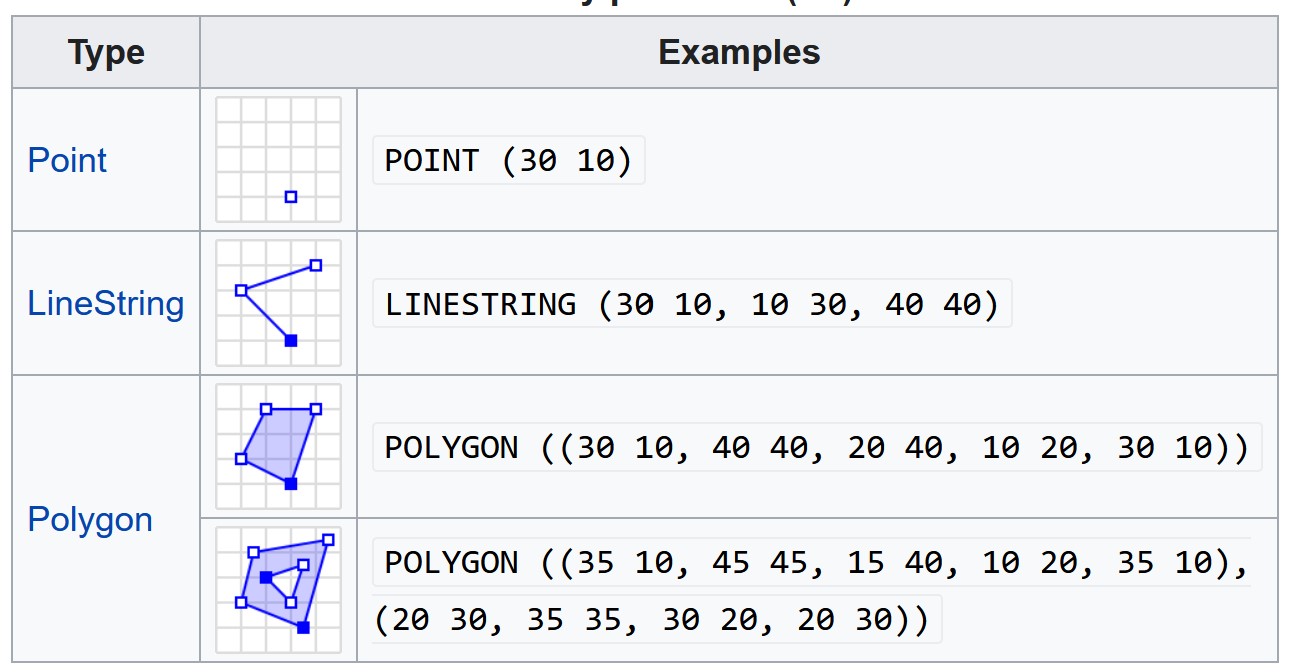 ] --- ## Visualising Geographical Data ### Importing wkt data In the code chunk below, [`read_sf()`]() of **sf** package is used to parse *School.csv* *Pubs.csv*, *Apartments.csv*, *Buildings.csv*, *Employer.csv*, and *Restaurants.csv* into R as sf data.frames. ```r schools <- read_sf("data/wkt/Schools.csv", options = "GEOM_POSSIBLE_NAMES=location") pubs <- read_sf("data/wkt/Pubs.csv", options = "GEOM_POSSIBLE_NAMES=location") apartments <- read_sf("data/wkt/Apartments.csv", options = "GEOM_POSSIBLE_NAMES=location") buildings <- read_sf("data/wkt/Buildings.csv", options = "GEOM_POSSIBLE_NAMES=location") employers <- read_sf("data/wkt/Employers.csv", options = "GEOM_POSSIBLE_NAMES=location") restaurants <- read_sf("data/wkt/Restaurants.csv", options = "GEOM_POSSIBLE_NAMES=location") ``` --- ### Structure of a simple point feature data.frame - After importing the data file into R, it is important for us to review the data object. ```r print(apartments) ``` ``` ## Simple feature collection with 1517 features and 5 fields ## Geometry type: POINT ## Dimension: XY ## Bounding box: xmin: -4616.828 ymin: 22.16098 xmax: 2488.067 ymax: 7829.905 ## CRS: NA ## # A tibble: 1,517 × 6 ## apartmentId rentalCost maxOccupancy numberOfRooms location ## <chr> <chr> <chr> <chr> <POINT> ## 1 1 768.16 2 4 (1077.698 648.4427) ## 2 2 1014.55 2 1 (-185.9293 1520.327) ## 3 3 1057.39 4 3 (2123.014 5126.753) ## 4 4 1259.1 4 3 (2103.63 4266.933) ## 5 5 411.5 1 4 (7.058974 79.96164) ## 6 6 859.58 3 2 (2250.855 5251.337) ## 7 7 982.11 3 4 (486.8811 2251.126) ## 8 8 980.05 4 1 (1233.455 1768.611) ## 9 9 433.45 1 3 (1274.272 1163.505) ## 10 10 1104.33 3 4 (-1697.03 1239.03) ## # … with 1,507 more rows, and 1 more variable: buildingId <chr> ``` --- ### Structure of a simple point feature data.frame Notice that *rentalCost*, *maxOccupancy* and *numberOfRooms* fields are not in the correct data type. **DIY:** Convert these three fields into the correct data type by using appropriate tidyverse functions. --- ### Structure of a simple polygon feature data.frame Now we will print the *buildings* simple feature data.frame. ```r print(buildings) ``` ``` ## Simple feature collection with 1042 features and 4 fields ## Geometry type: POLYGON ## Dimension: XY ## Bounding box: xmin: -4762.191 ymin: -30.08359 xmax: 2650 ymax: 7850.037 ## CRS: NA ## # A tibble: 1,042 × 5 ## buildingId location buildingType maxOccupancy units ## <chr> <POLYGON> <chr> <chr> <chr> ## 1 1 ((350.0639 4595.666, 390.0633 459… Commercial "" "" ## 2 2 ((-1926.973 2725.611, -1948.191 2… Residental "12" "[48… ## 3 3 ((685.6846 1552.131, 645.9985 154… Commercial "" "[38… ## 4 4 ((-976.7845 4542.382, -1053.288 4… Commercial "" "" ## 5 5 ((1259.306 3572.727, 1299.255 357… Residental "2" "[23… ## 6 6 ((478.8969 1082.484, 473.6596 113… Commercial "" "" ## 7 7 ((-1920.823 615.7447, -1960.818 6… Residental "" "" ## 8 8 ((-3302.657 5394.354, -3301.512 5… Commercial "" "[13… ## 9 9 ((-600.5789 4429.228, -495.9506 4… Commercial "" "" ## 10 10 ((-68.75908 5379.924, -28.78232 5… Residental "5" "[10… ## # … with 1,032 more rows ``` --- ### Plotting the building footprint map: tmap methods .pull-left[ The code chunk below plots the building polygon features by using `tm_polygon()`. ```r tmap_mode("view") tm_shape(buildings)+ tm_polygons(col = "grey60", border.col = "black", border.lwd = 1) + tm_basemap(NULL) tmap_mode("plot") ``` .small[ Things to learn from the code chunk: - `tmap_mode()` is used to switch the display from static mode (i.e. "plot") to interactive mode (i.e. "view"). - `tm_shape()` is used to create a **tmap-element** that specifies a spatial data object (i.e. buildings). - `tm_polygon()` is used to create a **tmap-element** that draws polygon feature. - `tm_basemap()` is used to turn-off the default basemap provided by leaflet. By default, three basemap namely: *Esri.WorldGrayCanvas*, *OpenStreetMap* and *Esri.WorldTopoMap* are provided. ]] .pull-right[ <div id="htmlwidget-ec01e3de3ee22124ffff" style="width:504px;height:504px;" class="leaflet html-widget"></div> <script type="application/json" data-for="htmlwidget-ec01e3de3ee22124ffff">{"x":{"options":{"crs":{"crsClass":"L.CRS.EPSG3857","code":null,"proj4def":null,"projectedBounds":null,"options":{}}},"calls":[{"method":"createMapPane","args":["tmap401",401]},{"method":"addPolygons","args":[[[[{"lng":[0.00314467806306691,0.00350399846416101,0.00350954789901197,0.00290762696821113,0.00291860966578648,0.00314467806306691],"lat":[0.0415617969153298,0.0415638478781176,0.0405784580425697,0.0405964575949691,0.041557413299042,0.0415617969153298]}]],[[{"lng":[-0.0173102905706463,-0.0175008995577241,-0.0175175394458139,-0.0173191742280901,-0.0173053907236837,-0.0178794321852425,-0.0177842109601943,-0.0171229166682227,-0.0173102905706463],"lat":[0.024649590721913,0.0246914538333529,0.0243220504435805,0.0243297165125268,0.0239682349698269,0.0239460504283369,0.0253167569576373,0.0255142702975825,0.024649590721913]}]],[[{"lng":[0.00615960968687477,0.00580310299766341,0.00571854398071659,0.00632358341589934,0.00628798203820034,0.0061313959015079,0.00615960968687477],"lat":[0.0140370034255332,0.013991775808603,0.0146673267853592,0.0146066781676844,0.0142467103023944,0.0142624063582196,0.0140370034255332]}]],[[{"lng":[-0.00877460609368787,-0.00946185273399656,-0.00948670995458764,-0.00980375995691438,-0.00980845458123149,-0.01016776056795,-0.0101593870064382,-0.0093435382530138,-0.00933981018288452,-0.00933367905880248,-0.00872716187123602,-0.00877460609368787],"lat":[0.0410799169781527,0.0409802211578762,0.0411538901077286,0.0411462012436867,0.0407003464967378,0.0407041809867414,0.0414994295659156,0.0415192149319027,0.0413634093477937,0.0415200022958019,0.0416024637859847,0.0410799169781527]}]],[[{"lng":[0.0113125412495178,0.0116714087455837,0.0116854097806183,0.0120408020528554,0.0121358039775335,0.0113502799262379,0.0113125412495178],"lat":[0.0323106497817235,0.0323289215860051,0.0322075177398438,0.0322505543644283,0.0314554274796136,0.0315594182996087,0.0323106497817235]}]],[[{"lng":[0.00430200403455046,0.00425495628261606,0.00518957279671376,0.00515415941346386,0.00430200403455046],"lat":[0.00978965106501898,0.0102959585116652,0.0100646739140313,0.0097046872544115,0.00978965106501898]}]],[[{"lng":[-0.0172550422296407,-0.0176143296842226,-0.0175989623614751,-0.0172396749064075,-0.0172550422296407],"lat":[0.00556860731038335,0.0055739136750763,0.00662848928445981,0.00662318292043846,0.00556860731038335]}]],[[{"lng":[-0.0296682812489893,-0.0296579932462935,-0.0304720130660948,-0.0304603676657732,-0.0288311024298614,-0.0288304765013828,-0.0301063311443529,-0.0296682812489893],"lat":[0.0487848910521052,0.0484232915814248,0.0483998185041456,0.0491644326357174,0.0491930954876782,0.0488313482636372,0.0488143494491364,0.0487848910521052]}]],[[{"lng":[-0.00539509295106968,-0.00445520064037272,-0.00442124099359904,-0.00478028125010622,-0.00480126462469079,-0.00628108285014855,-0.00711017973401264,-0.00713406610334548,-0.00539509295106968],"lat":[0.0400565872788924,0.040000444206553,0.0391439318026097,0.0391295037891688,0.039658735425555,0.0397262719800084,0.0396706629770529,0.04003161060178,0.0400565872788924]}]],[[{"lng":[-0.00061767347756672,-0.0002585560284274,-0.000235945296446319,-0.00116045612975021,-0.00115528143634913,-0.00060791789183793,-0.00061767347756672],"lat":[0.0486543929148201,0.0486667218879361,0.0479992112011579,0.0480126163002062,0.0483743265747029,0.0483663899862215,0.0486543929148201]}]],[[{"lng":[-0.0417160440516495,-0.0417346372050661,-0.0409785633457676,-0.0409599701960112,-0.0417160440516495],"lat":[0.0685723263820035,0.0689335895279499,0.068973028435513,0.0686117652883224,0.0685723263820035]}]],[[{"lng":[-0.0331082677823857,-0.033465440638103,-0.0335372168216552,-0.0328190737434082,-0.0328763827494338,-0.0331284325016395,-0.0331082677823857],"lat":[0.0555613819268196,0.0555218376786426,0.056178903111701,0.0560620991860629,0.0557049819764928,0.0557459771514157,0.0555613819268196]}]],[[{"lng":[-0.00672890718957538,-0.00637158196075432,-0.00644846307438723,-0.00680578830256319,-0.00672890718957538],"lat":[0.0120666589531521,0.0120285363358034,0.0112981798922516,0.0113363025097433,0.0120666589531521]}]],[[{"lng":[-0.0162370074436399,-0.0162775649652745,-0.0157038238541715,-0.0156347001487846,-0.0158724854595398,-0.0158322470704047,-0.0161910909677112,-0.0162370074436399],"lat":[0.0153442436451557,0.0161430350308641,0.0160860482536263,0.0152732477235494,0.0152527520540851,0.0144716186216933,0.0144528835695636,0.0153442436451557]}]],[[{"lng":[-0.0191039263943243,-0.01910250406421,-0.0183817049994981,-0.0183768836316978,-0.0190921377211571,-0.0191039263943243],"lat":[0.0432708888871052,0.0436326338349626,0.0436297613645945,0.0430016906606768,0.0430195291234557,0.0432708888871052]}]],[[{"lng":[-0.00468363069427678,-0.00463922116478235,-0.00386606827221645,-0.00368316757807602,-0.00468363069427678],"lat":[0.0115132075168971,0.0122139371130675,0.0122278741949714,0.0114291642864876,0.0115132075168971]}]],[[{"lng":[-0.0209127249299353,-0.0201644601689607,-0.0184944327767828,-0.0184561727778174,-0.0201668151281979,-0.0217339353256671,-0.0216738993511528,-0.0209127249299353],"lat":[0.0478470655598763,0.0477902306616592,0.0479326379956388,0.0475729466889909,0.0474276336335429,0.047620261731673,0.0479769245820973,0.0478470655598763]}]],[[{"lng":[0.0179763265829101,0.017954511232238,0.0185862539476478,0.0186010349481723,0.0179921485316607,0.0179763265829101],"lat":[0.0401402522036973,0.040503778121212,0.0404684420718936,0.0398656714202952,0.0398765989421383,0.0401402522036973]}]],[[{"lng":[0.0222268470126595,0.0225859247055887,0.0225566462433916,0.0221975685532409,0.0222268470126595],"lat":[0.0497377127382509,0.0497242611909258,0.0489321300283405,0.0489455815749655,0.0497377127382509]}]],[[{"lng":[-0.0159166679564651,-0.0151852682805549,-0.0151777426728333,-0.0148184375450462,-0.0148299740515825,-0.0162814193378057,-0.016268323448884,-0.015909046451155,-0.0159166679564651],"lat":[0.0166524451377378,0.0166024760925811,0.0173032749715169,0.0172993643407518,0.0162250631272127,0.0163251699210069,0.0171223910990344,0.0171164094564065,0.0166524451377378]}]],[[{"lng":[-0.0409869641930057,-0.0413460078779951,-0.0413772405926436,-0.0410181969040405,-0.0409869641930057],"lat":[0.0643268173581592,0.0643124737753358,0.0651048476396441,0.065119191223733,0.0643268173581592]}]],[[{"lng":[-0.0222165650541205,-0.0218572587906141,-0.0218473593320057,-0.0229703992009116,-0.0229546596090295,-0.0222106564170569,-0.0222165650541205],"lat":[0.028327623476622,0.0283314285899208,0.0273840135493731,0.0274335853381801,0.0277949859062416,0.0277621450704811,0.028327623476622]}]],[[{"lng":[-0.0248983258497084,-0.024890958684832,-0.0236749663480288,-0.0236823335176752,-0.0248983258497084],"lat":[0.0531208673193708,0.0534825390541719,0.0534574344428277,0.053095762706981,0.0531208673193708]}]],[[{"lng":[0.0113450140526028,0.0109856909926425,0.0109873319075963,0.0108491528501175,0.0108492534796609,0.0104899273484592,0.0104897231310287,0.011348042459733,0.0113450140526028],"lat":[0.0289348457606442,0.0289363445185509,0.0293350667331945,0.0293454519104101,0.0289667161784694,0.028966619402953,0.0297352201545603,0.0296707111144232,0.0289348457606442]}]],[[{"lng":[-0.00424243657162638,-0.00432444108422135,-0.00359187956642724,-0.00379247965486316,-0.00414185419779063,-0.0040775171595424,-0.00424243657162638],"lat":[0.0143985584713743,0.0147507598004081,0.0149236319549467,0.0140834718043057,0.0141680180841235,0.0144374766693017,0.0143985584713743]}]],[[{"lng":[-0.0338966721496375,-0.0341127856240168,-0.0344635816168096,-0.0342120279891488,-0.03451576511472,-0.0346056896888549,-0.0337395661989254,-0.0338966721496375],"lat":[0.0537422276242114,0.0527615941955587,0.052839948710549,0.0539881228402591,0.0539090825825252,0.0542593191748632,0.0544847069129942,0.0537422276242114]}]],[[{"lng":[-0.0317435185751034,-0.032569746791098,-0.0325660358780321,-0.030842725301079,-0.0308517854713671,-0.0317435185751034],"lat":[0.043322930770389,0.0433315216622596,0.0436932501391012,0.0436619202247099,0.0433002874659574,0.043322930770389]}]],[[{"lng":[-0.0376438942581148,-0.0369919970196981,-0.0369273736849944,-0.0375998524387853,-0.0376438942581148],"lat":[0.0463256374163793,0.0463025266583056,0.0455451978319958,0.0455802480368765,0.0463256374163793]}]],[[{"lng":[0.0163953531246267,0.0160369592720771,0.0161215123687602,0.0164799062245374,0.0163953531246267],"lat":[0.0386394469298819,0.0386654890042039,0.0398448538419224,0.0398188117667874,0.0386394469298819]}]],[[{"lng":[-0.0120552115016747,-0.0116963404644476,-0.0116520979352216,-0.0120109689703381,-0.0120552115016747],"lat":[0.0340956478596833,0.0341138490935142,0.0332297289217136,0.0332115276883176,0.0340956478596833]}]],[[{"lng":[-0.0121853270766909,-0.0125419849286917,-0.0126459817780775,-0.0122893239257635,-0.0121853270766909],"lat":[0.00632275571892573,0.00627875264189067,0.00713307760575334,0.00717708068319328,0.00632275571892573]}]],[[{"lng":[-0.0195844545592175,-0.019943778737071,-0.0199464521857498,-0.019587128005998,-0.0195844545592175],"lat":[0.0319027973509611,0.0319015986918754,0.0327138453900276,0.032715044049706,0.0319027973509611]}]],[[{"lng":[0.0114900474188713,0.0113255286815738,0.0112397437590311,0.0119357317386279,0.0120249624172608,0.0114900474188713],"lat":[0.0399858579233859,0.0400308298074191,0.040856177529086,0.0408234066900444,0.0398396366733801,0.0399858579233859]}]],[[{"lng":[0.00996012228154165,0.00997705279687499,0.00962394858250356,0.0096113270553272,0.0103586485712476,0.0103012762110638,0.00940076256647106,0.00936066481885616,0.00996012228154165],"lat":[0.0392669571976688,0.0395603925579266,0.0395478982689077,0.0399094228239977,0.0399358661523492,0.0389415031348748,0.0388397003539962,0.0391991887222428,0.0392669571976688]}]],[[{"lng":[0.0102253522177748,0.0101805458577624,0.00784166238002822,0.0077882172727812,0.00809428197595788,0.00812033136298561,0.00741395553609654,0.00750367815222592,0.00815706408116982,0.0102253522177748],"lat":[0.010894404866345,0.0105354804990155,0.0107425515788976,0.0097122024806142,0.0097345991457236,0.00937380319889799,0.00932211326932152,0.0110874670037357,0.011120910335687,0.010894404866345]}]],[[{"lng":[-0.0156250532900843,-0.0156449511926065,-0.0143754061550819,-0.0148099593193005,-0.0151353515443613,-0.014955871882468,-0.0156250532900843],"lat":[0.0178385610939107,0.0181997538123937,0.0182706381637363,0.0173367512226417,0.0174902093808974,0.0178759244710232,0.0178385610939107]}]],[[{"lng":[-0.0334546195798743,-0.0338135811966048,-0.0338568763196808,-0.0329766420488767,-0.0329881037048257,-0.0334804363616815,-0.0334546195798743],"lat":[0.0482125600413613,0.0481962685165442,0.0491631151200605,0.0491348339760742,0.0487732702885276,0.0487890884999074,0.0482125600413613]}]],[[{"lng":[-0.0344525454470991,-0.0344247804763816,-0.0335909788286196,-0.0336187438035576,-0.0344525454470991],"lat":[0.0671761402108321,0.0675368064294674,0.0674717500964191,0.067111083876894,0.0671761402108321]}]],[[{"lng":[-0.00827879141337544,-0.00791946560165667,-0.00792042991939038,-0.00827975573039043,-0.00827879141337544],"lat":[0.0137498617213397,0.0137493874737644,0.0130088602524536,0.0130093345002488,0.0137498617213397]}]],[[{"lng":[-0.0143857929994906,-0.0143791892785185,-0.0134789175258424,-0.0134740650657993,-0.0143552184865716,-0.0143430950286128,-0.014357608903112,-0.0151048511986243,-0.0151177641117719,-0.0147584869284141,-0.0147513292135048,-0.0143857929994906],"lat":[0.0529227347051163,0.0532204887897538,0.0532002520702584,0.0525240639395295,0.0525604740814428,0.052857839502117,0.0525605407854497,0.0525713746189659,0.0533582026333417,0.0533641785682483,0.0529280344032042,0.0529227347051163]}]],[[{"lng":[-0.00860715481413964,-0.008620121845001,-0.00782692799667429,-0.00784308099621857,-0.00854707425991412,-0.00860715481413964],"lat":[0.0466245105829664,0.0469870917840374,0.0469545162692651,0.0451907154067618,0.0452266032281239,0.0466245105829664]},{"lng":[-0.00819293142699493,-0.008188992256724,-0.00824706692272228,-0.00819848033158107,-0.00819293142699493],"lat":[0.0461058039219203,0.0466073371511973,0.0466097222077205,0.0455710440349306,0.0461058039219203]}]],[[{"lng":[0.00100721622959127,0.000993242998040357,0.000634007533433992,0.000711792445288527,0.00107026287066146,0.00100721622959127],"lat":[0.0013433096288141,0.000717157996519703,0.000725283134692383,0.00228632585733494,0.00226137556583625,0.0013433096288141]}]],[[{"lng":[-0.00514727860846642,-0.00513340651497422,-0.00408414454916412,-0.00409801664395757,-0.00514727860846642],"lat":[0.0166930477784735,0.0170545258911674,0.0170137147980403,0.0166522366851912,0.0166930477784735]}]],[[{"lng":[-0.031701529367246,-0.0337189689446015,-0.0337352612915435,-0.0326792490930814,-0.0326743326610867,-0.0320565205683291,-0.032051139832052,-0.0316918418029148,-0.031701529367246],"lat":[0.0580069561931911,0.0579620122213972,0.0585733912570668,0.0585939243023255,0.0583376558279044,0.0583574908041123,0.058789768534643,0.058785235655322,0.0580069561931911]}]],[[{"lng":[-0.007076855049496,-0.00636885873098557,-0.00631709036887558,-0.0066756055230448,-0.00670464189763314,-0.00704125148321826,-0.00704160324111531,-0.00778037052848857,-0.00771983435871138,-0.007076855049496],"lat":[0.0349798712172135,0.0349853066258231,0.0342109092924739,0.0341866184790513,0.0346209704545216,0.0346183862451642,0.0343412940745828,0.0343422446122612,0.0349620910404859,0.0349798712172135]}]],[[{"lng":[0.00979879958118324,0.0101581252191744,0.0101568455304613,0.00979751989423232,0.00979879958118324],"lat":[0.0322994752612617,0.0322988637234124,0.0315367938142807,0.0315374053518494,0.0322994752612617]}]],[[{"lng":[-0.0301005529305132,-0.0300742547860808,-0.0307590528203708,-0.030725035136131,-0.0301005529305132],"lat":[0.0554830732990819,0.054966366245436,0.0549699917252656,0.0554587338716423,0.0554830732990819]}]],[[{"lng":[-0.0161812862527507,-0.0161637505140551,-0.0169474261371365,-0.0169649618775795,-0.0161812862527507],"lat":[0.0316838369576078,0.0313225201995067,0.0312839718346165,0.0316452885921978,0.0316838369576078]}]],[[{"lng":[-0.00543444512325799,-0.00543058652851968,-0.00500417484305899,-0.0049754374607524,-0.00544358513300191,-0.00543444512325799],"lat":[0.0537985307666518,0.0539512274940079,0.0538994451006262,0.0534339930285908,0.0534368318418188,0.0537985307666518]}]],[[{"lng":[-0.00401871478383918,-0.00402048173569884,-0.00479531068819866,-0.00482360914113941,-0.00398615771592568,-0.00401871478383918],"lat":[0.0535343110674012,0.053419964025536,0.0534320990353151,0.0538904418946814,0.0538962951248601,0.0535343110674012]}]],[[{"lng":[-0.00873982663921575,-0.00871267930178318,-0.00948666134147688,-0.0114829919871086,-0.01144602103847,-0.00949194724520585,-0.00873982663921575],"lat":[0.0494948290505268,0.0491341151509914,0.049075077509445,0.0492333711653709,0.0495931990724712,0.0494374589507829,0.0494948290505268]}]],[[{"lng":[-0.0115485634395066,-0.0108562298895207,-0.0108345656374538,-0.0115207089779591,-0.0115485634395066],"lat":[0.0348329709596382,0.0348056684214088,0.0342039237684874,0.0342082912883165,0.0348329709596382]}]],[[{"lng":[-0.0165368196239185,-0.015667740771303,-0.0156881842115942,-0.0160474036732186,-0.0160355575871368,-0.016141129969762,-0.0161018186858579,-0.0164596178379843,-0.0165368196239185],"lat":[0.0452460797664531,0.0452086316618714,0.0443643761565285,0.0443731922305656,0.0448624016977601,0.044866950750689,0.0444390413745656,0.0444057264819418,0.0452460797664531]}]],[[{"lng":[-0.031209275867843,-0.0315679374441451,-0.0315275996109528,-0.0299802408602488,-0.0299965378164597,-0.0307305374990044,-0.0307519452795578,-0.0311868717865299,-0.031209275867843],"lat":[0.0571509839633493,0.0571729764916634,0.0578397179428586,0.0579668688598564,0.0573619016549277,0.0573043136777229,0.0575808604288566,0.0575212995525638,0.0571509839633493]}]],[[{"lng":[-0.0175170622460983,-0.0178757306670793,-0.017823848808444,-0.0174651803863631,-0.0175170622460983],"lat":[0.0161756852876068,0.0161975625262358,0.0170596484661363,0.0170377712280341,0.0161756852876068]}]],[[{"lng":[-0.0266647359256646,-0.0266566654168744,-0.0270159572579826,-0.027028153097207,-0.0269510477315667,-0.0263712067641604,-0.0264355904783341,-0.0266647359256646],"lat":[0.0574398889919707,0.0565368522179537,0.0565318476454343,0.0574192508098142,0.0581630534766987,0.0582673947871776,0.0574221975213923,0.0574398889919707]}]],[[{"lng":[-0.0393281884076304,-0.0393024866908018,-0.0372083286300763,-0.0372190608784068,-0.0375780461199436,-0.0375591393510158,-0.0393281884076304],"lat":[0.0595447575064868,0.0599055786874047,0.0597049717578685,0.0580575858884576,0.0580733420013867,0.0593843459557003,0.0595447575064868]}]],[[{"lng":[0.00408513833393365,0.00406308000941092,0.00553423958194741,0.00561160134211287,0.00497016916327819,0.00497132072668023,0.00496763854121841,0.0041126227590026,0.00408513833393365],"lat":[0.0145676272882757,0.0149351561352999,0.0146930554891899,0.0140750041645073,0.0141002493692347,0.0144405877634543,0.014100313033508,0.0141096904665704,0.0145676272882757]},{"lng":[0.00480658611577348,0.00444792144312773,0.00445111437558049,0.00486224601075611,0.00480658611577348],"lat":[0.014474796506062,0.0145209469316658,0.0144677472972207,0.0144632381880511,0.014474796506062]}]],[[{"lng":[-0.0148774317978894,-0.015236429438821,-0.0152028026302131,-0.0144622506812475,-0.0144685479629038,-0.0148278645503247,-0.0148245090971241,-0.0148774317978894],"lat":[0.0303559091916689,0.030371374172805,0.0311625307911271,0.0312432885349593,0.0303741888814765,0.0303768276277133,0.0308399201232559,0.0303559091916689]}]],[[{"lng":[-0.0199238816326755,-0.0195647084615293,-0.0195870902533672,-0.0199462634226307,-0.0199238816326755],"lat":[0.0335004723395715,0.0334899174657487,0.0327179824332174,0.0327285373075741,0.0335004723395715]}]],[[{"lng":[0.00441342293200563,0.00406486249635665,0.00433403257863984,0.00468259301565655,0.00441342293200563],"lat":[0.0197735640310602,0.0198614500695756,0.0209434298648526,0.0208555438259958,0.0197735640310602]}]],[[{"lng":[-0.000220153481635586,-0.00022320373088225,0.000136120133167293,0.000137951080374282,0.000502246202912421,0.000485541894195219,-0.000220153481635586],"lat":[0.0311464213007625,0.0320071620783714,0.0320084526525727,0.0314917827637371,0.0314747148722289,0.0311133581845193,0.0311464213007625]}]],[[{"lng":[-0.00341016035461046,-0.00337364605685638,-0.00373153929760581,-0.00380908618750984,-0.0021117956243529,-0.00203822749791199,-0.00285182406208879,-0.00285051363255669,-0.00241201618399679,-0.00245530552269074,-0.00341016035461046],"lat":[0.0345089021676539,0.0340985116845178,0.0340662376527561,0.034937800479549,0.0346680416744308,0.0330546173562129,0.0330576044936832,0.0334193498774979,0.0334177399249068,0.0343568556348322,0.0345089021676539]}]],[[{"lng":[-0.00442695628192595,-0.00402327635804575,-0.00402707698517091,-0.00269543307011947,-0.00269102573777746,-0.00476608527008667,-0.00478670370752212,-0.00442695628192595],"lat":[0.0532454342617898,0.0532391120145948,0.0529931571167265,0.0530095893629188,0.052647868787605,0.0526629009795762,0.0532510684578819,0.0532454342617898]}]],[[{"lng":[-0.00929988520877523,-0.00928431492430618,-0.00760033945063418,-0.00590999806550359,-0.00587810846222562,-0.00758911795851407,-0.00929988520877523],"lat":[0.0146053060458461,0.0149667140564871,0.0149212493251185,0.0150572876525542,0.014696967290416,0.0145593887727122,0.0146053060458461]}]],[[{"lng":[-0.0062848769542902,-0.00627213064823139,-0.00537447239676262,-0.00538721870547863,-0.0062848769542902],"lat":[0.0402693709607509,0.0406308910798819,0.0405988138172526,0.040237293697973,0.0402693709607509]}]],[[{"lng":[0.00258749283801311,0.00258162160842023,0.00218176648134834,0.0021926816454557,0.00183367715923719,0.00180664217711763,0.00258749283801311],"lat":[0.0369778065478716,0.0366161070517433,0.0366226854118547,0.0363631622461385,0.0363478588366327,0.0369906529922171,0.0369778065478716]}]],[[{"lng":[-0.00591252958513936,-0.00599559636907326,-0.00682575769531954,-0.00674269091410339,-0.00591252958513936],"lat":[0.0473336806328761,0.0469817316973597,0.0471803157161177,0.0475322646517675,0.0473336806328761]}]],[[{"lng":[-0.00130076714503439,-0.00129816551247759,-0.00257190260987066,-0.00257450424345414,-0.00130076714503439],"lat":[0.0112463158600437,0.0108845775512987,0.0108752929040248,0.0112370312126751,0.0112463158600437]}]],[[{"lng":[-0.0086394618474122,-0.00925319630900342,-0.00923396070044628,-0.00887475254879704,-0.00888317524720813,-0.00839919845572761,-0.00835982482398952,-0.00845893551958268,-0.00846194847892401,-0.00790364236771113,-0.00798787114858669,-0.00810005685416999,-0.00798806071695366,-0.00807021856553539,-0.0086394618474122],"lat":[0.04179690474286,0.0417134605021107,0.0424688206475915,0.0424595495153901,0.0421287999065939,0.0421963029528611,0.0425859431255762,0.0425855679258149,0.0433922101609288,0.0433929857257024,0.0426923886580011,0.0427060585124816,0.0426906750858743,0.0418776437263558,0.04179690474286]}]],[[{"lng":[-0.0102581897638464,-0.0102552463961656,-0.00969501234615052,-0.00973949682151658,-0.0102669425611699,-0.0102581897638464],"lat":[0.0398225575096249,0.0399441690546133,0.0400213683401491,0.0394475291875808,0.0394609169321931,0.0398225575096249]}]],[[{"lng":[-0.00961033797372397,-0.00956814692967432,-0.0102334118769518,-0.0102691529937674,-0.00961033797372397],"lat":[0.0461006597485912,0.0453443256321768,0.0454007012761483,0.0461405071648625,0.0461006597485912]}]],[[{"lng":[0.00872572072780039,0.00870234675403665,0.0083445826548355,0.00842844866022494,0.00923216683090947,0.00908070454414581,0.00872572072780039],"lat":[0.0042999044700056,0.00414277628347146,0.00417646981989372,0.0050790178224172,0.00525946564445507,0.00424612790696691,0.0042999044700056]}]],[[{"lng":[-0.0298900694369833,-0.0295316392196988,-0.029590026057639,-0.0299484562715426,-0.0298900694369833],"lat":[0.0548690446734343,0.0548435140255811,0.0540127214119008,0.0540382520605454,0.0548690446734343]}]],[[{"lng":[-0.0240876774753826,-0.0240672557799538,-0.0230761187321439,-0.0230965404317199,-0.0240876774753826],"lat":[0.0561119899412115,0.0564731530154435,0.0564163518649548,0.0560551887899721,0.0561119899412115]}]],[[{"lng":[-0.0311769702915523,-0.0321823720764402,-0.0322310455106851,-0.0303345197552369,-0.0304341642579603,-0.0306190325301027,-0.0314403269510927,-0.0314418648993197,-0.0308996554657613,-0.0307884470029038,-0.0307405960858224,-0.0311769702915523],"lat":[0.0505398251244028,0.0504014428165366,0.0507598564206959,0.0509577087004929,0.0500840258608102,0.0493420889155701,0.0493385501128999,0.0497002945695001,0.0497026308486268,0.0501489468526516,0.0505685036275349,0.0505398251244028]}]],[[{"lng":[-0.00663131323059272,-0.00658035019539245,-0.00584008758095851,-0.00589105061920492,-0.00663131323059272],"lat":[0.0571170836293049,0.0574751745456414,0.0573683965327291,0.0570103056164344,0.0571170836293049]}]],[[{"lng":[-0.00631792148996546,-0.00629403512261009,-0.00704375540117355,-0.00699974304506077,-0.00664117179023084,-0.00665862622156067,-0.00631792148996546],"lat":[0.0406301754621542,0.0402692278372077,0.0402189427644076,0.0409014160133912,0.0408779791917011,0.0406073237899475,0.0406301754621542]}]],[[{"lng":[-0.0368129932147577,-0.0365152908494721,-0.0364566815010712,-0.0383877814913127,-0.0383854738707989,-0.0360324797099723,-0.036165360808876,-0.0364514324982516,-0.0364428936111995,-0.0361662494925233,-0.0360943267584171,-0.0367460224187247,-0.0368129932147577],"lat":[0.0463180077022315,0.0463437543244429,0.0466871697580408,0.0467161255073602,0.0470778658082054,0.0470364505433752,0.0462578474583117,0.0463073304961132,0.046207262223479,0.0462339172832025,0.0454773610930584,0.0455331686713948,0.0463180077022315]}]],[[{"lng":[-0.0168709057273629,-0.0172299186296989,-0.0172745305509088,-0.0155714534588981,-0.0155855964854352,-0.0163777916714652,-0.0164110317473038,-0.0159377613689627,-0.0169112008454517,-0.0168709057273629],"lat":[0.0363658696378574,0.0363507676867295,0.0381014120043006,0.0380878190753483,0.0373577138610072,0.0372836189580575,0.0376438155925535,0.0377309276196856,0.0377384363507062,0.0363658696378574]}]],[[{"lng":[-0.016277904055826,-0.0158922881322055,-0.015556787502953,-0.0159271821995328,-0.0159753745097934,-0.0155628097334039,-0.0155278914913655,-0.0151691179502062,-0.0152209581031631,-0.0164020845276608,-0.016277904055826],"lat":[0.0247990798239693,0.0258171826425137,0.0256876508196411,0.0247153160762475,0.024402202316282,0.0244467915938199,0.0250799230711018,0.0250598685024477,0.0241199119240223,0.0239922578517105,0.0247990798239693]}]],[[{"lng":[0.0121307518829439,0.0112427736453615,0.0112236530635882,0.0117546618617688,0.0117297224582308,0.0117267397501336,0.01136752469756,0.0113866280330784,0.0120462568523007,0.0121307518829439],"lat":[0.0351941840958866,0.0351465467353306,0.0355077820047725,0.0355362690291032,0.0359895087291162,0.0358687873033712,0.0358777825744862,0.036650966535531,0.0366552898654777,0.0351941840958866]}]],[[{"lng":[0.012816861103316,0.012461262714914,0.0123447888330678,0.0129743779261543,0.0129269569094639,0.0127687010359646,0.012816861103316],"lat":[0.030489405741489,0.0304374335312638,0.031245135949785,0.0311607497452459,0.0308021660072557,0.0308233776398851,0.030489405741489]}]],[[{"lng":[-0.0404417640493935,-0.0408003514491079,-0.0408166930752988,-0.0403287633354528,-0.0403384611969524,-0.0404417640493935],"lat":[0.0668854144212032,0.066850846216469,0.0675165402391017,0.0674644530910334,0.0668953729253277,0.0668854144212032]}]],[[{"lng":[-0.0289844666042142,-0.0286254412146065,-0.0286608012698286,-0.0291780964666687,-0.0291177563679106,-0.028987918378178,-0.0289844666042142],"lat":[0.057452988497803,0.0574381886354697,0.0565687958432904,0.0565322109331187,0.057377513758938,0.0573681201955587,0.057452988497803]}]],[[{"lng":[-0.00722415172045102,-0.00776940466750446,-0.00785156231090998,-0.0071849196050973,-0.00722415172045102],"lat":[0.0402134383263579,0.0402208644310416,0.0408571995986854,0.0408217872582789,0.0402134383263579]}]],[[{"lng":[4.01004306405359e-05,0.000117326330452858,-0.000240792200862034,-0.000362840378662325,-0.000335162142163632,1.97951165258215e-05,4.01004306405359e-05],"lat":[0.0337565289448136,0.032810624559754,0.0327809914893224,0.0347938703390257,0.0355273282696206,0.0355930955500351,0.0337565289448136]}]],[[{"lng":[-0.0278396518487675,-0.0278499136364161,-0.0275610180862029,-0.0275671641619922,-0.0272078723172844,-0.0271968277913922,-0.0278396518487675],"lat":[0.0565999624080756,0.0569615626348805,0.0569698719767519,0.0574170772922614,0.0574220818668066,0.0566184515972926,0.0565999624080756]}]],[[{"lng":[-0.0320446893522572,-0.0322133925998373,-0.0322321189532239,-0.0325912108103467,-0.0325599819528894,-0.031679474959298,-0.0316918370157131,-0.0320511158960506,-0.0320446893522572],"lat":[0.0591899010705813,0.0591897203411045,0.0586680146378317,0.0586810784327544,0.0595510970163473,0.0595520402924126,0.0587855707072382,0.0587914437942218,0.0591899010705813]}]],[[{"lng":[0.00223983998249663,0.00226382062511263,0.00153620439676196,0.00151222375372151,0.00223983998249663],"lat":[0.00812548198746757,0.00776454069681289,0.00771554467160414,0.008076485962296,0.00812548198746757]}]],[[{"lng":[-0.0190843009628987,-0.0187452533855488,-0.0187902421873631,-0.0196747166655996,-0.0196296077691877,-0.0199876114753131,-0.0200697401681957,-0.0184500753547354,-0.0183831005060136,-0.0199847662475117,-0.0199576690555359,-0.0190843009628987],"lat":[0.0441751872174259,0.0441738360729574,0.0451764136403542,0.0452956781684195,0.0447678255276073,0.0447368177534555,0.0456978664298907,0.0454869569925356,0.0438106422341029,0.0438809644586898,0.0442416821705171,0.0441751872174259]}]],[[{"lng":[-0.0292619205639965,-0.0298999805980616,-0.0299290015385156,-0.0292041402187247,-0.0292032017016638,-0.0283843867632142,-0.0283664286826131,-0.0292619205639965],"lat":[0.0650825593211609,0.0650777421398408,0.0656065953879218,0.0656108225588025,0.0654477177698749,0.0654889669239448,0.0651276712021746,0.0650825593211609]}]],[[{"lng":[-0.0182923648509203,-0.0182033948827949,-0.0174434921091565,-0.0174541624878469,-0.0182923648509203],"lat":[0.0382186969102306,0.039060222501136,0.0391446335595515,0.0382766648481625,0.0382186969102306]},{"lng":[-0.017807817448677,-0.0178766798624905,-0.0178897293283609,-0.0178093605300069,-0.017807817448677],"lat":[0.0387402206331073,0.0387325713002953,0.0386091424688735,0.0386147005700499,0.0387402206331073]}]],[[{"lng":[0.0219741527662042,0.0220383661871301,0.0214205761050055,0.0215358208566429,0.0218923235981108,0.0218383712179187,0.0219741527662042],"lat":[0.0375759840561089,0.0372200594508353,0.0371070946886572,0.0380271382140153,0.0379818787453859,0.0375511559946682,0.0375759840561089]}]],[[{"lng":[-0.0409967247281849,-0.0413528843035271,-0.0412656518236798,-0.040906562438048,-0.0409967247281849],"lat":[0.0447455946155766,0.0447935144644279,0.0459681018469275,0.0459549707145089,0.0447455946155766]}]],[[{"lng":[-0.00984719297275973,-0.0102064540268222,-0.0102134492667668,-0.0107129977979075,-0.0107052766819643,-0.00986075917251283,-0.00984719297275973],"lat":[0.0532046116913809,0.0531977227380303,0.0535674591115739,0.0535782681566135,0.0539399324182234,0.0539216590624823,0.0532046116913809]}]],[[{"lng":[0.0218317656392597,0.0214760318443531,0.0215219055475654,0.0213963941065073,0.0213321806831527,0.0219479167429671,0.0218317656392597],"lat":[0.0361989504861498,0.036249974935968,0.036574123747328,0.036551173604929,0.0369070982105118,0.0370196873892835,0.0361989504861498]}]],[[{"lng":[-0.0294773257087155,-0.0294791432011648,-0.0287357392131501,-0.0287339217235909,-0.0294773257087155],"lat":[0.0532416691411825,0.0536034122855743,0.0536071977333142,0.0532454545881154,0.0532416691411825]}]],[[{"lng":[-0.0368739745782305,-0.0372263153840605,-0.0371534719001866,-0.037271914495764,-0.0372667539325172,-0.037626063863477,-0.037634339306615,-0.0367052860565973,-0.0368739745782305],"lat":[0.065901865556185,0.0659728484219593,0.0663393150289023,0.0663267731366644,0.0657820081227041,0.0657785584372123,0.0666521392451384,0.066750516739783,0.065901865556185]}]],[[{"lng":[0.0205705264164029,0.0205958016279421,0.0197461101701895,0.0197594020838972,0.0206657167478177,0.0206752491848102,0.021048675143437,0.0210495916153416,0.0214089167023571,0.0214071829817824,0.0205967967840931,0.0205705264164029],"lat":[0.039360405433901,0.0390638692529962,0.038990466416698,0.039695591312274,0.0397254873262828,0.039432597128825,0.0394606514854843,0.0398362480708678,0.0398353594749174,0.0391248314675294,0.0390639496166201,0.039360405433901]}]],[[{"lng":[-0.0369013726680755,-0.0360137454520182,-0.035977370497964,-0.0356190074378969,-0.0356790089381027,-0.0376413103761517,-0.0376260915038347,-0.0372668921343838,-0.037272268813889,-0.0369013726680755],"lat":[0.0655634330644529,0.0655933504232543,0.0660924801336211,0.0660660105291113,0.0652426822292558,0.0651989492842418,0.0657752926793653,0.0657656793334469,0.065562062847009,0.0655634330644529]}]],[[{"lng":[-0.00888226780993265,-0.00885172810002272,-0.0095876259659383,-0.0101888095133017,-0.0102724004413788,-0.00964501214656822,-0.00888226780993265],"lat":[0.0220743961811895,0.0217139573160306,0.0216507619972569,0.0215059928674092,0.0218578160050138,0.0220088954182473,0.0220743961811895]}]],[[{"lng":[0.0234460320100695,0.0234460323272609,0.0238053584931959,0.0238053580160082,0.023446031857276,0.0234460320100695],"lat":[0.0361747780173469,0.0379835169130195,0.037983516880057,0.0352704085386289,0.0352704085692369,0.0361747780173469]}]],[[{"lng":[-0.0408386509446751,-0.0408035189729714,-0.0394367550004355,-0.0386008192496636,-0.0386333135284612,-0.0394502023576954,-0.0404665015048865,-0.0404631292545315,-0.0400355866349487,-0.0400889351724423,-0.0408103884685495,-0.0408386509446751],"lat":[0.0651262339341043,0.0666688396422963,0.0667355334038072,0.0666591160464668,0.0662988504813765,0.0663735266591941,0.0663379260393009,0.0647220478581143,0.0646574273030245,0.0642996887470691,0.0644087321746053,0.0651262339341043]}]],[[{"lng":[-0.0240570449324139,-0.024044857976258,-0.0241394183302706,-0.0241182785023926,-0.0232345444055874,-0.023171790738391,-0.0240570449324139],"lat":[0.0566537345525553,0.0568692640954415,0.0568748744781569,0.0572359956706589,0.0571835626328048,0.0566030014515337,0.0566537345525553]}]],[[{"lng":[-0.0114767838365144,-0.0115121214675616,-0.0108274413001841,-0.0107959725159698,-0.0114767838365144],"lat":[0.0333211898782014,0.0340273591172809,0.0340230009108466,0.0332925132944865,0.0333211898782014]}]],[[{"lng":[0.0209745945431233,0.0207317956482815,0.0206962969660665,0.0214019746619778,0.0212369068354712,0.0199101827734489,0.0197292790529798,0.0197429123233514,0.0205170304569698,0.0205522438363498,0.0201931402125392,0.0201712251575157,0.0200969533312878,0.0200892064896503,0.0202022745420059,0.0209200248672454,0.0209745945431233],"lat":[0.037883689572227,0.0378750827496712,0.0388900479520024,0.0389430633717677,0.0370864712262623,0.0370886877853884,0.0379585067017938,0.0388086515846051,0.038875525820626,0.0378687179323063,0.0378559882971876,0.0384825753634634,0.0384761591958551,0.0379930809092489,0.0374494285626339,0.0374480386836994,0.037883689572227]}]],[[{"lng":[-0.0238877297230915,-0.0238724992083274,-0.0229552959530374,-0.0229705264697129,-0.0238877297230915],"lat":[0.0274727650163414,0.0278341876905213,0.0277950135398337,0.0274335908648986,0.0274727650163414]}]],[[{"lng":[0.00242576862575311,0.00242767187852941,0.00279381606916344,0.00282179046776558,0.00207361764429099,0.00206112564748762,0.00285968445776492,0.002833947337612,0.00242576862575311],"lat":[0.0421206314552734,0.0419804814292855,0.0420092661010042,0.041648616254246,0.0415897981439094,0.042509672427297,0.0424519410610417,0.0420911224013446,0.0421206314552734]}]],[[{"lng":[-0.0167852044021336,-0.0167134380678168,-0.0160498271692302,-0.0161215935062621,-0.0167852044021336],"lat":[0.0560794654931529,0.0564339247906522,0.0562977483377917,0.055943289040171,0.0560794654931529]}]],[[{"lng":[0.0108353825201363,0.0104761296064414,0.0104899090444407,0.0108491619595491,0.0108353825201363],"lat":[0.0282704451825447,0.0282777480768992,0.0289647694854137,0.0289574665907767,0.0282704451825447]}]],[[{"lng":[0.0212415017127603,0.0204051062614019,0.0203724064003075,0.0216260946024935,0.0215831546564835,0.0212245185235704,0.0212415017127603],"lat":[0.0454826849844835,0.0454057379375248,0.0457659846764423,0.0458813219880982,0.0451847918475548,0.045207200148233,0.0454826849844835]}]],[[{"lng":[-0.000358175450808051,-0.000381065568378796,0.00068719743162717,0.000710087545782063,-0.000358175450808051],"lat":[0.043862982566157,0.0442239956118349,0.0442926451034469,0.043931632057672,0.043862982566157]}]],[[{"lng":[0.00265459439325033,0.0044920873421702,0.00449219181694811,0.00205305408638828,0.00198502110928051,0.00271737884714135,0.00265459439325033],"lat":[0.0430232477273707,0.0429754669207627,0.0426137191476346,0.042691595611533,0.0435076490246094,0.0433752601847779,0.0430232477273707]}]],[[{"lng":[-0.0113565549539505,-0.0113761883926832,-0.0119944018595303,-0.0119907342064581,-0.0113565549539505],"lat":[0.0442759178828325,0.0435790647481237,0.043524698698259,0.0442282675176861,0.0442759178828325]}]],[[{"lng":[-0.0169283647799311,-0.0165802432740408,-0.0165613406682776,-0.0172710026829781,-0.017287783459112,-0.0169283647799311],"lat":[0.040748161007357,0.0407503658942422,0.040114844483482,0.0401798244661735,0.0407458845673725,0.040748161007357]}]],[[{"lng":[-0.0125669704909839,-0.0127063115629397,-0.0127122242695875,-0.0130712759506806,-0.0130427169809327,-0.0125019305305933,-0.0125669704909839],"lat":[0.0176079187077056,0.0176232338511402,0.0174710188855651,0.0174851546848949,0.0182203683657091,0.0182076719663406,0.0176079187077056]}]],[[{"lng":[-0.0169461113026774,-0.0165642020358479,-0.0165810055245897,-0.0172920281552066,-0.0173054740668049,-0.0169461113026774],"lat":[0.0417149018937288,0.0417159306118341,0.04093123853789,0.0409267351541322,0.0417139339067477,0.0417149018937288]}]],[[{"lng":[-0.0050603606732285,-0.00513797675841151,-0.00432553819125981,-0.00424792210681365,-0.0050603606732285],"lat":[0.0142163555782697,0.0145695633543983,0.0147505081885794,0.0143973004122321,0.0142163555782697]}]],[[{"lng":[-0.0408323790150088,-0.0409061007276459,-0.0412633432717826,-0.041232914834529,-0.0416795253033385,-0.0416815779419869,-0.0408323790150088],"lat":[0.046647587748325,0.0459614131341401,0.0460003139450389,0.0462835306646844,0.0462809622715682,0.0466427041259117,0.046647587748325]}]],[[{"lng":[-0.00440563651813542,-0.00404634015173691,-0.00400317836720036,-0.00436200897195928,-0.00440563651813542],"lat":[0.0444739326785755,0.0444692723764585,0.0419995604226103,0.0419805680055277,0.0444739326785755]}]],[[{"lng":[-0.0118813619699493,-0.0119546133179089,-0.0123125303150459,-0.0121333456623933,-0.0117761893338715,-0.0118813619699493],"lat":[0.0190860260950065,0.0182557806154854,0.0182877861962229,0.0200848242827088,0.0200451298329248,0.0190860260950065]}]],[[{"lng":[-0.0427794959128833,-0.0427540897587826,-0.0416884426411597,-0.041713848799083,-0.0427794959128833],"lat":[0.0463581314769356,0.046718973869599,0.0466429289909362,0.0462820865967419,0.0463581314769356]}]],[[{"lng":[-0.00395679684903286,-0.00398714638536954,-0.00441173322638672,-0.00439194044324555,-0.00475039077731804,-0.00479946172872363,-0.00395679684903286],"lat":[0.057173588344817,0.0568131332021714,0.0568493659604538,0.0565645055798702,0.0565392627768092,0.0572454984215591,0.057173588344817]}]],[[{"lng":[0.012603042873391,0.0125885866612402,0.014011984816366,0.0148423011268518,0.0148226110000058,0.0157015093994352,0.0156343212016547,0.0140172145474382,0.0122219801221246,0.0122819727742916,0.0136892771172163,0.0138071049170415,0.0134510714398876,0.0133694511258928,0.0126220263000148,0.012603042873391],"lat":[0.0378577093882981,0.037172702270579,0.0371028484299329,0.0371652879767473,0.0374113730477692,0.037482647893999,0.0368725907276555,0.0367405388740148,0.0368315642539364,0.0386677371207141,0.0384586293503604,0.037588431187475,0.0375395710495106,0.0381423646678275,0.0382553501468333,0.0378577093882981]}]],[[{"lng":[-0.0079688556011843,-0.00832645743019929,-0.00821109580473252,-0.0083029567042458,-0.00794580437317583,-0.00785075570862112,-0.0079688556011843],"lat":[0.0342607842948121,0.0342961811587437,0.0358396130438786,0.0366765383953972,0.0367162695725469,0.0358503011430235,0.0342607842948121]}]],[[{"lng":[-0.0381651061132106,-0.0381699158029081,-0.0386007672246195,-0.0385943099888629,-0.0378139395688438,-0.0378211745159818,-0.0385204838580229,-0.0385408749090894,-0.0381715895171558,-0.0381651061132106],"lat":[0.0657815495583073,0.0662892746401656,0.0662970707609514,0.0666587601023902,0.0666446395456,0.0651937409093815,0.0651537247598024,0.0655148895791956,0.0655360209715435,0.0657815495583073]}]],[[{"lng":[-0.031618187817349,-0.0308245931429589,-0.0309046649387016,-0.0316677348694547,-0.031618187817349],"lat":[0.0454679026835195,0.0455718276533511,0.0447153670275361,0.0447051312547391,0.0454679026835195]},{"lng":[-0.0312321666023867,-0.0312245089386761,-0.0312789039279674,-0.0312321666023867],"lat":[0.0450727538216851,0.0451546614098373,0.0451475381291798,0.0450727538216851]}]],[[{"lng":[-0.0416899894121798,-0.0416732309667106,-0.0409073360979621,-0.0409240945458735,-0.0416899894121798],"lat":[0.0417344333522156,0.0420957874634998,0.0420597872128133,0.0416984331004148,0.0417344333522156]}]],[[{"lng":[-0.0215087961154952,-0.0215578275340233,-0.0207126325025184,-0.0207287455716779,-0.0215087961154952],"lat":[0.0255249980672962,0.0263091356449851,0.0262293604842372,0.0255685345933747,0.0255249980672962]}]],[[{"lng":[-0.0207096219088073,-0.0206530173503492,-0.0197256459261065,-0.0187246397179129,-0.0187246407291922,-0.0197541265055214,-0.0207096219088073],"lat":[0.0255675440764354,0.025924775159922,0.0257758424271939,0.0257758395436245,0.0254140917600134,0.0254140947263168,0.0255675440764354]}]],[[{"lng":[-0.00788241110583691,-0.0078947049372701,-0.00713990968400685,-0.00717490804176868,-0.007868047271473,-0.00788241110583691],"lat":[0.0414022148189108,0.0417129141100313,0.0417576568156415,0.04100238094643,0.041039200793146,0.0414022148189108]}]],[[{"lng":[0.0213161781134006,0.0213163812579686,0.0206488050986204,0.0206486019522627,0.0213161781134006],"lat":[0.0369056424311459,0.0365438947080465,0.0365435146966599,0.0369052624202768,0.0369056424311459]}]],[[{"lng":[0.0122199222833232,0.0122750352817647,0.012633835153413,0.012579648653287,0.0129918614761054,0.0129844175767073,0.0122199222833232],"lat":[0.032349935119507,0.0340328183016368,0.0340132466668176,0.0327042565481241,0.0326956576555079,0.0323339875015584,0.032349935119507]}]],[[{"lng":[0.012131361410669,0.0120456472833416,0.0112974413541913,0.011299738697384,0.0116590636782547,0.0116577099576398,0.011704823585515,0.0117577095028407,0.0107309763733675,0.0107238960017043,0.011197737302018,0.0112074734221052,0.0103380181947841,0.0103932341247891,0.012131361410669],"lat":[0.0350130862798822,0.0331137975656221,0.0330956341505892,0.0340001443387317,0.0339992193688557,0.0334662329580783,0.0334673766864623,0.0346307799486676,0.0345421177060349,0.0344394640375422,0.0344523942948838,0.0340907793238838,0.0340670534893048,0.0348675931019615,0.0350130862798822]}]],[[{"lng":[-0.00111706673699853,-0.00120506536429508,-0.00117701663799431,-0.00194310903118548,-0.0018450012587643,-0.000466383273004797,-0.000358979965089379,-0.000715448741702176,-0.000784066695885624,-0.00111706673699853],"lat":[0.0424337828283303,0.042426562816714,0.0421029045195198,0.0420356159049604,0.0427370052214557,0.0427780914085453,0.0419258231860252,0.0418802932638882,0.042424791396663,0.0424337828283303]}]],[[{"lng":[-0.00478456367284525,-0.00514345233001946,-0.0051924689125252,-0.00494670231111255,-0.00519265181932569,-0.00527871403400411,-0.00459952557200008,-0.00458626024493375,-0.00482907156373112,-0.00478456367284525],"lat":[0.0457825287362972,0.0457646823983923,0.0467637329133318,0.0467865839989553,0.0467665608611604,0.0478379820082282,0.0478356452884684,0.0466925395037619,0.0466896836650713,0.0457825287362972]}]],[[{"lng":[0.0152478263723216,0.0151493152612221,0.0151563163281032,0.0147970946841371,0.0147812636026582,0.0156150510931672,0.015600296114745,0.0152410540007322,0.0152478263723216],"lat":[0.0292678148999255,0.0292672897707063,0.0289751049615713,0.028966381194971,0.0296270806690896,0.0296315253060651,0.0289447864359962,0.0289526093285736,0.0292678148999255]}]],[[{"lng":[-0.0360313982105552,-0.0369326496803431,-0.0369220317718962,-0.0364512740076979,-0.0365258287609078,-0.0361705698299643,-0.0360313982105552],"lat":[0.0472173712570509,0.0472441941369504,0.0476057839295247,0.0475917733250128,0.0480863789175144,0.0481406532851834,0.0472173712570509]}]],[[{"lng":[-0.0132777319064318,-0.0132210353160249,-0.0129025977972333,-0.0129633675933125,-0.0126111350793397,-0.0124479872058657,-0.0132777319064318],"lat":[0.022252309095806,0.022609525392945,0.0225583001353388,0.0228616159358053,0.0229331406754589,0.0221188327185314,0.022252309095806]}]],[[{"lng":[0.0220183173097338,0.0218934310373872,0.0210499348292703,0.0211526680760226,0.0215076404238844,0.021487459759838,0.0215894430439068,0.0216882304730854,0.0220473081661588,0.0220183173097338],"lat":[0.0489600884342365,0.0483672066794638,0.0481712966989785,0.0488296300026392,0.0487734872868285,0.0486441659307879,0.0486678525138531,0.0497578900580501,0.0497444385116758,0.0489600884342365]}]],[[{"lng":[0.00879397881397012,0.00877768648224425,0.011282015121649,0.0112955942409554,0.00840722426948805,0.00851385023833236,0.0103895129714159,0.0121029361880298,0.0120643863040668,0.0117054744323994,0.0117268433712359,0.0104013060843892,0.00884345230931662,0.00879397881397012],"lat":[0.0377024563231376,0.0371678777010997,0.037192692726223,0.0368312033422618,0.0368080336036215,0.0384764282778207,0.0387694675697284,0.0386852042538279,0.037877710089796,0.0378950763038233,0.0383426858119269,0.0384067793720838,0.0381740442062286,0.0377024563231376]}]],[[{"lng":[-0.0309680278695603,-0.0309882385463871,-0.0325999037530069,-0.0325880565155907,-0.0309680278695603],"lat":[0.0649198996475281,0.0645587245520635,0.0646325064476238,0.0649940575361264,0.0649198996475281]}]],[[{"lng":[0.0101225822728501,0.00907764966230987,0.00912245602198753,0.00966669613261065,0.00961663394907702,0.00996819795468801,0.0101225822728501],"lat":[0.0110897043804359,0.0112219128154581,0.011580837183187,0.0115119780695873,0.0117505064535351,0.0118252903941787,0.0110897043804359]}]],[[{"lng":[0.0148346507894875,0.0147949815471833,0.0138589857524413,0.0139054522510626,0.0147232701365216,0.0148346507894875],"lat":[0.0399681999086577,0.0386318374277539,0.0386284571795378,0.0409106329758366,0.0408384742442293,0.0399681999086577]},{"lng":[0.0142499911669026,0.0142179943023717,0.0144464958062261,0.0144755407354671,0.0144038416687426,0.0142499911669026],"lat":[0.0405170987246748,0.0389915038135853,0.0389923290220798,0.039943302317834,0.0405035239946036,0.0405170987246748]}]],[[{"lng":[0.00721496028219453,0.00757288820059573,0.00748141616696838,0.00780386877230057,0.00781414430320886,0.00709449513509016,0.00721496028219453],"lat":[0.0203222633541647,0.0202903817806462,0.01918490546397,0.0191941924829742,0.0188325926372572,0.0188118658837694,0.0203222633541647]}]],[[{"lng":[-0.0143447974423833,-0.0141745559516599,-0.0132222565854747,-0.0132478098275072,-0.0145785479397789,-0.0143447974423833],"lat":[0.0179100434767957,0.0182759050511253,0.0182270819417943,0.0175692468147342,0.017407696342625,0.0179100434767957]},{"lng":[-0.0136383849816968,-0.013951620866753,-0.0139782946456789,-0.0136383849816968],"lat":[0.0178861997245327,0.0179022589077278,0.0178449349810958,0.0178861997245327]}]],[[{"lng":[-0.00606902587457673,-0.00621500341841932,-0.00635416818117073,-0.00584287101383167,-0.00565773219699269,-0.00584020830764461,-0.00582327113992547,-0.00561326377868563,-0.00558022512092698,-0.00464918946440269,-0.00464125686225769,-0.00538090893707751,-0.00537193687844614,-0.0053829526328029,-0.00616383043389145,-0.00621413914873162,-0.00606902587457673],"lat":[0.0497394187491485,0.0497172492878213,0.0506459891570065,0.0504953956990038,0.0494906666293415,0.0494565875028098,0.049152324944363,0.0491431830468337,0.0494173832441199,0.0493036846623808,0.0487217431904792,0.048770959030373,0.0490275474471154,0.0487710714910334,0.0488050641321174,0.0497088195642458,0.0497394187491485]}]],[[{"lng":[-0.0138493711411302,-0.0138459579598951,-0.0146638246089474,-0.014657433792246,-0.0138527986225055,-0.0138493711411302],"lat":[0.0413986826123286,0.0410369292320195,0.0410200433543531,0.0417815733461265,0.0417619515826438,0.0413986826123286]}]],[[{"lng":[0.00732465563123136,0.00696404374156655,0.00699268188884621,0.00742661662162377,0.00732465563123136],"lat":[0.0367653918610997,0.0367436956426316,0.0374030371614543,0.0374789333071017,0.0367653918610997]}]],[[{"lng":[-0.0193882406698119,-0.0193201148618558,-0.0201597888891149,-0.0201295603441359,-0.0201648969589666,-0.0208350913165106,-0.0208349431433241,-0.0193882406698119],"lat":[0.0465561643206492,0.0458061008332858,0.0458884246113117,0.0462009153157664,0.0458887778265312,0.045915831789211,0.0465508467048004,0.0465561643206492]}]],[[{"lng":[0.000812332953783095,0.0011716573822901,0.00116925337309112,0.000809928944847643,0.000812332953783095],"lat":[0.00500064621532881,0.00499953803423708,0.00420950316171135,0.00421061134277395,0.00500064621532881]}]],[[{"lng":[-0.0138499892230147,-0.013829775779053,-0.0143272659991751,-0.0143263520523919,-0.0137988739249708,-0.0138334612556521,-0.014682436045475,-0.0146899987480343,-0.0138499892230147],"lat":[0.0152450227743706,0.0148838478131797,0.0148556288370984,0.0147634590164732,0.0147121053811124,0.01435203733403,0.0144346908880794,0.0151973751864562,0.0152450227743706]}]],[[{"lng":[0.000632650921242736,0.000606494216774518,0.000468789211964008,0.000110318786700708,0.000247524873196256,0.000251995660282548,0.000611263951945056,0.000632650921242736],"lat":[0.0050012003669709,0.00339646627584805,0.00137023055445481,0.00139518084589508,0.00341401430123412,0.00619473948542071,0.00620122897823995,0.0050012003669709]}]],[[{"lng":[-0.0327610337470704,-0.0327176675972094,-0.0335237574736046,-0.0334651497168635,-0.0331068131765172,-0.0331329843631973,-0.0327610337470704],"lat":[0.0551696780996714,0.0548105744972598,0.0547119129714261,0.0555052440232486,0.055478413649746,0.0551241531323478,0.0551696780996714]}]],[[{"lng":[-0.0115384484101344,-0.0115014774614412,-0.010443401923547,-0.0104610084277374,-0.0113347338693088,-0.0123265240672969,-0.01311653134311,-0.0130267450335669,-0.0122627835662991,-0.0108015813569007,-0.0107955463615235,-0.0115384484101344],"lat":[0.0486936293046932,0.0490534572118153,0.0489432736855166,0.0472205678392418,0.0471963297152202,0.0472996481785622,0.0475048915927295,0.0478551641301993,0.0476566874021438,0.0475730050628968,0.0486162666171732,0.0486936293046932]}]],[[{"lng":[-0.00496149857789546,-0.00493635816096815,-0.00575327680234611,-0.00575221432507014,-0.00570649775271938,-0.00588129351974103,-0.00583813616105769,-0.00498082988904048,-0.00496149857789546],"lat":[0.0569855004577674,0.0566236762506278,0.0566261080829661,0.0569878542881805,0.0569877181975813,0.0570090078811683,0.0573681369856757,0.057263719242427,0.0569855004577674]}]],[[{"lng":[-0.0108073672774202,-0.0110490438619993,-0.0110683501978204,-0.0104352822078126,-0.0104487386850578,-0.0108073672774202],"lat":[0.0394082176103088,0.0393991022202546,0.0399178935592991,0.0399309723636219,0.0393749891375517,0.0394082176103088]}]],[[{"lng":[0.00611245531373811,0.00589215100199324,0.00580327252188821,0.00616045730799122,0.00622044467566142,0.00636677891421171,0.00641429434728733,0.00728617783112741,0.00737620973563777,0.00611245531373811],"lat":[0.0131316147233804,0.0131743972378861,0.0139903274038087,0.0140297614015627,0.0134790600024571,0.0134506422804078,0.0137838677888867,0.0136578624126647,0.0128911756692395,0.0131316147233804]}]],[[{"lng":[-0.0283877538058375,-0.0280287817293473,-0.0280077217412979,-0.0276569482573614,-0.0276170109423569,-0.0283496382642577,-0.0283877538058375],"lat":[0.0605654513788129,0.0605815087194928,0.0601043340747197,0.0601438281667898,0.0597843217039236,0.0597018341376985,0.0605654513788129]}]],[[{"lng":[-0.0146037674445237,-0.014247960685955,-0.0143767023491404,-0.0147325091054499,-0.0146037674445237],"lat":[0.0333243124131531,0.0332738062231099,0.0323545788521739,0.0324050850425475,0.0333243124131531]}]],[[{"lng":[-0.0146977594492538,-0.0146676932988153,-0.013847490612898,-0.0138678554472633,-0.0146977594492538],"lat":[0.0399922330566199,0.0408390515557518,0.0408559856636333,0.0400532873627794,0.0399922330566199]},{"lng":[-0.0143207298101366,-0.0143243504105366,-0.0142187515543913,-0.0142163068026409,-0.0143207298101366],"lat":[0.0404843912007358,0.0403824163518129,0.0403901850393975,0.0404865471439785,0.0404843912007358]}]],[[{"lng":[-0.0394032113495403,-0.0393958624844758,-0.0400227040066212,-0.0400300528745406,-0.0394032113495403],"lat":[0.0634595779586151,0.0630979058621158,0.0630849968958822,0.0634466689914336,0.0634595779586151]}]],[[{"lng":[-0.0147536046763366,-0.0147537910227568,-0.0145175643400839,-0.0145239525418321,-0.0141647517603372,-0.0141486230718461,-0.0147536046763366],"lat":[0.0348414210825858,0.0352031688193886,0.035203292139586,0.0354466813090163,0.0354562366871292,0.0348417369075339,0.0348414210825858]}]],[[{"lng":[-0.0210805047505963,-0.0210693108442647,-0.0220576565414923,-0.0220688504518223,-0.0210805047505963],"lat":[0.0563953054160316,0.0560337332122251,0.0560027213549413,0.0563642935579009,0.0563953054160316]}]],[[{"lng":[-0.0128034770921118,-0.0121703662786136,-0.0121741083764082,-0.0127649467199125,-0.0128034770921118],"lat":[0.0443325724125275,0.0442346927587934,0.043516842930203,0.0435197043801799,0.0443325724125275]}]],[[{"lng":[-0.00472844925505188,-0.00469857021451657,-0.00357545216709076,-0.00360533120855524,-0.00472844925505188],"lat":[0.0109724650427542,0.011332960025516,0.0112386132500052,0.0108781182671085,0.0109724650427542]}]],[[{"lng":[-0.0271013658867256,-0.0267442003074118,-0.026826084096584,-0.0266532919828921,-0.0248992271678782,-0.0248999795463111,-0.02695924699585,-0.0271871337271839,-0.0271013658867256],"lat":[0.0557051951367022,0.0556655842060715,0.0549172648706492,0.0535292809401703,0.0534826331145656,0.053120886131451,0.0531908638343392,0.054921380215879,0.0557051951367022]}]],[[{"lng":[0.0195824780871788,0.0192275695708088,0.0192773544580662,0.0191331333045918,0.0191421733332782,0.0187829566077682,0.0187658363705741,0.0197064413897759,0.0195824780871788],"lat":[0.0397973050153461,0.0398538550880419,0.0401705307061521,0.0401533799393511,0.0397847266275619,0.0397757988438975,0.0404739638335546,0.0405858204979758,0.0397973050153461]}]],[[{"lng":[-0.00713378927583154,-0.00709636918755583,-0.00790955413131476,-0.0078869845931746,-0.00638616430472947,-0.00638650003140268,-0.00709521388900064,-0.00713378927583154],"lat":[0.0536470176369388,0.0533334189476261,0.0532350736220541,0.0540016147421302,0.053985906754277,0.0534099074947084,0.0533335510376579,0.0536470176369388]}]],[[{"lng":[-0.00512638190049278,-0.00504148400707651,-0.0041191033673571,-0.00401413255320496,-0.00512638190049278],"lat":[0.0351814080837885,0.035819477970571,0.035826814387876,0.0351394940315258,0.0351814080837885]}]],[[{"lng":[-0.0137503036350998,-0.0147583765727386,-0.0147845646813883,-0.0128112930463248,-0.0112481952925592,-0.011228580990526,-0.0115876552475218,-0.0115948190516411,-0.0137503036350998],"lat":[0.039517866847612,0.0394437050251245,0.0398044907912684,0.0399370219290575,0.0399193974138693,0.0393923305630219,0.0393787872481752,0.0395712898124428,0.039517866847612]}]],[[{"lng":[0.0105124301048061,0.0108690592386189,0.0106913547448475,0.0103347256114227,0.0105124301048061],"lat":[0.00585560585835204,0.00581136750344094,0.00435942154945393,0.00440365990378128,0.00585560585835204]}]],[[{"lng":[-0.00122244523508015,-0.00149660922676727,-0.00148990075049439,-0.00116580786576429,-0.00113662040140051,-0.00183712657861568,-0.00185992883133021,-0.00158720226186485,-0.00159026251115983,-0.00186213657895624,-0.00199019721738322,-0.00125128551696508,-0.00122244523508015],"lat":[0.043536372381402,0.043524408077884,0.0433105608168797,0.0433371516225562,0.0429765992221177,0.0429191248845982,0.0436459961768093,0.043654667424927,0.043725741916413,0.0436632666494081,0.0442280857184331,0.0442061898746919,0.043536372381402]}]],[[{"lng":[-0.0362941179102881,-0.0359348385264441,-0.0359473326232194,-0.0366838213354094,-0.0367067344304331,-0.0363012573488306,-0.0362941179102881],"lat":[0.0517246592976006,0.0517188192769049,0.050939775848801,0.0508923995233942,0.0512534110706029,0.0512794943145808,0.0517246592976006]}]],[[{"lng":[-0.0106974262559227,-0.010338120266531,-0.0104225840466755,-0.0110775848852929,-0.0111278032665004,-0.0107685051667058,-0.0107401656564279,-0.0106974262559227],"lat":[0.041592529757512,0.0415886952686464,0.0401121466740562,0.0400986147501531,0.0415555349019885,0.0415600569733815,0.0404674095769873,0.041592529757512]}]],[[{"lng":[0.00142862636077424,0.00102329860353462,0.00101866331237534,0.00135364154514304,0.00137584952403024,0.000635975509554039,0.000683505659193647,0.00221442677900814,0.00223573445865424,0.00187651339239303,0.00186368789689464,0.00142862636077424],"lat":[0.0146006362921246,0.0145771385256437,0.014498367384015,0.0145192500044196,0.0141581937768421,0.0141120698596024,0.0149197870208867,0.0149625219050725,0.0140756110701073,0.0140668642084664,0.0146007125951542,0.0146006362921246]}]],[[{"lng":[-0.0285918356556704,-0.0286253609449929,-0.0289840652561807,-0.0289749401618284,-0.0291099251223111,-0.0291402407221362,-0.0285918356556704],"lat":[0.058012717552105,0.0574398072736172,0.0574610816885327,0.057617019511797,0.0576055133666399,0.0579659713941811,0.058012717552105]}]],[[{"lng":[-0.0312570745652462,-0.0308986272548135,-0.0309395242813316,-0.0317027275792927,-0.031622908435823,-0.0312726953524344,-0.0312570745652462],"lat":[0.0555775732701244,0.0555522869740064,0.0549647072608931,0.0549101045140206,0.0554098384857379,0.0553531447703967,0.0555775732701244]}]],[[{"lng":[0.0143411551332796,0.0139851216557198,0.0138720911954663,0.0148824252199413,0.0148837141712426,0.0142835215147876,0.0143411551332796],"lat":[0.0376617213934146,0.037612861256256,0.0384476294519351,0.038451278164751,0.0380895327071306,0.0380873651759728,0.0376617213934146]}]],[[{"lng":[0.0130629069519977,0.012274621199825,0.0122266476439305,0.0130414058510221,0.0130629069519977],"lat":[0.0358898155382598,0.0359170646736765,0.036650122042691,0.0366029922130255,0.0358898155382598]}]],[[{"lng":[-0.0371156772875339,-0.0355990775361864,-0.0355220797886971,-0.0366076070438936,-0.0376030918659855,-0.0373083397742618,-0.0369621011832098,-0.0371156772875339],"lat":[0.0672526753284244,0.0675358235474799,0.0671824786328397,0.0669427316204095,0.0668373196832782,0.0679064957855399,0.0678097533012773,0.0672526753284244]}]],[[{"lng":[-0.0314239018703107,-0.0314135433371341,-0.0302614014812512,-0.0302717600204477,-0.0314239018703107],"lat":[0.0706317389632528,0.0709933363844215,0.0709598848484717,0.0705982874260717,0.0706317389632528]}]],[[{"lng":[-0.0311571314346728,-0.0307686268638708,-0.0307201944090993,-0.0315216515412847,-0.0314998681469933,-0.0307041295502261,-0.0307239822667716,-0.0311466552947919,-0.0311571314346728],"lat":[0.0584380704810761,0.058491274120209,0.058132827429417,0.0580230721283686,0.0595470806615869,0.0595027520987874,0.0591415568805886,0.0591651029154034,0.0584380704810761]}]],[[{"lng":[-0.0167113915191136,-0.0167115782787122,-0.0156180101762131,-0.0156178234204313,-0.0167113915191136],"lat":[0.047657658581667,0.0480194063159452,0.0480199784359535,0.0476582307010207,0.047657658581667]}]],[[{"lng":[-0.0379944049405536,-0.0380677123357469,-0.0374538176008434,-0.0374911255107567,-0.0378200167935881,-0.0381706622806341,-0.0378486409896811,-0.0378358860039037,-0.0379944049405536],"lat":[0.0509243383094867,0.0512784778339084,0.0514072733716466,0.0506547889981934,0.0491081021605478,0.0491871364543171,0.0507003331444644,0.0509575956914494,0.0509243383094867]}]],[[{"lng":[-0.0318418879248761,-0.0317884555317837,-0.0321467601761869,-0.0321755202361522,-0.032600978867031,-0.0330887519450945,-0.0331183988901858,-0.0334764966646184,-0.0334209443055543,-0.0318418879248761],"lat":[0.0616899681231862,0.0609781285324287,0.0609508696765989,0.0613340183122332,0.0613414820829801,0.0613153654509885,0.060955344694706,0.0609852321490704,0.0616598380329399,0.0616899681231862]}]],[[{"lng":[-0.0134575643874827,-0.0130999493876789,-0.0130099595495013,-0.0133675745488214,-0.0134575643874827],"lat":[0.00908090168790762,0.00911616301249139,0.0081911566328285,0.00815589530871463,0.00908090168790762]}]],[[{"lng":[0.0118839986425316,0.0115246755825807,0.0115276739610516,0.0123895839910286,0.0123835693661149,0.011885489412343,0.0118839986425316],"lat":[0.0289325976230705,0.0289340963815482,0.02966266495744,0.0296481385376621,0.0292864414314848,0.0292948359486491,0.0289325976230705]}]],[[{"lng":[-0.00945989114521084,-0.01023052961745,-0.0102175277723432,-0.00985825910200438,-0.00983817433740824,-0.00985899040848244,-0.0102175206887181,-0.0102282311985554,-0.00955656622421201,-0.00945989114521084],"lat":[0.0436343069740065,0.0436384539471478,0.0443699468113924,0.044363474649171,0.0439980955529784,0.0443773176305083,0.0443727173752075,0.0452187487203298,0.045161830727306,0.0436343069740065]}]],[[{"lng":[-0.0410220431191331,-0.0413811705142202,-0.041356594081324,-0.0409974666837753,-0.0410220431191331],"lat":[0.0439931084132161,0.0440051397701421,0.0447486538481492,0.0447366224923086,0.0439931084132161]}]],[[{"lng":[-0.00944362780351256,-0.00944967820848446,-0.00880028287262857,-0.00876793907191061,-0.00906948302245701,-0.00876789553372478,-0.00872773653920103,-0.00938717374717116,-0.00944362780351256],"lat":[0.0466870781365232,0.0470504920493652,0.0469977597709971,0.0460933697153479,0.0460824397341596,0.0460923214526241,0.0452434198398642,0.0453259153354587,0.0466870781365232]}]],[[{"lng":[-0.00105378502508739,-0.00102251272302167,-0.00105437261808599,-0.00192349942993884,-0.00189352937540866,-0.00110156030724019,-0.00109554289634532,-0.000402551884284055,-0.000399862578451501,-0.00105378502508739],"lat":[0.0312185415677989,0.0315671393729232,0.0312185930357051,0.0312918273881905,0.0316523147132421,0.0315855818258096,0.0319302353397345,0.0319179725636729,0.0311590855803526,0.0312185415677989]}]],[[{"lng":[0.0128899497104116,0.0128455573068986,0.0122090584033089,0.0121158426571112,0.0137258380666284,0.013678474299517,0.0133194142784591,0.0133519202475357,0.0125069058759325,0.0125405836007981,0.0128899497104116],"lat":[0.0400782050295157,0.0397192285328136,0.0397990048868352,0.0408267103693706,0.0409153928380835,0.0396771998709493,0.0396911204842038,0.0405408980353706,0.0404932908584794,0.0401219932504815,0.0400782050295157]}]],[[{"lng":[-0.0166269139503987,-0.0169861694621074,-0.0169681847542041,-0.0148649388731623,-0.0138878845699426,-0.0138144404220568,-0.0141726072220635,-0.0142233429287968,-0.0149081623304163,-0.0166160277968807,-0.0166269139503987],"lat":[0.00661889018651094,0.00662606100292689,0.00753927531546419,0.00741998304195314,0.00726481049768855,0.00634658348552729,0.00631754816622452,0.00695186550451676,0.00706062626513857,0.00717165927732255,0.00661889018651094]}]],[[{"lng":[-0.0164283644264655,-0.0160690419034242,-0.0160663263394571,-0.0170202371110167,-0.0170901723713281,-0.0164269785397761,-0.0164283644264655],"lat":[0.026531503154766,0.0265331260575697,0.0259237546672492,0.0257332008813929,0.026088030946457,0.026220510943148,0.026531503154766]}]],[[{"lng":[-0.0086229252806872,-0.00855312152613404,-0.00972348688032842,-0.0106861956894831,-0.0107648975706319,-0.00952959135575851,-0.00950091525398949,-0.010365243485934,-0.00974050904916899,-0.0086229252806872],"lat":[0.0115108432828277,0.0111559869724572,0.0109226508980626,0.0110216294645936,0.0117076266277099,0.0118071924768896,0.0114465984906448,0.0113769335178786,0.0112880302879567,0.0115108432828277]}]],[[{"lng":[-0.00871218567261379,-0.00872848783091732,-0.00797946671135593,-0.00803380731683745,-0.00839239602916816,-0.00836373204101419,-0.00871218567261379],"lat":[0.0380365436932469,0.038397918993791,0.0384321653561392,0.0375795863976745,0.037602750782209,0.0380524755129988,0.0380365436932469]}]],[[{"lng":[0.011365621692286,0.0110064459606324,0.0109759980521732,0.0113351737849202,0.011365621692286],"lat":[0.0134107823587967,0.0134003173741632,0.0144594742395341,0.0144699392237482,0.0134107823587967]}]],[[{"lng":[0.0198367397727469,0.0201954634642847,0.0202621177332377,0.0199033940452436,0.0198367397727469],"lat":[0.041852200348663,0.0418731399449339,0.0407158174420631,0.040694877845039,0.041852200348663]}]],[[{"lng":[0.00355230957206215,0.00351556921402795,0.00387447140916709,0.00403925074871898,0.00368356390070968,0.00355230957206215],"lat":[0.0451890782326596,0.04594979820091,0.0459673664647586,0.0443162549084626,0.0442648996203074,0.0451890782326596]}]],[[{"lng":[-0.00974532974672146,-0.00984078196348615,-0.0105406935583419,-0.0104452413430629,-0.00974532974672146],"lat":[0.0296848964340642,0.0293361456438796,0.0295303004650579,0.0298790512551986,0.0296848964340642]}]],[[{"lng":[-0.0141120267374301,-0.0141851580230904,-0.0157464493935559,-0.0157070258088407,-0.0141120267374301],"lat":[0.0508425902109079,0.0504884137822373,0.0507366150455201,0.0510961789736515,0.0508425902109079]}]],[[{"lng":[-0.0136662795991039,-0.0136739685883318,-0.0133146586202274,-0.0133102517337455,-0.01280668287787,-0.0128173144368123,-0.0136662795991039],"lat":[0.041036169444803,0.0418511036365936,0.041854539590984,0.0413874660498244,0.0413724597046748,0.0410108702945341,0.041036169444803]}]],[[{"lng":[-0.00965769313107579,-0.00960896439946369,-0.0102393862161408,-0.0101684646178213,-0.0098119748307423,-0.00982417650089264,-0.00965769313107579],"lat":[0.0405741919664746,0.0402157859662701,0.0401289149277243,0.0406937988906049,0.0406484360160414,0.0405512508455144,0.0405741919664746]}]],[[{"lng":[-0.0341774667219383,-0.0345336004361925,-0.0344949421544795,-0.0348711978244834,-0.0348841414857398,-0.0340821462088947,-0.0341774667219383],"lat":[0.0462514914327929,0.0462996057188619,0.0465896177930794,0.0465759641597565,0.0469374771520179,0.0469665801008473,0.0462514914327929]}]],[[{"lng":[-0.013100206253808,-0.0134588487181373,-0.0135146804687486,-0.0131560380038466,-0.013100206253808],"lat":[0.00911940228426759,0.00909709804678045,0.0100069896900704,0.0100292939280181,0.00911940228426759]}]],[[{"lng":[-0.00493611289362579,-0.00489153675333392,-0.00524988156077566,-0.0052688418959234,-0.00590809027352512,-0.00595594596001829,-0.00631351515885201,-0.00623713344614743,-0.00493611289362579],"lat":[0.0524823893285068,0.0518764431890199,0.0518497252240669,0.052107462688498,0.0520506042879392,0.0515652091098606,0.051600939050705,0.0523756707308612,0.0524823893285068]}]],[[{"lng":[-0.0324779129268777,-0.0325016711937507,-0.0317992747271934,-0.0318477348290892,-0.0324779129268777],"lat":[0.0447207955852072,0.0454116194664041,0.045451890982375,0.0447058530148188,0.0447207955852072]}]],[[{"lng":[-0.0207505155695514,-0.0200374654982297,-0.0200362171974324,-0.0207742985407315,-0.0207505155695514],"lat":[0.0429763401015081,0.0429638728384823,0.0420596842934101,0.0420006805248792,0.0429763401015081]}]],[[{"lng":[0.000785862244462809,0.00114436501163568,0.00107030329763827,0.000711800530683872,0.000785862244462809],"lat":[0.003385960571741,0.00336148578069966,0.00226196994146348,0.00228644473246039,0.003385960571741]}]],[[{"lng":[-0.00522215397653166,-0.00408743435979007,-0.00411017757050138,-0.00338047134553159,-0.00354050618736724,-0.0051703354190775,-0.00587650198930273,-0.00590196570088079,-0.00522215397653166],"lat":[0.0151065569914807,0.0153640189024959,0.0154815774911426,0.0156246577245761,0.0151215317103128,0.0147476036370389,0.014697096780121,0.0150579351010814,0.0151065569914807]}]],[[{"lng":[-0.0283574496426566,-0.028339491563431,-0.0292388101934108,-0.0292567682767741,-0.0283574496426566],"lat":[0.0649470233412549,0.0645857276193471,0.0645404229608171,0.0649017186816705,0.0649470233412549]}]],[[{"lng":[-0.013926784626992,-0.0134057418300331,-0.013428301174971,-0.0142824531602205,-0.014291643330418,-0.0139323384314539,-0.013926784626992],"lat":[0.0550150070955615,0.0549820092151739,0.0546209750734167,0.054675068911883,0.0555242330024673,0.0555281741782154,0.0550150070955615]}]],[[{"lng":[-0.000264024018415418,0.000989604750702132,0.00101847770395199,0.00137724273688804,0.00133045357978608,-0.000277231027558028,-0.00143189001079335,-0.00140717086996198,-0.000264024018415418],"lat":[0.0154616690908236,0.0154810528683253,0.016000584951427,0.0159803769610874,0.0151384655849441,0.0150999791128474,0.015180136863511,0.0155410276560116,0.0154616690908236]}]],[[{"lng":[-0.0323408931730726,-0.0323385679906756,-0.0319793420550494,-0.0320008805937901,-0.032762069433831,-0.0326818507532976,-0.0323408931730726],"lat":[0.0538345711430979,0.0539336310614141,0.0539250850411699,0.0530074773245766,0.0529653355932664,0.0538653711597429,0.0538345711430979]}]],[[{"lng":[-0.0180550648775897,-0.0184137332986502,-0.0183436191229307,-0.0184152745985287,-0.0180570944764707,-0.0179840676694493,-0.0180550648775897],"lat":[0.0162085011454597,0.0162303783837258,0.018291526120738,0.0191926030328316,0.0192214714506891,0.0183031498524357,0.0162085011454597]}]],[[{"lng":[0.00702728051469968,0.00696896133078998,0.00661103341330844,0.00663448936402326,0.00614515978681755,0.00607688778525593,0.00572125083704705,0.00583195339004175,0.00702728051469968],"lat":[0.020239030192728,0.0195754378327304,0.0196073194056393,0.0198742159732828,0.0198630101901651,0.0193870617360061,0.0194387656869376,0.0202105126422958,0.020239030192728]}]],[[{"lng":[0.00021852202273613,0.000178557598166609,0.000897216053156284,0.000904195294888385,0.000223586985423785,0.00021852202273613],"lat":[0.0387240228645889,0.0392003390832887,0.039211706016718,0.0386567570806067,0.0386636560780976,0.0387240228645889]}]],[[{"lng":[-0.00357886343785622,-0.0034256941774483,-0.00346925089063649,-0.00415969001173217,-0.00423008142164338,-0.00355787033201349,-0.00357886343785622],"lat":[0.0387136259899197,0.0386947951653744,0.038335714927298,0.0384205983942916,0.0390493002019272,0.0389992198106966,0.0387136259899197]}]],[[{"lng":[-0.0200254120361351,-0.0199983148436313,-0.0191089227805569,-0.0191360199759552,-0.0200254120361351],"lat":[0.0433398878909523,0.0437006056027768,0.0436328906438313,0.0432721729314694,0.0433398878909523]}]],[[{"lng":[-0.0136923878026285,-0.0133331587449569,-0.0133147597612972,-0.0136739888165495,-0.0136923878026285],"lat":[0.0426488616784936,0.0426572718453929,0.0418607573560924,0.0418523471896146,0.0426488616784936]}]],[[{"lng":[-0.01166247867976,-0.0116466450399525,-0.0124971046785179,-0.012512938320469,-0.01166247867976],"lat":[0.0353789345766439,0.0350175381639238,0.0349797736124047,0.0353411700247005,0.0353789345766439]}]],[[{"lng":[-0.0137736649852776,-0.0137586747588358,-0.0129351820864428,-0.0122069425527779,-0.0121737326110259,-0.01288480856066,-0.0128302675810295,-0.012548146049113,-0.0125548426408982,-0.0134057840791532,-0.0134079912792265,-0.0128653549362927,-0.0128918260316895,-0.0137736649852776],"lat":[0.0445945226739222,0.0453949807219689,0.0454300153514204,0.0453652843465596,0.0444182073980849,0.0445281405502513,0.0448856968529217,0.0448420805431089,0.0450330530880822,0.0450479234318924,0.0449300619198617,0.0448897075142659,0.0445289426825222,0.0445945226739222]}]],[[{"lng":[0.0111879171712557,0.0104862200902425,0.0105225402432781,0.0112068069263197,0.0111879171712557],"lat":[0.035882280209869,0.035844554542184,0.0366207681073372,0.0366468198060891,0.035882280209869]}]],[[{"lng":[-0.0290340768092885,-0.0290738652957624,-0.0300961915748077,-0.0301752593878805,-0.0291651898037617,-0.0291936681490644,-0.0297788983213466,-0.0297648398357735,-0.0290340768092885],"lat":[0.0697766401240328,0.0694171169532115,0.0695317882107744,0.0704092344767448,0.0703283875899672,0.0699677777443181,0.0700146201005102,0.0698586076101434,0.0697766401240328]}]],[[{"lng":[0.00707663709017582,0.00715723732626806,0.00641859290194813,0.00637706637864218,0.00670793660885884,0.00661239338025473,0.00696997923506312,0.00707663709017582],"lat":[0.015642849511325,0.0147320479205154,0.0147815377536611,0.0157054974970459,0.0157205692753541,0.0166943389087767,0.0167298986220117,0.015642849511325]}]],[[{"lng":[-0.0174293651416468,-0.017344439553629,-0.016987183578722,-0.017023125915262,-0.0169601407449887,-0.0174293651416468],"lat":[0.031190837743647,0.031983884002678,0.0319451088179829,0.0316094745797488,0.03128242624328,0.031190837743647]}]],[[{"lng":[0.00405619683773857,0.00405487550458589,0.00442056778437888,0.00442301068519122,0.00368603795217084,0.00370607213997835,0.00449224405438129,0.0044923485293361,0.00405619683773857],"lat":[0.0420709698121806,0.0420197114674667,0.0420222144687837,0.0416604750404737,0.0416554307885661,0.0424326151226543,0.0424328452610578,0.0420710974878788,0.0420709698121806]}]],[[{"lng":[0.00237494754971811,0.00273420156344774,0.00273465677312189,0.00308162190890574,0.00308210125078961,0.00238862055425131,0.00237494754971811],"lat":[0.0169029194628415,0.0168956725479803,0.0155057402810943,0.0155062062549388,0.015144458786433,0.0151435274422615,0.0169029194628415]}]],[[{"lng":[0.00702757101695791,0.00702704071586118,0.00628731625693175,0.00628784655622514,0.00702757101695791],"lat":[0.0335986551474399,0.033236907752708,0.0332380067934239,0.0335997541883391,0.0335986551474399]}]],[[{"lng":[-0.0133686813273892,-0.0137275885343603,-0.0137704554756564,-0.0129843820731998,-0.0129311333736835,-0.0132904571909888,-0.0132996013065086,-0.0133281351426342,-0.013391943734225,-0.0133686813273892],"lat":[0.0435374981062144,0.0435200341148149,0.0444129172836575,0.044354459118623,0.0418225402343708,0.0418238512686593,0.0434153167598171,0.0440172896946187,0.0440220349680347,0.0435374981062144]}]],[[{"lng":[-0.0172396266604045,-0.0175989527122751,-0.0175984100034433,-0.0171478245273148,-0.0171657972179645,-0.0172396266604045],"lat":[0.00662954731796555,0.00662976216396441,0.00754972964289251,0.00754225053247171,0.00662964641109874,0.00662954731796555]}]],[[{"lng":[-0.0355173782772286,-0.0355955807049096,-0.0346086202262424,-0.0345304178016133,-0.0355173782772286],"lat":[0.0536839759824472,0.0540370526460883,0.0542586091566348,0.0539055324914067,0.0536839759824472]}]],[[{"lng":[-0.0391641696155588,-0.0391993382237969,-0.0384974429258365,-0.038462274319714,-0.0391641696155588],"lat":[0.0455773258474533,0.0459373368041104,0.0460068304272033,0.0456468194694444,0.0455773258474533]}]],[[{"lng":[-0.0127593393351805,-0.0121797013623971,-0.0122154717609028,-0.01274850454736,-0.0127593393351805],"lat":[0.0433388012377428,0.0433359940314,0.0426898429110218,0.0426507898981286,0.0433388012377428]}]],[[{"lng":[0.0175712634157091,0.0175510453478869,0.0183520268050778,0.0183722448700405,0.0175712634157091],"lat":[0.0479315632172175,0.0482927379097013,0.0483381822111298,0.0479770075191006,0.0479315632172175]}]],[[{"lng":[-0.0151143497133217,-0.0147921385951418,-0.0147612741907944,-0.0155043329511166,-0.0154575812606663,-0.0150992663423122,-0.0151143497133217],"lat":[0.0351735314243697,0.0352014976865082,0.0348410868560143,0.034776593190312,0.0354026278029761,0.0353755072666365,0.0351735314243697]}]],[[{"lng":[-0.0168072389455055,-0.0164479619477541,-0.016462426432237,-0.0168217034289061,-0.0168072389455055],"lat":[0.0171313635625392,0.017125381920261,0.0162448465275859,0.0162508281703936,0.0171313635625392]}]],[[{"lng":[-0.0137275580686736,-0.0133685289989661,-0.0133334087332585,-0.0136924378002936,-0.0137275580686736],"lat":[0.0435193450571053,0.0435340528176646,0.0426651438368632,0.0426504360767868,0.0435193450571053]}]],[[{"lng":[-0.000185054012624918,0.000442110988889216,0.000498527996792353,0.000140025964806186,0.000105183719984692,-0.000800306795966368,-0.000819211972833063,-0.00117832001284211,-0.00114720176929813,-0.000185054012624918],"lat":[0.0131103446749526,0.0130775927392008,0.012240406699212,0.0122159209216989,0.0127329536690576,0.0127549346270005,0.0122088970738006,0.0122214984382566,0.0131202855870603,0.0131103446749526]}]],[[{"lng":[-0.021308137912318,-0.0216676123111923,-0.0216767077267402,-0.0207664747535829,-0.0208107389907035,-0.021308137912318],"lat":[0.0273646442223583,0.0273769304800066,0.0282473957080474,0.0283038216551659,0.0273476439253948,0.0273646442223583]},{"lng":[-0.0213138097359514,-0.021311921311114,-0.0211531573711702,-0.0211440525308344,-0.0213138097359514],"lat":[0.0279074590668954,0.0277267297243889,0.027721303427908,0.0279179824287844,0.0279074590668954]}]],[[{"lng":[-0.00810691171190383,-0.00846665945445749,-0.0084986811717565,-0.00786990392179757,-0.0078893866028461,-0.00810691171190383],"lat":[0.0435735774224493,0.0435730776826223,0.0442196814824724,0.0442130842621335,0.0435738795949078,0.0435735774224493]}]],[[{"lng":[0.0175813725103893,0.0193558694208515,0.0192628395712429,0.0189053539087643,0.018957212731945,0.0173858943378461,0.0174034310875835,0.0170444867288089,0.0170106371974475,0.0175813725103893],"lat":[0.0477509747875428,0.0478196208093141,0.0468978482374581,0.0469344153579334,0.0474482508973475,0.0473764906108428,0.0469938320563191,0.0469771595993558,0.0477157692101364,0.0477509747875428]}]],[[{"lng":[0.00622578134062983,0.00586661071074438,0.00586832954313668,0.00828926179901735,0.00827961908481709,0.0062143108605556,0.00622578134062983],"lat":[0.0015162277716787,0.00150558702367529,0.0032291959169567,0.00329017800820233,0.00292856049785025,0.00289266868615988,0.0015162277716787]}]],[[{"lng":[-0.0193591070350225,-0.0193224881420416,-0.0189637347547166,-0.0189786902298935,-0.0184745912489252,-0.0184711912246726,-0.0193591070350225],"lat":[0.0295187786984609,0.0301709263472704,0.0301505094447969,0.0298841666664132,0.0298889688970139,0.0295272373079552,0.0295187786984609]}]],[[{"lng":[-0.0408007498927626,-0.0400416877466301,-0.0400319739513672,-0.040157011952268,-0.0401438670630378,-0.0408350649318528,-0.0408007498927626],"lat":[0.0439032110101666,0.0439238767202453,0.0435622611667256,0.0435588569674469,0.0432281590684492,0.043200313252392,0.0439032110101666]}]],[[{"lng":[-0.0211842763072819,-0.0215436013004678,-0.0215452518094705,-0.020831686143651,-0.0208598231104543,-0.0211849454093869,-0.0211842763072819],"lat":[0.0231017642033358,0.0231008530690896,0.0237605554678157,0.0237041299793342,0.0233434929582336,0.0233692021336285,0.0231017642033358]}]],[[{"lng":[0.0120967975887755,0.0124560995971539,0.0124616572563551,0.0129138823201058,0.0129405783372078,0.0121067929326291,0.0120967975887755],"lat":[0.0418749565762191,0.0418791522225873,0.0413967728584795,0.0414306909571708,0.0410699429233427,0.0410074067694423,0.0418749565762191]}]],[[{"lng":[-0.021896121303563,-0.0229700033216892,-0.0230011478756278,-0.0219600040272205,-0.0213079159400099,-0.0213016156466896,-0.0217112146246101,-0.0217410099223317,-0.0209325791910403,-0.0209548218721709,-0.021896121303563],"lat":[0.041643892774839,0.0415498330222062,0.0419102194212507,0.0420014116863535,0.0422277102573781,0.0424861700813005,0.0424518591544254,0.0428123611552715,0.0428800810694961,0.0419676094596563,0.041643892774839]}]],[[{"lng":[0.0116234575983282,0.0112641445327395,0.0112704955900767,0.0116298086562321,0.0116234575983282],"lat":[0.0101457706433459,0.0101488538809835,0.0108989995694834,0.0108959163315282,0.0101457706433459]}]],[[{"lng":[0.00227791089432061,0.00272466003320696,0.0027053320510068,0.00234610002427948,0.00235615428184452,0.00224264992126879,0.00217432256568928,0.00181663688048426,0.00191322293528068,0.00227791089432061],"lat":[0.0403651279862253,0.0404088237333874,0.0395589545452261,0.0395672347928969,0.0400093298227077,0.0399982281607823,0.0392808238552933,0.039315351441923,0.0403294584980259,0.0403651279862253]}]],[[{"lng":[-0.0324148652550103,-0.0320574558156475,-0.0320933072670234,-0.0311252534051547,-0.0310474488173953,-0.031012459528531,-0.0313519222315302,-0.0313502817960866,-0.0306401022986663,-0.0306530942051823,-0.0309925594369639,-0.0306531045572422,-0.0306892145887446,-0.0308047420356875,-0.0324942525135008,-0.0324148652550103],"lat":[0.0463638868839915,0.0463265721717316,0.0459785336978721,0.0460796478459839,0.0466796139723155,0.0482937650332094,0.048294418594246,0.0491580625589132,0.0491611225878225,0.04830809941907,0.0483133395920994,0.0483069065430472,0.0466476792555322,0.0457568249407588,0.0455932117820242,0.0463638868839915]}]],[[{"lng":[-0.0087096802426326,-0.00868453658720465,-0.00935703846547925,-0.00936317847691287,-0.00832274876246166,-0.00832858450088183,-0.00796928101534545,-0.00795963677839845,-0.00977347933692192,-0.00967514789088731,-0.0087096802426326],"lat":[0.0341258762362086,0.0337650151696665,0.0337175236771246,0.0336703654035783,0.0337238697944208,0.0342468557041104,0.034250919203883,0.033386623905229,0.0333024624215222,0.0340576957573416,0.0341258762362086]}]],[[{"lng":[0.000136007332242915,-0.000223226291071137,-0.00024051342739666,0.000118720197716391,0.000136007332242915],"lat":[0.0320171005338188,0.0320088916546206,0.0327756354415197,0.0327838443207387,0.0320171005338188]}]],[[{"lng":[-0.00766180610110478,-0.00767885291021334,-0.00855094404265408,-0.00861203786328015,-0.00802255941794239,-0.00800124849226854,-0.00834410004881139,-0.00827995882665031,-0.00792144540071841,-0.00798038866572583,-0.00763835763974833,-0.00766180610110478],"lat":[0.0116329377420644,0.0113078737617953,0.0111563930838825,0.0115128738399585,0.0116152651972244,0.012021641220435,0.0120448950800343,0.0130033740313448,0.0129790579079255,0.012098253392663,0.0120800742239734,0.0116329377420644]}]],[[{"lng":[0.00605388195922211,0.00662720911623114,0.0065467097179005,0.00644828771652184,0.00644441626108973,0.00659401951302404,0.00651170848804283,0.00609626399292462,0.00611725364009908,0.00623281850470234,0.00611703208913608,0.00605388195922211],"lat":[0.00932116235402516,0.00918848254566673,0.00883592947080423,0.0088587063655015,0.00848898099458557,0.00847386120736855,0.00764841733274784,0.00755700704167721,0.00845570116712899,0.00847317141904304,0.00846452041007733,0.00932116235402516]}]],[[{"lng":[0.00121161429918092,0.000904311062049242,0.000908391882311336,0.00124628575340234,0.00133015322798331,0.000990009567612021,0.000944838673008967,0.00173072359606289,0.00157221716741768,0.00121161429918092],"lat":[0.0386532420833833,0.0386567558320203,0.0390184802915793,0.039014616765283,0.039892589938194,0.0398491980797236,0.0402080761347268,0.0403083308535494,0.038649118898757,0.0386532420833833]}]],[[{"lng":[0.00910530804858116,0.00907422006763116,0.00816644901563443,0.00819753699588485,0.00910530804858116],"lat":[0.011582670919126,0.0112222795626447,0.0113016444901743,0.0116620358469733,0.011582670919126]}]],[[{"lng":[-0.00708682591818679,-0.00701939726876155,-0.00672960541669747,-0.00673219149402167,-0.00728828272514218,-0.00726385372113031,-0.00762216199274261,-0.00767905335107946,-0.0063895022722578,-0.0063450972885213,-0.00708682591818679],"lat":[0.048971470020201,0.0493267914929966,0.0492710545364735,0.0493175113224764,0.049407255401419,0.049081216704377,0.0490540067861906,0.0498133002595674,0.0496265096966522,0.0488288100506086,0.048971470020201]}]],[[{"lng":[-0.0307754793220658,-0.0308079978019739,-0.0317503502277641,-0.0317178317522631,-0.0307754793220658],"lat":[0.0621430746673159,0.0617828113027513,0.0618690214168432,0.0622292847805143,0.0621430746673159]}]],[[{"lng":[-0.0226065446948198,-0.0227348288629081,-0.0226658696144427,-0.0210972956113091,-0.0210861017040051,-0.0229899845689945,-0.0230942549800357,-0.0229332647674683,-0.0219188245054665,-0.0219324802460505,-0.0226065446948198],"lat":[0.0605645124285206,0.0584308619066455,0.0569383668508843,0.0569376637216226,0.0565760915179112,0.0565929874771514,0.0584298314305852,0.0609390310620619,0.0609001905385809,0.0605387040902626,0.0605645124285206]}]],[[{"lng":[0.0218952850624883,0.0215364131495009,0.0215865279200869,0.021945399835783,0.0218952850624883],"lat":[0.0380157231891826,0.0380339071027808,0.0390363304844981,0.039018146570036,0.0380157231891826]}]],[[{"lng":[-0.00443394481591253,-0.00447684918002961,-0.00398989959664586,-0.00398740500946783,-0.00483069512591775,-0.00475029806121218,-0.00439147686294311,-0.00443394481591253],"lat":[0.0557034399630527,0.0544355002750064,0.0544389037293496,0.0540771646597009,0.0540712706208658,0.0565281589034014,0.0565089862128208,0.0557034399630527]}]],[[{"lng":[0.0092849538532838,0.00926024502834438,0.00833241722208273,0.00751234726744671,0.00735589395843092,0.00737812440498953,0.00809251318332416,0.0080909687948421,0.00772232204233112,0.00771503161573941,0.00783331735271977,0.00893924699755841,0.00904332457622934,0.00939911790670064,0.0092849538532838],"lat":[0.00562717053845145,0.0054510868503124,0.00524277439349769,0.00519075206177682,0.00667417487963321,0.00840696872606372,0.00840387755662713,0.00804213310836629,0.00804372824755518,0.00669511286563403,0.00557357850185862,0.00574965194985005,0.00649134500259225,0.00644074331935303,0.00562717053845145]}]],[[{"lng":[-0.0120311650485038,-0.012388368676798,-0.0123127086570141,-0.0119555050277626,-0.0120311650485038],"lat":[0.0175490276919834,0.0175882883691977,0.0182859724221696,0.0182467117452152,0.0175490276919834]}]],[[{"lng":[-0.0335331049929397,-0.0339102560777123,-0.0337345697672919,-0.0328709432750113,-0.032943714164062,-0.0335331049929397],"lat":[0.0528867626451325,0.0528455286722597,0.0536427203696478,0.0537676738479127,0.0529512008130265,0.0528867626451325]},{"lng":[-0.0334375776709237,-0.033450933883086,-0.03327528340669,-0.0332694249850073,-0.0334375776709237],"lat":[0.0533202260515419,0.0532596210946634,0.0532788249819377,0.053344555160371,0.0533202260515419]}]],[[{"lng":[-0.000871551507138258,-0.000512786058234867,-0.000482103318642383,-0.00112691507131159,-0.00111728121516735,-0.000862666926820654,-0.000871551507138258],"lat":[0.0434915260516762,0.0435117276213414,0.042959454807872,0.0429768655592102,0.0433384833080225,0.0433316083931524,0.0434915260516762]}]],[[{"lng":[-0.0227927185215793,-0.022776212488509,-0.02190749620226,-0.0219240022387594,-0.0227927185215793],"lat":[0.053068206571243,0.0534295724797126,0.0533893555778354,0.0530279896687234,0.053068206571243]}]],[[{"lng":[-0.0180288707628145,-0.0183890950553003,-0.0183691290119222,-0.0175346527497349,-0.0176130308153547,-0.0180288707628145],"lat":[0.0311311906016993,0.0311034771733524,0.0318306772402814,0.0318950873984739,0.0311631827539646,0.0311311906016993]}]],[[{"lng":[-0.00643938650051447,-0.00645906282249977,-0.00718404045780253,-0.00716436413852632,-0.00643938650051447],"lat":[0.051224066924624,0.0508628619031617,0.0509028885287261,0.0512640935500765,0.051224066924624]}]],[[{"lng":[3.17116426077238e-05,-0.000327448172544577,-0.000320715664962159,-0.000566345035095093,-0.000572480130385945,-0.00126847634567369,-0.00130436676127925,-0.000714243733145893,-0.000750330236197,-0.000704130408263087,4.86197397985527e-05,3.17116426077238e-05],"lat":[0.03793345345484,0.0379444596817985,0.038167128927739,0.0381924701022011,0.0380373892985299,0.0380652957258778,0.0387024489779648,0.0385719618404589,0.0384065548954476,0.0385703274983626,0.0384926675147553,0.03793345345484]}]],[[{"lng":[0.0111248946186599,0.011219051263641,0.0120413608831312,0.0120997275056063,0.0113753727769945,0.0113940618542007,0.0117107999564466,0.0117020959997461,0.0111248946186599],"lat":[0.0395234054481393,0.0398725130148513,0.0396477312446046,0.038866491534389,0.0389044715553785,0.0392657297130743,0.0392491222151257,0.0393656250393435,0.0395234054481393]}]],[[{"lng":[-0.0229232864922615,-0.0229544310450162,-0.0218581570856591,-0.0218270125360097,-0.0229232864922615],"lat":[0.0410092534234711,0.0413696398226502,0.04146566085218,0.0411052744519682,0.0410092534234711]}]],[[{"lng":[-0.0151118570225436,-0.0150806539575347,-0.0151577153170278,-0.0151423671716924,-0.0155015931241612,-0.0155257644482703,-0.0147202025135637,-0.0147670080272702,-0.0154872789259483,-0.0155015764744097,-0.0151422839229498,-0.0151118570225436],"lat":[0.0457870235431365,0.0471073210251026,0.0471085025882029,0.0464544806673503,0.0464459366131493,0.047475935531606,0.0474635840467105,0.0454524247404388,0.0453932042730033,0.0464450380688013,0.0464499879456074,0.0457870235431365]}]],[[{"lng":[-0.0140873608156738,-0.0137282920095605,-0.0137477684691435,-0.0134616115338372,-0.0134649676007526,-0.014120827012725,-0.0140873608156738],"lat":[0.025063722677463,0.0250500345334071,0.0245322159151972,0.0245295251015581,0.0241677930934761,0.0241739603228623,0.025063722677463]}]],[[{"lng":[-0.0320462927231934,-0.0326467249010262,-0.0326471073386498,-0.0320761242275073,-0.0321464969731113,-0.0317884028911713,-0.0316857619335263,-0.0320462927231934],"lat":[0.0597325213121206,0.0597318780754964,0.0600936256378251,0.0600942373267097,0.0609475281029102,0.0609774602176901,0.0597329075438754,0.0597325213121206]}]],[[{"lng":[0.00926435797163678,0.00890621119704614,0.00878065365823019,0.00879754362946614,0.00915680863516929,0.00914016308493187,0.00926435797163678],"lat":[0.0212268438863039,0.0211975590847458,0.0230691595697151,0.023990875494187,0.0239842031195596,0.0230758257708008,0.0212268438863039]}]],[[{"lng":[0.00813310967881775,0.00794166844932082,0.00794365583483874,0.00758438009967586,0.00757119313932594,0.00819361064099964,0.00813310967881775],"lat":[0.0119983593932059,0.0120164826885496,0.011897018343869,0.0118909606662318,0.012683646094375,0.0126460904759575,0.0119983593932059]}]],[[{"lng":[-0.0103977138585762,-0.0104192208409159,-0.00933066150640676,-0.00930915452518541,-0.0103977138585762],"lat":[0.014539517698665,0.01490061693267,0.0149663280862314,0.0146052288517982,0.014539517698665]}]],[[{"lng":[-0.0163705129163502,-0.0167293568135996,-0.0167752767442024,-0.0164164328460513,-0.0163705129163502],"lat":[0.0144435160434356,0.0144247809910542,0.0153162081038771,0.0153349431568226,0.0144435160434356]}]],[[{"lng":[0.00642797643653696,0.00624854951852864,0.00625887919678695,0.00678155158314365,0.00679075539843535,0.00643147877093578,0.00642797643653696],"lat":[0.0362078605593668,0.0362130555142711,0.0365746537961329,0.0365595208406936,0.0360015369145088,0.0359955305741081,0.0362078605593668]}]],[[{"lng":[-0.0307098154156216,-0.0307167318962731,-0.0298965369569859,-0.029889620479788,-0.0307098154156216],"lat":[0.0581336359442629,0.0584953166945048,0.0585112133799219,0.0581495326287296,0.0581336359442629]}]],[[{"lng":[-0.0072686605016508,-0.00788393562305236,-0.00790865339727158,-0.00718993362303792,-0.0072686605016508],"lat":[0.0525423107240885,0.052540625448416,0.0530530082451703,0.0531399290999444,0.0525423107240885]}]],[[{"lng":[-0.0357680760013585,-0.0351188639640548,-0.0350394739797595,-0.0359360574872111,-0.035763675172544,-0.0354346260105592,-0.0354402707861656,-0.0357617218220895,-0.0357680760013585],"lat":[0.0507624482800968,0.0507485692396814,0.0493778732381769,0.0493000804336279,0.050117613654743,0.0500472930860942,0.0501406298821641,0.0501373183416987,0.0507624482800968]},{"lng":[-0.0354838924200448,-0.0354167366087827,-0.0354299314262675,-0.0354838924200448],"lat":[0.0497024016973561,0.0497082285265439,0.0499583148662557,0.0497024016973561]}]],[[{"lng":[-0.00777999604942871,-0.00778860749140024,-0.00704183285346666,-0.00704229207830705,-0.0074252168824265,-0.00742454511553427,-0.00694087429928304,-0.00695357189678635,-0.00777999604942871],"lat":[0.033389642593387,0.0341613811684572,0.0341604203279989,0.0337986728348108,0.0337991655268283,0.0337389632354696,0.0337217456887451,0.0333602238319683,0.033389642593387]}]],[[{"lng":[-0.00148934995583301,-0.00144935575653507,-0.00231092703381009,-0.00226515831242208,-0.00183259454434055,-0.0018464862431074,-0.00248703394703088,-0.00214681880679519,-0.00148934995583301],"lat":[0.0387917710532495,0.038081764410613,0.0381931528525274,0.0385519541301122,0.0384960300237822,0.0387426457341833,0.0407700998374088,0.0408865032719571,0.0387917710532495]}]],[[{"lng":[-0.0415236760117916,-0.041510057636746,-0.0413186292045394,-0.0413437053452721,-0.0409865036864885,-0.0409162211725868,-0.0415236760117916],"lat":[0.0636960058084548,0.0640574936602341,0.0640501843756208,0.0642813032578424,0.0643205832546502,0.0636728114448292,0.0636960058084548]}]],[[{"lng":[9.08664436936525e-05,7.63637671120792e-05,-0.00117462497971759,-0.00116774121383413,-0.00118245721265636,-0.00206583935426999,-0.00211103159875113,-0.000567048239671583,-0.000549866870212939,-0.000551952553208979,0.000818133556227262,0.000811581016254887,0.000452271848433428,0.000455305546530782,9.08664436936525e-05],"lat":[0.0366319755148569,0.0363903101179179,0.0365487403877245,0.0367169715449744,0.0365497903433351,0.0366286010141009,0.0372126199468609,0.0369873979107993,0.0368040909732774,0.0369862892515965,0.0369916655086096,0.036313403155059,0.0363169213037663,0.0366309436210823,0.0366319755148569]}]],[[{"lng":[-0.000333403333735482,2.53621153587188e-05,4.05717816637824e-05,9.98962041112414e-05,9.24469870694978e-05,0.000451669117658029,0.000469155516276314,-0.000301455577493026,-0.000333403333735482],"lat":[0.0435218284059596,0.0435420299747667,0.0432682641376282,0.0432607899806987,0.0435723471545008,0.0435810521789327,0.042849698315093,0.0429467859567479,0.0435218284059596]}]],[[{"lng":[-0.0114971420685437,-0.0115344881906945,-0.0104914301794544,-0.010454084059294,-0.0114971420685437],"lat":[0.0275168933953322,0.027876682037609,0.0279864158652247,0.0276266272224269,0.0275168933953322]}]],[[{"lng":[-0.00770680148477037,-0.00767095661017619,-0.00722205563151416,-0.00717562857798878,-0.00770680148477037],"lat":[0.0351433940484903,0.035848349782014,0.0358111094936024,0.0351580972112807,0.0351433940484903]}]],[[{"lng":[-0.00858450867738288,-0.00856016535312638,-0.0106653744159934,-0.0103331962965109,-0.00998274972013577,-0.0102489735385199,-0.00858450867738288],"lat":[0.0354322110283378,0.0350712943469295,0.0349845807313263,0.0367202586670582,0.036640335417384,0.0353518897129244,0.0354322110283378]}]],[[{"lng":[-0.0163320345520857,-0.0163611716337743,-0.0155904398726884,-0.015613500872868,-0.0164011150038581,-0.0164188425604737,-0.0163320345520857],"lat":[0.0367877849278591,0.0371035206407818,0.0371756080454112,0.0364613277225951,0.0364221608214791,0.0367834680921528,0.0367877849278591]}]],[[{"lng":[-0.00538508362748583,-0.00536379700676702,-0.00357671650389746,-0.00357844070365325,-0.00538508362748583],"lat":[0.0402371917849217,0.0405983042519977,0.0405342354783727,0.040172491854241,0.0402371917849217]}]],[[{"lng":[-0.0126976094484667,-0.0127446028450571,-0.0114740094627709,-0.0114695747019368,-0.0117256720426504,-0.0116899320263175,-0.0126976094484667],"lat":[0.013317149604012,0.0140709215439138,0.014086709926687,0.0137249896905768,0.0137218074274478,0.0134528788659888,0.013317149604012]}]],[[{"lng":[-0.0198799126013016,-0.0199423993856952,-0.0195841786889575,-0.0195182755530021,-0.0195393515089277,-0.0204861909862011,-0.0205048547887045,-0.0198799126013016],"lat":[0.0298579371574045,0.0318676546966666,0.0318960085519141,0.0310521329916066,0.0295135327967752,0.0294639545886229,0.0298252140662463,0.0298579371574045]}]],[[{"lng":[0.000813089023742442,0.00117237416954424,0.00116345018335098,0.0014686800517787,0.00152749565637842,0.000797665666475144,0.000813089023742442],"lat":[0.0086207569145538,0.00861529430801434,0.00802041014403865,0.00807139546040047,0.00771452657122482,0.00759261644105903,0.0086207569145538]}]],[[{"lng":[0.005869028611232,0.00598121964822865,0.00644054697862285,0.00646325977100601,0.00607417150056544,0.00610618247765071,0.00682631873762673,0.0067840656920243,0.00569050810781587,0.00533081821788688,0.00610198502082261,0.00605318421648137,0.00577753153149739,0.005869028611232],"lat":[0.0376384102283328,0.0371266313770981,0.0371122399974662,0.0380456120323022,0.0380806472953609,0.0384409567487581,0.038376112430812,0.0367403967282681,0.0367741904591993,0.0385478606900656,0.0384414350967252,0.0380830390351886,0.0381210807411494,0.0376384102283328]}]],[[{"lng":[-0.0354025379326778,-0.035024949725015,-0.0350325782963811,-0.0357675887406229,-0.0357551988345386,-0.0353959194507606,-0.0354025379326778],"lat":[0.0512973776772936,0.0512893054890325,0.0509276392581897,0.0509433525211206,0.0517158992662953,0.051710059244553,0.0512973776772936]}]],[[{"lng":[0.0049212987419912,0.00528062374423048,0.00527854857155319,0.00491922357036182,0.0049212987419912],"lat":[0.0177312013729575,0.0177302970445823,0.0168946015204259,0.0168955058486433,0.0177312013729575]}]],[[{"lng":[0.00744237995496091,0.00744162348062519,0.00781631184004016,0.0078080381017574,0.00707860553428185,0.0070866878929461,0.00866707501076405,0.00867081615145944,0.00744237995496091],"lat":[0.0182790416911276,0.0182062350230517,0.0181975471160821,0.0178358952356464,0.0178528086036975,0.018630693129145,0.0186606645741007,0.0182989363924254,0.0182790416911276]}]],[[{"lng":[-0.0181379399127294,-0.0181646650239236,-0.0178056130108509,-0.0177939734115151,-0.0181532608661036,-0.0181379399127294],"lat":[0.00663326680247283,0.00833659330932045,0.00835072032576741,0.00557656685739264,0.00558187322196489,0.00663326680247283]}]],[[{"lng":[0.00549769232282392,0.00628022647643034,0.00632532662496892,0.00628612052458265,0.0069068681916433,0.00689894800485685,0.00612102692165395,0.00611887370771923,0.00584077171639215,0.00581758622188849,0.00590974689577306,0.00593366498275071,0.00619758694658062,0.00623805017953529,0.00569385982204743,0.00545822110185354,0.00549769232282392],"lat":[0.0184991579144409,0.0185412075896324,0.0182121466255169,0.0185417207066514,0.0186165634874131,0.0178542871032358,0.0178490028318361,0.0181702745336252,0.0181553306511415,0.0169134404059721,0.0158467748329479,0.0156852997064156,0.0156973218620406,0.0147970202016123,0.0148515693615633,0.0168981884318925,0.0184991579144409]}]],[[{"lng":[-0.033373069298042,-0.0337331449953391,-0.0336988486964623,-0.0327400239692538,-0.0327676876900572,-0.033373069298042],"lat":[0.0587613413155178,0.0587543400217912,0.0594724638300214,0.0595438082352641,0.0587731123233,0.0587613413155178]}]],[[{"lng":[0.0174378496823353,0.017147610868864,0.0174368922134417,0.0173737015553553,0.0170151043461063,0.0170671827221705,0.016772010232001,0.0168502852921222,0.0175556731062332,0.0174378496823353],"lat":[0.0361358904356438,0.0361458666675064,0.0361272878604967,0.0351300720770947,0.0351531026260716,0.0359749548198639,0.0360056009301217,0.0367697142197355,0.0368734350791226,0.0361358904356438]}]],[[{"lng":[-0.0102868737271236,-0.0102611759419242,-0.0112272837398019,-0.0112529815264606,-0.0102868737271236],"lat":[0.0218555664141836,0.0214947449132932,0.021425007969617,0.0217858294700745,0.0218555664141836]}]],[[{"lng":[0.00404470730136245,0.00345564655391467,0.00339273592994092,0.00396656816534411,0.00404470730136245],"lat":[0.0105117426652789,0.0105853377278335,0.0110937252013304,0.0109550159091227,0.0105117426652789]}]],[[{"lng":[0.0186754982358915,0.017002111448663,0.0170343022937143,0.0186600210380275,0.0193408159396776,0.0193000891256258,0.0190220553444292,0.0193753550215282,0.0196576649049995,0.0197191336867456,0.0186754982358915],"lat":[0.0406453522372415,0.0407680857174662,0.0411283789255757,0.0410077745037284,0.041088734571961,0.0417958768662209,0.0433772314753732,0.0434432066815344,0.0418367477329234,0.0407694612709651,0.0406453522372415]}]],[[{"lng":[-0.0392896358326906,-0.0392639341170732,-0.0381005391215956,-0.0381262408425228,-0.0392896358326906],"lat":[0.0600859892778721,0.0604468104588239,0.0603628194945559,0.0600019983121251,0.0600859892778721]}]],[[{"lng":[-0.00989269432560624,-0.010252694105551,-0.0102668693299435,-0.0097378984714282,-0.00967488624261041,-0.00989269432560624],"lat":[0.0386599832780402,0.0386839756224282,0.0392799837019779,0.0392665572463411,0.0386454673618561,0.0386599832780402]}]],[[{"lng":[-0.016507422666239,-0.0165020652036859,-0.0179526759889356,-0.0179664594937002,-0.016507422666239],"lat":[0.0237993448418973,0.0234376372671313,0.0234001984966802,0.0237616800389806,0.0237993448418973]}]],[[{"lng":[-0.0319789995055812,-0.0323368552434559,-0.032256733211627,-0.0318988774701029,-0.0319789995055812],"lat":[0.0539311219262174,0.0539638154866194,0.0548526736838684,0.0548199801243524,0.0539311219262174]}]],[[{"lng":[-0.0320910718014737,-0.0322883003930629,-0.0323080819617028,-0.0326669393909825,-0.0326302713438375,-0.0317084396146425,-0.0317472682323655,-0.0321059298089451,-0.0320910718014737],"lat":[0.0574515523541715,0.0574452202929786,0.0570557387101729,0.0570742114452667,0.0577961729203203,0.0578257685030006,0.0571839727555194,0.0572059652826288,0.0574515523541715]}]],[[{"lng":[-0.00793654321989164,-0.00792048606054096,-0.00827899550515835,-0.00832118375269163,-0.00758709898554115,-0.00759024458575024,-0.00793654321989164],"lat":[0.0140198083320015,0.0137804497176887,0.0137560741701226,0.014384960017294,0.0143784901526374,0.01401675622475,0.0140198083320015]}]],[[{"lng":[-0.0415441035761755,-0.0415304851996774,-0.0400365949935764,-0.0400554146016482,-0.0415441035761755],"lat":[0.0631537740307665,0.0635152618825612,0.0634467742017638,0.0630855229475806,0.0631537740307665]}]],[[{"lng":[0.0112492295816899,0.0116084417855285,0.01162968257744,0.0112704703743159,0.0112492295816899],"lat":[0.0117510789200654,0.011760187116971,0.010911155625541,0.0109020474282873,0.0117510789200654]}]],[[{"lng":[-0.0148215230258066,-0.0151641856715852,-0.0151591240920409,-0.0144703336242228,-0.0144621838341328,-0.0148215230258066],"lat":[0.0546795541074772,0.0546788177001846,0.0554376309592151,0.0554333600565142,0.0546803263531925,0.0546795541074772]}]],[[{"lng":[0.000212332473621555,0.000571518981751373,0.000596471523062155,0.000237285015591716,0.000212332473621555],"lat":[0.0105435222379276,0.0105536052868762,0.00965270413933364,0.00964262109038033,0.0105435222379276]}]],[[{"lng":[0.00831699565477143,0.00846262532278609,0.00702710165630671,0.00702787571918627,0.00808337578896973,0.00798820100716395,0.0074691001780781,0.00756310396470316,0.00831699565477143],"lat":[0.0348873811001229,0.0332477490676294,0.0332369076413561,0.0335986545906802,0.0336023511927171,0.0346023010025303,0.0347439520994937,0.0350931014131996,0.0348873811001229]}]],[[{"lng":[-0.0367673292184306,-0.0368099429848626,-0.0376434815387296,-0.0376437097413253,-0.0368927024041591,-0.0368913837387934,-0.0372842602209119,-0.0367673292184306],"lat":[0.0645788951665725,0.0642197003104783,0.0643199262505226,0.065018065322203,0.0650208398000034,0.0646590944746289,0.0646410517341836,0.0645788951665725]}]],[[{"lng":[-0.0314441433435807,-0.0314407826399433,-0.0323105803059662,-0.0323139410127269,-0.0314441433435807],"lat":[0.049700278933901,0.0493385469857805,0.0493303569034145,0.0496920888504958,0.049700278933901]}]],[[{"lng":[0.0111198395942337,0.0111177782418548,0.0103342298111923,0.0103316733261863,0.0111198395942337],"lat":[0.033907447632033,0.0330958513480222,0.0331168226930297,0.0338859400233796,0.033907447632033]},{"lng":[0.0106923869942196,0.0107593943937205,0.0107595681638398,0.0106921716563764,0.0106923869942196],"lat":[0.0334691123705851,0.0334673189456284,0.0335357358351553,0.033533896708323,0.0334691123705851]}]],[[{"lng":[-0.0012830510720816,-0.00164223973496455,-0.00165389279935022,-0.00171497085832945,-0.00168619602839723,-0.00204159966576267,-0.00213215006845419,-0.00130431849846932,-0.0012830510720816],"lat":[0.0450176514464436,0.0450076439754295,0.0454315526697383,0.0454319021398699,0.0452374572937163,0.0451841517709633,0.0457960427431026,0.0457913061420974,0.0450176514464436]}]],[[{"lng":[-0.004943227315649,-0.00488435839571214,-0.00421304769736244,-0.0041432063464051,-0.004943227315649],"lat":[0.0360011390226707,0.0366170220061559,0.036597184759326,0.0360075022174131,0.0360011390226707]}]],[[{"lng":[0.000982548376886646,0.00104774472372768,0.00136066977359163,0.0014029476797264,0.000730411549252633,0.000628752522646968,0.00138695351347013,0.00140916149234356,0.000982548376886646],"lat":[0.0135900142751887,0.0121084046444,0.0121282405209821,0.011452256209011,0.0114779613986512,0.0139303992378274,0.0139776656630497,0.0136166094354578,0.0135900142751887]}]],[[{"lng":[0.0200103283166625,0.0200398414009007,0.0196865417255233,0.0195730096163247,0.0203020427027555,0.0202795787237397,0.0200103283166625],"lat":[0.0429721570174713,0.0428119759014784,0.0427460006959827,0.0433621917898981,0.0433162178412948,0.0429551776722645,0.0429721570174713]}]],[[{"lng":[0.0215885792458629,0.0219479043328707,0.0219459662970734,0.0215866412123329,0.0215885792458629],"lat":[0.0398349151767455,0.0398340265800086,0.0390397657179941,0.0390406543140934,0.0398349151767455]}]],[[{"lng":[-0.0340057241746562,-0.0342199564174529,-0.033866423381782,-0.0336449319165253,-0.033706260151746,-0.0356346819193112,-0.03571288434924,-0.0340454977570983,-0.0340057241746562],"lat":[0.0555039379756456,0.0569740405085155,0.0570387365138308,0.0555103488884196,0.0546801926547271,0.0542135909778055,0.0545666676410325,0.0549655515478975,0.0555039379756456]}]],[[{"lng":[-0.0220762817415083,-0.0220948129897693,-0.0230941773623634,-0.0230756461182706,-0.0220762817415083],"lat":[0.0563643700119735,0.0560031036253339,0.0560550596513156,0.0564163260372239,0.0563643700119735]}]],[[{"lng":[-0.0292605956336203,-0.0292579469775528,-0.0299816408342827,-0.029984289493756,-0.0292605956336203],"lat":[0.0649016081261036,0.0645398701830045,0.064534499754152,0.0648962376964465,0.0649016081261036]}]],[[{"lng":[-0.00116140114618804,-0.00113017016274077,-0.00160428729398872,-0.00160826782776672,-0.00055015220365899,-0.000712811960844654,-0.000358452608928439,-0.000108843124979211,-0.000951308047171891,-0.00197106558304721,-0.00195910648263584,-0.00116140114618804],"lat":[0.041922715107023,0.0415623362819995,0.0415206928914654,0.0412297112708452,0.0408876330333155,0.0418622818443621,0.0419222209021191,0.0404265738145815,0.0406016080422974,0.0409784255586524,0.0418526498153418,0.041922715107023]}]],[[{"lng":[-0.0176417640970172,-0.0176501276340183,-0.0167217992464441,-0.0167134357126529,-0.0176417640970172],"lat":[0.04763587525258,0.0479975250333875,0.0480192838748897,0.0476576340934572,0.04763587525258]}]],[[{"lng":[-0.0133631265866258,-0.0130090699570651,-0.0128461425043033,-0.0137859503357555,-0.0137136717580479,-0.0132901275576448,-0.0133631265866258],"lat":[0.00812281546105358,0.00818454066329292,0.0072373472794299,0.00743163519554239,0.0077859889936918,0.00769842905117149,0.00812281546105358]}]],[[{"lng":[-0.0189662560682905,-0.0182789916540178,-0.0182874081882994,-0.0189910578015204,-0.0189662560682905],"lat":[0.0408497643930188,0.0408069459791627,0.0401384430708105,0.0400233346622488,0.0408497643930188]}]],[[{"lng":[-0.0178530334368354,-0.0182143562144109,-0.0182681918714798,-0.0176591300585223,-0.0176092290687028,-0.0178530334368354],"lat":[0.044598836274732,0.0446183221968757,0.0454581495834781,0.045364129632538,0.0445856880500454,0.044598836274732]}]],[[{"lng":[-0.0201639202157233,-0.0201738849190666,-0.0198148965536669,-0.0197880361496568,-0.0206317997854895,-0.0206182015953132,-0.0201639202157233],"lat":[0.0227286632814582,0.0229598674502285,0.0229755487756534,0.022352325230907,0.0223844945562732,0.0227459832089849,0.0227286632814582]}]],[[{"lng":[-0.0128973715119367,-0.0125386455956515,-0.0125071294307176,-0.0120804642187346,-0.012112066868102,-0.0128479214270167,-0.0128973715119367],"lat":[0.0464640247007022,0.0464849258369527,0.045936699613271,0.0458987746356951,0.0455384286560463,0.0456038365374712,0.0464640247007022]}]],[[{"lng":[-0.0143643084833643,-0.0141450716666132,-0.0141754579377625,-0.0146622245157579,-0.0147252375638626,-0.0144859539035965,-0.0144634479919955,-0.0148209358387269,-0.0148452465137179,-0.0140698646885462,-0.0141448054650262,-0.0143643084833643],"lat":[0.0372625153029723,0.0372545790860751,0.036403809263562,0.0364384524014374,0.037269884644123,0.0372882648529292,0.0377551604182857,0.0377307552184484,0.0380916741280424,0.0381446083703434,0.0372590060090317,0.0372625153029723]}]],[[{"lng":[0.00957701457192054,0.00993280790232914,0.00978523619863702,0.00942944286855828,0.00957701457192054],"lat":[0.00641544247771498,0.00636484079440322,0.00531319347180277,0.00536379515472206,0.00641544247771498]}]],[[{"lng":[0.00332819111767679,0.00330235276070147,0.00227627537485838,0.00230211373126142,0.00332819111767679],"lat":[0.00805084650156985,0.00769003517392639,0.00776450820609281,0.0081253195338619,0.00805084650156985]}]],[[{"lng":[0.00268001392360775,0.00265165319715267,0.00173052904064738,0.00175888976413793,0.00268001392360775],"lat":[0.0448423773878223,0.0444817581230142,0.0445551791671005,0.0449157984320951,0.0448423773878223]}]],[[{"lng":[-0.00509307146593249,-0.00505751226402341,-0.00474958974890735,-0.00477781220969343,-0.00442074718553465,-0.00434272510290095,-0.00509307146593249],"lat":[0.0385156779344708,0.0388756500231522,0.0388448210691881,0.0390968903394482,0.0391374091126638,0.0384405538605963,0.0385156779344708]}]],[[{"lng":[0.00152025008955215,0.00152179883295978,0.00238473512391078,0.00238318637991748,0.00152025008955215],"lat":[0.00913061485925577,0.00949235928978466,0.00948861481890474,0.00912687038843934,0.00913061485925577]}]],[[{"lng":[0.0159312081388166,0.0162892291092542,0.0163474361781957,0.0170292770583144,0.0170011064015859,0.0160153733619478,0.0159312081388166],"lat":[0.0418376232004624,0.0418684282353106,0.0411827870665336,0.0411288053661339,0.0407681710055771,0.0408462120066807,0.0418376232004624]}]],[[{"lng":[-0.0314829292266105,-0.0317683107270339,-0.0318227587155614,-0.031189785212587,-0.0311086324838946,-0.0314046184739644,-0.0313954324735126,-0.0304602424608635,-0.0304993689674637,-0.030599145092052,-0.0305734554546118,-0.0309302401408992,-0.0310068915137643,-0.0301627440185195,-0.0300800098186059,-0.0317431189238011,-0.0317680822819832,-0.0314829292266105],"lat":[0.065893149111769,0.0658702926585397,0.0665593120146291,0.0664719143223153,0.065788657815909,0.065753027183175,0.0654876219425415,0.0654504165320102,0.0660635582093182,0.0660693732385262,0.0658530821346276,0.0658101325890053,0.0664554904367373,0.0664062928735052,0.065079421052247,0.0651450196550423,0.0658662699273421,0.065893149111769]}]],[[{"lng":[0.00921280111292472,0.00896415854720454,0.00898414839423202,0.00936225796741689,0.00933710603546462,0.00864277984341955,0.00860248551984251,0.00885486187234868,0.00860201889153025,0.00850121094049824,0.00922973757388238,0.00921280111292472],"lat":[0.0339429853318906,0.033948013895388,0.0335822512316906,0.0335555406337677,0.0331946801519416,0.0332437290754667,0.0339810112770284,0.0340161232772121,0.0339864978117832,0.0348584942721212,0.0347917505951016,0.0339429853318906]}]],[[{"lng":[-0.0156800653408761,-0.0156669103296623,-0.0165505560826696,-0.0166041455708392,-0.0156800653408761],"lat":[0.0463574155349344,0.0453896353678304,0.0454277111513595,0.0464006623785965,0.0463574155349344]},{"lng":[-0.0162098122604039,-0.0160314053820067,-0.0160347282541098,-0.0162233394411464,-0.0162098122604039],"lat":[0.0457751076759026,0.0457674202270215,0.0460118752765067,0.0460207022575397,0.0457751076759026]}]],[[{"lng":[-0.00949302450123458,-0.00956637945873182,-0.00951331720006536,-0.00878629141125417,-0.00880258503115542,-0.00916181510645065,-0.00917945713504272,-0.00916626353107879,-0.00870022995070838,-0.00871013950693447,-0.00791115528720236,-0.00796657569640027,-0.00949302450123458],"lat":[0.0386330090278287,0.0393560436438077,0.0400405341480257,0.0400835901108657,0.0393744573952144,0.0393828230025472,0.0396979328748598,0.0389724191599615,0.0389423919755367,0.0392819680497468,0.0393055994178951,0.0386138150823779,0.0386330090278287]}]],[[{"lng":[-0.0148351121714155,-0.0148704146756988,-0.0154556919792865,-0.0155224710776694,-0.0148351121714155],"lat":[0.0160442448660884,0.0152870519538876,0.01528867715546,0.0160739083093303,0.0160442448660884]}]],[[{"lng":[0.0133190817657749,0.01367840779697,0.0136793096918217,0.0129721844790757,0.0129241558108334,0.0132829422297884,0.0133196139965917,0.0133190817657749],"lat":[0.0396733212488371,0.0396736400238778,0.038643203709701,0.0387532682918699,0.0396344394892665,0.0396542598114933,0.0390652364648885,0.0396733212488371]}]],[[{"lng":[-0.0018723337274989,-0.00188695792251346,-0.00126079064228249,-0.00122744169743627,-0.00185804940909593,-0.0018723337274989],"lat":[0.0334106593373309,0.0337850308040144,0.0337322159395661,0.0329732985141518,0.0330449885245428,0.0334106593373309]}]],[[{"lng":[-0.0107192792104541,-0.010444531354533,-0.0101058645685311,-0.0101782796149557,-0.00945654518190765,-0.00939972246343334,-0.0107192792104541],"lat":[0.0127555548388454,0.0135356370024442,0.01341474410699,0.0132091385499852,0.0133255047956757,0.0129683088071132,0.0127555548388454]}]],[[{"lng":[0.0086614633001307,0.00866520444049834,0.00781577790054518,0.00781203675899359,0.0086614633001307],"lat":[0.01920325684659,0.0188415286649336,0.0188326247213059,0.0191943529032152,0.01920325684659]}]],[[{"lng":[0.0103100367021538,0.0102965031495827,0.00993725023584303,0.00995071435319099,0.00986680358967182,0.010224137577833,0.0103100367021538],"lat":[0.0298230995690973,0.0282813995239386,0.0282887024177418,0.0298087610646744,0.0306076573095505,0.0306456969029459,0.0298230995690973]}]],[[{"lng":[-0.00456630719515543,-0.00454922947332183,-0.00372296372204469,-0.00372083546257556,-0.00214273478928835,-0.00213008393225588,-0.00371107448274855,-0.0045042086017597,-0.00449282028346302,-0.00451042685232239,-0.00528757230635322,-0.00529561609949526,-0.00455602308893464,-0.00456630719515543],"lat":[0.0483781558523129,0.048534610625788,0.048542660076583,0.048321242878928,0.0483628160406453,0.0480012925231105,0.0479578212466702,0.0480159753210164,0.0481733954376808,0.0480162136979798,0.0480188874347889,0.0485840151890013,0.0485348032787124,0.0483781558523129]}]],[[{"lng":[-0.0087429353647972,-0.00838384537513418,-0.00839883837529229,-0.00799438540160158,-0.00797825080645737,-0.00877205874080932,-0.0087429353647972],"lat":[0.0549538222082144,0.0549407069677223,0.0545246526155927,0.0545429543400641,0.0541815714188854,0.0541456511628359,0.0549538222082144]}]],[[{"lng":[-0.0326255936773934,-0.0325956937734013,-0.0329134087086601,-0.0329860809792775,-0.0321488260491588,-0.0323196898306712,-0.033120495186788,-0.0331551053497829,-0.0326255936773934],"lat":[0.0512665047827694,0.0514353283701723,0.0513692737968097,0.0517235459734655,0.0518976155904954,0.0509328688140714,0.0508548531367264,0.0512149189483603,0.0512665047827694]}]],[[{"lng":[-0.0128605194613651,-0.0125018831847429,-0.0125231070565967,-0.0118835368422828,-0.0118426394364219,-0.012908306286726,-0.0128605194613651],"lat":[0.0117499903286051,0.0117275854355874,0.0113832590910992,0.0114570229492203,0.0110976258931135,0.0109747188276429,0.0117499903286051]}]],[[{"lng":[0.0108723098898716,0.0112310457043835,0.0112883158706356,0.0109295800573292,0.0108723098898716],"lat":[0.0164867231144117,0.0165074501831593,0.0155028352848147,0.0154821082156917,0.0164867231144117]}]],[[{"lng":[0.00489960360862083,0.00454064386339923,0.00455847746770733,0.00505635637029302,0.00512045362831109,0.00489960360862083],"lat":[0.0387621215146033,0.0387812219103329,0.0394868977750861,0.0394731144858291,0.0387503699939383,0.0387621215146033]}]],[[{"lng":[-0.0394209763388245,-0.0393969103345501,-0.0402139408781738,-0.0402380068847708,-0.0394209763388245],"lat":[0.0421310888237551,0.0417701533174784,0.0417149397783039,0.0420758752833066,0.0421310888237551]}]],[[{"lng":[-0.0129209151161282,-0.0129763401263114,-0.012920524567203,-0.0119042796741577,-0.0117094396533335,-0.01206177488741,-0.0121917380306546,-0.0125841984596183,-0.0125627401814576,-0.0122925754545988,-0.0126466320838462,-0.0129209151161282],"lat":[0.00913146268706537,0.0100343078514169,0.0107912527029495,0.0109084597619839,0.00992863450588789,0.00985762446137082,0.0105111922937121,0.0104659284672255,0.00916096843651935,0.00719923333844578,0.00713750813680171,0.00913146268706537]}]],[[{"lng":[0.00184925689882014,0.00151066476143349,0.00155662525333857,0.00217721047183737,0.00220883518913119,0.00184925689882014],"lat":[0.0151433317581881,0.0151432723744399,0.0159702729658394,0.0159891209586088,0.0151433948223839,0.0151433317581881]}]],[[{"lng":[0.0052987164168229,0.00565768286555934,0.00569747834750777,0.00533851190036958,0.0052987164168229],"lat":[0.0249096867089835,0.0249258686466932,0.0240311398826703,0.024014957944814,0.0249096867089835]}]],[[{"lng":[-0.018715973721386,-0.0187246420932378,-0.018724642247038,-0.0192252341335829,-0.0191990787930135,-0.0195528622537209,-0.0196540441468074,-0.0187246412350172,-0.0187246418038684,-0.0183621771227472,-0.018311518302407,-0.0179550568357178,-0.0180442708979271,-0.018715973721386],"lat":[0.0246682003421193,0.0249264347231607,0.0248714700845587,0.0248714715278073,0.0247232957783547,0.0246600029065272,0.025233220546581,0.0252332178682002,0.0250298597283659,0.0250421914213299,0.025443663472506,0.0253980758812159,0.0246910528658707,0.0246682003421193]}]],[[{"lng":[0.0111355247663361,0.0107773044553239,0.0108356571522981,0.0111938774634271,0.0111355247663361],"lat":[0.00266491630753749,0.00269327465711482,0.00344034995405964,0.00341199160417752,0.00266491630753749]}]],[[{"lng":[0.00745723696035494,0.00747374909651983,0.00678847853769206,0.00680718274543861,0.00743791072214162,0.00745723696035494],"lat":[0.00379892563557388,0.0034886911217782,0.00347499153685508,0.00419265668600524,0.00416203226876694,0.00379892563557388]}]],[[{"lng":[0.00644513305443473,0.00642422841825593,0.00678318672833982,0.00682269339482833,0.00530225048379562,0.00523579768873979,0.00588785682345005,0.00591809895295791,0.00559589912460571,0.00563469286387198,0.00644513305443473],"lat":[0.0389552239090211,0.0394199683225832,0.0394363329739596,0.0385580348061167,0.03873436863776,0.0403975918536039,0.0404221721641796,0.0395017788789539,0.039491048905978,0.0390536204796433,0.0389552239090211]}]],[[{"lng":[-0.00283394896744028,-0.00265747778552368,-0.00262178104800288,-0.0033431659280012,-0.00316306370858598,-0.00283394896744028],"lat":[0.0155635804350194,0.015581317604318,0.015221359310343,0.0151488527081005,0.0157150676059513,0.0155635804350194]}]],[[{"lng":[-0.00389581456469042,-0.00425265343121203,-0.00415118460338085,-0.00379434573599196,-0.00389581456469042],"lat":[0.0132092727522087,0.0132517624541022,0.0141154473616205,0.0140729576598045,0.0132092727522087]}]],[[{"lng":[-0.0139991429957193,-0.0138880369178301,-0.0111651657972048,-0.0103418825691269,-0.00873889362892438,-0.00876421466250383,-0.0103472728326639,-0.0111440605083443,-0.013554309140809,-0.0136334283973725,-0.0132912445318265,-0.0132818538835586,-0.0139866469316265,-0.0139991429957193],"lat":[0.0363046379574403,0.0381624987246835,0.038478683829485,0.0385086498409229,0.0383980506954435,0.0380372022015253,0.0381464695054159,0.0381174678841317,0.0378446121896347,0.0359225852631344,0.0359315912411852,0.0355699670105007,0.0355514174779096,0.0363046379574403]}]],[[{"lng":[-0.0215441457765693,-0.0215366832508328,-0.0209133809602099,-0.0209143245997464,-0.0215441457765693],"lat":[0.0239418989889587,0.02440715576649,0.0244727218716141,0.0238920956295797,0.0239418989889587]}]],[[{"lng":[-0.00755437163639416,-0.00757992439566265,-0.00668860539917662,-0.00666305264079349,-0.00755437163639416],"lat":[0.0140178837089864,0.0143787156494868,0.0144426891502729,0.0140818572095085,0.0140178837089864]}]],[[{"lng":[-0.00766680210992308,-0.00679427878570903,-0.00691467325365119,-0.00770926899105948,-0.00768751379422083,-0.00732835665511622,-0.00733728267875188,-0.00722804602366241,-0.00717419801997894,-0.007164859130269,-0.00731708589985283,-0.00732833786034828,-0.00768751003526765,-0.00766680210992308],"lat":[0.0450117253762153,0.0450795723531299,0.0436830327470129,0.0435860174889279,0.0442997807856337,0.044288685772028,0.0439958331043115,0.0440091702287945,0.0443586555905586,0.0446879309596472,0.0446760938822415,0.0442893167745891,0.0442999069861459,0.0450117253762153]}]],[[{"lng":[-0.0369738383610956,-0.0364586868722729,-0.0363859174070484,-0.0368146100853109,-0.0369238873109506,-0.0367737189436066,-0.0366972182380008,-0.0373061747753061,-0.0372689352319566,-0.0371176605730512,-0.0369738383610956],"lat":[0.0522599128394055,0.0523671648433623,0.052012912890883,0.0519236611861776,0.051211022965785,0.0512439645267662,0.0508905102146477,0.0507569269622971,0.0515080323942095,0.0522299697626725,0.0522599128394055]}]],[[{"lng":[0.0206482428830813,0.0206470097527182,0.0198356184213146,0.0198368515495074,0.0206482428830813],"lat":[0.0369052629383425,0.0365435172869874,0.0365463205260018,0.0369080661779678,0.0369052629383425]}]],[[{"lng":[-0.040227993105658,-0.0408232637327647,-0.0408607288341191,-0.0402584857875627,-0.0402593211977569,-0.0404802124462878,-0.0402171342048343,-0.0398481369345581,-0.0398447617390885,-0.0402519489427017,-0.0402570113365444,-0.0394672313604754,-0.0395056528882691,-0.040227993105658],"lat":[0.067636248773318,0.0676991295494577,0.0684307908869902,0.0684293811042263,0.0680676343264452,0.0680262841378708,0.067998200186372,0.0680037492699757,0.0680734537840389,0.0680676779810728,0.068429389835154,0.0684405925780903,0.0676471115246299,0.067636248773318]}]],[[{"lng":[0.0229070430783583,0.0232663692442934,0.0232663691013885,0.0220579763411421,0.0220722035365392,0.0229070430026359,0.0229070430783583],"lat":[0.0379835169615231,0.0379835169293127,0.0371732389616847,0.0372214443284323,0.0375829084440243,0.037549604915521,0.0379835169615231]}]],[[{"lng":[-0.013150284311986,-0.0131072660763727,-0.0142837384126511,-0.0142860807093396,-0.0136270664364853,-0.0135595024171118,-0.0146501365375644,-0.0146396366928744,-0.013150284311986],"lat":[0.0173989021288807,0.0170397561056099,0.0168969333682059,0.0166788143250721,0.0168058292727804,0.016450533862362,0.0162403307736024,0.0172180960201321,0.0173989021288807]}]],[[{"lng":[0.0019040565420965,0.00226235007752129,0.002271379232035,0.00158336272425544,0.00153997775184863,0.00189859370839273,0.0019040565420965],"lat":[0.012074993137687,0.012079994187989,0.0114243637228451,0.0114459213257038,0.0121396066002103,0.012162338758545,0.012074993137687]}]],[[{"lng":[0.0148423423116435,0.0148109702652912,0.0138271605326152,0.0138585325761317,0.0148423423116435],"lat":[0.0413726698122643,0.0410123034076737,0.041099108139922,0.0414594745451503,0.0413726698122643]}]],[[{"lng":[0.00382060237167757,0.00417933041138396,0.00424320861713853,0.00331028382712983,0.00336784644983978,0.00385864868282823,0.00382060237167757],"lat":[0.00862902440418023,0.00864988727900649,0.00753667467715474,0.00768910131620577,0.00804617721296071,0.00796598711019941,0.00862902440418023]}]],[[{"lng":[0.0110663585450928,0.0119367370033991,0.0120057521640692,0.0105071536622362,0.0104577032723831,0.0110663585450928],"lat":[0.0444575788169473,0.0446290704807897,0.0442740578759224,0.0440141354079965,0.0443724412098242,0.0444575788169473]}]],[[{"lng":[0.010727992392591,0.0101968420858483,0.0102286114633942,0.0110901323372527,0.0110844879999435,0.0107251749343481,0.010727992392591],"lat":[0.0104862586886677,0.0105337220521465,0.0108940531769699,0.0108170680409462,0.010150395499753,0.0101534787371935,0.0104862586886677]}]],[[{"lng":[-0.00116696229368874,-0.00116279230120991,-0.00212796371697472,-0.00213213371284538,-0.00116696229368874],"lat":[0.0483743430164721,0.0480126195885601,0.0480013425006851,0.0483630659285197,0.0483743430164721]}]],[[{"lng":[-0.0316412322889354,-0.0316665865022172,-0.0307446658752704,-0.0307146936974885,-0.0307357553791737,-0.0300794796122331,-0.0301018844996163,-0.030812490621006,-0.0308171064262354,-0.0316412322889354],"lat":[0.0556976757572911,0.0560585218767725,0.0561241748518716,0.0560021650829295,0.0561252619585756,0.0562390681369582,0.0556640307842572,0.0556363346444851,0.0557563644476155,0.0556976757572911]}]],[[{"lng":[0.0110697263479838,0.011088329461276,0.0103107039027759,0.0101439799575447,0.0104955439633611,0.0106073042829875,0.0107189780120398,0.0106261140711024,0.0109830220468913,0.0110697263479838],"lat":[0.0117424129999848,0.0109988141564165,0.0110683024431768,0.0118626823644244,0.0119374663047619,0.011404968383002,0.0113949892663841,0.0124491082171931,0.0124910054826567,0.0117424129999848]}]],[[{"lng":[-0.017255964605717,-0.0167673345711703,-0.0167736830939416,-0.0164144882015278,-0.0163979982884986,-0.0176017427701988,-0.0176260870043084,-0.0172670349912111,-0.017255964605717],"lat":[0.00808674093727736,0.00807865097008651,0.00831507629185449,0.00832485187825499,0.00771075103757238,0.00773068343738437,0.00835778383395656,0.00837191085026592,0.00808674093727736]}]],[[{"lng":[-0.0346935204007359,-0.0346863686733235,-0.0347610948409767,-0.0347415983399611,-0.0339150658323637,-0.0338987343959769,-0.0346935204007359],"lat":[0.057984642415714,0.0582561850501397,0.0582602729406932,0.0586214878189942,0.0585762724065243,0.0579634265678713,0.057984642415714]}]],[[{"lng":[-0.0158893806419012,-0.0155300581188506,-0.015527010137404,-0.0158863326591597,-0.0158893806419012],"lat":[0.026533937508841,0.0265355604111224,0.025851594225571,0.0258499713236871,0.026533937508841]}]],[[{"lng":[-0.0190134394534885,-0.0182989454449065,-0.0183686405357328,-0.0192598344793712,-0.0190134394534885],"lat":[0.0398364270809174,0.039953309498932,0.039212958698605,0.0389686837182796,0.0398364270809174]}]],[[{"lng":[-0.0114126099628161,-0.0117718708407631,-0.0117796339773618,-0.0123886895280327,-0.0123517052596201,-0.0114264341468222,-0.0114126099628161],"lat":[0.0462942060419249,0.0462873091014236,0.0466971576477325,0.0467606052232913,0.0471204317427931,0.0470240428191713,0.0462942060419249]}]],[[{"lng":[0.00867412726979662,0.00866973157072897,0.0083119836428023,0.00837352943270884,0.0088923315173596,0.00890705762103267,0.00867412726979662],"lat":[0.0119946195675216,0.0119475586482359,0.0119814258115833,0.0126403429512354,0.0126404166508208,0.0120000485527713,0.0119946195675216]}]],[[{"lng":[0.00508663641145315,0.00544586409452016,0.005427636464831,0.00506840878361645,0.00508663641145315],"lat":[0.033158826469041,0.0331503581097434,0.0323666858182855,0.0323751541774113,0.033158826469041]}]],[[{"lng":[-0.030143755479037,-0.0297867747064643,-0.0298993676107765,-0.0302563483795577,-0.030143755479037],"lat":[0.0510446937891776,0.0510034290704367,0.0500162147133264,0.0500574794329396,0.0510446937891776]}]],[[{"lng":[0.0191979156652306,0.0186882490684053,0.0186873361902156,0.0195631047896422,0.0195509312631623,0.0186447427565646,0.0186514862179154,0.0191979156652306],"lat":[0.0384384209265192,0.0384371173365629,0.0387988639517952,0.038801103930868,0.0380419858499158,0.0380591098200239,0.038420793894083,0.0384384209265192]}]],[[{"lng":[-0.0283992893195118,-0.028362541231482,-0.0280039861057589,-0.0280122084809382,-0.027879134871105,-0.0278340119923059,-0.0283992893195118],"lat":[0.0582151321655106,0.0587789284924534,0.058755241854409,0.05862909257883,0.0586460503102051,0.0582871661406376,0.0582151321655106]}]],[[{"lng":[-0.0277248521834271,-0.0273668873445871,-0.0272931738438091,-0.0276511386794791,-0.0277248521834271],"lat":[0.054883084458874,0.0549145441335135,0.0540644512963145,0.0540329916226623,0.054883084458874]}]],[[{"lng":[-0.00668353640966081,-0.00632469477534952,-0.00636968645490662,-0.00672852808841021,-0.00668353640966081],"lat":[0.0129428572984596,0.0129240783847065,0.012052715965061,0.0120714948790027,0.0129428572984596]}]],[[{"lng":[-0.0156453259870852,-0.0158108501637595,-0.0157461910754651,-0.0156513795726649,-0.0157034498274147,-0.0153443890055526,-0.0152848612696723,-0.0156453259870852],"lat":[0.0526574069959679,0.0526878906445733,0.053043733470413,0.053026272573916,0.054570809962346,0.0545847109445514,0.0525910222532282,0.0526574069959679]}]],[[{"lng":[-0.0303239159101284,-0.0301815688338224,-0.030168314814102,-0.0318425229745739,-0.031973532438173,-0.0316183522283513,-0.031527969970335,-0.0305272229497309,-0.0305406655477306,-0.030685664212726,-0.0314394396714298,-0.0314290811371698,-0.030356612567145,-0.0303239159101284],"lat":[0.0700569544699165,0.0684721017923197,0.0665877942564185,0.0667446080571645,0.0676052984289276,0.0676600930139924,0.0670663104068239,0.0669710651228305,0.0684532525619918,0.0700674575504707,0.0700893428314375,0.070450940252656,0.070419801966481,0.0700569544699165]}]],[[{"lng":[0.00301838615378865,0.00337407300423841,0.0034886541339643,0.00265753138237211,0.00270940484979825,0.00306470191283124,0.00301838615378865],"lat":[0.0451119885359311,0.0451633438250594,0.0443590220762191,0.0444810929064805,0.0448390513051459,0.0447868671879247,0.0451119885359311]}]],[[{"lng":[-0.0184791082953318,-0.0202321603644616,-0.0209967493288291,-0.0209508120452644,-0.0202043681991961,-0.0175828621590706,-0.0175803252403669,-0.0184791082953318],"lat":[0.0527891328166507,0.0528138928956251,0.0529131131016125,0.0532718925323475,0.0531750270072101,0.0531572564965413,0.0527955177303561,0.0527891328166507]}]],[[{"lng":[-0.0162348108118115,-0.0162311353619721,-0.0157330202566567,-0.0157165583108802,-0.0157264750443056,-0.0149588396803148,-0.01498248694714,-0.0157619487231372,-0.0157629075215897,-0.015873956997809,-0.0158754960582852,-0.0158678147578718,-0.0157599481328999,-0.0157609814619204,-0.0149815230915445,-0.0149491743753525,-0.0157381793274248,-0.0157217343885031,-0.0157405334764325,-0.0162180943259482,-0.0162348108118115],"lat":[0.00832676249547847,0.0089629193289368,0.00895435222228992,0.00877577595917902,0.00895447982817668,0.00899765397294848,0.00841800167040772,0.00841377690972002,0.00859306568278498,0.00859497562837289,0.00833207433471372,0.00804601502733818,0.00803968011441974,0.00823290563794571,0.00823713037995375,0.00760869200549396,0.00767600759232838,0.00787136533212494,0.00767617711602139,0.00770422384891459,0.00832676249547847]}]],[[{"lng":[-0.0323315864294737,-0.0304043478012338,-0.0304000261502391,-0.0306886595566698,-0.0307165781846334,-0.0300071505896874,-0.0300691636064924,-0.0316759941549322,-0.0327101144797449,-0.0326669443487667,-0.0323081067506255,-0.0323315864294737],"lat":[0.0566024586360954,0.056733344813945,0.0567859778903231,0.0567633323573897,0.0571239865709735,0.057179646676726,0.0564243946445873,0.0562391777649892,0.0562415945179877,0.0570741148439138,0.0570552557034078,0.0566024586360954]}]],[[{"lng":[-0.0368780029133265,-0.0368900262390532,-0.0356810600277267,-0.0356170293254724,-0.0365390672113049,-0.0367328193001404,-0.0363817107940598,-0.036244190142798,-0.0359842011946746,-0.0360240008961809,-0.0368780029133265],"lat":[0.0646593446352,0.0650208898321214,0.0650616378760887,0.0631712465997065,0.0632528064573298,0.0641491323001164,0.0642260551143496,0.0635898642183822,0.0635668666155424,0.0646881286585163,0.0646593446352]}]],[[{"lng":[-0.0252006629915005,-0.0251522908527052,-0.0259648001904136,-0.0260131723324787,-0.0252006629915005],"lat":[0.0605010744166967,0.0601426194669434,0.0600314917351433,0.0603899466839215,0.0605010744166967]}]],[[{"lng":[-0.0037311932783892,-0.00337191596085371,-0.00336101044565191,-0.00286959346037673,-0.00285564002764356,-0.00371422970174005,-0.0037311932783892],"lat":[0.034059660156516,0.0340656242033109,0.033399785905656,0.0334190118220376,0.0330575368825916,0.0330239459119727,0.034059660156516]}]],[[{"lng":[-0.0296528492452662,-0.0296425612438524,-0.0301150490504103,-0.0301160892429364,-0.0304754146142766,-0.0304736283805619,-0.0296528492452662],"lat":[0.0482424918460615,0.0478808923752885,0.0478672677170116,0.0473781814847813,0.047378956088642,0.0482188238575671,0.0482424918460615]}]],[[{"lng":[-0.0153917665819136,-0.0148506339932438,-0.014847873236283,-0.0150393269865024,-0.0150482750732497,-0.0154075329274314,-0.0153917665819136],"lat":[0.038087283862788,0.038091469578431,0.0377297324704073,0.0377282515563988,0.0372663247411477,0.0372733781430199,0.038087283862788]}]],[[{"lng":[-0.0174676828822445,-0.0174508580466885,-0.0181075129146916,-0.0180994635416654,-0.0174676828822445],"lat":[0.0407511583689781,0.0401836120552042,0.0401557388557743,0.0407950790494019,0.0407511583689781]}]],[[{"lng":[-0.0287330389595438,-0.0287313253928978,-0.0278591048634461,-0.027860818433501,-0.0287330389595438],"lat":[0.053245454716493,0.053607198375207,0.0536030106838936,0.0532412670242746,0.053245454716493]}]],[[{"lng":[-0.0184753028883193,-0.0184778398097277,-0.0166375559391629,-0.0152670412088843,-0.0151648870669691,-0.01573324112659,-0.0157240946678512,-0.0158910704164181,-0.0166603349355657,-0.0184753028883193],"lat":[0.0522465211448561,0.0526082599104989,0.0525940397563322,0.052403865071649,0.0519720718150239,0.0520611202545785,0.0521202872918501,0.0521510382684705,0.0522327044947839,0.0522465211448561]}]],[[{"lng":[-0.0399439872509415,-0.0399707820443211,-0.0407497629283497,-0.0407296457531172,-0.0399439872509415],"lat":[0.0460176841042202,0.0453844851050755,0.0453179909389864,0.0458755662712792,0.0460176841042202]}]],[[{"lng":[-0.0181852302995753,-0.0181164991620415,-0.0174475876411905,-0.0174428159147674,-0.0181852302995753],"lat":[0.0392442118286069,0.0399743228212533,0.0400027162818339,0.0393266802525382,0.0392442118286069]}]],[[{"lng":[-0.0184397205306265,-0.01772935212031,-0.0177279287688524,-0.0180872545153457,-0.0180880677488251,-0.0188503742489255,-0.0188051396872244,-0.0180551097581674,-0.0180864813274219,-0.0177277741312849,-0.0176703304860524,-0.0191376447032917,-0.0192034566159395,-0.0184397205306265],"lat":[0.0473928123541,0.0474478199582238,0.0465379824677843,0.0465374127663125,0.0470572485615394,0.0469847248183918,0.0460952522731187,0.0459742199943041,0.0465115945655094,0.04653281882762,0.0455488464839345,0.045783447347187,0.0473104759373007,0.0473928123541]}]],[[{"lng":[-0.0368336936690333,-0.0360022583771407,-0.0360327130489098,-0.0371535458849164,-0.0369675329831927,-0.0373184384485586,-0.0375785120171006,-0.0368336936690333],"lat":[0.0453591493002262,0.045287949822514,0.0449275036943543,0.045013637774596,0.0440764405408423,0.0439985846911231,0.0453980196355181,0.0453591493002262]}]],[[{"lng":[-0.00841427162059157,-0.00877361334876911,-0.00877532836535504,-0.00806687707690617,-0.00808960168838951,-0.00841427162059157],"lat":[0.0532302584600554,0.0532364143733105,0.0539644467001836,0.0539965045200724,0.0532246965116343,0.0532302584600554]}]],[[{"lng":[0.00047718973986991,0.00046048543128505,-0.000330560005423782,-0.000313855698609148,0.00047718973986991],"lat":[0.0309326798406546,0.0305713231529057,0.030608385075218,0.0309697417630081,0.0309326798406546]}]],[[{"lng":[-0.00765873577641432,-0.00765497288947003,-0.00680088547946,-0.0067925135674488,-0.0076633802006026,-0.00765873577641432],"lat":[0.0456409970115745,0.0460036343566469,0.0459335947722272,0.0452611222415192,0.0451934040880797,0.0456409970115745]}]],[[{"lng":[-0.0120687507542011,-0.0128158271633239,-0.012820735302756,-0.0124543387485162,-0.0124747710559837,-0.0121163616654848,-0.0120687507542011],"lat":[0.0401281245626958,0.0401178503420303,0.0404795643799494,0.0404846032746829,0.0407720108483918,0.0407978353727622,0.0401281245626958]}]],[[{"lng":[-0.00699719196219236,-0.00699379591095429,-0.00797506617146837,-0.00797846222659377,-0.00699719196219236],"lat":[0.0545527272542454,0.0541909956243022,0.0541816585960028,0.0545433902256571,0.0545527272542454]}]],[[{"lng":[0.0150153742906855,0.0153745307201959,0.0153471223328843,0.0155259971568496,0.0155809764303137,0.0155240783652982,0.0153238934159493,0.0153710603922786,0.01501468022506,0.0149072804865191,0.0158507017993911,0.015941726409892,0.0158630880786756,0.014975106851956,0.0150153742906855],"lat":[0.0399626055550385,0.039951487752826,0.039054097439192,0.0390759744951099,0.0398428373021823,0.0403633198291227,0.0403917093688613,0.0400231695082367,0.0399769419061276,0.0408161113190123,0.0406823185591918,0.0398496589490071,0.0387527945172054,0.0386441911112918,0.0399626055550385]}]],[[{"lng":[-0.0254456660777911,-0.0258049884470135,-0.025807540031676,-0.0258547588900129,-0.0258981791378391,-0.0262564533647774,-0.0261891627316966,-0.0254499854003513,-0.0254456660777911],"lat":[0.0574014982071183,0.0573998206761979,0.0579537358602317,0.0579507052738852,0.0573807059825769,0.0574083670086554,0.0582917248311971,0.0583391664854104,0.0574014982071183]}]],[[{"lng":[-0.0198145357838903,-0.0201720810702937,-0.0201434952854043,-0.0208438115289366,-0.0208284838273417,-0.0197481255916132,-0.0198145357838903],"lat":[0.0229884618287298,0.0230244327155648,0.0233124140826354,0.0233425160933355,0.0237039346063569,0.0236574970786753,0.0229884618287298]}]],[[{"lng":[0.016478375977221,0.0161212063192493,0.0160335240575708,0.0177737507440544,0.0178291450555987,0.016972058199858,0.0169332781428633,0.0174651029987622,0.0174337178800688,0.0164381896536104,0.016478375977221],"lat":[0.0399008307497563,0.0398612576385255,0.0406633426833167,0.0405166061928341,0.0389912250006938,0.0388975538551941,0.0392571887056269,0.0393153119204409,0.040184189464181,0.0402684404501306,0.0399008307497563]}]],[[{"lng":[-0.00631996522377706,-0.00630626634659407,-0.00577314969495667,-0.00584835793972845,-0.00663092194033532,-0.00674121255669807,-0.00603712976088819,-0.00612019654421794,-0.00631996522377706],"lat":[0.0465015952318546,0.0463920275606418,0.0462771478506376,0.0459234125185766,0.0460920448903236,0.0469741818322796,0.0468057572295891,0.0464538082940238,0.0465015952318546]}]],[[{"lng":[-0.00268069942037922,-0.00232529578126471,-0.0021934008229718,-0.00255254517267622,-0.00268069942037922],"lat":[0.0458204459890548,0.0458737515128983,0.0443190459466181,0.0443075389966445,0.0458204459890548]}]],[[{"lng":[0.00692291164529179,0.00681946256810886,0.00717678014890259,0.00733026612603486,0.00666665750604987,0.00672657038157134,0.00692291164529179],"lat":[0.00564033688287114,0.00662119642487168,0.00665939159148162,0.00520410373792714,0.00531707889274268,0.00567376273662827,0.00564033688287114]}]],[[{"lng":[0.0186346275655311,0.0186413710260879,0.0195660420225885,0.0197249299208725,0.018642294483996,0.0186346275655311],"lat":[0.0375165837088603,0.0378782677829793,0.0378607945551312,0.0370968318337552,0.0371709506780842,0.0375165837088603]}]],[[{"lng":[0.00550751201297227,0.00489868197228153,0.00497127185866651,0.00507623606267481,0.00501922602173962,0.00537462239949335,0.00550751201297227],"lat":[0.0148832873766056,0.0150097168505544,0.0153640061513074,0.0153422093144415,0.0157270939167998,0.0157804480447374,0.0148832873766056]}]],[[{"lng":[-0.00593840309578826,-0.00592347110540262,-0.00672856089768094,-0.00664801171804239,-0.00580998636449623,-0.00580198405188839,-0.00535448351009597,-0.00531367372588294,-0.00591912956215313,-0.00593840309578826],"lat":[0.0439355488706273,0.0438439242642102,0.0437109450151989,0.0442337268534642,0.0443105691355629,0.0442221174041261,0.0442736171517557,0.0439142099995581,0.0438445322674651,0.0439355488706273]}]],[[{"lng":[-0.0276461152649215,-0.027292169160925,-0.0271436909608106,-0.0278564359754742,-0.0278371925732256,-0.0275755118114468,-0.0276461152649215],"lat":[0.0539943601188264,0.0540567249955378,0.0532026552605967,0.0532411382702474,0.0536023669137787,0.0535882380701988,0.0539943601188264]}]],[[{"lng":[-0.00989555284379683,-0.00989289253287888,-0.00955864808853624,-0.00953219628702897,-0.010243662885336,-0.0102634032193658,-0.00948949355139348,-0.00950610829469052,-0.00989555284379683],"lat":[0.0485509292219431,0.0484312970408011,0.0484561356490694,0.0480953693791358,0.0480424983723147,0.0489302062065462,0.0488941419318999,0.0485327810630663,0.0485509292219431]}]],[[{"lng":[-0.0237535339970739,-0.024112856536199,-0.0241156256632543,-0.0231946656886083,-0.0232536370445737,-0.0236114799508628,-0.0235900461784677,-0.0237547432038982,-0.0237535339970739],"lat":[0.0593912130992871,0.0593895709960484,0.0600036815966484,0.0600493208426302,0.0593979624912422,0.0594307983269173,0.0596675415222278,0.05965937976908,0.0593912130992871]}]],[[{"lng":[0.00308376545437284,0.00308994292683121,0.00397459149264016,0.00396841401919736,0.00308376545437284],"lat":[0.0151444455011998,0.015506139828772,0.0154908263455052,0.0151291320180565,0.0151444455011998]}]],[[{"lng":[0.0112049868352917,0.0111954373620409,0.0102327536769746,0.0102423031479477,0.0112049868352917],"lat":[0.0329125794445409,0.0325509594283023,0.0325767252527214,0.03293834526937,0.0329125794445409]}]],[[{"lng":[0.0102119897214122,0.0101519329933837,0.0097934699932061,0.00982475435883409,0.00976209801970628,0.00975168162262577,0.00939242794950064,0.00940940523083992,0.0102119897214122],"lat":[0.0348509387362618,0.0339802155449206,0.0340052743158883,0.0344588458771072,0.0344541012594788,0.0339320869765185,0.0339393525468773,0.034790163457279,0.0348509387362618]}]],[[{"lng":[0.00512637330449665,0.00548547309762375,0.00544589606768879,0.00508679627728328,0.00512637330449665],"lat":[0.0342862598628194,0.034273421470068,0.0331514506180407,0.0331642890105286,0.0342862598628194]}]],[[{"lng":[-0.0317658321189312,-0.0317586095859159,-0.0317625200865339,-0.0309144938515143,-0.0309284355412604,-0.0317332711641978,-0.0317258498892581,-0.031734608477125,-0.0324752396705657,-0.0324749646648139,-0.0317658321189312],"lat":[0.0445229869187846,0.0442275053396494,0.04452296987138,0.0445343452425079,0.0438450280286658,0.0438654647899599,0.0441616818828413,0.043865488719973,0.043873189596555,0.0445398016309939,0.0445229869187846]}]],[[{"lng":[-0.0314523406477432,-0.0305893475213497,-0.0308568190370872,-0.0308902637559547,-0.0301469225567619,-0.0302808592845794,-0.0318208967655528,-0.031726852993649,-0.0300760531082636,-0.0301222935599136,-0.0309069861157896,-0.0309404308362633,-0.0307950141659409,-0.0313966108311927,-0.0314523406477432],"lat":[0.0534079525245375,0.0534992234908389,0.0535134239661417,0.0538736013905225,0.0539435585868446,0.0531765298503214,0.0530190041782973,0.0547270484386982,0.0547854993799434,0.0541275389508882,0.0540536901026661,0.0544138675268592,0.0544275529554147,0.0543880152552366,0.0534079525245375]}]],[[{"lng":[-0.00722179886119463,-0.00686295722682982,-0.00697723007018197,-0.0074973393719659,-0.00745894444489933,-0.0072715545799059,-0.00722179886119463],"lat":[0.0129710256687521,0.0129522467552688,0.0114239605330784,0.0113383890894125,0.0120705382973823,0.0120605784056017,0.0129710256687521]}]],[[{"lng":[-0.0178057681961025,-0.0162660278469913,-0.0162749032421475,-0.017452121757111,-0.0174644135123735,-0.0178236954336513,-0.0178057681961025],"lat":[0.0182142198409567,0.0181826926096805,0.01782105519156,0.0178468760630362,0.0170580252737982,0.0170636992752866,0.0182142198409567]}]],[[{"lng":[0.00499043580715814,0.00534131845278611,0.00552860051158905,0.00556907314295042,0.00548554993208866,0.00512675747680003,0.00520930105346419,0.00517168166622006,0.00499043580715814],"lat":[0.0374498335622611,0.0375277935659599,0.0366734740238801,0.0360131871071999,0.0342751391150747,0.034294848087855,0.0360093112915022,0.0366230492004828,0.0374498335622611]}]],[[{"lng":[-0.0194123474521161,-0.0194580475480481,-0.0174541382718977,-0.0174440917578349,-0.0178033960127001,-0.0178092394478608,-0.0194123474521161],"lat":[0.0375336161061061,0.0378924262462159,0.038095366366608,0.0371795003355099,0.0371755056991434,0.0377082081628528,0.0375336161061061]}]],[[{"lng":[-0.010770026849486,-0.0111961004701324,-0.0111766215982258,-0.0103987949332455,-0.0104102957096464,-0.010770026849486],"lat":[0.0436147303903577,0.0435915786859515,0.0442829457142611,0.0442813189686223,0.0436342772206407,0.0436147303903577]}]],[[{"lng":[-0.0187352747515284,-0.0179680326805371,-0.0179605419231069,-0.0192388821708775,-0.0192453296780104,-0.0196043180423516,-0.0196351235397184,-0.0195672029684226,-0.0187352747515284],"lat":[0.0237452429981822,0.0237616331317798,0.0233999639606816,0.0233307844007023,0.0222778423737518,0.0222621610492847,0.0229769199084317,0.0236611711423971,0.0237452429981822]}]],[[{"lng":[-0.00108715851913038,-0.00197087644630991,-0.00335972657170657,-0.00336979608630683,-0.00372908287638147,-0.00371397292652737,-0.00194999955061461,-0.000418364845971728,-0.000404965371376088,-0.00109238545151739,-0.00108715851913038],"lat":[0.0324104593296128,0.032511744782458,0.0324947840213441,0.0318099420460635,0.0318152962368747,0.0328429455351332,0.0328734183276563,0.0326932297289605,0.0320989171045576,0.032111081300543,0.0324104593296128]}]],[[{"lng":[-0.00674307347287587,-0.00674321143151136,-0.00710253616006645,-0.00710035229603296,-0.00641863811933883,-0.0064922997583692,-0.00674307347287587],"lat":[0.0516438624704509,0.0515954973575978,0.0515965361839746,0.052362149636532,0.0523659462940799,0.051618804020868,0.0516438624704509]}]],[[{"lng":[-0.00454142427429557,-0.00490025487888186,-0.00495012090403514,-0.00459129029654107,-0.00454142427429557],"lat":[0.0419710717967814,0.0419520793788792,0.0429069572739396,0.0429259496920805,0.0419710717967814]}]],[[{"lng":[-0.0380224265273964,-0.0380536127774056,-0.0373070520292655,-0.0374340833571726,-0.0381043660339058,-0.0381683460289184,-0.0389293420516615,-0.03887664341046,-0.0380770121182073,-0.0381204577287437,-0.0380224265273964],"lat":[0.0518422580277004,0.0521163067409721,0.0522024127958814,0.0515961733630141,0.0514555475960182,0.0517646275224726,0.0518782154199294,0.0522360515973809,0.0521166969180582,0.051821691013969,0.0518422580277004]}]],[[{"lng":[-0.0366520997007133,-0.036620649122591,-0.035533099004653,-0.0355645495879579,-0.0366520997007133],"lat":[0.0627180927235382,0.0630784521583742,0.0629822517364159,0.0626218923003515,0.0627180927235382]}]],[[{"lng":[-0.00972251804263133,-0.00972269630809914,-0.00805794051129668,-0.00804585722881853,-0.00840513899845319,-0.0084117066405327,-0.00972251804263133],"lat":[0.0520046938604052,0.0523664416019556,0.0523602737181983,0.0515868777699974,0.0515811885722409,0.0520015533759572,0.0520046938604052]}]],[[{"lng":[-0.0318821935998724,-0.0318339698271191,-0.0309857835964214,-0.0309603839005789,-0.0315177059587831,-0.0315921366874448,-0.0319481146315539,-0.0318821935998724],"lat":[0.0524836049640923,0.0528367440569581,0.0528972550836836,0.052536412205334,0.052496651916955,0.0519516012606942,0.0520008701687281,0.0524836049640923]}]],[[{"lng":[-0.0145862611753368,-0.0145438788237323,-0.0142434786926076,-0.0145437899234965,-0.0145405514606765,-0.0137911410648692,-0.0123649057705202,-0.0124546920823075,-0.0132328051990947,-0.0141823986962432,-0.0141842226830109,-0.0138802389694004,-0.0139324020311562,-0.0145862611753368],"lat":[0.045472833927237,0.046428757029141,0.0464315427652404,0.0464325025954756,0.047459477317937,0.0474369198524552,0.0471228202382978,0.0467725477008249,0.0469747010207497,0.0470867873807481,0.0465083691183105,0.0464910821121831,0.0455614136331855,0.045472833927237]}]],[[{"lng":[-0.0229255417858906,-0.022928707901675,-0.0221271258984602,-0.0221563013379124,-0.0218983408954462,-0.0219119966353458,-0.0229255417858906],"lat":[0.0611197400140423,0.0617614021071595,0.0615932953479727,0.0614522969078211,0.0614424202110063,0.0610809337627297,0.0611197400140423]}]],[[{"lng":[0.0062356013067768,0.00630553395882527,0.00594727989389095,0.00583728028969075,0.00584885437282694,0.00620815431288077,0.0062356013067768],"lat":[0.0240627583018865,0.0231533858373749,0.0231254627409295,0.0249313920426462,0.0258962784725846,0.0258919102859769,0.0240627583018865]}]],[[{"lng":[-0.0132771902220013,-0.0136353570220444,-0.0137048737527798,-0.0128164574670969,-0.012720313854679,-0.0130769717066277,-0.0131417023708614,-0.0133082888436709,-0.0132771902220013],"lat":[0.00639013646438005,0.00636110114515854,0.00723022607933407,0.00704656241602813,0.00625675110335747,0.00621274802626084,0.00674450473471257,0.00677894341222311,0.00639013646438005]}]],[[{"lng":[-0.016447583938445,-0.0166916176917584,-0.0167074326380174,-0.0164524809435681,-0.0165859228837796,-0.017303284213741,-0.0173086416783587,-0.0168945662920419,-0.0168615042965876,-0.0171347560478043,-0.0169275323300081,-0.0161183132478594,-0.016447583938445],"lat":[0.0248645907132408,0.0249588085303297,0.0248858268575155,0.0248460557444201,0.0239790604075937,0.0239682914777056,0.0243299990519273,0.0243362150952366,0.0245510245934427,0.0246110383880103,0.0255673194566779,0.025728969544028,0.0248645907132408]}]],[[{"lng":[-0.0143405467219963,-0.0146998003543995,-0.0146847665751699,-0.0139180978728841,-0.0139204645312163,-0.0143326332376822,-0.0143405467219963],"lat":[0.0100010934692163,0.0100083591881361,0.0107617586231174,0.010756674899021,0.0103949349584096,0.0103976680192574,0.0100010934692163]}]],[[{"lng":[0.0196867808578535,0.0200410370625302,0.0201898791021596,0.0198356229002908,0.0196867808578535],"lat":[0.042744645373047,0.0428051992868033,0.0419226578423032,0.0418621039281424,0.042744645373047]}]],[[{"lng":[0.0137913135738594,0.013810929083071,0.0130107525691941,0.0129911370581374,0.0137913135738594],"lat":[0.0312041350814142,0.0308429267089421,0.0307988852137074,0.0311600935865276,0.0312041350814142]}]],[[{"lng":[-0.00794586500707316,-0.00830325987373971,-0.00839090372487845,-0.00803350885602044,-0.00794586500707316],"lat":[0.0367168384747952,0.0366793829066375,0.0375269758408852,0.0375644314094048,0.0367168384747952]}]],[[{"lng":[-0.0410404084100271,-0.0409776831919352,-0.0410327248476866,-0.0413911591887898,-0.0413373225973213,-0.0413807544135769,-0.0416881543239317,-0.0417067474754228,-0.0410404084100271],"lat":[0.0684264528998533,0.06675363964916,0.0659686522392637,0.0659941248728008,0.0667619260741436,0.0680464664933749,0.0680304316628693,0.0683916948089873,0.0684264528998533]}]],[[{"lng":[-0.0109684034297878,-0.0113238346921285,-0.0114575663733543,-0.0107057418313847,-0.0107207626041523,-0.0110383111625884,-0.0109684034297878],"lat":[0.0322855233130843,0.0322324050544768,0.0331393482800011,0.0331076805344789,0.0327462489553649,0.0327596244793984,0.0322855233130843]}]],[[{"lng":[-0.00264452109186209,-0.00228555158603454,-0.00232618724710141,-0.00268515674984793,-0.00264452109186209],"lat":[0.0468246793683153,0.0468085650272793,0.0458911064791266,0.0459072208201812,0.0468246793683153]}]],[[{"lng":[-0.0395115548698509,-0.0395216143622523,-0.0401586084115317,-0.0401492086146984,-0.0395115548698509],"lat":[0.0674661287115686,0.0669150803222348,0.0669049501431973,0.0674565394993792,0.0674661287115686]}]],[[{"lng":[0.0158828822101535,0.0155239465165601,0.0155656971203417,0.0155053389287295,0.0158639565361297,0.0159250256869293,0.0158828822101535],"lat":[0.0460798376548225,0.0460966980054915,0.0478139271376927,0.0487800698710837,0.0488027769380592,0.0478252539536834,0.0460798376548225]}]],[[{"lng":[-0.0298278126090749,-0.0298165248752527,-0.0308263505872969,-0.0308376383242489,-0.0298278126090749],"lat":[0.0436938878016521,0.0433323185610141,0.0433003668650808,0.0436619361045404,0.0436938878016521]}]],[[{"lng":[0.00526856048862904,0.00562767175905311,0.00560150826932146,0.0052423970004222,0.00526856048862904],"lat":[0.028258650855552,0.0282461424656316,0.0274848400028757,0.0274973483926193,0.028258650855552]}]],[[{"lng":[0.00735664545501748,0.00733703556500316,0.00679436487127506,0.00682335044682972,0.0073947315987312,0.00735664545501748],"lat":[0.011437651158411,0.0112514484589194,0.0111591964487333,0.0118009140352711,0.0117992922859577,0.011437651158411]}]],[[{"lng":[0.0058060675875783,0.00616474270684194,0.00622256982393728,0.00586389470676246,0.0058060675875783],"lat":[0.030107456247735,0.0301292222860386,0.02916342123745,0.0291416551989932,0.030107456247735]}]],[[{"lng":[-0.00779573956601056,-0.00772154595691365,-0.00694320730957288,-0.00703828720190371,-0.00779573956601056],"lat":[0.0427851927239302,0.0434023193610082,0.0434973497283878,0.0428776829364152,0.0427851927239302]}]],[[{"lng":[-0.0184534919329578,-0.0184810285524407,-0.0176740939837166,-0.0176465573669405,-0.0184534919329578],"lat":[0.0475731948594126,0.0479338788477585,0.0479963177936102,0.0476356338046281,0.0475731948594126]}]],[[{"lng":[-0.015433687508378,-0.0154075632641241,-0.0149043799560833,-0.014843048111337,-0.015433687508378],"lat":[0.0364630438062256,0.0372722035469777,0.0372561240948055,0.0364468746798196,0.0364630438062256]}]],[[{"lng":[0.00546141321506328,0.00546746546235692,0.00529749014464446,0.0052335923526071,0.00583525630654276,0.00581437858827383,0.00513294758819162,0.00510232648981157,0.00546141321506328],"lat":[0.00574683357440898,0.00606002722084571,0.0060291045024454,0.00638508668826325,0.00649454425671358,0.00541415738069117,0.0053554823001192,0.00571591416729724,0.00574683357440898]}]],[[{"lng":[-0.0224624988770859,-0.0224587226258445,-0.0220772163846166,-0.0220743165273955,-0.0217150372295515,-0.0217237060045375,-0.0224624988770859],"lat":[0.0239575878051298,0.0243193156086877,0.0243152789962525,0.0244960728154887,0.0244902321700024,0.023949770840334,0.0239575878051298]}]],[[{"lng":[0.00760980082233286,0.00760913637577864,0.00745431351461724,0.00751096472337309,0.00699714001831718,0.00700590374704722,0.00760980082233286],"lat":[0.0383670108796661,0.0380052637099804,0.0380055519252918,0.0376772691997347,0.0375874001213383,0.0383681350826799,0.0383670108796661]}]],[[{"lng":[0.00789615820764294,0.00787787492939846,0.00823585695075887,0.00829858709534632,0.00761010585825926,0.00770410964586292,0.00789615820764294],"lat":[0.0355644195929044,0.0357766254601512,0.035807885687488,0.035079804818166,0.0352676760700119,0.0356168253835543,0.0355644195929044]}]],[[{"lng":[0.00341543982316286,0.00305620574312886,0.00303907841915183,0.00339831250125389,0.00341543982316286],"lat":[0.0370471128990027,0.0370389237379632,0.0378004097531155,0.0378085989140869,0.0370471128990027]}]],[[{"lng":[-0.0327270812404474,-0.0334689067192919,-0.0335268372885406,-0.0328069086162554,-0.0327270812404474],"lat":[0.0660585836511519,0.0661429861144662,0.066905667888335,0.0667416155285119,0.0660585836511519]}]],[[{"lng":[-0.0203981062441965,-0.0207570781687578,-0.0208316844666256,-0.0202512100556421,-0.020166613328302,-0.0204336518722293,-0.0203981062441965],"lat":[0.0438928973746464,0.0438768379918313,0.0457346750300446,0.0457112428226989,0.0447213138661766,0.0446981848568318,0.0438928973746464]}]],[[{"lng":[-0.0182020130388153,-0.0175546119531344,-0.0175206500855634,-0.0181971659623523,-0.0182020130388153],"lat":[0.0436266994958292,0.0436076198373137,0.042963224737877,0.0429952796409496,0.0436266994958292]}]],[[{"lng":[-0.021014729708195,-0.0210147746845351,-0.0213741008643865,-0.0213955156018568,-0.0218239892877142,-0.0217639533129788,-0.0210529110686076,-0.021014729708195],"lat":[0.0466396047137682,0.0458289705046611,0.0458290555181496,0.0470121683438714,0.0470852674561127,0.047441930306476,0.0473206240081529,0.0466396047137682]}]],[[{"lng":[-0.00613740628015479,-0.00612954125078119,-0.00777480483303163,-0.00785402919061273,-0.0077989420633964,-0.00617842124131911,-0.00432524226817681,-0.00422858308053736,-0.00496309135096219,-0.00495254888229581,-0.00461085306463156,-0.00466217557258743,-0.00746110880373807,-0.00744795900274988,-0.00613740628015479],"lat":[0.0371380038666698,0.0367763427443095,0.0368094252609545,0.0375755943341762,0.0384398858546555,0.0384192133207742,0.0382570373693904,0.0367785956240742,0.0368003003604128,0.0371618924176136,0.0371517952986476,0.0379272386134536,0.0380910780053987,0.0371423168375593,0.0371380038666698]}]],[[{"lng":[-0.0270164377733893,-0.02665906799413,-0.0267439450617676,-0.0271013148375988,-0.0270164377733893],"lat":[0.0565211719772545,0.0564834738770071,0.0556679752432644,0.0557056733441404,0.0565211719772545]}]],[[{"lng":[-0.0129408489090278,-0.0132999444970432,-0.0133398381621272,-0.0125317641418552,-0.0126229170759306,-0.0129634267685194,-0.0129408489090278],"lat":[0.0533049049098503,0.0532919461800673,0.0544123758915396,0.0541990253390503,0.0538491107341766,0.0539390133049635,0.0533049049098503]}]],[[{"lng":[-0.00426617047650038,-0.00461946024539008,-0.0047442176570014,-0.00389357405482744,-0.00390872627142805,-0.00426801306153975,-0.00426617047650038],"lat":[0.0319486443933243,0.0319053259933947,0.0329365643836316,0.0328484973344913,0.0318179733321223,0.0318233275223014,0.0319486443933243]},{"lng":[-0.00425773221120551,-0.00433309255228677,-0.00426579649674146,-0.00425773221120551],"lat":[0.032522543018239,0.0325303450670366,0.0319740792972076,0.032522543018239]}]],[[{"lng":[0.0059475428555852,0.00630684876722953,0.00637164489173194,0.00593763904316724,0.0059475428555852],"lat":[0.0231175225329096,0.0231136847972832,0.0222388736059504,0.0221777443671119,0.0231175225329096]}]],[[{"lng":[0.0104815152935045,0.0105437278931976,0.0107857265121897,0.0105438573783095,0.010524002191139,0.0110575558708746,0.0111532466715174,0.0108978312167609,0.0108613176961469,0.011391523999425,0.0113748652060408,0.0104815152935045],"lat":[0.0389462374572857,0.0400244902336151,0.040010338670451,0.040031721329122,0.040941390633899,0.0408710315414226,0.039950378111534,0.0399234717211388,0.0392906288093301,0.0392658555347718,0.0389044967197177,0.0389462374572857]}]],[[{"lng":[0.000886293041248979,0.000890515206678446,0.00160788750834212,0.001621179808377,8.91626396986589e-05,9.01732414549904e-05,0.000886293041248979],"lat":[0.0375340963478094,0.0378389159363554,0.0378288449733462,0.0371729907805301,0.0371746041691844,0.0375363505277258,0.0375340963478094]}]],[[{"lng":[0.00490732614890555,0.00413024580426733,0.00410783966760821,0.00482729215971061,0.00478498423827189,0.00444052823978546,0.00447227255988371,0.00545433769741922,0.00539482691317924,0.00532347774499382,0.00496448207385255,0.00500736209582415,0.0057270274494824,0.00581644412860614,0.00490732614890555],"lat":[0.0110119505058652,0.0111094606005937,0.0129628563748396,0.0130151555238741,0.0120226861903074,0.0120375685733624,0.0114307934437308,0.0113763312860079,0.0126527325482443,0.0119994203253704,0.0120149309020332,0.0130208206958575,0.0130091317470456,0.0110163196115971,0.0110119505058652]}]],[[{"lng":[0.00760461611466261,0.00753154138161958,0.00824586710860885,0.0081740071074917,0.00760461611466261],"lat":[0.00433214048855326,0.00501073705066598,0.00505605134345572,0.0042827093887134,0.00433214048855326]}]],[[{"lng":[0.0158453043831201,0.0162039413051932,0.016139159285703,0.0157799171717391,0.0158453043831201],"lat":[0.0305087214139963,0.030486326553309,0.0289330520964309,0.0289408749895676,0.0305087214139963]}]],[[{"lng":[0.0188807439920575,0.0192396541184977,0.0192780131936383,0.018919103069882,0.0188807439920575],"lat":[0.045807357432517,0.0458247607154129,0.0450229765582185,0.0450055732748227,0.045807357432517]}]],[[{"lng":[0.00496329921599506,0.00532219782265751,0.00528073034340799,0.0049218317378521,0.00496329921599506],"lat":[0.0186071660797073,0.0185895250001713,0.0177344812323249,0.0177521223116746,0.0186071660797073]}]],[[{"lng":[-0.0209366258945057,-0.020930758679108,-0.0217559075714756,-0.0217857028703313,-0.0212925130897874,-0.0213386958754784,-0.0209797239480016,-0.0209366258945057],"lat":[0.0438688055370925,0.0430617325023367,0.0429926121556625,0.0433531141563799,0.0433944272448083,0.0448305360080486,0.0448465953925167,0.0438688055370925]}]],[[{"lng":[-0.00333759782236804,-0.00366575789221492,-0.00333730300041633,-0.00320891370826334,-0.00356082297841226,-0.00351481299316182,-0.00289272056814792,-0.00294819906820339,-0.00383001671570551,-0.00409194406495661,-0.00382740803917907,-0.00409200841771423,-0.00414366802105634,-0.00355897089524638,-0.00333759782236804],"lat":[0.0366049447033863,0.0365593378211332,0.0366029578152741,0.0357989261386977,0.035741972638577,0.0354407117550468,0.0353428423516747,0.0349854322606428,0.0351241623969734,0.0375042307348991,0.0375202475634702,0.0375052178452193,0.0382364110524556,0.0381645276413017,0.0366049447033863]}]],[[{"lng":[-0.0249066825239314,-0.0252660048931747,-0.0252703501214226,-0.0232716160731839,-0.0232458568529498,-0.0241077085886255,-0.0240865687614342,-0.023615464641515,-0.023621634327194,-0.0249093636408955,-0.0249066825239314],"lat":[0.0574040145020843,0.0574023369722956,0.0583456294616762,0.0583403038248394,0.0573654215371167,0.057416556266906,0.0577776774593919,0.0577497262701437,0.0579832238782869,0.0579860507406878,0.0574040145020843]}]],[[{"lng":[-0.0370280416680291,-0.0348085433915423,-0.0348495773406172,-0.0366577045449894,-0.0366461905857063,-0.037005384426274,-0.0370280416680291],"lat":[0.0596842979112709,0.0594357010457993,0.0590763197953461,0.0592809767214042,0.0588540932286501,0.058844274064052,0.0596842979112709]}]],[[{"lng":[-0.0133722881802937,-0.0133476295726214,-0.0140255644934115,-0.0140502231027319,-0.0133722881802937],"lat":[0.0347080715339993,0.0343471765473156,0.0343002293665293,0.0346611243528167,0.0347080715339993]}]],[[{"lng":[-0.0145312481083513,-0.0150871228460283,-0.0150981073882792,-0.0154573494698723,-0.0154385489168157,-0.0141774705602408,-0.0141647705778387,-0.0145240466293508,-0.0145312481083513],"lat":[0.0358851549400851,0.035910734126029,0.0353996265146651,0.0354074516525794,0.0362822361391626,0.0362226272079091,0.0354571152700537,0.0354510742236368,0.0358851549400851]}]],[[{"lng":[-0.00750428297617456,-0.00746279207587812,-0.0071683598092986,-0.00718483959195399,-0.00778008957776679,-0.00787824725681063,-0.00728001826722689,-0.00728219852434691,-0.00750428297617456],"lat":[0.0515976976539939,0.0512779050749114,0.0512642961897015,0.0509029290566512,0.0509304419673298,0.0523597664664238,0.0523614050516415,0.0515970555969074,0.0515976976539939]}]],[[{"lng":[-0.018483780975187,-0.0184869283245086,-0.018098414728429,-0.0181234600092895,-0.017764684429246,-0.0177188065128826,-0.018483780975187],"lat":[0.0277522165558142,0.0281139504625906,0.0281173765107972,0.0285723323746745,0.0285923500312444,0.0277589623661435,0.0277522165558142]}]],[[{"lng":[0.0117050579034493,0.0120643029982702,0.0120423731067608,0.0112984042056346,0.0112960649450831,0.0116905515820939,0.0117050579034493],"lat":[0.0378829734472194,0.0378752895184764,0.036836142137012,0.0368312660265228,0.0371930061475229,0.0371955916863702,0.0378829734472194]}]],[[{"lng":[-0.0240084680373854,-0.0240093212397536,-0.0230201564152329,-0.0230193032173461,-0.0240084680373854],"lat":[0.0619608075571784,0.0623225543134267,0.0623249187175664,0.0619631719604529,0.0619608075571784]}]],[[{"lng":[-0.0133048261655031,-0.0133449128844761,-0.0148007598206284,-0.0149588430466598,-0.0146082101933931,-0.0145007836517069,-0.0133048261655031],"lat":[0.0512969974271201,0.0509375078159001,0.0511714654266027,0.05188177055084,0.0519608615875747,0.0514781688577789,0.0512969974271201]}]],[[{"lng":[-0.0276131739651553,-0.0276377633712739,-0.0267576193962922,-0.0260610862467002,-0.0259743829732216,-0.0267015437795836,-0.0276131739651553],"lat":[0.0597846700287343,0.0601455697908661,0.060206348006697,0.0603807016053536,0.0600296427194421,0.0598476225194591,0.0597846700287343]}]],[[{"lng":[0.000902270651088531,0.00156957746634397,0.00159984008991505,0.000893020312318411,0.000894328374540164,0.000576513133383995,0.000570451365222755,0.000211291550161187,0.000228065499945942,0.000902270651088531],"lat":[0.0384758935271271,0.038468263521354,0.0380098494281761,0.0380197722476298,0.038114207908801,0.038117429448515,0.0379169441134644,0.0379279503411731,0.038482727618903,0.0384758935271271]}]],[[{"lng":[0.00597442523225831,0.00603449034233992,0.00616061103110937,0.00580524125241438,0.00567677563019611,0.00562342185886851,0.00780433431959902,0.00780356025513881,0.00597442523225831],"lat":[0.0326956643134569,0.0310174767378713,0.0301689316851259,0.0301153981275533,0.030979719973785,0.033057725678609,0.0330543477374152,0.0326926007882657,0.0326956643134569]}]],[[{"lng":[-0.0155455004773354,-0.015556318720359,-0.0148354235401731,-0.0148592439445933,-0.0156316561966147,-0.0156547663453105,-0.0155455004773354],"lat":[0.0112557689973418,0.011488640281409,0.0115225830248399,0.0109377970975277,0.0108876806632789,0.0112486794985074,0.0112557689973418]}]],[[{"lng":[-0.0290937595391331,-0.0291335480261443,-0.0296822721324964,-0.0296444543009928,-0.0300023265844912,-0.0300796780331597,-0.0290937595391331],"lat":[0.0692373553678079,0.0688778321970152,0.0689393809284403,0.068517451679346,0.0684849416157862,0.0693479428746865,0.0692373553678079]}]],[[{"lng":[-0.0125471457755926,-0.0125166098817284,-0.011487214529615,-0.0107222824753441,-0.0107980267644736,-0.0115405705087483,-0.0125471457755926],"lat":[0.0538359550069782,0.0541963941936125,0.0541080058195403,0.0539419436367793,0.0535883242494076,0.0537495260643854,0.0538359550069782]}]],[[{"lng":[-0.0156195483847381,-0.0152603478315041,-0.0152645553242881,-0.0152316841870852,-0.0155969909744098,-0.0156201011224348,-0.0148645767651882,-0.0149480941422573,-0.0156391072524119,-0.0156195483847381],"lat":[0.00988518529533686,0.00987562279890399,0.00971543717759192,0.0103698846151985,0.010346182410369,0.0107071812456512,0.0107562019422051,0.00917941426812146,0.00914054959150812,0.00988518529533686]}]],[[{"lng":[0.00338046925870424,0.00242799325705391,0.0023936964993442,0.00413395268992301,0.00417928174254351,0.00382035902747237,0.00379192211348922,0.00338046925870424],"lat":[0.00922087451648505,0.00912893065081949,0.0094890268713801,0.00961307035614506,0.00865081886174034,0.00863368231785008,0.00923734511126587,0.00922087451648505]}]],[[{"lng":[-0.00991540387122256,-0.0102750578089027,-0.0102848250519779,-0.00962946630040308,-0.00961657601680055,-0.00991540387122256],"lat":[0.0463003112170355,0.0463220643335887,0.0470437708751617,0.0470564840973133,0.0462822370723096,0.0463003112170355]}]],[[{"lng":[-0.0328558822360458,-0.0320168657673854,-0.0321174563142603,-0.0330224171151004,-0.0330950893877784,-0.0324321856566945,-0.0336157999798327,-0.0336832611880386,-0.0336296251912558,-0.0330738317201789,-0.0331031901057114,-0.0322345613296722,-0.032199951171317,-0.032992763857097,-0.033029791830931,-0.0339587638952293,-0.03404293859826,-0.0339432292963231,-0.0328558822360458],"lat":[0.05277886615135,0.0528254451605625,0.0520888280786007,0.051900682061703,0.0522549542379966,0.0524401574358198,0.0523319095841268,0.0516776379538911,0.0504341593131274,0.0503693911171694,0.0506748202308603,0.0507594433684772,0.0503993775554669,0.0503221405377275,0.0500000958507601,0.0501083516116877,0.0516929569899753,0.0526599863703363,0.05277886615135]}]],[[{"lng":[0.0119299759534925,0.0119134368807734,0.0110861238373824,0.0110849995594294,0.0105813292469373,0.0105318788571465,0.0111528185648824,0.0111726946476714,0.0111577097587728,0.0119299759534925],"lat":[0.0440748222320659,0.0434967879957303,0.0434822563237083,0.0435471292054877,0.0434766767052411,0.0438349825070799,0.0439218384394944,0.043845579773135,0.0439226617386843,0.0440748222320659]}]],[[{"lng":[0.0202773639872423,0.0203132746925166,0.0195506903307745,0.0195283279349446,0.0202773639872423],"lat":[0.0441701958877334,0.0434967379257837,0.0435448276696394,0.044207428646102,0.0441701958877334]}]],[[{"lng":[-0.0328057890655048,-0.0328049550065628,-0.0316731335714611,-0.0316739676350244,-0.0328057890655048],"lat":[0.0556991949974897,0.056060941790277,0.0560582967080999,0.0556965499139683,0.0556991949974897]}]],[[{"lng":[0.00259629968259001,0.00259042845284701,0.00180090755179552,0.0017857425672395,0.00214499396033586,0.00215309335719772,0.00259629968259001],"lat":[0.0375203557920062,0.0371586562959242,0.0371716453818411,0.0379198995851742,0.0379272790604827,0.0375276473599484,0.0375203557920062]}]],[[{"lng":[-0.0143751787775123,-0.0143671577757374,-0.0138556419025622,-0.0138682343822993,-0.014787899601649,-0.0147587573860336,-0.0151178182033034,-0.0151612789599666,-0.0135207996857304,-0.0134829030953186,-0.0143751787775123],"lat":[0.0534013176122088,0.0537629752570928,0.0537514771707364,0.0541051419936448,0.0541370034549825,0.0533740848750968,0.0533601838947102,0.054497949643145,0.0544456016291554,0.0533812606323067,0.0534013176122088]}]],[[{"lng":[0.00782706192084476,0.00783869852146459,0.00760493276822977,0.00757354327209011,0.00721509129649104,0.00726909310552942,0.00782706192084476],"lat":[0.0211201086100031,0.020758550563429,0.0207509251501589,0.0202987115972797,0.0203239293174919,0.0211019077283258,0.0211201086100031]}]],[[{"lng":[-0.0296643538514364,-0.0296523987887823,-0.0304327456305903,-0.0302584615995475,-0.0299099337109497,-0.0299682209647939,-0.0296643538514364],"lat":[0.0497340320000044,0.0493724844992022,0.0493463324215618,0.0500457913344729,0.0499577742209495,0.0497238483792261,0.0497340320000044]}]],[[{"lng":[-0.0209797544323517,-0.021338848297241,-0.0213738104746397,-0.0210147166065965,-0.0209797544323517],"lat":[0.0448473586926732,0.0448343525088278,0.0458126915204612,0.0458256977051207,0.0448473586926732]}]],[[{"lng":[0.00774713223914193,0.00769002835019683,0.00845366076417604,0.0083422381520948,0.00798539187884938,0.00804101100895223,0.00774713223914193],"lat":[0.0390315645777033,0.0393887151155368,0.0395124616030889,0.0385626310454939,0.0386050580444673,0.0390791875769784,0.0390315645777033]}]],[[{"lng":[-0.0393661005344772,-0.0394148383809946,-0.0385763083989171,-0.0385275705559571,-0.0393661005344772],"lat":[0.0650374649958783,0.0653958697229836,0.0655114394656388,0.0651530347371025,0.0650374649958783]}]],[[{"lng":[-0.0114549394632051,-0.0113791951765863,-0.0106507023599102,-0.0101972826871615,-0.0101715855215517,-0.00981279834115482,-0.00985752585590711,-0.0106928175943991,-0.0114549394632051],"lat":[0.0542860306051691,0.0546396499925309,0.0544814985517546,0.054471687626209,0.0549434584243226,0.0549236511152843,0.0541025047654678,0.0541205784972495,0.0542860306051691]}]],[[{"lng":[-0.0058637691089647,-0.00515101485208675,-0.00512555114154211,-0.00665513158406713,-0.00668702118782978,-0.0058637691089647],"lat":[0.0145166630999558,0.0145676557181352,0.0142068173969706,0.0140824966830224,0.0144428170449762,0.0145166630999558]}]],[[{"lng":[-0.00268882207164581,-0.002684414739461,-0.00402819186580487,-0.00403259920311068,-0.00268882207164581],"lat":[0.0524670084999319,0.0521052879245536,0.0520886934539039,0.0524504140290857,0.0524670084999319]}]],[[{"lng":[-0.0140700573067638,-0.0137142505485678,-0.0139226668522015,-0.0139295730817943,-0.0142888896691977,-0.0142818822320836,-0.0140700573067638],"lat":[0.0332485531279069,0.0331980469371392,0.0313233720354836,0.0303702307613646,0.0303728695082068,0.0313399789174569,0.0332485531279069]}]],[[{"lng":[0.0209489656430612,0.0209826138258734,0.0204538801831417,0.0205221481116108,0.0194546483608264,0.0195374427853478,0.0209489656430612],"lat":[0.0479630398362183,0.0476028816181834,0.047552815987161,0.0472889884618254,0.0470090268038756,0.0478293831554956,0.0479630398362183]}]],[[{"lng":[-0.0106516228866374,-0.0106763723913838,-0.0097302034447497,-0.00984319366479015,-0.0101972673341193,-0.010157962739327,-0.0103039634179779,-0.0102721677187189,-0.0102000234005048,-0.00984374487807639,-0.00995503328197791,-0.010616022854501,-0.0106516228866374],"lat":[0.0341161677893308,0.0348035450512044,0.0348161099910276,0.0341581453532732,0.034219771656848,0.0344486501726276,0.0344467113120108,0.0336567519606029,0.0342015073495708,0.0341544924918171,0.0332997434090084,0.0332897811355445,0.0341161677893308]}]],[[{"lng":[-0.035502131776553,-0.0354993374750137,-0.0344559938063791,-0.0344587881130674,-0.035502131776553],"lat":[0.0671845766100125,0.0675463134334959,0.0675381446871999,0.0671764078623859,0.0671845766100125]}]],[[{"lng":[-0.0278616757296299,-0.0261271457146989,-0.0261556027441469,-0.0278743527396131,-0.02945876614856,-0.0309313595874338,-0.0309799787337718,-0.0294732502981825,-0.0278616757296299],"lat":[0.0530602873554378,0.0529428681002598,0.0525822565422065,0.0526987041747681,0.0526991350485144,0.0525394394615224,0.0528978605349289,0.0530608136937741,0.0530602873554378]}]],[[{"lng":[-0.00135943687085803,-0.00151877159205856,-0.00132529771085104,-0.00152031946710552,-0.00191620907211508,-0.00105854604252861,-0.000927534956119552,-0.00107939504412968,-0.000926406440635806,-0.000810360938469626,-0.00132855802712527,-0.00135943687085803],"lat":[0.0390057604410595,0.0395876895934685,0.0396594838807744,0.0395927578610654,0.0407654823739437,0.0404485614964617,0.0393628436646746,0.0393442712324073,0.0393558152742271,0.0387784004142092,0.0388929833932553,0.0390057604410595]}]],[[{"lng":[0.00514313472683723,0.00549850450708681,0.0056842212994821,0.00562780141626157,0.00526920877464459,0.00532420278747599,0.00514313472683723],"lat":[0.030903363835066,0.0309568973932239,0.0291363813652551,0.0282487909398447,0.0282718932266209,0.0291370520687635,0.030903363835066]}]],[[{"lng":[-0.0126024453509507,-0.0126080740186735,-0.0134643994509353,-0.0134587707847458,-0.0126024453509507],"lat":[0.0245159833405218,0.0241542799384629,0.0241677859418696,0.0245294893435272,0.0245159833405218]}]],[[{"lng":[-0.00714146603378425,-0.00712444286594694,-0.00615153226010452,-0.0061685554307099,-0.00714146603378425],"lat":[0.0386462741655039,0.0390076157691999,0.0389611610648051,0.0385998194609325,0.0386462741655039]}]],[[{"lng":[-0.0156483461717626,-0.0163827936608665,-0.0163849090524563,-0.0160255838319923,-0.0160243375452801,-0.0160076128987522,-0.016025877339177,-0.0160257426931658,-0.0163849408246978,-0.0164042796589735,-0.0156816969068917,-0.0156483461717626],"lat":[0.0419368311654215,0.0419014700555662,0.0428229398216819,0.0428237758445902,0.04228088971598,0.0427669822223024,0.0431711367826502,0.0428348015597489,0.0428251449647123,0.0435542216088121,0.04351450592685,0.0419368311654215]}]],[[{"lng":[0.0137439889477317,0.0137375840226778,0.0130102916955948,0.0130166966190672,0.0137439889477317],"lat":[0.0302275803971605,0.0298658900831611,0.0298789433510494,0.0302406336654219,0.0302275803971605]}]],[[{"lng":[-0.0289262119203115,-0.0285672398440303,-0.0285290469895713,-0.0291473451036461,-0.0291457992786933,-0.0289047653718985,-0.0289262119203115],"lat":[0.06054136536636,0.0605574227081863,0.0596920537634591,0.0596947317499159,0.0600564761732856,0.0600554322024412,0.06054136536636]}]],[[{"lng":[-0.0130146775678103,-0.0130582902039291,-0.0121093310848161,-0.0120657184512118,-0.0130146775678103],"lat":[0.0384693310594281,0.03882840441772,0.0389452226271832,0.0385861492683065,0.0384693310594281]}]],[[{"lng":[-0.0368147615676216,-0.036730505188562,-0.0376060499009555,-0.0376382739805629,-0.0368947703981878,-0.0368147615676216],"lat":[0.0636776080023131,0.0632878255201946,0.0634856437197622,0.0641371406865806,0.0640477406875605,0.0636776080023131]}]],[[{"lng":[-0.0282110757876108,-0.0285688061851546,-0.0284923358642843,-0.0272058195581941,-0.0273666875289154,-0.0277238531054223,-0.0276059769163145,-0.028164347153058,-0.0282110757876108],"lat":[0.0555483873201359,0.0555824428351129,0.0563965769459659,0.0564372452814013,0.0549323117847062,0.0549719227147499,0.0560638403981639,0.0560458793276619,0.0555483873201359]}]],[[{"lng":[-0.0192403628649314,-0.0184503376690882,-0.018443000826366,-0.0191828258286457,-0.0192389259355566,-0.0185787184210831,-0.0185021389944682,-0.0197603625857813,-0.0194510121210476,-0.0192403628649314],"lat":[0.0285055518421697,0.0285217949022571,0.028160122533956,0.0281449115994262,0.0279585972276496,0.028103579379955,0.0277501423393013,0.0274738353289367,0.0285012208552862,0.0285055518421697]}]],[[{"lng":[-0.0347845532570765,-0.0347955385747768,-0.0338791537054881,-0.0339128746183433,-0.0347318500897339,-0.0347170850002714,-0.0347845532570765],"lat":[0.0590735730156645,0.0594351516898786,0.0594633691921349,0.0587572932534897,0.0588020952581451,0.0590756505115199,0.0590735730156645]}]],[[{"lng":[-0.0078165879213146,-0.00705948909709106,-0.00712794192272831,-0.00788792448974369,-0.0078165879213146],"lat":[0.042600447524984,0.0426928945678979,0.0419395534064519,0.0418945032075776,0.042600447524984]}]],[[{"lng":[0.0105121871340083,0.0108714937685201,0.0108769584987287,0.0115634268038645,0.011527170872212,0.0118862037661607,0.011927146842707,0.0105209061266796,0.0105121871340083],"lat":[0.041965806180471,0.0419695790144923,0.0414421035639619,0.0413841516341103,0.0426278567006965,0.0426424695097934,0.0410048825244867,0.0411242178617899,0.041965806180471]}]],[[{"lng":[-0.0390999680273848,-0.0390716112658217,-0.0384527070632977,-0.0377623161182685,-0.0376330132349582,-0.0379878290040989,-0.0380725663875386,-0.0387365464761264,-0.0387652306431094,-0.0382909792093423,-0.0382929097990741,-0.0391318266845156,-0.0390999680273848],"lat":[0.0450349632496628,0.0454047434392668,0.0454660202345648,0.0454097082456292,0.0445958898265514,0.0445387528680257,0.0450720808266901,0.045074424762372,0.0445002448407746,0.0444976794896519,0.0441359369497818,0.0441404748730453,0.0450349632496628]}]],[[{"lng":[-0.0107439018660006,-0.011102182505369,-0.0111634503874265,-0.0108051697463314,-0.0107439018660006],"lat":[0.0302440420540134,0.0302164665349004,0.0310232675488912,0.0310508430683906,0.0302440420540134]}]],[[{"lng":[0.00226864910807302,0.00115384428343499,0.00117158721063236,0.000812318919450857,0.000795744486595341,0.00226958245022424,0.003285447414918,0.00432495794489087,0.00426739532191864,0.00226864910807302],"lat":[0.00722103169684803,0.0071020720990949,0.00500903512652072,0.00500254563378561,0.00740894883206254,0.00758365063868942,0.00750991882743,0.00734007759474846,0.00698300169814177,0.00722103169684803]}]],[[{"lng":[-0.00870142192409418,-0.0086875808775087,-0.00932211357925206,-0.00937495360552757,-0.00871901241551914,-0.00870142192409418],"lat":[0.0446933329051083,0.0444047716215335,0.044426072221646,0.0451421216044355,0.0450600634598727,0.0446933329051083]}]],[[{"lng":[-0.00236285051324761,-0.00233381139443149,-0.00143569304378166,-0.00137488283637078,-0.00219736655708571,-0.0021794747101013,-0.00220063424886203,-0.00328123239598744,-0.00339127841654093,-0.00303583180688513,-0.00296699675465333,-0.00236285051324761],"lat":[0.0377861016988287,0.0380137522137236,0.0378976387747899,0.037296496373452,0.0374066499881662,0.0376290802626551,0.0374070264730315,0.0375113894217066,0.0382591984138431,0.0383122125978151,0.0378444494604894,0.0377861016988287]}]],[[{"lng":[0.00934265895112386,0.00934082029403583,0.00876921039775749,0.00934734161108375,0.00934239515591927,0.00841412824436938,0.00840552905308184,0.00934265895112386],"lat":[0.036622338473595,0.036260595421694,0.0362635400557802,0.0362537635904983,0.035892050079889,0.0359049158317788,0.036627166074497,0.036622338473595]}]],[[{"lng":[0.00214409872669821,0.00178556352050056,0.0017438193705098,0.0018166308651539,0.00217429248903661,0.00210429676998249,0.00214409872669821],"lat":[0.037948041131523,0.0379240519993823,0.0385563867016638,0.0393152885153427,0.0392805092223917,0.0385509557797575,0.037948041131523]}]],[[{"lng":[-0.00024960384008689,-9.09472819442018e-05,0.000264385894487479,0.000113964874581677,0.00168838121184245,0.00171642733023418,-0.000286637503668849,-0.00024960384008689],"lat":[0.0447761697415411,0.0459318946131242,0.0458781150896134,0.0447995336581971,0.0449158296023204,0.0445551854011446,0.0444113058303338,0.0447761697415411]}]],[[{"lng":[-0.019738282649753,-0.0207346794203229,-0.0207336929652124,-0.0197319939468783,-0.019738282649753],"lat":[0.0238381126707454,0.0238809412444398,0.0244879118046321,0.0245481299775839,0.0238381126707454]}]],[[{"lng":[-0.0164753841458935,-0.0172600073556332,-0.0172314298853192,-0.0163896741493523,-0.0163338226110177,-0.0160242827384414,-0.015985889369045,-0.0163745236699204,-0.0163922512257476,-0.0156183022219086,-0.015686319555716,-0.0164753841458935],"lat":[0.034589782143536,0.0344721122120231,0.0351573683662704,0.0353068766388678,0.034988170846839,0.0350519125069467,0.0358995261318652,0.0358801999153716,0.0362415071861228,0.0362799945402281,0.0347522694069104,0.034589782143536]}]],[[{"lng":[-0.00207770877337195,-0.00213676517643759,-0.00249258076192157,-0.0024401215198026,-0.00284787105256382,-0.00284464182906918,-0.00202717073250029,-0.00207770877337195],"lat":[0.0423704542414406,0.0419482498660275,0.0419986931449305,0.0423737332910826,0.0423774225396694,0.042739155719879,0.0427317593794626,0.0423704542414406]}]],[[{"lng":[-0.0300019721329914,-0.0296426820436593,-0.0296284132781557,-0.0299877033625345,-0.0300019721329914],"lat":[0.0684780976683347,0.0684832319420472,0.0674712326586502,0.0674660983860792,0.0684780976683347]}]],[[{"lng":[-0.00196845451157365,-0.00193848445717154,-0.000317759729418646,-0.0003500801594277,-0.00196845451157365],"lat":[0.0307510964005693,0.0311115837256559,0.0309700105716109,0.0306097291182305,0.0307510964005693]}]],[[{"lng":[0.00542197102652756,0.00577963908258053,0.00569241719982218,0.00533474914398084,0.00542197102652756],"lat":[0.0042676053135467,0.00423289370023478,0.00332200562795559,0.00335671724107278,0.0042676053135467]}]],[[{"lng":[-0.0368404649704129,-0.0371871088205859,-0.0373640534580243,-0.0370174096056846,-0.0368404649704129],"lat":[0.0620441825619411,0.0619489225880088,0.0626015178247725,0.0626967777998659,0.0620441825619411]}]],[[{"lng":[-0.0108078214212631,-0.0111639807224237,-0.0113236526817806,-0.0109674933780624,-0.0108078214212631],"lat":[0.0310762756155678,0.0310283540583241,0.032231105879299,0.0322790274371915,0.0310762756155678]}]],[[{"lng":[-0.018192205058624,-0.0175132081710332,-0.0174894079493493,-0.0181544628328554,-0.018192205058624],"lat":[0.0428139704724641,0.0427817980130055,0.0419031920012679,0.0419626500179279,0.0428139704724641]}]],[[{"lng":[-0.0344739660436822,-0.0344803285642906,-0.0339391551140783,-0.0339361634542754,-0.033576848059066,-0.0335824897267763,-0.0345265362892411,-0.0345514116529863,-0.0345295094257113,-0.0354373068847667,-0.0354517554900242,-0.0344739660436822],"lat":[0.0638823473542182,0.0636062899973781,0.0636309893176282,0.0640182422625974,0.0640154288112669,0.0632851483149709,0.0632420617457057,0.0635223113317307,0.0632418762774014,0.0631700178785163,0.0639051882494231,0.0638823473542182]}]],[[{"lng":[0.0120905448776272,0.0124496782147608,0.0124557632012919,0.0120967303095952,0.0120905448776272],"lat":[0.0434049086136926,0.0433930585307227,0.0418921736752988,0.0418775608667625,0.0434049086136926]}]],[[{"lng":[-0.0174852884750425,-0.0174718205516467,-0.0181026356821535,-0.0181454492513258,-0.0174852884750425],"lat":[0.0417212380068912,0.0409327506313027,0.0409766041889551,0.0417802584751731,0.0417212380068912]}]],[[{"lng":[0.0164638393741309,0.0161045131884026,0.0161046699395747,0.0168309222989459,0.0168650145494644,0.0165060701908614,0.0164639183821942,0.0164638393741309],"lat":[0.0469831589895988,0.0469832349115399,0.0477348692963581,0.0477127291775564,0.0469688233706342,0.0469521509127117,0.0473620038513283,0.0469831589895988]}]],[[{"lng":[-0.039759712262905,-0.0394007117007945,-0.0394099628285028,-0.0392658446488158,-0.0391774709005269,-0.0397895107197785,-0.039759712262905],"lat":[0.0461228186242124,0.0461074214450531,0.0458888041808148,0.0459256186599872,0.0455749822186507,0.0454186388121142,0.0461228186242124]}]],[[{"lng":[-0.0169057529711911,-0.0169032644017542,-0.017262581499556,-0.0172678861558618,-0.0165514540217625,-0.0164511586225603,-0.0172744165348116,-0.0172625861107833,-0.0169032874579159,-0.0169106307624289,-0.0168248629656995,-0.0169057529711911],"lat":[0.0396015190970867,0.0392489498837033,0.03924637940973,0.0399979186383294,0.0399323187514018,0.0382795089363626,0.0382822865271476,0.0392446175908577,0.0392401407893364,0.0386428089655151,0.0386425195935064,0.0396015190970867]}]],[[{"lng":[0.00583235046585625,0.00619161611599928,0.00620811144831695,0.005848845799909,0.00583235046585625],"lat":[0.0268039548012986,0.0268105922130501,0.025905667284158,0.0258990298722214,0.0268039548012986]}]],[[{"lng":[-0.0325063027519469,-0.0321511225428921,-0.0320291441096607,-0.0336058535668812,-0.0335265276449091,-0.0324610756511521,-0.0325063027519469],"lat":[0.0675231065499326,0.0675779011361154,0.0667765417658606,0.0671091229530648,0.067461945477328,0.0672259789486961,0.0675231065499326]}]],[[{"lng":[0.00315723342937558,0.0028226731401953,0.00274496154849153,0.00350603853759372,0.00351819369743154,0.00315891302765671,0.00315723342937558],"lat":[0.0435053722777418,0.0434729413513642,0.0442854629881026,0.0441736801015759,0.0434048997420928,0.0433991423376399,0.0435053722777418]}]],[[{"lng":[-0.0172001955592133,-0.0175594281529935,-0.0175340963103002,-0.0171748637142941,-0.0172001955592133],"lat":[0.0265416192923295,0.0265498732137224,0.0276672953497178,0.0276590414290135,0.0265416192923295]}]],[[{"lng":[-0.0128226302163863,-0.0128199837132063,-0.0136878304826848,-0.0136677873105736,-0.0128226302163863],"lat":[0.040830075589455,0.0401176962275409,0.0400652416114538,0.0408552612595802,0.040830075589455]}]],[[{"lng":[-0.0137764792872228,-0.0138185854830486,-0.0117994807349997,-0.0109454513361701,-0.0109546359902415,-0.0113139355834522,-0.0113091402438264,-0.0137764792872228],"lat":[0.0119995229893488,0.0123587785425666,0.012558211136471,0.0125523444424593,0.0117913987605708,0.0117957941823871,0.0121930865680464,0.0119995229893488]}]],[[{"lng":[-0.00284302721734247,-0.00283979799393015,-0.00238763211265057,-0.00254150989755607,-0.00219119376800114,-0.00203922812774421,-0.00201667285045801,-0.00284302721734247],"lat":[0.0429200223099712,0.0432817554901303,0.0432776643700414,0.0442212966198664,0.0443017974712577,0.0436315439739029,0.0429125455952527,0.0429200223099712]}]],[[{"lng":[-0.0240307528887084,-0.0236732469995805,-0.0237064787181835,-0.0235074830758271,-0.0234660168051924,-0.02396704613439,-0.0247068924790486,-0.024771450579158,-0.0240000130162767,-0.0231084752957414,-0.0231781530672928,-0.0241059727669342,-0.0240307528887084],"lat":[0.0609347077335116,0.0608983409560974,0.0605672360206828,0.0605770974820361,0.0614194809862627,0.0614182833745464,0.0612822501935333,0.0616381116118267,0.0617799533694103,0.0617820844142159,0.0602312320347121,0.0601852528468235,0.0609347077335116]}]],[[{"lng":[-0.00315975902806733,-0.00325526566388633,-0.00229291157740845,-0.00223905521100534,-0.00259729595842519,-0.00262770742190226,-0.00283716309674455,-0.00267675690938939,-0.00303152810871183,-0.00315975902806733],"lat":[0.0366306743589617,0.0373271773033154,0.0372342342324251,0.036538248948569,0.0365101528496709,0.0369031598755841,0.0369233888682366,0.0358850511560072,0.0358276344779132,0.0366306743589617]}]],[[{"lng":[-0.0326074382351909,-0.0326174225846536,-0.0326137742278312,-0.0334128072535963,-0.0334062623095463,-0.0325950522352903,-0.0325942710290197,-0.0317506543459597,-0.031756914746473,-0.0326074382351909],"lat":[0.0618842994236898,0.0619532460816711,0.0618841855186814,0.0618414032221842,0.0623060176719944,0.0623152722855344,0.0622458711161075,0.0622310716493266,0.0618693787906126,0.0618842994236898]}]],[[{"lng":[-0.00638920373937975,-0.00640691638537547,-0.00708732043993877,-0.0070058862626016,-0.00638920373937975],"lat":[0.0532277094873892,0.0525468882368466,0.0525430988757041,0.0531612684378352,0.0532277094873892]}]],[[{"lng":[-0.00201160192817945,-0.00294792682659245,-0.0028913593600898,-0.00198992746000322,-0.000886263348465284,-0.000887778821887962,-0.00218914286626056,-0.00215742459256779,-0.000542718890105457,-0.000539447543287268,-0.00201160192817945],"lat":[0.0348362485346106,0.0349853889999764,0.0353426260483428,0.0351979564439818,0.0352166714616705,0.0359461006449087,0.0360948533632456,0.036455189051228,0.0362516362257753,0.0348782849212018,0.0348362485346106]}]],[[{"lng":[-0.0142539546938339,-0.0146132768194071,-0.0146175999896274,-0.0142582778632011,-0.0142539546938339],"lat":[0.0123588658280982,0.0123571603097069,0.0132802889889591,0.0132819945078418,0.0123588658280982]}]],[[{"lng":[0.00929667721240824,0.00781300837920502,0.00780622394441681,0.0085551372227951,0.0102373226581982,0.0102078512282854,0.00929667721240824],"lat":[0.0326535802292141,0.0326926803465903,0.0330543636490796,0.0330686017289404,0.0329386180266616,0.0325780890391682,0.0326535802292141]}]],[[{"lng":[-0.0236238557525229,-0.0236132360363833,-0.0232539882617055,-0.0232720603574973,-0.0241630053949664,-0.0241582131807635,-0.0236238557525229],"lat":[0.0588877035885606,0.0593992030289493,0.059391643431644,0.0585211997670476,0.0585331632755228,0.0588948788781731,0.0588877035885606]}]],[[{"lng":[0.00659260200318642,0.0065245435930856,0.00630481404883772,0.00634660687344374,0.00598842095778129,0.00590902487679371,0.00659260200318642],"lat":[0.0128541632426206,0.0124989634784183,0.0125416343746906,0.0120147423691723,0.0119859469858424,0.012986912112299,0.0128541632426206]}]],[[{"lng":[0.00700294632586006,0.00697399246820103,0.00786752116744955,0.00864340126192408,0.0084773960434014,0.00766147640567723,0.00760437251654115,0.00815968740220646,0.00822898295220647,0.00793427064246839,0.0073307373913881,0.00734639771224619,0.00761079749254782,0.00761013304568669,0.00700294632586006],"lat":[0.0385490147915265,0.0405029382847718,0.0408619507187903,0.0408515528069901,0.0396995100063521,0.0395672903844492,0.0399244409222649,0.0400144295937776,0.0404953267723686,0.0404992763418971,0.0402567816780678,0.0389101238358935,0.0389096316341362,0.0385478844644973,0.0385490147915265]}]],[[{"lng":[-0.016760539156174,-0.0164012390246911,-0.0164102549858933,-0.0167695551168492,-0.016760539156174],"lat":[0.00981503244477244,0.00981068197593051,0.00905599287133496,0.00906034334063362,0.00981503244477244]}]],[[{"lng":[0.00798477633349284,0.00834211504302052,0.00825621141004697,0.0078988727026962,0.00798477633349284],"lat":[0.0385995177729605,0.0385615229911931,0.0377426782038081,0.0377806729852229,0.0385995177729605]}]],[[{"lng":[-0.00959761035255122,-0.00957031694404404,-0.00872047381894112,-0.00874776723064067,-0.00959761035255122],"lat":[0.0510744422955876,0.0514351450199607,0.0513699699679468,0.0510092672434025,0.0510744422955876]}]],[[{"lng":[0.0176235510676716,0.017587200167322,0.0158164918205607,0.0160364026391419,0.0163925699598789,0.0162204607663535,0.0172808026385556,0.0173842467541791,0.0177375463363297,0.0176235510676716],"lat":[0.0372581555873248,0.0370608638041671,0.036885362041027,0.038660034212226,0.0386121729700122,0.0372707173599189,0.0373813967516733,0.0379428319236963,0.0378768563425633,0.0372581555873248]}]],[[{"lng":[0.000716532554994954,0.00068848643347387,0.00165042441146019,0.00187142477048052,0.000649363955495659,0.000631280182972913,0.000990502313643931,0.00100093840310389,0.00147726424051661,0.00135836661934603,0.000716532554994954],"lat":[0.0439320931134511,0.0442927373146028,0.0443685557770318,0.0427076033644422,0.0428290661180781,0.043585404690933,0.0435941097145019,0.0431576289956513,0.0431102861409298,0.043982681481489,0.0439320931134511]}]],[[{"lng":[-0.0138330840693106,-0.0137969879932612,-0.0128203241731002,-0.0115330578414568,-0.0105011170577795,-0.0104140931019339,-0.011486706090664,-0.0128362054437142,-0.0138330840693106],"lat":[0.0143519998035885,0.014711917728906,0.0146126436439649,0.014628639205634,0.0148879659526548,0.0145369875026692,0.0142674398297033,0.0142506709616016,0.0143519998035885]}]],[[{"lng":[0.00332905373618903,0.0032813694615791,0.00390515535231678,0.00394830136954043,0.00336855581314518,0.00332905373618903],"lat":[0.0115875337080946,0.0119520263648097,0.0119216514753055,0.0111454460647598,0.0112855847513123,0.0115875337080946]}]],[[{"lng":[-0.037631769201623,-0.0376290956568124,-0.036937351018533,-0.0369329271113555,-0.0372709579056162,-0.0372712513200841,-0.0369295094436501,-0.0369341452146887,-0.037631769201623],"lat":[0.0472532878840717,0.0480557912614684,0.0480643657172551,0.0477026453708147,0.0476984553425519,0.0476103828117997,0.0476059437585494,0.0472442261027573,0.0472532878840717]}]],[[{"lng":[0.0113177204359748,0.0113377908592922,0.0122847507624179,0.0122987104014935,0.0104813156932089,0.010344047074433,0.0121596805509102,0.0122670510552239,0.0113546353217079,0.0113883242468749,0.0118431596272639,0.0107335276131042,0.0108071156628488,0.0113177204359748],"lat":[0.0302171217059398,0.0304316863066083,0.0303419095268439,0.0298305693365156,0.0299172292581724,0.0314406041822962,0.0312698356053657,0.0305252616803434,0.0306117634912318,0.0309719178604368,0.0309468759175131,0.031056457192065,0.0302554974281776,0.0302171217059398]}]],[[{"lng":[-0.0120996056566802,-0.0121517528201801,-0.0112345480193919,-0.0105796447294361,-0.00988850807181086,-0.00998396028834937,-0.0106399971986334,-0.011220327488916,-0.0120996056566802],"lat":[0.0289043164192682,0.0292622345096596,0.029397674646685,0.0293534909108383,0.0291617702487938,0.0288130194586364,0.0289950034840953,0.029034156074755,0.0289043164192682]}]],[[{"lng":[-2.78762644117966e-05,0.000330720867373091,0.000268465834541818,-9.01312939584532e-05,-2.78762644117966e-05],"lat":[0.0469219560197399,0.0468989236750295,0.0459165490632453,0.0459395814078519,0.0469219560197399]}]],[[{"lng":[0.0129907604696169,0.0123196842225303,0.0122315305851102,0.0129806956271499,0.0129732517283182,0.0126376901599814,0.0126431779853899,0.0130037643976625,0.0137618903105547,0.0137815058193563,0.0129907604696169],"lat":[0.0313412168617725,0.0314309706936277,0.032168780248395,0.0321531524245712,0.031791482270572,0.0317984821929303,0.0317525513588048,0.0317042205995079,0.0317459476401107,0.031384739267648,0.0313412168617725]}]],[[{"lng":[0.0186846769582289,0.0186749529085089,0.017938398814487,0.0170302282857709,0.0169914482284391,0.0179238042185093,0.0186846769582289],"lat":[0.0387988967814055,0.0384372814846046,0.0384573556680143,0.0383581015795669,0.0387177364299821,0.0388196337501942,0.0387988967814055]}]],[[{"lng":[-0.0402418602091895,-0.0402332075002117,-0.0408923305972805,-0.0409009833082239,-0.0402418602091895],"lat":[0.0420756984438266,0.0417140555809337,0.0416980721635722,0.0420597150254543,0.0420756984438266]}]],[[{"lng":[-0.0372799092108995,-0.0372171504471692,-0.0381215837424967,-0.038077253621358,-0.0376032484409014,-0.0376186756447141,-0.038240608961612,-0.0382139223547927,-0.0372799092108995],"lat":[0.060883069359048,0.0598883421402392,0.0600015390815035,0.0603605233414754,0.0603011978661397,0.0605457192278823,0.0605923494619632,0.0609530981709206,0.060883069359048]}]],[[{"lng":[-0.000946870795038999,-0.0012175918300469,-0.00133246360957737,-0.000286712565360208,-0.000311431707411391,-0.000910038864538539,-0.000172963546321399,-0.000211267886726984,-0.000946870795038999],"lat":[0.0141995777194317,0.0142287977059156,0.0149919311570093,0.0149193339202251,0.0145584431277123,0.0145999991233053,0.014479867730413,0.0141201812026757,0.0141995777194317]}]],[[{"lng":[-0.0173402820647191,-0.017374325255717,-0.0165842516340825,-0.0165671226148617,-0.0173402820647191],"lat":[0.0429546444076365,0.04360058256397,0.0435634519997954,0.0429176857224933,0.0429546444076365]}]],[[{"lng":[0.0222897243868987,0.0221211088555826,0.0217624727228859,0.0219325765995227,0.022195676467894,0.0225471858164064,0.0222897243868987],"lat":[0.0473527011382623,0.0451511793954901,0.0451735876970061,0.0473937717452468,0.0489301834057144,0.0488551391821625,0.0473527011382623]}]],[[{"lng":[-0.0112577868602871,-0.0118884872939738,-0.0119371569701789,-0.0116578358341366,-0.0116667504161413,-0.0113074523163875,-0.0112967908572597,-0.0115684201645565,-0.0112966008827336,-0.0112577868602871],"lat":[0.0401008007372158,0.0401261438733041,0.0408107476347551,0.0408308736009622,0.0415487517938777,0.0415532738660877,0.0406947220065598,0.0406913033209854,0.040689866561439,0.0401008007372158]}]],[[{"lng":[-0.0100339791782739,-0.00991168487820173,-0.0102674981826276,-0.0104419336472511,-0.0094147081193633,-0.00941235129037672,-0.0100558745819443,-0.0100339791782739],"lat":[0.0259776140514663,0.0251035939548837,0.0250531346743547,0.0266417216966153,0.0266485048229706,0.0262867648159281,0.0262825154090515,0.0259776140514663]}]],[[{"lng":[-0.0304755128247431,-0.0301165802953389,-0.0301509903730773,-0.0305099228998942,-0.0304755128247431],"lat":[0.0473749175754245,0.0473579889186722,0.0466185347544349,0.046635463411952,0.0473749175754245]}]],[[{"lng":[-0.0281560029219814,-0.0281713229283115,-0.0291772202187977,-0.0291619002176912,-0.0281560029219814],"lat":[0.0702849700435065,0.0699235512132883,0.06996676651481,0.0703281853440686,0.0702849700435065]}]],[[{"lng":[-0.0392929937674718,-0.0393417316117731,-0.0378233710487443,-0.0378231184287755,-0.0381824446725256,-0.0381825721768837,-0.0392929937674718],"lat":[0.0644998579048315,0.0648582626322479,0.0650124493961074,0.0642396151414525,0.064239496188306,0.0646295634063897,0.0644998579048315]}]],[[{"lng":[-0.00505856142256609,-0.00472235208865795,-0.00465836829237267,-0.00549311328632379,-0.00565356311293199,-0.00505856142256609],"lat":[0.0503762347198374,0.0503290781646336,0.0494870053479574,0.0495889448614161,0.0504596893616239,0.0503762347198374]},{"lng":[-0.00505006733934019,-0.00505855876412218,-0.00520932269198453,-0.00518793611643236,-0.00505006733934019],"lat":[0.0498992393733259,0.050010992630305,0.0500321387043035,0.0499160759833769,0.0498992393733259]}]],[[{"lng":[-0.0044197664928115,-0.00372001966319112,-0.0037461206250924,-0.00405589709961666,-0.00404730773514833,-0.00440660940834576,-0.0044197664928115],"lat":[0.0478284308987326,0.0477771241545137,0.0474163319867915,0.0474390453767554,0.0466988784223663,0.0466946524767838,0.0478284308987326]}]],[[{"lng":[-0.038971075046899,-0.0389766330293011,-0.0380647074325108,-0.0378276976626932,-0.0374814590701583,-0.0377928978939957,-0.0393420411351701,-0.039286826365186,-0.0383630579071348,-0.0383210635395889,-0.0389427367667936,-0.038971075046899],"lat":[0.0675427855749638,0.0672383252547002,0.0671918863871969,0.0680516095098861,0.0679548670272621,0.0668251618951811,0.0669084931229055,0.0684515072977525,0.0685609451188854,0.06820167631524,0.0681280273812049,0.0675427855749638]}]],[[{"lng":[0.0218619531028727,0.0217543627866934,0.0213986553227121,0.0214320533752647,0.0210415241292264,0.0209607477037741,0.0218619531028727],"lat":[0.0481742706696939,0.0474168419946147,0.0474680523851137,0.0477031724638803,0.0476124683473159,0.0479649571820391,0.0481742706696939]}]],[[{"lng":[0.0213957697953438,0.0217537856812035,0.0216391570306623,0.0204683523502117,0.0206338164608366,0.0209899072327712,0.0208848360130856,0.0213068138504177,0.0213957697953438],"lat":[0.0474426206695945,0.0474117556515158,0.0460641512468582,0.04595643908777,0.0471893634756597,0.0471409281990683,0.0463580099931799,0.046396831279125,0.0474426206695945]}]],[[{"lng":[-0.0187604538956413,-0.0183883138452065,-0.0184748395986073,-0.019369602794361,-0.0193063516882859,-0.0187604538956413],"lat":[0.0389181052919418,0.0390201083450667,0.0382017014353747,0.0380861981513481,0.0387684754903236,0.0389181052919418]}]],[[{"lng":[-0.00895306700156901,-0.00930496620794559,-0.00929400527003096,-0.00886725863698566,-0.00886476408478231,-0.00808808262029609,-0.00806383843901733,-0.0088264340451483,-0.0088273178892822,-0.00882724551385162,-0.00963699375390929,-0.0096811037108816,-0.00895497291838725,-0.00895306700156901],"lat":[0.0531472851902924,0.0531464450313908,0.0529092774367039,0.0529094905536399,0.0530570758062696,0.0530437704103742,0.05254120489595,0.0525477594206884,0.0526946341567022,0.0525477627052929,0.0525473583172642,0.053923785684194,0.0539563548961645,0.0531472851902924]}]],[[{"lng":[-0.019161855070424,-0.0188027227580834,-0.0188243543911394,-0.019558561825532,-0.0195514801559624,-0.0191921683043576,-0.0191956764550279,-0.019161855070424],"lat":[0.0245926651635663,0.0245807850272703,0.0239180237772494,0.0238438272534316,0.0246433733077515,0.0246401477844123,0.0242440649564621,0.0245926651635663]}]],[[{"lng":[-0.0134666456511227,-0.012692665899945,-0.0126126352976364,-0.0129708686848762,-0.013025404756603,-0.0137722079385527,-0.0137807417247232,-0.0141400208549256,-0.0141257149062859,-0.0134666456511227],"lat":[0.0239869252804163,0.0239747180366982,0.0229439741930735,0.0229157835238478,0.0236181738317199,0.0236280368114105,0.0230969275990592,0.0231027785296428,0.0239931245021943,0.0239869252804163]}]],[[{"lng":[-0.0152298172093421,-0.0148705089902062,-0.0148612840982263,-0.0152205923163737,-0.0152298172093421],"lat":[0.0152782979701498,0.0152819090130182,0.0143515960954461,0.0143479850530965,0.0152782979701498]}]],[[{"lng":[-0.034803520681013,-0.034444202558385,-0.0343998964499992,-0.0343810854333105,-0.0356127153999099,-0.0356315305475967,-0.0355351308578391,-0.0353398471231751,-0.0353424978649236,-0.0349831797423207,-0.034977871345123,-0.035848169581235,-0.0359917101872765,-0.0359618220824897,-0.0349430270358725,-0.0340370061346665,-0.0339932892928839,-0.0340631370673674,-0.0347981680062215,-0.034803520681013],"lat":[0.0479254078171072,0.0479278328328237,0.0474980235654059,0.0488208260704675,0.0487835022914905,0.0481812590890564,0.0475417314062684,0.0475237046782554,0.047921770292358,0.047924195309014,0.0471270252559221,0.0472073628730128,0.0481596293195047,0.0491163005526732,0.0492046971411316,0.0491694626339312,0.0481931984433278,0.0471482612555171,0.0471215883203809,0.0479254078171072]}]],[[{"lng":[0.00769377677164889,0.00716995455605672,0.00717075794955738,0.00732594539163495,0.00731562205873716,0.00767485032502661,0.00769377677164889],"lat":[0.0222408873571884,0.0222420664242637,0.0226038133094089,0.0226034639993078,0.0230486693530679,0.0230571117258667,0.0222408873571884]}]],[[{"lng":[-0.00611545711287633,-0.00608991486182189,-0.00694643214377952,-0.00675749707170787,-0.00539539778490528,-0.00541153745176397,-0.00577078764143969,-0.00576310380342878,-0.00644216511389386,-0.00655006789541237,-0.00611545711287633],"lat":[0.042373903848202,0.0420130711543309,0.041951620951131,0.0435228734110714,0.0437227531076922,0.0429328175966615,0.0429402569377096,0.043316332692163,0.0432083735490931,0.0423427230172135,0.042373903848202]}]],[[{"lng":[-0.0347078066252972,-0.0346982824753809,-0.0338932159452099,-0.0338678167111248,-0.034226923064413,-0.0342405038389703,-0.0347078066252972],"lat":[0.0574422114130725,0.0578038320815057,0.0577823418069536,0.0570517472275152,0.0570390940768442,0.057429737331845,0.0574422114130725]}]],[[{"lng":[0.000455839800597348,-7.17523408107105e-05,-0.000358761704056124,9.84033550424503e-05,0.00010936248745951,0.000468597952115354,0.000455839800597348],"lat":[0.000794321334887754,5.44133625617969e-05,0.000272066812807246,0.000883061950168895,0.00137414940430216,0.00136602426613628,0.000794321334887754]}]],[[{"lng":[-0.0181311926309092,-0.0184597226951328,-0.0184540060906432,-0.0194209114153506,-0.0193709526450548,-0.0177783081332863,-0.0177648069701093,-0.0181240727136396,-0.0181311926309092],"lat":[0.0289799489283348,0.0289844331857137,0.0287026310863953,0.0286827513384818,0.0293377838636834,0.0293369132765687,0.028595696330772,0.028589063872301,0.0289799489283348]}]],[[{"lng":[0.00813587040762554,0.00815411569799275,0.00751959504251083,0.00758389200592193,0.00794121536602315,0.00792124683224364,0.00813587040762554],"lat":[0.0116631480900945,0.0113018669387948,0.0112693892194279,0.0118799111573536,0.0118417707994944,0.0116521626570574,0.0116631480900945]}]],[[{"lng":[-0.0063671928395708,-0.00699573877627141,-0.00703601959445054,-0.0063172255584612,-0.0063671928395708],"lat":[0.035166198568595,0.0351613731141522,0.0357279365191851,0.0357339780806917,0.035166198568595]}]],[[{"lng":[0.0052419032680578,0.00521383356472773,0.0052989879293208,0.00526065769804974,0.00590413553919576,0.00584398518578156,0.00520164345661693,0.00514011642059454,0.00430069994056325,0.00433161886862293,0.0052419032680578],"lat":[0.00726009637952355,0.00693290223971691,0.00694839392676349,0.00726044461017138,0.00734055412810573,0.00667993564389841,0.00656307778117849,0.00690585220437662,0.00697883894761851,0.00733924504464257,0.00726009637952355]}]],[[{"lng":[-0.00607714373641336,-0.00605160148583241,-0.00661545393173872,-0.00664071609502615,-0.00699965190602474,-0.00695950935047823,-0.00607714373641336],"lat":[0.0418326548073774,0.0414718221134349,0.0414313689343629,0.0408862033421594,0.0409030608434826,0.0417693501345858,0.0418326548073774]}]],[[{"lng":[-0.0275347282012447,-0.0278519375221518,-0.0278533474458431,-0.0284404419199295,-0.0284107705955619,-0.0271336491389282,-0.0272073956744507,-0.027564780948049,-0.0275347282012447],"lat":[0.0577601753071658,0.057737930519755,0.0575204441403062,0.0575243017312058,0.0580313519763957,0.0581441217289194,0.0574327202534421,0.0574702692253904,0.0577601753071658]}]],[[{"lng":[-0.00807378104211589,-0.00804430881960964,-0.00824271483752559,-0.00804363063846203,-0.00795149288514052,-0.00860412364388027,-0.00854445670291638,-0.00807378104211589],"lat":[0.0416944782909355,0.0409496333282352,0.0409155245148703,0.0409415760189646,0.040227941967282,0.040265088289757,0.0416277197088273,0.0416944782909355]}]],[[{"lng":[-0.0111426708230951,-0.0111021086656405,-0.0107435326674965,-0.0107609415064031,-0.010534523950893,-0.0105585500798688,-0.0111426708230951],"lat":[0.0295727556400582,0.0302037319731941,0.0301803692454564,0.0299095610415358,0.0298942855441938,0.0295333473228605,0.0295727556400582]}]],[[{"lng":[0.00247622072352796,0.00248727596901952,0.00284657299316085,0.00284061437837223,0.00330721642082024,0.00334151317780149,0.00247622072352796],"lat":[0.0096786965200831,0.0105532577970695,0.0105486545329363,0.0100772788941995,0.0101223206539403,0.00976222443345238,0.0096786965200831]}]],[[{"lng":[-0.0410138510722509,-0.0413731614371714,-0.041381399229983,-0.0410220888622981,-0.0410138510722509],"lat":[0.0431053716179795,0.0431019776131179,0.0439858580662133,0.0439892520724246,0.0431053716179795]}]],[[{"lng":[0.0189031588676698,0.0192624005630003,0.0192395712271831,0.018880329535379,0.0189031588676698],"lat":[0.046898512242015,0.0468906676142801,0.0458310726928706,0.0458389173198273,0.046898512242015]}]],[[{"lng":[-0.0108466920358414,-0.0116391704911473,-0.0116251059356383,-0.0111555616401478,-0.0110923814897131,-0.0107368245155587,-0.0108466920358414],"lat":[0.0349863048985897,0.0350175567035872,0.035379027274977,0.0353605105490478,0.0357961885216849,0.0357439298378851,0.0349863048985897]}]],[[{"lng":[-0.0236814132631049,-0.0236703650751596,-0.0227830347905454,-0.0227940829819812,-0.0236814132631049],"lat":[0.0530957389584517,0.0534573157001846,0.0534298360221819,0.0530682592797379,0.0530957389584517]}]],[[{"lng":[-0.037808466563865,-0.0378114274995915,-0.038384320060916,-0.0383820124418982,-0.0381695428130496,-0.0381814649834293,-0.0378221773342265,-0.037808466563865],"lat":[0.04814380031532,0.0472550318220701,0.0472587359586162,0.0476204762594145,0.0476191025005469,0.0490817200302803,0.0490870188757153,0.04814380031532]}]],[[{"lng":[-0.00108479577156666,-0.000862058088764608,-0.000882126352842709,-0.00112964993186096,-0.00115452747440918,-0.00053862014460086,-0.000498036271650192,-0.000719977820187212,-0.000497813569327738,-0.000428875880353164,-0.00104667193308997,-0.00108479577156666],"lat":[0.033819691702991,0.0338296117866096,0.0343104157384187,0.0342931217322986,0.0346540014922533,0.0346970337765468,0.0337247081419121,0.0337027133840868,0.033721096708121,0.0328767108281202,0.0329521126459275,0.033819691702991]}]],[[{"lng":[0.0036877680867502,0.00438116195537874,0.0043608318732082,0.00368298636600453,0.0036877680867502],"lat":[0.0395807397448879,0.0395820917703728,0.0387776302133228,0.0387095999911813,0.0395807397448879]}]],[[{"lng":[0.0066180119934343,0.00660853845339151,0.00588149039485366,0.00595847311059957,0.00626782195996002,0.0062707875376856,0.00662999002772639,0.0066180119934343],"lat":[0.00383022671080997,0.00346673472421622,0.00341158096001871,0.00421553789356346,0.0041855156495455,0.00429930244024033,0.0042898140842702,0.00383022671080997]}]],[[{"lng":[0.0183751690761204,0.0183666478355294,0.0205510057727259,0.0206202095535188,0.0209751819019496,0.0208626440326656,0.0183751690761204],"lat":[0.047977125357981,0.048338771405523,0.0484703736673262,0.048913844075335,0.0488577013603407,0.0481365382460566,0.047977125357981]}]],[[{"lng":[0.00634857908179119,0.00664778323440296,0.00661316455277375,0.0059959926991932,0.00598870331460572,0.00634801865753711,0.00634857908179119],"lat":[0.0119094006060795,0.0118957031559604,0.0111292730754105,0.0110319023504353,0.0119794485314236,0.0119822500970852,0.0119094006060795]}]],[[{"lng":[-0.0109256363393726,-0.0105698230337157,-0.0103587949223073,-0.0113522017898591,-0.0113361108540734,-0.0107541703419615,-0.0109256363393726],"lat":[0.0258666450375816,0.0259171043189871,0.0240741813153554,0.0241190117454469,0.0244803966396322,0.0244541348492926,0.0258666450375816]}]],[[{"lng":[-0.00411259418496108,-0.00447087366194558,-0.00454873054934111,-0.00419045106870641,-0.00411259418496108],"lat":[0.0494184362817221,0.0493908447295933,0.0504154974363446,0.0504430889887686,0.0494184362817221]}]],[[{"lng":[-0.0150654317013383,-0.0154237287073914,-0.0154816122625069,-0.0147924731659959,-0.0147979189956638,-0.0150935503414598,-0.0150654317013383],"lat":[0.0390738462301757,0.0390464868046995,0.0398147766757827,0.0398042606736479,0.039442554437045,0.0394470656600504,0.0390738462301757]}]],[[{"lng":[-0.0274776721385843,-0.0278275471067879,-0.0278468104433848,-0.0274277351860166,-0.0274045773201943,-0.0275838889412872,-0.0275236826657249,-0.0268168949040718,-0.0270016718599784,-0.027196702732439,-0.027201351589796,-0.0270057875398501,-0.0271122505351305,-0.0274776721385843],"lat":[0.058306662186851,0.0582877519912969,0.05864897956354,0.0586716299269328,0.0588408808234792,0.0588553892560159,0.0596095509476162,0.0596583580741634,0.0591217875684305,0.0591898579865479,0.0591316250216585,0.0591045049423765,0.0583264126530094,0.058306662186851]}]],[[{"lng":[-0.00260971006637356,-0.0025971228773099,-0.00142233580801451,-0.00143492299840046,-0.00260971006637356],"lat":[0.0152217511798243,0.015583276951731,0.0155418213803513,0.015180295608379,0.0152217511798243]}]],[[{"lng":[-0.0164465181469538,-0.0163935749345558,-0.016913350740845,-0.0169234033430988,-0.0172826476936673,-0.0172661269750379,-0.0164465181469538],"lat":[0.0344112414191508,0.0340534417962986,0.0339754910266553,0.0335012881871701,0.0335090068055706,0.0342883246950964,0.0344112414191508]}]],[[{"lng":[-0.00436771053349052,-0.00419192038619089,-0.00454902441284925,-0.00475588662042211,-0.0040375398646195,-0.0040528951732547,-0.00436771053349052],"lat":[0.0521026287619292,0.0504588110728448,0.0504186418531588,0.0524814225432534,0.0524504898400813,0.0520890725088848,0.0521026287619292]}]],[[{"lng":[-0.00865127564212952,-0.00868485022829287,-0.00941771678973283,-0.0094158865339532,-0.0104373998778839,-0.0103645333616932,-0.00946021181000135,-0.00865127564212952],"lat":[0.0274012166619009,0.0270410514721671,0.0271102932307544,0.0268293748264833,0.0268226294194833,0.027448759797711,0.0274776455310416,0.0274012166619009]}]],[[{"lng":[0.000237402170397843,0.000596494954022864,0.000616398251050925,0.00025711310590187,0.000237402170397843],"lat":[0.00963893177447202,0.00965196627615198,0.00748703366689376,0.00749249627323967,0.00963893177447202]}]],[[{"lng":[-0.0305105804123069,-0.030154277935273,-0.0303817657704707,-0.0298447442114182,-0.0298334564763079,-0.0307487213611901,-0.0307330438168585,-0.0305105804123069],"lat":[0.0466279878707904,0.0465811570485906,0.0442192498685136,0.0442362416624958,0.0438746724219485,0.0438457127051922,0.0446208555079183,0.0466279878707904]}]],[[{"lng":[-0.0365678410728631,-0.0364950716054352,-0.0380623370082956,-0.038850294090087,-0.0387975954497942,-0.0380563352133595,-0.0365678410728631],"lat":[0.0528985427715922,0.0525442908195043,0.052297357525188,0.052414969686142,0.0527728058637345,0.0526621637752914,0.0528985427715922]}]],[[{"lng":[-0.0241985284788641,-0.0241818937108963,-0.0248528006033372,-0.0241668922565975,-0.0241647412101258,-0.0252590375147276,-0.0251707530991109,-0.0241985284788641],"lat":[0.0592988204881183,0.0589374605600756,0.0588907772698976,0.0588949109931527,0.0585331696985203,0.0585265747673662,0.0592534601882644,0.0592988204881183]}]],[[{"lng":[-0.0163810347081607,-0.0164006505453894,-0.0156791320970781,-0.0156696982691881,-0.0163810347081607],"lat":[0.0400959379324641,0.0407554388147488,0.0407915898510862,0.0400089438401717,0.0400959379324641]}]],[[{"lng":[-0.0113437025141863,-0.011353720121879,-0.0126069767842465,-0.0125969591788059,-0.0113437025141863],"lat":[0.0244806744959982,0.0241190673167207,0.0241542558826357,0.0245158630613882,0.0244806744959982]}]],[[{"lng":[-0.00371662240620396,-0.00361655045014173,-0.00339804217781391,-0.00270074378621482,-0.00268454361969011,-0.00304379925496048,-0.00305229147601878,-0.00310833021765664,-0.00326220817415668,-0.00335709185223131,-0.00334641483687269,-0.00321048673686703,-0.00173404421542295,-0.0016991562039565,-0.00258450396394424,-0.0025876925344393,-0.0013269716510675,-0.00138794288555128,-0.00349648327280751,-0.00370519275575945,-0.00371662240620396],"lat":[0.0131879358908514,0.0140464001719316,0.0149615639887105,0.0150316496511327,0.0142083620025375,0.0142011971776754,0.0146327693082026,0.014627136838118,0.0139826599222552,0.0131750266742125,0.0123740494329777,0.0117804643660899,0.0117857934843938,0.0127552644589424,0.0127473548478305,0.013109088395437,0.0131203515534434,0.0114265590466851,0.0114190824698054,0.0123304969020331,0.0131879358908514]}]],[[{"lng":[-0.000355654617329809,-8.56596386830174e-06,4.232068393129e-05,-0.000620037797080741,-0.000871749755300187,-8.28042861598443e-05,-8.61081815367347e-06,-0.000355654617329809],"lat":[0.03925211564555,0.0392816313191832,0.0386751385320066,0.0387434729573296,0.0404003932120332,0.0402364784214522,0.0392821862791725,0.03925211564555]},{"lng":[-0.000394613065213218,-0.000373665687991816,-0.00045475654512685,-0.000394613065213218],"lat":[0.0394459636336404,0.0393417344574869,0.0399443859658234,0.0394459636336404]}]],[[{"lng":[-0.0011370397600655,-0.00116703958024189,-0.00189513640637622,-0.0019312103413823,-0.00116091360466297,-0.00116158058304989,-0.00144852837354906,-0.0011370397600655],"lat":[0.0342663007982794,0.0339058159826333,0.0339672282224596,0.0346552241000606,0.03465378464067,0.0342920374743849,0.0342925736961712,0.0342663007982794]}]],[[{"lng":[0.00789659965114193,0.00825575679971812,0.00822738342982829,0.00754561086831457,0.00761582684942398,0.00789077373056791,0.00789659965114193],"lat":[0.037747047059143,0.0377359530185947,0.0368049752161183,0.0367767529388414,0.0375802410905331,0.0375558888323374,0.037747047059143]}]],[[{"lng":[-0.0373619201671248,-0.0372933970015418,-0.0382005790516705,-0.0381738924460001,-0.0376861146022419,-0.0377179922146861,-0.0381235900676314,-0.0377786164344276,-0.0373619201671248],"lat":[0.0619008832981123,0.0610654554093832,0.0611334725254077,0.0614942212343983,0.0614576494781102,0.0618462982541698,0.0632859374239017,0.0633871561863418,0.0619008832981123]}]],[[{"lng":[-0.0381819325076602,-0.0378232403413317,-0.0377805666744027,-0.0384462278603568,-0.0384172106287852,-0.0381638191713455,-0.0381819325076602],"lat":[0.0462934172407227,0.0463148973579645,0.0455926634068728,0.0456469583034094,0.0460075245971429,0.045986856631513,0.0462934172407227]}]],[[{"lng":[-0.0374938911810767,-0.0378447966457842,-0.0379829411254563,-0.0376320356592428,-0.0374938911810767],"lat":[0.0439596567661332,0.0438818009158946,0.0445128542521008,0.0445907101033581,0.0439596567661332]}]],[[{"lng":[-0.0114091718703325,-0.0124394273015419,-0.012512138845838,-0.0114431222044877,-0.0114091718703325],"lat":[0.0229397952581078,0.0230341698397788,0.0239706488264255,0.0239406332964716,0.0229397952581078]},{"lng":[-0.0121227694876691,-0.0121048287039845,-0.0117821884364031,-0.011790712926509,-0.0121227694876691],"lat":[0.0235978277798694,0.0233667617575467,0.0233372069120771,0.0235885043947449,0.0235978277798694]}]],[[{"lng":[-0.0160413921108534,-0.0164011878149942,-0.0163844033792399,-0.0156515482267041,-0.0156774667808583,-0.0160413921108534],"lat":[0.0409545368970121,0.0409365096548068,0.0417203119351316,0.0417555963793256,0.040972771049895,0.0409545368970121]}]],[[{"lng":[0.00872713780978505,0.00836899103533119,0.0083286759043566,0.00776747202830038,0.00762688560679143,0.0078096070202345,0.00782124362059885,0.00727348367297151,0.0072610460140901,0.00866205411666347,0.00872713780978505],"lat":[0.0211829166838552,0.0211536318818517,0.0216533453940548,0.0216980984370638,0.0216564853275014,0.0216624456798445,0.0213008876332862,0.0212830197638454,0.022060987040559,0.0219896411267002,0.0211829166838552]}]],[[{"lng":[0.00643982388494299,0.00647843787376688,0.00630265723538114,0.00632651845533845,0.00717607569222296,0.0072635674822783,0.00643982388494299],"lat":[0.0139629063156013,0.0142337060354954,0.0142454834944062,0.014606432806086,0.0145495117160085,0.0138438581585261,0.0139629063156013]}]],[[{"lng":[-0.0039112725442484,-0.00394162208080892,-0.0065548686776977,-0.00650390564211652,-0.0039112725442484],"lat":[0.0577142710587066,0.0573538159161241,0.0576542200037962,0.0580123109200788,0.0577142710587066]}]],[[{"lng":[-0.0189630971098975,-0.0193223606130928,-0.0193368913173894,-0.0184864336663417,-0.0185055816074947,-0.0189704172543861,-0.0189630971098975],"lat":[0.0301844737144421,0.0301777192011948,0.0309610377245949,0.03091534774449,0.0305541139478683,0.0305790867751353,0.0301844737144421]}]],[[{"lng":[-0.0146318947312714,-0.0146054273782244,-0.0142462141515091,-0.0143007452208689,-0.0150402680081199,-0.0149897311796543,-0.0146318947312714],"lat":[0.0250298390300099,0.0259102548424241,0.0259011868399792,0.0241706001874531,0.0241335163056061,0.0250498412179885,0.0250298390300099]}]],[[{"lng":[-0.00532289665856234,-0.00568178531555969,-0.00582382646145608,-0.0054656694244764,-0.00532289665856234],"lat":[0.0457557592292163,0.0457379128904178,0.0478923069758547,0.0479214651066326,0.0457557592292163]}]],[[{"lng":[0.0104858903863332,0.010843499711863,0.0108100424658818,0.0111968953573855,0.011237422104135,0.0104090473427912,0.0104858903863332],"lat":[0.0358399800046441,0.0358046599680133,0.0354613299309262,0.0355055374262677,0.035146097819628,0.0350514355470365,0.0358399800046441]}]],[[{"lng":[-0.0283004260731864,-0.0286567828857332,-0.0285691495806768,-0.0282127927652869,-0.0283004260731864],"lat":[0.0548509575732335,0.0548973677206312,0.0555793541771431,0.0555329440302746,0.0548509575732335]}]],[[{"lng":[-0.0104080580458316,-0.0103983310986362,-0.0111761140757264,-0.0111941445939223,-0.0104080580458316],"lat":[0.0452305311577982,0.0444621922821505,0.0444638189362643,0.0452644297066966,0.0452305311577982]},{"lng":[-0.0108248259220592,-0.0107630233783567,-0.0108262143626832,-0.0108248259220592],"lat":[0.0448248328200912,0.0448837588907849,0.044886483886787,0.0448248328200912]}]],[[{"lng":[-0.00562551948578088,-0.00620688429793314,-0.00620650456385116,-0.00560996453014039,-0.00562551948578088],"lat":[0.0533492519059572,0.0533285743701511,0.0539800739886238,0.0539648104585204,0.0533492519059572]}]],[[{"lng":[0.010929633963203,0.0112885853999988,0.0113348934135518,0.0109759419778979,0.010929633963203],"lat":[0.0154810553724018,0.0154975710683671,0.0144775026139278,0.0144609869175706,0.0154810553724018]}]],[[{"lng":[0.0142501722862953,0.0130227076391693,0.0124270608920077,0.012398282296226,0.0130114938996247,0.0146014350073032,0.014617483862168,0.0142582622182572,0.0142501722862953],"lat":[0.0292909233300611,0.0293360126100732,0.029287830680269,0.0296484163874152,0.0296980191399775,0.0296318073810505,0.0289620193115241,0.0289532955443366,0.0292909233300611]}]],[[{"lng":[-0.0146922506027411,-0.0147277760474995,-0.014598192001024,-0.0139386866920181,-0.0139548989969929,-0.0143135575398557,-0.0139548102139908,-0.0138557933832286,-0.0146603565742254,-0.0146922506027411],"lat":[0.0427080904440855,0.0435636431895439,0.0452887134701781,0.0453780580742307,0.0445123425970754,0.0444888156512217,0.0445062718642748,0.0419429515600252,0.0419625715679868,0.0427080904440855]},{"lng":[-0.0142660320339985,-0.0143136641646625,-0.0143680247889879,-0.0143158183059893,-0.0142237825964124,-0.0142660320339985],"lat":[0.0434955604785449,0.0444876985252268,0.0435609639480795,0.0423160235826003,0.0423137792078561,0.0434955604785449]}]],[[{"lng":[-0.0333509949820428,-0.0326959845227273,-0.0326526183746581,-0.0328251902470484,-0.0327841018080854,-0.0336941271629697,-0.033546950956279,-0.0333509949820428],"lat":[0.0545508525651153,0.0546310226959948,0.0542719190933465,0.0542507971262838,0.0539629707281932,0.0538313040476934,0.0545268684956175,0.0545508525651153]}]],[[{"lng":[-0.00464243762884039,-0.00464887055705716,-0.00425000455039254,-0.00425572205869851,-0.00389642829019916,-0.0038859106983597,-0.00464243762884039],"lat":[0.0123947820200621,0.0127564718340419,0.0127636619104166,0.0131925826353525,0.0131974367884573,0.0124084193975376,0.0123947820200621]}]],[[{"lng":[-0.0291481845130311,-0.0291496440766222,-0.029450797884962,-0.0294562699692286,-0.0292969573460968,-0.0293594220801793,-0.0298867505534859,-0.0298194054896397,-0.0296657087607646,-0.0298191331583969,-0.0298004726650196,-0.0291481845130311],"lat":[0.0579656497043447,0.0576039049175037,0.0576051364935222,0.0574020046564725,0.0573904786525458,0.0565154118425664,0.0564504229076538,0.0572706135359959,0.0572714231418186,0.0572756120980426,0.0579683172516346,0.0579656497043447]}]],[[{"lng":[-0.0351243416039021,-0.0351136443440205,-0.0344614631636904,-0.0344697984168104,-0.0354574685452569,-0.0355011281683769,-0.0344788214808282,-0.0344967523841496,-0.0351243416039021],"lat":[0.0646785756665712,0.064440057761129,0.0644248229869547,0.064063172565138,0.0640862442696863,0.0650597272779672,0.0650083046060985,0.0646470075307936,0.0646785756665712]}]],[[{"lng":[-0.0325821328971627,-0.0325716723511013,-0.0330605441195705,-0.0330252881378165,-0.0333834137047076,-0.0334543589593895,-0.0319449576024724,-0.0319231655010457,-0.0325821328971627],"lat":[0.0651748330803686,0.065494065490867,0.0655504480268865,0.0651173648187307,0.0650878167279891,0.0659593056071246,0.0657825731584248,0.0651529480089665,0.0651748330803686]}]],[[{"lng":[0.00445071534764905,0.00514409772534697,0.00534080006225845,0.00498784385448651,0.00484392907160601,0.00399144797414675,0.00395429094329639,0.00359505686319636,0.00357808596467968,0.00367237342647536,0.00445071534764905],"lat":[0.0386048806835086,0.0385679855217102,0.0375303303764867,0.0374625176148942,0.03822170489945,0.0381952465868827,0.0370593966396416,0.0370512074793384,0.0378057389076391,0.0385267643970293,0.0386048806835086]}]],[[{"lng":[0.00469600407760442,0.00433671479099992,0.00435048771289419,0.00515698926460336,0.00515021142755147,0.00470460809275989,0.00469600407760442],"lat":[0.0209589261867039,0.0209641063369995,0.0219322992128371,0.021916981228908,0.0215552977994888,0.0215637611989593,0.0209589261867039]}]],[[{"lng":[0.00657169734466086,0.00692902140427637,0.0068035512775467,0.00368923264073526,0.00368416739680045,0.00442423213563558,0.00442667503660084,0.00404552272496306,0.00404654063362702,0.00647853143790729,0.00657169734466086],"lat":[0.0418804171127818,0.0418422828531297,0.0406507083089236,0.0405751255895984,0.0414745399109243,0.0414796053263064,0.0411178658979477,0.0411152570794034,0.0409345111715535,0.0409956317988887,0.0418804171127818]}]],[[{"lng":[0.00703679920074008,0.00652735297053333,0.00659316387867641,0.00739115986582879,0.00740320822756282,0.00673777529210631,0.0067387883377773,0.00703779647398482,0.00703679920074008],"lat":[0.0124028766092213,0.0124984272368488,0.0128540559943065,0.0127043856011686,0.0119801428404264,0.0119820315366744,0.0123437778888364,0.0123429292149568,0.0124028766092213]}]],[[{"lng":[-0.000765425576719473,-0.00110345674061566,-0.00112472486311522,-0.000285124132790755,-0.00039803066697943,-0.000747356323131868,-0.000398563570461282,-0.000468118587998812,-0.00201651628328805,-0.00204066448692169,-0.00168152013436052,-0.00166812247295937,-0.0007934405501086,-0.000765425576719473],"lat":[0.0450320731760263,0.0450226551817283,0.0457963352464152,0.0458482221370425,0.0450921348754353,0.0451450051626137,0.0450878833296328,0.0444026117785891,0.0444098178489056,0.0451737021275774,0.045185209076776,0.0447613985081099,0.0447560633996216,0.0450320731760263]},{"lng":[-0.000755924625464932,-0.000748311400704816,-0.000706498357643103,-0.000755924625464932],"lat":[0.0454566981912509,0.045179748453725,0.0454597527090387,0.0454566981912509]}]],[[{"lng":[-0.00581778306832706,-0.00582628274328986,-0.00663334297762127,-0.00661424766242401,-0.00581778306832706],"lat":[0.0451170605300713,0.0444906974290991,0.0444166944769057,0.0450899667956522,0.0451170605300713]}]],[[{"lng":[-0.0345605554095764,-0.0341976643819055,-0.0341409680952267,-0.034902976492231,-0.0349383997241597,-0.0345605554095764],"lat":[0.0507224190661242,0.0507038507271197,0.050125376693383,0.0501846372761977,0.0507417525312822,0.0507224190661242]}]],[[{"lng":[-0.0112703582979873,-0.0113141675972976,-0.0123890961802698,-0.0123452868827353,-0.0112703582979873],"lat":[0.0217862725723386,0.0214272234809718,0.0215601545004127,0.0219192035914178,0.0217862725723386]}]],[[{"lng":[-0.0175151964576418,-0.0171960692835118,-0.0171597101198711,-0.0178111498034451,-0.0178780044154128,-0.017519824293239,-0.0175151964576418],"lat":[0.019206578442295,0.0192206509854519,0.0183849730474275,0.018395200211886,0.0192359056595377,0.0192647740770738,0.019206578442295]}]],[[{"lng":[0.00717112510366181,0.00717628242582838,0.00681697395271578,0.00681223304854476,0.00642102630022936,0.0063594670917251,0.00671250982842756,0.00666384539542199,0.00599398936354257,0.00608722144758118,0.00716754018287137,0.00717112510366181],"lat":[0.00719198124632732,0.00666804421998258,0.00666445956738697,0.00714609228661457,0.00707303424706142,0.00572450981484137,0.0056759264996306,0.00531751164534239,0.00540969262881329,0.00736987398437552,0.00755617661712515,0.00719198124632732]}]],[[{"lng":[0.00496441562581219,0.00563311833327383,0.00570967738697332,0.00492281226224705,0.0048893853863801,0.00491489359311483,0.00411100407018509,0.00411712115597733,0.00496441562581219],"lat":[0.01391946375299,0.0138931452468718,0.0131903109834765,0.0132030914044475,0.0135585173952746,0.0132028683317756,0.0131444312030959,0.0139287565020647,0.01391946375299]}]],[[{"lng":[-0.00553778041825926,-0.00553625805941955,-0.00496654854859846,-0.00494586436956706,-0.00554771457724939,-0.00553778041825926],"lat":[0.053002068472913,0.0532565166289305,0.0532530619522134,0.0526630191426559,0.052639666650335,0.053002068472913]}]],[[{"lng":[-0.000264384140565038,-0.00214254220315707,-0.00210956577671794,-0.00117701093752158,-0.00114497452435864,-0.00176459204658615,-0.00176693152852366,-0.000602798399744476,-0.000580690966209762,-0.000722870596501133,-0.00073597921237624,-0.00109521187514911,-0.00107397396146644,-0.000230499911952689,-0.000264384140565038],"lat":[0.0460307182174269,0.0459769790190913,0.0467215098666697,0.0468055485760853,0.046445241414488,0.0463894035652508,0.0463365835199815,0.0463722331111345,0.0474615319401276,0.0474635934974432,0.0468853088035574,0.046893562053971,0.0478304696848328,0.0478182395919264,0.0460307182174269]}]],[[{"lng":[-0.00292736709461821,-0.00294001795426008,-0.00222277526889109,-0.00228546478831068,-0.0026440871032704,-0.00260619147068223,-0.00292736709461821],"lat":[0.0474300574502456,0.0477915809677187,0.0478170189947953,0.0468101943057758,0.046832825760798,0.0474414483986641,0.0474300574502456]}]],[[{"lng":[-0.00918551792264306,-0.0097798912306857,-0.00978570371617189,-0.00909364954347147,-0.00918551792264306],"lat":[0.0321199380385378,0.0321211283039575,0.0331213865003875,0.033131701592738,0.0321199380385378]}]],[[{"lng":[-0.0194071934563159,-0.0174926745771546,-0.0175204382644213,-0.0184635572953389,-0.0184901868048065,-0.0190467794385836,-0.0190115807658289,-0.018917899553732,-0.0189056762952671,-0.0185464873339888,-0.0185688972553618,-0.0193451240200899,-0.0194071934563159],"lat":[0.0326328646386102,0.0328034467391771,0.0320775892854695,0.0320047933905868,0.0323544619160166,0.0323029483342403,0.0314869544934013,0.031481921564839,0.0319271152154306,0.0319171199097358,0.0311009092679996,0.0311426112681135,0.0326328646386102]}]],[[{"lng":[-0.0312063231039071,-0.0311729099145581,-0.0298922770926125,-0.0298889599710779,-0.0315051190717175,-0.031600368116677,-0.0307800565124033,-0.0308180621660961,-0.0312063231039071],"lat":[0.0604774634664689,0.0600723183972525,0.0600527540578715,0.0596910217014508,0.059728523757745,0.0608834472905676,0.0607956059926099,0.0604358873806425,0.0604774634664689]}]],[[{"lng":[0.00867991342103229,0.0087224258907805,0.00908011397420186,0.00900616094764914,0.00765369102312873,0.00761850441685053,0.00824742384587521,0.00822514803230567,0.00867991342103229],"lat":[0.00382910113199801,0.00427579808955359,0.00424129626933429,0.00346423974490389,0.00348829409052566,0.00414938964230329,0.0040947906419061,0.00383472792937129,0.00382910113199801]}]],[[{"lng":[-0.0155014387841977,-0.0149040306665699,-0.0148717545457275,-0.0151093029555511,-0.014871749732314,-0.0148401601279932,-0.0154686825906193,-0.0154686228927726,-0.0152345812447099,-0.0154687157201152,-0.0155014387841977],"lat":[0.0435054515048632,0.0434777786946272,0.0427004788450498,0.0426900644672005,0.0427003646536847,0.0419619616810369,0.0419437004213036,0.0427772404161265,0.0427772234118129,0.0427813572292718,0.0435054515048632]}]],[[{"lng":[-0.00931101340837561,-0.00867875657120517,-0.00864690334059179,-0.00927965413716036,-0.00931101340837561],"lat":[0.044244725183931,0.0442235009820454,0.0435802993983452,0.043627637216644,0.044244725183931]}]],[[{"lng":[-0.0339385556882123,-0.0330504503652307,-0.033066524477363,-0.0323196137524716,-0.0323117148539111,-0.0338708128196938,-0.0339385556882123],"lat":[0.0499239151062351,0.0498204216623233,0.0496806197290083,0.0496919993610939,0.0493303390055355,0.0493445288569398,0.0499239151062351]}]],[[{"lng":[-0.0109864368799678,-0.0106280461070876,-0.0105704674001402,-0.0109288581715487,-0.0109864368799678],"lat":[0.0266989175003907,0.0267250021148346,0.025923197985823,0.0258971133717461,0.0266989175003907]}]],[[{"lng":[0.0176991399058513,0.0177415399399663,0.0185437404905888,0.018522544167398,0.0181633397647277,0.0181739035682199,0.0180525015017599,0.0179115973690128,0.0175530001599366,0.0176991399058513],"lat":[0.036632403688677,0.036897817105,0.0369803070931497,0.0361608105559319,0.036170227022521,0.036578646985911,0.0365661632558474,0.0350955262528185,0.0351185568024439,0.036632403688677]}]],[[{"lng":[-0.0152904741718654,-0.0161605846116373,-0.016165456740626,-0.0147880108464976,-0.014735306361597,-0.0143772618003819,-0.0144549510307397,-0.0152904741718654],"lat":[0.0313349020741494,0.0313226196425381,0.0316843341727751,0.0317535599367156,0.0323801092637008,0.0323495836964026,0.0314260164977373,0.0313349020741494]}]],[[{"lng":[-7.89973038251462e-05,0.00028012014544457,0.000305944660229281,-5.3172786375931e-05,-7.89973038251462e-05],"lat":[0.0486728863742536,0.0486852153464073,0.047922827720019,0.0479104987479052,0.0486728863742536]}]],[[{"lng":[-0.0361610107798165,-0.0358018057117657,-0.0357891882405367,-0.0354413877679419,-0.0354818583612315,-0.0361402754073363,-0.0361610107798165],"lat":[0.0605744109390246,0.0605838049058579,0.0600948194370786,0.0600551303838368,0.0596956843941979,0.059770819281471,0.0605744109390246]}]],[[{"lng":[-0.0242873733666083,-0.0251437048944796,-0.0251577332001927,-0.0246134817205371,-0.0245670117230117,-0.0242095058333946,-0.0242873733666083],"lat":[0.0601770562504752,0.0601433737270259,0.0605048457171561,0.0605262530383292,0.0609892578980191,0.0609528911218961,0.0601770562504752]}]],[[{"lng":[0.0138043560396355,0.0138163252253483,0.0129442600443785,0.0129322908560156,0.0138043560396355],"lat":[0.0414609503364147,0.041099403298169,0.0410701426745463,0.0414316897131813,0.0414609503364147]}]],[[{"lng":[0.00895011981288214,0.00932243518758454,0.00939311664023851,0.00853518373846022,0.00882564013957002,0.0103440821362623,0.0103622899836859,0.00960501629180656,0.00959239476489972,0.00999525985630398,0.00999283854686671,0.00914017733782012,0.00895011981288214],"lat":[0.0391179792041936,0.0391931784825806,0.0388384983060628,0.0386652152775124,0.040856377124749,0.0409511766363986,0.0401169805788859,0.0400901851015338,0.0404517096565883,0.0404659646909935,0.0405768974369922,0.0405194483616361,0.0391179792041936]}]],[[{"lng":[-0.012062116841658,-0.0120913230369987,-0.0112069498605662,-0.0111777436676433,-0.012062116841658],"lat":[0.0385865186440898,0.0389470695061097,0.0390196763939408,0.0386591255314479,0.0385865186440898]}]],[[{"lng":[-0.011696363868325,-0.0120553285210675,-0.0120712655492277,-0.0133327663546519,-0.0133693155366926,-0.0117284024140787,-0.011696363868325],"lat":[0.0341143437301304,0.034098121042763,0.0344555336898132,0.0343484558071758,0.0347083273859731,0.0348328579865693,0.0341143437301304]}]],[[{"lng":[-0.00960205749630082,-0.00962315861516354,-0.00940606419830262,-0.00943622892029566,-0.00878176891917759,-0.00878378818443578,-0.00960205749630082],"lat":[0.0402164653415853,0.0405775888430673,0.0405904456214142,0.040801196281613,0.040896135889647,0.0402649249337748,0.0402164653415853]}]],[[{"lng":[-0.0366805830163534,-0.0370395682576887,-0.0370054365751925,-0.0366464513304361,-0.0366805830163534],"lat":[0.0580339517175493,0.0580497078316901,0.0588378802446266,0.0588221241314807,0.0580339517175493]}]],[[{"lng":[-0.00986609401833378,-0.00949320857849189,-0.00961465535189197,-0.0107737893085102,-0.0107656234194353,-0.00986609401833378],"lat":[0.0127099362762256,0.0127700571137355,0.0119817889492217,0.0118883625941944,0.0125649039005583,0.0127099362762256]}]],[[{"lng":[-0.0220172061225398,-0.0220904859731756,-0.0230007699563639,-0.0229274901098945,-0.0220172061225398],"lat":[0.0621245132909288,0.0617703679956158,0.0619612715949105,0.0623154168899113,0.0621245132909288]}]],[[{"lng":[-0.0381818888790035,-0.0378230072700916,-0.0377820934273284,-0.0381409750325426,-0.0381818888790035],"lat":[0.0642171563513874,0.0642351471740622,0.0634079631716369,0.0633899723502017,0.0642171563513874]}]],[[{"lng":[-0.0197949974633615,-0.0198715768910072,-0.0184729218031869,-0.0177158280382119,-0.0177388777910882,-0.0179542387771641,-0.0183074280096905,-0.0180974437497603,-0.0180835223532006,-0.0184326324646002,-0.0197949974633615],"lat":[0.0269108485547451,0.0272642855944001,0.0275714314851629,0.0275781078005067,0.0265613517213381,0.0254033218829328,0.025469893481077,0.0265990118303844,0.0272131036832469,0.0272100251092999,0.0269108485547451]}]],[[{"lng":[-0.0162514948751246,-0.0162613461735806,-0.0156474628438235,-0.0156376115461536,-0.0162514948751246],"lat":[0.0178210872036848,0.0181826990121083,0.0181996490398137,0.0178380372310181,0.0178210872036848]}]],[[{"lng":[-0.0124323590780528,-0.0114357056624487,-0.0114662415603328,-0.0124936525422513,-0.0134111527785125,-0.0133199998473991,-0.0124323590780528],"lat":[0.0547337517497639,0.0546481747419452,0.0542877355550534,0.0543759535421681,0.0546181951892015,0.0549681097941124,0.0547337517497639]}]],[[{"lng":[-0.0103188955506955,-0.0103225528892671,-0.0106952630974556,-0.0107006419300331,-0.00996535421935583,-0.00997297545553383,-0.0103322728183487,-0.0103188955506955],"lat":[0.032122138525407,0.0327515217570545,0.0327459043597052,0.0331076116153489,0.033118693692203,0.0310536645347194,0.0310582434006003,0.032122138525407]}]],[[{"lng":[-0.00870615765404052,-0.00953393437961588,-0.00950875969406118,-0.00954288725014937,-0.0102808432234502,-0.0102460058636167,-0.00951897038643875,-0.00949577397605864,-0.00816990290421322,-0.00816071035019913,-0.00827308817016081,-0.00963855046540459,-0.00961125705682306,-0.00794214879662381,-0.00780153331854622,-0.00782311012556005,-0.00870615765404052],"lat":[0.0471716495011188,0.0472387951324939,0.047553013053466,0.0472390711024442,0.0472247555872068,0.0478609582718922,0.0479149862441463,0.0475986190339074,0.0475116748268506,0.049027685409523,0.0504247035252989,0.0505333882089809,0.0508940909333917,0.0507598016574112,0.0490433005272208,0.0471353838044424,0.0471716495011188]}]],[[{"lng":[0.00430653551439544,0.00466560495677285,0.00469475551327923,0.00469670456930007,0.00505600855814507,0.00506783009135559,0.00434851719671769,0.00430653551439544],"lat":[0.0232307962742642,0.0232444673980105,0.0224684787346742,0.0231675026510629,0.0231715187167515,0.02209958072107,0.0221132427200077,0.0232307962742642]}]],[[{"lng":[-0.00654798264632669,-0.00690504486363709,-0.00680585405509571,-0.00644879183705241,-0.00654798264632669],"lat":[0.0104097742863734,0.0104503176734958,0.0113356973173798,0.0112951539304334,0.0104097742863734]}]],[[{"lng":[0.00574998022908471,0.00569428294408234,0.0053357665857133,0.0053630806239134,0.00520142732074638,0.00516723244325867,0.00574998022908471],"lat":[0.0219734604179846,0.0211396558745344,0.0211639282807665,0.0215728273823594,0.0215572695369326,0.021917375576395,0.0219734604179846]}]],[[{"lng":[-0.029150945836623,-0.0302672300706034,-0.0302387517319107,-0.0281330229135825,-0.0281483429190357,-0.029150945836623],"lat":[0.0705087532257108,0.0705980405316286,0.0709586503762785,0.0708270982887851,0.0704656794586059,0.0705087532257108]}]],[[{"lng":[-0.0123428393643076,-0.0123529826865473,-0.011340002216635,-0.0113298588982651,-0.0123428393643076],"lat":[0.0525573278150767,0.052918931440577,0.0529477307067136,0.0525861270807183,0.0525573278150767]}]],[[{"lng":[-0.00107144859393968,-0.000384480613995637,-0.000375250678837577,-0.000696621587288062,-0.000683961621575022,-0.0010429506972698,-0.00107144859393968],"lat":[0.0442060709813515,0.0442238417666529,0.0438622133402485,0.0438538999786284,0.043559871386809,0.0435442053833475,0.0442060709813515]}]],[[{"lng":[-0.0194763820004349,-0.0198218691591883,-0.0195313975844353,-0.0195021995422077,-0.0191430372560049,-0.019173589092893,-0.0194763820004349],"lat":[0.0388641306590774,0.0389635582026907,0.0399865284673445,0.0409594497372699,0.0409485252274417,0.0399304936514535,0.0388641306590774]}]],[[{"lng":[-0.0400291484370195,-0.0407346150292034,-0.040795243083087,-0.0401156094413913,-0.0401343275179209,-0.0394142346492142,-0.0394068857824879,-0.0400291484370195],"lat":[0.0636275993349688,0.0636647523962942,0.0642235421023204,0.0641208194691242,0.0639953019216719,0.064002086103228,0.0636404140068376,0.0636275993349688]}]],[[{"lng":[-0.0299252482353272,-0.0298986002321513,-0.0293660600045816,-0.0293745488086454,-0.0295640761673121,-0.0295311076634565,-0.0298899631257788,-0.0299252482353272],"lat":[0.0555733384674133,0.0562667384040241,0.0563323696450209,0.0555442638058259,0.0555463328724492,0.0548985662369585,0.054880055115698,0.0555733384674133]}]],[[{"lng":[-0.0239105754963037,-0.0238953449806866,-0.0218368597316979,-0.0216827778869294,-0.0217149951172951,-0.0220741059661287,-0.0220424954133384,-0.022158158413741,-0.0239105754963037],"lat":[0.0269306310050797,0.027292053679253,0.0272025024264204,0.0254284522041079,0.0244919021255937,0.0245044225934389,0.0254233366934343,0.0268545894564711,0.0269306310050797]}]],[[{"lng":[0.0102238998170267,0.00986561478561033,0.00979882064770656,0.01015710568114,0.0102238998170267],"lat":[0.0306483273870985,0.0306208097303168,0.0315022438592267,0.0315297615157585,0.0306483273870985]}]],[[{"lng":[0.0110955262989794,0.0110892579911848,0.0119078839274763,0.01188617865595,0.0115270453210561,0.0115363734657462,0.0110955262989794],"lat":[0.0429397172146015,0.0433014099540135,0.043315789038058,0.0426490852325048,0.0426609353142677,0.0429474606522905,0.0429397172146015]}]],[[{"lng":[-0.0164145194473804,-0.0167738393232134,-0.0167695797985255,-0.0164102599222289,-0.0164145194473804],"lat":[0.0083278287652551,0.00832996072684596,0.00905757020544577,0.00905543824429705,0.0083278287652551]}]],[[{"lng":[-0.0111996222003456,-0.0112466207364098,-0.0104644474282038,-0.0104535673611984,-0.0108128602054257,-0.0108187763562605,-0.0108805669282087,-0.0108738056064065,-0.0108536023918057,-0.010791855596958,-0.0108123715739166,-0.010453469634907,-0.0104138244889373,-0.0111996222003456],"lat":[0.0454457056683532,0.0470178315234179,0.0470395298882664,0.0462355963167181,0.0462306680702201,0.0466678153083307,0.0466661011685816,0.046309142468434,0.0457928636954841,0.0457902009776134,0.0462148614280406,0.0462324349882808,0.0454118195752466,0.0454457056683532]}]],[[{"lng":[-0.0092493304062623,-0.00854799369112922,-0.00852365036739586,-0.00873681733639804,-0.00872225207047909,-0.0096466322296012,-0.00954676768349334,-0.0092493304062623],"lat":[0.0348428921001481,0.0348908360062083,0.0345299193247321,0.0345153470704152,0.0343063067694626,0.0342410278530058,0.0348225590633408,0.0348428921001481]}]],[[{"lng":[7.76644828946408e-05,-0.000283278793539274,0.000550315432204767,0.000505695785570193,0.000131455698379077,0.000382385838910388,0.00143497781390575,0.00153550693173124,0.00152633699169155,0.000517341161298809,0.000552644507357564,0.0018812393201259,0.00189518465524807,0.00175168851379781,0.000928521631289893,7.76644828946408e-05],"lat":[0.040400650845396,0.0427622111651628,0.0426571884132102,0.0422982404716518,0.0423453901795369,0.0407580181876692,0.0408175635033327,0.0415213950647468,0.0421966425297608,0.042296928382685,0.0426569259954164,0.0425248746422024,0.0414979808709906,0.0404933255665333,0.0403883148177845,0.040400650845396]}]],[[{"lng":[-0.00497493142380247,-0.00496756785925144,-0.00612941588535662,-0.00613677945303027,-0.00497493142380247],"lat":[0.0371619921246851,0.0368003203018279,0.0367763454193665,0.037138017241955,0.0371619921246851]}]],[[{"lng":[-0.0194977333732637,-0.0190721053004458,-0.0190738323485764,-0.019856562871256,-0.0198578025814902,-0.0194984767480089,-0.0194977333732637],"lat":[0.0424261727540922,0.0424241131907219,0.0420623695871403,0.0420661571265429,0.0429641242156706,0.0429646269696227,0.0424261727540922]}]],[[{"lng":[-0.0398623042552099,-0.039254574460778,-0.0392918916871477,-0.0404458048034056,-0.0404674844781467,-0.0399818239874479,-0.0399854115912222,-0.0393003129006137,-0.0393115924446463,-0.0408393059120941,-0.0407637339057325,-0.0398623042552099],"lat":[0.0452134383599586,0.0453686807858258,0.0448820535950889,0.0447993682885074,0.0444551042892479,0.0444696521743829,0.0446896953506306,0.0447010161958567,0.04413716378822,0.0440831013168989,0.0451352754847857,0.0452134383599586]}]],[[{"lng":[-0.0348925088458238,-0.0341216274575412,-0.0340524814845397,-0.0348598001028215,-0.0348925088458238],"lat":[0.0500024104759113,0.0499424598493202,0.0493510732408538,0.0493824692861799,0.0500024104759113]}]],[[{"lng":[0.019852582674978,0.0199024402528746,0.0202573487711166,0.0201998215967556,0.0206480659954764,0.0206598331635849,0.0197769284919382,0.019852582674978],"lat":[0.0403583674489601,0.0406755054272183,0.0406189553530373,0.0402530320121453,0.0402678179584322,0.0399062642036696,0.039877140400289,0.0403583674489601]}]],[[{"lng":[-0.0299495889668969,-0.0295956895346001,-0.0296612903628363,-0.029510764905535,-0.0294836500495655,-0.030095247853567,-0.0299495889668969],"lat":[0.0540289765083609,0.0539663436509393,0.053590660895983,0.053602128809867,0.0532414124460484,0.0531948173312069,0.0540289765083609]}]],[[{"lng":[-0.00138597757979006,-0.00132991029929709,-0.00258928681971471,-0.00259247539032147,-0.00171384944601458,-0.00182631020990278,-0.00215438945338995,-0.00214566016675693,-0.0025049158020494,-0.00252116338148241,-0.00151571787885637,-0.00138597757979006],"lat":[0.0141402514744803,0.0133012063168781,0.0132899551692361,0.0136516887168258,0.0136595382760559,0.01465115185768,0.0146627290302367,0.0142191092394817,0.0142119444148988,0.01503764159556,0.0150021617038587,0.0141402514744803]}]],[[{"lng":[-0.00389402244371699,-0.00601592236928633,-0.0059691899082342,-0.0042599741578892,-0.00432089421740863,-0.00580491507763327,-0.00577931763739776,-0.00613783279174619,-0.00618891336653115,-0.00399123296057731,-0.00389402244371699],"lat":[0.0330303715436966,0.0332836917779087,0.0336423671233511,0.0334319140641172,0.0346080523574899,0.0346302548772464,0.0342473455117855,0.0342230546990208,0.0349871635104249,0.0349576305174639,0.0330303715436966]}]],[[{"lng":[-0.0105898803680781,-0.0106276696867864,-0.0109845547786277,-0.0109561485518338,-0.0114411228861591,-0.011478469007637,-0.0105470277340077,-0.0105898803680781],"lat":[0.0270667645105803,0.0267420469062555,0.0267841414574632,0.0270282316496358,0.0269772104318096,0.0273369990741722,0.0274349903793189,0.0270667645105803]}]],[[{"lng":[-0.00616584953516801,-0.00613800278235661,-0.00506715282159627,-0.00509499957744161,-0.00616584953516801],"lat":[0.038599649024465,0.0389603088824693,0.0388765097349429,0.0385158498768291,0.038599649024465]}]],[[{"lng":[0.0102199997056401,0.00986090565596041,0.00983497510667884,0.0107991186878735,0.0108268580948134,0.0104676823631906,0.0104507769640955,0.0102065452233064,0.0102199997056401],"lat":[0.0135786789126514,0.0135656797126411,0.0142916814525213,0.0143600241557734,0.013395084881777,0.0133846198968659,0.0139726888047656,0.0139553765933734,0.0135786789126514]}]],[[{"lng":[0.0106595976074876,0.00998344731842517,0.0100500837580011,0.010690746834986,0.0106595976074876],"lat":[0.00353628684319504,0.0035237415578745,0.00432579718315201,0.00435183683300846,0.00353628684319504]}]],[[{"lng":[-0.0137008618266611,-0.0130767344700269,-0.0130280726971731,-0.013751616346172,-0.0137008618266611],"lat":[0.0464808812570306,0.0464535741323551,0.0456070987449123,0.0455763163412482,0.0464808812570306]}]],[[{"lng":[-0.0167645479650811,-0.0167312915702718,-0.0174889203814605,-0.0175425734849671,-0.0167845427240156,-0.0167645479650811],"lat":[0.0460459612036031,0.0454421702233094,0.0455242319641306,0.0464432748201504,0.046408978743471,0.0460459612036031]}]],[[{"lng":[0.00626473323401399,0.00552929259708482,0.00571936527185982,0.0060674599592609,0.00599877308912938,0.00623672143839202,0.00657636796693256,0.00661044420190339,0.00696884348850695,0.0069134854953317,0.00626473323401399],"lat":[0.0187215064178919,0.0186819873251227,0.0194292573131649,0.0193395198671587,0.0190694777042064,0.0190822639200968,0.0191232146831459,0.019599924470422,0.0195739588456874,0.0187995277275497,0.0187215064178919]}]],[[{"lng":[-0.00840141136213831,-0.0080451117015932,-0.00796291608371661,-0.00874708958706058,-0.00871708560102796,-0.00837692460920967,-0.00840141136213831],"lat":[0.0515297343129935,0.0515765869181435,0.0509430613152668,0.0510092126773613,0.0513696971377416,0.0513410018140795,0.0515297343129935]}]],[[{"lng":[-0.00474041465523844,-0.00574571261056079,-0.00643875805549769,-0.00633786266513667,-0.0051488716006302,-0.0052483305908952,-0.00489122655937019,-0.00474041465523844],"lat":[0.0505142324697452,0.0506552350622964,0.050859359232218,0.0512065535698983,0.050936764155499,0.0518329111537517,0.0518730803749557,0.0505142324697452]}]],[[{"lng":[0.00509728025418188,0.00545595133679502,0.00549767918191412,0.00513900810088485,0.00509728025418188],"lat":[0.0316377493840177,0.0316595827925222,0.0309648224306141,0.0309429890220201,0.0316377493840177]}]],[[{"lng":[0.0164212857503343,0.0160623500569083,0.0161044155660948,0.0164633512625208,0.0164212857503343],"lat":[0.0460545471277181,0.0460714074792677,0.0469790388039825,0.046962178451825,0.0460545471277181]}]],[[{"lng":[-0.0071332032876829,-0.0071732010256975,-0.00622776337940098,-0.00629981837677048,-0.0071332032876829],"lat":[0.0359079998748436,0.0365724221537987,0.0365932605881571,0.035915004588434,0.0359079998748436]}]],[[{"lng":[0.00932343831567386,0.00848219421814738,0.00842343103708254,0.00933992192843924,0.00933511330716546,0.00989864742195596,0.00996597263240606,0.00934117133832096,0.00934272915998106,0.0103425472065242,0.010226768334509,0.00932343831567386],"lat":[0.0349650384937578,0.0350418577618662,0.035723895861049,0.0357111933245722,0.0353595589992105,0.0353713655640428,0.0362578667297811,0.0362605937514085,0.0366223381395379,0.0366179743103991,0.0350334426735616,0.0349650384937578]}]],[[{"lng":[-0.0058298694563001,-0.00626837365445177,-0.00625285093651673,-0.00547544054197823,-0.00546595249307289,-0.00582524180454161,-0.0058298694563001],"lat":[0.0482473976594119,0.0482664863254215,0.0486278964082746,0.0485940547081846,0.047927458857674,0.0479222757310533,0.0482473976594119]}]],[[{"lng":[-0.0333831214681981,-0.0330238269554679,-0.0330406808754476,-0.0325879960929894,-0.0325902679094818,-0.0334027948798534,-0.0333831214681981],"lat":[0.0650792273968468,0.0650744181629636,0.0636480005699212,0.0636451190604507,0.0632833785243791,0.0632885505652162,0.0650792273968468]}]],[[{"lng":[0.000443991173370766,0.000438058941955492,-9.63381977557624e-05,-0.000131110748477486,9.20952496208091e-05,0.000122134162309298,-0.000282617358443842,-0.000280949695560512,0.00050327277075985,0.000450629250108026,0.000228627879341819,0.000450484256495388,0.000443991173370766],"lat":[0.0136208457816658,0.0132589214226194,0.0132868288166146,0.0140344893679635,0.0140450107342032,0.0145554855834414,0.0145573767501114,0.0149191206447049,0.0149154564324557,0.0140208437333483,0.0140340840908893,0.0140169875997715,0.0136208457816658]}]],[[{"lng":[-0.0073142302731446,-0.00767138260232197,-0.0077551345013091,-0.00718343043832209,-0.00721648305684659,-0.00734960734669478,-0.0073142302731446],"lat":[0.0359026371379414,0.0358629059618332,0.0366259519419949,0.0365727839046215,0.0362125697857997,0.0362249502423567,0.0359026371379414]}]],[[{"lng":[0.00566916281287919,0.00565759949317981,0.00529829955487868,0.00524341787523432,0.00560171244426398,0.00566916281287919],"lat":[0.0258984630713901,0.0249310061775926,0.0249353743634854,0.0274474736418164,0.0274748650527169,0.0258984630713901]}]],[[{"lng":[-0.0138734123229441,-0.0142321529303124,-0.0142915832458534,-0.0142590816756672,-0.0146177607521253,-0.0146754822839525,-0.0139273992119578,-0.0138734123229441],"lat":[0.0132285639511042,0.0132079212045466,0.013851485627914,0.0133069868463608,0.0132852874566602,0.0142522962104722,0.014179465161163,0.0132285639511042]}]],[[{"lng":[-0.00583598502379403,-0.00582385038675757,-0.00661295918304142,-0.00662085108819854,-0.00588596206198451,-0.00590499498909573,-0.00583598502379403],"lat":[0.0456593727080101,0.0452978312560614,0.0452709877474413,0.0459049038872104,0.0457465448525349,0.0456570251616067,0.0456593727080101]}]],[[{"lng":[0.00616611095152466,0.00619040226311479,0.00583210769526921,0.00578123550217957,0.00586387408832234,0.00622246673161853,0.00616611095152466],"lat":[0.0282207539099176,0.0268365347114149,0.0268091433009725,0.0274835789607292,0.0291304381174832,0.0291073358299123,0.0282207539099176]}]],[[{"lng":[-0.0288320413240146,-0.0288314153943877,-0.029649566506277,-0.0296501924388592,-0.0288320413240146],"lat":[0.0497357163236633,0.0493739690996835,0.0493725344297708,0.0497342816528636,0.0497357163236633]}]],[[{"lng":[-0.0210962032769109,-0.0214535056139126,-0.0213880492786275,-0.0217195651835069,-0.0218366676151056,-0.0209708485404392,-0.0210962032769109],"lat":[0.040586709326392,0.0406250493276666,0.0412433074478489,0.0411282592250788,0.0414702578068245,0.0417707288976148,0.040586709326392]}]],[[{"lng":[-0.0221537931050342,-0.0227447984928772,-0.0227847886726387,-0.0225077476103249,-0.0225361837248499,-0.0217328278765253,-0.0217942884141252,-0.0221537931050342],"lat":[0.0222905822257941,0.0222239507807724,0.0225834512893485,0.0226146856010186,0.0229263186529547,0.0230006151948911,0.0223311136953048,0.0222905822257941]}]],[[{"lng":[-0.0325998422182114,-0.03259708809077,-0.0334048383054079,-0.0334036638409283,-0.0325914038180426,-0.0325998422182114],"lat":[0.0627408069728391,0.0624961345566215,0.0624869194140902,0.0631076785984446,0.0631025082563264,0.0627408069728391]}]],[[{"lng":[0.00324174209140431,0.00328601072255499,0.00292944093811603,0.002884932333697,0.002835370256757,0.00284614917046255,0.00248719120447584,0.00245707788452363,0.00320703010198804,0.00324174209140431],"lat":[0.0108508229647447,0.0104930834280884,0.0104483627985438,0.0108080415825641,0.0108144103860037,0.0105748725257714,0.010558501395637,0.0112277042771702,0.0111313342588839,0.0108508229647447]}]],[[{"lng":[-0.00762191296963968,-0.00726260860571784,-0.00725203898325331,-0.00761134334378394,-0.00762191296963968],"lat":[0.0490482013271278,0.0490521894090534,0.0480870489239521,0.0480830608423079,0.0490482013271278]}]],[[{"lng":[-0.0204804287352245,-0.0208399416051958,-0.0208717941118866,-0.020174162185603,-0.0201530786725928,-0.0201618174711664,-0.0193834431557646,-0.0193942644403457,-0.0201884371668967,-0.020185376702667,-0.0201909261455195,-0.0204804287352245],"lat":[0.0467385288833013,0.046731657653808,0.0472997927855272,0.0472468037334556,0.0471055258096776,0.0472467224727257,0.0472955482433482,0.0467370980169558,0.0467440748831689,0.0470971611110347,0.0467440620331272,0.0467385288833013]}]],[[{"lng":[0.0015424451933294,0.00194166869460467,0.00194260937170107,0.00149203990114178,0.00149626674796003,0.00230648324465149,0.00229643158691244,0.000773830613898939,0.000737837978152311,0.00149543855725984,0.00148180641419757,0.00110398806877707,0.00112408047006746,0.0015424451933294],"lat":[0.0100348964269674,0.0100331641081949,0.0101075794467151,0.0101129157018795,0.0104746384633825,0.0104650427798339,0.00966987356286429,0.00973840918913549,0.0112966733493468,0.0112677168878237,0.0109062295223207,0.0109206702219942,0.0100711463393754,0.0100348964269674]}]],[[{"lng":[0.00625854807726494,0.00624689392092297,0.00609653237355912,0.00610732111516993,0.00574867715527951,0.00571357065333389,0.00625854807726494],"lat":[0.0365746639982465,0.0362131065248386,0.0362180187024684,0.0360420067866581,0.0360197262062317,0.036592467924266,0.0365746639982465]}]],[[{"lng":[0.00565841311473203,0.0052993859471795,0.00533305025413919,0.00569207742185279,0.00565841311473203],"lat":[0.0024866903588117,0.00250144344018848,0.00333176907661178,0.00331701599506443,0.0024866903588117]}]],[[{"lng":[-0.0375635453917109,-0.0366324575997438,-0.0367111420861921,-0.0370482348596755,-0.0370194973814775,-0.0373644710131878,-0.0375635453917109],"lat":[0.0632906674552637,0.063080300000959,0.0627273319365192,0.0628034937664964,0.0627042262812091,0.0626030075210384,0.0632906674552637]}]],[[{"lng":[0.00183606652909041,0.00219532054284664,0.0021771649128188,0.00181791090014717,0.00183606652909041],"lat":[0.0169137898347176,0.016906542920189,0.0159943348290402,0.0160015817434912,0.0169137898347176]}]],[[{"lng":[-0.0102669939770387,-0.00990916385029401,-0.00981266341149806,-0.0101704935364498,-0.0102669939770387],"lat":[0.0250487637228481,0.0250817391973407,0.0240204122743334,0.0239874368003087,0.0250487637228481]}]],[[{"lng":[-0.0334772276040372,-0.0331220535874235,-0.033255279297428,-0.0326797363725361,-0.0326532507077756,-0.0336788626055345,-0.0334772276040372],"lat":[0.0609789952110125,0.0609241600043869,0.0600495707529603,0.0600923958558746,0.0597316321191146,0.0596553182017467,0.0609789952110125]}]],[[{"lng":[0.00706378639569151,0.00726770052694477,0.00723415786219773,0.00666091071492992,0.00603800651782939,0.00597207405030882,0.00599436594946888,0.00659790068468403,0.00651725507319658,0.00633310304046454,0.0063689105101183,0.00688922890261397,0.00690523649825162,0.00669591605998138,0.00678171385617091,0.00732223524658296,0.00726782225222973,0.00706378639569151],"lat":[0.0102211875189748,0.0102134110649387,0.00932196022324769,0.00936627444951315,0.00951042741437265,0.0101504386880736,0.0108485642367729,0.0109437834442754,0.010178292342921,0.0101979554109993,0.00980503166704805,0.00971143725052053,0.0101368651315021,0.0101592155882439,0.0109736114125411,0.0110654980492412,0.0102158061092524,0.0102211875189748]}]],[[{"lng":[0.0153941766835148,0.0157521976536687,0.0158332520598631,0.0148156578623484,0.0148657802969956,0.0154368296650148,0.0153941766835148],"lat":[0.0417914156470947,0.041822220682819,0.0408674528913633,0.0410117645939584,0.0413699757436713,0.0412889914903793,0.0417914156470947]}]],[[{"lng":[-0.0133627767923434,-0.013306080201695,-0.0123485087064229,-0.0124052052986811,-0.0133627767923434],"lat":[0.0217164846501545,0.0220737009472479,0.0219196617898133,0.0215624454923957,0.0217164846501545]}]],[[{"lng":[-0.0134893530537208,-0.0139050614355441,-0.0139150172537473,-0.0131015554861485,-0.013155962412578,-0.0135143025124509,-0.0134893530537208],"lat":[0.0104066988174526,0.0103950987484503,0.0107567076570307,0.0107794067729156,0.010041565144068,0.01006834577029,0.0104066988174526]}]],[[{"lng":[0.000257065544843812,0.000616388738838771,0.000611250226522139,0.000251927033163497,0.000257065544843812],"lat":[0.00748749150044242,0.00748603271233433,0.00620321604846632,0.00620467483655274,0.00748749150044242]}]],[[{"lng":[-0.0158094345458911,-0.0158189334380045,-0.016229530033417,-0.016221588958952,-0.0161607593847546,-0.0161583492146155,-0.0157991486613604,-0.0158094345458911],"lat":[0.00949836733354273,0.00913673013343367,0.00914379200470396,0.00980850674145901,0.00980777020630937,0.009899529039721,0.00988996654350031,0.00949836733354273]}]],[[{"lng":[0.0148081853740701,0.0147793341223713,0.0154055230730335,0.0154253610059466,0.0149362706226547,0.0148929365102535,0.0158429608479181,0.01572333538584,0.0148081853740701],"lat":[0.0375916629579134,0.0379522427782004,0.0380030239844584,0.0381526476927176,0.0380928301189762,0.0384519376471152,0.038568129156872,0.037665877652209,0.0375916629579134]}]],[[{"lng":[0.00918728958426236,0.00942932598700722,0.00978465179088068,0.00964279597139136,0.00987104588235977,0.00980251885079015,0.00918728958426236],"lat":[0.00347099406551474,0.00536298848265136,0.00530916011145076,0.00436009313591365,0.00434087319262195,0.00351606184910888,0.00347099406551474]}]],[[{"lng":[-0.00521549319475913,-0.00459352285386401,-0.00459141386840496,-0.00523191235694351,-0.00521549319475913],"lat":[0.0437327129193289,0.043724229076694,0.0429304558969099,0.0429290979259239,0.0437327129193289]}]],[[{"lng":[0.00865002530126834,0.00787364958443155,0.00785446445818195,0.0082136927245139,0.00826853182596364,0.00824230470692461,0.00860108198262311,0.00865002530126834],"lat":[0.0221720408028748,0.02223395266351,0.0230613329121503,0.0230697752844856,0.0225653437751597,0.0230425096833839,0.0230624963522326,0.0221720408028748]}]],[[{"lng":[0.0130162677966372,0.0130481848225884,0.0120150266968612,0.0119831096675104,0.0130162677966372],"lat":[0.0447284571743445,0.0443681392791997,0.0442753841985772,0.0446357020940536,0.0447284571743445]}]],[[{"lng":[-0.0117213558216607,-0.00972835785134228,-0.00976486390418102,-0.0112771187689402,-0.0111809368020529,-0.0115332720362622,-0.0117213558216607],"lat":[0.0109099885521784,0.0107413370466151,0.0103814610307431,0.0105188362441734,0.0100351495725381,0.00996413952812169,0.0109099885521784]}]],[[{"lng":[0.00568702539580258,0.00532785476592081,0.00529920661907606,0.00565837724911021,0.00568702539580258],"lat":[0.00150026664966438,0.00148962590162446,0.00246970115366362,0.00248034190150801,0.00150026664966438]}]],[[{"lng":[-0.0349022077991022,-0.0333416387673529,-0.0333269476171983,-0.0336862130450772,-0.0336944506242273,-0.0359489533803201,-0.0359855064433683,-0.0349022077991022],"lat":[0.045399614961382,0.0454397875047754,0.0446356218646702,0.0446289698058167,0.0450798791847596,0.0449282224014576,0.0452880935639571,0.045399614961382]}]],[[{"lng":[8.37340292367077e-05,8.78747972585128e-05,-0.000546428542207674,-0.0011916279405637,-0.00125368921817571,-0.000579629948445169,-0.000592125836729105,8.37340292367077e-05],"lat":[0.0375363222910438,0.037174598521848,0.0371672392474308,0.0372701756084866,0.0378836855365778,0.037856658685472,0.0375407919685047,0.0375363222910438]}]],[[{"lng":[-0.0123921476477405,-0.0127514714650338,-0.0127484938497196,-0.0123891700298913,-0.0123921476477405],"lat":[0.0418205736819006,0.041821884717019,0.0426490285275597,0.0426477174928188,0.0418205736819006]}]],[[{"lng":[-0.0156873140165274,-0.0156626503460713,-0.0158161256777534,-0.0157608693103128,-0.0151207804852936,-0.0149909102597848,-0.0156873140165274],"lat":[0.0512759609377161,0.0515009066480021,0.0515249528188102,0.0518823977759874,0.0517821100938265,0.0511985726227027,0.0512759609377161]}]],[[{"lng":[-0.00765330349694005,-0.00764724889177599,-0.00692517564239017,-0.00681502609898213,-0.00765330349694005],"lat":[0.0461849704184378,0.0469558393169407,0.0469972359229853,0.046116227337025,0.0461849704184378]},{"lng":[-0.00729059673515012,-0.00729134853137354,-0.00722678714292837,-0.00729059673515012],"lat":[0.0466139523893427,0.0465182341613807,0.0465129397937216,0.0466139523893427]}]],[[{"lng":[-0.0316149437218928,-0.0316609057289162,-0.0308242570421207,-0.03084720200259,-0.0307230480327409,-0.0307610536857326,-0.0316149437218928],"lat":[0.061066902269777,0.0616792195407944,0.0616026796204758,0.0613484786706108,0.0613351839106152,0.0609754652986045,0.061066902269777]}]],[[{"lng":[-0.0335308030544666,-0.0338893183886256,-0.033813692766187,-0.0334551774279637,-0.0335308030544666],"lat":[0.0470304597402853,0.0470547484904021,0.0481861234481427,0.0481618346992918,0.0470304597402853]}]],[[{"lng":[-0.0126690801553987,-0.0123119238266987,-0.0124176228625394,-0.0127747791897951,-0.0126690801553987],"lat":[0.0201443659568269,0.0201046715074894,0.0191407673385044,0.0191804617882067,0.0201443659568269]}]],[[{"lng":[-0.024803729629664,-0.0248682877315814,-0.0240889523602234,-0.0240243942614109,-0.024803729629664],"lat":[0.0618160423209021,0.0621719037389097,0.0623151976418593,0.0619593362228819,0.0618160423209021]}]],[[{"lng":[-0.00860091376305749,-0.00863448834908277,-0.00944903480615888,-0.00941546022181472,-0.00860091376305749],"lat":[0.0279414644464947,0.0275812992567664,0.0276582581898696,0.0280184233794027,0.0279414644464947]}]],[[{"lng":[-0.0154715512299951,-0.014837107255259,-0.0148777423663537,-0.0154898634898084,-0.0154715512299951],"lat":[0.0417626678744742,0.0417811011792547,0.0399864565184402,0.0399957972551133,0.0417626678744742]}]],[[{"lng":[0.0229070428474895,0.0224418819711923,0.0223653663311442,0.0220096325366178,0.0221319120282928,0.0232663690698846,0.0232663687779099,0.0229070426191777,0.0229070428474895],"lat":[0.036644525751318,0.0366630820111579,0.0361224138106959,0.0361734382610951,0.0370374790418358,0.036992223128997,0.0352704085843663,0.0352704086142759,0.036644525751318]}]],[[{"lng":[-0.0190746982556597,-0.0183263195072782,-0.0182831868381438,-0.0190476980266978,-0.0190255033958616,-0.0186636005424691,-0.0186687958167945,-0.0190999845340162,-0.0204594252413872,-0.0205602497718405,-0.0209175521084965,-0.0207851237323868,-0.0190746982556597],"lat":[0.0418809986826302,0.0417980713612391,0.0409884272679887,0.0410360583623027,0.0413971154119198,0.041374567895638,0.0414720884758229,0.0415198681935978,0.0414815224285181,0.0405291993233761,0.0405675393255337,0.041818371893884,0.0418809986826302]}]],[[{"lng":[-0.0298885774598551,-0.0298903645364902,-0.0291499654016401,-0.0291481783282318,-0.0298885774598551],"lat":[0.0596910244365337,0.0600527677332882,0.0600564747660375,0.0596947314684672,0.0596910244365337]}]],[[{"lng":[0.00259735881190524,0.00263247781140718,0.0019622586473543,0.00183398125027674,0.00256236606321858,0.00259735881190524],"lat":[0.0439415647883851,0.0435743744388339,0.0436955304432284,0.0443654932676164,0.0443074351077373,0.0439415647883851]}]],[[{"lng":[0.0199215876132587,0.0194212349821402,0.0194405492923753,0.0204378394943392,0.0202854496036537,0.0199215876132587],"lat":[0.0459349924975073,0.0459219694373966,0.0468184187934908,0.0470799673508062,0.0459444630107004,0.0459349924975073]},{"lng":[0.01978864831212,0.0199703222769599,0.0200100224035505,0.0197939025136014,0.01978864831212],"lat":[0.0462934010420666,0.046298129608784,0.0465939475740062,0.0465372681383088,0.0462934010420666]}]],[[{"lng":[-0.0292072624527774,-0.0292051809632112,-0.0299401067624537,-0.0299876943682106,-0.0296283683065698,-0.0296049236295002,-0.0292072624527774],"lat":[0.0661534351105977,0.0657916934094152,0.0657874075451286,0.0674647154181784,0.0674643178191385,0.0661511160712867,0.0661534351105977]}]],[[{"lng":[0.0177030185751621,0.0177632865311935,0.0185098962900765,0.018449628331911,0.0177030185751621],"lat":[0.0439977341771258,0.0443543573861119,0.0442264768779126,0.0438698536695956,0.0439977341771258]}]],[[{"lng":[-0.0171754349863866,-0.0175342105647327,-0.0176002140904321,-0.0174517896454743,-0.0169322461050313,-0.0153830630991783,-0.0154159282593125,-0.0157749259003473,-0.0157583126963736,-0.0171320610757203,-0.0172407224172954,-0.0171754349863866],"lat":[0.0276943808991444,0.0276743632437393,0.0294247116054217,0.0310022185083605,0.031103628864838,0.031152343574568,0.0303791066632166,0.0303945716437263,0.0307854397546071,0.0306961423933287,0.0294189405723114,0.0276943808991444]}]],[[{"lng":[0.00823552736856214,0.00787622701832683,0.00787102568490532,0.00732618421108109,0.00732967033974356,0.0069703937121969,0.00696119313851,0.00822589211002066,0.00823552736856214],"lat":[0.0358146168103189,0.035810281074314,0.0362471434317412,0.0362218940161931,0.0360105464242135,0.0360045400845299,0.0365623275320189,0.036623886749743,0.0358146168103189]}]],[[{"lng":[0.00472888170801444,0.00476533668319881,0.00556385085168523,0.0055688469398322,0.00532402611257645,0.00524496001558109,0.00587065533726474,0.00591578635787777,0.00524796736143474,0.0044245462171121,0.00431411849946581,0.00506202119568104,0.00514498819532238,0.00478691236084279,0.00472888170801444],"lat":[0.00920181309241346,0.0078461752671123,0.00784494537477883,0.00856915762457891,0.00854854298706003,0.00950023668009995,0.00936280011492585,0.00752425620991958,0.00744111634963111,0.00751271230856431,0.00960668442869784,0.0095321150901133,0.0085334674650266,0.00850331642086744,0.00920181309241346]}]],[[{"lng":[-0.0164164362746575,-0.0167752938872342,-0.0168211792000162,-0.0164623215864661,-0.0164164362746575],"lat":[0.0153350101961668,0.0153165433005979,0.0162202674967,0.0162387343928434,0.0153350101961668]}]],[[{"lng":[-0.0217240311925089,-0.0217234707504971,-0.022552619032107,-0.0225854896471469,-0.0224675099506723,-0.0224643870029239,-0.0217249363235507,-0.0217240311925089],"lat":[0.0234071226415402,0.0231831160462727,0.0231064341494096,0.0234666651422626,0.0234775762268801,0.023776723903346,0.0237688999781702,0.0234071226415402]}]],[[{"lng":[0.0120401592113125,0.0116808332919954,0.0116811722945146,0.011218201780738,0.011209539719042,0.0120409170247153,0.0120401592113125],"lat":[0.0322614575387253,0.0322618686444336,0.0325621701734936,0.0325509311204754,0.0329125737829736,0.0329327562631112,0.0322614575387253]}]],[[{"lng":[-0.0144020157947912,-0.016979718207319,-0.0170165783230208,-0.0166575964020064,-0.0166354188672285,-0.014255162099712,-0.0142352641983242,-0.0144020157947912],"lat":[0.0184503042829071,0.0183813741751145,0.0192285659938451,0.0192443960104562,0.0187346681929387,0.0188208074859978,0.0184596147667404,0.0184503042829071]}]],[[{"lng":[-0.00928157034948809,-0.00892248035966798,-0.0089521324985671,-0.00967745676433565,-0.00963340475101573,-0.00928441770560479,-0.00928157034948809],"lat":[0.0549734950675782,0.0549603798281856,0.0541375356155567,0.0541050025787578,0.0549137474604886,0.0548944811794639,0.0549734950675782]}]],[[{"lng":[0.00505712817229197,0.00500093815864989,0.00581419078410157,0.00579230793872478,0.0054331673382914,0.00543810423080333,0.00508955425099911,0.00505712817229197],"lat":[0.0104700425674862,0.0108315244373631,0.0108354328263994,0.0101501177927096,0.0101617406298328,0.0103163515460306,0.0102614389599029,0.0104700425674862]}]],[[{"lng":[-0.0364901328303702,-0.0368487921624421,-0.0367960377273038,-0.0361421646695553,-0.0361715422466806,-0.0364901328303702],"lat":[0.048127259525083,0.048149288548189,0.0490198132987059,0.0490973950344332,0.0481570649385434,0.048127259525083]}]],[[{"lng":[0.00280252342735813,0.00308919778750968,0.00318326676962188,0.00245124642286143,0.00244199587160423,0.00280128745977672,0.00280252342735813],"lat":[0.0119977698194987,0.0120357808343132,0.0113167292523665,0.0114107949975578,0.0120825016784748,0.0120875166593263,0.0119977698194987]}]],[[{"lng":[0.00376793135091589,0.00412700079322405,0.00417210176460019,0.00415721944219053,0.00389058227844259,0.00354202184243431,0.00379852733347888,0.00376793135091589],"lat":[0.0232102895880627,0.0232239607122746,0.0220233716233756,0.0209771913443304,0.0199053930887502,0.0199932791269311,0.0210243512233663,0.0232102895880627]}]],[[{"lng":[-0.00892807737541854,-0.00889753766501151,-0.00966699361963957,-0.00972907094072658,-0.00968025642371803,-0.01019341604012,-0.0101385465732894,-0.0095415868282806,-0.00952558372898848,-0.00892807737541854],"lat":[0.0226150544788534,0.0222546156137541,0.022188538489688,0.0223918383909636,0.0221863845579471,0.0220628121955544,0.0227224112750253,0.0227694746652329,0.0225637435477269,0.0226150544788534]}]],[[{"lng":[0.000331478955648085,-2.77246467843713e-05,-5.3151246574869e-05,0.000306052359222103,0.000331478955648085],"lat":[0.0469395248921104,0.0469300762631564,0.0479097786621244,0.047919227291115,0.0469395248921104]}]],[[{"lng":[0.00492091175883489,0.00527888620923785,0.00537397788166981,0.00501600343258991,0.00492091175883489],"lat":[0.0168551909979485,0.0168865385502882,0.015785949688598,0.0157546021361058,0.0168551909979485]}]],[[{"lng":[-0.0166775549006004,-0.0166057885660482,-0.01597108244261,-0.0144181460576544,-0.0144293744547257,-0.0160197249564763,-0.0166775549006004],"lat":[0.0566111544394071,0.0569656137369269,0.0568353686972641,0.056758235469336,0.0563966643474098,0.0564761642692118,0.0566111544394071]}]],[[{"lng":[-0.0161591156252666,-0.0163697444362033,-0.016441752047273,-0.0157132861335668,-0.0160246597528454,-0.0163735605833743,-0.0161591156252666],"lat":[0.0341010526951649,0.0340576791873716,0.0344120888973691,0.0345620974444699,0.0330935229662743,0.033180029346694,0.0341010526951649]}]],[[{"lng":[-0.0186377432889334,-0.0186259164561814,-0.0180552645775221,-0.0180591363190496,-0.0186442572853454,-0.0186377432889334],"lat":[0.0241279304456886,0.0244902871054431,0.0245097016962422,0.0239406339193536,0.0239283512378706,0.0241279304456886]}]],[[{"lng":[-0.0166951756531639,-0.0166784898509837,-0.0160518113707198,-0.0160564428514608,-0.0171898238177031,-0.0171896154018993,-0.0166791819923353,-0.0166953140814338,-0.0175484009464023,-0.0175497033334608,-0.0157055099557839,-0.0156834819635737,-0.0166951756531639],"lat":[0.0465859917953129,0.0469473493418705,0.046918020865755,0.0471153794816202,0.047103699442768,0.0469704750647375,0.0469473811954163,0.0465859981660222,0.0466245949274183,0.0474571101345896,0.0474773109101772,0.0465386446528972,0.0465859917953129]}]],[[{"lng":[0.00974932212682349,0.00733907510118163,0.00725559557301473,0.00761350427890191,0.00767125254957776,0.0097442165358607,0.0104175072198405,0.0103342061681982,0.0106929419826345,0.0107924647392225,0.00974932212682349],"lat":[0.0144669316807654,0.0147155125749528,0.01565889957037,0.0156909989475011,0.0150383962131805,0.0148292131445874,0.0148769389253982,0.0164556325108527,0.0164763595799502,0.0145408741798323,0.0144669316807654]}]],[[{"lng":[0.017793420509524,0.0178536884668176,0.0189413315323296,0.0189205441241658,0.0192783014044814,0.0193364522765237,0.018533184160764,0.017793420509524],"lat":[0.0445326689905566,0.0448892921993489,0.044761903317899,0.0449851178173548,0.0450188854667273,0.0443944633122122,0.044405961094435,0.0445326689905566]}]],[[{"lng":[-0.0166224406235502,-0.0165847583574275,-0.0157799120992013,-0.0158175943684804,-0.0166224406235502],"lat":[0.0527743118489751,0.0531340649580065,0.0530486213248055,0.0526888682154539,0.0527743118489751]}]],[[{"lng":[-0.0146232497515382,-0.0146287216720615,-0.0156164087522269,-0.0156109368351665,-0.0146232497515382],"lat":[0.0480047820980163,0.0476430762612627,0.047658220226343,0.0480199260625694,0.0480047820980163]}]],[[{"lng":[0.00997322718228375,0.0103325338167611,0.0103411520479108,0.00968817637548988,0.0096756727625781,0.00997818810241396,0.00997322718228375],"lat":[0.0419601469283953,0.0419639197632516,0.0411320574268571,0.041109168560663,0.0414706972683549,0.0414813013896007,0.0419601469283953]}]],[[{"lng":[-0.0155013085078526,-0.0158502093377413,-0.0156598004001288,-0.01531089956831,-0.0155013085078526],"lat":[0.0329637633946855,0.0330502697758722,0.033828620586962,0.0337421142059684,0.0329637633946855]}]],[[{"lng":[-0.000852580115920794,-0.00121165006572505,-0.00117832953520342,-0.000819259584640792,-0.000852580115920794],"lat":[0.0113196789264112,0.0113333361350839,0.0122212344772074,0.0122075772685542,0.0113196789264112]}]],[[{"lng":[0.0164374454482245,0.0175488488401078,0.0175708241141548,0.0160993753521775,0.0160432653398905,0.0164018829475337,0.0164374454482245],"lat":[0.0482675948913079,0.0482926078548546,0.0479315372062479,0.0479159875044497,0.0488141304712965,0.0488368375372695,0.0482675948913079]}]],[[{"lng":[0.00709525118928998,0.00704166012532673,0.00641517918341781,0.00643468577000217,0.00673362804732174,0.0067277880223349,0.0062703636522141,0.00623533637267207,0.0058469769613319,0.00593143683504235,0.00708136057047088,0.00709525118928998],"lat":[0.021192082358279,0.0204200213502335,0.0204151477829738,0.0211793484491422,0.0211716146095465,0.0216981375144108,0.0216767017552527,0.0204104295588037,0.0203922832322528,0.0219942352925136,0.022060931265322,0.021192082358279]}]],[[{"lng":[-0.03842604946111,-0.0383840550914387,-0.0393787465040017,-0.0409551130573249,-0.0409542776522162,-0.0394023374592325,-0.03842604946111],"lat":[0.0690998483240068,0.0687405795206388,0.0686227395352218,0.0686118861956801,0.0689736329723398,0.0689841885695738,0.0690998483240068]}]],[[{"lng":[-0.00599131737475534,-0.00602034786257973,-0.00694948867478987,-0.00692045818925035,-0.00599131737475534],"lat":[0.0336447294968812,0.0332841642526152,0.0333599846788062,0.0337205499229389,0.0336447294968812]}]],[[{"lng":[-0.0321331156607268,-0.0319486723231688,-0.0315949251455901,-0.0316927228242216,-0.0312829187165875,-0.0312342452839381,-0.0321331156607268],"lat":[0.0509558918483123,0.0519973127516794,0.0519338141754359,0.051381619954822,0.0514380249059378,0.0510796113006187,0.0509558918483123]}]],[[{"lng":[-0.0190335373566141,-0.018782106498837,-0.0187601057557939,-0.0184019008909182,-0.0184477953933567,-0.019404545040338,-0.0193851218759756,-0.0190259487049069,-0.0190335373566141],"lat":[0.0332123569784118,0.0332356273264124,0.0335153364757701,0.0334867805263995,0.0329032951529715,0.0328147463673181,0.0334846400286659,0.033474085154158,0.0332123569784118]}]],[[{"lng":[-0.0345405418940491,-0.0345375655918176,-0.034178259753102,-0.0341848204293034,-0.0349139713508717,-0.0349334105160579,-0.0345405418940491],"lat":[0.0459627636339243,0.0462442756299832,0.0462404254150046,0.0456198875378061,0.0455801172906004,0.0459413353091372,0.0459627636339243]}]],[[{"lng":[-0.0190644359372497,-0.0190251232436644,-0.0187127926110274,-0.0187163647738953,-0.0191054860066031,-0.019096587149527,-0.0183723430504136,-0.0183351188655375,-0.0190644359372497],"lat":[0.0420618277441967,0.042421403976033,0.0423867948396303,0.0424673691810355,0.0424770738787551,0.042838710708561,0.0428206480343366,0.0419810126341414,0.0420618277441967]}]],[[{"lng":[0.0140508725606344,0.0140249920963059,0.0147570580078387,0.0147829384701818,0.0140508725606344],"lat":[0.0361989511563193,0.0365597594192896,0.0366129800674629,0.0362521718048132,0.0361989511563193]}]],[[{"lng":[-0.0153476935012776,-0.0153444533300359,-0.0157037714499115,-0.0157078242491823,-0.0160632616637919,-0.0160381608006879,-0.0153573614677043,-0.0153476935012776],"lat":[0.0558848366265544,0.0545887934989611,0.0545912227343824,0.0559102252825757,0.0559352830651498,0.0562961471427911,0.0562481518529814,0.0558848366265544]}]],[[{"lng":[-0.00869910563322557,-0.00867195829642639,-0.00945140569113517,-0.00947855303064371,-0.00869910563322557],"lat":[0.048953758201201,0.0485930443015754,0.0485335897750293,0.0488943036742966,0.048953758201201]}]],[[{"lng":[-0.00736491062752935,-0.00772382416612561,-0.00775414825182464,-0.00714125285792807,-0.00714611350682179,-0.00737692748241897,-0.00736491062752935],"lat":[0.0394206263548919,0.0394032949975595,0.0400397662007572,0.0400314188355563,0.0396697041459448,0.0396728477308358,0.0394206263548919]}]],[[{"lng":[0.00585311965947128,0.00516445534924641,0.00524105247565914,0.00544447621772038,0.00543533173593679,0.00579274081824473,0.00585311965947128],"lat":[0.00955178091431601,0.00970304887824477,0.0100564820331855,0.0100117991669385,0.0101005653181709,0.0101378827303796,0.00955178091431601]}]],[[{"lng":[-0.0299870969959098,-0.029995678344985,-0.0309737018808455,-0.030965120536438,-0.0299870969959098],"lat":[0.0648962610335976,0.0645346164399223,0.0645581376806156,0.0649197822732416,0.0648962610335976]}]],[[{"lng":[0.0146947226976023,0.0137414428460679,0.0137632830647237,0.0152845577374623,0.0153174450610894,0.0156767441508749,0.0156223973665787,0.0146947226976023],"lat":[0.0298074957773193,0.0298657372446954,0.0302268162048216,0.0301723928436174,0.0314159222469591,0.0314114828146577,0.0298124408946949,0.0298074957773193]}]],[[{"lng":[-0.0207569920097995,-0.0203976754494575,-0.0203911743799199,-0.0207504909374571,-0.0207569920097995],"lat":[0.0438734850043038,0.0438761324369956,0.042981868106639,0.0429792206746328,0.0438734850043038]}]],[[{"lng":[-0.0177688166747692,-0.0178030318246126,-0.0174440189202248,-0.017440496685339,-0.0183086041328732,-0.0183122479550107,-0.0177851992925458,-0.0177688166747692],"lat":[0.0363372389881045,0.0371616215541004,0.0371767235064994,0.0344560948974168,0.0344472319461617,0.0348089611292305,0.0348143420382284,0.0363372389881045]}]],[[{"lng":[-0.0057230170980884,-0.00579365022948472,-0.00513539738183257,-0.00513087315599954,-0.00618666039739786,-0.00604666341416283,-0.00506481510456662,-0.00513161219207393,-0.0054892861427135,-0.00546116764901013,-0.0057230170980884],"lat":[0.0362419958545433,0.0355348388438116,0.0355431833198557,0.0351814642058592,0.0351680803036983,0.03659714114195,0.0366174017072174,0.0359185747173428,0.0359532252045617,0.0362473991513638,0.0362419958545433]}]],[[{"lng":[0.0123145442539807,0.0126736237178775,0.0126341846404174,0.0122751051791619,0.0123145442539807],"lat":[0.0351053122745344,0.0350919099221976,0.0340209582705924,0.0340343606223926,0.0351053122745344]}]],[[{"lng":[-0.0302622595036424,-0.0302388524383906,-0.0312279286929992,-0.0312513357617839,-0.0302622595036424],"lat":[0.0515062342620831,0.0511452548274245,0.0510802527576354,0.0514412321910627,0.0515062342620831]}]],[[{"lng":[0.00638382806507492,0.00638277378020927,0.00716843585320868,0.00716949013678774,0.00638382806507492],"lat":[0.0222397455239133,0.0226014917563132,0.0226038124932332,0.0222420662610284,0.0222397455239133]}]],[[{"lng":[-0.0344824456127964,-0.0344759601265438,-0.0335639572991924,-0.0335768428372054,-0.0339361373449841,-0.0339280061088298,-0.0344824456127964],"lat":[0.0646465178309835,0.06500820666614,0.0649916320711881,0.0640159277569017,0.0640207369907684,0.0646364415351896,0.0646465178309835]}]],[[{"lng":[0.0126624059106518,0.0126734131389754,0.0123145021381807,0.012284742121422,0.0131525219369229,0.0131401912975941,0.0126624059106518],"lat":[0.0353607184381073,0.0351303932702451,0.0351130089441474,0.0357357343329443,0.0357057372796772,0.0353442025506006,0.0353607184381073]}]],[[{"lng":[-0.0206623203235693,-0.0206958617760989,-0.0215733216327039,-0.0216551562998384,-0.0207281823791483,-0.0207403743124527,-0.0211609887551209,-0.0206623203235693],"lat":[0.0267696129509167,0.0264094446397903,0.0264922651701257,0.0271955266579154,0.0271638441767895,0.0268023046854414,0.0268166806128002,0.0267696129509167]}]],[[{"lng":[-0.0263269608613697,-0.0262885700057092,-0.0269275230063475,-0.0268377264431416,-0.0260449912114785,-0.0260289955665237,-0.025761190563506,-0.0256965482348581,-0.0253398783852821,-0.0254407155060091,-0.0262784790513408,-0.0263269608613697],"lat":[0.0586822346740929,0.0584660056880746,0.058351027276571,0.0590073117643879,0.059065728679097,0.0588457278761937,0.0588629160556734,0.0593951455392319,0.0593512400446513,0.0585210025246406,0.0584672334396077,0.0586822346740929]}]],[[{"lng":[-0.00249692641335744,-0.0021376343067591,-0.00215158804751404,-0.00251088015104779,-0.00249692641335744],"lat":[0.0419418658850123,0.0419368844140441,0.0409168494983642,0.0409218309693995,0.0419418658850123]}]],[[{"lng":[-0.00351809268335927,-0.00354461111581004,-0.00424491767212026,-0.00427517790289476,-0.00357930280356276,-0.00358102700344513,-0.00390115093986217,-0.00389866464166623,-0.00351809268335927],"lat":[0.0395403617797095,0.039179600467041,0.0392317739982053,0.0399949816981545,0.0399916200421632,0.039629876417984,0.0396314228833678,0.0395687147672098,0.0395403617797095]}]],[[{"lng":[-0.0332504804149746,-0.0332407450569026,-0.0325675419898346,-0.0325772773500865,-0.0332504804149746],"lat":[0.0433500326473784,0.043711647619227,0.0436932785151494,0.0433316635425098,0.0433500326473784]}]],[[{"lng":[0.0124282009937277,0.0122810969227448,0.0122239869926072,0.0127488752186901,0.0127908119150112,0.0124282009937277],"lat":[0.038830019931417,0.0388504447139178,0.0396148635581966,0.0395490760625105,0.038779672927399,0.038830019931417]}]],[[{"lng":[-0.0184474223516726,-0.0184748018151515,-0.0176363969028837,-0.017738020764455,-0.0180937721319301,-0.0180550973608606,-0.0184474223516726],"lat":[0.0305547860509484,0.0309154821651141,0.0309799838512402,0.0302601071123335,0.0303110071861602,0.0305849691081682,0.0305547860509484]}]],[[{"lng":[0.00710768343399861,0.00746500749327226,0.0074099649410898,0.00768434379677999,0.00781753579835888,0.00698983797743418,0.00710768343399861],"lat":[0.0418232157231058,0.0417850814626635,0.0412623490615807,0.0413725922132979,0.0410366138930729,0.040704051761567,0.0418232157231058]}]],[[{"lng":[-0.0342222094027637,-0.0345796152106644,-0.0344718438909531,-0.0341144380788872,-0.0342222094027637],"lat":[0.0517061242848697,0.0517434744283332,0.0527886932447484,0.0527513431023891,0.0517061242848697]}]],[[{"lng":[0.00227653143544107,0.00230340809707396,0.00149838017138637,0.00149605209969154,0.00227653143544107],"lat":[0.0112432408127079,0.0106459656106588,0.0106554998441307,0.0112676955508312,0.0112432408127079]}]],[[{"lng":[-0.0108079628118387,-0.0104487396004696,-0.0104324650326371,-0.011173687819499,-0.0111866706197881,-0.0108001851514772,-0.0108079628118387],"lat":[0.0393619622435952,0.0393706213994303,0.0386863448740514,0.0386593657131031,0.0390208773022265,0.0390349446705499,0.0393619622435952]}]],[[{"lng":[0.0082969009840958,0.00823940714074273,0.00744808670072996,0.00735946748726413,0.00807547691194949,0.00804058076279757,0.00807728149958142,0.00888758957664316,0.00889094603302734,0.00837488680103378,0.00831459672798418,0.00853658162953162,0.00853195013619571,0.00812448447169476,0.0082969009840958],"lat":[0.0140438915692493,0.0136868044423601,0.0138159363876443,0.0145306830335823,0.0144408839673304,0.0140857192881267,0.0144406762724424,0.0143557614759796,0.0128212903503932,0.0128212170405322,0.0136045194789956,0.0136218365334764,0.0140293277866956,0.014072027427499,0.0140438915692493]}]],[[{"lng":[-0.0175777418561228,-0.0175699452378001,-0.0166221154125326,-0.0166299120345419,-0.0175777418561228],"lat":[0.0527954986928441,0.0531571613089892,0.0531364518426049,0.0527747892258984,0.0527954986928441]}]],[[{"lng":[-0.0123374492862282,-0.010589353125291,-0.0105992004861381,-0.0133676918204106,-0.013380382195733,-0.0123374492862282],"lat":[0.0523765350549789,0.0523848871436446,0.0520232752271525,0.0519779082346431,0.0523394303455417,0.0523765350549789]}]],[[{"lng":[-0.0403709386575855,-0.0397401946626896,-0.0396893297976073,-0.0398985728869327,-0.039865348872307,-0.040714576076125,-0.0406504395525224,-0.0403709386575855],"lat":[0.0466992586876602,0.0467900603866748,0.046431955339944,0.0464018327737407,0.0462156794214111,0.0460620626403872,0.0466590218298228,0.0466992586876602]}]],[[{"lng":[-0.0236864772904299,-0.0219357016577342,-0.0202505927275198,-0.0202965300143992,-0.0219659932970676,-0.0261209719256891,-0.0261202195509802,-0.0236864772904299],"lat":[0.0529149363397943,0.052847466264024,0.0526339145099499,0.0522751350788466,0.0524867385543504,0.0525808372622432,0.0529425842442733,0.0529149363397943]}]],[[{"lng":[-0.023767010374289,-0.0237820106147485,-0.0205302444311039,-0.0204912689146707,-0.023767010374289],"lat":[0.0292307786690427,0.0295922111059299,0.029823156515742,0.0294635430785262,0.0292307786690427]}]],[[{"lng":[-0.0156858259449454,-0.0164126491745781,-0.0164594588279323,-0.0161010236356285,-0.0160465225323174,-0.0160475341597458,-0.0156882103089078,-0.0156858259449454],"lat":[0.0436958761273839,0.0437358248805582,0.0444037625435148,0.0444292216824235,0.0440779877847635,0.044360542317989,0.0443618461740117,0.0436958761273839]}]],[[{"lng":[-0.0202509875576324,-0.0202414842361309,-0.0193651363364133,-0.0193746396612984,-0.0202509875576324],"lat":[0.0522715828177039,0.0526332040577268,0.052609862287442,0.0522482410468198,0.0522715828177039]}]],[[{"lng":[-0.0103229094024049,-0.0103381112963065,-0.0106973814048099,-0.0107329676091364,-0.011657944627927,-0.0116773176198885,-0.0120360870472,-0.0119993883624499,-0.0104041729483671,-0.0103229094024049],"lat":[0.0424821580494763,0.0415893342077,0.0415957244527788,0.0430733326154064,0.0430095989970399,0.0426596482032075,0.0426797780085618,0.0433426975340002,0.0434534727567111,0.0424821580494763]}]],[[{"lng":[0.00737704506667925,0.00742263856622886,0.00672411810903363,0.00674142794434316,0.00686405559460955,0.00589120380554384,0.00517887923596996,0.005148258137423,0.00590033670633282,0.00735012085665127,0.00737704506667925],"lat":[0.00476725450571252,0.00434385792699805,0.00437777394589599,0.00473910174839409,0.00473314767550699,0.00487616969201734,0.00481483449936505,0.00517526636653272,0.00524002460422184,0.00501728178085764,0.00476725450571252]}]],[[{"lng":[-0.0130638917429937,-0.0131239606849698,-0.0137672305716325,-0.0137071616319083,-0.0130638917429937],"lat":[0.0478631449989503,0.0475064877664805,0.0476162938304145,0.0479729510627559,0.0478631449989503]}]],[[{"lng":[-0.0132943930541855,-0.0132998891841448,-0.0129405723445854,-0.012937746110853,-0.0123561664987774,-0.0123434761267512,-0.0132943930541855],"lat":[0.0525234764049179,0.0532893598410532,0.0532919732147731,0.0528981385313281,0.0529188295479248,0.0525573074365466,0.0525234764049179]}]],[[{"lng":[-0.0208287407727474,-0.0208694790934206,-0.020832721580582,-0.0215318662601984,-0.0215059120029723,-0.0207284150896197,-0.0198385104473149,-0.0197474130783926,-0.0208287407727474],"lat":[0.0246633939841958,0.0250172250132813,0.0246630651191367,0.0245895210389318,0.0253440074040044,0.0253874014054623,0.0252444857107607,0.0247283991178846,0.0246633939841958]}]],[[{"lng":[0.00813335605656598,0.00815940544386102,0.00809432322720649,0.008093285377646,0.00738548311384649,0.00740700508531428,0.00813335605656598],"lat":[0.00919340522548798,0.00883260927867374,0.0088278468065253,0.0085847497807547,0.0085878124503609,0.00914025358975997,0.00919340522548798]}]],[[{"lng":[-0.0196061053135997,-0.0199596195297955,-0.02063047327673,-0.0205823461724748,-0.0202234096259824,-0.0202352106577169,-0.0199621403939734,-0.0199411700825154,-0.0211117701012468,-0.020699685242755,-0.0206776012957586,-0.0216379679173782,-0.0213760536103243,-0.0204743143234772,-0.0195516030055514,-0.0196061053135997],"lat":[0.0286171679553227,0.0274355741077115,0.0273564494545275,0.0283960712231623,0.0283792302684017,0.0277672911210149,0.0286741862823355,0.0289491377359336,0.0288495404320263,0.0288516113755524,0.0284905474445498,0.0284310136790826,0.0291844043679187,0.0292834580980672,0.0293317729123608,0.0286171679553227]}]],[[{"lng":[0.0053350521516256,0.00569414005726063,0.00554412163189892,0.005324898802663,0.00497680411591061,0.00519124175948383,0.0053350521516256],"lat":[0.0211500507099026,0.0211368803603623,0.0194694228023136,0.0186075490916323,0.0186972865370375,0.0195403473128916,0.0211500507099026]}]],[[{"lng":[-0.0368916998378662,-0.0376198200365187,-0.0374760109354539,-0.0371253654463325,-0.0371696784934954,-0.0364215775946495,-0.0367683342051217,-0.0368028869690286,-0.0359648637376727,-0.0361235945214824,-0.0368916998378662],"lat":[0.0491910720682966,0.0491804341979374,0.0498270902194524,0.0497480559251191,0.0495487966419175,0.0496106199535078,0.0495929379061248,0.0499530093008815,0.050034514127329,0.0492817240850404,0.0491910720682966]}]],[[{"lng":[-0.0382938750943143,-0.0382958056855436,-0.0400244263519823,-0.0400401782267484,-0.0382938750943143],"lat":[0.0439550656798355,0.0435933231399207,0.0435625305980524,0.0439239306065129,0.0439550656798355]}]],[[{"lng":[-0.00575487051852839,-0.00575380804103776,-0.00493471429624107,-0.0049722358065889,-0.00533105700180898,-0.00531355803613052,-0.00575487051852839],"lat":[0.0560834887750602,0.056445234980342,0.05644279667299,0.0557310761087822,0.0557502487983055,0.0560821750607763,0.0560834887750602]}]],[[{"lng":[-0.0140666075381643,-0.0137073943115005,-0.0137281114858195,-0.0140873247109278,-0.0140666075381643],"lat":[0.0258966528386251,0.0258875848356535,0.0250558097092544,0.0250648777126319,0.0258966528386251]}]],[[{"lng":[-0.0280031216146887,-0.0283623683332854,-0.0283469604887989,-0.0277052958968392,-0.0277629746038989,-0.0280007435060752,-0.0280031216146887],"lat":[0.0587753374309059,0.058782947607749,0.0595201341011837,0.0595923800425043,0.0588698794056241,0.0588891177235081,0.0587753374309059]}]],[[{"lng":[0.00352640750715143,0.00350402725530149,0.00314482201872633,0.00315787367633423,0.00285478551168566,0.00286385209259242,0.00352640750715143],"lat":[0.0424349018394642,0.0415667068139712,0.0415760915945997,0.0420824033960769,0.0420901049574425,0.0424517375722605,0.0424349018394642]}]],[[{"lng":[0.000809890731877553,0.00116906230823707,0.00114520102283901,0.000786029446702641,0.000809890731877553],"lat":[0.0042082363036426,0.0041976279660551,0.00337881884755773,0.00338942718511275,0.0042082363036426]}]],[[{"lng":[-0.0113663382079672,-0.0114533621639589,-0.0105019640757425,-0.0106166650878727,-0.0109178344021942,-0.0118021117709373,-0.0118010860072548,-0.0118098136824751,-0.012742583368328,-0.0126985071450927,-0.011666106582449,-0.0116430047054286,-0.0111710555746588,-0.0109404719261013,-0.0113663382079672],"lat":[0.0137384169237355,0.0140893953733285,0.0143284817384714,0.0135881325400603,0.0127330328347269,0.0127391073148352,0.012890450171906,0.0127388273859115,0.01266449088862,0.0131345430914548,0.0132736024403737,0.0130997705496748,0.0130965285291238,0.0138454371318202,0.0137384169237355]}]],[[{"lng":[-0.0133844154409609,-0.0129250550476956,-0.0128713242951164,-0.0129246764848404,-0.0138396385811245,-0.0138817447776043,-0.0132551249258574,-0.0132645721925992,-0.0133636531766656,-0.0133353014118197,-0.0136940420192455,-0.0137464171058621,-0.0133844154409609],"lat":[0.0141246009038746,0.014077908703042,0.0132160698852581,0.0126470938568369,0.012538406319155,0.0128976618722905,0.0129720974902987,0.0137488323512417,0.0137589035486926,0.0132595280706535,0.0132388853243257,0.0141613969676306,0.0141246009038746]}]],[[{"lng":[0.00405711470216176,0.00369783403233255,0.00368446235688263,0.00404374302940162,0.00405711470216176],"lat":[0.0434135358476955,0.043407778444104,0.0442535001491412,0.0442592575526328,0.0434135358476955]}]],[[{"lng":[0.0096544903032444,0.00968393988363601,0.0078520295087465,0.00785681234921877,0.0096544903032444],"lat":[0.041469449876879,0.0411089190823667,0.0410430482482229,0.0414047639890454,0.041469449876879]}]],[[{"lng":[0.0198001146174055,0.0198460997642351,0.0203039441536839,0.0202862240425605,0.0195174059223305,0.0194235282438261,0.0203665531131588,0.0203758398257575,0.0198001146174055],"lat":[0.0453890278413292,0.0447349156754828,0.0447121573449238,0.0443508497068127,0.0443890657838294,0.0457410947971178,0.04576563962507,0.045404012680644,0.0453890278413292]}]],[[{"lng":[-0.0253053770312571,-0.0253394676375607,-0.0256944944963169,-0.025676934276636,-0.026072632844081,-0.0260581069588645,-0.0267872039687654,-0.0266185981102714,-0.0252475451103008,-0.0253053770312571],"lat":[0.0595740754297225,0.0593542118299973,0.0594100044659523,0.0595232571662124,0.0594459059840097,0.0592461199610859,0.0591923925672855,0.0596820041083924,0.059947056016859,0.0595740754297225]}]],[[{"lng":[-0.0169849284970693,-0.0173439885373133,-0.0172827136510135,-0.0169237331298547,-0.0169849284970693],"lat":[0.0319761782627252,0.0319900978916231,0.033506970756259,0.033491107940606,0.0319761782627252]}]],[[{"lng":[-0.0219171317447645,-0.0218731437321494,-0.0209532486293685,-0.020997236645648,-0.0219171317447645],"lat":[0.053027404924724,0.0533864318578604,0.0532722019109823,0.0529131749773397,0.053027404924724]}]],[[{"lng":[-0.0410182536315081,-0.0413775242300274,-0.0413922045155354,-0.0410329339130743,-0.0410182536315081],"lat":[0.0651211852820966,0.0651148179314462,0.065954324890923,0.0659606922428766,0.0651211852820966]}]],[[{"lng":[-0.0359850757850068,-0.0358519539687485,-0.0348955798578886,-0.0349283896850286,-0.0355540527982169,-0.0356239961177957,-0.0355906003624127,-0.0349548028864884,-0.0349182498249445,-0.0359138358400868,-0.0359850757850068],"lat":[0.0462266627900554,0.0470260795734714,0.0469377962531076,0.0465775596652758,0.0466353149075739,0.0462254892588395,0.045874198854011,0.0459396517408077,0.0455797805769405,0.0454772888543993,0.0462266627900554]}]],[[{"lng":[-0.0416648517443492,-0.0416480933003718,-0.0413627689916105,-0.0413730727196189,-0.0410138333287439,-0.0409950709867844,-0.0416648517443492],"lat":[0.0422764645191483,0.0426378186304575,0.0426244071998764,0.0430962822855027,0.0431042325524547,0.0422449820329319,0.0422764645191483]}]],[[{"lng":[-0.0251193173344901,-0.02506283985988,-0.0242952548009551,-0.0242929089090051,-0.0251449890754752,-0.0251193173344901],"lat":[0.0596012973163268,0.0599655425463725,0.0599957343593782,0.0594754850781928,0.0594357302607286,0.0596012973163268]}]],[[{"lng":[-0.0139425743288798,-0.0139827778463101,-0.0132771585595743,-0.0132738981500153,-0.0125388327438825,-0.0125022835631878,-0.0139425743288798],"lat":[0.0348498803612661,0.0353705836168429,0.0353891548951442,0.0352635998616918,0.0353392639833614,0.0349793924041397,0.0348498803612661]}]],[[{"lng":[0.00135054476795236,0.000991235600158672,0.000997803510865405,0.00162675631508294,0.00165417491615819,0.00135054476795236],"lat":[0.0363081259310998,0.0363116440805257,0.0369914973862877,0.0369921223388402,0.0363402071316993,0.0363081259310998]}]],[[{"lng":[-0.0140181309689235,-0.0130665873655725,-0.0130163370001347,-0.0148547111615277,-0.0162713013978471,-0.0163067902950724,-0.0159761726016558,-0.0163070639108449,-0.0163693636787763,-0.0156626276044813,-0.015602877210361,-0.015940023637583,-0.0159255768396121,-0.0140181309689235],"lat":[0.0386920080085505,0.038827303949655,0.0384691109658162,0.0382723172724899,0.0382780478033411,0.0391915029896398,0.0392045216023611,0.0391958552911439,0.0399123070315481,0.0398258755482514,0.0390328070917807,0.0390070627159173,0.0386352139289911,0.0386920080085505]}]],[[{"lng":[0.00690414482684188,0.00696976473098029,0.00661132085982479,0.00656931994338632,0.00612466357580138,0.00612223913966425,0.00690414482684188],"lat":[0.0176734443922487,0.0167324550134556,0.0167071208659987,0.017309413965844,0.0173063934985929,0.0176681330540916,0.0176734443922487]}]],[[{"lng":[0.00944590241302447,0.00908667255169293,0.00907618347101855,0.00932149347991811,0.00907618011212961,0.00906745121467186,0.00965518364260229,0.0096813586311303,0.00943537570475205,0.00944590241302447],"lat":[0.0120126075874803,0.0120042348977153,0.0135696205312366,0.0135677701598849,0.0135713328661988,0.0143393248823185,0.0142920256353476,0.0135591801125653,0.0135502755335994,0.0120126075874803]}]],[[{"lng":[0.00334651827451201,0.00336408994867456,0.00407170718220611,0.00412119177537743,0.00334651827451201],"lat":[0.00976256591818357,0.0104145150960489,0.0103261080263726,0.00979357635606403,0.00976256591818357]}]],[[{"lng":[0.0186895400490744,0.0180087255715278,0.0179986602847627,0.0186915512834734,0.0186855051206751,0.0192136661435835,0.0192221283614803,0.0195813898452793,0.0195662548858226,0.0186895400490744],"lat":[0.0389797440637257,0.0389982594469153,0.0396955794482402,0.0396831443186853,0.0393416946873094,0.0393428335863187,0.0397917472421023,0.0397848834461684,0.0389819864626948,0.0389797440637257]}]],[[{"lng":[-0.00257526890089128,-0.0025757258970533,-0.00356855365091801,-0.00356809665555731,-0.00257526890089128],"lat":[0.0112370289153389,0.0108752814173438,0.010876552623377,0.0112383001212598,0.0112370289153389]}]],[[{"lng":[-0.00479780543288795,-0.00515449580773464,-0.00525075280001158,-0.00698283987173134,-0.00858260725150433,-0.00864876662801203,-0.00900660082439408,-0.00891259943863319,-0.00786733184167184,-0.00696196501128083,-0.00492774970700165,-0.00479780543288795],"lat":[0.0318834583116958,0.0318397229479985,0.0326353783076581,0.0328183049110015,0.0327991672369577,0.0320705417420518,0.0321034726064863,0.0331387273456979,0.0332117646120159,0.0331795356764191,0.0329575710316941,0.0318834583116958]}]],[[{"lng":[-0.0115015596753149,-0.0112891702717538,-0.0121085294351779,-0.0120871448987593,-0.0116788406993648,-0.0120066692566938,-0.0116512379925127,-0.0115015596753149],"lat":[0.0322058445273857,0.0303060172256778,0.0303551954829418,0.0307163020847669,0.0306917955076038,0.0331678814053601,0.0332209996651174,0.0322058445273857]}]],[[{"lng":[-0.0175782772048645,-0.0175644009106815,-0.0182034090699379,-0.0182082868639044,-0.0175983038700138,-0.0175782772048645],"lat":[0.0440406191737852,0.0437888597045275,0.0438076920135384,0.0444368616605002,0.0444039656403839,0.0440406191737852]}]],[[{"lng":[0.0111614760348155,0.0115183840107234,0.0116055614997031,0.0112486535245174,0.0111614760348155],"lat":[0.012511954115315,0.0125538513804835,0.0118011734526436,0.0117592761872031,0.012511954115315]}]],[[{"lng":[-0.0135257204076146,-0.0134581563889961,-0.0142438211047885,-0.0138803093897253,-0.013860095945149,-0.0146862787323991,-0.0146547365649473,-0.0135257204076146],"lat":[0.0162728861571201,0.0159175907465716,0.0157661658588062,0.0157867852160941,0.0154256102549535,0.0153787469564058,0.01605528551649,0.0162728861571201]}]],[[{"lng":[-0.0371055667000224,-0.0367469630914204,-0.0366963940381615,-0.0366998183817394,-0.0363406133138113,-0.0363205104917247,-0.0370357795675,-0.0371055667000224],"lat":[0.0609731395668267,0.0609960702662403,0.0601945500550258,0.0605603199873236,0.0605697139553178,0.0597906366215091,0.0598670125777305,0.0609731395668267]}]],[[{"lng":[-0.00533116985005347,-0.00497225837623961,-0.0050201545895025,-0.00516899506314035,-0.0050202478155041,-0.0050105479577338,-0.00543960140719508,-0.00553942017278757,-0.00537624600732596,-0.00533116985005347],"lat":[0.0557480027359016,0.0557306268963014,0.0547279133087587,0.0547351190641058,0.0547221891464165,0.0540824040621302,0.0541345072647091,0.0547787013206855,0.0548043273160607,0.0557480027359016]}]],[[{"lng":[-0.0199056432710428,-0.0204323594717993,-0.0204730440178323,-0.0198827866590259,-0.0198372243911692,-0.0194794530468792,-0.0195521353892643,-0.0199056432710428],"lat":[0.0380231112461842,0.0379626835809112,0.0383221051189148,0.038389822561815,0.0388812938792271,0.0388476777943775,0.0380636675374553,0.0380231112461842]}]],[[{"lng":[0.00506865451036366,0.00542768561016687,0.00545586133291007,0.00509683023473646,0.00506865451036366],"lat":[0.0323462478364036,0.032360904550085,0.0316613769662017,0.0316467202524165,0.0323462478364036]}]],[[{"lng":[-0.0291174997606173,-0.0291948962579801,-0.0291861929956958,-0.0286737412336401,-0.0288349612921487,-0.0291913181052638,-0.0291174997606173],"lat":[0.0555414576058551,0.0555423025421059,0.0563503186673518,0.0563865610328488,0.0549205727940262,0.0549669829402078,0.0555414576058551]}]],[[{"lng":[-0.0121104517994075,-0.0120723888752348,-0.0117553979263903,-0.011771604329311,-0.0114125566605318,-0.0113799813066247,-0.0121104517994075],"lat":[0.0455382702850246,0.0458979827805892,0.0458639867872919,0.0462781297922583,0.046292370180091,0.0454599302868073,0.0455382702850246]}]],[[{"lng":[0.0129727172221331,0.0130014958162275,0.0124782836554632,0.012462160745611,0.0128213512566824,0.0128270676893397,0.0129727172221331],"lat":[0.03023925290609,0.029878667199179,0.0298363445114463,0.0304269251206842,0.0304368636886103,0.030227471299955,0.03023925290609]}]],[[{"lng":[0.00393796177663198,0.00390319973363326,0.00318260012384735,0.00319995987335786,0.00355469838624926,0.00354359629683233,0.00276224922942921,0.00277456605807959,0.00241534499179155,0.00239413904570881,0.00388221497994815,0.00393796177663198],"lat":[0.0140208879776841,0.0121028320524069,0.0121379212293852,0.0124992466053735,0.012481972820792,0.0145937838252981,0.0146014070569796,0.0140887313622178,0.0140799845008577,0.0149626607974246,0.0149497235140482,0.0140208879776841]}]],[[{"lng":[0.000140042832509721,0.000498531370333016,0.0005714988120863,0.000212231625292819,0.000140042832509721],"lat":[0.0122156716375186,0.012240356842376,0.0105544882139135,0.0105479368731141,0.0122156716375186]}]],[[{"lng":[-0.00977314505338779,-0.0097973837684068,-0.00978505249072097,-0.0101431108392913,-0.0102242142693224,-0.00945173303198677,-0.00941363920137345,-0.00943331305278011,-0.0101568217046708,-0.010142807898605,-0.00978353778742941,-0.00979093344535284,-0.00977314505338779],"lat":[0.0424681144084951,0.0430934936635852,0.0425185040830136,0.0424881425699532,0.0434575434856833,0.0434533865960501,0.0424705336262116,0.0416979641439981,0.0416804181422358,0.0424789546302916,0.0424725643846867,0.042051144125599,0.0424681144084951]}]],[[{"lng":[0.0020436912229146,0.00206378654988333,0.00273782810973008,0.0027278880716679,0.00193606942236399,0.0020436912229146],"lat":[0.0412669079114111,0.041407600729199,0.0414605909605781,0.0405908649678753,0.0405134185786659,0.0412669079114111]}]],[[{"lng":[-0.0203713326541672,-0.0204120171990667,-0.0194593014364125,-0.0194186168939226,-0.0203713326541672],"lat":[0.0374235512737231,0.0377829728118728,0.0378922733964975,0.0375328518575196,0.0374235512737231]}]],[[{"lng":[0.00784518689162523,0.00814092817983275,0.00819422065167185,0.00756013767302856,0.00747047569420109,0.00784518689162523],"lat":[0.0135679007913756,0.0135196401298987,0.0128272521338241,0.0128655116274454,0.0136290481892008,0.0135679007913756]}]],[[{"lng":[-0.0137688245620036,-0.0137795631576081,-0.0146274050040421,-0.014616666411418,-0.0137688245620036],"lat":[0.0479791122762485,0.0476175260731172,0.0476430463527556,0.0480046325554842,0.0479791122762485]}]],[[{"lng":[-0.0173094506752016,-0.0173332461999803,-0.0165643741310785,-0.0165624465310688,-0.0173094506752016],"lat":[0.041894797734396,0.0427732304069383,0.04273647666751,0.0418968098798508,0.041894797734396]}]],[[{"lng":[-0.0237445100148935,-0.0237595102543181,-0.0229220328726185,-0.0229070326348947,-0.0237445100148935],"lat":[0.0286886300136175,0.0290500624505802,0.0290852896027849,0.0287238571650666,0.0286886300136175]}]],[[{"lng":[-0.0106714663546616,-0.0106952235553859,-0.0108907380660514,-0.0108670217513342,-0.0112261385335418,-0.0112631272320749,-0.0103470055653266,-0.0103116466572176,-0.0103764007668414,-0.0112571206423184,-0.0122590848562996,-0.0124111888005147,-0.0113240578592115,-0.0113566183798262,-0.0119636362006162,-0.0112479793190246,-0.0107088111410723,-0.0106714663546616],"lat":[0.0228180549080596,0.0235461970865774,0.023555020258694,0.0228558756787078,0.022843529011383,0.0239339364693436,0.0238925937627281,0.0228088670350959,0.0220304422754473,0.0219668689216454,0.0220907768032712,0.0228499620143605,0.022750377459689,0.022390117920424,0.022445722629865,0.02233020522749,0.0223691242193193,0.0228180549080596]}]],[[{"lng":[-0.00943402941135021,-0.00979332677413413,-0.00977989688996525,-0.00942059952472736,-0.00943402941135021],"lat":[0.0310467962351235,0.0310513751016241,0.032119454530022,0.0321148756638837,0.0310467962351235]}]],[[{"lng":[-0.00245701498850491,-0.00244241222096635,-0.00275859067108153,-0.00280244368971918,-0.0031593814138527,-0.00308016469171268,-0.00245701498850491],"lat":[0.0164459889769674,0.0160845400329252,0.0160715934657985,0.0156905985935879,0.0157322382388016,0.0164204728498436,0.0164459889769674]}]],[[{"lng":[-0.0193635540839276,-0.0193629192209306,-0.0184786327566792,-0.0184792676230614,-0.0193635540839276],"lat":[0.0522480835774027,0.0526098307935601,0.0526082577977156,0.0522465105809423,0.0522480835774027]}]],[[{"lng":[-0.0336550292248539,-0.0338622208784155,-0.0347945090069294,-0.0354817175232866,-0.035440683578214,-0.0347794054177002,-0.0341720706658672,-0.0340123540671988,-0.0339433772806825,-0.0354900289893436,-0.0355181948848619,-0.0335833341609043,-0.0336550292248539],"lat":[0.0610064459479097,0.0596448490596777,0.0596161418606711,0.0596956682092393,0.0600550494590445,0.0599785238696683,0.0599972250417513,0.0610457195884737,0.0627254983225677,0.0626215481929609,0.0629821829149572,0.0631040501157379,0.0610064459479097]}]],[[{"lng":[-0.0332446549536785,-0.0332401193779009,-0.0339855661085839,-0.0338899137929583,-0.0335337800762373,-0.0335740973680187,-0.0332446549536785],"lat":[0.0467024066432812,0.0463406876936612,0.0463312142824747,0.0470487921063563,0.0470006778200249,0.0466982199678489,0.0467024066432812]}]],[[{"lng":[0.000779698869807308,0.00151448299891848,0.00148367091937023,0.00115342174897343,0.00117213371599592,0.000813040933029884,0.000779698869807308],"lat":[0.00955635815640916,0.00949269155454684,0.00913227618306406,0.00916089117576416,0.00863841569308045,0.00862538119156718,0.00955635815640916]}]],[[{"lng":[-0.0108588661618769,-0.0105084195848589,-0.0107355469155939,-0.0110859934899793,-0.0108588661618769],"lat":[0.0368401435405906,0.0367602202916999,0.0357508459791824,0.035830769228166,0.0368401435405906]}]],[[{"lng":[-0.00885443421111027,-0.00899346420738369,-0.00909291006086406,-0.00944799031715824,-0.00930710626848246,-0.00846655658880122,-0.0085233567613428,-0.00888187018643821,-0.00885443421111027],"lat":[0.0124913521804861,0.012473501017547,0.0118280330696367,0.011883479392708,0.0127979080515217,0.0129058328858249,0.0120570531418075,0.0120813692652235,0.0124913521804861]}]],[[{"lng":[-0.0306950199663058,-0.0306983370901076,-0.0285268507642677,-0.0285806384500132,-0.0298875264706748,-0.0298860669113757,-0.0289189541372548,-0.0288937842413335,-0.0306950199663058],"lat":[0.0591408854588704,0.0595026178144501,0.0595111686914212,0.0581951930720397,0.0581495486374222,0.0585112934233965,0.0585293971106273,0.0591510068432627,0.0591408854588704]}]],[[{"lng":[-0.00958366662772687,-0.00955561342800983,-0.010134994494033,-0.0101701679557294,-0.00981103550794048,-0.00978820553812752,-0.00958366662772687],"lat":[0.02331044013046,0.0229497964869853,0.0229041189727782,0.0239821619137005,0.0239940378412817,0.023294314596648,0.02331044013046]}]],[[{"lng":[-0.00516808674889612,-0.00515421465525066,-0.00326075324935865,-0.00333028668716625,-0.00414452454026939,-0.00421321848000069,-0.00381430808275198,-0.00516808674889612],"lat":[0.016150830609417,0.0165123087221234,0.0164228767681286,0.0158187704952067,0.0156591153654121,0.0160141911139209,0.0160924091568848,0.016150830609417]}]],[[{"lng":[-0.00845384717208152,-0.00963197664463551,-0.00970178039941386,-0.00699767729635319,-0.00708357597231602,-0.00744063818972155,-0.00740790804296609,-0.00845384717208152],"lat":[0.0106226196715222,0.0103877356630988,0.0107425919730961,0.0112373231046261,0.0104705893669983,0.0105111327538851,0.0108032828668036,0.0106226196715222]}]],[[{"lng":[-0.0281057425588006,-0.0278523947436598,-0.0278401480702142,-0.0284806149461486,-0.0284494794134081,-0.0278545199927845,-0.0278568650872041,-0.0281057425588006],"lat":[0.0569527864783071,0.0569614843636922,0.0565999467538384,0.0565779583759346,0.0573434833751377,0.0573395741061457,0.0569778340377941,0.0569527864783071]}]],[[{"lng":[0.000615951008092053,0.000902960371325554,0.000358761704056123,7.17523408107104e-05,0.000615951008092053],"lat":[0.00067290105667036,0.000455247606417406,-0.000272066812807246,-5.44133625617969e-05,0.00067290105667036]}]],[[{"lng":[-0.0206537054569686,-0.020638900557809,-0.0216126715267125,-0.0215439822141258,-0.0211861808756462,-0.0212170696011575,-0.0206537054569686],"lat":[0.022745923146352,0.022384482543752,0.0223440567088355,0.0230923026447493,0.0230590120816022,0.0227225352381227,0.022745923146352]}]],[[{"lng":[-0.0143196604200342,-0.0146789395502662,-0.0146709508290068,-0.0164608182958972,-0.0164991732846678,-0.0143054634846945,-0.0143196604200342],"lat":[0.023105703994818,0.0231115549249351,0.0236087415759625,0.0234401704184607,0.0237998514721686,0.02398926545501,0.023105703994818]}]],[[{"lng":[-0.00845931507156324,-0.00939688169486954,-0.00944234133907683,-0.00881822662574292,-0.00883839513109045,-0.0100043018778674,-0.0100854061126721,-0.0104404396633785,-0.0103147300658991,-0.00930303371218049,-0.00850155413511856,-0.00845931507156324],"lat":[0.0130891016935431,0.0129687200848912,0.0133275611845715,0.0134076962187943,0.0140420232679899,0.0140196698476045,0.0134961744272035,0.0135519230664831,0.014363328281695,0.0144243995818539,0.01438940300443,0.0130891016935431]}]],[[{"lng":[0.00297721592153881,0.00333611811650231,0.00337326916877906,0.00301436697635475,0.00297721592153881],"lat":[0.0459234458039941,0.045941014068757,0.0451717905811434,0.0451542223163494,0.0459234458039941]}]],[[{"lng":[-0.0340004696338567,-0.0336423440629566,-0.0335705856953677,-0.034383456084918,-0.0343726535251427,-0.0340133524582332,-0.0340199254025574,-0.0339611480942362,-0.0340004696338567],"lat":[0.0660245848853397,0.0660541329786382,0.065172655885888,0.0651874288633041,0.0661055626184527,0.0661012779088897,0.0655426288168097,0.0655415606074238,0.0660245848853397]}]],[[{"lng":[0.00607923243207128,0.00606735034093241,0.00679396125847135,0.00678309984788992,0.00609766382154315,0.00607923243207128],"lat":[0.0400687023495584,0.0404303236250435,0.0404690694914498,0.03944138633418,0.0395077587894267,0.0400687023495584]}]],[[{"lng":[-0.0149019415231058,-0.0152581024503794,-0.0153047221442281,-0.0156585649153273,-0.0155253750563556,-0.014851463662945,-0.0149019415231058],"lat":[0.0340087794129229,0.034037120387757,0.0337715520754814,0.0338345081608628,0.0345932219935337,0.0346517140246471,0.0340087794129229]}]],[[{"lng":[-0.00887863674187042,-0.00887494655288594,-0.00923399950128202,-0.00927163392879459,-0.00864163645613399,-0.00863859733903681,-0.00887863674187042],"lat":[0.0425839790776655,0.0424887690743009,0.0424746645593716,0.0434456645809577,0.0433985327461509,0.0425848877864804,0.0425839790776655]}]],[[{"lng":[0.000888749042330546,0.000894393716216601,0.000163918992154423,9.87319971557145e-05,0.000932252392102862,0.000927078163264247,0.000487723407658691,0.000495807714564349,0.000888749042330546],"lat":[0.0397542607436207,0.0393925575923601,0.0393810037624377,0.0402194527512431,0.0402073680779564,0.0398456577958742,0.0398520277167617,0.0397480456386878,0.0397542607436207]}]],[[{"lng":[0.0106965534090341,0.0107905269303493,0.0107742400055807,0.0111331075015172,0.0111695808666668,0.0103366522331937,0.0103377880381689,0.0106971136761557,0.0106965534090341],"lat":[0.0319643014369059,0.0319590322471793,0.0322832420744753,0.0323015138794175,0.0315754698864572,0.0316221730313282,0.032298557954328,0.0322979464158398,0.0319643014369059]}]],[[{"lng":[-0.03215506185948,-0.0318002929102561,-0.03189810577135,-0.0322528747179917,-0.03215506185948],"lat":[0.0554959853361741,0.0554385541027618,0.0548261645429608,0.0548835957768822,0.0554959853361741]}]],[[{"lng":[-0.0355035467843346,-0.0337093850477012,-0.0336423827439334,-0.0340006630387518,-0.034044185047539,-0.0354558679447958,-0.0362103888282643,-0.0363454633708022,-0.0366978041755789,-0.0365166694413543,-0.0355035467843346],"lat":[0.0670013965603772,0.0669367397737059,0.0660546245957975,0.0660270429711326,0.0666000295804515,0.0666415763405092,0.0664749346232247,0.0657953912555991,0.0658663741229126,0.0667776406588122,0.0670013965603772]}]],[[{"lng":[-0.0215716049513371,-0.0218522207264554,-0.0221913747336665,-0.0220895268042883,-0.022898028594449,-0.0229202320645258,-0.0215716049513371],"lat":[0.0291694400690033,0.0283622550202003,0.0284817556279259,0.0287747189378842,0.0287243270873192,0.029085383587237,0.0291694400690033]}]],[[{"lng":[0.0193483596147281,0.0193739002024913,0.0190147812490277,0.0190008682263413,0.0185185777933639,0.018523686182409,0.0193483596147281],"lat":[0.0442134007015123,0.0434566294834503,0.0434443454849881,0.0438565902638423,0.0438634936496206,0.0442252048739064,0.0442134007015123]}]],[[{"lng":[-0.0318899680159377,-0.0329639030104522,-0.0329718019099847,-0.0315299475747404,-0.0315315850021365,-0.0318909105433527,-0.0318899680159377],"lat":[0.0487916720334316,0.0487731494544422,0.049134809809263,0.0491568256056608,0.0482947644953043,0.0482954562969418,0.0487916720334316]}]],[[{"lng":[-0.0166386976987315,-0.0165933985569043,-0.017384089543511,-0.0174233790047574,-0.0170646047274362,-0.0170432880845734,-0.0169802713375047,-0.0170491492024702,-0.0170648472698601,-0.0174234275132447,-0.0174776162832601,-0.0167184234710629,-0.0166386976987315],"lat":[0.044391031462741,0.0437449527343724,0.043782112312092,0.044494946292734,0.0445149883543296,0.0441282376182881,0.0441252760622499,0.0449308454727523,0.0445190572254468,0.0444957600669569,0.0453410898550538,0.0452588587107278,0.044391031462741]}]],[[{"lng":[0.00445135688893726,0.00444876095531919,0.00505609353717532,0.00504969344873253,0.00447343375676496,0.00445135688893726],"lat":[0.0400274800233755,0.0403892183715795,0.0403936357101949,0.0396542412102358,0.0396701943947167,0.0400274800233755]}]],[[{"lng":[-0.0354398259079601,-0.0350814628482797,-0.0351137302532884,-0.0349179386249925,-0.0349116051255842,-0.0345523040586129,-0.0345630587285188,-0.0354990058991845,-0.0354398259079601],"lat":[0.0660527757265052,0.0660263061205908,0.0655835394341849,0.0655736909921497,0.0661119896811411,0.066107704972903,0.0651936412986005,0.0652407200312452,0.0660527757265052]}]],[[{"lng":[-0.0171305046535505,-0.0170283035674498,-0.0177505990002066,-0.017560938992779,-0.0172077497582877,-0.0172892291237954,-0.0171305046535505],"lat":[0.0260780021946585,0.0257311951310395,0.0255154621585101,0.0265352937945203,0.0264687221962803,0.0260305948593815,0.0260780021946585]}]],[[{"lng":[-0.00629273335548092,-0.006989398541001,-0.00697520511233858,-0.00604464513308206,-0.00607196876462928,-0.00571693637017653,-0.00562323094821476,-0.00629273335548092],"lat":[0.0541632126056471,0.0541909290832479,0.0545523945489787,0.0545187294334522,0.0546950662189323,0.0547508229536052,0.0541460822046769,0.0541632126056471]}]],[[{"lng":[-0.0147751884613385,-0.0147000887257411,-0.0143419885787263,-0.0144244237177233,-0.0137340293298484,-0.0137900218501127,-0.0147681911506719,-0.0147751884613385],"lat":[0.0090897941543607,0.0100027113745972,0.00997285440150731,0.00789935395303939,0.00778970779215783,0.00743237895523737,0.00758772857951026,0.0090897941543607]}]],[[{"lng":[0.0187235624544639,0.0198310650685253,0.0198066860164798,0.0190730133849368,0.0190613507713116,0.0187021463687148,0.0187235624544639],"lat":[0.0369840953215118,0.0369082740328898,0.0365473598005893,0.0365975881284324,0.0361466858551781,0.0361561023224633,0.0369840953215118]}]],[[{"lng":[-0.00778572051614717,-0.00772401175746689,-0.00736584858440156,-0.00739500106493282,-0.00716315785433089,-0.0071492090314391,-0.00778572051614717],"lat":[0.0386214132872628,0.0393916918271211,0.0393626105026852,0.0389987151685951,0.0390077826630968,0.0386463075442853,0.0386214132872628]}]],[[{"lng":[0.013221423093944,0.014014658076995,0.0139992024642173,0.0135923155766888,0.0136045555542843,0.0132453947883051,0.013221423093944],"lat":[0.0365939891858726,0.0365596082357512,0.0361981952386015,0.0362158308171704,0.0358098391653457,0.0357988646026814,0.0365939891858726]}]],[[{"lng":[-0.00083653160087459,-0.000306976097982768,-0.000276446607113707,-0.00114984503930999,-0.00119926224153889,-0.00083653160087459],"lat":[0.0140057579430933,0.0139486009336326,0.0132921723638387,0.0133011963177178,0.0140449088883994,0.0140057579430933]}]],[[{"lng":[-0.0133649562439818,-0.0134050429630336,-0.01414385231134,-0.0141037655950493,-0.0133649562439818],"lat":[0.0507577630102866,0.0503982733990528,0.0504817723043167,0.0508412619153257,0.0507577630102866]}]],[[{"lng":[-0.00718796889177715,-0.00712054024278927,-0.00626582742007284,-0.00633325607200472,-0.00718796889177715],"lat":[0.0484384878109593,0.0487938092837934,0.0486294185607956,0.0482740970880289,0.0484384878109593]}]],[[{"lng":[0.00523566055257263,0.00540283785673948,0.00533940237631986,0.00569765644269267,0.00575773571651421,0.00524742470301264,0.00523566055257263],"lat":[0.0231735267494806,0.0231753953481955,0.024000281496147,0.0240282045929373,0.0221559053341733,0.0221067919562023,0.0231735267494806]}]],[[{"lng":[-0.0120265394941237,-0.0113741461252639,-0.0113556778954698,-0.0119936496557236,-0.0120265394941237],"lat":[0.0453473737357667,0.0452774071920639,0.0444573607327024,0.0444094254096079,0.0453473737357667]}]],[[{"lng":[0.01585639369576,0.0162156927855152,0.0162047690122869,0.0158454699245292,0.01585639369576],"lat":[0.0314092630983535,0.031404823665438,0.0305087708387013,0.0305132102710776,0.0314092630983535]}]],[[{"lng":[-0.0146705433310617,-0.0140563411690607,-0.0140561548249797,-0.0143384842974253,-0.0143646280943677,-0.0147228370468242,-0.0146705433310617],"lat":[0.0346605905269811,0.03466091116508,0.0342991634278633,0.0342990160408985,0.0339660234969275,0.0339945274410436,0.0346605905269811]}]],[[{"lng":[-0.0329509794145394,-0.0325935699747886,-0.0326750606040583,-0.0332489884425176,-0.0332402277087415,-0.0332529693720573,-0.0340051022819364,-0.0339995409400041,-0.0332378515903527,-0.0332347180417164,-0.0332311990014299,-0.0329973477229795,-0.0329509794145394],"lat":[0.0464198589510794,0.0463825442398613,0.0455914500362166,0.0456200906267689,0.0457980214328312,0.0456202003076765,0.0456241320815641,0.0461501483909076,0.0461598282188331,0.0459099229626228,0.0459813947945717,0.0459697249678515,0.0464198589510794]}]],[[{"lng":[-0.0105759848091318,-0.010193751194038,-0.0102060500978576,-0.00984711218697629,-0.00981694293800857,-0.0113248612292773,-0.0113150138715996,-0.0105759848091318],"lat":[0.0529273437337765,0.0529191998664992,0.0531853176790227,0.0532021306795783,0.0525493428033055,0.0525861291532612,0.0529477410694386,0.0529273437337765]}]],[[{"lng":[-0.0151565246051055,-0.0152198058904381,-0.0148611268130437,-0.0147972493380107,-0.0148270932896749,-0.0155647122037047,-0.0155814991707251,-0.0151688711929914,-0.0151565246051055],"lat":[0.0132652233493639,0.0143253746178477,0.0143470740083938,0.0132769347572621,0.011704046849036,0.0116693166824651,0.0120306694845555,0.0120500977263548,0.0132652233493639]}]],[[{"lng":[0.00825864612086806,0.0086179111266059,0.00860096005051897,0.00824169504634786,0.00825864612086806],"lat":[0.0240008840555426,0.0239942116813836,0.023069161112907,0.023075833486766,0.0240008840555426]}]],[[{"lng":[-0.0401366832689156,-0.0401223156815322,-0.0404652791175717,-0.0404639894205342,-0.039457075347456,-0.0394330093414055,-0.0408153150731531,-0.0408322746079286,-0.0401366832689156],"lat":[0.0430474298347394,0.0426859713672613,0.0426721546347325,0.0426130909472752,0.0426724920829713,0.0423115565768537,0.0422427187821231,0.0430194070224431,0.0430474298347394]}]],[[{"lng":[-0.0178214062747122,-0.0178132666689303,-0.0183031384006073,-0.0183067822219926,-0.01744611016106,-0.0174852812817145,-0.0182663124543844,-0.0182227984585333,-0.0178645935938693,-0.0178304031028587,-0.0178214062747122],"lat":[0.0335256767253839,0.0339096395214506,0.0339046381714975,0.0342663673546151,0.0342751543939523,0.0329855903186208,0.0329192820482483,0.033472502551535,0.033443946601448,0.0333193218415216,0.0335256767253839]}]],[[{"lng":[-0.02067287002636,-0.0207146815219042,-0.0198802688744175,-0.019838457380341,-0.02067287002636],"lat":[0.0268051160081972,0.0271644064413515,0.0272628222458402,0.0269035318119825,0.0268051160081972]}]],[[{"lng":[-0.0416674737915183,-0.0407654726327512,-0.0398164919628865,-0.0397656270957449,-0.0407388905742906,-0.0427413866820887,-0.0427159805294124,-0.0416674737915183],"lat":[0.0471854157250462,0.0471906030074573,0.0473272179564014,0.0469691129099664,0.0468290022169471,0.0468993950659457,0.0472602374586687,0.0471854157250462]}]],[[{"lng":[-0.0373544630099932,-0.0373254673001297,-0.036665595484332,-0.0359477084692385,-0.0359422188215617,-0.0368201633514368,-0.0368366236094149,-0.0370203499379381,-0.0371236350106158,-0.0374756648483169,-0.0373544630099932],"lat":[0.0504249395758937,0.0505675769602619,0.0507123292007613,0.0507585089289137,0.0502184325080315,0.0501330449982077,0.0503045759299632,0.0502642729545404,0.049756187023925,0.0498287164392121,0.0504249395758937]}]],[[{"lng":[-0.0118266697036075,-0.0118036881781474,-0.0112750368320137,-0.0113110024763404,-0.0109540493688284,-0.0108687272365433,-0.0118266697036075],"lat":[0.0110980284187247,0.0114590355773115,0.011424926759252,0.0117384177355879,0.011779923471206,0.0110362215474632,0.0110980284187247]}]],[[{"lng":[0.00448003196526545,0.00423201624536981,0.00415448844494239,0.00481773789280933,0.00489240181125094,0.00448003196526545],"lat":[0.0104375703518169,0.0104842935786631,0.0109240987954825,0.0108402130354106,0.0103598847522847,0.0104375703518169]}]],[[{"lng":[-0.0332358773781721,-0.0332261420213218,-0.0330140742514532,-0.0330144948991954,-0.0331473149032428,-0.0331618513656023,-0.0326814093180142,-0.0326549013697976,-0.0332358773781721],"lat":[0.0438924551051471,0.0442540700769784,0.0442482835696066,0.0446414071519267,0.0446389478938823,0.0454346462899336,0.0454106708991341,0.0438766025207561,0.0438924551051471]}]],[[{"lng":[0.00990608761994774,0.00912031882387027,0.00909424202819699,0.010648787145728,0.0105981942998144,0.0102399739887882,0.0102595274308834,0.00990608761994774],"lat":[0.00297959239860471,0.00292203197316642,0.00328282591315768,0.00335518165673816,0.00270745383189869,0.00273581218145616,0.00298615011735715,0.00297959239860471]}]],[[{"lng":[-0.00127299646365019,-0.00209960802062907,-0.00204248332336652,-0.0012536792604515,-0.00127299646365019],"lat":[0.0469784957708409,0.0469040043140587,0.0478214551808993,0.0478306715880487,0.0469784957708409]},{"lng":[-0.00162139708826157,-0.00170473174623714,-0.0017148032629918,-0.00162490215624969,-0.00162139708826157],"lat":[0.0474646030135254,0.0474636293292137,0.0473018758021655,0.0473099773878812,0.0474646030135254]}]],[[{"lng":[-0.010596394823802,-0.0105887919928216,-0.00972464158304616,-0.00973224441732931,-0.010596394823802],"lat":[0.0520232066207113,0.0523848734223566,0.0523664618368582,0.0520047950349213,0.0520232066207113]}]],[[{"lng":[-0.0367475833025204,-0.0371056907422496,-0.0371842429221163,-0.0368261354783762,-0.0367475833025204],"lat":[0.0610046190091674,0.0609748493154096,0.0619325500183624,0.0619623197135735,0.0610046190091674]}]],[[{"lng":[-0.0143601964744065,-0.0133872387635216,-0.0134019746592231,-0.014622562951718,-0.0146095656996018,-0.0149591141479054,-0.0150790979454855,-0.0143601964744065],"lat":[0.0523796535956769,0.0523394500079948,0.0519780065469252,0.0520217042592371,0.0519667664378418,0.0518829515208924,0.0523901085903407,0.0523796535956769]}]],[[{"lng":[-0.00820554650867001,-0.00784659857102517,-0.00786451542725641,-0.00850751111565182,-0.00853842015028633,-0.00820554650867001],"lat":[0.0450280873672271,0.0450097890959345,0.0443939114416068,0.0444006578437105,0.0450450564353449,0.0450280873672271]}]],[[{"lng":[-0.0206344439610072,-0.0226848132245875,-0.0227248034032674,-0.0206350482586223,-0.0196974646814765,-0.0197110628739631,-0.0206344439610072],"lat":[0.0218415847222566,0.0216847000177434,0.0220442005264513,0.0222036148589301,0.02216786855478,0.0218063799013984,0.0218415847222566]}]],[[{"lng":[0.00493747879740844,0.00489192336003669,0.00397825850992772,0.00402381394634541,0.00493747879740844],"lat":[0.0153696805101045,0.015010851722312,0.0151284156331966,0.015487244421197,0.0153696805101045]}]],[[{"lng":[0.011047373805513,0.011404002939277,0.0112286113043495,0.0111949280402938,0.0108358672676708,0.0108701318834319,0.011047373805513],"lat":[0.00578924832597008,0.00574500997099878,0.0043119613841434,0.00343006518124313,0.00344396466947424,0.00434108184552771,0.00578924832597008]}]],[[{"lng":[-0.0328703947353913,-0.0328892373839699,-0.0335623880647778,-0.0336884914628694,-0.0337134028950383,-0.0328103656967807,-0.0328703947353913],"lat":[0.0566201039333763,0.056256730280517,0.056366216319983,0.0570646300355812,0.0577811933117121,0.0577923034870998,0.0566201039333763]},{"lng":[-0.0332542887129959,-0.0331887721540665,-0.0333414385918346,-0.0332542887129959],"lat":[0.0566825431942735,0.0574258731278589,0.0574239948544688,0.0566825431942735]}]],[[{"lng":[0.00677278403330292,0.00684042768534172,0.00685462179376527,0.00661294600511665,0.00664045637368179,0.0072272364403146,0.00716986188901468,0.00669523580229876,0.00677278403330292],"lat":[0.00845579421031484,0.00844895774376481,0.00880708080968137,0.00882576328470958,0.00918644930844407,0.00914108893512852,0.00773880035155477,0.00767811330935219,0.00845579421031484]}]],[[{"lng":[-0.0124840435506732,-0.0142257209351436,-0.0142074457837445,-0.0128121794967726,-0.0127757300287996,-0.0124178130303431,-0.0124840435506732],"lat":[0.0183881750926426,0.0184596364915632,0.0188209161101371,0.0187577250974199,0.0191708507010765,0.0191388451210776,0.0183881750926426]}]],[[{"lng":[-0.00947167219560372,-0.00946027720089368,-0.0104475962784419,-0.0104589912751306,-0.00947167219560372],"lat":[0.0280201741993004,0.0276586083538528,0.0276270715229874,0.0279886373680419,0.0280201741993004]}]],[[{"lng":[-0.0130891793129726,-0.0146792342533998,-0.0146133993216902,-0.0142545672052732,-0.0143049716281059,-0.013427472188538,-0.0133984738763722,-0.0130398375996909,-0.0130891793129726],"lat":[0.010960695481656,0.0109425997553672,0.0123519933443176,0.0123330310011383,0.0113018736809821,0.0113131423607322,0.0117835976678021,0.0117611927750482,0.010960695481656]}]],[[{"lng":[-0.00727075233987725,-0.00687206096008152,-0.0068516317044266,-0.00764328001334435,-0.00761139003917111,-0.00725227246026028,-0.00727075233987725],"lat":[0.047520924743723,0.0475437818011295,0.0471826191459928,0.0471372337877743,0.0480789825482786,0.0480666574538006,0.047520924743723]}]],[[{"lng":[-0.00620691507959629,-0.00584771205144038,-0.00585680201411591,-0.00559704628291949,-0.00555481318164514,-0.00622687579493961,-0.00620691507959629],"lat":[0.0533262595323861,0.0533167878988727,0.0529673969367072,0.052998347369613,0.0526391069125072,0.0525590292605966,0.0533262595323861]}]],[[{"lng":[1.6201135852675e-05,2.66936002962296e-05,6.04660642631311e-06,-0.00033675406427678,-0.000361922898102046,6.6907391713828e-05,1.6201135852675e-05],"lat":[0.0358501276096348,0.0356318474403754,0.0357411126788731,0.0357088413702153,0.0362324416187356,0.0362096869373099,0.0358501276096348]}]],[[{"lng":[-0.00714577685126574,-0.00708641465781831,-0.00684032664708265,-0.00685358636244471,-0.00736613647175985,-0.0071126893547619,-0.00715103179063541,-0.0076938532443322,-0.00776075845627155,-0.00654190279514337,-0.00641112930211475,-0.00714577685126574],"lat":[0.0499374376856512,0.0502942148339173,0.0502527158518702,0.0503412068287647,0.050368115475764,0.0502978464110551,0.0499381640010788,0.0499968117881854,0.0507484840475875,0.0506862898840349,0.0498135506026268,0.0499374376856512]}]],[[{"lng":[0.0162672416830355,0.0147901245622415,0.0147584952262545,0.016667929913172,0.0165932950172219,0.0162358645875225,0.0162672416830355],"lat":[0.0363675660111863,0.0362527526257578,0.0366130962316512,0.0367527343136704,0.0360241559320808,0.0360612659356795,0.0363675660111863]}]],[[{"lng":[0.00571847896804269,0.00607727142563897,0.00600104780620763,0.00628758208971705,0.00628726336363026,0.00562874637322097,0.00571847896804269],"lat":[0.0352530033212969,0.035233294347576,0.0336000103685253,0.0335997545028837,0.0332380068563328,0.033238594889668,0.0352530033212969]}]],[[{"lng":[-0.00459259409164903,-0.00530225427000545,-0.00529738623052699,-0.00494725828055837,-0.00494458106778955,-0.00458528470134594,-0.00459259409164903],"lat":[0.0439051069033676,0.0439147868587388,0.0442765014476748,0.0442717256087886,0.0444809231306476,0.0444762628294134,0.0439051069033676]}]],[[{"lng":[0.0182148067902496,0.0185905596762058,0.0186270717125012,0.0177740009971087,0.0179141961272773,0.0182674957089173,0.0182148067902496],"lat":[0.0374919278305397,0.0375305663608926,0.0371706909680051,0.0370829700201164,0.0378438685518467,0.037777892970115,0.0374919278305397]}]],[[{"lng":[0.0130641433356147,0.0130960603617706,0.0124604842450118,0.0124497330414334,0.0120905558429606,0.0121105016125989,0.0130641433356147],"lat":[0.0441879803316238,0.0438276624364653,0.0437706015544402,0.0433948511753118,0.0434052671426106,0.0441023640906895,0.0441879803316238]}]],[[{"lng":[-0.0116459216723697,-0.0112872277902017,-0.0113230530979634,-0.0121778264021301,-0.012229973566433,-0.012134696361489,-0.012119221703471,-0.0116459216723697],"lat":[0.0301462345293029,0.0301247055819119,0.0295674146708988,0.0294411935548263,0.0297991116451013,0.0298131808669635,0.0301746421820268,0.0301462345293029]}]],[[{"lng":[-0.015160879113112,-0.0151773968986798,-0.0144349886533693,-0.0143809162933235,-0.015160879113112],"lat":[0.0556185191634703,0.0562392457271498,0.056215878786434,0.0556136829390312,0.0556185191634703]}]],[[{"lng":[-0.0040963555638186,-0.004075839148459,-0.00247891914000017,-0.00246431637231153,-0.0040963555638186],"lat":[0.0166521565692852,0.0170133142185112,0.0169881623930003,0.0166267134489825,0.0166521565692852]}]],[[{"lng":[-0.0350299256269824,-0.0350116863779708,-0.0345740273483238,-0.0345819357303007,-0.0342226735067333,-0.0342074946940542,-0.0350299256269824],"lat":[0.0509275430588201,0.0512888244922007,0.0512664304403014,0.0516882536157256,0.0516950801223351,0.0508854610711602,0.0509275430588201]}]],[[{"lng":[0.00750698432882835,0.00761310071356885,0.0072555148599471,0.00708436804197879,0.00780390123270139,0.00779562749475968,0.00747043601790652,0.00750698432882835],"lat":[0.0167768548711038,0.0156953243674753,0.015659764654365,0.0176717531263316,0.0176550692954213,0.017293417414957,0.0173009576364543,0.0167768548711038]}]],[[{"lng":[-0.00370501691810849,-0.00371179892176578,-0.00294148516893029,-0.00293470316794383,-0.00370501691810849],"lat":[0.0474152180107212,0.0477769013593004,0.0477915410099123,0.0474298576612147,0.0474152180107212]}]],[[{"lng":[-0.0177754578300813,-0.0184691233921098,-0.0184642520860889,-0.0181169411167625,-0.0180976742261606,-0.0177388011833198,-0.0177754578300813],"lat":[0.0295177648868596,0.0295272330455863,0.0298889475851764,0.029884206979227,0.0302700833008466,0.0302519223352663,0.0295177648868596]}]],[[{"lng":[0.0057487750226445,0.00610781045187464,0.00607757513775864,0.00571853971046337,0.0057487750226445],"lat":[0.036010518801174,0.0359959697613791,0.0352397442652351,0.0352542933048291,0.036010518801174]}]],[[{"lng":[0.00979239356384836,0.0101517177074962,0.0101545320242086,0.00933818590956875,0.0093676573379503,0.00979389805709035,0.00979239356384836],"lat":[0.0339724376887712,0.0339736482194998,0.0331269626238383,0.0331945972784433,0.0335551262662739,0.0335198120249705,0.0339724376887712]}]],[[{"lng":[0.00359694633843885,0.00359931378195966,0.00444752011040815,0.0044451526644003,0.00359694633843885],"lat":[0.0400331042725685,0.0403948442097227,0.0403892179743757,0.0400274780373553,0.0400331042725685]}]],[[{"lng":[-0.0044615032972313,-0.00447062043819568,-0.00411132806631208,-0.00410712163572322,-0.00372817915121035,-0.00372470219840248,-0.0044615032972313],"lat":[0.0487163476133843,0.0493851878009926,0.049390151638712,0.0490815647113545,0.0490852563548613,0.0487235255026858,0.0487163476133843]}]],[[{"lng":[-0.0172284685568859,-0.0172298403996177,-0.0168705145770044,-0.0168697301262147,-0.0164833195488308,-0.0164208892823269,-0.0172284685568859],"lat":[0.035341561611903,0.0363471164045994,0.036347613227195,0.0357726134049852,0.0358412456404543,0.0354849996394257,0.035341561611903]}]],[[{"lng":[-0.00862078056959357,-0.00860656935914695,-0.00793430541075412,-0.00790766539410912,-0.00862078056959357],"lat":[0.0394655629325752,0.0400840647581352,0.04004580095705,0.0394866545721657,0.0394655629325752]}]],[[{"lng":[0.00324501402244679,0.00350810774466256,0.00350280577715825,0.0033990579711735,0.00304280576856227,0.00314360972844844,0.003148594939624,0.00288494806435266,0.00290452423682138,0.00359723852120857,0.0035865700347138,0.00325547529709091,0.00324501402244679],"lat":[0.039583202900218,0.0395817392419161,0.0386158200390541,0.0378224503599386,0.037869666982387,0.0386405247969072,0.0395487373972937,0.0395548144211956,0.0404155967092061,0.0403948821161615,0.0400332938047604,0.0400431947019359,0.039583202900218]}]],[[{"lng":[0.00908687568352602,0.00908348710052451,0.00828743674903541,0.00829082533186135,0.00908687568352602],"lat":[0.00328259147229987,0.00292085976886512,0.0029284177561757,0.00329014945986694,0.00328259147229987]}]],[[{"lng":[-0.0320052583904382,-0.031956112365921,-0.0325436803203729,-0.0326216322077222,-0.0320052583904382],"lat":[0.0665880240375182,0.0659660991180135,0.0660372059872716,0.0667041905235509,0.0665880240375182]}]],[[{"lng":[-0.0372953625149942,-0.0369766939713367,-0.0370230381470495,-0.0376301209723171,-0.0376412174687445,-0.0372953625149942],"lat":[0.0490042816107129,0.0490089373727305,0.0482441911818254,0.0482366661430693,0.0489992286534354,0.0490042816107129]}]],[[{"lng":[-0.014902375824604,-0.0155061289551174,-0.0154879506555554,-0.0147804839387768,-0.0148564488216845,-0.015145704080131,-0.0148567169637411,-0.014902375824604],"lat":[0.0436587672896481,0.0436867340098604,0.0452116729495203,0.0452698406607003,0.0444739437897804,0.0445019253330895,0.0444704072760807,0.0436587672896481]}]]],["X1","X2","X3","X4","X5","X6","X7","X8","X9","X10","X11","X12","X13","X14","X15","X16","X17","X18","X19","X20","X21","X22","X23","X24","X25","X26","X27","X28","X29","X30","X31","X32","X33","X34","X35","X36","X37","X38","X39","X40","X41","X42","X43","X44","X45","X46","X47","X48","X49","X50","X51","X52","X53","X54","X55","X56","X57","X58","X59","X60","X61","X62","X63","X64","X65","X66","X67","X68","X69","X70","X71","X72","X73","X74","X75","X76","X77","X78","X79","X80","X81","X82","X83","X84","X85","X86","X87","X88","X89","X90","X91","X92","X93","X94","X95","X96","X97","X98","X99","X100","X101","X102","X103","X104","X105","X106","X107","X108","X109","X110","X111","X112","X113","X114","X115","X116","X117","X118","X119","X120","X121","X122","X123","X124","X125","X126","X127","X128","X129","X130","X131","X132","X133","X134","X135","X136","X137","X138","X139","X140","X141","X142","X143","X144","X145","X146","X147","X148","X149","X150","X151","X152","X153","X154","X155","X156","X157","X158","X159","X160","X161","X162","X163","X164","X165","X166","X167","X168","X169","X170","X171","X172","X173","X174","X175","X176","X177","X178","X179","X180","X181","X182","X183","X184","X185","X186","X187","X188","X189","X190","X191","X192","X193","X194","X195","X196","X197","X198","X199","X200","X201","X202","X203","X204","X205","X206","X207","X208","X209","X210","X211","X212","X213","X214","X215","X216","X217","X218","X219","X220","X221","X222","X223","X224","X225","X226","X227","X228","X229","X230","X231","X232","X233","X234","X235","X236","X237","X238","X239","X240","X241","X242","X243","X244","X245","X246","X247","X248","X249","X250","X251","X252","X253","X254","X255","X256","X257","X258","X259","X260","X261","X262","X263","X264","X265","X266","X267","X268","X269","X270","X271","X272","X273","X274","X275","X276","X277","X278","X279","X280","X281","X282","X283","X284","X285","X286","X287","X288","X289","X290","X291","X292","X293","X294","X295","X296","X297","X298","X299","X300","X301","X302","X303","X304","X305","X306","X307","X308","X309","X310","X311","X312","X313","X314","X315","X316","X317","X318","X319","X320","X321","X322","X323","X324","X325","X326","X327","X328","X329","X330","X331","X332","X333","X334","X335","X336","X337","X338","X339","X340","X341","X342","X343","X344","X345","X346","X347","X348","X349","X350","X351","X352","X353","X354","X355","X356","X357","X358","X359","X360","X361","X362","X363","X364","X365","X366","X367","X368","X369","X370","X371","X372","X373","X374","X375","X376","X377","X378","X379","X380","X381","X382","X383","X384","X385","X386","X387","X388","X389","X390","X391","X392","X393","X394","X395","X396","X397","X398","X399","X400","X401","X402","X403","X404","X405","X406","X407","X408","X409","X410","X411","X412","X413","X414","X415","X416","X417","X418","X419","X420","X421","X422","X423","X424","X425","X426","X427","X428","X429","X430","X431","X432","X433","X434","X435","X436","X437","X438","X439","X440","X441","X442","X443","X444","X445","X446","X447","X448","X449","X450","X451","X452","X453","X454","X455","X456","X457","X458","X459","X460","X461","X462","X463","X464","X465","X466","X467","X468","X469","X470","X471","X472","X473","X474","X475","X476","X477","X478","X479","X480","X481","X482","X483","X484","X485","X486","X487","X488","X489","X490","X491","X492","X493","X494","X495","X496","X497","X498","X499","X500","X501","X502","X503","X504","X505","X506","X507","X508","X509","X510","X511","X512","X513","X514","X515","X516","X517","X518","X519","X520","X521","X522","X523","X524","X525","X526","X527","X528","X529","X530","X531","X532","X533","X534","X535","X536","X537","X538","X539","X540","X541","X542","X543","X544","X545","X546","X547","X548","X549","X550","X551","X552","X553","X554","X555","X556","X557","X558","X559","X560","X561","X562","X563","X564","X565","X566","X567","X568","X569","X570","X571","X572","X573","X574","X575","X576","X577","X578","X579","X580","X581","X582","X583","X584","X585","X586","X587","X588","X589","X590","X591","X592","X593","X594","X595","X596","X597","X598","X599","X600","X601","X602","X603","X604","X605","X606","X607","X608","X609","X610","X611","X612","X613","X614","X615","X616","X617","X618","X619","X620","X621","X622","X623","X624","X625","X626","X627","X628","X629","X630","X631","X632","X633","X634","X635","X636","X637","X638","X639","X640","X641","X642","X643","X644","X645","X646","X647","X648","X649","X650","X651","X652","X653","X654","X655","X656","X657","X658","X659","X660","X661","X662","X663","X664","X665","X666","X667","X668","X669","X670","X671","X672","X673","X674","X675","X676","X677","X678","X679","X680","X681","X682","X683","X684","X685","X686","X687","X688","X689","X690","X691","X692","X693","X694","X695","X696","X697","X698","X699","X700","X701","X702","X703","X704","X705","X706","X707","X708","X709","X710","X711","X712","X713","X714","X715","X716","X717","X718","X719","X720","X721","X722","X723","X724","X725","X726","X727","X728","X729","X730","X731","X732","X733","X734","X735","X736","X737","X738","X739","X740","X741","X742","X743","X744","X745","X746","X747","X748","X749","X750","X751","X752","X753","X754","X755","X756","X757","X758","X759","X760","X761","X762","X763","X764","X765","X766","X767","X768","X769","X770","X771","X772","X773","X774","X775","X776","X777","X778","X779","X780","X781","X782","X783","X784","X785","X786","X787","X788","X789","X790","X791","X792","X793","X794","X795","X796","X797","X798","X799","X800","X801","X802","X803","X804","X805","X806","X807","X808","X809","X810","X811","X812","X813","X814","X815","X816","X817","X818","X819","X820","X821","X822","X823","X824","X825","X826","X827","X828","X829","X830","X831","X832","X833","X834","X835","X836","X837","X838","X839","X840","X841","X842","X843","X844","X845","X846","X847","X848","X849","X850","X851","X852","X853","X854","X855","X856","X857","X858","X859","X860","X861","X862","X863","X864","X865","X866","X867","X868","X869","X870","X871","X872","X873","X874","X875","X876","X877","X878","X879","X880","X881","X882","X883","X884","X885","X886","X887","X888","X889","X890","X891","X892","X893","X894","X895","X896","X897","X898","X899","X900","X901","X902","X903","X904","X905","X906","X907","X908","X909","X910","X911","X912","X913","X914","X915","X916","X917","X918","X919","X920","X921","X922","X923","X924","X925","X926","X927","X928","X929","X930","X931","X932","X933","X934","X935","X936","X937","X938","X939","X940","X941","X942","X943","X944","X945","X946","X947","X948","X949","X950","X951","X952","X953","X954","X955","X956","X957","X958","X959","X960","X961","X962","X963","X964","X965","X966","X967","X968","X969","X970","X971","X972","X973","X974","X975","X976","X977","X978","X979","X980","X981","X982","X983","X984","X985","X986","X987","X988","X989","X990","X991","X992","X993","X994","X995","X996","X997","X998","X999","X1000","X1001","X1002","X1003","X1004","X1005","X1006","X1007","X1008","X1009","X1010","X1011","X1012","X1013","X1014","X1015","X1016","X1017","X1018","X1019","X1020","X1021","X1022","X1023","X1024","X1025","X1026","X1027","X1028","X1029","X1030","X1031","X1032","X1033","X1034","X1035","X1036","X1037","X1038","X1039","X1040","X1041","X1042"],"buildings",{"interactive":true,"className":"","pane":"tmap401","stroke":true,"color":"#000000","weight":1,"opacity":1,"fill":true,"fillColor":["#999999","#999999","#999999","#999999","#999999","#999999","#999999","#999999","#999999","#999999","#999999","#999999","#999999","#999999","#999999","#999999","#999999","#999999","#999999","#999999","#999999","#999999","#999999","#999999","#999999","#999999","#999999","#999999","#999999","#999999","#999999","#999999","#999999","#999999","#999999","#999999","#999999","#999999","#999999","#999999","#999999","#999999","#999999","#999999","#999999","#999999","#999999","#999999","#999999","#999999","#999999","#999999","#999999","#999999","#999999","#999999","#999999","#999999","#999999","#999999","#999999","#999999","#999999","#999999","#999999","#999999","#999999","#999999","#999999","#999999","#999999","#999999","#999999","#999999","#999999","#999999","#999999","#999999","#999999","#999999","#999999","#999999","#999999","#999999","#999999","#999999","#999999","#999999","#999999","#999999","#999999","#999999","#999999","#999999","#999999","#999999","#999999","#999999","#999999","#999999","#999999","#999999","#999999","#999999","#999999","#999999","#999999","#999999","#999999","#999999","#999999","#999999","#999999","#999999","#999999","#999999","#999999","#999999","#999999","#999999","#999999","#999999","#999999","#999999","#999999","#999999","#999999","#999999","#999999","#999999","#999999","#999999","#999999","#999999","#999999","#999999","#999999","#999999","#999999","#999999","#999999","#999999","#999999","#999999","#999999","#999999","#999999","#999999","#999999","#999999","#999999","#999999","#999999","#999999","#999999","#999999","#999999","#999999","#999999","#999999","#999999","#999999","#999999","#999999","#999999","#999999","#999999","#999999","#999999","#999999","#999999","#999999","#999999","#999999","#999999","#999999","#999999","#999999","#999999","#999999","#999999","#999999","#999999","#999999","#999999","#999999","#999999","#999999","#999999","#999999","#999999","#999999","#999999","#999999","#999999","#999999","#999999","#999999","#999999","#999999","#999999","#999999","#999999","#999999","#999999","#999999","#999999","#999999","#999999","#999999","#999999","#999999","#999999","#999999","#999999","#999999","#999999","#999999","#999999","#999999","#999999","#999999","#999999","#999999","#999999","#999999","#999999","#999999","#999999","#999999","#999999","#999999","#999999","#999999","#999999","#999999","#999999","#999999","#999999","#999999","#999999","#999999","#999999","#999999","#999999","#999999","#999999","#999999","#999999","#999999","#999999","#999999","#999999","#999999","#999999","#999999","#999999","#999999","#999999","#999999","#999999","#999999","#999999","#999999","#999999","#999999","#999999","#999999","#999999","#999999","#999999","#999999","#999999","#999999","#999999","#999999","#999999","#999999","#999999","#999999","#999999","#999999","#999999","#999999","#999999","#999999","#999999","#999999","#999999","#999999","#999999","#999999","#999999","#999999","#999999","#999999","#999999","#999999","#999999","#999999","#999999","#999999","#999999","#999999","#999999","#999999","#999999","#999999","#999999","#999999","#999999","#999999","#999999","#999999","#999999","#999999","#999999","#999999","#999999","#999999","#999999","#999999","#999999","#999999","#999999","#999999","#999999","#999999","#999999","#999999","#999999","#999999","#999999","#999999","#999999","#999999","#999999","#999999","#999999","#999999","#999999","#999999","#999999","#999999","#999999","#999999","#999999","#999999","#999999","#999999","#999999","#999999","#999999","#999999","#999999","#999999","#999999","#999999","#999999","#999999","#999999","#999999","#999999","#999999","#999999","#999999","#999999","#999999","#999999","#999999","#999999","#999999","#999999","#999999","#999999","#999999","#999999","#999999","#999999","#999999","#999999","#999999","#999999","#999999","#999999","#999999","#999999","#999999","#999999","#999999","#999999","#999999","#999999","#999999","#999999","#999999","#999999","#999999","#999999","#999999","#999999","#999999","#999999","#999999","#999999","#999999","#999999","#999999","#999999","#999999","#999999","#999999","#999999","#999999","#999999","#999999","#999999","#999999","#999999","#999999","#999999","#999999","#999999","#999999","#999999","#999999","#999999","#999999","#999999","#999999","#999999","#999999","#999999","#999999","#999999","#999999","#999999","#999999","#999999","#999999","#999999","#999999","#999999","#999999","#999999","#999999","#999999","#999999","#999999","#999999","#999999","#999999","#999999","#999999","#999999","#999999","#999999","#999999","#999999","#999999","#999999","#999999","#999999","#999999","#999999","#999999","#999999","#999999","#999999","#999999","#999999","#999999","#999999","#999999","#999999","#999999","#999999","#999999","#999999","#999999","#999999","#999999","#999999","#999999","#999999","#999999","#999999","#999999","#999999","#999999","#999999","#999999","#999999","#999999","#999999","#999999","#999999","#999999","#999999","#999999","#999999","#999999","#999999","#999999","#999999","#999999","#999999","#999999","#999999","#999999","#999999","#999999","#999999","#999999","#999999","#999999","#999999","#999999","#999999","#999999","#999999","#999999","#999999","#999999","#999999","#999999","#999999","#999999","#999999","#999999","#999999","#999999","#999999","#999999","#999999","#999999","#999999","#999999","#999999","#999999","#999999","#999999","#999999","#999999","#999999","#999999","#999999","#999999","#999999","#999999","#999999","#999999","#999999","#999999","#999999","#999999","#999999","#999999","#999999","#999999","#999999","#999999","#999999","#999999","#999999","#999999","#999999","#999999","#999999","#999999","#999999","#999999","#999999","#999999","#999999","#999999","#999999","#999999","#999999","#999999","#999999","#999999","#999999","#999999","#999999","#999999","#999999","#999999","#999999","#999999","#999999","#999999","#999999","#999999","#999999","#999999","#999999","#999999","#999999","#999999","#999999","#999999","#999999","#999999","#999999","#999999","#999999","#999999","#999999","#999999","#999999","#999999","#999999","#999999","#999999","#999999","#999999","#999999","#999999","#999999","#999999","#999999","#999999","#999999","#999999","#999999","#999999","#999999","#999999","#999999","#999999","#999999","#999999","#999999","#999999","#999999","#999999","#999999","#999999","#999999","#999999","#999999","#999999","#999999","#999999","#999999","#999999","#999999","#999999","#999999","#999999","#999999","#999999","#999999","#999999","#999999","#999999","#999999","#999999","#999999","#999999","#999999","#999999","#999999","#999999","#999999","#999999","#999999","#999999","#999999","#999999","#999999","#999999","#999999","#999999","#999999","#999999","#999999","#999999","#999999","#999999","#999999","#999999","#999999","#999999","#999999","#999999","#999999","#999999","#999999","#999999","#999999","#999999","#999999","#999999","#999999","#999999","#999999","#999999","#999999","#999999","#999999","#999999","#999999","#999999","#999999","#999999","#999999","#999999","#999999","#999999","#999999","#999999","#999999","#999999","#999999","#999999","#999999","#999999","#999999","#999999","#999999","#999999","#999999","#999999","#999999","#999999","#999999","#999999","#999999","#999999","#999999","#999999","#999999","#999999","#999999","#999999","#999999","#999999","#999999","#999999","#999999","#999999","#999999","#999999","#999999","#999999","#999999","#999999","#999999","#999999","#999999","#999999","#999999","#999999","#999999","#999999","#999999","#999999","#999999","#999999","#999999","#999999","#999999","#999999","#999999","#999999","#999999","#999999","#999999","#999999","#999999","#999999","#999999","#999999","#999999","#999999","#999999","#999999","#999999","#999999","#999999","#999999","#999999","#999999","#999999","#999999","#999999","#999999","#999999","#999999","#999999","#999999","#999999","#999999","#999999","#999999","#999999","#999999","#999999","#999999","#999999","#999999","#999999","#999999","#999999","#999999","#999999","#999999","#999999","#999999","#999999","#999999","#999999","#999999","#999999","#999999","#999999","#999999","#999999","#999999","#999999","#999999","#999999","#999999","#999999","#999999","#999999","#999999","#999999","#999999","#999999","#999999","#999999","#999999","#999999","#999999","#999999","#999999","#999999","#999999","#999999","#999999","#999999","#999999","#999999","#999999","#999999","#999999","#999999","#999999","#999999","#999999","#999999","#999999","#999999","#999999","#999999","#999999","#999999","#999999","#999999","#999999","#999999","#999999","#999999","#999999","#999999","#999999","#999999","#999999","#999999","#999999","#999999","#999999","#999999","#999999","#999999","#999999","#999999","#999999","#999999","#999999","#999999","#999999","#999999","#999999","#999999","#999999","#999999","#999999","#999999","#999999","#999999","#999999","#999999","#999999","#999999","#999999","#999999","#999999","#999999","#999999","#999999","#999999","#999999","#999999","#999999","#999999","#999999","#999999","#999999","#999999","#999999","#999999","#999999","#999999","#999999","#999999","#999999","#999999","#999999","#999999","#999999","#999999","#999999","#999999","#999999","#999999","#999999","#999999","#999999","#999999","#999999","#999999","#999999","#999999","#999999","#999999","#999999","#999999","#999999","#999999","#999999","#999999","#999999","#999999","#999999","#999999","#999999","#999999","#999999","#999999","#999999","#999999","#999999","#999999","#999999","#999999","#999999","#999999","#999999","#999999","#999999","#999999","#999999","#999999","#999999","#999999","#999999","#999999","#999999","#999999","#999999","#999999","#999999","#999999","#999999","#999999","#999999","#999999","#999999","#999999","#999999","#999999","#999999","#999999","#999999","#999999","#999999","#999999","#999999","#999999","#999999","#999999","#999999","#999999","#999999","#999999","#999999","#999999","#999999","#999999","#999999","#999999","#999999","#999999","#999999","#999999","#999999","#999999","#999999","#999999","#999999","#999999","#999999","#999999","#999999","#999999","#999999","#999999","#999999","#999999","#999999","#999999","#999999","#999999","#999999","#999999","#999999","#999999","#999999","#999999","#999999","#999999","#999999","#999999","#999999","#999999","#999999","#999999","#999999"],"fillOpacity":[1,1,1,1,1,1,1,1,1,1,1,1,1,1,1,1,1,1,1,1,1,1,1,1,1,1,1,1,1,1,1,1,1,1,1,1,1,1,1,1,1,1,1,1,1,1,1,1,1,1,1,1,1,1,1,1,1,1,1,1,1,1,1,1,1,1,1,1,1,1,1,1,1,1,1,1,1,1,1,1,1,1,1,1,1,1,1,1,1,1,1,1,1,1,1,1,1,1,1,1,1,1,1,1,1,1,1,1,1,1,1,1,1,1,1,1,1,1,1,1,1,1,1,1,1,1,1,1,1,1,1,1,1,1,1,1,1,1,1,1,1,1,1,1,1,1,1,1,1,1,1,1,1,1,1,1,1,1,1,1,1,1,1,1,1,1,1,1,1,1,1,1,1,1,1,1,1,1,1,1,1,1,1,1,1,1,1,1,1,1,1,1,1,1,1,1,1,1,1,1,1,1,1,1,1,1,1,1,1,1,1,1,1,1,1,1,1,1,1,1,1,1,1,1,1,1,1,1,1,1,1,1,1,1,1,1,1,1,1,1,1,1,1,1,1,1,1,1,1,1,1,1,1,1,1,1,1,1,1,1,1,1,1,1,1,1,1,1,1,1,1,1,1,1,1,1,1,1,1,1,1,1,1,1,1,1,1,1,1,1,1,1,1,1,1,1,1,1,1,1,1,1,1,1,1,1,1,1,1,1,1,1,1,1,1,1,1,1,1,1,1,1,1,1,1,1,1,1,1,1,1,1,1,1,1,1,1,1,1,1,1,1,1,1,1,1,1,1,1,1,1,1,1,1,1,1,1,1,1,1,1,1,1,1,1,1,1,1,1,1,1,1,1,1,1,1,1,1,1,1,1,1,1,1,1,1,1,1,1,1,1,1,1,1,1,1,1,1,1,1,1,1,1,1,1,1,1,1,1,1,1,1,1,1,1,1,1,1,1,1,1,1,1,1,1,1,1,1,1,1,1,1,1,1,1,1,1,1,1,1,1,1,1,1,1,1,1,1,1,1,1,1,1,1,1,1,1,1,1,1,1,1,1,1,1,1,1,1,1,1,1,1,1,1,1,1,1,1,1,1,1,1,1,1,1,1,1,1,1,1,1,1,1,1,1,1,1,1,1,1,1,1,1,1,1,1,1,1,1,1,1,1,1,1,1,1,1,1,1,1,1,1,1,1,1,1,1,1,1,1,1,1,1,1,1,1,1,1,1,1,1,1,1,1,1,1,1,1,1,1,1,1,1,1,1,1,1,1,1,1,1,1,1,1,1,1,1,1,1,1,1,1,1,1,1,1,1,1,1,1,1,1,1,1,1,1,1,1,1,1,1,1,1,1,1,1,1,1,1,1,1,1,1,1,1,1,1,1,1,1,1,1,1,1,1,1,1,1,1,1,1,1,1,1,1,1,1,1,1,1,1,1,1,1,1,1,1,1,1,1,1,1,1,1,1,1,1,1,1,1,1,1,1,1,1,1,1,1,1,1,1,1,1,1,1,1,1,1,1,1,1,1,1,1,1,1,1,1,1,1,1,1,1,1,1,1,1,1,1,1,1,1,1,1,1,1,1,1,1,1,1,1,1,1,1,1,1,1,1,1,1,1,1,1,1,1,1,1,1,1,1,1,1,1,1,1,1,1,1,1,1,1,1,1,1,1,1,1,1,1,1,1,1,1,1,1,1,1,1,1,1,1,1,1,1,1,1,1,1,1,1,1,1,1,1,1,1,1,1,1,1,1,1,1,1,1,1,1,1,1,1,1,1,1,1,1,1,1,1,1,1,1,1,1,1,1,1,1,1,1,1,1,1,1,1,1,1,1,1,1,1,1,1,1,1,1,1,1,1,1,1,1,1,1,1,1,1,1,1,1,1,1,1,1,1,1,1,1,1,1,1,1,1,1,1,1,1,1,1,1,1,1,1,1,1,1,1,1,1,1,1,1,1,1,1,1,1,1,1,1,1,1,1,1,1,1,1,1,1,1,1,1,1,1,1,1,1,1,1,1,1,1,1,1,1,1,1,1,1,1,1,1,1,1,1,1,1,1,1,1,1,1,1,1,1,1,1,1,1,1,1,1,1,1,1,1,1,1,1,1,1,1,1,1,1,1,1,1,1,1,1,1,1,1,1,1,1,1,1,1,1,1,1,1,1,1,1,1,1,1,1,1,1,1,1,1,1,1,1,1,1,1,1,1,1,1,1,1,1,1,1,1,1,1,1,1,1,1,1,1,1,1,1,1,1,1,1,1,1,1,1,1,1,1,1,1,1,1,1,1,1,1,1,1,1,1,1,1,1,1,1,1,1,1,1,1,1,1,1,1,1,1,1,1,1,1,1,1,1,1,1,1],"dashArray":"none","smoothFactor":1,"noClip":false},["<style> div.leaflet-popup-content {width:auto !important;overflow-y:auto; overflow-x:hidden;}<\/style><div style=\"max-height:25em;padding-right:0px;\"><table>\n\t\t\t <thead><tr><th colspan=\"2\"><b>1<\/b><\/th><\/thead><\/tr><tr><td style=\"color: #888888;\"><nobr>buildingId<\/nobr><\/td><td align=\"right\"><nobr>1<\/nobr><\/td><\/tr><tr><td style=\"color: #888888;\"><nobr>buildingType<\/nobr><\/td><td align=\"right\"><nobr>Commercial<\/nobr><\/td><\/tr><tr><td style=\"color: #888888;\"><nobr>maxOccupancy<\/nobr><\/td><td align=\"right\"><nobr><\/nobr><\/td><\/tr><tr><td style=\"color: #888888;\"><nobr>units<\/nobr><\/td><td align=\"right\"><nobr><\/nobr><\/td><\/tr><\/table><\/div>","<style> div.leaflet-popup-content {width:auto !important;overflow-y:auto; overflow-x:hidden;}<\/style><div style=\"max-height:25em;padding-right:0px;\"><table>\n\t\t\t <thead><tr><th colspan=\"2\"><b>2<\/b><\/th><\/thead><\/tr><tr><td style=\"color: #888888;\"><nobr>buildingId<\/nobr><\/td><td align=\"right\"><nobr>2<\/nobr><\/td><\/tr><tr><td style=\"color: #888888;\"><nobr>buildingType<\/nobr><\/td><td align=\"right\"><nobr>Residental<\/nobr><\/td><\/tr><tr><td style=\"color: #888888;\"><nobr>maxOccupancy<\/nobr><\/td><td align=\"right\"><nobr>12<\/nobr><\/td><\/tr><tr><td style=\"color: #888888;\"><nobr>units<\/nobr><\/td><td align=\"right\"><nobr>[481,498,534,652,818]<\/nobr><\/td><\/tr><\/table><\/div>","<style> div.leaflet-popup-content {width:auto !important;overflow-y:auto; overflow-x:hidden;}<\/style><div style=\"max-height:25em;padding-right:0px;\"><table>\n\t\t\t <thead><tr><th colspan=\"2\"><b>3<\/b><\/th><\/thead><\/tr><tr><td style=\"color: #888888;\"><nobr>buildingId<\/nobr><\/td><td align=\"right\"><nobr>3<\/nobr><\/td><\/tr><tr><td style=\"color: #888888;\"><nobr>buildingType<\/nobr><\/td><td align=\"right\"><nobr>Commercial<\/nobr><\/td><\/tr><tr><td style=\"color: #888888;\"><nobr>maxOccupancy<\/nobr><\/td><td align=\"right\"><nobr><\/nobr><\/td><\/tr><tr><td style=\"color: #888888;\"><nobr>units<\/nobr><\/td><td align=\"right\"><nobr>[382]<\/nobr><\/td><\/tr><\/table><\/div>","<style> div.leaflet-popup-content {width:auto !important;overflow-y:auto; overflow-x:hidden;}<\/style><div style=\"max-height:25em;padding-right:0px;\"><table>\n\t\t\t <thead><tr><th colspan=\"2\"><b>4<\/b><\/th><\/thead><\/tr><tr><td style=\"color: #888888;\"><nobr>buildingId<\/nobr><\/td><td align=\"right\"><nobr>4<\/nobr><\/td><\/tr><tr><td style=\"color: #888888;\"><nobr>buildingType<\/nobr><\/td><td align=\"right\"><nobr>Commercial<\/nobr><\/td><\/tr><tr><td style=\"color: #888888;\"><nobr>maxOccupancy<\/nobr><\/td><td align=\"right\"><nobr><\/nobr><\/td><\/tr><tr><td style=\"color: #888888;\"><nobr>units<\/nobr><\/td><td align=\"right\"><nobr><\/nobr><\/td><\/tr><\/table><\/div>","<style> div.leaflet-popup-content {width:auto !important;overflow-y:auto; overflow-x:hidden;}<\/style><div style=\"max-height:25em;padding-right:0px;\"><table>\n\t\t\t <thead><tr><th colspan=\"2\"><b>5<\/b><\/th><\/thead><\/tr><tr><td style=\"color: #888888;\"><nobr>buildingId<\/nobr><\/td><td align=\"right\"><nobr>5<\/nobr><\/td><\/tr><tr><td style=\"color: #888888;\"><nobr>buildingType<\/nobr><\/td><td align=\"right\"><nobr>Residental<\/nobr><\/td><\/tr><tr><td style=\"color: #888888;\"><nobr>maxOccupancy<\/nobr><\/td><td align=\"right\"><nobr>2<\/nobr><\/td><\/tr><tr><td style=\"color: #888888;\"><nobr>units<\/nobr><\/td><td align=\"right\"><nobr>[231]<\/nobr><\/td><\/tr><\/table><\/div>","<style> div.leaflet-popup-content {width:auto !important;overflow-y:auto; overflow-x:hidden;}<\/style><div style=\"max-height:25em;padding-right:0px;\"><table>\n\t\t\t <thead><tr><th colspan=\"2\"><b>6<\/b><\/th><\/thead><\/tr><tr><td style=\"color: #888888;\"><nobr>buildingId<\/nobr><\/td><td align=\"right\"><nobr>6<\/nobr><\/td><\/tr><tr><td style=\"color: #888888;\"><nobr>buildingType<\/nobr><\/td><td align=\"right\"><nobr>Commercial<\/nobr><\/td><\/tr><tr><td style=\"color: #888888;\"><nobr>maxOccupancy<\/nobr><\/td><td align=\"right\"><nobr><\/nobr><\/td><\/tr><tr><td style=\"color: #888888;\"><nobr>units<\/nobr><\/td><td align=\"right\"><nobr><\/nobr><\/td><\/tr><\/table><\/div>","<style> div.leaflet-popup-content {width:auto !important;overflow-y:auto; overflow-x:hidden;}<\/style><div style=\"max-height:25em;padding-right:0px;\"><table>\n\t\t\t <thead><tr><th colspan=\"2\"><b>7<\/b><\/th><\/thead><\/tr><tr><td style=\"color: #888888;\"><nobr>buildingId<\/nobr><\/td><td align=\"right\"><nobr>7<\/nobr><\/td><\/tr><tr><td style=\"color: #888888;\"><nobr>buildingType<\/nobr><\/td><td align=\"right\"><nobr>Residental<\/nobr><\/td><\/tr><tr><td style=\"color: #888888;\"><nobr>maxOccupancy<\/nobr><\/td><td align=\"right\"><nobr><\/nobr><\/td><\/tr><tr><td style=\"color: #888888;\"><nobr>units<\/nobr><\/td><td align=\"right\"><nobr><\/nobr><\/td><\/tr><\/table><\/div>","<style> div.leaflet-popup-content {width:auto !important;overflow-y:auto; overflow-x:hidden;}<\/style><div style=\"max-height:25em;padding-right:0px;\"><table>\n\t\t\t <thead><tr><th colspan=\"2\"><b>8<\/b><\/th><\/thead><\/tr><tr><td style=\"color: #888888;\"><nobr>buildingId<\/nobr><\/td><td align=\"right\"><nobr>8<\/nobr><\/td><\/tr><tr><td style=\"color: #888888;\"><nobr>buildingType<\/nobr><\/td><td align=\"right\"><nobr>Commercial<\/nobr><\/td><\/tr><tr><td style=\"color: #888888;\"><nobr>maxOccupancy<\/nobr><\/td><td align=\"right\"><nobr><\/nobr><\/td><\/tr><tr><td style=\"color: #888888;\"><nobr>units<\/nobr><\/td><td align=\"right\"><nobr>[1339]<\/nobr><\/td><\/tr><\/table><\/div>","<style> div.leaflet-popup-content {width:auto !important;overflow-y:auto; overflow-x:hidden;}<\/style><div style=\"max-height:25em;padding-right:0px;\"><table>\n\t\t\t <thead><tr><th colspan=\"2\"><b>9<\/b><\/th><\/thead><\/tr><tr><td style=\"color: #888888;\"><nobr>buildingId<\/nobr><\/td><td align=\"right\"><nobr>9<\/nobr><\/td><\/tr><tr><td style=\"color: #888888;\"><nobr>buildingType<\/nobr><\/td><td align=\"right\"><nobr>Commercial<\/nobr><\/td><\/tr><tr><td style=\"color: #888888;\"><nobr>maxOccupancy<\/nobr><\/td><td align=\"right\"><nobr><\/nobr><\/td><\/tr><tr><td style=\"color: #888888;\"><nobr>units<\/nobr><\/td><td align=\"right\"><nobr><\/nobr><\/td><\/tr><\/table><\/div>","<style> div.leaflet-popup-content {width:auto !important;overflow-y:auto; overflow-x:hidden;}<\/style><div style=\"max-height:25em;padding-right:0px;\"><table>\n\t\t\t <thead><tr><th colspan=\"2\"><b>10<\/b><\/th><\/thead><\/tr><tr><td style=\"color: #888888;\"><nobr>buildingId<\/nobr><\/td><td align=\"right\"><nobr>10<\/nobr><\/td><\/tr><tr><td style=\"color: #888888;\"><nobr>buildingType<\/nobr><\/td><td align=\"right\"><nobr>Residental<\/nobr><\/td><\/tr><tr><td style=\"color: #888888;\"><nobr>maxOccupancy<\/nobr><\/td><td align=\"right\"><nobr>5<\/nobr><\/td><\/tr><tr><td style=\"color: #888888;\"><nobr>units<\/nobr><\/td><td align=\"right\"><nobr>[1050,1233]<\/nobr><\/td><\/tr><\/table><\/div>","<style> div.leaflet-popup-content {width:auto !important;overflow-y:auto; overflow-x:hidden;}<\/style><div style=\"max-height:25em;padding-right:0px;\"><table>\n\t\t\t <thead><tr><th colspan=\"2\"><b>11<\/b><\/th><\/thead><\/tr><tr><td style=\"color: #888888;\"><nobr>buildingId<\/nobr><\/td><td align=\"right\"><nobr>11<\/nobr><\/td><\/tr><tr><td style=\"color: #888888;\"><nobr>buildingType<\/nobr><\/td><td align=\"right\"><nobr>Residental<\/nobr><\/td><\/tr><tr><td style=\"color: #888888;\"><nobr>maxOccupancy<\/nobr><\/td><td align=\"right\"><nobr>12<\/nobr><\/td><\/tr><tr><td style=\"color: #888888;\"><nobr>units<\/nobr><\/td><td align=\"right\"><nobr>[1390,1459,1499,1563,1650]<\/nobr><\/td><\/tr><\/table><\/div>","<style> div.leaflet-popup-content {width:auto !important;overflow-y:auto; overflow-x:hidden;}<\/style><div style=\"max-height:25em;padding-right:0px;\"><table>\n\t\t\t <thead><tr><th colspan=\"2\"><b>12<\/b><\/th><\/thead><\/tr><tr><td style=\"color: #888888;\"><nobr>buildingId<\/nobr><\/td><td align=\"right\"><nobr>12<\/nobr><\/td><\/tr><tr><td style=\"color: #888888;\"><nobr>buildingType<\/nobr><\/td><td align=\"right\"><nobr>Commercial<\/nobr><\/td><\/tr><tr><td style=\"color: #888888;\"><nobr>maxOccupancy<\/nobr><\/td><td align=\"right\"><nobr><\/nobr><\/td><\/tr><tr><td style=\"color: #888888;\"><nobr>units<\/nobr><\/td><td align=\"right\"><nobr><\/nobr><\/td><\/tr><\/table><\/div>","<style> div.leaflet-popup-content {width:auto !important;overflow-y:auto; overflow-x:hidden;}<\/style><div style=\"max-height:25em;padding-right:0px;\"><table>\n\t\t\t <thead><tr><th colspan=\"2\"><b>13<\/b><\/th><\/thead><\/tr><tr><td style=\"color: #888888;\"><nobr>buildingId<\/nobr><\/td><td align=\"right\"><nobr>13<\/nobr><\/td><\/tr><tr><td style=\"color: #888888;\"><nobr>buildingType<\/nobr><\/td><td align=\"right\"><nobr>Residental<\/nobr><\/td><\/tr><tr><td style=\"color: #888888;\"><nobr>maxOccupancy<\/nobr><\/td><td align=\"right\"><nobr>5<\/nobr><\/td><\/tr><tr><td style=\"color: #888888;\"><nobr>units<\/nobr><\/td><td align=\"right\"><nobr>[18,172]<\/nobr><\/td><\/tr><\/table><\/div>","<style> div.leaflet-popup-content {width:auto !important;overflow-y:auto; overflow-x:hidden;}<\/style><div style=\"max-height:25em;padding-right:0px;\"><table>\n\t\t\t <thead><tr><th colspan=\"2\"><b>14<\/b><\/th><\/thead><\/tr><tr><td style=\"color: #888888;\"><nobr>buildingId<\/nobr><\/td><td align=\"right\"><nobr>14<\/nobr><\/td><\/tr><tr><td style=\"color: #888888;\"><nobr>buildingType<\/nobr><\/td><td align=\"right\"><nobr>Residental<\/nobr><\/td><\/tr><tr><td style=\"color: #888888;\"><nobr>maxOccupancy<\/nobr><\/td><td align=\"right\"><nobr>1<\/nobr><\/td><\/tr><tr><td style=\"color: #888888;\"><nobr>units<\/nobr><\/td><td align=\"right\"><nobr>[214]<\/nobr><\/td><\/tr><\/table><\/div>","<style> div.leaflet-popup-content {width:auto !important;overflow-y:auto; overflow-x:hidden;}<\/style><div style=\"max-height:25em;padding-right:0px;\"><table>\n\t\t\t <thead><tr><th colspan=\"2\"><b>15<\/b><\/th><\/thead><\/tr><tr><td style=\"color: #888888;\"><nobr>buildingId<\/nobr><\/td><td align=\"right\"><nobr>15<\/nobr><\/td><\/tr><tr><td style=\"color: #888888;\"><nobr>buildingType<\/nobr><\/td><td align=\"right\"><nobr>Commercial<\/nobr><\/td><\/tr><tr><td style=\"color: #888888;\"><nobr>maxOccupancy<\/nobr><\/td><td align=\"right\"><nobr><\/nobr><\/td><\/tr><tr><td style=\"color: #888888;\"><nobr>units<\/nobr><\/td><td align=\"right\"><nobr><\/nobr><\/td><\/tr><\/table><\/div>","<style> div.leaflet-popup-content {width:auto !important;overflow-y:auto; overflow-x:hidden;}<\/style><div style=\"max-height:25em;padding-right:0px;\"><table>\n\t\t\t <thead><tr><th colspan=\"2\"><b>16<\/b><\/th><\/thead><\/tr><tr><td style=\"color: #888888;\"><nobr>buildingId<\/nobr><\/td><td align=\"right\"><nobr>16<\/nobr><\/td><\/tr><tr><td style=\"color: #888888;\"><nobr>buildingType<\/nobr><\/td><td align=\"right\"><nobr>Commercial<\/nobr><\/td><\/tr><tr><td style=\"color: #888888;\"><nobr>maxOccupancy<\/nobr><\/td><td align=\"right\"><nobr><\/nobr><\/td><\/tr><tr><td style=\"color: #888888;\"><nobr>units<\/nobr><\/td><td align=\"right\"><nobr><\/nobr><\/td><\/tr><\/table><\/div>","<style> div.leaflet-popup-content {width:auto !important;overflow-y:auto; overflow-x:hidden;}<\/style><div style=\"max-height:25em;padding-right:0px;\"><table>\n\t\t\t <thead><tr><th colspan=\"2\"><b>17<\/b><\/th><\/thead><\/tr><tr><td style=\"color: #888888;\"><nobr>buildingId<\/nobr><\/td><td align=\"right\"><nobr>17<\/nobr><\/td><\/tr><tr><td style=\"color: #888888;\"><nobr>buildingType<\/nobr><\/td><td align=\"right\"><nobr>Commercial<\/nobr><\/td><\/tr><tr><td style=\"color: #888888;\"><nobr>maxOccupancy<\/nobr><\/td><td align=\"right\"><nobr><\/nobr><\/td><\/tr><tr><td style=\"color: #888888;\"><nobr>units<\/nobr><\/td><td align=\"right\"><nobr>[837,883]<\/nobr><\/td><\/tr><\/table><\/div>","<style> div.leaflet-popup-content {width:auto !important;overflow-y:auto; overflow-x:hidden;}<\/style><div style=\"max-height:25em;padding-right:0px;\"><table>\n\t\t\t <thead><tr><th colspan=\"2\"><b>18<\/b><\/th><\/thead><\/tr><tr><td style=\"color: #888888;\"><nobr>buildingId<\/nobr><\/td><td align=\"right\"><nobr>18<\/nobr><\/td><\/tr><tr><td style=\"color: #888888;\"><nobr>buildingType<\/nobr><\/td><td align=\"right\"><nobr>Residental<\/nobr><\/td><\/tr><tr><td style=\"color: #888888;\"><nobr>maxOccupancy<\/nobr><\/td><td align=\"right\"><nobr>9<\/nobr><\/td><\/tr><tr><td style=\"color: #888888;\"><nobr>units<\/nobr><\/td><td align=\"right\"><nobr>[145,227,247]<\/nobr><\/td><\/tr><\/table><\/div>","<style> div.leaflet-popup-content {width:auto !important;overflow-y:auto; overflow-x:hidden;}<\/style><div style=\"max-height:25em;padding-right:0px;\"><table>\n\t\t\t <thead><tr><th colspan=\"2\"><b>19<\/b><\/th><\/thead><\/tr><tr><td style=\"color: #888888;\"><nobr>buildingId<\/nobr><\/td><td align=\"right\"><nobr>19<\/nobr><\/td><\/tr><tr><td style=\"color: #888888;\"><nobr>buildingType<\/nobr><\/td><td align=\"right\"><nobr>Residental<\/nobr><\/td><\/tr><tr><td style=\"color: #888888;\"><nobr>maxOccupancy<\/nobr><\/td><td align=\"right\"><nobr><\/nobr><\/td><\/tr><tr><td style=\"color: #888888;\"><nobr>units<\/nobr><\/td><td align=\"right\"><nobr><\/nobr><\/td><\/tr><\/table><\/div>","<style> div.leaflet-popup-content {width:auto !important;overflow-y:auto; overflow-x:hidden;}<\/style><div style=\"max-height:25em;padding-right:0px;\"><table>\n\t\t\t <thead><tr><th colspan=\"2\"><b>20<\/b><\/th><\/thead><\/tr><tr><td style=\"color: #888888;\"><nobr>buildingId<\/nobr><\/td><td align=\"right\"><nobr>20<\/nobr><\/td><\/tr><tr><td style=\"color: #888888;\"><nobr>buildingType<\/nobr><\/td><td align=\"right\"><nobr>Residental<\/nobr><\/td><\/tr><tr><td style=\"color: #888888;\"><nobr>maxOccupancy<\/nobr><\/td><td align=\"right\"><nobr>1<\/nobr><\/td><\/tr><tr><td style=\"color: #888888;\"><nobr>units<\/nobr><\/td><td align=\"right\"><nobr>[94]<\/nobr><\/td><\/tr><\/table><\/div>","<style> div.leaflet-popup-content {width:auto !important;overflow-y:auto; overflow-x:hidden;}<\/style><div style=\"max-height:25em;padding-right:0px;\"><table>\n\t\t\t <thead><tr><th colspan=\"2\"><b>21<\/b><\/th><\/thead><\/tr><tr><td style=\"color: #888888;\"><nobr>buildingId<\/nobr><\/td><td align=\"right\"><nobr>21<\/nobr><\/td><\/tr><tr><td style=\"color: #888888;\"><nobr>buildingType<\/nobr><\/td><td align=\"right\"><nobr>Residental<\/nobr><\/td><\/tr><tr><td style=\"color: #888888;\"><nobr>maxOccupancy<\/nobr><\/td><td align=\"right\"><nobr>13<\/nobr><\/td><\/tr><tr><td style=\"color: #888888;\"><nobr>units<\/nobr><\/td><td align=\"right\"><nobr>[1388,1404,1426,1484,1534,1555,1632]<\/nobr><\/td><\/tr><\/table><\/div>","<style> div.leaflet-popup-content {width:auto !important;overflow-y:auto; overflow-x:hidden;}<\/style><div style=\"max-height:25em;padding-right:0px;\"><table>\n\t\t\t <thead><tr><th colspan=\"2\"><b>22<\/b><\/th><\/thead><\/tr><tr><td style=\"color: #888888;\"><nobr>buildingId<\/nobr><\/td><td align=\"right\"><nobr>22<\/nobr><\/td><\/tr><tr><td style=\"color: #888888;\"><nobr>buildingType<\/nobr><\/td><td align=\"right\"><nobr>Residental<\/nobr><\/td><\/tr><tr><td style=\"color: #888888;\"><nobr>maxOccupancy<\/nobr><\/td><td align=\"right\"><nobr>7<\/nobr><\/td><\/tr><tr><td style=\"color: #888888;\"><nobr>units<\/nobr><\/td><td align=\"right\"><nobr>[451,661,733]<\/nobr><\/td><\/tr><\/table><\/div>","<style> div.leaflet-popup-content {width:auto !important;overflow-y:auto; overflow-x:hidden;}<\/style><div style=\"max-height:25em;padding-right:0px;\"><table>\n\t\t\t <thead><tr><th colspan=\"2\"><b>23<\/b><\/th><\/thead><\/tr><tr><td style=\"color: #888888;\"><nobr>buildingId<\/nobr><\/td><td align=\"right\"><nobr>23<\/nobr><\/td><\/tr><tr><td style=\"color: #888888;\"><nobr>buildingType<\/nobr><\/td><td align=\"right\"><nobr>Commercial<\/nobr><\/td><\/tr><tr><td style=\"color: #888888;\"><nobr>maxOccupancy<\/nobr><\/td><td align=\"right\"><nobr><\/nobr><\/td><\/tr><tr><td style=\"color: #888888;\"><nobr>units<\/nobr><\/td><td align=\"right\"><nobr><\/nobr><\/td><\/tr><\/table><\/div>","<style> div.leaflet-popup-content {width:auto !important;overflow-y:auto; overflow-x:hidden;}<\/style><div style=\"max-height:25em;padding-right:0px;\"><table>\n\t\t\t <thead><tr><th colspan=\"2\"><b>24<\/b><\/th><\/thead><\/tr><tr><td style=\"color: #888888;\"><nobr>buildingId<\/nobr><\/td><td align=\"right\"><nobr>24<\/nobr><\/td><\/tr><tr><td style=\"color: #888888;\"><nobr>buildingType<\/nobr><\/td><td align=\"right\"><nobr>Residental<\/nobr><\/td><\/tr><tr><td style=\"color: #888888;\"><nobr>maxOccupancy<\/nobr><\/td><td align=\"right\"><nobr>5<\/nobr><\/td><\/tr><tr><td style=\"color: #888888;\"><nobr>units<\/nobr><\/td><td align=\"right\"><nobr>[326,327,331]<\/nobr><\/td><\/tr><\/table><\/div>","<style> div.leaflet-popup-content {width:auto !important;overflow-y:auto; overflow-x:hidden;}<\/style><div style=\"max-height:25em;padding-right:0px;\"><table>\n\t\t\t <thead><tr><th colspan=\"2\"><b>25<\/b><\/th><\/thead><\/tr><tr><td style=\"color: #888888;\"><nobr>buildingId<\/nobr><\/td><td align=\"right\"><nobr>25<\/nobr><\/td><\/tr><tr><td style=\"color: #888888;\"><nobr>buildingType<\/nobr><\/td><td align=\"right\"><nobr>Commercial<\/nobr><\/td><\/tr><tr><td style=\"color: #888888;\"><nobr>maxOccupancy<\/nobr><\/td><td align=\"right\"><nobr><\/nobr><\/td><\/tr><tr><td style=\"color: #888888;\"><nobr>units<\/nobr><\/td><td align=\"right\"><nobr><\/nobr><\/td><\/tr><\/table><\/div>","<style> div.leaflet-popup-content {width:auto !important;overflow-y:auto; overflow-x:hidden;}<\/style><div style=\"max-height:25em;padding-right:0px;\"><table>\n\t\t\t <thead><tr><th colspan=\"2\"><b>26<\/b><\/th><\/thead><\/tr><tr><td style=\"color: #888888;\"><nobr>buildingId<\/nobr><\/td><td align=\"right\"><nobr>26<\/nobr><\/td><\/tr><tr><td style=\"color: #888888;\"><nobr>buildingType<\/nobr><\/td><td align=\"right\"><nobr>Commercial<\/nobr><\/td><\/tr><tr><td style=\"color: #888888;\"><nobr>maxOccupancy<\/nobr><\/td><td align=\"right\"><nobr><\/nobr><\/td><\/tr><tr><td style=\"color: #888888;\"><nobr>units<\/nobr><\/td><td align=\"right\"><nobr>[1761]<\/nobr><\/td><\/tr><\/table><\/div>","<style> div.leaflet-popup-content {width:auto !important;overflow-y:auto; overflow-x:hidden;}<\/style><div style=\"max-height:25em;padding-right:0px;\"><table>\n\t\t\t <thead><tr><th colspan=\"2\"><b>27<\/b><\/th><\/thead><\/tr><tr><td style=\"color: #888888;\"><nobr>buildingId<\/nobr><\/td><td align=\"right\"><nobr>27<\/nobr><\/td><\/tr><tr><td style=\"color: #888888;\"><nobr>buildingType<\/nobr><\/td><td align=\"right\"><nobr>Commercial<\/nobr><\/td><\/tr><tr><td style=\"color: #888888;\"><nobr>maxOccupancy<\/nobr><\/td><td align=\"right\"><nobr>74<\/nobr><\/td><\/tr><tr><td style=\"color: #888888;\"><nobr>units<\/nobr><\/td><td align=\"right\"><nobr>[1346]<\/nobr><\/td><\/tr><\/table><\/div>","<style> div.leaflet-popup-content {width:auto !important;overflow-y:auto; overflow-x:hidden;}<\/style><div style=\"max-height:25em;padding-right:0px;\"><table>\n\t\t\t <thead><tr><th colspan=\"2\"><b>28<\/b><\/th><\/thead><\/tr><tr><td style=\"color: #888888;\"><nobr>buildingId<\/nobr><\/td><td align=\"right\"><nobr>28<\/nobr><\/td><\/tr><tr><td style=\"color: #888888;\"><nobr>buildingType<\/nobr><\/td><td align=\"right\"><nobr>Commercial<\/nobr><\/td><\/tr><tr><td style=\"color: #888888;\"><nobr>maxOccupancy<\/nobr><\/td><td align=\"right\"><nobr><\/nobr><\/td><\/tr><tr><td style=\"color: #888888;\"><nobr>units<\/nobr><\/td><td align=\"right\"><nobr>[1775]<\/nobr><\/td><\/tr><\/table><\/div>","<style> div.leaflet-popup-content {width:auto !important;overflow-y:auto; overflow-x:hidden;}<\/style><div style=\"max-height:25em;padding-right:0px;\"><table>\n\t\t\t <thead><tr><th colspan=\"2\"><b>29<\/b><\/th><\/thead><\/tr><tr><td style=\"color: #888888;\"><nobr>buildingId<\/nobr><\/td><td align=\"right\"><nobr>29<\/nobr><\/td><\/tr><tr><td style=\"color: #888888;\"><nobr>buildingType<\/nobr><\/td><td align=\"right\"><nobr>Commercial<\/nobr><\/td><\/tr><tr><td style=\"color: #888888;\"><nobr>maxOccupancy<\/nobr><\/td><td align=\"right\"><nobr>64<\/nobr><\/td><\/tr><tr><td style=\"color: #888888;\"><nobr>units<\/nobr><\/td><td align=\"right\"><nobr>[443]<\/nobr><\/td><\/tr><\/table><\/div>","<style> div.leaflet-popup-content {width:auto !important;overflow-y:auto; overflow-x:hidden;}<\/style><div style=\"max-height:25em;padding-right:0px;\"><table>\n\t\t\t <thead><tr><th colspan=\"2\"><b>30<\/b><\/th><\/thead><\/tr><tr><td style=\"color: #888888;\"><nobr>buildingId<\/nobr><\/td><td align=\"right\"><nobr>30<\/nobr><\/td><\/tr><tr><td style=\"color: #888888;\"><nobr>buildingType<\/nobr><\/td><td align=\"right\"><nobr>Residental<\/nobr><\/td><\/tr><tr><td style=\"color: #888888;\"><nobr>maxOccupancy<\/nobr><\/td><td align=\"right\"><nobr>12<\/nobr><\/td><\/tr><tr><td style=\"color: #888888;\"><nobr>units<\/nobr><\/td><td align=\"right\"><nobr>[463,513,728,743]<\/nobr><\/td><\/tr><\/table><\/div>","<style> div.leaflet-popup-content {width:auto !important;overflow-y:auto; overflow-x:hidden;}<\/style><div style=\"max-height:25em;padding-right:0px;\"><table>\n\t\t\t <thead><tr><th colspan=\"2\"><b>31<\/b><\/th><\/thead><\/tr><tr><td style=\"color: #888888;\"><nobr>buildingId<\/nobr><\/td><td align=\"right\"><nobr>31<\/nobr><\/td><\/tr><tr><td style=\"color: #888888;\"><nobr>buildingType<\/nobr><\/td><td align=\"right\"><nobr>Residental<\/nobr><\/td><\/tr><tr><td style=\"color: #888888;\"><nobr>maxOccupancy<\/nobr><\/td><td align=\"right\"><nobr>7<\/nobr><\/td><\/tr><tr><td style=\"color: #888888;\"><nobr>units<\/nobr><\/td><td align=\"right\"><nobr>[267,329]<\/nobr><\/td><\/tr><\/table><\/div>","<style> div.leaflet-popup-content {width:auto !important;overflow-y:auto; overflow-x:hidden;}<\/style><div style=\"max-height:25em;padding-right:0px;\"><table>\n\t\t\t <thead><tr><th colspan=\"2\"><b>32<\/b><\/th><\/thead><\/tr><tr><td style=\"color: #888888;\"><nobr>buildingId<\/nobr><\/td><td align=\"right\"><nobr>32<\/nobr><\/td><\/tr><tr><td style=\"color: #888888;\"><nobr>buildingType<\/nobr><\/td><td align=\"right\"><nobr>Commercial<\/nobr><\/td><\/tr><tr><td style=\"color: #888888;\"><nobr>maxOccupancy<\/nobr><\/td><td align=\"right\"><nobr><\/nobr><\/td><\/tr><tr><td style=\"color: #888888;\"><nobr>units<\/nobr><\/td><td align=\"right\"><nobr>[831]<\/nobr><\/td><\/tr><\/table><\/div>","<style> div.leaflet-popup-content {width:auto !important;overflow-y:auto; overflow-x:hidden;}<\/style><div style=\"max-height:25em;padding-right:0px;\"><table>\n\t\t\t <thead><tr><th colspan=\"2\"><b>33<\/b><\/th><\/thead><\/tr><tr><td style=\"color: #888888;\"><nobr>buildingId<\/nobr><\/td><td align=\"right\"><nobr>33<\/nobr><\/td><\/tr><tr><td style=\"color: #888888;\"><nobr>buildingType<\/nobr><\/td><td align=\"right\"><nobr>Residental<\/nobr><\/td><\/tr><tr><td style=\"color: #888888;\"><nobr>maxOccupancy<\/nobr><\/td><td align=\"right\"><nobr>6<\/nobr><\/td><\/tr><tr><td style=\"color: #888888;\"><nobr>units<\/nobr><\/td><td align=\"right\"><nobr>[20,209,362]<\/nobr><\/td><\/tr><\/table><\/div>","<style> div.leaflet-popup-content {width:auto !important;overflow-y:auto; overflow-x:hidden;}<\/style><div style=\"max-height:25em;padding-right:0px;\"><table>\n\t\t\t <thead><tr><th colspan=\"2\"><b>34<\/b><\/th><\/thead><\/tr><tr><td style=\"color: #888888;\"><nobr>buildingId<\/nobr><\/td><td align=\"right\"><nobr>34<\/nobr><\/td><\/tr><tr><td style=\"color: #888888;\"><nobr>buildingType<\/nobr><\/td><td align=\"right\"><nobr>Commercial<\/nobr><\/td><\/tr><tr><td style=\"color: #888888;\"><nobr>maxOccupancy<\/nobr><\/td><td align=\"right\"><nobr><\/nobr><\/td><\/tr><tr><td style=\"color: #888888;\"><nobr>units<\/nobr><\/td><td align=\"right\"><nobr>[435]<\/nobr><\/td><\/tr><\/table><\/div>","<style> div.leaflet-popup-content {width:auto !important;overflow-y:auto; overflow-x:hidden;}<\/style><div style=\"max-height:25em;padding-right:0px;\"><table>\n\t\t\t <thead><tr><th colspan=\"2\"><b>35<\/b><\/th><\/thead><\/tr><tr><td style=\"color: #888888;\"><nobr>buildingId<\/nobr><\/td><td align=\"right\"><nobr>35<\/nobr><\/td><\/tr><tr><td style=\"color: #888888;\"><nobr>buildingType<\/nobr><\/td><td align=\"right\"><nobr>Residental<\/nobr><\/td><\/tr><tr><td style=\"color: #888888;\"><nobr>maxOccupancy<\/nobr><\/td><td align=\"right\"><nobr><\/nobr><\/td><\/tr><tr><td style=\"color: #888888;\"><nobr>units<\/nobr><\/td><td align=\"right\"><nobr><\/nobr><\/td><\/tr><\/table><\/div>","<style> div.leaflet-popup-content {width:auto !important;overflow-y:auto; overflow-x:hidden;}<\/style><div style=\"max-height:25em;padding-right:0px;\"><table>\n\t\t\t <thead><tr><th colspan=\"2\"><b>36<\/b><\/th><\/thead><\/tr><tr><td style=\"color: #888888;\"><nobr>buildingId<\/nobr><\/td><td align=\"right\"><nobr>36<\/nobr><\/td><\/tr><tr><td style=\"color: #888888;\"><nobr>buildingType<\/nobr><\/td><td align=\"right\"><nobr>Residental<\/nobr><\/td><\/tr><tr><td style=\"color: #888888;\"><nobr>maxOccupancy<\/nobr><\/td><td align=\"right\"><nobr><\/nobr><\/td><\/tr><tr><td style=\"color: #888888;\"><nobr>units<\/nobr><\/td><td align=\"right\"><nobr><\/nobr><\/td><\/tr><\/table><\/div>","<style> div.leaflet-popup-content {width:auto !important;overflow-y:auto; overflow-x:hidden;}<\/style><div style=\"max-height:25em;padding-right:0px;\"><table>\n\t\t\t <thead><tr><th colspan=\"2\"><b>37<\/b><\/th><\/thead><\/tr><tr><td style=\"color: #888888;\"><nobr>buildingId<\/nobr><\/td><td align=\"right\"><nobr>37<\/nobr><\/td><\/tr><tr><td style=\"color: #888888;\"><nobr>buildingType<\/nobr><\/td><td align=\"right\"><nobr>Commercial<\/nobr><\/td><\/tr><tr><td style=\"color: #888888;\"><nobr>maxOccupancy<\/nobr><\/td><td align=\"right\"><nobr><\/nobr><\/td><\/tr><tr><td style=\"color: #888888;\"><nobr>units<\/nobr><\/td><td align=\"right\"><nobr>[1747]<\/nobr><\/td><\/tr><\/table><\/div>","<style> div.leaflet-popup-content {width:auto !important;overflow-y:auto; overflow-x:hidden;}<\/style><div style=\"max-height:25em;padding-right:0px;\"><table>\n\t\t\t <thead><tr><th colspan=\"2\"><b>38<\/b><\/th><\/thead><\/tr><tr><td style=\"color: #888888;\"><nobr>buildingId<\/nobr><\/td><td align=\"right\"><nobr>38<\/nobr><\/td><\/tr><tr><td style=\"color: #888888;\"><nobr>buildingType<\/nobr><\/td><td align=\"right\"><nobr>Residental<\/nobr><\/td><\/tr><tr><td style=\"color: #888888;\"><nobr>maxOccupancy<\/nobr><\/td><td align=\"right\"><nobr>10<\/nobr><\/td><\/tr><tr><td style=\"color: #888888;\"><nobr>units<\/nobr><\/td><td align=\"right\"><nobr>[1402,1567,1596,1606]<\/nobr><\/td><\/tr><\/table><\/div>","<style> div.leaflet-popup-content {width:auto !important;overflow-y:auto; overflow-x:hidden;}<\/style><div style=\"max-height:25em;padding-right:0px;\"><table>\n\t\t\t <thead><tr><th colspan=\"2\"><b>39<\/b><\/th><\/thead><\/tr><tr><td style=\"color: #888888;\"><nobr>buildingId<\/nobr><\/td><td align=\"right\"><nobr>39<\/nobr><\/td><\/tr><tr><td style=\"color: #888888;\"><nobr>buildingType<\/nobr><\/td><td align=\"right\"><nobr>Commercial<\/nobr><\/td><\/tr><tr><td style=\"color: #888888;\"><nobr>maxOccupancy<\/nobr><\/td><td align=\"right\"><nobr><\/nobr><\/td><\/tr><tr><td style=\"color: #888888;\"><nobr>units<\/nobr><\/td><td align=\"right\"><nobr><\/nobr><\/td><\/tr><\/table><\/div>","<style> div.leaflet-popup-content {width:auto !important;overflow-y:auto; overflow-x:hidden;}<\/style><div style=\"max-height:25em;padding-right:0px;\"><table>\n\t\t\t <thead><tr><th colspan=\"2\"><b>40<\/b><\/th><\/thead><\/tr><tr><td style=\"color: #888888;\"><nobr>buildingId<\/nobr><\/td><td align=\"right\"><nobr>40<\/nobr><\/td><\/tr><tr><td style=\"color: #888888;\"><nobr>buildingType<\/nobr><\/td><td align=\"right\"><nobr>Commercial<\/nobr><\/td><\/tr><tr><td style=\"color: #888888;\"><nobr>maxOccupancy<\/nobr><\/td><td align=\"right\"><nobr><\/nobr><\/td><\/tr><tr><td style=\"color: #888888;\"><nobr>units<\/nobr><\/td><td align=\"right\"><nobr><\/nobr><\/td><\/tr><\/table><\/div>","<style> div.leaflet-popup-content {width:auto !important;overflow-y:auto; overflow-x:hidden;}<\/style><div style=\"max-height:25em;padding-right:0px;\"><table>\n\t\t\t <thead><tr><th colspan=\"2\"><b>41<\/b><\/th><\/thead><\/tr><tr><td style=\"color: #888888;\"><nobr>buildingId<\/nobr><\/td><td align=\"right\"><nobr>41<\/nobr><\/td><\/tr><tr><td style=\"color: #888888;\"><nobr>buildingType<\/nobr><\/td><td align=\"right\"><nobr>Commercial<\/nobr><\/td><\/tr><tr><td style=\"color: #888888;\"><nobr>maxOccupancy<\/nobr><\/td><td align=\"right\"><nobr><\/nobr><\/td><\/tr><tr><td style=\"color: #888888;\"><nobr>units<\/nobr><\/td><td align=\"right\"><nobr><\/nobr><\/td><\/tr><\/table><\/div>","<style> div.leaflet-popup-content {width:auto !important;overflow-y:auto; overflow-x:hidden;}<\/style><div style=\"max-height:25em;padding-right:0px;\"><table>\n\t\t\t <thead><tr><th colspan=\"2\"><b>42<\/b><\/th><\/thead><\/tr><tr><td style=\"color: #888888;\"><nobr>buildingId<\/nobr><\/td><td align=\"right\"><nobr>42<\/nobr><\/td><\/tr><tr><td style=\"color: #888888;\"><nobr>buildingType<\/nobr><\/td><td align=\"right\"><nobr>Residental<\/nobr><\/td><\/tr><tr><td style=\"color: #888888;\"><nobr>maxOccupancy<\/nobr><\/td><td align=\"right\"><nobr><\/nobr><\/td><\/tr><tr><td style=\"color: #888888;\"><nobr>units<\/nobr><\/td><td align=\"right\"><nobr><\/nobr><\/td><\/tr><\/table><\/div>","<style> div.leaflet-popup-content {width:auto !important;overflow-y:auto; overflow-x:hidden;}<\/style><div style=\"max-height:25em;padding-right:0px;\"><table>\n\t\t\t <thead><tr><th colspan=\"2\"><b>43<\/b><\/th><\/thead><\/tr><tr><td style=\"color: #888888;\"><nobr>buildingId<\/nobr><\/td><td align=\"right\"><nobr>43<\/nobr><\/td><\/tr><tr><td style=\"color: #888888;\"><nobr>buildingType<\/nobr><\/td><td align=\"right\"><nobr>Residental<\/nobr><\/td><\/tr><tr><td style=\"color: #888888;\"><nobr>maxOccupancy<\/nobr><\/td><td align=\"right\"><nobr>6<\/nobr><\/td><\/tr><tr><td style=\"color: #888888;\"><nobr>units<\/nobr><\/td><td align=\"right\"><nobr>[36,320]<\/nobr><\/td><\/tr><\/table><\/div>","<style> div.leaflet-popup-content {width:auto !important;overflow-y:auto; overflow-x:hidden;}<\/style><div style=\"max-height:25em;padding-right:0px;\"><table>\n\t\t\t <thead><tr><th colspan=\"2\"><b>44<\/b><\/th><\/thead><\/tr><tr><td style=\"color: #888888;\"><nobr>buildingId<\/nobr><\/td><td align=\"right\"><nobr>44<\/nobr><\/td><\/tr><tr><td style=\"color: #888888;\"><nobr>buildingType<\/nobr><\/td><td align=\"right\"><nobr>Commercial<\/nobr><\/td><\/tr><tr><td style=\"color: #888888;\"><nobr>maxOccupancy<\/nobr><\/td><td align=\"right\"><nobr><\/nobr><\/td><\/tr><tr><td style=\"color: #888888;\"><nobr>units<\/nobr><\/td><td align=\"right\"><nobr><\/nobr><\/td><\/tr><\/table><\/div>","<style> div.leaflet-popup-content {width:auto !important;overflow-y:auto; overflow-x:hidden;}<\/style><div style=\"max-height:25em;padding-right:0px;\"><table>\n\t\t\t <thead><tr><th colspan=\"2\"><b>45<\/b><\/th><\/thead><\/tr><tr><td style=\"color: #888888;\"><nobr>buildingId<\/nobr><\/td><td align=\"right\"><nobr>45<\/nobr><\/td><\/tr><tr><td style=\"color: #888888;\"><nobr>buildingType<\/nobr><\/td><td align=\"right\"><nobr>Commercial<\/nobr><\/td><\/tr><tr><td style=\"color: #888888;\"><nobr>maxOccupancy<\/nobr><\/td><td align=\"right\"><nobr><\/nobr><\/td><\/tr><tr><td style=\"color: #888888;\"><nobr>units<\/nobr><\/td><td align=\"right\"><nobr><\/nobr><\/td><\/tr><\/table><\/div>","<style> div.leaflet-popup-content {width:auto !important;overflow-y:auto; overflow-x:hidden;}<\/style><div style=\"max-height:25em;padding-right:0px;\"><table>\n\t\t\t <thead><tr><th colspan=\"2\"><b>46<\/b><\/th><\/thead><\/tr><tr><td style=\"color: #888888;\"><nobr>buildingId<\/nobr><\/td><td align=\"right\"><nobr>46<\/nobr><\/td><\/tr><tr><td style=\"color: #888888;\"><nobr>buildingType<\/nobr><\/td><td align=\"right\"><nobr>Residental<\/nobr><\/td><\/tr><tr><td style=\"color: #888888;\"><nobr>maxOccupancy<\/nobr><\/td><td align=\"right\"><nobr><\/nobr><\/td><\/tr><tr><td style=\"color: #888888;\"><nobr>units<\/nobr><\/td><td align=\"right\"><nobr><\/nobr><\/td><\/tr><\/table><\/div>","<style> div.leaflet-popup-content {width:auto !important;overflow-y:auto; overflow-x:hidden;}<\/style><div style=\"max-height:25em;padding-right:0px;\"><table>\n\t\t\t <thead><tr><th colspan=\"2\"><b>47<\/b><\/th><\/thead><\/tr><tr><td style=\"color: #888888;\"><nobr>buildingId<\/nobr><\/td><td align=\"right\"><nobr>47<\/nobr><\/td><\/tr><tr><td style=\"color: #888888;\"><nobr>buildingType<\/nobr><\/td><td align=\"right\"><nobr>Commercial<\/nobr><\/td><\/tr><tr><td style=\"color: #888888;\"><nobr>maxOccupancy<\/nobr><\/td><td align=\"right\"><nobr><\/nobr><\/td><\/tr><tr><td style=\"color: #888888;\"><nobr>units<\/nobr><\/td><td align=\"right\"><nobr>[1326]<\/nobr><\/td><\/tr><\/table><\/div>","<style> div.leaflet-popup-content {width:auto !important;overflow-y:auto; overflow-x:hidden;}<\/style><div style=\"max-height:25em;padding-right:0px;\"><table>\n\t\t\t <thead><tr><th colspan=\"2\"><b>48<\/b><\/th><\/thead><\/tr><tr><td style=\"color: #888888;\"><nobr>buildingId<\/nobr><\/td><td align=\"right\"><nobr>48<\/nobr><\/td><\/tr><tr><td style=\"color: #888888;\"><nobr>buildingType<\/nobr><\/td><td align=\"right\"><nobr>Residental<\/nobr><\/td><\/tr><tr><td style=\"color: #888888;\"><nobr>maxOccupancy<\/nobr><\/td><td align=\"right\"><nobr>17<\/nobr><\/td><\/tr><tr><td style=\"color: #888888;\"><nobr>units<\/nobr><\/td><td align=\"right\"><nobr>[607,646,668,716,758,816]<\/nobr><\/td><\/tr><\/table><\/div>","<style> div.leaflet-popup-content {width:auto !important;overflow-y:auto; overflow-x:hidden;}<\/style><div style=\"max-height:25em;padding-right:0px;\"><table>\n\t\t\t <thead><tr><th colspan=\"2\"><b>49<\/b><\/th><\/thead><\/tr><tr><td style=\"color: #888888;\"><nobr>buildingId<\/nobr><\/td><td align=\"right\"><nobr>49<\/nobr><\/td><\/tr><tr><td style=\"color: #888888;\"><nobr>buildingType<\/nobr><\/td><td align=\"right\"><nobr>Commercial<\/nobr><\/td><\/tr><tr><td style=\"color: #888888;\"><nobr>maxOccupancy<\/nobr><\/td><td align=\"right\"><nobr><\/nobr><\/td><\/tr><tr><td style=\"color: #888888;\"><nobr>units<\/nobr><\/td><td align=\"right\"><nobr>[1294,1308]<\/nobr><\/td><\/tr><\/table><\/div>","<style> div.leaflet-popup-content {width:auto !important;overflow-y:auto; overflow-x:hidden;}<\/style><div style=\"max-height:25em;padding-right:0px;\"><table>\n\t\t\t <thead><tr><th colspan=\"2\"><b>50<\/b><\/th><\/thead><\/tr><tr><td style=\"color: #888888;\"><nobr>buildingId<\/nobr><\/td><td align=\"right\"><nobr>50<\/nobr><\/td><\/tr><tr><td style=\"color: #888888;\"><nobr>buildingType<\/nobr><\/td><td align=\"right\"><nobr>Residental<\/nobr><\/td><\/tr><tr><td style=\"color: #888888;\"><nobr>maxOccupancy<\/nobr><\/td><td align=\"right\"><nobr>11<\/nobr><\/td><\/tr><tr><td style=\"color: #888888;\"><nobr>units<\/nobr><\/td><td align=\"right\"><nobr>[1073,1180,1208,1238]<\/nobr><\/td><\/tr><\/table><\/div>","<style> div.leaflet-popup-content {width:auto !important;overflow-y:auto; overflow-x:hidden;}<\/style><div style=\"max-height:25em;padding-right:0px;\"><table>\n\t\t\t <thead><tr><th colspan=\"2\"><b>51<\/b><\/th><\/thead><\/tr><tr><td style=\"color: #888888;\"><nobr>buildingId<\/nobr><\/td><td align=\"right\"><nobr>51<\/nobr><\/td><\/tr><tr><td style=\"color: #888888;\"><nobr>buildingType<\/nobr><\/td><td align=\"right\"><nobr>Commercial<\/nobr><\/td><\/tr><tr><td style=\"color: #888888;\"><nobr>maxOccupancy<\/nobr><\/td><td align=\"right\"><nobr><\/nobr><\/td><\/tr><tr><td style=\"color: #888888;\"><nobr>units<\/nobr><\/td><td align=\"right\"><nobr><\/nobr><\/td><\/tr><\/table><\/div>","<style> div.leaflet-popup-content {width:auto !important;overflow-y:auto; overflow-x:hidden;}<\/style><div style=\"max-height:25em;padding-right:0px;\"><table>\n\t\t\t <thead><tr><th colspan=\"2\"><b>52<\/b><\/th><\/thead><\/tr><tr><td style=\"color: #888888;\"><nobr>buildingId<\/nobr><\/td><td align=\"right\"><nobr>52<\/nobr><\/td><\/tr><tr><td style=\"color: #888888;\"><nobr>buildingType<\/nobr><\/td><td align=\"right\"><nobr>Residental<\/nobr><\/td><\/tr><tr><td style=\"color: #888888;\"><nobr>maxOccupancy<\/nobr><\/td><td align=\"right\"><nobr>7<\/nobr><\/td><\/tr><tr><td style=\"color: #888888;\"><nobr>units<\/nobr><\/td><td align=\"right\"><nobr>[634,658,707,759]<\/nobr><\/td><\/tr><\/table><\/div>","<style> div.leaflet-popup-content {width:auto !important;overflow-y:auto; overflow-x:hidden;}<\/style><div style=\"max-height:25em;padding-right:0px;\"><table>\n\t\t\t <thead><tr><th colspan=\"2\"><b>53<\/b><\/th><\/thead><\/tr><tr><td style=\"color: #888888;\"><nobr>buildingId<\/nobr><\/td><td align=\"right\"><nobr>53<\/nobr><\/td><\/tr><tr><td style=\"color: #888888;\"><nobr>buildingType<\/nobr><\/td><td align=\"right\"><nobr>Commercial<\/nobr><\/td><\/tr><tr><td style=\"color: #888888;\"><nobr>maxOccupancy<\/nobr><\/td><td align=\"right\"><nobr><\/nobr><\/td><\/tr><tr><td style=\"color: #888888;\"><nobr>units<\/nobr><\/td><td align=\"right\"><nobr><\/nobr><\/td><\/tr><\/table><\/div>","<style> div.leaflet-popup-content {width:auto !important;overflow-y:auto; overflow-x:hidden;}<\/style><div style=\"max-height:25em;padding-right:0px;\"><table>\n\t\t\t <thead><tr><th colspan=\"2\"><b>54<\/b><\/th><\/thead><\/tr><tr><td style=\"color: #888888;\"><nobr>buildingId<\/nobr><\/td><td align=\"right\"><nobr>54<\/nobr><\/td><\/tr><tr><td style=\"color: #888888;\"><nobr>buildingType<\/nobr><\/td><td align=\"right\"><nobr>Commercial<\/nobr><\/td><\/tr><tr><td style=\"color: #888888;\"><nobr>maxOccupancy<\/nobr><\/td><td align=\"right\"><nobr><\/nobr><\/td><\/tr><tr><td style=\"color: #888888;\"><nobr>units<\/nobr><\/td><td align=\"right\"><nobr><\/nobr><\/td><\/tr><\/table><\/div>","<style> div.leaflet-popup-content {width:auto !important;overflow-y:auto; overflow-x:hidden;}<\/style><div style=\"max-height:25em;padding-right:0px;\"><table>\n\t\t\t <thead><tr><th colspan=\"2\"><b>55<\/b><\/th><\/thead><\/tr><tr><td style=\"color: #888888;\"><nobr>buildingId<\/nobr><\/td><td align=\"right\"><nobr>55<\/nobr><\/td><\/tr><tr><td style=\"color: #888888;\"><nobr>buildingType<\/nobr><\/td><td align=\"right\"><nobr>Residental<\/nobr><\/td><\/tr><tr><td style=\"color: #888888;\"><nobr>maxOccupancy<\/nobr><\/td><td align=\"right\"><nobr><\/nobr><\/td><\/tr><tr><td style=\"color: #888888;\"><nobr>units<\/nobr><\/td><td align=\"right\"><nobr><\/nobr><\/td><\/tr><\/table><\/div>","<style> div.leaflet-popup-content {width:auto !important;overflow-y:auto; overflow-x:hidden;}<\/style><div style=\"max-height:25em;padding-right:0px;\"><table>\n\t\t\t <thead><tr><th colspan=\"2\"><b>56<\/b><\/th><\/thead><\/tr><tr><td style=\"color: #888888;\"><nobr>buildingId<\/nobr><\/td><td align=\"right\"><nobr>56<\/nobr><\/td><\/tr><tr><td style=\"color: #888888;\"><nobr>buildingType<\/nobr><\/td><td align=\"right\"><nobr>Residental<\/nobr><\/td><\/tr><tr><td style=\"color: #888888;\"><nobr>maxOccupancy<\/nobr><\/td><td align=\"right\"><nobr>6<\/nobr><\/td><\/tr><tr><td style=\"color: #888888;\"><nobr>units<\/nobr><\/td><td align=\"right\"><nobr>[1027,1093,1144]<\/nobr><\/td><\/tr><\/table><\/div>","<style> div.leaflet-popup-content {width:auto !important;overflow-y:auto; overflow-x:hidden;}<\/style><div style=\"max-height:25em;padding-right:0px;\"><table>\n\t\t\t <thead><tr><th colspan=\"2\"><b>57<\/b><\/th><\/thead><\/tr><tr><td style=\"color: #888888;\"><nobr>buildingId<\/nobr><\/td><td align=\"right\"><nobr>57<\/nobr><\/td><\/tr><tr><td style=\"color: #888888;\"><nobr>buildingType<\/nobr><\/td><td align=\"right\"><nobr>Residental<\/nobr><\/td><\/tr><tr><td style=\"color: #888888;\"><nobr>maxOccupancy<\/nobr><\/td><td align=\"right\"><nobr>6<\/nobr><\/td><\/tr><tr><td style=\"color: #888888;\"><nobr>units<\/nobr><\/td><td align=\"right\"><nobr>[1500,1549]<\/nobr><\/td><\/tr><\/table><\/div>","<style> div.leaflet-popup-content {width:auto !important;overflow-y:auto; overflow-x:hidden;}<\/style><div style=\"max-height:25em;padding-right:0px;\"><table>\n\t\t\t <thead><tr><th colspan=\"2\"><b>58<\/b><\/th><\/thead><\/tr><tr><td style=\"color: #888888;\"><nobr>buildingId<\/nobr><\/td><td align=\"right\"><nobr>58<\/nobr><\/td><\/tr><tr><td style=\"color: #888888;\"><nobr>buildingType<\/nobr><\/td><td align=\"right\"><nobr>Commercial<\/nobr><\/td><\/tr><tr><td style=\"color: #888888;\"><nobr>maxOccupancy<\/nobr><\/td><td align=\"right\"><nobr>119<\/nobr><\/td><\/tr><tr><td style=\"color: #888888;\"><nobr>units<\/nobr><\/td><td align=\"right\"><nobr>[447]<\/nobr><\/td><\/tr><\/table><\/div>","<style> div.leaflet-popup-content {width:auto !important;overflow-y:auto; overflow-x:hidden;}<\/style><div style=\"max-height:25em;padding-right:0px;\"><table>\n\t\t\t <thead><tr><th colspan=\"2\"><b>59<\/b><\/th><\/thead><\/tr><tr><td style=\"color: #888888;\"><nobr>buildingId<\/nobr><\/td><td align=\"right\"><nobr>59<\/nobr><\/td><\/tr><tr><td style=\"color: #888888;\"><nobr>buildingType<\/nobr><\/td><td align=\"right\"><nobr>Residental<\/nobr><\/td><\/tr><tr><td style=\"color: #888888;\"><nobr>maxOccupancy<\/nobr><\/td><td align=\"right\"><nobr>16<\/nobr><\/td><\/tr><tr><td style=\"color: #888888;\"><nobr>units<\/nobr><\/td><td align=\"right\"><nobr>[508,691,725,765,824]<\/nobr><\/td><\/tr><\/table><\/div>","<style> div.leaflet-popup-content {width:auto !important;overflow-y:auto; overflow-x:hidden;}<\/style><div style=\"max-height:25em;padding-right:0px;\"><table>\n\t\t\t <thead><tr><th colspan=\"2\"><b>60<\/b><\/th><\/thead><\/tr><tr><td style=\"color: #888888;\"><nobr>buildingId<\/nobr><\/td><td align=\"right\"><nobr>60<\/nobr><\/td><\/tr><tr><td style=\"color: #888888;\"><nobr>buildingType<\/nobr><\/td><td align=\"right\"><nobr>Residental<\/nobr><\/td><\/tr><tr><td style=\"color: #888888;\"><nobr>maxOccupancy<\/nobr><\/td><td align=\"right\"><nobr>8<\/nobr><\/td><\/tr><tr><td style=\"color: #888888;\"><nobr>units<\/nobr><\/td><td align=\"right\"><nobr>[546,639,683,689]<\/nobr><\/td><\/tr><\/table><\/div>","<style> div.leaflet-popup-content {width:auto !important;overflow-y:auto; overflow-x:hidden;}<\/style><div style=\"max-height:25em;padding-right:0px;\"><table>\n\t\t\t <thead><tr><th colspan=\"2\"><b>61<\/b><\/th><\/thead><\/tr><tr><td style=\"color: #888888;\"><nobr>buildingId<\/nobr><\/td><td align=\"right\"><nobr>61<\/nobr><\/td><\/tr><tr><td style=\"color: #888888;\"><nobr>buildingType<\/nobr><\/td><td align=\"right\"><nobr>Residental<\/nobr><\/td><\/tr><tr><td style=\"color: #888888;\"><nobr>maxOccupancy<\/nobr><\/td><td align=\"right\"><nobr>14<\/nobr><\/td><\/tr><tr><td style=\"color: #888888;\"><nobr>units<\/nobr><\/td><td align=\"right\"><nobr>[7,63,104,119,219]<\/nobr><\/td><\/tr><\/table><\/div>","<style> div.leaflet-popup-content {width:auto !important;overflow-y:auto; overflow-x:hidden;}<\/style><div style=\"max-height:25em;padding-right:0px;\"><table>\n\t\t\t <thead><tr><th colspan=\"2\"><b>62<\/b><\/th><\/thead><\/tr><tr><td style=\"color: #888888;\"><nobr>buildingId<\/nobr><\/td><td align=\"right\"><nobr>62<\/nobr><\/td><\/tr><tr><td style=\"color: #888888;\"><nobr>buildingType<\/nobr><\/td><td align=\"right\"><nobr>Residental<\/nobr><\/td><\/tr><tr><td style=\"color: #888888;\"><nobr>maxOccupancy<\/nobr><\/td><td align=\"right\"><nobr>14<\/nobr><\/td><\/tr><tr><td style=\"color: #888888;\"><nobr>units<\/nobr><\/td><td align=\"right\"><nobr>[942,995,1057,1091,1231]<\/nobr><\/td><\/tr><\/table><\/div>","<style> div.leaflet-popup-content {width:auto !important;overflow-y:auto; overflow-x:hidden;}<\/style><div style=\"max-height:25em;padding-right:0px;\"><table>\n\t\t\t <thead><tr><th colspan=\"2\"><b>63<\/b><\/th><\/thead><\/tr><tr><td style=\"color: #888888;\"><nobr>buildingId<\/nobr><\/td><td align=\"right\"><nobr>63<\/nobr><\/td><\/tr><tr><td style=\"color: #888888;\"><nobr>buildingType<\/nobr><\/td><td align=\"right\"><nobr>Commercial<\/nobr><\/td><\/tr><tr><td style=\"color: #888888;\"><nobr>maxOccupancy<\/nobr><\/td><td align=\"right\"><nobr><\/nobr><\/td><\/tr><tr><td style=\"color: #888888;\"><nobr>units<\/nobr><\/td><td align=\"right\"><nobr><\/nobr><\/td><\/tr><\/table><\/div>","<style> div.leaflet-popup-content {width:auto !important;overflow-y:auto; overflow-x:hidden;}<\/style><div style=\"max-height:25em;padding-right:0px;\"><table>\n\t\t\t <thead><tr><th colspan=\"2\"><b>64<\/b><\/th><\/thead><\/tr><tr><td style=\"color: #888888;\"><nobr>buildingId<\/nobr><\/td><td align=\"right\"><nobr>64<\/nobr><\/td><\/tr><tr><td style=\"color: #888888;\"><nobr>buildingType<\/nobr><\/td><td align=\"right\"><nobr>Commercial<\/nobr><\/td><\/tr><tr><td style=\"color: #888888;\"><nobr>maxOccupancy<\/nobr><\/td><td align=\"right\"><nobr><\/nobr><\/td><\/tr><tr><td style=\"color: #888888;\"><nobr>units<\/nobr><\/td><td align=\"right\"><nobr>[1305]<\/nobr><\/td><\/tr><\/table><\/div>","<style> div.leaflet-popup-content {width:auto !important;overflow-y:auto; overflow-x:hidden;}<\/style><div style=\"max-height:25em;padding-right:0px;\"><table>\n\t\t\t <thead><tr><th colspan=\"2\"><b>65<\/b><\/th><\/thead><\/tr><tr><td style=\"color: #888888;\"><nobr>buildingId<\/nobr><\/td><td align=\"right\"><nobr>65<\/nobr><\/td><\/tr><tr><td style=\"color: #888888;\"><nobr>buildingType<\/nobr><\/td><td align=\"right\"><nobr>Residental<\/nobr><\/td><\/tr><tr><td style=\"color: #888888;\"><nobr>maxOccupancy<\/nobr><\/td><td align=\"right\"><nobr>5<\/nobr><\/td><\/tr><tr><td style=\"color: #888888;\"><nobr>units<\/nobr><\/td><td align=\"right\"><nobr>[230,252]<\/nobr><\/td><\/tr><\/table><\/div>","<style> div.leaflet-popup-content {width:auto !important;overflow-y:auto; overflow-x:hidden;}<\/style><div style=\"max-height:25em;padding-right:0px;\"><table>\n\t\t\t <thead><tr><th colspan=\"2\"><b>66<\/b><\/th><\/thead><\/tr><tr><td style=\"color: #888888;\"><nobr>buildingId<\/nobr><\/td><td align=\"right\"><nobr>66<\/nobr><\/td><\/tr><tr><td style=\"color: #888888;\"><nobr>buildingType<\/nobr><\/td><td align=\"right\"><nobr>Commercial<\/nobr><\/td><\/tr><tr><td style=\"color: #888888;\"><nobr>maxOccupancy<\/nobr><\/td><td align=\"right\"><nobr><\/nobr><\/td><\/tr><tr><td style=\"color: #888888;\"><nobr>units<\/nobr><\/td><td align=\"right\"><nobr><\/nobr><\/td><\/tr><\/table><\/div>","<style> div.leaflet-popup-content {width:auto !important;overflow-y:auto; overflow-x:hidden;}<\/style><div style=\"max-height:25em;padding-right:0px;\"><table>\n\t\t\t <thead><tr><th colspan=\"2\"><b>67<\/b><\/th><\/thead><\/tr><tr><td style=\"color: #888888;\"><nobr>buildingId<\/nobr><\/td><td align=\"right\"><nobr>67<\/nobr><\/td><\/tr><tr><td style=\"color: #888888;\"><nobr>buildingType<\/nobr><\/td><td align=\"right\"><nobr>Commercial<\/nobr><\/td><\/tr><tr><td style=\"color: #888888;\"><nobr>maxOccupancy<\/nobr><\/td><td align=\"right\"><nobr><\/nobr><\/td><\/tr><tr><td style=\"color: #888888;\"><nobr>units<\/nobr><\/td><td align=\"right\"><nobr><\/nobr><\/td><\/tr><\/table><\/div>","<style> div.leaflet-popup-content {width:auto !important;overflow-y:auto; overflow-x:hidden;}<\/style><div style=\"max-height:25em;padding-right:0px;\"><table>\n\t\t\t <thead><tr><th colspan=\"2\"><b>68<\/b><\/th><\/thead><\/tr><tr><td style=\"color: #888888;\"><nobr>buildingId<\/nobr><\/td><td align=\"right\"><nobr>68<\/nobr><\/td><\/tr><tr><td style=\"color: #888888;\"><nobr>buildingType<\/nobr><\/td><td align=\"right\"><nobr>Commercial<\/nobr><\/td><\/tr><tr><td style=\"color: #888888;\"><nobr>maxOccupancy<\/nobr><\/td><td align=\"right\"><nobr><\/nobr><\/td><\/tr><tr><td style=\"color: #888888;\"><nobr>units<\/nobr><\/td><td align=\"right\"><nobr><\/nobr><\/td><\/tr><\/table><\/div>","<style> div.leaflet-popup-content {width:auto !important;overflow-y:auto; overflow-x:hidden;}<\/style><div style=\"max-height:25em;padding-right:0px;\"><table>\n\t\t\t <thead><tr><th colspan=\"2\"><b>69<\/b><\/th><\/thead><\/tr><tr><td style=\"color: #888888;\"><nobr>buildingId<\/nobr><\/td><td align=\"right\"><nobr>69<\/nobr><\/td><\/tr><tr><td style=\"color: #888888;\"><nobr>buildingType<\/nobr><\/td><td align=\"right\"><nobr>Residental<\/nobr><\/td><\/tr><tr><td style=\"color: #888888;\"><nobr>maxOccupancy<\/nobr><\/td><td align=\"right\"><nobr><\/nobr><\/td><\/tr><tr><td style=\"color: #888888;\"><nobr>units<\/nobr><\/td><td align=\"right\"><nobr><\/nobr><\/td><\/tr><\/table><\/div>","<style> div.leaflet-popup-content {width:auto !important;overflow-y:auto; overflow-x:hidden;}<\/style><div style=\"max-height:25em;padding-right:0px;\"><table>\n\t\t\t <thead><tr><th colspan=\"2\"><b>70<\/b><\/th><\/thead><\/tr><tr><td style=\"color: #888888;\"><nobr>buildingId<\/nobr><\/td><td align=\"right\"><nobr>70<\/nobr><\/td><\/tr><tr><td style=\"color: #888888;\"><nobr>buildingType<\/nobr><\/td><td align=\"right\"><nobr>Commercial<\/nobr><\/td><\/tr><tr><td style=\"color: #888888;\"><nobr>maxOccupancy<\/nobr><\/td><td align=\"right\"><nobr><\/nobr><\/td><\/tr><tr><td style=\"color: #888888;\"><nobr>units<\/nobr><\/td><td align=\"right\"><nobr><\/nobr><\/td><\/tr><\/table><\/div>","<style> div.leaflet-popup-content {width:auto !important;overflow-y:auto; overflow-x:hidden;}<\/style><div style=\"max-height:25em;padding-right:0px;\"><table>\n\t\t\t <thead><tr><th colspan=\"2\"><b>71<\/b><\/th><\/thead><\/tr><tr><td style=\"color: #888888;\"><nobr>buildingId<\/nobr><\/td><td align=\"right\"><nobr>71<\/nobr><\/td><\/tr><tr><td style=\"color: #888888;\"><nobr>buildingType<\/nobr><\/td><td align=\"right\"><nobr>Residental<\/nobr><\/td><\/tr><tr><td style=\"color: #888888;\"><nobr>maxOccupancy<\/nobr><\/td><td align=\"right\"><nobr>5<\/nobr><\/td><\/tr><tr><td style=\"color: #888888;\"><nobr>units<\/nobr><\/td><td align=\"right\"><nobr>[601,635,734]<\/nobr><\/td><\/tr><\/table><\/div>","<style> div.leaflet-popup-content {width:auto !important;overflow-y:auto; overflow-x:hidden;}<\/style><div style=\"max-height:25em;padding-right:0px;\"><table>\n\t\t\t <thead><tr><th colspan=\"2\"><b>72<\/b><\/th><\/thead><\/tr><tr><td style=\"color: #888888;\"><nobr>buildingId<\/nobr><\/td><td align=\"right\"><nobr>72<\/nobr><\/td><\/tr><tr><td style=\"color: #888888;\"><nobr>buildingType<\/nobr><\/td><td align=\"right\"><nobr>Commercial<\/nobr><\/td><\/tr><tr><td style=\"color: #888888;\"><nobr>maxOccupancy<\/nobr><\/td><td align=\"right\"><nobr><\/nobr><\/td><\/tr><tr><td style=\"color: #888888;\"><nobr>units<\/nobr><\/td><td align=\"right\"><nobr><\/nobr><\/td><\/tr><\/table><\/div>","<style> div.leaflet-popup-content {width:auto !important;overflow-y:auto; overflow-x:hidden;}<\/style><div style=\"max-height:25em;padding-right:0px;\"><table>\n\t\t\t <thead><tr><th colspan=\"2\"><b>73<\/b><\/th><\/thead><\/tr><tr><td style=\"color: #888888;\"><nobr>buildingId<\/nobr><\/td><td align=\"right\"><nobr>73<\/nobr><\/td><\/tr><tr><td style=\"color: #888888;\"><nobr>buildingType<\/nobr><\/td><td align=\"right\"><nobr>Residental<\/nobr><\/td><\/tr><tr><td style=\"color: #888888;\"><nobr>maxOccupancy<\/nobr><\/td><td align=\"right\"><nobr>3<\/nobr><\/td><\/tr><tr><td style=\"color: #888888;\"><nobr>units<\/nobr><\/td><td align=\"right\"><nobr>[205]<\/nobr><\/td><\/tr><\/table><\/div>","<style> div.leaflet-popup-content {width:auto !important;overflow-y:auto; overflow-x:hidden;}<\/style><div style=\"max-height:25em;padding-right:0px;\"><table>\n\t\t\t <thead><tr><th colspan=\"2\"><b>74<\/b><\/th><\/thead><\/tr><tr><td style=\"color: #888888;\"><nobr>buildingId<\/nobr><\/td><td align=\"right\"><nobr>74<\/nobr><\/td><\/tr><tr><td style=\"color: #888888;\"><nobr>buildingType<\/nobr><\/td><td align=\"right\"><nobr>Commercial<\/nobr><\/td><\/tr><tr><td style=\"color: #888888;\"><nobr>maxOccupancy<\/nobr><\/td><td align=\"right\"><nobr><\/nobr><\/td><\/tr><tr><td style=\"color: #888888;\"><nobr>units<\/nobr><\/td><td align=\"right\"><nobr><\/nobr><\/td><\/tr><\/table><\/div>","<style> div.leaflet-popup-content {width:auto !important;overflow-y:auto; overflow-x:hidden;}<\/style><div style=\"max-height:25em;padding-right:0px;\"><table>\n\t\t\t <thead><tr><th colspan=\"2\"><b>75<\/b><\/th><\/thead><\/tr><tr><td style=\"color: #888888;\"><nobr>buildingId<\/nobr><\/td><td align=\"right\"><nobr>75<\/nobr><\/td><\/tr><tr><td style=\"color: #888888;\"><nobr>buildingType<\/nobr><\/td><td align=\"right\"><nobr>Residental<\/nobr><\/td><\/tr><tr><td style=\"color: #888888;\"><nobr>maxOccupancy<\/nobr><\/td><td align=\"right\"><nobr>9<\/nobr><\/td><\/tr><tr><td style=\"color: #888888;\"><nobr>units<\/nobr><\/td><td align=\"right\"><nobr>[945,1155,1229]<\/nobr><\/td><\/tr><\/table><\/div>","<style> div.leaflet-popup-content {width:auto !important;overflow-y:auto; overflow-x:hidden;}<\/style><div style=\"max-height:25em;padding-right:0px;\"><table>\n\t\t\t <thead><tr><th colspan=\"2\"><b>76<\/b><\/th><\/thead><\/tr><tr><td style=\"color: #888888;\"><nobr>buildingId<\/nobr><\/td><td align=\"right\"><nobr>76<\/nobr><\/td><\/tr><tr><td style=\"color: #888888;\"><nobr>buildingType<\/nobr><\/td><td align=\"right\"><nobr>Commercial<\/nobr><\/td><\/tr><tr><td style=\"color: #888888;\"><nobr>maxOccupancy<\/nobr><\/td><td align=\"right\"><nobr><\/nobr><\/td><\/tr><tr><td style=\"color: #888888;\"><nobr>units<\/nobr><\/td><td align=\"right\"><nobr>[1302]<\/nobr><\/td><\/tr><\/table><\/div>","<style> div.leaflet-popup-content {width:auto !important;overflow-y:auto; overflow-x:hidden;}<\/style><div style=\"max-height:25em;padding-right:0px;\"><table>\n\t\t\t <thead><tr><th colspan=\"2\"><b>77<\/b><\/th><\/thead><\/tr><tr><td style=\"color: #888888;\"><nobr>buildingId<\/nobr><\/td><td align=\"right\"><nobr>77<\/nobr><\/td><\/tr><tr><td style=\"color: #888888;\"><nobr>buildingType<\/nobr><\/td><td align=\"right\"><nobr>Residental<\/nobr><\/td><\/tr><tr><td style=\"color: #888888;\"><nobr>maxOccupancy<\/nobr><\/td><td align=\"right\"><nobr>18<\/nobr><\/td><\/tr><tr><td style=\"color: #888888;\"><nobr>units<\/nobr><\/td><td align=\"right\"><nobr>[962,1055,1105,1132,1200,1264]<\/nobr><\/td><\/tr><\/table><\/div>","<style> div.leaflet-popup-content {width:auto !important;overflow-y:auto; overflow-x:hidden;}<\/style><div style=\"max-height:25em;padding-right:0px;\"><table>\n\t\t\t <thead><tr><th colspan=\"2\"><b>78<\/b><\/th><\/thead><\/tr><tr><td style=\"color: #888888;\"><nobr>buildingId<\/nobr><\/td><td align=\"right\"><nobr>78<\/nobr><\/td><\/tr><tr><td style=\"color: #888888;\"><nobr>buildingType<\/nobr><\/td><td align=\"right\"><nobr>Residental<\/nobr><\/td><\/tr><tr><td style=\"color: #888888;\"><nobr>maxOccupancy<\/nobr><\/td><td align=\"right\"><nobr>7<\/nobr><\/td><\/tr><tr><td style=\"color: #888888;\"><nobr>units<\/nobr><\/td><td align=\"right\"><nobr>[493,505,549,588]<\/nobr><\/td><\/tr><\/table><\/div>","<style> div.leaflet-popup-content {width:auto !important;overflow-y:auto; overflow-x:hidden;}<\/style><div style=\"max-height:25em;padding-right:0px;\"><table>\n\t\t\t <thead><tr><th colspan=\"2\"><b>79<\/b><\/th><\/thead><\/tr><tr><td style=\"color: #888888;\"><nobr>buildingId<\/nobr><\/td><td align=\"right\"><nobr>79<\/nobr><\/td><\/tr><tr><td style=\"color: #888888;\"><nobr>buildingType<\/nobr><\/td><td align=\"right\"><nobr>Residental<\/nobr><\/td><\/tr><tr><td style=\"color: #888888;\"><nobr>maxOccupancy<\/nobr><\/td><td align=\"right\"><nobr>9<\/nobr><\/td><\/tr><tr><td style=\"color: #888888;\"><nobr>units<\/nobr><\/td><td align=\"right\"><nobr>[1379,1483,1661,1728]<\/nobr><\/td><\/tr><\/table><\/div>","<style> div.leaflet-popup-content {width:auto !important;overflow-y:auto; overflow-x:hidden;}<\/style><div style=\"max-height:25em;padding-right:0px;\"><table>\n\t\t\t <thead><tr><th colspan=\"2\"><b>80<\/b><\/th><\/thead><\/tr><tr><td style=\"color: #888888;\"><nobr>buildingId<\/nobr><\/td><td align=\"right\"><nobr>80<\/nobr><\/td><\/tr><tr><td style=\"color: #888888;\"><nobr>buildingType<\/nobr><\/td><td align=\"right\"><nobr>Commercial<\/nobr><\/td><\/tr><tr><td style=\"color: #888888;\"><nobr>maxOccupancy<\/nobr><\/td><td align=\"right\"><nobr><\/nobr><\/td><\/tr><tr><td style=\"color: #888888;\"><nobr>units<\/nobr><\/td><td align=\"right\"><nobr><\/nobr><\/td><\/tr><\/table><\/div>","<style> div.leaflet-popup-content {width:auto !important;overflow-y:auto; overflow-x:hidden;}<\/style><div style=\"max-height:25em;padding-right:0px;\"><table>\n\t\t\t <thead><tr><th colspan=\"2\"><b>81<\/b><\/th><\/thead><\/tr><tr><td style=\"color: #888888;\"><nobr>buildingId<\/nobr><\/td><td align=\"right\"><nobr>81<\/nobr><\/td><\/tr><tr><td style=\"color: #888888;\"><nobr>buildingType<\/nobr><\/td><td align=\"right\"><nobr>Residental<\/nobr><\/td><\/tr><tr><td style=\"color: #888888;\"><nobr>maxOccupancy<\/nobr><\/td><td align=\"right\"><nobr>6<\/nobr><\/td><\/tr><tr><td style=\"color: #888888;\"><nobr>units<\/nobr><\/td><td align=\"right\"><nobr>[647,766]<\/nobr><\/td><\/tr><\/table><\/div>","<style> div.leaflet-popup-content {width:auto !important;overflow-y:auto; overflow-x:hidden;}<\/style><div style=\"max-height:25em;padding-right:0px;\"><table>\n\t\t\t <thead><tr><th colspan=\"2\"><b>82<\/b><\/th><\/thead><\/tr><tr><td style=\"color: #888888;\"><nobr>buildingId<\/nobr><\/td><td align=\"right\"><nobr>82<\/nobr><\/td><\/tr><tr><td style=\"color: #888888;\"><nobr>buildingType<\/nobr><\/td><td align=\"right\"><nobr>Commercial<\/nobr><\/td><\/tr><tr><td style=\"color: #888888;\"><nobr>maxOccupancy<\/nobr><\/td><td align=\"right\"><nobr><\/nobr><\/td><\/tr><tr><td style=\"color: #888888;\"><nobr>units<\/nobr><\/td><td align=\"right\"><nobr><\/nobr><\/td><\/tr><\/table><\/div>","<style> div.leaflet-popup-content {width:auto !important;overflow-y:auto; overflow-x:hidden;}<\/style><div style=\"max-height:25em;padding-right:0px;\"><table>\n\t\t\t <thead><tr><th colspan=\"2\"><b>83<\/b><\/th><\/thead><\/tr><tr><td style=\"color: #888888;\"><nobr>buildingId<\/nobr><\/td><td align=\"right\"><nobr>83<\/nobr><\/td><\/tr><tr><td style=\"color: #888888;\"><nobr>buildingType<\/nobr><\/td><td align=\"right\"><nobr>Residental<\/nobr><\/td><\/tr><tr><td style=\"color: #888888;\"><nobr>maxOccupancy<\/nobr><\/td><td align=\"right\"><nobr>6<\/nobr><\/td><\/tr><tr><td style=\"color: #888888;\"><nobr>units<\/nobr><\/td><td align=\"right\"><nobr>[169,375]<\/nobr><\/td><\/tr><\/table><\/div>","<style> div.leaflet-popup-content {width:auto !important;overflow-y:auto; overflow-x:hidden;}<\/style><div style=\"max-height:25em;padding-right:0px;\"><table>\n\t\t\t <thead><tr><th colspan=\"2\"><b>84<\/b><\/th><\/thead><\/tr><tr><td style=\"color: #888888;\"><nobr>buildingId<\/nobr><\/td><td align=\"right\"><nobr>84<\/nobr><\/td><\/tr><tr><td style=\"color: #888888;\"><nobr>buildingType<\/nobr><\/td><td align=\"right\"><nobr>Residental<\/nobr><\/td><\/tr><tr><td style=\"color: #888888;\"><nobr>maxOccupancy<\/nobr><\/td><td align=\"right\"><nobr>2<\/nobr><\/td><\/tr><tr><td style=\"color: #888888;\"><nobr>units<\/nobr><\/td><td align=\"right\"><nobr>[1505]<\/nobr><\/td><\/tr><\/table><\/div>","<style> div.leaflet-popup-content {width:auto !important;overflow-y:auto; overflow-x:hidden;}<\/style><div style=\"max-height:25em;padding-right:0px;\"><table>\n\t\t\t <thead><tr><th colspan=\"2\"><b>85<\/b><\/th><\/thead><\/tr><tr><td style=\"color: #888888;\"><nobr>buildingId<\/nobr><\/td><td align=\"right\"><nobr>85<\/nobr><\/td><\/tr><tr><td style=\"color: #888888;\"><nobr>buildingType<\/nobr><\/td><td align=\"right\"><nobr>Commercial<\/nobr><\/td><\/tr><tr><td style=\"color: #888888;\"><nobr>maxOccupancy<\/nobr><\/td><td align=\"right\"><nobr><\/nobr><\/td><\/tr><tr><td style=\"color: #888888;\"><nobr>units<\/nobr><\/td><td align=\"right\"><nobr><\/nobr><\/td><\/tr><\/table><\/div>","<style> div.leaflet-popup-content {width:auto !important;overflow-y:auto; overflow-x:hidden;}<\/style><div style=\"max-height:25em;padding-right:0px;\"><table>\n\t\t\t <thead><tr><th colspan=\"2\"><b>86<\/b><\/th><\/thead><\/tr><tr><td style=\"color: #888888;\"><nobr>buildingId<\/nobr><\/td><td align=\"right\"><nobr>86<\/nobr><\/td><\/tr><tr><td style=\"color: #888888;\"><nobr>buildingType<\/nobr><\/td><td align=\"right\"><nobr>Commercial<\/nobr><\/td><\/tr><tr><td style=\"color: #888888;\"><nobr>maxOccupancy<\/nobr><\/td><td align=\"right\"><nobr>85<\/nobr><\/td><\/tr><tr><td style=\"color: #888888;\"><nobr>units<\/nobr><\/td><td align=\"right\"><nobr>[844,899]<\/nobr><\/td><\/tr><\/table><\/div>","<style> div.leaflet-popup-content {width:auto !important;overflow-y:auto; overflow-x:hidden;}<\/style><div style=\"max-height:25em;padding-right:0px;\"><table>\n\t\t\t <thead><tr><th colspan=\"2\"><b>87<\/b><\/th><\/thead><\/tr><tr><td style=\"color: #888888;\"><nobr>buildingId<\/nobr><\/td><td align=\"right\"><nobr>87<\/nobr><\/td><\/tr><tr><td style=\"color: #888888;\"><nobr>buildingType<\/nobr><\/td><td align=\"right\"><nobr>Commercial<\/nobr><\/td><\/tr><tr><td style=\"color: #888888;\"><nobr>maxOccupancy<\/nobr><\/td><td align=\"right\"><nobr><\/nobr><\/td><\/tr><tr><td style=\"color: #888888;\"><nobr>units<\/nobr><\/td><td align=\"right\"><nobr><\/nobr><\/td><\/tr><\/table><\/div>","<style> div.leaflet-popup-content {width:auto !important;overflow-y:auto; overflow-x:hidden;}<\/style><div style=\"max-height:25em;padding-right:0px;\"><table>\n\t\t\t <thead><tr><th colspan=\"2\"><b>88<\/b><\/th><\/thead><\/tr><tr><td style=\"color: #888888;\"><nobr>buildingId<\/nobr><\/td><td align=\"right\"><nobr>88<\/nobr><\/td><\/tr><tr><td style=\"color: #888888;\"><nobr>buildingType<\/nobr><\/td><td align=\"right\"><nobr>Commercial<\/nobr><\/td><\/tr><tr><td style=\"color: #888888;\"><nobr>maxOccupancy<\/nobr><\/td><td align=\"right\"><nobr><\/nobr><\/td><\/tr><tr><td style=\"color: #888888;\"><nobr>units<\/nobr><\/td><td align=\"right\"><nobr>[1309,1323]<\/nobr><\/td><\/tr><\/table><\/div>","<style> div.leaflet-popup-content {width:auto !important;overflow-y:auto; overflow-x:hidden;}<\/style><div style=\"max-height:25em;padding-right:0px;\"><table>\n\t\t\t <thead><tr><th colspan=\"2\"><b>89<\/b><\/th><\/thead><\/tr><tr><td style=\"color: #888888;\"><nobr>buildingId<\/nobr><\/td><td align=\"right\"><nobr>89<\/nobr><\/td><\/tr><tr><td style=\"color: #888888;\"><nobr>buildingType<\/nobr><\/td><td align=\"right\"><nobr>Residental<\/nobr><\/td><\/tr><tr><td style=\"color: #888888;\"><nobr>maxOccupancy<\/nobr><\/td><td align=\"right\"><nobr>9<\/nobr><\/td><\/tr><tr><td style=\"color: #888888;\"><nobr>units<\/nobr><\/td><td align=\"right\"><nobr>[1372,1506,1571,1579,1642]<\/nobr><\/td><\/tr><\/table><\/div>","<style> div.leaflet-popup-content {width:auto !important;overflow-y:auto; overflow-x:hidden;}<\/style><div style=\"max-height:25em;padding-right:0px;\"><table>\n\t\t\t <thead><tr><th colspan=\"2\"><b>90<\/b><\/th><\/thead><\/tr><tr><td style=\"color: #888888;\"><nobr>buildingId<\/nobr><\/td><td align=\"right\"><nobr>90<\/nobr><\/td><\/tr><tr><td style=\"color: #888888;\"><nobr>buildingType<\/nobr><\/td><td align=\"right\"><nobr>Residental<\/nobr><\/td><\/tr><tr><td style=\"color: #888888;\"><nobr>maxOccupancy<\/nobr><\/td><td align=\"right\"><nobr>6<\/nobr><\/td><\/tr><tr><td style=\"color: #888888;\"><nobr>units<\/nobr><\/td><td align=\"right\"><nobr>[124,207]<\/nobr><\/td><\/tr><\/table><\/div>","<style> div.leaflet-popup-content {width:auto !important;overflow-y:auto; overflow-x:hidden;}<\/style><div style=\"max-height:25em;padding-right:0px;\"><table>\n\t\t\t <thead><tr><th colspan=\"2\"><b>91<\/b><\/th><\/thead><\/tr><tr><td style=\"color: #888888;\"><nobr>buildingId<\/nobr><\/td><td align=\"right\"><nobr>91<\/nobr><\/td><\/tr><tr><td style=\"color: #888888;\"><nobr>buildingType<\/nobr><\/td><td align=\"right\"><nobr>Commercial<\/nobr><\/td><\/tr><tr><td style=\"color: #888888;\"><nobr>maxOccupancy<\/nobr><\/td><td align=\"right\"><nobr><\/nobr><\/td><\/tr><tr><td style=\"color: #888888;\"><nobr>units<\/nobr><\/td><td align=\"right\"><nobr><\/nobr><\/td><\/tr><\/table><\/div>","<style> div.leaflet-popup-content {width:auto !important;overflow-y:auto; overflow-x:hidden;}<\/style><div style=\"max-height:25em;padding-right:0px;\"><table>\n\t\t\t <thead><tr><th colspan=\"2\"><b>92<\/b><\/th><\/thead><\/tr><tr><td style=\"color: #888888;\"><nobr>buildingId<\/nobr><\/td><td align=\"right\"><nobr>92<\/nobr><\/td><\/tr><tr><td style=\"color: #888888;\"><nobr>buildingType<\/nobr><\/td><td align=\"right\"><nobr>Residental<\/nobr><\/td><\/tr><tr><td style=\"color: #888888;\"><nobr>maxOccupancy<\/nobr><\/td><td align=\"right\"><nobr>10<\/nobr><\/td><\/tr><tr><td style=\"color: #888888;\"><nobr>units<\/nobr><\/td><td align=\"right\"><nobr>[1352,1444,1580,1615]<\/nobr><\/td><\/tr><\/table><\/div>","<style> div.leaflet-popup-content {width:auto !important;overflow-y:auto; overflow-x:hidden;}<\/style><div style=\"max-height:25em;padding-right:0px;\"><table>\n\t\t\t <thead><tr><th colspan=\"2\"><b>93<\/b><\/th><\/thead><\/tr><tr><td style=\"color: #888888;\"><nobr>buildingId<\/nobr><\/td><td align=\"right\"><nobr>93<\/nobr><\/td><\/tr><tr><td style=\"color: #888888;\"><nobr>buildingType<\/nobr><\/td><td align=\"right\"><nobr>Commercial<\/nobr><\/td><\/tr><tr><td style=\"color: #888888;\"><nobr>maxOccupancy<\/nobr><\/td><td align=\"right\"><nobr><\/nobr><\/td><\/tr><tr><td style=\"color: #888888;\"><nobr>units<\/nobr><\/td><td align=\"right\"><nobr>[833,863]<\/nobr><\/td><\/tr><\/table><\/div>","<style> div.leaflet-popup-content {width:auto !important;overflow-y:auto; overflow-x:hidden;}<\/style><div style=\"max-height:25em;padding-right:0px;\"><table>\n\t\t\t <thead><tr><th colspan=\"2\"><b>94<\/b><\/th><\/thead><\/tr><tr><td style=\"color: #888888;\"><nobr>buildingId<\/nobr><\/td><td align=\"right\"><nobr>94<\/nobr><\/td><\/tr><tr><td style=\"color: #888888;\"><nobr>buildingType<\/nobr><\/td><td align=\"right\"><nobr>Residental<\/nobr><\/td><\/tr><tr><td style=\"color: #888888;\"><nobr>maxOccupancy<\/nobr><\/td><td align=\"right\"><nobr>10<\/nobr><\/td><\/tr><tr><td style=\"color: #888888;\"><nobr>units<\/nobr><\/td><td align=\"right\"><nobr>[21,302,316]<\/nobr><\/td><\/tr><\/table><\/div>","<style> div.leaflet-popup-content {width:auto !important;overflow-y:auto; overflow-x:hidden;}<\/style><div style=\"max-height:25em;padding-right:0px;\"><table>\n\t\t\t <thead><tr><th colspan=\"2\"><b>95<\/b><\/th><\/thead><\/tr><tr><td style=\"color: #888888;\"><nobr>buildingId<\/nobr><\/td><td align=\"right\"><nobr>95<\/nobr><\/td><\/tr><tr><td style=\"color: #888888;\"><nobr>buildingType<\/nobr><\/td><td align=\"right\"><nobr>Residental<\/nobr><\/td><\/tr><tr><td style=\"color: #888888;\"><nobr>maxOccupancy<\/nobr><\/td><td align=\"right\"><nobr>17<\/nobr><\/td><\/tr><tr><td style=\"color: #888888;\"><nobr>units<\/nobr><\/td><td align=\"right\"><nobr>[1360,1386,1581,1651,1704,1724]<\/nobr><\/td><\/tr><\/table><\/div>","<style> div.leaflet-popup-content {width:auto !important;overflow-y:auto; overflow-x:hidden;}<\/style><div style=\"max-height:25em;padding-right:0px;\"><table>\n\t\t\t <thead><tr><th colspan=\"2\"><b>96<\/b><\/th><\/thead><\/tr><tr><td style=\"color: #888888;\"><nobr>buildingId<\/nobr><\/td><td align=\"right\"><nobr>96<\/nobr><\/td><\/tr><tr><td style=\"color: #888888;\"><nobr>buildingType<\/nobr><\/td><td align=\"right\"><nobr>Commercial<\/nobr><\/td><\/tr><tr><td style=\"color: #888888;\"><nobr>maxOccupancy<\/nobr><\/td><td align=\"right\"><nobr><\/nobr><\/td><\/tr><tr><td style=\"color: #888888;\"><nobr>units<\/nobr><\/td><td align=\"right\"><nobr><\/nobr><\/td><\/tr><\/table><\/div>","<style> div.leaflet-popup-content {width:auto !important;overflow-y:auto; overflow-x:hidden;}<\/style><div style=\"max-height:25em;padding-right:0px;\"><table>\n\t\t\t <thead><tr><th colspan=\"2\"><b>97<\/b><\/th><\/thead><\/tr><tr><td style=\"color: #888888;\"><nobr>buildingId<\/nobr><\/td><td align=\"right\"><nobr>97<\/nobr><\/td><\/tr><tr><td style=\"color: #888888;\"><nobr>buildingType<\/nobr><\/td><td align=\"right\"><nobr>Residental<\/nobr><\/td><\/tr><tr><td style=\"color: #888888;\"><nobr>maxOccupancy<\/nobr><\/td><td align=\"right\"><nobr>4<\/nobr><\/td><\/tr><tr><td style=\"color: #888888;\"><nobr>units<\/nobr><\/td><td align=\"right\"><nobr>[49,337]<\/nobr><\/td><\/tr><\/table><\/div>","<style> div.leaflet-popup-content {width:auto !important;overflow-y:auto; overflow-x:hidden;}<\/style><div style=\"max-height:25em;padding-right:0px;\"><table>\n\t\t\t <thead><tr><th colspan=\"2\"><b>98<\/b><\/th><\/thead><\/tr><tr><td style=\"color: #888888;\"><nobr>buildingId<\/nobr><\/td><td align=\"right\"><nobr>98<\/nobr><\/td><\/tr><tr><td style=\"color: #888888;\"><nobr>buildingType<\/nobr><\/td><td align=\"right\"><nobr>Commercial<\/nobr><\/td><\/tr><tr><td style=\"color: #888888;\"><nobr>maxOccupancy<\/nobr><\/td><td align=\"right\"><nobr><\/nobr><\/td><\/tr><tr><td style=\"color: #888888;\"><nobr>units<\/nobr><\/td><td align=\"right\"><nobr><\/nobr><\/td><\/tr><\/table><\/div>","<style> div.leaflet-popup-content {width:auto !important;overflow-y:auto; overflow-x:hidden;}<\/style><div style=\"max-height:25em;padding-right:0px;\"><table>\n\t\t\t <thead><tr><th colspan=\"2\"><b>99<\/b><\/th><\/thead><\/tr><tr><td style=\"color: #888888;\"><nobr>buildingId<\/nobr><\/td><td align=\"right\"><nobr>99<\/nobr><\/td><\/tr><tr><td style=\"color: #888888;\"><nobr>buildingType<\/nobr><\/td><td align=\"right\"><nobr>Residental<\/nobr><\/td><\/tr><tr><td style=\"color: #888888;\"><nobr>maxOccupancy<\/nobr><\/td><td align=\"right\"><nobr>10<\/nobr><\/td><\/tr><tr><td style=\"color: #888888;\"><nobr>units<\/nobr><\/td><td align=\"right\"><nobr>[1418,1612,1623,1677,1713]<\/nobr><\/td><\/tr><\/table><\/div>","<style> div.leaflet-popup-content {width:auto !important;overflow-y:auto; overflow-x:hidden;}<\/style><div style=\"max-height:25em;padding-right:0px;\"><table>\n\t\t\t <thead><tr><th colspan=\"2\"><b>100<\/b><\/th><\/thead><\/tr><tr><td style=\"color: #888888;\"><nobr>buildingId<\/nobr><\/td><td align=\"right\"><nobr>100<\/nobr><\/td><\/tr><tr><td style=\"color: #888888;\"><nobr>buildingType<\/nobr><\/td><td align=\"right\"><nobr>Residental<\/nobr><\/td><\/tr><tr><td style=\"color: #888888;\"><nobr>maxOccupancy<\/nobr><\/td><td align=\"right\"><nobr><\/nobr><\/td><\/tr><tr><td style=\"color: #888888;\"><nobr>units<\/nobr><\/td><td align=\"right\"><nobr><\/nobr><\/td><\/tr><\/table><\/div>","<style> div.leaflet-popup-content {width:auto !important;overflow-y:auto; overflow-x:hidden;}<\/style><div style=\"max-height:25em;padding-right:0px;\"><table>\n\t\t\t <thead><tr><th colspan=\"2\"><b>101<\/b><\/th><\/thead><\/tr><tr><td style=\"color: #888888;\"><nobr>buildingId<\/nobr><\/td><td align=\"right\"><nobr>101<\/nobr><\/td><\/tr><tr><td style=\"color: #888888;\"><nobr>buildingType<\/nobr><\/td><td align=\"right\"><nobr>Commercial<\/nobr><\/td><\/tr><tr><td style=\"color: #888888;\"><nobr>maxOccupancy<\/nobr><\/td><td align=\"right\"><nobr>48<\/nobr><\/td><\/tr><tr><td style=\"color: #888888;\"><nobr>units<\/nobr><\/td><td align=\"right\"><nobr>[1804]<\/nobr><\/td><\/tr><\/table><\/div>","<style> div.leaflet-popup-content {width:auto !important;overflow-y:auto; overflow-x:hidden;}<\/style><div style=\"max-height:25em;padding-right:0px;\"><table>\n\t\t\t <thead><tr><th colspan=\"2\"><b>102<\/b><\/th><\/thead><\/tr><tr><td style=\"color: #888888;\"><nobr>buildingId<\/nobr><\/td><td align=\"right\"><nobr>102<\/nobr><\/td><\/tr><tr><td style=\"color: #888888;\"><nobr>buildingType<\/nobr><\/td><td align=\"right\"><nobr>Residental<\/nobr><\/td><\/tr><tr><td style=\"color: #888888;\"><nobr>maxOccupancy<\/nobr><\/td><td align=\"right\"><nobr>10<\/nobr><\/td><\/tr><tr><td style=\"color: #888888;\"><nobr>units<\/nobr><\/td><td align=\"right\"><nobr>[543,732,768]<\/nobr><\/td><\/tr><\/table><\/div>","<style> div.leaflet-popup-content {width:auto !important;overflow-y:auto; overflow-x:hidden;}<\/style><div style=\"max-height:25em;padding-right:0px;\"><table>\n\t\t\t <thead><tr><th colspan=\"2\"><b>103<\/b><\/th><\/thead><\/tr><tr><td style=\"color: #888888;\"><nobr>buildingId<\/nobr><\/td><td align=\"right\"><nobr>103<\/nobr><\/td><\/tr><tr><td style=\"color: #888888;\"><nobr>buildingType<\/nobr><\/td><td align=\"right\"><nobr>Commercial<\/nobr><\/td><\/tr><tr><td style=\"color: #888888;\"><nobr>maxOccupancy<\/nobr><\/td><td align=\"right\"><nobr><\/nobr><\/td><\/tr><tr><td style=\"color: #888888;\"><nobr>units<\/nobr><\/td><td align=\"right\"><nobr>[404]<\/nobr><\/td><\/tr><\/table><\/div>","<style> div.leaflet-popup-content {width:auto !important;overflow-y:auto; overflow-x:hidden;}<\/style><div style=\"max-height:25em;padding-right:0px;\"><table>\n\t\t\t <thead><tr><th colspan=\"2\"><b>104<\/b><\/th><\/thead><\/tr><tr><td style=\"color: #888888;\"><nobr>buildingId<\/nobr><\/td><td align=\"right\"><nobr>104<\/nobr><\/td><\/tr><tr><td style=\"color: #888888;\"><nobr>buildingType<\/nobr><\/td><td align=\"right\"><nobr>Commercial<\/nobr><\/td><\/tr><tr><td style=\"color: #888888;\"><nobr>maxOccupancy<\/nobr><\/td><td align=\"right\"><nobr><\/nobr><\/td><\/tr><tr><td style=\"color: #888888;\"><nobr>units<\/nobr><\/td><td align=\"right\"><nobr><\/nobr><\/td><\/tr><\/table><\/div>","<style> div.leaflet-popup-content {width:auto !important;overflow-y:auto; overflow-x:hidden;}<\/style><div style=\"max-height:25em;padding-right:0px;\"><table>\n\t\t\t <thead><tr><th colspan=\"2\"><b>105<\/b><\/th><\/thead><\/tr><tr><td style=\"color: #888888;\"><nobr>buildingId<\/nobr><\/td><td align=\"right\"><nobr>105<\/nobr><\/td><\/tr><tr><td style=\"color: #888888;\"><nobr>buildingType<\/nobr><\/td><td align=\"right\"><nobr>Residental<\/nobr><\/td><\/tr><tr><td style=\"color: #888888;\"><nobr>maxOccupancy<\/nobr><\/td><td align=\"right\"><nobr>4<\/nobr><\/td><\/tr><tr><td style=\"color: #888888;\"><nobr>units<\/nobr><\/td><td align=\"right\"><nobr>[1036,1076]<\/nobr><\/td><\/tr><\/table><\/div>","<style> div.leaflet-popup-content {width:auto !important;overflow-y:auto; overflow-x:hidden;}<\/style><div style=\"max-height:25em;padding-right:0px;\"><table>\n\t\t\t <thead><tr><th colspan=\"2\"><b>106<\/b><\/th><\/thead><\/tr><tr><td style=\"color: #888888;\"><nobr>buildingId<\/nobr><\/td><td align=\"right\"><nobr>106<\/nobr><\/td><\/tr><tr><td style=\"color: #888888;\"><nobr>buildingType<\/nobr><\/td><td align=\"right\"><nobr>Commercial<\/nobr><\/td><\/tr><tr><td style=\"color: #888888;\"><nobr>maxOccupancy<\/nobr><\/td><td align=\"right\"><nobr><\/nobr><\/td><\/tr><tr><td style=\"color: #888888;\"><nobr>units<\/nobr><\/td><td align=\"right\"><nobr>[882]<\/nobr><\/td><\/tr><\/table><\/div>","<style> div.leaflet-popup-content {width:auto !important;overflow-y:auto; overflow-x:hidden;}<\/style><div style=\"max-height:25em;padding-right:0px;\"><table>\n\t\t\t <thead><tr><th colspan=\"2\"><b>107<\/b><\/th><\/thead><\/tr><tr><td style=\"color: #888888;\"><nobr>buildingId<\/nobr><\/td><td align=\"right\"><nobr>107<\/nobr><\/td><\/tr><tr><td style=\"color: #888888;\"><nobr>buildingType<\/nobr><\/td><td align=\"right\"><nobr>Residental<\/nobr><\/td><\/tr><tr><td style=\"color: #888888;\"><nobr>maxOccupancy<\/nobr><\/td><td align=\"right\"><nobr><\/nobr><\/td><\/tr><tr><td style=\"color: #888888;\"><nobr>units<\/nobr><\/td><td align=\"right\"><nobr><\/nobr><\/td><\/tr><\/table><\/div>","<style> div.leaflet-popup-content {width:auto !important;overflow-y:auto; overflow-x:hidden;}<\/style><div style=\"max-height:25em;padding-right:0px;\"><table>\n\t\t\t <thead><tr><th colspan=\"2\"><b>108<\/b><\/th><\/thead><\/tr><tr><td style=\"color: #888888;\"><nobr>buildingId<\/nobr><\/td><td align=\"right\"><nobr>108<\/nobr><\/td><\/tr><tr><td style=\"color: #888888;\"><nobr>buildingType<\/nobr><\/td><td align=\"right\"><nobr>Residental<\/nobr><\/td><\/tr><tr><td style=\"color: #888888;\"><nobr>maxOccupancy<\/nobr><\/td><td align=\"right\"><nobr>9<\/nobr><\/td><\/tr><tr><td style=\"color: #888888;\"><nobr>units<\/nobr><\/td><td align=\"right\"><nobr>[592,617,649,679]<\/nobr><\/td><\/tr><\/table><\/div>","<style> div.leaflet-popup-content {width:auto !important;overflow-y:auto; overflow-x:hidden;}<\/style><div style=\"max-height:25em;padding-right:0px;\"><table>\n\t\t\t <thead><tr><th colspan=\"2\"><b>109<\/b><\/th><\/thead><\/tr><tr><td style=\"color: #888888;\"><nobr>buildingId<\/nobr><\/td><td align=\"right\"><nobr>109<\/nobr><\/td><\/tr><tr><td style=\"color: #888888;\"><nobr>buildingType<\/nobr><\/td><td align=\"right\"><nobr>Commercial<\/nobr><\/td><\/tr><tr><td style=\"color: #888888;\"><nobr>maxOccupancy<\/nobr><\/td><td align=\"right\"><nobr><\/nobr><\/td><\/tr><tr><td style=\"color: #888888;\"><nobr>units<\/nobr><\/td><td align=\"right\"><nobr><\/nobr><\/td><\/tr><\/table><\/div>","<style> div.leaflet-popup-content {width:auto !important;overflow-y:auto; overflow-x:hidden;}<\/style><div style=\"max-height:25em;padding-right:0px;\"><table>\n\t\t\t <thead><tr><th colspan=\"2\"><b>110<\/b><\/th><\/thead><\/tr><tr><td style=\"color: #888888;\"><nobr>buildingId<\/nobr><\/td><td align=\"right\"><nobr>110<\/nobr><\/td><\/tr><tr><td style=\"color: #888888;\"><nobr>buildingType<\/nobr><\/td><td align=\"right\"><nobr>Residental<\/nobr><\/td><\/tr><tr><td style=\"color: #888888;\"><nobr>maxOccupancy<\/nobr><\/td><td align=\"right\"><nobr>12<\/nobr><\/td><\/tr><tr><td style=\"color: #888888;\"><nobr>units<\/nobr><\/td><td align=\"right\"><nobr>[919,1120,1156,1216,1265,1272]<\/nobr><\/td><\/tr><\/table><\/div>","<style> div.leaflet-popup-content {width:auto !important;overflow-y:auto; overflow-x:hidden;}<\/style><div style=\"max-height:25em;padding-right:0px;\"><table>\n\t\t\t <thead><tr><th colspan=\"2\"><b>111<\/b><\/th><\/thead><\/tr><tr><td style=\"color: #888888;\"><nobr>buildingId<\/nobr><\/td><td align=\"right\"><nobr>111<\/nobr><\/td><\/tr><tr><td style=\"color: #888888;\"><nobr>buildingType<\/nobr><\/td><td align=\"right\"><nobr>Residental<\/nobr><\/td><\/tr><tr><td style=\"color: #888888;\"><nobr>maxOccupancy<\/nobr><\/td><td align=\"right\"><nobr>8<\/nobr><\/td><\/tr><tr><td style=\"color: #888888;\"><nobr>units<\/nobr><\/td><td align=\"right\"><nobr>[185,264,296]<\/nobr><\/td><\/tr><\/table><\/div>","<style> div.leaflet-popup-content {width:auto !important;overflow-y:auto; overflow-x:hidden;}<\/style><div style=\"max-height:25em;padding-right:0px;\"><table>\n\t\t\t <thead><tr><th colspan=\"2\"><b>112<\/b><\/th><\/thead><\/tr><tr><td style=\"color: #888888;\"><nobr>buildingId<\/nobr><\/td><td align=\"right\"><nobr>112<\/nobr><\/td><\/tr><tr><td style=\"color: #888888;\"><nobr>buildingType<\/nobr><\/td><td align=\"right\"><nobr>Commercial<\/nobr><\/td><\/tr><tr><td style=\"color: #888888;\"><nobr>maxOccupancy<\/nobr><\/td><td align=\"right\"><nobr><\/nobr><\/td><\/tr><tr><td style=\"color: #888888;\"><nobr>units<\/nobr><\/td><td align=\"right\"><nobr><\/nobr><\/td><\/tr><\/table><\/div>","<style> div.leaflet-popup-content {width:auto !important;overflow-y:auto; overflow-x:hidden;}<\/style><div style=\"max-height:25em;padding-right:0px;\"><table>\n\t\t\t <thead><tr><th colspan=\"2\"><b>113<\/b><\/th><\/thead><\/tr><tr><td style=\"color: #888888;\"><nobr>buildingId<\/nobr><\/td><td align=\"right\"><nobr>113<\/nobr><\/td><\/tr><tr><td style=\"color: #888888;\"><nobr>buildingType<\/nobr><\/td><td align=\"right\"><nobr>Commercial<\/nobr><\/td><\/tr><tr><td style=\"color: #888888;\"><nobr>maxOccupancy<\/nobr><\/td><td align=\"right\"><nobr><\/nobr><\/td><\/tr><tr><td style=\"color: #888888;\"><nobr>units<\/nobr><\/td><td align=\"right\"><nobr><\/nobr><\/td><\/tr><\/table><\/div>","<style> div.leaflet-popup-content {width:auto !important;overflow-y:auto; overflow-x:hidden;}<\/style><div style=\"max-height:25em;padding-right:0px;\"><table>\n\t\t\t <thead><tr><th colspan=\"2\"><b>114<\/b><\/th><\/thead><\/tr><tr><td style=\"color: #888888;\"><nobr>buildingId<\/nobr><\/td><td align=\"right\"><nobr>114<\/nobr><\/td><\/tr><tr><td style=\"color: #888888;\"><nobr>buildingType<\/nobr><\/td><td align=\"right\"><nobr>Residental<\/nobr><\/td><\/tr><tr><td style=\"color: #888888;\"><nobr>maxOccupancy<\/nobr><\/td><td align=\"right\"><nobr>19<\/nobr><\/td><\/tr><tr><td style=\"color: #888888;\"><nobr>units<\/nobr><\/td><td align=\"right\"><nobr>[911,929,937,987,1068,1074,1075,1124,1224,1256]<\/nobr><\/td><\/tr><\/table><\/div>","<style> div.leaflet-popup-content {width:auto !important;overflow-y:auto; overflow-x:hidden;}<\/style><div style=\"max-height:25em;padding-right:0px;\"><table>\n\t\t\t <thead><tr><th colspan=\"2\"><b>115<\/b><\/th><\/thead><\/tr><tr><td style=\"color: #888888;\"><nobr>buildingId<\/nobr><\/td><td align=\"right\"><nobr>115<\/nobr><\/td><\/tr><tr><td style=\"color: #888888;\"><nobr>buildingType<\/nobr><\/td><td align=\"right\"><nobr>Commercial<\/nobr><\/td><\/tr><tr><td style=\"color: #888888;\"><nobr>maxOccupancy<\/nobr><\/td><td align=\"right\"><nobr><\/nobr><\/td><\/tr><tr><td style=\"color: #888888;\"><nobr>units<\/nobr><\/td><td align=\"right\"><nobr><\/nobr><\/td><\/tr><\/table><\/div>","<style> div.leaflet-popup-content {width:auto !important;overflow-y:auto; overflow-x:hidden;}<\/style><div style=\"max-height:25em;padding-right:0px;\"><table>\n\t\t\t <thead><tr><th colspan=\"2\"><b>116<\/b><\/th><\/thead><\/tr><tr><td style=\"color: #888888;\"><nobr>buildingId<\/nobr><\/td><td align=\"right\"><nobr>116<\/nobr><\/td><\/tr><tr><td style=\"color: #888888;\"><nobr>buildingType<\/nobr><\/td><td align=\"right\"><nobr>Commercial<\/nobr><\/td><\/tr><tr><td style=\"color: #888888;\"><nobr>maxOccupancy<\/nobr><\/td><td align=\"right\"><nobr><\/nobr><\/td><\/tr><tr><td style=\"color: #888888;\"><nobr>units<\/nobr><\/td><td align=\"right\"><nobr><\/nobr><\/td><\/tr><\/table><\/div>","<style> div.leaflet-popup-content {width:auto !important;overflow-y:auto; overflow-x:hidden;}<\/style><div style=\"max-height:25em;padding-right:0px;\"><table>\n\t\t\t <thead><tr><th colspan=\"2\"><b>117<\/b><\/th><\/thead><\/tr><tr><td style=\"color: #888888;\"><nobr>buildingId<\/nobr><\/td><td align=\"right\"><nobr>117<\/nobr><\/td><\/tr><tr><td style=\"color: #888888;\"><nobr>buildingType<\/nobr><\/td><td align=\"right\"><nobr>Residental<\/nobr><\/td><\/tr><tr><td style=\"color: #888888;\"><nobr>maxOccupancy<\/nobr><\/td><td align=\"right\"><nobr>9<\/nobr><\/td><\/tr><tr><td style=\"color: #888888;\"><nobr>units<\/nobr><\/td><td align=\"right\"><nobr>[121,122,229]<\/nobr><\/td><\/tr><\/table><\/div>","<style> div.leaflet-popup-content {width:auto !important;overflow-y:auto; overflow-x:hidden;}<\/style><div style=\"max-height:25em;padding-right:0px;\"><table>\n\t\t\t <thead><tr><th colspan=\"2\"><b>118<\/b><\/th><\/thead><\/tr><tr><td style=\"color: #888888;\"><nobr>buildingId<\/nobr><\/td><td align=\"right\"><nobr>118<\/nobr><\/td><\/tr><tr><td style=\"color: #888888;\"><nobr>buildingType<\/nobr><\/td><td align=\"right\"><nobr>Commercial<\/nobr><\/td><\/tr><tr><td style=\"color: #888888;\"><nobr>maxOccupancy<\/nobr><\/td><td align=\"right\"><nobr><\/nobr><\/td><\/tr><tr><td style=\"color: #888888;\"><nobr>units<\/nobr><\/td><td align=\"right\"><nobr>[864,867]<\/nobr><\/td><\/tr><\/table><\/div>","<style> div.leaflet-popup-content {width:auto !important;overflow-y:auto; overflow-x:hidden;}<\/style><div style=\"max-height:25em;padding-right:0px;\"><table>\n\t\t\t <thead><tr><th colspan=\"2\"><b>119<\/b><\/th><\/thead><\/tr><tr><td style=\"color: #888888;\"><nobr>buildingId<\/nobr><\/td><td align=\"right\"><nobr>119<\/nobr><\/td><\/tr><tr><td style=\"color: #888888;\"><nobr>buildingType<\/nobr><\/td><td align=\"right\"><nobr>Residental<\/nobr><\/td><\/tr><tr><td style=\"color: #888888;\"><nobr>maxOccupancy<\/nobr><\/td><td align=\"right\"><nobr>3<\/nobr><\/td><\/tr><tr><td style=\"color: #888888;\"><nobr>units<\/nobr><\/td><td align=\"right\"><nobr>[79]<\/nobr><\/td><\/tr><\/table><\/div>","<style> div.leaflet-popup-content {width:auto !important;overflow-y:auto; overflow-x:hidden;}<\/style><div style=\"max-height:25em;padding-right:0px;\"><table>\n\t\t\t <thead><tr><th colspan=\"2\"><b>120<\/b><\/th><\/thead><\/tr><tr><td style=\"color: #888888;\"><nobr>buildingId<\/nobr><\/td><td align=\"right\"><nobr>120<\/nobr><\/td><\/tr><tr><td style=\"color: #888888;\"><nobr>buildingType<\/nobr><\/td><td align=\"right\"><nobr>Residental<\/nobr><\/td><\/tr><tr><td style=\"color: #888888;\"><nobr>maxOccupancy<\/nobr><\/td><td align=\"right\"><nobr>6<\/nobr><\/td><\/tr><tr><td style=\"color: #888888;\"><nobr>units<\/nobr><\/td><td align=\"right\"><nobr>[1618,1716]<\/nobr><\/td><\/tr><\/table><\/div>","<style> div.leaflet-popup-content {width:auto !important;overflow-y:auto; overflow-x:hidden;}<\/style><div style=\"max-height:25em;padding-right:0px;\"><table>\n\t\t\t <thead><tr><th colspan=\"2\"><b>121<\/b><\/th><\/thead><\/tr><tr><td style=\"color: #888888;\"><nobr>buildingId<\/nobr><\/td><td align=\"right\"><nobr>121<\/nobr><\/td><\/tr><tr><td style=\"color: #888888;\"><nobr>buildingType<\/nobr><\/td><td align=\"right\"><nobr>Commercial<\/nobr><\/td><\/tr><tr><td style=\"color: #888888;\"><nobr>maxOccupancy<\/nobr><\/td><td align=\"right\"><nobr><\/nobr><\/td><\/tr><tr><td style=\"color: #888888;\"><nobr>units<\/nobr><\/td><td align=\"right\"><nobr>[848,856]<\/nobr><\/td><\/tr><\/table><\/div>","<style> div.leaflet-popup-content {width:auto !important;overflow-y:auto; overflow-x:hidden;}<\/style><div style=\"max-height:25em;padding-right:0px;\"><table>\n\t\t\t <thead><tr><th colspan=\"2\"><b>122<\/b><\/th><\/thead><\/tr><tr><td style=\"color: #888888;\"><nobr>buildingId<\/nobr><\/td><td align=\"right\"><nobr>122<\/nobr><\/td><\/tr><tr><td style=\"color: #888888;\"><nobr>buildingType<\/nobr><\/td><td align=\"right\"><nobr>Residental<\/nobr><\/td><\/tr><tr><td style=\"color: #888888;\"><nobr>maxOccupancy<\/nobr><\/td><td align=\"right\"><nobr>13<\/nobr><\/td><\/tr><tr><td style=\"color: #888888;\"><nobr>units<\/nobr><\/td><td align=\"right\"><nobr>[73,76,153,221,291]<\/nobr><\/td><\/tr><\/table><\/div>","<style> div.leaflet-popup-content {width:auto !important;overflow-y:auto; overflow-x:hidden;}<\/style><div style=\"max-height:25em;padding-right:0px;\"><table>\n\t\t\t <thead><tr><th colspan=\"2\"><b>123<\/b><\/th><\/thead><\/tr><tr><td style=\"color: #888888;\"><nobr>buildingId<\/nobr><\/td><td align=\"right\"><nobr>123<\/nobr><\/td><\/tr><tr><td style=\"color: #888888;\"><nobr>buildingType<\/nobr><\/td><td align=\"right\"><nobr>School<\/nobr><\/td><\/tr><tr><td style=\"color: #888888;\"><nobr>maxOccupancy<\/nobr><\/td><td align=\"right\"><nobr>384<\/nobr><\/td><\/tr><tr><td style=\"color: #888888;\"><nobr>units<\/nobr><\/td><td align=\"right\"><nobr>[1350]<\/nobr><\/td><\/tr><\/table><\/div>","<style> div.leaflet-popup-content {width:auto !important;overflow-y:auto; overflow-x:hidden;}<\/style><div style=\"max-height:25em;padding-right:0px;\"><table>\n\t\t\t <thead><tr><th colspan=\"2\"><b>124<\/b><\/th><\/thead><\/tr><tr><td style=\"color: #888888;\"><nobr>buildingId<\/nobr><\/td><td align=\"right\"><nobr>124<\/nobr><\/td><\/tr><tr><td style=\"color: #888888;\"><nobr>buildingType<\/nobr><\/td><td align=\"right\"><nobr>Commercial<\/nobr><\/td><\/tr><tr><td style=\"color: #888888;\"><nobr>maxOccupancy<\/nobr><\/td><td align=\"right\"><nobr>57<\/nobr><\/td><\/tr><tr><td style=\"color: #888888;\"><nobr>units<\/nobr><\/td><td align=\"right\"><nobr>[1348]<\/nobr><\/td><\/tr><\/table><\/div>","<style> div.leaflet-popup-content {width:auto !important;overflow-y:auto; overflow-x:hidden;}<\/style><div style=\"max-height:25em;padding-right:0px;\"><table>\n\t\t\t <thead><tr><th colspan=\"2\"><b>125<\/b><\/th><\/thead><\/tr><tr><td style=\"color: #888888;\"><nobr>buildingId<\/nobr><\/td><td align=\"right\"><nobr>125<\/nobr><\/td><\/tr><tr><td style=\"color: #888888;\"><nobr>buildingType<\/nobr><\/td><td align=\"right\"><nobr>Commercial<\/nobr><\/td><\/tr><tr><td style=\"color: #888888;\"><nobr>maxOccupancy<\/nobr><\/td><td align=\"right\"><nobr><\/nobr><\/td><\/tr><tr><td style=\"color: #888888;\"><nobr>units<\/nobr><\/td><td align=\"right\"><nobr><\/nobr><\/td><\/tr><\/table><\/div>","<style> div.leaflet-popup-content {width:auto !important;overflow-y:auto; overflow-x:hidden;}<\/style><div style=\"max-height:25em;padding-right:0px;\"><table>\n\t\t\t <thead><tr><th colspan=\"2\"><b>126<\/b><\/th><\/thead><\/tr><tr><td style=\"color: #888888;\"><nobr>buildingId<\/nobr><\/td><td align=\"right\"><nobr>126<\/nobr><\/td><\/tr><tr><td style=\"color: #888888;\"><nobr>buildingType<\/nobr><\/td><td align=\"right\"><nobr>Commercial<\/nobr><\/td><\/tr><tr><td style=\"color: #888888;\"><nobr>maxOccupancy<\/nobr><\/td><td align=\"right\"><nobr><\/nobr><\/td><\/tr><tr><td style=\"color: #888888;\"><nobr>units<\/nobr><\/td><td align=\"right\"><nobr><\/nobr><\/td><\/tr><\/table><\/div>","<style> div.leaflet-popup-content {width:auto !important;overflow-y:auto; overflow-x:hidden;}<\/style><div style=\"max-height:25em;padding-right:0px;\"><table>\n\t\t\t <thead><tr><th colspan=\"2\"><b>127<\/b><\/th><\/thead><\/tr><tr><td style=\"color: #888888;\"><nobr>buildingId<\/nobr><\/td><td align=\"right\"><nobr>127<\/nobr><\/td><\/tr><tr><td style=\"color: #888888;\"><nobr>buildingType<\/nobr><\/td><td align=\"right\"><nobr>Residental<\/nobr><\/td><\/tr><tr><td style=\"color: #888888;\"><nobr>maxOccupancy<\/nobr><\/td><td align=\"right\"><nobr>11<\/nobr><\/td><\/tr><tr><td style=\"color: #888888;\"><nobr>units<\/nobr><\/td><td align=\"right\"><nobr>[1429,1525,1631,1701]<\/nobr><\/td><\/tr><\/table><\/div>","<style> div.leaflet-popup-content {width:auto !important;overflow-y:auto; overflow-x:hidden;}<\/style><div style=\"max-height:25em;padding-right:0px;\"><table>\n\t\t\t <thead><tr><th colspan=\"2\"><b>128<\/b><\/th><\/thead><\/tr><tr><td style=\"color: #888888;\"><nobr>buildingId<\/nobr><\/td><td align=\"right\"><nobr>128<\/nobr><\/td><\/tr><tr><td style=\"color: #888888;\"><nobr>buildingType<\/nobr><\/td><td align=\"right\"><nobr>Commercial<\/nobr><\/td><\/tr><tr><td style=\"color: #888888;\"><nobr>maxOccupancy<\/nobr><\/td><td align=\"right\"><nobr><\/nobr><\/td><\/tr><tr><td style=\"color: #888888;\"><nobr>units<\/nobr><\/td><td align=\"right\"><nobr><\/nobr><\/td><\/tr><\/table><\/div>","<style> div.leaflet-popup-content {width:auto !important;overflow-y:auto; overflow-x:hidden;}<\/style><div style=\"max-height:25em;padding-right:0px;\"><table>\n\t\t\t <thead><tr><th colspan=\"2\"><b>129<\/b><\/th><\/thead><\/tr><tr><td style=\"color: #888888;\"><nobr>buildingId<\/nobr><\/td><td align=\"right\"><nobr>129<\/nobr><\/td><\/tr><tr><td style=\"color: #888888;\"><nobr>buildingType<\/nobr><\/td><td align=\"right\"><nobr>Commercial<\/nobr><\/td><\/tr><tr><td style=\"color: #888888;\"><nobr>maxOccupancy<\/nobr><\/td><td align=\"right\"><nobr><\/nobr><\/td><\/tr><tr><td style=\"color: #888888;\"><nobr>units<\/nobr><\/td><td align=\"right\"><nobr>[1785]<\/nobr><\/td><\/tr><\/table><\/div>","<style> div.leaflet-popup-content {width:auto !important;overflow-y:auto; overflow-x:hidden;}<\/style><div style=\"max-height:25em;padding-right:0px;\"><table>\n\t\t\t <thead><tr><th colspan=\"2\"><b>130<\/b><\/th><\/thead><\/tr><tr><td style=\"color: #888888;\"><nobr>buildingId<\/nobr><\/td><td align=\"right\"><nobr>130<\/nobr><\/td><\/tr><tr><td style=\"color: #888888;\"><nobr>buildingType<\/nobr><\/td><td align=\"right\"><nobr>Residental<\/nobr><\/td><\/tr><tr><td style=\"color: #888888;\"><nobr>maxOccupancy<\/nobr><\/td><td align=\"right\"><nobr>14<\/nobr><\/td><\/tr><tr><td style=\"color: #888888;\"><nobr>units<\/nobr><\/td><td align=\"right\"><nobr>[667,677,730,739,809]<\/nobr><\/td><\/tr><\/table><\/div>","<style> div.leaflet-popup-content {width:auto !important;overflow-y:auto; overflow-x:hidden;}<\/style><div style=\"max-height:25em;padding-right:0px;\"><table>\n\t\t\t <thead><tr><th colspan=\"2\"><b>131<\/b><\/th><\/thead><\/tr><tr><td style=\"color: #888888;\"><nobr>buildingId<\/nobr><\/td><td align=\"right\"><nobr>131<\/nobr><\/td><\/tr><tr><td style=\"color: #888888;\"><nobr>buildingType<\/nobr><\/td><td align=\"right\"><nobr>Residental<\/nobr><\/td><\/tr><tr><td style=\"color: #888888;\"><nobr>maxOccupancy<\/nobr><\/td><td align=\"right\"><nobr>14<\/nobr><\/td><\/tr><tr><td style=\"color: #888888;\"><nobr>units<\/nobr><\/td><td align=\"right\"><nobr>[470,544,574,583,633,694]<\/nobr><\/td><\/tr><\/table><\/div>","<style> div.leaflet-popup-content {width:auto !important;overflow-y:auto; overflow-x:hidden;}<\/style><div style=\"max-height:25em;padding-right:0px;\"><table>\n\t\t\t <thead><tr><th colspan=\"2\"><b>132<\/b><\/th><\/thead><\/tr><tr><td style=\"color: #888888;\"><nobr>buildingId<\/nobr><\/td><td align=\"right\"><nobr>132<\/nobr><\/td><\/tr><tr><td style=\"color: #888888;\"><nobr>buildingType<\/nobr><\/td><td align=\"right\"><nobr>Commercial<\/nobr><\/td><\/tr><tr><td style=\"color: #888888;\"><nobr>maxOccupancy<\/nobr><\/td><td align=\"right\"><nobr><\/nobr><\/td><\/tr><tr><td style=\"color: #888888;\"><nobr>units<\/nobr><\/td><td align=\"right\"><nobr>[860,869]<\/nobr><\/td><\/tr><\/table><\/div>","<style> div.leaflet-popup-content {width:auto !important;overflow-y:auto; overflow-x:hidden;}<\/style><div style=\"max-height:25em;padding-right:0px;\"><table>\n\t\t\t <thead><tr><th colspan=\"2\"><b>133<\/b><\/th><\/thead><\/tr><tr><td style=\"color: #888888;\"><nobr>buildingId<\/nobr><\/td><td align=\"right\"><nobr>133<\/nobr><\/td><\/tr><tr><td style=\"color: #888888;\"><nobr>buildingType<\/nobr><\/td><td align=\"right\"><nobr>Residental<\/nobr><\/td><\/tr><tr><td style=\"color: #888888;\"><nobr>maxOccupancy<\/nobr><\/td><td align=\"right\"><nobr>4<\/nobr><\/td><\/tr><tr><td style=\"color: #888888;\"><nobr>units<\/nobr><\/td><td align=\"right\"><nobr>[340]<\/nobr><\/td><\/tr><\/table><\/div>","<style> div.leaflet-popup-content {width:auto !important;overflow-y:auto; overflow-x:hidden;}<\/style><div style=\"max-height:25em;padding-right:0px;\"><table>\n\t\t\t <thead><tr><th colspan=\"2\"><b>134<\/b><\/th><\/thead><\/tr><tr><td style=\"color: #888888;\"><nobr>buildingId<\/nobr><\/td><td align=\"right\"><nobr>134<\/nobr><\/td><\/tr><tr><td style=\"color: #888888;\"><nobr>buildingType<\/nobr><\/td><td align=\"right\"><nobr>Residental<\/nobr><\/td><\/tr><tr><td style=\"color: #888888;\"><nobr>maxOccupancy<\/nobr><\/td><td align=\"right\"><nobr>3<\/nobr><\/td><\/tr><tr><td style=\"color: #888888;\"><nobr>units<\/nobr><\/td><td align=\"right\"><nobr>[50]<\/nobr><\/td><\/tr><\/table><\/div>","<style> div.leaflet-popup-content {width:auto !important;overflow-y:auto; overflow-x:hidden;}<\/style><div style=\"max-height:25em;padding-right:0px;\"><table>\n\t\t\t <thead><tr><th colspan=\"2\"><b>135<\/b><\/th><\/thead><\/tr><tr><td style=\"color: #888888;\"><nobr>buildingId<\/nobr><\/td><td align=\"right\"><nobr>135<\/nobr><\/td><\/tr><tr><td style=\"color: #888888;\"><nobr>buildingType<\/nobr><\/td><td align=\"right\"><nobr>Commercial<\/nobr><\/td><\/tr><tr><td style=\"color: #888888;\"><nobr>maxOccupancy<\/nobr><\/td><td align=\"right\"><nobr><\/nobr><\/td><\/tr><tr><td style=\"color: #888888;\"><nobr>units<\/nobr><\/td><td align=\"right\"><nobr><\/nobr><\/td><\/tr><\/table><\/div>","<style> div.leaflet-popup-content {width:auto !important;overflow-y:auto; overflow-x:hidden;}<\/style><div style=\"max-height:25em;padding-right:0px;\"><table>\n\t\t\t <thead><tr><th colspan=\"2\"><b>136<\/b><\/th><\/thead><\/tr><tr><td style=\"color: #888888;\"><nobr>buildingId<\/nobr><\/td><td align=\"right\"><nobr>136<\/nobr><\/td><\/tr><tr><td style=\"color: #888888;\"><nobr>buildingType<\/nobr><\/td><td align=\"right\"><nobr>Commercial<\/nobr><\/td><\/tr><tr><td style=\"color: #888888;\"><nobr>maxOccupancy<\/nobr><\/td><td align=\"right\"><nobr><\/nobr><\/td><\/tr><tr><td style=\"color: #888888;\"><nobr>units<\/nobr><\/td><td align=\"right\"><nobr>[1338]<\/nobr><\/td><\/tr><\/table><\/div>","<style> div.leaflet-popup-content {width:auto !important;overflow-y:auto; overflow-x:hidden;}<\/style><div style=\"max-height:25em;padding-right:0px;\"><table>\n\t\t\t <thead><tr><th colspan=\"2\"><b>137<\/b><\/th><\/thead><\/tr><tr><td style=\"color: #888888;\"><nobr>buildingId<\/nobr><\/td><td align=\"right\"><nobr>137<\/nobr><\/td><\/tr><tr><td style=\"color: #888888;\"><nobr>buildingType<\/nobr><\/td><td align=\"right\"><nobr>Residental<\/nobr><\/td><\/tr><tr><td style=\"color: #888888;\"><nobr>maxOccupancy<\/nobr><\/td><td align=\"right\"><nobr>8<\/nobr><\/td><\/tr><tr><td style=\"color: #888888;\"><nobr>units<\/nobr><\/td><td align=\"right\"><nobr>[909,1092,1195,1260]<\/nobr><\/td><\/tr><\/table><\/div>","<style> div.leaflet-popup-content {width:auto !important;overflow-y:auto; overflow-x:hidden;}<\/style><div style=\"max-height:25em;padding-right:0px;\"><table>\n\t\t\t <thead><tr><th colspan=\"2\"><b>138<\/b><\/th><\/thead><\/tr><tr><td style=\"color: #888888;\"><nobr>buildingId<\/nobr><\/td><td align=\"right\"><nobr>138<\/nobr><\/td><\/tr><tr><td style=\"color: #888888;\"><nobr>buildingType<\/nobr><\/td><td align=\"right\"><nobr>Residental<\/nobr><\/td><\/tr><tr><td style=\"color: #888888;\"><nobr>maxOccupancy<\/nobr><\/td><td align=\"right\"><nobr>7<\/nobr><\/td><\/tr><tr><td style=\"color: #888888;\"><nobr>units<\/nobr><\/td><td align=\"right\"><nobr>[32,289]<\/nobr><\/td><\/tr><\/table><\/div>","<style> div.leaflet-popup-content {width:auto !important;overflow-y:auto; overflow-x:hidden;}<\/style><div style=\"max-height:25em;padding-right:0px;\"><table>\n\t\t\t <thead><tr><th colspan=\"2\"><b>139<\/b><\/th><\/thead><\/tr><tr><td style=\"color: #888888;\"><nobr>buildingId<\/nobr><\/td><td align=\"right\"><nobr>139<\/nobr><\/td><\/tr><tr><td style=\"color: #888888;\"><nobr>buildingType<\/nobr><\/td><td align=\"right\"><nobr>Residental<\/nobr><\/td><\/tr><tr><td style=\"color: #888888;\"><nobr>maxOccupancy<\/nobr><\/td><td align=\"right\"><nobr>20<\/nobr><\/td><\/tr><tr><td style=\"color: #888888;\"><nobr>units<\/nobr><\/td><td align=\"right\"><nobr>[1359,1364,1482,1561,1568,1689]<\/nobr><\/td><\/tr><\/table><\/div>","<style> div.leaflet-popup-content {width:auto !important;overflow-y:auto; overflow-x:hidden;}<\/style><div style=\"max-height:25em;padding-right:0px;\"><table>\n\t\t\t <thead><tr><th colspan=\"2\"><b>140<\/b><\/th><\/thead><\/tr><tr><td style=\"color: #888888;\"><nobr>buildingId<\/nobr><\/td><td align=\"right\"><nobr>140<\/nobr><\/td><\/tr><tr><td style=\"color: #888888;\"><nobr>buildingType<\/nobr><\/td><td align=\"right\"><nobr>Residental<\/nobr><\/td><\/tr><tr><td style=\"color: #888888;\"><nobr>maxOccupancy<\/nobr><\/td><td align=\"right\"><nobr>10<\/nobr><\/td><\/tr><tr><td style=\"color: #888888;\"><nobr>units<\/nobr><\/td><td align=\"right\"><nobr>[520,569,777,790]<\/nobr><\/td><\/tr><\/table><\/div>","<style> div.leaflet-popup-content {width:auto !important;overflow-y:auto; overflow-x:hidden;}<\/style><div style=\"max-height:25em;padding-right:0px;\"><table>\n\t\t\t <thead><tr><th colspan=\"2\"><b>141<\/b><\/th><\/thead><\/tr><tr><td style=\"color: #888888;\"><nobr>buildingId<\/nobr><\/td><td align=\"right\"><nobr>141<\/nobr><\/td><\/tr><tr><td style=\"color: #888888;\"><nobr>buildingType<\/nobr><\/td><td align=\"right\"><nobr>Residental<\/nobr><\/td><\/tr><tr><td style=\"color: #888888;\"><nobr>maxOccupancy<\/nobr><\/td><td align=\"right\"><nobr>5<\/nobr><\/td><\/tr><tr><td style=\"color: #888888;\"><nobr>units<\/nobr><\/td><td align=\"right\"><nobr>[146,189]<\/nobr><\/td><\/tr><\/table><\/div>","<style> div.leaflet-popup-content {width:auto !important;overflow-y:auto; overflow-x:hidden;}<\/style><div style=\"max-height:25em;padding-right:0px;\"><table>\n\t\t\t <thead><tr><th colspan=\"2\"><b>142<\/b><\/th><\/thead><\/tr><tr><td style=\"color: #888888;\"><nobr>buildingId<\/nobr><\/td><td align=\"right\"><nobr>142<\/nobr><\/td><\/tr><tr><td style=\"color: #888888;\"><nobr>buildingType<\/nobr><\/td><td align=\"right\"><nobr>Commercial<\/nobr><\/td><\/tr><tr><td style=\"color: #888888;\"><nobr>maxOccupancy<\/nobr><\/td><td align=\"right\"><nobr><\/nobr><\/td><\/tr><tr><td style=\"color: #888888;\"><nobr>units<\/nobr><\/td><td align=\"right\"><nobr>[432]<\/nobr><\/td><\/tr><\/table><\/div>","<style> div.leaflet-popup-content {width:auto !important;overflow-y:auto; overflow-x:hidden;}<\/style><div style=\"max-height:25em;padding-right:0px;\"><table>\n\t\t\t <thead><tr><th colspan=\"2\"><b>143<\/b><\/th><\/thead><\/tr><tr><td style=\"color: #888888;\"><nobr>buildingId<\/nobr><\/td><td align=\"right\"><nobr>143<\/nobr><\/td><\/tr><tr><td style=\"color: #888888;\"><nobr>buildingType<\/nobr><\/td><td align=\"right\"><nobr>Residental<\/nobr><\/td><\/tr><tr><td style=\"color: #888888;\"><nobr>maxOccupancy<\/nobr><\/td><td align=\"right\"><nobr>14<\/nobr><\/td><\/tr><tr><td style=\"color: #888888;\"><nobr>units<\/nobr><\/td><td align=\"right\"><nobr>[1361,1414,1455,1532,1562,1719]<\/nobr><\/td><\/tr><\/table><\/div>","<style> div.leaflet-popup-content {width:auto !important;overflow-y:auto; overflow-x:hidden;}<\/style><div style=\"max-height:25em;padding-right:0px;\"><table>\n\t\t\t <thead><tr><th colspan=\"2\"><b>144<\/b><\/th><\/thead><\/tr><tr><td style=\"color: #888888;\"><nobr>buildingId<\/nobr><\/td><td align=\"right\"><nobr>144<\/nobr><\/td><\/tr><tr><td style=\"color: #888888;\"><nobr>buildingType<\/nobr><\/td><td align=\"right\"><nobr>Residental<\/nobr><\/td><\/tr><tr><td style=\"color: #888888;\"><nobr>maxOccupancy<\/nobr><\/td><td align=\"right\"><nobr>6<\/nobr><\/td><\/tr><tr><td style=\"color: #888888;\"><nobr>units<\/nobr><\/td><td align=\"right\"><nobr>[39,102,300]<\/nobr><\/td><\/tr><\/table><\/div>","<style> div.leaflet-popup-content {width:auto !important;overflow-y:auto; overflow-x:hidden;}<\/style><div style=\"max-height:25em;padding-right:0px;\"><table>\n\t\t\t <thead><tr><th colspan=\"2\"><b>145<\/b><\/th><\/thead><\/tr><tr><td style=\"color: #888888;\"><nobr>buildingId<\/nobr><\/td><td align=\"right\"><nobr>145<\/nobr><\/td><\/tr><tr><td style=\"color: #888888;\"><nobr>buildingType<\/nobr><\/td><td align=\"right\"><nobr>Residental<\/nobr><\/td><\/tr><tr><td style=\"color: #888888;\"><nobr>maxOccupancy<\/nobr><\/td><td align=\"right\"><nobr>6<\/nobr><\/td><\/tr><tr><td style=\"color: #888888;\"><nobr>units<\/nobr><\/td><td align=\"right\"><nobr>[27,88]<\/nobr><\/td><\/tr><\/table><\/div>","<style> div.leaflet-popup-content {width:auto !important;overflow-y:auto; overflow-x:hidden;}<\/style><div style=\"max-height:25em;padding-right:0px;\"><table>\n\t\t\t <thead><tr><th colspan=\"2\"><b>146<\/b><\/th><\/thead><\/tr><tr><td style=\"color: #888888;\"><nobr>buildingId<\/nobr><\/td><td align=\"right\"><nobr>146<\/nobr><\/td><\/tr><tr><td style=\"color: #888888;\"><nobr>buildingType<\/nobr><\/td><td align=\"right\"><nobr>Commercial<\/nobr><\/td><\/tr><tr><td style=\"color: #888888;\"><nobr>maxOccupancy<\/nobr><\/td><td align=\"right\"><nobr><\/nobr><\/td><\/tr><tr><td style=\"color: #888888;\"><nobr>units<\/nobr><\/td><td align=\"right\"><nobr>[383]<\/nobr><\/td><\/tr><\/table><\/div>","<style> div.leaflet-popup-content {width:auto !important;overflow-y:auto; overflow-x:hidden;}<\/style><div style=\"max-height:25em;padding-right:0px;\"><table>\n\t\t\t <thead><tr><th colspan=\"2\"><b>147<\/b><\/th><\/thead><\/tr><tr><td style=\"color: #888888;\"><nobr>buildingId<\/nobr><\/td><td align=\"right\"><nobr>147<\/nobr><\/td><\/tr><tr><td style=\"color: #888888;\"><nobr>buildingType<\/nobr><\/td><td align=\"right\"><nobr>Residental<\/nobr><\/td><\/tr><tr><td style=\"color: #888888;\"><nobr>maxOccupancy<\/nobr><\/td><td align=\"right\"><nobr>2<\/nobr><\/td><\/tr><tr><td style=\"color: #888888;\"><nobr>units<\/nobr><\/td><td align=\"right\"><nobr>[243]<\/nobr><\/td><\/tr><\/table><\/div>","<style> div.leaflet-popup-content {width:auto !important;overflow-y:auto; overflow-x:hidden;}<\/style><div style=\"max-height:25em;padding-right:0px;\"><table>\n\t\t\t <thead><tr><th colspan=\"2\"><b>148<\/b><\/th><\/thead><\/tr><tr><td style=\"color: #888888;\"><nobr>buildingId<\/nobr><\/td><td align=\"right\"><nobr>148<\/nobr><\/td><\/tr><tr><td style=\"color: #888888;\"><nobr>buildingType<\/nobr><\/td><td align=\"right\"><nobr>Commercial<\/nobr><\/td><\/tr><tr><td style=\"color: #888888;\"><nobr>maxOccupancy<\/nobr><\/td><td align=\"right\"><nobr><\/nobr><\/td><\/tr><tr><td style=\"color: #888888;\"><nobr>units<\/nobr><\/td><td align=\"right\"><nobr><\/nobr><\/td><\/tr><\/table><\/div>","<style> div.leaflet-popup-content {width:auto !important;overflow-y:auto; overflow-x:hidden;}<\/style><div style=\"max-height:25em;padding-right:0px;\"><table>\n\t\t\t <thead><tr><th colspan=\"2\"><b>149<\/b><\/th><\/thead><\/tr><tr><td style=\"color: #888888;\"><nobr>buildingId<\/nobr><\/td><td align=\"right\"><nobr>149<\/nobr><\/td><\/tr><tr><td style=\"color: #888888;\"><nobr>buildingType<\/nobr><\/td><td align=\"right\"><nobr>Commercial<\/nobr><\/td><\/tr><tr><td style=\"color: #888888;\"><nobr>maxOccupancy<\/nobr><\/td><td align=\"right\"><nobr><\/nobr><\/td><\/tr><tr><td style=\"color: #888888;\"><nobr>units<\/nobr><\/td><td align=\"right\"><nobr><\/nobr><\/td><\/tr><\/table><\/div>","<style> div.leaflet-popup-content {width:auto !important;overflow-y:auto; overflow-x:hidden;}<\/style><div style=\"max-height:25em;padding-right:0px;\"><table>\n\t\t\t <thead><tr><th colspan=\"2\"><b>150<\/b><\/th><\/thead><\/tr><tr><td style=\"color: #888888;\"><nobr>buildingId<\/nobr><\/td><td align=\"right\"><nobr>150<\/nobr><\/td><\/tr><tr><td style=\"color: #888888;\"><nobr>buildingType<\/nobr><\/td><td align=\"right\"><nobr>Commercial<\/nobr><\/td><\/tr><tr><td style=\"color: #888888;\"><nobr>maxOccupancy<\/nobr><\/td><td align=\"right\"><nobr><\/nobr><\/td><\/tr><tr><td style=\"color: #888888;\"><nobr>units<\/nobr><\/td><td align=\"right\"><nobr>[434]<\/nobr><\/td><\/tr><\/table><\/div>","<style> div.leaflet-popup-content {width:auto !important;overflow-y:auto; overflow-x:hidden;}<\/style><div style=\"max-height:25em;padding-right:0px;\"><table>\n\t\t\t <thead><tr><th colspan=\"2\"><b>151<\/b><\/th><\/thead><\/tr><tr><td style=\"color: #888888;\"><nobr>buildingId<\/nobr><\/td><td align=\"right\"><nobr>151<\/nobr><\/td><\/tr><tr><td style=\"color: #888888;\"><nobr>buildingType<\/nobr><\/td><td align=\"right\"><nobr>Commercial<\/nobr><\/td><\/tr><tr><td style=\"color: #888888;\"><nobr>maxOccupancy<\/nobr><\/td><td align=\"right\"><nobr><\/nobr><\/td><\/tr><tr><td style=\"color: #888888;\"><nobr>units<\/nobr><\/td><td align=\"right\"><nobr>[861,885]<\/nobr><\/td><\/tr><\/table><\/div>","<style> div.leaflet-popup-content {width:auto !important;overflow-y:auto; overflow-x:hidden;}<\/style><div style=\"max-height:25em;padding-right:0px;\"><table>\n\t\t\t <thead><tr><th colspan=\"2\"><b>152<\/b><\/th><\/thead><\/tr><tr><td style=\"color: #888888;\"><nobr>buildingId<\/nobr><\/td><td align=\"right\"><nobr>152<\/nobr><\/td><\/tr><tr><td style=\"color: #888888;\"><nobr>buildingType<\/nobr><\/td><td align=\"right\"><nobr>Residental<\/nobr><\/td><\/tr><tr><td style=\"color: #888888;\"><nobr>maxOccupancy<\/nobr><\/td><td align=\"right\"><nobr>16<\/nobr><\/td><\/tr><tr><td style=\"color: #888888;\"><nobr>units<\/nobr><\/td><td align=\"right\"><nobr>[105,110,139,149,324,339]<\/nobr><\/td><\/tr><\/table><\/div>","<style> div.leaflet-popup-content {width:auto !important;overflow-y:auto; overflow-x:hidden;}<\/style><div style=\"max-height:25em;padding-right:0px;\"><table>\n\t\t\t <thead><tr><th colspan=\"2\"><b>153<\/b><\/th><\/thead><\/tr><tr><td style=\"color: #888888;\"><nobr>buildingId<\/nobr><\/td><td align=\"right\"><nobr>153<\/nobr><\/td><\/tr><tr><td style=\"color: #888888;\"><nobr>buildingType<\/nobr><\/td><td align=\"right\"><nobr>Residental<\/nobr><\/td><\/tr><tr><td style=\"color: #888888;\"><nobr>maxOccupancy<\/nobr><\/td><td align=\"right\"><nobr>5<\/nobr><\/td><\/tr><tr><td style=\"color: #888888;\"><nobr>units<\/nobr><\/td><td align=\"right\"><nobr>[85,259]<\/nobr><\/td><\/tr><\/table><\/div>","<style> div.leaflet-popup-content {width:auto !important;overflow-y:auto; overflow-x:hidden;}<\/style><div style=\"max-height:25em;padding-right:0px;\"><table>\n\t\t\t <thead><tr><th colspan=\"2\"><b>154<\/b><\/th><\/thead><\/tr><tr><td style=\"color: #888888;\"><nobr>buildingId<\/nobr><\/td><td align=\"right\"><nobr>154<\/nobr><\/td><\/tr><tr><td style=\"color: #888888;\"><nobr>buildingType<\/nobr><\/td><td align=\"right\"><nobr>Commercial<\/nobr><\/td><\/tr><tr><td style=\"color: #888888;\"><nobr>maxOccupancy<\/nobr><\/td><td align=\"right\"><nobr><\/nobr><\/td><\/tr><tr><td style=\"color: #888888;\"><nobr>units<\/nobr><\/td><td align=\"right\"><nobr>[380]<\/nobr><\/td><\/tr><\/table><\/div>","<style> div.leaflet-popup-content {width:auto !important;overflow-y:auto; overflow-x:hidden;}<\/style><div style=\"max-height:25em;padding-right:0px;\"><table>\n\t\t\t <thead><tr><th colspan=\"2\"><b>155<\/b><\/th><\/thead><\/tr><tr><td style=\"color: #888888;\"><nobr>buildingId<\/nobr><\/td><td align=\"right\"><nobr>155<\/nobr><\/td><\/tr><tr><td style=\"color: #888888;\"><nobr>buildingType<\/nobr><\/td><td align=\"right\"><nobr>Commercial<\/nobr><\/td><\/tr><tr><td style=\"color: #888888;\"><nobr>maxOccupancy<\/nobr><\/td><td align=\"right\"><nobr><\/nobr><\/td><\/tr><tr><td style=\"color: #888888;\"><nobr>units<\/nobr><\/td><td align=\"right\"><nobr><\/nobr><\/td><\/tr><\/table><\/div>","<style> div.leaflet-popup-content {width:auto !important;overflow-y:auto; overflow-x:hidden;}<\/style><div style=\"max-height:25em;padding-right:0px;\"><table>\n\t\t\t <thead><tr><th colspan=\"2\"><b>156<\/b><\/th><\/thead><\/tr><tr><td style=\"color: #888888;\"><nobr>buildingId<\/nobr><\/td><td align=\"right\"><nobr>156<\/nobr><\/td><\/tr><tr><td style=\"color: #888888;\"><nobr>buildingType<\/nobr><\/td><td align=\"right\"><nobr>Commercial<\/nobr><\/td><\/tr><tr><td style=\"color: #888888;\"><nobr>maxOccupancy<\/nobr><\/td><td align=\"right\"><nobr><\/nobr><\/td><\/tr><tr><td style=\"color: #888888;\"><nobr>units<\/nobr><\/td><td align=\"right\"><nobr>[1315]<\/nobr><\/td><\/tr><\/table><\/div>","<style> div.leaflet-popup-content {width:auto !important;overflow-y:auto; overflow-x:hidden;}<\/style><div style=\"max-height:25em;padding-right:0px;\"><table>\n\t\t\t <thead><tr><th colspan=\"2\"><b>157<\/b><\/th><\/thead><\/tr><tr><td style=\"color: #888888;\"><nobr>buildingId<\/nobr><\/td><td align=\"right\"><nobr>157<\/nobr><\/td><\/tr><tr><td style=\"color: #888888;\"><nobr>buildingType<\/nobr><\/td><td align=\"right\"><nobr>Residental<\/nobr><\/td><\/tr><tr><td style=\"color: #888888;\"><nobr>maxOccupancy<\/nobr><\/td><td align=\"right\"><nobr>3<\/nobr><\/td><\/tr><tr><td style=\"color: #888888;\"><nobr>units<\/nobr><\/td><td align=\"right\"><nobr>[913,1146]<\/nobr><\/td><\/tr><\/table><\/div>","<style> div.leaflet-popup-content {width:auto !important;overflow-y:auto; overflow-x:hidden;}<\/style><div style=\"max-height:25em;padding-right:0px;\"><table>\n\t\t\t <thead><tr><th colspan=\"2\"><b>158<\/b><\/th><\/thead><\/tr><tr><td style=\"color: #888888;\"><nobr>buildingId<\/nobr><\/td><td align=\"right\"><nobr>158<\/nobr><\/td><\/tr><tr><td style=\"color: #888888;\"><nobr>buildingType<\/nobr><\/td><td align=\"right\"><nobr>Residental<\/nobr><\/td><\/tr><tr><td style=\"color: #888888;\"><nobr>maxOccupancy<\/nobr><\/td><td align=\"right\"><nobr>6<\/nobr><\/td><\/tr><tr><td style=\"color: #888888;\"><nobr>units<\/nobr><\/td><td align=\"right\"><nobr>[499,708]<\/nobr><\/td><\/tr><\/table><\/div>","<style> div.leaflet-popup-content {width:auto !important;overflow-y:auto; overflow-x:hidden;}<\/style><div style=\"max-height:25em;padding-right:0px;\"><table>\n\t\t\t <thead><tr><th colspan=\"2\"><b>159<\/b><\/th><\/thead><\/tr><tr><td style=\"color: #888888;\"><nobr>buildingId<\/nobr><\/td><td align=\"right\"><nobr>159<\/nobr><\/td><\/tr><tr><td style=\"color: #888888;\"><nobr>buildingType<\/nobr><\/td><td align=\"right\"><nobr>Residental<\/nobr><\/td><\/tr><tr><td style=\"color: #888888;\"><nobr>maxOccupancy<\/nobr><\/td><td align=\"right\"><nobr><\/nobr><\/td><\/tr><tr><td style=\"color: #888888;\"><nobr>units<\/nobr><\/td><td align=\"right\"><nobr><\/nobr><\/td><\/tr><\/table><\/div>","<style> div.leaflet-popup-content {width:auto !important;overflow-y:auto; overflow-x:hidden;}<\/style><div style=\"max-height:25em;padding-right:0px;\"><table>\n\t\t\t <thead><tr><th colspan=\"2\"><b>160<\/b><\/th><\/thead><\/tr><tr><td style=\"color: #888888;\"><nobr>buildingId<\/nobr><\/td><td align=\"right\"><nobr>160<\/nobr><\/td><\/tr><tr><td style=\"color: #888888;\"><nobr>buildingType<\/nobr><\/td><td align=\"right\"><nobr>Commercial<\/nobr><\/td><\/tr><tr><td style=\"color: #888888;\"><nobr>maxOccupancy<\/nobr><\/td><td align=\"right\"><nobr>64<\/nobr><\/td><\/tr><tr><td style=\"color: #888888;\"><nobr>units<\/nobr><\/td><td align=\"right\"><nobr>[1748,1763,1801]<\/nobr><\/td><\/tr><\/table><\/div>","<style> div.leaflet-popup-content {width:auto !important;overflow-y:auto; overflow-x:hidden;}<\/style><div style=\"max-height:25em;padding-right:0px;\"><table>\n\t\t\t <thead><tr><th colspan=\"2\"><b>161<\/b><\/th><\/thead><\/tr><tr><td style=\"color: #888888;\"><nobr>buildingId<\/nobr><\/td><td align=\"right\"><nobr>161<\/nobr><\/td><\/tr><tr><td style=\"color: #888888;\"><nobr>buildingType<\/nobr><\/td><td align=\"right\"><nobr>Residental<\/nobr><\/td><\/tr><tr><td style=\"color: #888888;\"><nobr>maxOccupancy<\/nobr><\/td><td align=\"right\"><nobr>20<\/nobr><\/td><\/tr><tr><td style=\"color: #888888;\"><nobr>units<\/nobr><\/td><td align=\"right\"><nobr>[547,586,720,748,756,769,801]<\/nobr><\/td><\/tr><\/table><\/div>","<style> div.leaflet-popup-content {width:auto !important;overflow-y:auto; overflow-x:hidden;}<\/style><div style=\"max-height:25em;padding-right:0px;\"><table>\n\t\t\t <thead><tr><th colspan=\"2\"><b>162<\/b><\/th><\/thead><\/tr><tr><td style=\"color: #888888;\"><nobr>buildingId<\/nobr><\/td><td align=\"right\"><nobr>162<\/nobr><\/td><\/tr><tr><td style=\"color: #888888;\"><nobr>buildingType<\/nobr><\/td><td align=\"right\"><nobr>Commercial<\/nobr><\/td><\/tr><tr><td style=\"color: #888888;\"><nobr>maxOccupancy<\/nobr><\/td><td align=\"right\"><nobr><\/nobr><\/td><\/tr><tr><td style=\"color: #888888;\"><nobr>units<\/nobr><\/td><td align=\"right\"><nobr>[839]<\/nobr><\/td><\/tr><\/table><\/div>","<style> div.leaflet-popup-content {width:auto !important;overflow-y:auto; overflow-x:hidden;}<\/style><div style=\"max-height:25em;padding-right:0px;\"><table>\n\t\t\t <thead><tr><th colspan=\"2\"><b>163<\/b><\/th><\/thead><\/tr><tr><td style=\"color: #888888;\"><nobr>buildingId<\/nobr><\/td><td align=\"right\"><nobr>163<\/nobr><\/td><\/tr><tr><td style=\"color: #888888;\"><nobr>buildingType<\/nobr><\/td><td align=\"right\"><nobr>Commercial<\/nobr><\/td><\/tr><tr><td style=\"color: #888888;\"><nobr>maxOccupancy<\/nobr><\/td><td align=\"right\"><nobr><\/nobr><\/td><\/tr><tr><td style=\"color: #888888;\"><nobr>units<\/nobr><\/td><td align=\"right\"><nobr><\/nobr><\/td><\/tr><\/table><\/div>","<style> div.leaflet-popup-content {width:auto !important;overflow-y:auto; overflow-x:hidden;}<\/style><div style=\"max-height:25em;padding-right:0px;\"><table>\n\t\t\t <thead><tr><th colspan=\"2\"><b>164<\/b><\/th><\/thead><\/tr><tr><td style=\"color: #888888;\"><nobr>buildingId<\/nobr><\/td><td align=\"right\"><nobr>164<\/nobr><\/td><\/tr><tr><td style=\"color: #888888;\"><nobr>buildingType<\/nobr><\/td><td align=\"right\"><nobr>Commercial<\/nobr><\/td><\/tr><tr><td style=\"color: #888888;\"><nobr>maxOccupancy<\/nobr><\/td><td align=\"right\"><nobr>182<\/nobr><\/td><\/tr><tr><td style=\"color: #888888;\"><nobr>units<\/nobr><\/td><td align=\"right\"><nobr>[893,895]<\/nobr><\/td><\/tr><\/table><\/div>","<style> div.leaflet-popup-content {width:auto !important;overflow-y:auto; overflow-x:hidden;}<\/style><div style=\"max-height:25em;padding-right:0px;\"><table>\n\t\t\t <thead><tr><th colspan=\"2\"><b>165<\/b><\/th><\/thead><\/tr><tr><td style=\"color: #888888;\"><nobr>buildingId<\/nobr><\/td><td align=\"right\"><nobr>165<\/nobr><\/td><\/tr><tr><td style=\"color: #888888;\"><nobr>buildingType<\/nobr><\/td><td align=\"right\"><nobr>Residental<\/nobr><\/td><\/tr><tr><td style=\"color: #888888;\"><nobr>maxOccupancy<\/nobr><\/td><td align=\"right\"><nobr>7<\/nobr><\/td><\/tr><tr><td style=\"color: #888888;\"><nobr>units<\/nobr><\/td><td align=\"right\"><nobr>[1080,1179,1194,1276]<\/nobr><\/td><\/tr><\/table><\/div>","<style> div.leaflet-popup-content {width:auto !important;overflow-y:auto; overflow-x:hidden;}<\/style><div style=\"max-height:25em;padding-right:0px;\"><table>\n\t\t\t <thead><tr><th colspan=\"2\"><b>166<\/b><\/th><\/thead><\/tr><tr><td style=\"color: #888888;\"><nobr>buildingId<\/nobr><\/td><td align=\"right\"><nobr>166<\/nobr><\/td><\/tr><tr><td style=\"color: #888888;\"><nobr>buildingType<\/nobr><\/td><td align=\"right\"><nobr>Commercial<\/nobr><\/td><\/tr><tr><td style=\"color: #888888;\"><nobr>maxOccupancy<\/nobr><\/td><td align=\"right\"><nobr><\/nobr><\/td><\/tr><tr><td style=\"color: #888888;\"><nobr>units<\/nobr><\/td><td align=\"right\"><nobr><\/nobr><\/td><\/tr><\/table><\/div>","<style> div.leaflet-popup-content {width:auto !important;overflow-y:auto; overflow-x:hidden;}<\/style><div style=\"max-height:25em;padding-right:0px;\"><table>\n\t\t\t <thead><tr><th colspan=\"2\"><b>167<\/b><\/th><\/thead><\/tr><tr><td style=\"color: #888888;\"><nobr>buildingId<\/nobr><\/td><td align=\"right\"><nobr>167<\/nobr><\/td><\/tr><tr><td style=\"color: #888888;\"><nobr>buildingType<\/nobr><\/td><td align=\"right\"><nobr>Residental<\/nobr><\/td><\/tr><tr><td style=\"color: #888888;\"><nobr>maxOccupancy<\/nobr><\/td><td align=\"right\"><nobr>5<\/nobr><\/td><\/tr><tr><td style=\"color: #888888;\"><nobr>units<\/nobr><\/td><td align=\"right\"><nobr>[68,347]<\/nobr><\/td><\/tr><\/table><\/div>","<style> div.leaflet-popup-content {width:auto !important;overflow-y:auto; overflow-x:hidden;}<\/style><div style=\"max-height:25em;padding-right:0px;\"><table>\n\t\t\t <thead><tr><th colspan=\"2\"><b>168<\/b><\/th><\/thead><\/tr><tr><td style=\"color: #888888;\"><nobr>buildingId<\/nobr><\/td><td align=\"right\"><nobr>168<\/nobr><\/td><\/tr><tr><td style=\"color: #888888;\"><nobr>buildingType<\/nobr><\/td><td align=\"right\"><nobr>Residental<\/nobr><\/td><\/tr><tr><td style=\"color: #888888;\"><nobr>maxOccupancy<\/nobr><\/td><td align=\"right\"><nobr>17<\/nobr><\/td><\/tr><tr><td style=\"color: #888888;\"><nobr>units<\/nobr><\/td><td align=\"right\"><nobr>[980,1022,1112,1164,1186,1242,1259]<\/nobr><\/td><\/tr><\/table><\/div>","<style> div.leaflet-popup-content {width:auto !important;overflow-y:auto; overflow-x:hidden;}<\/style><div style=\"max-height:25em;padding-right:0px;\"><table>\n\t\t\t <thead><tr><th colspan=\"2\"><b>169<\/b><\/th><\/thead><\/tr><tr><td style=\"color: #888888;\"><nobr>buildingId<\/nobr><\/td><td align=\"right\"><nobr>169<\/nobr><\/td><\/tr><tr><td style=\"color: #888888;\"><nobr>buildingType<\/nobr><\/td><td align=\"right\"><nobr>Residental<\/nobr><\/td><\/tr><tr><td style=\"color: #888888;\"><nobr>maxOccupancy<\/nobr><\/td><td align=\"right\"><nobr><\/nobr><\/td><\/tr><tr><td style=\"color: #888888;\"><nobr>units<\/nobr><\/td><td align=\"right\"><nobr><\/nobr><\/td><\/tr><\/table><\/div>","<style> div.leaflet-popup-content {width:auto !important;overflow-y:auto; overflow-x:hidden;}<\/style><div style=\"max-height:25em;padding-right:0px;\"><table>\n\t\t\t <thead><tr><th colspan=\"2\"><b>170<\/b><\/th><\/thead><\/tr><tr><td style=\"color: #888888;\"><nobr>buildingId<\/nobr><\/td><td align=\"right\"><nobr>170<\/nobr><\/td><\/tr><tr><td style=\"color: #888888;\"><nobr>buildingType<\/nobr><\/td><td align=\"right\"><nobr>Commercial<\/nobr><\/td><\/tr><tr><td style=\"color: #888888;\"><nobr>maxOccupancy<\/nobr><\/td><td align=\"right\"><nobr><\/nobr><\/td><\/tr><tr><td style=\"color: #888888;\"><nobr>units<\/nobr><\/td><td align=\"right\"><nobr><\/nobr><\/td><\/tr><\/table><\/div>","<style> div.leaflet-popup-content {width:auto !important;overflow-y:auto; overflow-x:hidden;}<\/style><div style=\"max-height:25em;padding-right:0px;\"><table>\n\t\t\t <thead><tr><th colspan=\"2\"><b>171<\/b><\/th><\/thead><\/tr><tr><td style=\"color: #888888;\"><nobr>buildingId<\/nobr><\/td><td align=\"right\"><nobr>171<\/nobr><\/td><\/tr><tr><td style=\"color: #888888;\"><nobr>buildingType<\/nobr><\/td><td align=\"right\"><nobr>Commercial<\/nobr><\/td><\/tr><tr><td style=\"color: #888888;\"><nobr>maxOccupancy<\/nobr><\/td><td align=\"right\"><nobr><\/nobr><\/td><\/tr><tr><td style=\"color: #888888;\"><nobr>units<\/nobr><\/td><td align=\"right\"><nobr><\/nobr><\/td><\/tr><\/table><\/div>","<style> div.leaflet-popup-content {width:auto !important;overflow-y:auto; overflow-x:hidden;}<\/style><div style=\"max-height:25em;padding-right:0px;\"><table>\n\t\t\t <thead><tr><th colspan=\"2\"><b>172<\/b><\/th><\/thead><\/tr><tr><td style=\"color: #888888;\"><nobr>buildingId<\/nobr><\/td><td align=\"right\"><nobr>172<\/nobr><\/td><\/tr><tr><td style=\"color: #888888;\"><nobr>buildingType<\/nobr><\/td><td align=\"right\"><nobr>Commercial<\/nobr><\/td><\/tr><tr><td style=\"color: #888888;\"><nobr>maxOccupancy<\/nobr><\/td><td align=\"right\"><nobr><\/nobr><\/td><\/tr><tr><td style=\"color: #888888;\"><nobr>units<\/nobr><\/td><td align=\"right\"><nobr><\/nobr><\/td><\/tr><\/table><\/div>","<style> div.leaflet-popup-content {width:auto !important;overflow-y:auto; overflow-x:hidden;}<\/style><div style=\"max-height:25em;padding-right:0px;\"><table>\n\t\t\t <thead><tr><th colspan=\"2\"><b>173<\/b><\/th><\/thead><\/tr><tr><td style=\"color: #888888;\"><nobr>buildingId<\/nobr><\/td><td align=\"right\"><nobr>173<\/nobr><\/td><\/tr><tr><td style=\"color: #888888;\"><nobr>buildingType<\/nobr><\/td><td align=\"right\"><nobr>Residental<\/nobr><\/td><\/tr><tr><td style=\"color: #888888;\"><nobr>maxOccupancy<\/nobr><\/td><td align=\"right\"><nobr><\/nobr><\/td><\/tr><tr><td style=\"color: #888888;\"><nobr>units<\/nobr><\/td><td align=\"right\"><nobr><\/nobr><\/td><\/tr><\/table><\/div>","<style> div.leaflet-popup-content {width:auto !important;overflow-y:auto; overflow-x:hidden;}<\/style><div style=\"max-height:25em;padding-right:0px;\"><table>\n\t\t\t <thead><tr><th colspan=\"2\"><b>174<\/b><\/th><\/thead><\/tr><tr><td style=\"color: #888888;\"><nobr>buildingId<\/nobr><\/td><td align=\"right\"><nobr>174<\/nobr><\/td><\/tr><tr><td style=\"color: #888888;\"><nobr>buildingType<\/nobr><\/td><td align=\"right\"><nobr>Commercial<\/nobr><\/td><\/tr><tr><td style=\"color: #888888;\"><nobr>maxOccupancy<\/nobr><\/td><td align=\"right\"><nobr><\/nobr><\/td><\/tr><tr><td style=\"color: #888888;\"><nobr>units<\/nobr><\/td><td align=\"right\"><nobr><\/nobr><\/td><\/tr><\/table><\/div>","<style> div.leaflet-popup-content {width:auto !important;overflow-y:auto; overflow-x:hidden;}<\/style><div style=\"max-height:25em;padding-right:0px;\"><table>\n\t\t\t <thead><tr><th colspan=\"2\"><b>175<\/b><\/th><\/thead><\/tr><tr><td style=\"color: #888888;\"><nobr>buildingId<\/nobr><\/td><td align=\"right\"><nobr>175<\/nobr><\/td><\/tr><tr><td style=\"color: #888888;\"><nobr>buildingType<\/nobr><\/td><td align=\"right\"><nobr>Commercial<\/nobr><\/td><\/tr><tr><td style=\"color: #888888;\"><nobr>maxOccupancy<\/nobr><\/td><td align=\"right\"><nobr><\/nobr><\/td><\/tr><tr><td style=\"color: #888888;\"><nobr>units<\/nobr><\/td><td align=\"right\"><nobr>[1779]<\/nobr><\/td><\/tr><\/table><\/div>","<style> div.leaflet-popup-content {width:auto !important;overflow-y:auto; overflow-x:hidden;}<\/style><div style=\"max-height:25em;padding-right:0px;\"><table>\n\t\t\t <thead><tr><th colspan=\"2\"><b>176<\/b><\/th><\/thead><\/tr><tr><td style=\"color: #888888;\"><nobr>buildingId<\/nobr><\/td><td align=\"right\"><nobr>176<\/nobr><\/td><\/tr><tr><td style=\"color: #888888;\"><nobr>buildingType<\/nobr><\/td><td align=\"right\"><nobr>Residental<\/nobr><\/td><\/tr><tr><td style=\"color: #888888;\"><nobr>maxOccupancy<\/nobr><\/td><td align=\"right\"><nobr>13<\/nobr><\/td><\/tr><tr><td style=\"color: #888888;\"><nobr>units<\/nobr><\/td><td align=\"right\"><nobr>[535,548,575,629,686,767]<\/nobr><\/td><\/tr><\/table><\/div>","<style> div.leaflet-popup-content {width:auto !important;overflow-y:auto; overflow-x:hidden;}<\/style><div style=\"max-height:25em;padding-right:0px;\"><table>\n\t\t\t <thead><tr><th colspan=\"2\"><b>177<\/b><\/th><\/thead><\/tr><tr><td style=\"color: #888888;\"><nobr>buildingId<\/nobr><\/td><td align=\"right\"><nobr>177<\/nobr><\/td><\/tr><tr><td style=\"color: #888888;\"><nobr>buildingType<\/nobr><\/td><td align=\"right\"><nobr>Residental<\/nobr><\/td><\/tr><tr><td style=\"color: #888888;\"><nobr>maxOccupancy<\/nobr><\/td><td align=\"right\"><nobr><\/nobr><\/td><\/tr><tr><td style=\"color: #888888;\"><nobr>units<\/nobr><\/td><td align=\"right\"><nobr><\/nobr><\/td><\/tr><\/table><\/div>","<style> div.leaflet-popup-content {width:auto !important;overflow-y:auto; overflow-x:hidden;}<\/style><div style=\"max-height:25em;padding-right:0px;\"><table>\n\t\t\t <thead><tr><th colspan=\"2\"><b>178<\/b><\/th><\/thead><\/tr><tr><td style=\"color: #888888;\"><nobr>buildingId<\/nobr><\/td><td align=\"right\"><nobr>178<\/nobr><\/td><\/tr><tr><td style=\"color: #888888;\"><nobr>buildingType<\/nobr><\/td><td align=\"right\"><nobr>Residental<\/nobr><\/td><\/tr><tr><td style=\"color: #888888;\"><nobr>maxOccupancy<\/nobr><\/td><td align=\"right\"><nobr>5<\/nobr><\/td><\/tr><tr><td style=\"color: #888888;\"><nobr>units<\/nobr><\/td><td align=\"right\"><nobr>[1362,1711]<\/nobr><\/td><\/tr><\/table><\/div>","<style> div.leaflet-popup-content {width:auto !important;overflow-y:auto; overflow-x:hidden;}<\/style><div style=\"max-height:25em;padding-right:0px;\"><table>\n\t\t\t <thead><tr><th colspan=\"2\"><b>179<\/b><\/th><\/thead><\/tr><tr><td style=\"color: #888888;\"><nobr>buildingId<\/nobr><\/td><td align=\"right\"><nobr>179<\/nobr><\/td><\/tr><tr><td style=\"color: #888888;\"><nobr>buildingType<\/nobr><\/td><td align=\"right\"><nobr>Commercial<\/nobr><\/td><\/tr><tr><td style=\"color: #888888;\"><nobr>maxOccupancy<\/nobr><\/td><td align=\"right\"><nobr><\/nobr><\/td><\/tr><tr><td style=\"color: #888888;\"><nobr>units<\/nobr><\/td><td align=\"right\"><nobr><\/nobr><\/td><\/tr><\/table><\/div>","<style> div.leaflet-popup-content {width:auto !important;overflow-y:auto; overflow-x:hidden;}<\/style><div style=\"max-height:25em;padding-right:0px;\"><table>\n\t\t\t <thead><tr><th colspan=\"2\"><b>180<\/b><\/th><\/thead><\/tr><tr><td style=\"color: #888888;\"><nobr>buildingId<\/nobr><\/td><td align=\"right\"><nobr>180<\/nobr><\/td><\/tr><tr><td style=\"color: #888888;\"><nobr>buildingType<\/nobr><\/td><td align=\"right\"><nobr>Commercial<\/nobr><\/td><\/tr><tr><td style=\"color: #888888;\"><nobr>maxOccupancy<\/nobr><\/td><td align=\"right\"><nobr><\/nobr><\/td><\/tr><tr><td style=\"color: #888888;\"><nobr>units<\/nobr><\/td><td align=\"right\"><nobr>[399]<\/nobr><\/td><\/tr><\/table><\/div>","<style> div.leaflet-popup-content {width:auto !important;overflow-y:auto; overflow-x:hidden;}<\/style><div style=\"max-height:25em;padding-right:0px;\"><table>\n\t\t\t <thead><tr><th colspan=\"2\"><b>181<\/b><\/th><\/thead><\/tr><tr><td style=\"color: #888888;\"><nobr>buildingId<\/nobr><\/td><td align=\"right\"><nobr>181<\/nobr><\/td><\/tr><tr><td style=\"color: #888888;\"><nobr>buildingType<\/nobr><\/td><td align=\"right\"><nobr>Commercial<\/nobr><\/td><\/tr><tr><td style=\"color: #888888;\"><nobr>maxOccupancy<\/nobr><\/td><td align=\"right\"><nobr>53<\/nobr><\/td><\/tr><tr><td style=\"color: #888888;\"><nobr>units<\/nobr><\/td><td align=\"right\"><nobr>[449]<\/nobr><\/td><\/tr><\/table><\/div>","<style> div.leaflet-popup-content {width:auto !important;overflow-y:auto; overflow-x:hidden;}<\/style><div style=\"max-height:25em;padding-right:0px;\"><table>\n\t\t\t <thead><tr><th colspan=\"2\"><b>182<\/b><\/th><\/thead><\/tr><tr><td style=\"color: #888888;\"><nobr>buildingId<\/nobr><\/td><td align=\"right\"><nobr>182<\/nobr><\/td><\/tr><tr><td style=\"color: #888888;\"><nobr>buildingType<\/nobr><\/td><td align=\"right\"><nobr>Residental<\/nobr><\/td><\/tr><tr><td style=\"color: #888888;\"><nobr>maxOccupancy<\/nobr><\/td><td align=\"right\"><nobr>10<\/nobr><\/td><\/tr><tr><td style=\"color: #888888;\"><nobr>units<\/nobr><\/td><td align=\"right\"><nobr>[1575,1608,1729,1732]<\/nobr><\/td><\/tr><\/table><\/div>","<style> div.leaflet-popup-content {width:auto !important;overflow-y:auto; overflow-x:hidden;}<\/style><div style=\"max-height:25em;padding-right:0px;\"><table>\n\t\t\t <thead><tr><th colspan=\"2\"><b>183<\/b><\/th><\/thead><\/tr><tr><td style=\"color: #888888;\"><nobr>buildingId<\/nobr><\/td><td align=\"right\"><nobr>183<\/nobr><\/td><\/tr><tr><td style=\"color: #888888;\"><nobr>buildingType<\/nobr><\/td><td align=\"right\"><nobr>Commercial<\/nobr><\/td><\/tr><tr><td style=\"color: #888888;\"><nobr>maxOccupancy<\/nobr><\/td><td align=\"right\"><nobr><\/nobr><\/td><\/tr><tr><td style=\"color: #888888;\"><nobr>units<\/nobr><\/td><td align=\"right\"><nobr>[1755,1788]<\/nobr><\/td><\/tr><\/table><\/div>","<style> div.leaflet-popup-content {width:auto !important;overflow-y:auto; overflow-x:hidden;}<\/style><div style=\"max-height:25em;padding-right:0px;\"><table>\n\t\t\t <thead><tr><th colspan=\"2\"><b>184<\/b><\/th><\/thead><\/tr><tr><td style=\"color: #888888;\"><nobr>buildingId<\/nobr><\/td><td align=\"right\"><nobr>184<\/nobr><\/td><\/tr><tr><td style=\"color: #888888;\"><nobr>buildingType<\/nobr><\/td><td align=\"right\"><nobr>Residental<\/nobr><\/td><\/tr><tr><td style=\"color: #888888;\"><nobr>maxOccupancy<\/nobr><\/td><td align=\"right\"><nobr>16<\/nobr><\/td><\/tr><tr><td style=\"color: #888888;\"><nobr>units<\/nobr><\/td><td align=\"right\"><nobr>[1398,1461,1495,1514,1518,1550,1635]<\/nobr><\/td><\/tr><\/table><\/div>","<style> div.leaflet-popup-content {width:auto !important;overflow-y:auto; overflow-x:hidden;}<\/style><div style=\"max-height:25em;padding-right:0px;\"><table>\n\t\t\t <thead><tr><th colspan=\"2\"><b>185<\/b><\/th><\/thead><\/tr><tr><td style=\"color: #888888;\"><nobr>buildingId<\/nobr><\/td><td align=\"right\"><nobr>185<\/nobr><\/td><\/tr><tr><td style=\"color: #888888;\"><nobr>buildingType<\/nobr><\/td><td align=\"right\"><nobr>Commercial<\/nobr><\/td><\/tr><tr><td style=\"color: #888888;\"><nobr>maxOccupancy<\/nobr><\/td><td align=\"right\"><nobr><\/nobr><\/td><\/tr><tr><td style=\"color: #888888;\"><nobr>units<\/nobr><\/td><td align=\"right\"><nobr><\/nobr><\/td><\/tr><\/table><\/div>","<style> div.leaflet-popup-content {width:auto !important;overflow-y:auto; overflow-x:hidden;}<\/style><div style=\"max-height:25em;padding-right:0px;\"><table>\n\t\t\t <thead><tr><th colspan=\"2\"><b>186<\/b><\/th><\/thead><\/tr><tr><td style=\"color: #888888;\"><nobr>buildingId<\/nobr><\/td><td align=\"right\"><nobr>186<\/nobr><\/td><\/tr><tr><td style=\"color: #888888;\"><nobr>buildingType<\/nobr><\/td><td align=\"right\"><nobr>Residental<\/nobr><\/td><\/tr><tr><td style=\"color: #888888;\"><nobr>maxOccupancy<\/nobr><\/td><td align=\"right\"><nobr>15<\/nobr><\/td><\/tr><tr><td style=\"color: #888888;\"><nobr>units<\/nobr><\/td><td align=\"right\"><nobr>[1419,1441,1473,1498,1565,1663]<\/nobr><\/td><\/tr><\/table><\/div>","<style> div.leaflet-popup-content {width:auto !important;overflow-y:auto; overflow-x:hidden;}<\/style><div style=\"max-height:25em;padding-right:0px;\"><table>\n\t\t\t <thead><tr><th colspan=\"2\"><b>187<\/b><\/th><\/thead><\/tr><tr><td style=\"color: #888888;\"><nobr>buildingId<\/nobr><\/td><td align=\"right\"><nobr>187<\/nobr><\/td><\/tr><tr><td style=\"color: #888888;\"><nobr>buildingType<\/nobr><\/td><td align=\"right\"><nobr>Commercial<\/nobr><\/td><\/tr><tr><td style=\"color: #888888;\"><nobr>maxOccupancy<\/nobr><\/td><td align=\"right\"><nobr><\/nobr><\/td><\/tr><tr><td style=\"color: #888888;\"><nobr>units<\/nobr><\/td><td align=\"right\"><nobr>[1744,1777]<\/nobr><\/td><\/tr><\/table><\/div>","<style> div.leaflet-popup-content {width:auto !important;overflow-y:auto; overflow-x:hidden;}<\/style><div style=\"max-height:25em;padding-right:0px;\"><table>\n\t\t\t <thead><tr><th colspan=\"2\"><b>188<\/b><\/th><\/thead><\/tr><tr><td style=\"color: #888888;\"><nobr>buildingId<\/nobr><\/td><td align=\"right\"><nobr>188<\/nobr><\/td><\/tr><tr><td style=\"color: #888888;\"><nobr>buildingType<\/nobr><\/td><td align=\"right\"><nobr>Residental<\/nobr><\/td><\/tr><tr><td style=\"color: #888888;\"><nobr>maxOccupancy<\/nobr><\/td><td align=\"right\"><nobr>4<\/nobr><\/td><\/tr><tr><td style=\"color: #888888;\"><nobr>units<\/nobr><\/td><td align=\"right\"><nobr>[58,155,314]<\/nobr><\/td><\/tr><\/table><\/div>","<style> div.leaflet-popup-content {width:auto !important;overflow-y:auto; overflow-x:hidden;}<\/style><div style=\"max-height:25em;padding-right:0px;\"><table>\n\t\t\t <thead><tr><th colspan=\"2\"><b>189<\/b><\/th><\/thead><\/tr><tr><td style=\"color: #888888;\"><nobr>buildingId<\/nobr><\/td><td align=\"right\"><nobr>189<\/nobr><\/td><\/tr><tr><td style=\"color: #888888;\"><nobr>buildingType<\/nobr><\/td><td align=\"right\"><nobr>Residental<\/nobr><\/td><\/tr><tr><td style=\"color: #888888;\"><nobr>maxOccupancy<\/nobr><\/td><td align=\"right\"><nobr>7<\/nobr><\/td><\/tr><tr><td style=\"color: #888888;\"><nobr>units<\/nobr><\/td><td align=\"right\"><nobr>[90,203,348]<\/nobr><\/td><\/tr><\/table><\/div>","<style> div.leaflet-popup-content {width:auto !important;overflow-y:auto; overflow-x:hidden;}<\/style><div style=\"max-height:25em;padding-right:0px;\"><table>\n\t\t\t <thead><tr><th colspan=\"2\"><b>190<\/b><\/th><\/thead><\/tr><tr><td style=\"color: #888888;\"><nobr>buildingId<\/nobr><\/td><td align=\"right\"><nobr>190<\/nobr><\/td><\/tr><tr><td style=\"color: #888888;\"><nobr>buildingType<\/nobr><\/td><td align=\"right\"><nobr>Commercial<\/nobr><\/td><\/tr><tr><td style=\"color: #888888;\"><nobr>maxOccupancy<\/nobr><\/td><td align=\"right\"><nobr><\/nobr><\/td><\/tr><tr><td style=\"color: #888888;\"><nobr>units<\/nobr><\/td><td align=\"right\"><nobr>[857]<\/nobr><\/td><\/tr><\/table><\/div>","<style> div.leaflet-popup-content {width:auto !important;overflow-y:auto; overflow-x:hidden;}<\/style><div style=\"max-height:25em;padding-right:0px;\"><table>\n\t\t\t <thead><tr><th colspan=\"2\"><b>191<\/b><\/th><\/thead><\/tr><tr><td style=\"color: #888888;\"><nobr>buildingId<\/nobr><\/td><td align=\"right\"><nobr>191<\/nobr><\/td><\/tr><tr><td style=\"color: #888888;\"><nobr>buildingType<\/nobr><\/td><td align=\"right\"><nobr>Residental<\/nobr><\/td><\/tr><tr><td style=\"color: #888888;\"><nobr>maxOccupancy<\/nobr><\/td><td align=\"right\"><nobr>3<\/nobr><\/td><\/tr><tr><td style=\"color: #888888;\"><nobr>units<\/nobr><\/td><td align=\"right\"><nobr>[1417]<\/nobr><\/td><\/tr><\/table><\/div>","<style> div.leaflet-popup-content {width:auto !important;overflow-y:auto; overflow-x:hidden;}<\/style><div style=\"max-height:25em;padding-right:0px;\"><table>\n\t\t\t <thead><tr><th colspan=\"2\"><b>192<\/b><\/th><\/thead><\/tr><tr><td style=\"color: #888888;\"><nobr>buildingId<\/nobr><\/td><td align=\"right\"><nobr>192<\/nobr><\/td><\/tr><tr><td style=\"color: #888888;\"><nobr>buildingType<\/nobr><\/td><td align=\"right\"><nobr>Residental<\/nobr><\/td><\/tr><tr><td style=\"color: #888888;\"><nobr>maxOccupancy<\/nobr><\/td><td align=\"right\"><nobr>4<\/nobr><\/td><\/tr><tr><td style=\"color: #888888;\"><nobr>units<\/nobr><\/td><td align=\"right\"><nobr>[744,750]<\/nobr><\/td><\/tr><\/table><\/div>","<style> div.leaflet-popup-content {width:auto !important;overflow-y:auto; overflow-x:hidden;}<\/style><div style=\"max-height:25em;padding-right:0px;\"><table>\n\t\t\t <thead><tr><th colspan=\"2\"><b>193<\/b><\/th><\/thead><\/tr><tr><td style=\"color: #888888;\"><nobr>buildingId<\/nobr><\/td><td align=\"right\"><nobr>193<\/nobr><\/td><\/tr><tr><td style=\"color: #888888;\"><nobr>buildingType<\/nobr><\/td><td align=\"right\"><nobr>Residental<\/nobr><\/td><\/tr><tr><td style=\"color: #888888;\"><nobr>maxOccupancy<\/nobr><\/td><td align=\"right\"><nobr>1<\/nobr><\/td><\/tr><tr><td style=\"color: #888888;\"><nobr>units<\/nobr><\/td><td align=\"right\"><nobr>[988]<\/nobr><\/td><\/tr><\/table><\/div>","<style> div.leaflet-popup-content {width:auto !important;overflow-y:auto; overflow-x:hidden;}<\/style><div style=\"max-height:25em;padding-right:0px;\"><table>\n\t\t\t <thead><tr><th colspan=\"2\"><b>194<\/b><\/th><\/thead><\/tr><tr><td style=\"color: #888888;\"><nobr>buildingId<\/nobr><\/td><td align=\"right\"><nobr>194<\/nobr><\/td><\/tr><tr><td style=\"color: #888888;\"><nobr>buildingType<\/nobr><\/td><td align=\"right\"><nobr>Commercial<\/nobr><\/td><\/tr><tr><td style=\"color: #888888;\"><nobr>maxOccupancy<\/nobr><\/td><td align=\"right\"><nobr><\/nobr><\/td><\/tr><tr><td style=\"color: #888888;\"><nobr>units<\/nobr><\/td><td align=\"right\"><nobr><\/nobr><\/td><\/tr><\/table><\/div>","<style> div.leaflet-popup-content {width:auto !important;overflow-y:auto; overflow-x:hidden;}<\/style><div style=\"max-height:25em;padding-right:0px;\"><table>\n\t\t\t <thead><tr><th colspan=\"2\"><b>195<\/b><\/th><\/thead><\/tr><tr><td style=\"color: #888888;\"><nobr>buildingId<\/nobr><\/td><td align=\"right\"><nobr>195<\/nobr><\/td><\/tr><tr><td style=\"color: #888888;\"><nobr>buildingType<\/nobr><\/td><td align=\"right\"><nobr>Residental<\/nobr><\/td><\/tr><tr><td style=\"color: #888888;\"><nobr>maxOccupancy<\/nobr><\/td><td align=\"right\"><nobr>2<\/nobr><\/td><\/tr><tr><td style=\"color: #888888;\"><nobr>units<\/nobr><\/td><td align=\"right\"><nobr>[288]<\/nobr><\/td><\/tr><\/table><\/div>","<style> div.leaflet-popup-content {width:auto !important;overflow-y:auto; overflow-x:hidden;}<\/style><div style=\"max-height:25em;padding-right:0px;\"><table>\n\t\t\t <thead><tr><th colspan=\"2\"><b>196<\/b><\/th><\/thead><\/tr><tr><td style=\"color: #888888;\"><nobr>buildingId<\/nobr><\/td><td align=\"right\"><nobr>196<\/nobr><\/td><\/tr><tr><td style=\"color: #888888;\"><nobr>buildingType<\/nobr><\/td><td align=\"right\"><nobr>Residental<\/nobr><\/td><\/tr><tr><td style=\"color: #888888;\"><nobr>maxOccupancy<\/nobr><\/td><td align=\"right\"><nobr><\/nobr><\/td><\/tr><tr><td style=\"color: #888888;\"><nobr>units<\/nobr><\/td><td align=\"right\"><nobr><\/nobr><\/td><\/tr><\/table><\/div>","<style> div.leaflet-popup-content {width:auto !important;overflow-y:auto; overflow-x:hidden;}<\/style><div style=\"max-height:25em;padding-right:0px;\"><table>\n\t\t\t <thead><tr><th colspan=\"2\"><b>197<\/b><\/th><\/thead><\/tr><tr><td style=\"color: #888888;\"><nobr>buildingId<\/nobr><\/td><td align=\"right\"><nobr>197<\/nobr><\/td><\/tr><tr><td style=\"color: #888888;\"><nobr>buildingType<\/nobr><\/td><td align=\"right\"><nobr>Commercial<\/nobr><\/td><\/tr><tr><td style=\"color: #888888;\"><nobr>maxOccupancy<\/nobr><\/td><td align=\"right\"><nobr><\/nobr><\/td><\/tr><tr><td style=\"color: #888888;\"><nobr>units<\/nobr><\/td><td align=\"right\"><nobr><\/nobr><\/td><\/tr><\/table><\/div>","<style> div.leaflet-popup-content {width:auto !important;overflow-y:auto; overflow-x:hidden;}<\/style><div style=\"max-height:25em;padding-right:0px;\"><table>\n\t\t\t <thead><tr><th colspan=\"2\"><b>198<\/b><\/th><\/thead><\/tr><tr><td style=\"color: #888888;\"><nobr>buildingId<\/nobr><\/td><td align=\"right\"><nobr>198<\/nobr><\/td><\/tr><tr><td style=\"color: #888888;\"><nobr>buildingType<\/nobr><\/td><td align=\"right\"><nobr>Commercial<\/nobr><\/td><\/tr><tr><td style=\"color: #888888;\"><nobr>maxOccupancy<\/nobr><\/td><td align=\"right\"><nobr><\/nobr><\/td><\/tr><tr><td style=\"color: #888888;\"><nobr>units<\/nobr><\/td><td align=\"right\"><nobr><\/nobr><\/td><\/tr><\/table><\/div>","<style> div.leaflet-popup-content {width:auto !important;overflow-y:auto; overflow-x:hidden;}<\/style><div style=\"max-height:25em;padding-right:0px;\"><table>\n\t\t\t <thead><tr><th colspan=\"2\"><b>199<\/b><\/th><\/thead><\/tr><tr><td style=\"color: #888888;\"><nobr>buildingId<\/nobr><\/td><td align=\"right\"><nobr>199<\/nobr><\/td><\/tr><tr><td style=\"color: #888888;\"><nobr>buildingType<\/nobr><\/td><td align=\"right\"><nobr>Residental<\/nobr><\/td><\/tr><tr><td style=\"color: #888888;\"><nobr>maxOccupancy<\/nobr><\/td><td align=\"right\"><nobr>5<\/nobr><\/td><\/tr><tr><td style=\"color: #888888;\"><nobr>units<\/nobr><\/td><td align=\"right\"><nobr>[144,341,361]<\/nobr><\/td><\/tr><\/table><\/div>","<style> div.leaflet-popup-content {width:auto !important;overflow-y:auto; overflow-x:hidden;}<\/style><div style=\"max-height:25em;padding-right:0px;\"><table>\n\t\t\t <thead><tr><th colspan=\"2\"><b>200<\/b><\/th><\/thead><\/tr><tr><td style=\"color: #888888;\"><nobr>buildingId<\/nobr><\/td><td align=\"right\"><nobr>200<\/nobr><\/td><\/tr><tr><td style=\"color: #888888;\"><nobr>buildingType<\/nobr><\/td><td align=\"right\"><nobr>Residental<\/nobr><\/td><\/tr><tr><td style=\"color: #888888;\"><nobr>maxOccupancy<\/nobr><\/td><td align=\"right\"><nobr>4<\/nobr><\/td><\/tr><tr><td style=\"color: #888888;\"><nobr>units<\/nobr><\/td><td align=\"right\"><nobr>[19,373]<\/nobr><\/td><\/tr><\/table><\/div>","<style> div.leaflet-popup-content {width:auto !important;overflow-y:auto; overflow-x:hidden;}<\/style><div style=\"max-height:25em;padding-right:0px;\"><table>\n\t\t\t <thead><tr><th colspan=\"2\"><b>201<\/b><\/th><\/thead><\/tr><tr><td style=\"color: #888888;\"><nobr>buildingId<\/nobr><\/td><td align=\"right\"><nobr>201<\/nobr><\/td><\/tr><tr><td style=\"color: #888888;\"><nobr>buildingType<\/nobr><\/td><td align=\"right\"><nobr>Commercial<\/nobr><\/td><\/tr><tr><td style=\"color: #888888;\"><nobr>maxOccupancy<\/nobr><\/td><td align=\"right\"><nobr><\/nobr><\/td><\/tr><tr><td style=\"color: #888888;\"><nobr>units<\/nobr><\/td><td align=\"right\"><nobr><\/nobr><\/td><\/tr><\/table><\/div>","<style> div.leaflet-popup-content {width:auto !important;overflow-y:auto; overflow-x:hidden;}<\/style><div style=\"max-height:25em;padding-right:0px;\"><table>\n\t\t\t <thead><tr><th colspan=\"2\"><b>202<\/b><\/th><\/thead><\/tr><tr><td style=\"color: #888888;\"><nobr>buildingId<\/nobr><\/td><td align=\"right\"><nobr>202<\/nobr><\/td><\/tr><tr><td style=\"color: #888888;\"><nobr>buildingType<\/nobr><\/td><td align=\"right\"><nobr>Residental<\/nobr><\/td><\/tr><tr><td style=\"color: #888888;\"><nobr>maxOccupancy<\/nobr><\/td><td align=\"right\"><nobr>8<\/nobr><\/td><\/tr><tr><td style=\"color: #888888;\"><nobr>units<\/nobr><\/td><td align=\"right\"><nobr>[484,666]<\/nobr><\/td><\/tr><\/table><\/div>","<style> div.leaflet-popup-content {width:auto !important;overflow-y:auto; overflow-x:hidden;}<\/style><div style=\"max-height:25em;padding-right:0px;\"><table>\n\t\t\t <thead><tr><th colspan=\"2\"><b>203<\/b><\/th><\/thead><\/tr><tr><td style=\"color: #888888;\"><nobr>buildingId<\/nobr><\/td><td align=\"right\"><nobr>203<\/nobr><\/td><\/tr><tr><td style=\"color: #888888;\"><nobr>buildingType<\/nobr><\/td><td align=\"right\"><nobr>Residental<\/nobr><\/td><\/tr><tr><td style=\"color: #888888;\"><nobr>maxOccupancy<\/nobr><\/td><td align=\"right\"><nobr>12<\/nobr><\/td><\/tr><tr><td style=\"color: #888888;\"><nobr>units<\/nobr><\/td><td align=\"right\"><nobr>[930,1003,1047,1127,1189]<\/nobr><\/td><\/tr><\/table><\/div>","<style> div.leaflet-popup-content {width:auto !important;overflow-y:auto; overflow-x:hidden;}<\/style><div style=\"max-height:25em;padding-right:0px;\"><table>\n\t\t\t <thead><tr><th colspan=\"2\"><b>204<\/b><\/th><\/thead><\/tr><tr><td style=\"color: #888888;\"><nobr>buildingId<\/nobr><\/td><td align=\"right\"><nobr>204<\/nobr><\/td><\/tr><tr><td style=\"color: #888888;\"><nobr>buildingType<\/nobr><\/td><td align=\"right\"><nobr>Commercial<\/nobr><\/td><\/tr><tr><td style=\"color: #888888;\"><nobr>maxOccupancy<\/nobr><\/td><td align=\"right\"><nobr><\/nobr><\/td><\/tr><tr><td style=\"color: #888888;\"><nobr>units<\/nobr><\/td><td align=\"right\"><nobr><\/nobr><\/td><\/tr><\/table><\/div>","<style> div.leaflet-popup-content {width:auto !important;overflow-y:auto; overflow-x:hidden;}<\/style><div style=\"max-height:25em;padding-right:0px;\"><table>\n\t\t\t <thead><tr><th colspan=\"2\"><b>205<\/b><\/th><\/thead><\/tr><tr><td style=\"color: #888888;\"><nobr>buildingId<\/nobr><\/td><td align=\"right\"><nobr>205<\/nobr><\/td><\/tr><tr><td style=\"color: #888888;\"><nobr>buildingType<\/nobr><\/td><td align=\"right\"><nobr>Commercial<\/nobr><\/td><\/tr><tr><td style=\"color: #888888;\"><nobr>maxOccupancy<\/nobr><\/td><td align=\"right\"><nobr><\/nobr><\/td><\/tr><tr><td style=\"color: #888888;\"><nobr>units<\/nobr><\/td><td align=\"right\"><nobr>[878,891]<\/nobr><\/td><\/tr><\/table><\/div>","<style> div.leaflet-popup-content {width:auto !important;overflow-y:auto; overflow-x:hidden;}<\/style><div style=\"max-height:25em;padding-right:0px;\"><table>\n\t\t\t <thead><tr><th colspan=\"2\"><b>206<\/b><\/th><\/thead><\/tr><tr><td style=\"color: #888888;\"><nobr>buildingId<\/nobr><\/td><td align=\"right\"><nobr>206<\/nobr><\/td><\/tr><tr><td style=\"color: #888888;\"><nobr>buildingType<\/nobr><\/td><td align=\"right\"><nobr>Commercial<\/nobr><\/td><\/tr><tr><td style=\"color: #888888;\"><nobr>maxOccupancy<\/nobr><\/td><td align=\"right\"><nobr><\/nobr><\/td><\/tr><tr><td style=\"color: #888888;\"><nobr>units<\/nobr><\/td><td align=\"right\"><nobr>[1740]<\/nobr><\/td><\/tr><\/table><\/div>","<style> div.leaflet-popup-content {width:auto !important;overflow-y:auto; overflow-x:hidden;}<\/style><div style=\"max-height:25em;padding-right:0px;\"><table>\n\t\t\t <thead><tr><th colspan=\"2\"><b>207<\/b><\/th><\/thead><\/tr><tr><td style=\"color: #888888;\"><nobr>buildingId<\/nobr><\/td><td align=\"right\"><nobr>207<\/nobr><\/td><\/tr><tr><td style=\"color: #888888;\"><nobr>buildingType<\/nobr><\/td><td align=\"right\"><nobr>Residental<\/nobr><\/td><\/tr><tr><td style=\"color: #888888;\"><nobr>maxOccupancy<\/nobr><\/td><td align=\"right\"><nobr>4<\/nobr><\/td><\/tr><tr><td style=\"color: #888888;\"><nobr>units<\/nobr><\/td><td align=\"right\"><nobr>[292]<\/nobr><\/td><\/tr><\/table><\/div>","<style> div.leaflet-popup-content {width:auto !important;overflow-y:auto; overflow-x:hidden;}<\/style><div style=\"max-height:25em;padding-right:0px;\"><table>\n\t\t\t <thead><tr><th colspan=\"2\"><b>208<\/b><\/th><\/thead><\/tr><tr><td style=\"color: #888888;\"><nobr>buildingId<\/nobr><\/td><td align=\"right\"><nobr>208<\/nobr><\/td><\/tr><tr><td style=\"color: #888888;\"><nobr>buildingType<\/nobr><\/td><td align=\"right\"><nobr>Commercial<\/nobr><\/td><\/tr><tr><td style=\"color: #888888;\"><nobr>maxOccupancy<\/nobr><\/td><td align=\"right\"><nobr><\/nobr><\/td><\/tr><tr><td style=\"color: #888888;\"><nobr>units<\/nobr><\/td><td align=\"right\"><nobr><\/nobr><\/td><\/tr><\/table><\/div>","<style> div.leaflet-popup-content {width:auto !important;overflow-y:auto; overflow-x:hidden;}<\/style><div style=\"max-height:25em;padding-right:0px;\"><table>\n\t\t\t <thead><tr><th colspan=\"2\"><b>209<\/b><\/th><\/thead><\/tr><tr><td style=\"color: #888888;\"><nobr>buildingId<\/nobr><\/td><td align=\"right\"><nobr>209<\/nobr><\/td><\/tr><tr><td style=\"color: #888888;\"><nobr>buildingType<\/nobr><\/td><td align=\"right\"><nobr>Commercial<\/nobr><\/td><\/tr><tr><td style=\"color: #888888;\"><nobr>maxOccupancy<\/nobr><\/td><td align=\"right\"><nobr><\/nobr><\/td><\/tr><tr><td style=\"color: #888888;\"><nobr>units<\/nobr><\/td><td align=\"right\"><nobr><\/nobr><\/td><\/tr><\/table><\/div>","<style> div.leaflet-popup-content {width:auto !important;overflow-y:auto; overflow-x:hidden;}<\/style><div style=\"max-height:25em;padding-right:0px;\"><table>\n\t\t\t <thead><tr><th colspan=\"2\"><b>210<\/b><\/th><\/thead><\/tr><tr><td style=\"color: #888888;\"><nobr>buildingId<\/nobr><\/td><td align=\"right\"><nobr>210<\/nobr><\/td><\/tr><tr><td style=\"color: #888888;\"><nobr>buildingType<\/nobr><\/td><td align=\"right\"><nobr>Commercial<\/nobr><\/td><\/tr><tr><td style=\"color: #888888;\"><nobr>maxOccupancy<\/nobr><\/td><td align=\"right\"><nobr><\/nobr><\/td><\/tr><tr><td style=\"color: #888888;\"><nobr>units<\/nobr><\/td><td align=\"right\"><nobr><\/nobr><\/td><\/tr><\/table><\/div>","<style> div.leaflet-popup-content {width:auto !important;overflow-y:auto; overflow-x:hidden;}<\/style><div style=\"max-height:25em;padding-right:0px;\"><table>\n\t\t\t <thead><tr><th colspan=\"2\"><b>211<\/b><\/th><\/thead><\/tr><tr><td style=\"color: #888888;\"><nobr>buildingId<\/nobr><\/td><td align=\"right\"><nobr>211<\/nobr><\/td><\/tr><tr><td style=\"color: #888888;\"><nobr>buildingType<\/nobr><\/td><td align=\"right\"><nobr>Commercial<\/nobr><\/td><\/tr><tr><td style=\"color: #888888;\"><nobr>maxOccupancy<\/nobr><\/td><td align=\"right\"><nobr><\/nobr><\/td><\/tr><tr><td style=\"color: #888888;\"><nobr>units<\/nobr><\/td><td align=\"right\"><nobr><\/nobr><\/td><\/tr><\/table><\/div>","<style> div.leaflet-popup-content {width:auto !important;overflow-y:auto; overflow-x:hidden;}<\/style><div style=\"max-height:25em;padding-right:0px;\"><table>\n\t\t\t <thead><tr><th colspan=\"2\"><b>212<\/b><\/th><\/thead><\/tr><tr><td style=\"color: #888888;\"><nobr>buildingId<\/nobr><\/td><td align=\"right\"><nobr>212<\/nobr><\/td><\/tr><tr><td style=\"color: #888888;\"><nobr>buildingType<\/nobr><\/td><td align=\"right\"><nobr>Residental<\/nobr><\/td><\/tr><tr><td style=\"color: #888888;\"><nobr>maxOccupancy<\/nobr><\/td><td align=\"right\"><nobr>7<\/nobr><\/td><\/tr><tr><td style=\"color: #888888;\"><nobr>units<\/nobr><\/td><td align=\"right\"><nobr>[23,42,62,233]<\/nobr><\/td><\/tr><\/table><\/div>","<style> div.leaflet-popup-content {width:auto !important;overflow-y:auto; overflow-x:hidden;}<\/style><div style=\"max-height:25em;padding-right:0px;\"><table>\n\t\t\t <thead><tr><th colspan=\"2\"><b>213<\/b><\/th><\/thead><\/tr><tr><td style=\"color: #888888;\"><nobr>buildingId<\/nobr><\/td><td align=\"right\"><nobr>213<\/nobr><\/td><\/tr><tr><td style=\"color: #888888;\"><nobr>buildingType<\/nobr><\/td><td align=\"right\"><nobr>Commercial<\/nobr><\/td><\/tr><tr><td style=\"color: #888888;\"><nobr>maxOccupancy<\/nobr><\/td><td align=\"right\"><nobr>94<\/nobr><\/td><\/tr><tr><td style=\"color: #888888;\"><nobr>units<\/nobr><\/td><td align=\"right\"><nobr>[1782,1803]<\/nobr><\/td><\/tr><\/table><\/div>","<style> div.leaflet-popup-content {width:auto !important;overflow-y:auto; overflow-x:hidden;}<\/style><div style=\"max-height:25em;padding-right:0px;\"><table>\n\t\t\t <thead><tr><th colspan=\"2\"><b>214<\/b><\/th><\/thead><\/tr><tr><td style=\"color: #888888;\"><nobr>buildingId<\/nobr><\/td><td align=\"right\"><nobr>214<\/nobr><\/td><\/tr><tr><td style=\"color: #888888;\"><nobr>buildingType<\/nobr><\/td><td align=\"right\"><nobr>Commercial<\/nobr><\/td><\/tr><tr><td style=\"color: #888888;\"><nobr>maxOccupancy<\/nobr><\/td><td align=\"right\"><nobr><\/nobr><\/td><\/tr><tr><td style=\"color: #888888;\"><nobr>units<\/nobr><\/td><td align=\"right\"><nobr><\/nobr><\/td><\/tr><\/table><\/div>","<style> div.leaflet-popup-content {width:auto !important;overflow-y:auto; overflow-x:hidden;}<\/style><div style=\"max-height:25em;padding-right:0px;\"><table>\n\t\t\t <thead><tr><th colspan=\"2\"><b>215<\/b><\/th><\/thead><\/tr><tr><td style=\"color: #888888;\"><nobr>buildingId<\/nobr><\/td><td align=\"right\"><nobr>215<\/nobr><\/td><\/tr><tr><td style=\"color: #888888;\"><nobr>buildingType<\/nobr><\/td><td align=\"right\"><nobr>Commercial<\/nobr><\/td><\/tr><tr><td style=\"color: #888888;\"><nobr>maxOccupancy<\/nobr><\/td><td align=\"right\"><nobr><\/nobr><\/td><\/tr><tr><td style=\"color: #888888;\"><nobr>units<\/nobr><\/td><td align=\"right\"><nobr><\/nobr><\/td><\/tr><\/table><\/div>","<style> div.leaflet-popup-content {width:auto !important;overflow-y:auto; overflow-x:hidden;}<\/style><div style=\"max-height:25em;padding-right:0px;\"><table>\n\t\t\t <thead><tr><th colspan=\"2\"><b>216<\/b><\/th><\/thead><\/tr><tr><td style=\"color: #888888;\"><nobr>buildingId<\/nobr><\/td><td align=\"right\"><nobr>216<\/nobr><\/td><\/tr><tr><td style=\"color: #888888;\"><nobr>buildingType<\/nobr><\/td><td align=\"right\"><nobr>Residental<\/nobr><\/td><\/tr><tr><td style=\"color: #888888;\"><nobr>maxOccupancy<\/nobr><\/td><td align=\"right\"><nobr>8<\/nobr><\/td><\/tr><tr><td style=\"color: #888888;\"><nobr>units<\/nobr><\/td><td align=\"right\"><nobr>[915,1028,1038]<\/nobr><\/td><\/tr><\/table><\/div>","<style> div.leaflet-popup-content {width:auto !important;overflow-y:auto; overflow-x:hidden;}<\/style><div style=\"max-height:25em;padding-right:0px;\"><table>\n\t\t\t <thead><tr><th colspan=\"2\"><b>217<\/b><\/th><\/thead><\/tr><tr><td style=\"color: #888888;\"><nobr>buildingId<\/nobr><\/td><td align=\"right\"><nobr>217<\/nobr><\/td><\/tr><tr><td style=\"color: #888888;\"><nobr>buildingType<\/nobr><\/td><td align=\"right\"><nobr>Residental<\/nobr><\/td><\/tr><tr><td style=\"color: #888888;\"><nobr>maxOccupancy<\/nobr><\/td><td align=\"right\"><nobr>6<\/nobr><\/td><\/tr><tr><td style=\"color: #888888;\"><nobr>units<\/nobr><\/td><td align=\"right\"><nobr>[53,355]<\/nobr><\/td><\/tr><\/table><\/div>","<style> div.leaflet-popup-content {width:auto !important;overflow-y:auto; overflow-x:hidden;}<\/style><div style=\"max-height:25em;padding-right:0px;\"><table>\n\t\t\t <thead><tr><th colspan=\"2\"><b>218<\/b><\/th><\/thead><\/tr><tr><td style=\"color: #888888;\"><nobr>buildingId<\/nobr><\/td><td align=\"right\"><nobr>218<\/nobr><\/td><\/tr><tr><td style=\"color: #888888;\"><nobr>buildingType<\/nobr><\/td><td align=\"right\"><nobr>Commercial<\/nobr><\/td><\/tr><tr><td style=\"color: #888888;\"><nobr>maxOccupancy<\/nobr><\/td><td align=\"right\"><nobr><\/nobr><\/td><\/tr><tr><td style=\"color: #888888;\"><nobr>units<\/nobr><\/td><td align=\"right\"><nobr><\/nobr><\/td><\/tr><\/table><\/div>","<style> div.leaflet-popup-content {width:auto !important;overflow-y:auto; overflow-x:hidden;}<\/style><div style=\"max-height:25em;padding-right:0px;\"><table>\n\t\t\t <thead><tr><th colspan=\"2\"><b>219<\/b><\/th><\/thead><\/tr><tr><td style=\"color: #888888;\"><nobr>buildingId<\/nobr><\/td><td align=\"right\"><nobr>219<\/nobr><\/td><\/tr><tr><td style=\"color: #888888;\"><nobr>buildingType<\/nobr><\/td><td align=\"right\"><nobr>Commercial<\/nobr><\/td><\/tr><tr><td style=\"color: #888888;\"><nobr>maxOccupancy<\/nobr><\/td><td align=\"right\"><nobr><\/nobr><\/td><\/tr><tr><td style=\"color: #888888;\"><nobr>units<\/nobr><\/td><td align=\"right\"><nobr><\/nobr><\/td><\/tr><\/table><\/div>","<style> div.leaflet-popup-content {width:auto !important;overflow-y:auto; overflow-x:hidden;}<\/style><div style=\"max-height:25em;padding-right:0px;\"><table>\n\t\t\t <thead><tr><th colspan=\"2\"><b>220<\/b><\/th><\/thead><\/tr><tr><td style=\"color: #888888;\"><nobr>buildingId<\/nobr><\/td><td align=\"right\"><nobr>220<\/nobr><\/td><\/tr><tr><td style=\"color: #888888;\"><nobr>buildingType<\/nobr><\/td><td align=\"right\"><nobr>Commercial<\/nobr><\/td><\/tr><tr><td style=\"color: #888888;\"><nobr>maxOccupancy<\/nobr><\/td><td align=\"right\"><nobr><\/nobr><\/td><\/tr><tr><td style=\"color: #888888;\"><nobr>units<\/nobr><\/td><td align=\"right\"><nobr><\/nobr><\/td><\/tr><\/table><\/div>","<style> div.leaflet-popup-content {width:auto !important;overflow-y:auto; overflow-x:hidden;}<\/style><div style=\"max-height:25em;padding-right:0px;\"><table>\n\t\t\t <thead><tr><th colspan=\"2\"><b>221<\/b><\/th><\/thead><\/tr><tr><td style=\"color: #888888;\"><nobr>buildingId<\/nobr><\/td><td align=\"right\"><nobr>221<\/nobr><\/td><\/tr><tr><td style=\"color: #888888;\"><nobr>buildingType<\/nobr><\/td><td align=\"right\"><nobr>Residental<\/nobr><\/td><\/tr><tr><td style=\"color: #888888;\"><nobr>maxOccupancy<\/nobr><\/td><td align=\"right\"><nobr>3<\/nobr><\/td><\/tr><tr><td style=\"color: #888888;\"><nobr>units<\/nobr><\/td><td align=\"right\"><nobr>[792]<\/nobr><\/td><\/tr><\/table><\/div>","<style> div.leaflet-popup-content {width:auto !important;overflow-y:auto; overflow-x:hidden;}<\/style><div style=\"max-height:25em;padding-right:0px;\"><table>\n\t\t\t <thead><tr><th colspan=\"2\"><b>222<\/b><\/th><\/thead><\/tr><tr><td style=\"color: #888888;\"><nobr>buildingId<\/nobr><\/td><td align=\"right\"><nobr>222<\/nobr><\/td><\/tr><tr><td style=\"color: #888888;\"><nobr>buildingType<\/nobr><\/td><td align=\"right\"><nobr>Commercial<\/nobr><\/td><\/tr><tr><td style=\"color: #888888;\"><nobr>maxOccupancy<\/nobr><\/td><td align=\"right\"><nobr><\/nobr><\/td><\/tr><tr><td style=\"color: #888888;\"><nobr>units<\/nobr><\/td><td align=\"right\"><nobr><\/nobr><\/td><\/tr><\/table><\/div>","<style> div.leaflet-popup-content {width:auto !important;overflow-y:auto; overflow-x:hidden;}<\/style><div style=\"max-height:25em;padding-right:0px;\"><table>\n\t\t\t <thead><tr><th colspan=\"2\"><b>223<\/b><\/th><\/thead><\/tr><tr><td style=\"color: #888888;\"><nobr>buildingId<\/nobr><\/td><td align=\"right\"><nobr>223<\/nobr><\/td><\/tr><tr><td style=\"color: #888888;\"><nobr>buildingType<\/nobr><\/td><td align=\"right\"><nobr>Residental<\/nobr><\/td><\/tr><tr><td style=\"color: #888888;\"><nobr>maxOccupancy<\/nobr><\/td><td align=\"right\"><nobr>13<\/nobr><\/td><\/tr><tr><td style=\"color: #888888;\"><nobr>units<\/nobr><\/td><td align=\"right\"><nobr>[501,539,576,630,746]<\/nobr><\/td><\/tr><\/table><\/div>","<style> div.leaflet-popup-content {width:auto !important;overflow-y:auto; overflow-x:hidden;}<\/style><div style=\"max-height:25em;padding-right:0px;\"><table>\n\t\t\t <thead><tr><th colspan=\"2\"><b>224<\/b><\/th><\/thead><\/tr><tr><td style=\"color: #888888;\"><nobr>buildingId<\/nobr><\/td><td align=\"right\"><nobr>224<\/nobr><\/td><\/tr><tr><td style=\"color: #888888;\"><nobr>buildingType<\/nobr><\/td><td align=\"right\"><nobr>Commercial<\/nobr><\/td><\/tr><tr><td style=\"color: #888888;\"><nobr>maxOccupancy<\/nobr><\/td><td align=\"right\"><nobr><\/nobr><\/td><\/tr><tr><td style=\"color: #888888;\"><nobr>units<\/nobr><\/td><td align=\"right\"><nobr><\/nobr><\/td><\/tr><\/table><\/div>","<style> div.leaflet-popup-content {width:auto !important;overflow-y:auto; overflow-x:hidden;}<\/style><div style=\"max-height:25em;padding-right:0px;\"><table>\n\t\t\t <thead><tr><th colspan=\"2\"><b>225<\/b><\/th><\/thead><\/tr><tr><td style=\"color: #888888;\"><nobr>buildingId<\/nobr><\/td><td align=\"right\"><nobr>225<\/nobr><\/td><\/tr><tr><td style=\"color: #888888;\"><nobr>buildingType<\/nobr><\/td><td align=\"right\"><nobr>Commercial<\/nobr><\/td><\/tr><tr><td style=\"color: #888888;\"><nobr>maxOccupancy<\/nobr><\/td><td align=\"right\"><nobr><\/nobr><\/td><\/tr><tr><td style=\"color: #888888;\"><nobr>units<\/nobr><\/td><td align=\"right\"><nobr>[409]<\/nobr><\/td><\/tr><\/table><\/div>","<style> div.leaflet-popup-content {width:auto !important;overflow-y:auto; overflow-x:hidden;}<\/style><div style=\"max-height:25em;padding-right:0px;\"><table>\n\t\t\t <thead><tr><th colspan=\"2\"><b>226<\/b><\/th><\/thead><\/tr><tr><td style=\"color: #888888;\"><nobr>buildingId<\/nobr><\/td><td align=\"right\"><nobr>226<\/nobr><\/td><\/tr><tr><td style=\"color: #888888;\"><nobr>buildingType<\/nobr><\/td><td align=\"right\"><nobr>Residental<\/nobr><\/td><\/tr><tr><td style=\"color: #888888;\"><nobr>maxOccupancy<\/nobr><\/td><td align=\"right\"><nobr>5<\/nobr><\/td><\/tr><tr><td style=\"color: #888888;\"><nobr>units<\/nobr><\/td><td align=\"right\"><nobr>[1599,1667]<\/nobr><\/td><\/tr><\/table><\/div>","<style> div.leaflet-popup-content {width:auto !important;overflow-y:auto; overflow-x:hidden;}<\/style><div style=\"max-height:25em;padding-right:0px;\"><table>\n\t\t\t <thead><tr><th colspan=\"2\"><b>227<\/b><\/th><\/thead><\/tr><tr><td style=\"color: #888888;\"><nobr>buildingId<\/nobr><\/td><td align=\"right\"><nobr>227<\/nobr><\/td><\/tr><tr><td style=\"color: #888888;\"><nobr>buildingType<\/nobr><\/td><td align=\"right\"><nobr>Commercial<\/nobr><\/td><\/tr><tr><td style=\"color: #888888;\"><nobr>maxOccupancy<\/nobr><\/td><td align=\"right\"><nobr><\/nobr><\/td><\/tr><tr><td style=\"color: #888888;\"><nobr>units<\/nobr><\/td><td align=\"right\"><nobr>[400]<\/nobr><\/td><\/tr><\/table><\/div>","<style> div.leaflet-popup-content {width:auto !important;overflow-y:auto; overflow-x:hidden;}<\/style><div style=\"max-height:25em;padding-right:0px;\"><table>\n\t\t\t <thead><tr><th colspan=\"2\"><b>228<\/b><\/th><\/thead><\/tr><tr><td style=\"color: #888888;\"><nobr>buildingId<\/nobr><\/td><td align=\"right\"><nobr>228<\/nobr><\/td><\/tr><tr><td style=\"color: #888888;\"><nobr>buildingType<\/nobr><\/td><td align=\"right\"><nobr>Commercial<\/nobr><\/td><\/tr><tr><td style=\"color: #888888;\"><nobr>maxOccupancy<\/nobr><\/td><td align=\"right\"><nobr><\/nobr><\/td><\/tr><tr><td style=\"color: #888888;\"><nobr>units<\/nobr><\/td><td align=\"right\"><nobr><\/nobr><\/td><\/tr><\/table><\/div>","<style> div.leaflet-popup-content {width:auto !important;overflow-y:auto; overflow-x:hidden;}<\/style><div style=\"max-height:25em;padding-right:0px;\"><table>\n\t\t\t <thead><tr><th colspan=\"2\"><b>229<\/b><\/th><\/thead><\/tr><tr><td style=\"color: #888888;\"><nobr>buildingId<\/nobr><\/td><td align=\"right\"><nobr>229<\/nobr><\/td><\/tr><tr><td style=\"color: #888888;\"><nobr>buildingType<\/nobr><\/td><td align=\"right\"><nobr>Commercial<\/nobr><\/td><\/tr><tr><td style=\"color: #888888;\"><nobr>maxOccupancy<\/nobr><\/td><td align=\"right\"><nobr><\/nobr><\/td><\/tr><tr><td style=\"color: #888888;\"><nobr>units<\/nobr><\/td><td align=\"right\"><nobr><\/nobr><\/td><\/tr><\/table><\/div>","<style> div.leaflet-popup-content {width:auto !important;overflow-y:auto; overflow-x:hidden;}<\/style><div style=\"max-height:25em;padding-right:0px;\"><table>\n\t\t\t <thead><tr><th colspan=\"2\"><b>230<\/b><\/th><\/thead><\/tr><tr><td style=\"color: #888888;\"><nobr>buildingId<\/nobr><\/td><td align=\"right\"><nobr>230<\/nobr><\/td><\/tr><tr><td style=\"color: #888888;\"><nobr>buildingType<\/nobr><\/td><td align=\"right\"><nobr>Commercial<\/nobr><\/td><\/tr><tr><td style=\"color: #888888;\"><nobr>maxOccupancy<\/nobr><\/td><td align=\"right\"><nobr><\/nobr><\/td><\/tr><tr><td style=\"color: #888888;\"><nobr>units<\/nobr><\/td><td align=\"right\"><nobr>[395]<\/nobr><\/td><\/tr><\/table><\/div>","<style> div.leaflet-popup-content {width:auto !important;overflow-y:auto; overflow-x:hidden;}<\/style><div style=\"max-height:25em;padding-right:0px;\"><table>\n\t\t\t <thead><tr><th colspan=\"2\"><b>231<\/b><\/th><\/thead><\/tr><tr><td style=\"color: #888888;\"><nobr>buildingId<\/nobr><\/td><td align=\"right\"><nobr>231<\/nobr><\/td><\/tr><tr><td style=\"color: #888888;\"><nobr>buildingType<\/nobr><\/td><td align=\"right\"><nobr>Commercial<\/nobr><\/td><\/tr><tr><td style=\"color: #888888;\"><nobr>maxOccupancy<\/nobr><\/td><td align=\"right\"><nobr><\/nobr><\/td><\/tr><tr><td style=\"color: #888888;\"><nobr>units<\/nobr><\/td><td align=\"right\"><nobr><\/nobr><\/td><\/tr><\/table><\/div>","<style> div.leaflet-popup-content {width:auto !important;overflow-y:auto; overflow-x:hidden;}<\/style><div style=\"max-height:25em;padding-right:0px;\"><table>\n\t\t\t <thead><tr><th colspan=\"2\"><b>232<\/b><\/th><\/thead><\/tr><tr><td style=\"color: #888888;\"><nobr>buildingId<\/nobr><\/td><td align=\"right\"><nobr>232<\/nobr><\/td><\/tr><tr><td style=\"color: #888888;\"><nobr>buildingType<\/nobr><\/td><td align=\"right\"><nobr>Commercial<\/nobr><\/td><\/tr><tr><td style=\"color: #888888;\"><nobr>maxOccupancy<\/nobr><\/td><td align=\"right\"><nobr><\/nobr><\/td><\/tr><tr><td style=\"color: #888888;\"><nobr>units<\/nobr><\/td><td align=\"right\"><nobr><\/nobr><\/td><\/tr><\/table><\/div>","<style> div.leaflet-popup-content {width:auto !important;overflow-y:auto; overflow-x:hidden;}<\/style><div style=\"max-height:25em;padding-right:0px;\"><table>\n\t\t\t <thead><tr><th colspan=\"2\"><b>233<\/b><\/th><\/thead><\/tr><tr><td style=\"color: #888888;\"><nobr>buildingId<\/nobr><\/td><td align=\"right\"><nobr>233<\/nobr><\/td><\/tr><tr><td style=\"color: #888888;\"><nobr>buildingType<\/nobr><\/td><td align=\"right\"><nobr>Residental<\/nobr><\/td><\/tr><tr><td style=\"color: #888888;\"><nobr>maxOccupancy<\/nobr><\/td><td align=\"right\"><nobr>7<\/nobr><\/td><\/tr><tr><td style=\"color: #888888;\"><nobr>units<\/nobr><\/td><td align=\"right\"><nobr>[41,197]<\/nobr><\/td><\/tr><\/table><\/div>","<style> div.leaflet-popup-content {width:auto !important;overflow-y:auto; overflow-x:hidden;}<\/style><div style=\"max-height:25em;padding-right:0px;\"><table>\n\t\t\t <thead><tr><th colspan=\"2\"><b>234<\/b><\/th><\/thead><\/tr><tr><td style=\"color: #888888;\"><nobr>buildingId<\/nobr><\/td><td align=\"right\"><nobr>234<\/nobr><\/td><\/tr><tr><td style=\"color: #888888;\"><nobr>buildingType<\/nobr><\/td><td align=\"right\"><nobr>Commercial<\/nobr><\/td><\/tr><tr><td style=\"color: #888888;\"><nobr>maxOccupancy<\/nobr><\/td><td align=\"right\"><nobr>73<\/nobr><\/td><\/tr><tr><td style=\"color: #888888;\"><nobr>units<\/nobr><\/td><td align=\"right\"><nobr>[1799]<\/nobr><\/td><\/tr><\/table><\/div>","<style> div.leaflet-popup-content {width:auto !important;overflow-y:auto; overflow-x:hidden;}<\/style><div style=\"max-height:25em;padding-right:0px;\"><table>\n\t\t\t <thead><tr><th colspan=\"2\"><b>235<\/b><\/th><\/thead><\/tr><tr><td style=\"color: #888888;\"><nobr>buildingId<\/nobr><\/td><td align=\"right\"><nobr>235<\/nobr><\/td><\/tr><tr><td style=\"color: #888888;\"><nobr>buildingType<\/nobr><\/td><td align=\"right\"><nobr>Residental<\/nobr><\/td><\/tr><tr><td style=\"color: #888888;\"><nobr>maxOccupancy<\/nobr><\/td><td align=\"right\"><nobr>14<\/nobr><\/td><\/tr><tr><td style=\"color: #888888;\"><nobr>units<\/nobr><\/td><td align=\"right\"><nobr>[1357,1476,1645,1665,1682]<\/nobr><\/td><\/tr><\/table><\/div>","<style> div.leaflet-popup-content {width:auto !important;overflow-y:auto; overflow-x:hidden;}<\/style><div style=\"max-height:25em;padding-right:0px;\"><table>\n\t\t\t <thead><tr><th colspan=\"2\"><b>236<\/b><\/th><\/thead><\/tr><tr><td style=\"color: #888888;\"><nobr>buildingId<\/nobr><\/td><td align=\"right\"><nobr>236<\/nobr><\/td><\/tr><tr><td style=\"color: #888888;\"><nobr>buildingType<\/nobr><\/td><td align=\"right\"><nobr>Commercial<\/nobr><\/td><\/tr><tr><td style=\"color: #888888;\"><nobr>maxOccupancy<\/nobr><\/td><td align=\"right\"><nobr><\/nobr><\/td><\/tr><tr><td style=\"color: #888888;\"><nobr>units<\/nobr><\/td><td align=\"right\"><nobr><\/nobr><\/td><\/tr><\/table><\/div>","<style> div.leaflet-popup-content {width:auto !important;overflow-y:auto; overflow-x:hidden;}<\/style><div style=\"max-height:25em;padding-right:0px;\"><table>\n\t\t\t <thead><tr><th colspan=\"2\"><b>237<\/b><\/th><\/thead><\/tr><tr><td style=\"color: #888888;\"><nobr>buildingId<\/nobr><\/td><td align=\"right\"><nobr>237<\/nobr><\/td><\/tr><tr><td style=\"color: #888888;\"><nobr>buildingType<\/nobr><\/td><td align=\"right\"><nobr>Residental<\/nobr><\/td><\/tr><tr><td style=\"color: #888888;\"><nobr>maxOccupancy<\/nobr><\/td><td align=\"right\"><nobr>7<\/nobr><\/td><\/tr><tr><td style=\"color: #888888;\"><nobr>units<\/nobr><\/td><td align=\"right\"><nobr>[134,142]<\/nobr><\/td><\/tr><\/table><\/div>","<style> div.leaflet-popup-content {width:auto !important;overflow-y:auto; overflow-x:hidden;}<\/style><div style=\"max-height:25em;padding-right:0px;\"><table>\n\t\t\t <thead><tr><th colspan=\"2\"><b>238<\/b><\/th><\/thead><\/tr><tr><td style=\"color: #888888;\"><nobr>buildingId<\/nobr><\/td><td align=\"right\"><nobr>238<\/nobr><\/td><\/tr><tr><td style=\"color: #888888;\"><nobr>buildingType<\/nobr><\/td><td align=\"right\"><nobr>Commercial<\/nobr><\/td><\/tr><tr><td style=\"color: #888888;\"><nobr>maxOccupancy<\/nobr><\/td><td align=\"right\"><nobr>72<\/nobr><\/td><\/tr><tr><td style=\"color: #888888;\"><nobr>units<\/nobr><\/td><td align=\"right\"><nobr>[859,894]<\/nobr><\/td><\/tr><\/table><\/div>","<style> div.leaflet-popup-content {width:auto !important;overflow-y:auto; overflow-x:hidden;}<\/style><div style=\"max-height:25em;padding-right:0px;\"><table>\n\t\t\t <thead><tr><th colspan=\"2\"><b>239<\/b><\/th><\/thead><\/tr><tr><td style=\"color: #888888;\"><nobr>buildingId<\/nobr><\/td><td align=\"right\"><nobr>239<\/nobr><\/td><\/tr><tr><td style=\"color: #888888;\"><nobr>buildingType<\/nobr><\/td><td align=\"right\"><nobr>Residental<\/nobr><\/td><\/tr><tr><td style=\"color: #888888;\"><nobr>maxOccupancy<\/nobr><\/td><td align=\"right\"><nobr>2<\/nobr><\/td><\/tr><tr><td style=\"color: #888888;\"><nobr>units<\/nobr><\/td><td align=\"right\"><nobr>[111]<\/nobr><\/td><\/tr><\/table><\/div>","<style> div.leaflet-popup-content {width:auto !important;overflow-y:auto; overflow-x:hidden;}<\/style><div style=\"max-height:25em;padding-right:0px;\"><table>\n\t\t\t <thead><tr><th colspan=\"2\"><b>240<\/b><\/th><\/thead><\/tr><tr><td style=\"color: #888888;\"><nobr>buildingId<\/nobr><\/td><td align=\"right\"><nobr>240<\/nobr><\/td><\/tr><tr><td style=\"color: #888888;\"><nobr>buildingType<\/nobr><\/td><td align=\"right\"><nobr>Commercial<\/nobr><\/td><\/tr><tr><td style=\"color: #888888;\"><nobr>maxOccupancy<\/nobr><\/td><td align=\"right\"><nobr><\/nobr><\/td><\/tr><tr><td style=\"color: #888888;\"><nobr>units<\/nobr><\/td><td align=\"right\"><nobr>[1322]<\/nobr><\/td><\/tr><\/table><\/div>","<style> div.leaflet-popup-content {width:auto !important;overflow-y:auto; overflow-x:hidden;}<\/style><div style=\"max-height:25em;padding-right:0px;\"><table>\n\t\t\t <thead><tr><th colspan=\"2\"><b>241<\/b><\/th><\/thead><\/tr><tr><td style=\"color: #888888;\"><nobr>buildingId<\/nobr><\/td><td align=\"right\"><nobr>241<\/nobr><\/td><\/tr><tr><td style=\"color: #888888;\"><nobr>buildingType<\/nobr><\/td><td align=\"right\"><nobr>Commercial<\/nobr><\/td><\/tr><tr><td style=\"color: #888888;\"><nobr>maxOccupancy<\/nobr><\/td><td align=\"right\"><nobr><\/nobr><\/td><\/tr><tr><td style=\"color: #888888;\"><nobr>units<\/nobr><\/td><td align=\"right\"><nobr>[441]<\/nobr><\/td><\/tr><\/table><\/div>","<style> div.leaflet-popup-content {width:auto !important;overflow-y:auto; overflow-x:hidden;}<\/style><div style=\"max-height:25em;padding-right:0px;\"><table>\n\t\t\t <thead><tr><th colspan=\"2\"><b>242<\/b><\/th><\/thead><\/tr><tr><td style=\"color: #888888;\"><nobr>buildingId<\/nobr><\/td><td align=\"right\"><nobr>242<\/nobr><\/td><\/tr><tr><td style=\"color: #888888;\"><nobr>buildingType<\/nobr><\/td><td align=\"right\"><nobr>Residental<\/nobr><\/td><\/tr><tr><td style=\"color: #888888;\"><nobr>maxOccupancy<\/nobr><\/td><td align=\"right\"><nobr>6<\/nobr><\/td><\/tr><tr><td style=\"color: #888888;\"><nobr>units<\/nobr><\/td><td align=\"right\"><nobr>[551,644,653]<\/nobr><\/td><\/tr><\/table><\/div>","<style> div.leaflet-popup-content {width:auto !important;overflow-y:auto; overflow-x:hidden;}<\/style><div style=\"max-height:25em;padding-right:0px;\"><table>\n\t\t\t <thead><tr><th colspan=\"2\"><b>243<\/b><\/th><\/thead><\/tr><tr><td style=\"color: #888888;\"><nobr>buildingId<\/nobr><\/td><td align=\"right\"><nobr>243<\/nobr><\/td><\/tr><tr><td style=\"color: #888888;\"><nobr>buildingType<\/nobr><\/td><td align=\"right\"><nobr>Commercial<\/nobr><\/td><\/tr><tr><td style=\"color: #888888;\"><nobr>maxOccupancy<\/nobr><\/td><td align=\"right\"><nobr><\/nobr><\/td><\/tr><tr><td style=\"color: #888888;\"><nobr>units<\/nobr><\/td><td align=\"right\"><nobr>[881]<\/nobr><\/td><\/tr><\/table><\/div>","<style> div.leaflet-popup-content {width:auto !important;overflow-y:auto; overflow-x:hidden;}<\/style><div style=\"max-height:25em;padding-right:0px;\"><table>\n\t\t\t <thead><tr><th colspan=\"2\"><b>244<\/b><\/th><\/thead><\/tr><tr><td style=\"color: #888888;\"><nobr>buildingId<\/nobr><\/td><td align=\"right\"><nobr>244<\/nobr><\/td><\/tr><tr><td style=\"color: #888888;\"><nobr>buildingType<\/nobr><\/td><td align=\"right\"><nobr>Residental<\/nobr><\/td><\/tr><tr><td style=\"color: #888888;\"><nobr>maxOccupancy<\/nobr><\/td><td align=\"right\"><nobr><\/nobr><\/td><\/tr><tr><td style=\"color: #888888;\"><nobr>units<\/nobr><\/td><td align=\"right\"><nobr><\/nobr><\/td><\/tr><\/table><\/div>","<style> div.leaflet-popup-content {width:auto !important;overflow-y:auto; overflow-x:hidden;}<\/style><div style=\"max-height:25em;padding-right:0px;\"><table>\n\t\t\t <thead><tr><th colspan=\"2\"><b>245<\/b><\/th><\/thead><\/tr><tr><td style=\"color: #888888;\"><nobr>buildingId<\/nobr><\/td><td align=\"right\"><nobr>245<\/nobr><\/td><\/tr><tr><td style=\"color: #888888;\"><nobr>buildingType<\/nobr><\/td><td align=\"right\"><nobr>Residental<\/nobr><\/td><\/tr><tr><td style=\"color: #888888;\"><nobr>maxOccupancy<\/nobr><\/td><td align=\"right\"><nobr>2<\/nobr><\/td><\/tr><tr><td style=\"color: #888888;\"><nobr>units<\/nobr><\/td><td align=\"right\"><nobr>[70,377]<\/nobr><\/td><\/tr><\/table><\/div>","<style> div.leaflet-popup-content {width:auto !important;overflow-y:auto; overflow-x:hidden;}<\/style><div style=\"max-height:25em;padding-right:0px;\"><table>\n\t\t\t <thead><tr><th colspan=\"2\"><b>246<\/b><\/th><\/thead><\/tr><tr><td style=\"color: #888888;\"><nobr>buildingId<\/nobr><\/td><td align=\"right\"><nobr>246<\/nobr><\/td><\/tr><tr><td style=\"color: #888888;\"><nobr>buildingType<\/nobr><\/td><td align=\"right\"><nobr>Residental<\/nobr><\/td><\/tr><tr><td style=\"color: #888888;\"><nobr>maxOccupancy<\/nobr><\/td><td align=\"right\"><nobr>11<\/nobr><\/td><\/tr><tr><td style=\"color: #888888;\"><nobr>units<\/nobr><\/td><td align=\"right\"><nobr>[533,624,805]<\/nobr><\/td><\/tr><\/table><\/div>","<style> div.leaflet-popup-content {width:auto !important;overflow-y:auto; overflow-x:hidden;}<\/style><div style=\"max-height:25em;padding-right:0px;\"><table>\n\t\t\t <thead><tr><th colspan=\"2\"><b>247<\/b><\/th><\/thead><\/tr><tr><td style=\"color: #888888;\"><nobr>buildingId<\/nobr><\/td><td align=\"right\"><nobr>247<\/nobr><\/td><\/tr><tr><td style=\"color: #888888;\"><nobr>buildingType<\/nobr><\/td><td align=\"right\"><nobr>Residental<\/nobr><\/td><\/tr><tr><td style=\"color: #888888;\"><nobr>maxOccupancy<\/nobr><\/td><td align=\"right\"><nobr>7<\/nobr><\/td><\/tr><tr><td style=\"color: #888888;\"><nobr>units<\/nobr><\/td><td align=\"right\"><nobr>[1389,1553,1574,1593]<\/nobr><\/td><\/tr><\/table><\/div>","<style> div.leaflet-popup-content {width:auto !important;overflow-y:auto; overflow-x:hidden;}<\/style><div style=\"max-height:25em;padding-right:0px;\"><table>\n\t\t\t <thead><tr><th colspan=\"2\"><b>248<\/b><\/th><\/thead><\/tr><tr><td style=\"color: #888888;\"><nobr>buildingId<\/nobr><\/td><td align=\"right\"><nobr>248<\/nobr><\/td><\/tr><tr><td style=\"color: #888888;\"><nobr>buildingType<\/nobr><\/td><td align=\"right\"><nobr>Residental<\/nobr><\/td><\/tr><tr><td style=\"color: #888888;\"><nobr>maxOccupancy<\/nobr><\/td><td align=\"right\"><nobr>2<\/nobr><\/td><\/tr><tr><td style=\"color: #888888;\"><nobr>units<\/nobr><\/td><td align=\"right\"><nobr>[621,722]<\/nobr><\/td><\/tr><\/table><\/div>","<style> div.leaflet-popup-content {width:auto !important;overflow-y:auto; overflow-x:hidden;}<\/style><div style=\"max-height:25em;padding-right:0px;\"><table>\n\t\t\t <thead><tr><th colspan=\"2\"><b>249<\/b><\/th><\/thead><\/tr><tr><td style=\"color: #888888;\"><nobr>buildingId<\/nobr><\/td><td align=\"right\"><nobr>249<\/nobr><\/td><\/tr><tr><td style=\"color: #888888;\"><nobr>buildingType<\/nobr><\/td><td align=\"right\"><nobr>Commercial<\/nobr><\/td><\/tr><tr><td style=\"color: #888888;\"><nobr>maxOccupancy<\/nobr><\/td><td align=\"right\"><nobr><\/nobr><\/td><\/tr><tr><td style=\"color: #888888;\"><nobr>units<\/nobr><\/td><td align=\"right\"><nobr><\/nobr><\/td><\/tr><\/table><\/div>","<style> div.leaflet-popup-content {width:auto !important;overflow-y:auto; overflow-x:hidden;}<\/style><div style=\"max-height:25em;padding-right:0px;\"><table>\n\t\t\t <thead><tr><th colspan=\"2\"><b>250<\/b><\/th><\/thead><\/tr><tr><td style=\"color: #888888;\"><nobr>buildingId<\/nobr><\/td><td align=\"right\"><nobr>250<\/nobr><\/td><\/tr><tr><td style=\"color: #888888;\"><nobr>buildingType<\/nobr><\/td><td align=\"right\"><nobr>Residental<\/nobr><\/td><\/tr><tr><td style=\"color: #888888;\"><nobr>maxOccupancy<\/nobr><\/td><td align=\"right\"><nobr>2<\/nobr><\/td><\/tr><tr><td style=\"color: #888888;\"><nobr>units<\/nobr><\/td><td align=\"right\"><nobr>[489]<\/nobr><\/td><\/tr><\/table><\/div>","<style> div.leaflet-popup-content {width:auto !important;overflow-y:auto; overflow-x:hidden;}<\/style><div style=\"max-height:25em;padding-right:0px;\"><table>\n\t\t\t <thead><tr><th colspan=\"2\"><b>251<\/b><\/th><\/thead><\/tr><tr><td style=\"color: #888888;\"><nobr>buildingId<\/nobr><\/td><td align=\"right\"><nobr>251<\/nobr><\/td><\/tr><tr><td style=\"color: #888888;\"><nobr>buildingType<\/nobr><\/td><td align=\"right\"><nobr>Residental<\/nobr><\/td><\/tr><tr><td style=\"color: #888888;\"><nobr>maxOccupancy<\/nobr><\/td><td align=\"right\"><nobr>6<\/nobr><\/td><\/tr><tr><td style=\"color: #888888;\"><nobr>units<\/nobr><\/td><td align=\"right\"><nobr>[9,249,266]<\/nobr><\/td><\/tr><\/table><\/div>","<style> div.leaflet-popup-content {width:auto !important;overflow-y:auto; overflow-x:hidden;}<\/style><div style=\"max-height:25em;padding-right:0px;\"><table>\n\t\t\t <thead><tr><th colspan=\"2\"><b>252<\/b><\/th><\/thead><\/tr><tr><td style=\"color: #888888;\"><nobr>buildingId<\/nobr><\/td><td align=\"right\"><nobr>252<\/nobr><\/td><\/tr><tr><td style=\"color: #888888;\"><nobr>buildingType<\/nobr><\/td><td align=\"right\"><nobr>Commercial<\/nobr><\/td><\/tr><tr><td style=\"color: #888888;\"><nobr>maxOccupancy<\/nobr><\/td><td align=\"right\"><nobr><\/nobr><\/td><\/tr><tr><td style=\"color: #888888;\"><nobr>units<\/nobr><\/td><td align=\"right\"><nobr><\/nobr><\/td><\/tr><\/table><\/div>","<style> div.leaflet-popup-content {width:auto !important;overflow-y:auto; overflow-x:hidden;}<\/style><div style=\"max-height:25em;padding-right:0px;\"><table>\n\t\t\t <thead><tr><th colspan=\"2\"><b>253<\/b><\/th><\/thead><\/tr><tr><td style=\"color: #888888;\"><nobr>buildingId<\/nobr><\/td><td align=\"right\"><nobr>253<\/nobr><\/td><\/tr><tr><td style=\"color: #888888;\"><nobr>buildingType<\/nobr><\/td><td align=\"right\"><nobr>Commercial<\/nobr><\/td><\/tr><tr><td style=\"color: #888888;\"><nobr>maxOccupancy<\/nobr><\/td><td align=\"right\"><nobr><\/nobr><\/td><\/tr><tr><td style=\"color: #888888;\"><nobr>units<\/nobr><\/td><td align=\"right\"><nobr><\/nobr><\/td><\/tr><\/table><\/div>","<style> div.leaflet-popup-content {width:auto !important;overflow-y:auto; overflow-x:hidden;}<\/style><div style=\"max-height:25em;padding-right:0px;\"><table>\n\t\t\t <thead><tr><th colspan=\"2\"><b>254<\/b><\/th><\/thead><\/tr><tr><td style=\"color: #888888;\"><nobr>buildingId<\/nobr><\/td><td align=\"right\"><nobr>254<\/nobr><\/td><\/tr><tr><td style=\"color: #888888;\"><nobr>buildingType<\/nobr><\/td><td align=\"right\"><nobr>Commercial<\/nobr><\/td><\/tr><tr><td style=\"color: #888888;\"><nobr>maxOccupancy<\/nobr><\/td><td align=\"right\"><nobr><\/nobr><\/td><\/tr><tr><td style=\"color: #888888;\"><nobr>units<\/nobr><\/td><td align=\"right\"><nobr>[888]<\/nobr><\/td><\/tr><\/table><\/div>","<style> div.leaflet-popup-content {width:auto !important;overflow-y:auto; overflow-x:hidden;}<\/style><div style=\"max-height:25em;padding-right:0px;\"><table>\n\t\t\t <thead><tr><th colspan=\"2\"><b>255<\/b><\/th><\/thead><\/tr><tr><td style=\"color: #888888;\"><nobr>buildingId<\/nobr><\/td><td align=\"right\"><nobr>255<\/nobr><\/td><\/tr><tr><td style=\"color: #888888;\"><nobr>buildingType<\/nobr><\/td><td align=\"right\"><nobr>Commercial<\/nobr><\/td><\/tr><tr><td style=\"color: #888888;\"><nobr>maxOccupancy<\/nobr><\/td><td align=\"right\"><nobr><\/nobr><\/td><\/tr><tr><td style=\"color: #888888;\"><nobr>units<\/nobr><\/td><td align=\"right\"><nobr>[1287]<\/nobr><\/td><\/tr><\/table><\/div>","<style> div.leaflet-popup-content {width:auto !important;overflow-y:auto; overflow-x:hidden;}<\/style><div style=\"max-height:25em;padding-right:0px;\"><table>\n\t\t\t <thead><tr><th colspan=\"2\"><b>256<\/b><\/th><\/thead><\/tr><tr><td style=\"color: #888888;\"><nobr>buildingId<\/nobr><\/td><td align=\"right\"><nobr>256<\/nobr><\/td><\/tr><tr><td style=\"color: #888888;\"><nobr>buildingType<\/nobr><\/td><td align=\"right\"><nobr>Commercial<\/nobr><\/td><\/tr><tr><td style=\"color: #888888;\"><nobr>maxOccupancy<\/nobr><\/td><td align=\"right\"><nobr><\/nobr><\/td><\/tr><tr><td style=\"color: #888888;\"><nobr>units<\/nobr><\/td><td align=\"right\"><nobr>[426]<\/nobr><\/td><\/tr><\/table><\/div>","<style> div.leaflet-popup-content {width:auto !important;overflow-y:auto; overflow-x:hidden;}<\/style><div style=\"max-height:25em;padding-right:0px;\"><table>\n\t\t\t <thead><tr><th colspan=\"2\"><b>257<\/b><\/th><\/thead><\/tr><tr><td style=\"color: #888888;\"><nobr>buildingId<\/nobr><\/td><td align=\"right\"><nobr>257<\/nobr><\/td><\/tr><tr><td style=\"color: #888888;\"><nobr>buildingType<\/nobr><\/td><td align=\"right\"><nobr>Commercial<\/nobr><\/td><\/tr><tr><td style=\"color: #888888;\"><nobr>maxOccupancy<\/nobr><\/td><td align=\"right\"><nobr><\/nobr><\/td><\/tr><tr><td style=\"color: #888888;\"><nobr>units<\/nobr><\/td><td align=\"right\"><nobr><\/nobr><\/td><\/tr><\/table><\/div>","<style> div.leaflet-popup-content {width:auto !important;overflow-y:auto; overflow-x:hidden;}<\/style><div style=\"max-height:25em;padding-right:0px;\"><table>\n\t\t\t <thead><tr><th colspan=\"2\"><b>258<\/b><\/th><\/thead><\/tr><tr><td style=\"color: #888888;\"><nobr>buildingId<\/nobr><\/td><td align=\"right\"><nobr>258<\/nobr><\/td><\/tr><tr><td style=\"color: #888888;\"><nobr>buildingType<\/nobr><\/td><td align=\"right\"><nobr>Commercial<\/nobr><\/td><\/tr><tr><td style=\"color: #888888;\"><nobr>maxOccupancy<\/nobr><\/td><td align=\"right\"><nobr><\/nobr><\/td><\/tr><tr><td style=\"color: #888888;\"><nobr>units<\/nobr><\/td><td align=\"right\"><nobr><\/nobr><\/td><\/tr><\/table><\/div>","<style> div.leaflet-popup-content {width:auto !important;overflow-y:auto; overflow-x:hidden;}<\/style><div style=\"max-height:25em;padding-right:0px;\"><table>\n\t\t\t <thead><tr><th colspan=\"2\"><b>259<\/b><\/th><\/thead><\/tr><tr><td style=\"color: #888888;\"><nobr>buildingId<\/nobr><\/td><td align=\"right\"><nobr>259<\/nobr><\/td><\/tr><tr><td style=\"color: #888888;\"><nobr>buildingType<\/nobr><\/td><td align=\"right\"><nobr>Commercial<\/nobr><\/td><\/tr><tr><td style=\"color: #888888;\"><nobr>maxOccupancy<\/nobr><\/td><td align=\"right\"><nobr><\/nobr><\/td><\/tr><tr><td style=\"color: #888888;\"><nobr>units<\/nobr><\/td><td align=\"right\"><nobr><\/nobr><\/td><\/tr><\/table><\/div>","<style> div.leaflet-popup-content {width:auto !important;overflow-y:auto; overflow-x:hidden;}<\/style><div style=\"max-height:25em;padding-right:0px;\"><table>\n\t\t\t <thead><tr><th colspan=\"2\"><b>260<\/b><\/th><\/thead><\/tr><tr><td style=\"color: #888888;\"><nobr>buildingId<\/nobr><\/td><td align=\"right\"><nobr>260<\/nobr><\/td><\/tr><tr><td style=\"color: #888888;\"><nobr>buildingType<\/nobr><\/td><td align=\"right\"><nobr>Commercial<\/nobr><\/td><\/tr><tr><td style=\"color: #888888;\"><nobr>maxOccupancy<\/nobr><\/td><td align=\"right\"><nobr><\/nobr><\/td><\/tr><tr><td style=\"color: #888888;\"><nobr>units<\/nobr><\/td><td align=\"right\"><nobr>[1284,1336]<\/nobr><\/td><\/tr><\/table><\/div>","<style> div.leaflet-popup-content {width:auto !important;overflow-y:auto; overflow-x:hidden;}<\/style><div style=\"max-height:25em;padding-right:0px;\"><table>\n\t\t\t <thead><tr><th colspan=\"2\"><b>261<\/b><\/th><\/thead><\/tr><tr><td style=\"color: #888888;\"><nobr>buildingId<\/nobr><\/td><td align=\"right\"><nobr>261<\/nobr><\/td><\/tr><tr><td style=\"color: #888888;\"><nobr>buildingType<\/nobr><\/td><td align=\"right\"><nobr>Commercial<\/nobr><\/td><\/tr><tr><td style=\"color: #888888;\"><nobr>maxOccupancy<\/nobr><\/td><td align=\"right\"><nobr><\/nobr><\/td><\/tr><tr><td style=\"color: #888888;\"><nobr>units<\/nobr><\/td><td align=\"right\"><nobr>[1734,1754,1781]<\/nobr><\/td><\/tr><\/table><\/div>","<style> div.leaflet-popup-content {width:auto !important;overflow-y:auto; overflow-x:hidden;}<\/style><div style=\"max-height:25em;padding-right:0px;\"><table>\n\t\t\t <thead><tr><th colspan=\"2\"><b>262<\/b><\/th><\/thead><\/tr><tr><td style=\"color: #888888;\"><nobr>buildingId<\/nobr><\/td><td align=\"right\"><nobr>262<\/nobr><\/td><\/tr><tr><td style=\"color: #888888;\"><nobr>buildingType<\/nobr><\/td><td align=\"right\"><nobr>School<\/nobr><\/td><\/tr><tr><td style=\"color: #888888;\"><nobr>maxOccupancy<\/nobr><\/td><td align=\"right\"><nobr>394<\/nobr><\/td><\/tr><tr><td style=\"color: #888888;\"><nobr>units<\/nobr><\/td><td align=\"right\"><nobr>[900]<\/nobr><\/td><\/tr><\/table><\/div>","<style> div.leaflet-popup-content {width:auto !important;overflow-y:auto; overflow-x:hidden;}<\/style><div style=\"max-height:25em;padding-right:0px;\"><table>\n\t\t\t <thead><tr><th colspan=\"2\"><b>263<\/b><\/th><\/thead><\/tr><tr><td style=\"color: #888888;\"><nobr>buildingId<\/nobr><\/td><td align=\"right\"><nobr>263<\/nobr><\/td><\/tr><tr><td style=\"color: #888888;\"><nobr>buildingType<\/nobr><\/td><td align=\"right\"><nobr>Commercial<\/nobr><\/td><\/tr><tr><td style=\"color: #888888;\"><nobr>maxOccupancy<\/nobr><\/td><td align=\"right\"><nobr><\/nobr><\/td><\/tr><tr><td style=\"color: #888888;\"><nobr>units<\/nobr><\/td><td align=\"right\"><nobr><\/nobr><\/td><\/tr><\/table><\/div>","<style> div.leaflet-popup-content {width:auto !important;overflow-y:auto; overflow-x:hidden;}<\/style><div style=\"max-height:25em;padding-right:0px;\"><table>\n\t\t\t <thead><tr><th colspan=\"2\"><b>264<\/b><\/th><\/thead><\/tr><tr><td style=\"color: #888888;\"><nobr>buildingId<\/nobr><\/td><td align=\"right\"><nobr>264<\/nobr><\/td><\/tr><tr><td style=\"color: #888888;\"><nobr>buildingType<\/nobr><\/td><td align=\"right\"><nobr>Residental<\/nobr><\/td><\/tr><tr><td style=\"color: #888888;\"><nobr>maxOccupancy<\/nobr><\/td><td align=\"right\"><nobr>6<\/nobr><\/td><\/tr><tr><td style=\"color: #888888;\"><nobr>units<\/nobr><\/td><td align=\"right\"><nobr>[1009,1114,1269]<\/nobr><\/td><\/tr><\/table><\/div>","<style> div.leaflet-popup-content {width:auto !important;overflow-y:auto; overflow-x:hidden;}<\/style><div style=\"max-height:25em;padding-right:0px;\"><table>\n\t\t\t <thead><tr><th colspan=\"2\"><b>265<\/b><\/th><\/thead><\/tr><tr><td style=\"color: #888888;\"><nobr>buildingId<\/nobr><\/td><td align=\"right\"><nobr>265<\/nobr><\/td><\/tr><tr><td style=\"color: #888888;\"><nobr>buildingType<\/nobr><\/td><td align=\"right\"><nobr>Residental<\/nobr><\/td><\/tr><tr><td style=\"color: #888888;\"><nobr>maxOccupancy<\/nobr><\/td><td align=\"right\"><nobr>4<\/nobr><\/td><\/tr><tr><td style=\"color: #888888;\"><nobr>units<\/nobr><\/td><td align=\"right\"><nobr>[268]<\/nobr><\/td><\/tr><\/table><\/div>","<style> div.leaflet-popup-content {width:auto !important;overflow-y:auto; overflow-x:hidden;}<\/style><div style=\"max-height:25em;padding-right:0px;\"><table>\n\t\t\t <thead><tr><th colspan=\"2\"><b>266<\/b><\/th><\/thead><\/tr><tr><td style=\"color: #888888;\"><nobr>buildingId<\/nobr><\/td><td align=\"right\"><nobr>266<\/nobr><\/td><\/tr><tr><td style=\"color: #888888;\"><nobr>buildingType<\/nobr><\/td><td align=\"right\"><nobr>Residental<\/nobr><\/td><\/tr><tr><td style=\"color: #888888;\"><nobr>maxOccupancy<\/nobr><\/td><td align=\"right\"><nobr>3<\/nobr><\/td><\/tr><tr><td style=\"color: #888888;\"><nobr>units<\/nobr><\/td><td align=\"right\"><nobr>[349]<\/nobr><\/td><\/tr><\/table><\/div>","<style> div.leaflet-popup-content {width:auto !important;overflow-y:auto; overflow-x:hidden;}<\/style><div style=\"max-height:25em;padding-right:0px;\"><table>\n\t\t\t <thead><tr><th colspan=\"2\"><b>267<\/b><\/th><\/thead><\/tr><tr><td style=\"color: #888888;\"><nobr>buildingId<\/nobr><\/td><td align=\"right\"><nobr>267<\/nobr><\/td><\/tr><tr><td style=\"color: #888888;\"><nobr>buildingType<\/nobr><\/td><td align=\"right\"><nobr>Commercial<\/nobr><\/td><\/tr><tr><td style=\"color: #888888;\"><nobr>maxOccupancy<\/nobr><\/td><td align=\"right\"><nobr><\/nobr><\/td><\/tr><tr><td style=\"color: #888888;\"><nobr>units<\/nobr><\/td><td align=\"right\"><nobr>[1758]<\/nobr><\/td><\/tr><\/table><\/div>","<style> div.leaflet-popup-content {width:auto !important;overflow-y:auto; overflow-x:hidden;}<\/style><div style=\"max-height:25em;padding-right:0px;\"><table>\n\t\t\t <thead><tr><th colspan=\"2\"><b>268<\/b><\/th><\/thead><\/tr><tr><td style=\"color: #888888;\"><nobr>buildingId<\/nobr><\/td><td align=\"right\"><nobr>268<\/nobr><\/td><\/tr><tr><td style=\"color: #888888;\"><nobr>buildingType<\/nobr><\/td><td align=\"right\"><nobr>Residental<\/nobr><\/td><\/tr><tr><td style=\"color: #888888;\"><nobr>maxOccupancy<\/nobr><\/td><td align=\"right\"><nobr><\/nobr><\/td><\/tr><tr><td style=\"color: #888888;\"><nobr>units<\/nobr><\/td><td align=\"right\"><nobr><\/nobr><\/td><\/tr><\/table><\/div>","<style> div.leaflet-popup-content {width:auto !important;overflow-y:auto; overflow-x:hidden;}<\/style><div style=\"max-height:25em;padding-right:0px;\"><table>\n\t\t\t <thead><tr><th colspan=\"2\"><b>269<\/b><\/th><\/thead><\/tr><tr><td style=\"color: #888888;\"><nobr>buildingId<\/nobr><\/td><td align=\"right\"><nobr>269<\/nobr><\/td><\/tr><tr><td style=\"color: #888888;\"><nobr>buildingType<\/nobr><\/td><td align=\"right\"><nobr>Commercial<\/nobr><\/td><\/tr><tr><td style=\"color: #888888;\"><nobr>maxOccupancy<\/nobr><\/td><td align=\"right\"><nobr><\/nobr><\/td><\/tr><tr><td style=\"color: #888888;\"><nobr>units<\/nobr><\/td><td align=\"right\"><nobr>[1337]<\/nobr><\/td><\/tr><\/table><\/div>","<style> div.leaflet-popup-content {width:auto !important;overflow-y:auto; overflow-x:hidden;}<\/style><div style=\"max-height:25em;padding-right:0px;\"><table>\n\t\t\t <thead><tr><th colspan=\"2\"><b>270<\/b><\/th><\/thead><\/tr><tr><td style=\"color: #888888;\"><nobr>buildingId<\/nobr><\/td><td align=\"right\"><nobr>270<\/nobr><\/td><\/tr><tr><td style=\"color: #888888;\"><nobr>buildingType<\/nobr><\/td><td align=\"right\"><nobr>Residental<\/nobr><\/td><\/tr><tr><td style=\"color: #888888;\"><nobr>maxOccupancy<\/nobr><\/td><td align=\"right\"><nobr>10<\/nobr><\/td><\/tr><tr><td style=\"color: #888888;\"><nobr>units<\/nobr><\/td><td align=\"right\"><nobr>[526,610,770]<\/nobr><\/td><\/tr><\/table><\/div>","<style> div.leaflet-popup-content {width:auto !important;overflow-y:auto; overflow-x:hidden;}<\/style><div style=\"max-height:25em;padding-right:0px;\"><table>\n\t\t\t <thead><tr><th colspan=\"2\"><b>271<\/b><\/th><\/thead><\/tr><tr><td style=\"color: #888888;\"><nobr>buildingId<\/nobr><\/td><td align=\"right\"><nobr>271<\/nobr><\/td><\/tr><tr><td style=\"color: #888888;\"><nobr>buildingType<\/nobr><\/td><td align=\"right\"><nobr>Residental<\/nobr><\/td><\/tr><tr><td style=\"color: #888888;\"><nobr>maxOccupancy<\/nobr><\/td><td align=\"right\"><nobr>14<\/nobr><\/td><\/tr><tr><td style=\"color: #888888;\"><nobr>units<\/nobr><\/td><td align=\"right\"><nobr>[968,1123,1128,1190,1226,1241]<\/nobr><\/td><\/tr><\/table><\/div>","<style> div.leaflet-popup-content {width:auto !important;overflow-y:auto; overflow-x:hidden;}<\/style><div style=\"max-height:25em;padding-right:0px;\"><table>\n\t\t\t <thead><tr><th colspan=\"2\"><b>272<\/b><\/th><\/thead><\/tr><tr><td style=\"color: #888888;\"><nobr>buildingId<\/nobr><\/td><td align=\"right\"><nobr>272<\/nobr><\/td><\/tr><tr><td style=\"color: #888888;\"><nobr>buildingType<\/nobr><\/td><td align=\"right\"><nobr>Commercial<\/nobr><\/td><\/tr><tr><td style=\"color: #888888;\"><nobr>maxOccupancy<\/nobr><\/td><td align=\"right\"><nobr><\/nobr><\/td><\/tr><tr><td style=\"color: #888888;\"><nobr>units<\/nobr><\/td><td align=\"right\"><nobr><\/nobr><\/td><\/tr><\/table><\/div>","<style> div.leaflet-popup-content {width:auto !important;overflow-y:auto; overflow-x:hidden;}<\/style><div style=\"max-height:25em;padding-right:0px;\"><table>\n\t\t\t <thead><tr><th colspan=\"2\"><b>273<\/b><\/th><\/thead><\/tr><tr><td style=\"color: #888888;\"><nobr>buildingId<\/nobr><\/td><td align=\"right\"><nobr>273<\/nobr><\/td><\/tr><tr><td style=\"color: #888888;\"><nobr>buildingType<\/nobr><\/td><td align=\"right\"><nobr>Commercial<\/nobr><\/td><\/tr><tr><td style=\"color: #888888;\"><nobr>maxOccupancy<\/nobr><\/td><td align=\"right\"><nobr><\/nobr><\/td><\/tr><tr><td style=\"color: #888888;\"><nobr>units<\/nobr><\/td><td align=\"right\"><nobr><\/nobr><\/td><\/tr><\/table><\/div>","<style> div.leaflet-popup-content {width:auto !important;overflow-y:auto; overflow-x:hidden;}<\/style><div style=\"max-height:25em;padding-right:0px;\"><table>\n\t\t\t <thead><tr><th colspan=\"2\"><b>274<\/b><\/th><\/thead><\/tr><tr><td style=\"color: #888888;\"><nobr>buildingId<\/nobr><\/td><td align=\"right\"><nobr>274<\/nobr><\/td><\/tr><tr><td style=\"color: #888888;\"><nobr>buildingType<\/nobr><\/td><td align=\"right\"><nobr>Residental<\/nobr><\/td><\/tr><tr><td style=\"color: #888888;\"><nobr>maxOccupancy<\/nobr><\/td><td align=\"right\"><nobr>9<\/nobr><\/td><\/tr><tr><td style=\"color: #888888;\"><nobr>units<\/nobr><\/td><td align=\"right\"><nobr>[471,485,671,685]<\/nobr><\/td><\/tr><\/table><\/div>","<style> div.leaflet-popup-content {width:auto !important;overflow-y:auto; overflow-x:hidden;}<\/style><div style=\"max-height:25em;padding-right:0px;\"><table>\n\t\t\t <thead><tr><th colspan=\"2\"><b>275<\/b><\/th><\/thead><\/tr><tr><td style=\"color: #888888;\"><nobr>buildingId<\/nobr><\/td><td align=\"right\"><nobr>275<\/nobr><\/td><\/tr><tr><td style=\"color: #888888;\"><nobr>buildingType<\/nobr><\/td><td align=\"right\"><nobr>Commercial<\/nobr><\/td><\/tr><tr><td style=\"color: #888888;\"><nobr>maxOccupancy<\/nobr><\/td><td align=\"right\"><nobr><\/nobr><\/td><\/tr><tr><td style=\"color: #888888;\"><nobr>units<\/nobr><\/td><td align=\"right\"><nobr><\/nobr><\/td><\/tr><\/table><\/div>","<style> div.leaflet-popup-content {width:auto !important;overflow-y:auto; overflow-x:hidden;}<\/style><div style=\"max-height:25em;padding-right:0px;\"><table>\n\t\t\t <thead><tr><th colspan=\"2\"><b>276<\/b><\/th><\/thead><\/tr><tr><td style=\"color: #888888;\"><nobr>buildingId<\/nobr><\/td><td align=\"right\"><nobr>276<\/nobr><\/td><\/tr><tr><td style=\"color: #888888;\"><nobr>buildingType<\/nobr><\/td><td align=\"right\"><nobr>Commercial<\/nobr><\/td><\/tr><tr><td style=\"color: #888888;\"><nobr>maxOccupancy<\/nobr><\/td><td align=\"right\"><nobr><\/nobr><\/td><\/tr><tr><td style=\"color: #888888;\"><nobr>units<\/nobr><\/td><td align=\"right\"><nobr><\/nobr><\/td><\/tr><\/table><\/div>","<style> div.leaflet-popup-content {width:auto !important;overflow-y:auto; overflow-x:hidden;}<\/style><div style=\"max-height:25em;padding-right:0px;\"><table>\n\t\t\t <thead><tr><th colspan=\"2\"><b>277<\/b><\/th><\/thead><\/tr><tr><td style=\"color: #888888;\"><nobr>buildingId<\/nobr><\/td><td align=\"right\"><nobr>277<\/nobr><\/td><\/tr><tr><td style=\"color: #888888;\"><nobr>buildingType<\/nobr><\/td><td align=\"right\"><nobr>Commercial<\/nobr><\/td><\/tr><tr><td style=\"color: #888888;\"><nobr>maxOccupancy<\/nobr><\/td><td align=\"right\"><nobr><\/nobr><\/td><\/tr><tr><td style=\"color: #888888;\"><nobr>units<\/nobr><\/td><td align=\"right\"><nobr>[1756,1765]<\/nobr><\/td><\/tr><\/table><\/div>","<style> div.leaflet-popup-content {width:auto !important;overflow-y:auto; overflow-x:hidden;}<\/style><div style=\"max-height:25em;padding-right:0px;\"><table>\n\t\t\t <thead><tr><th colspan=\"2\"><b>278<\/b><\/th><\/thead><\/tr><tr><td style=\"color: #888888;\"><nobr>buildingId<\/nobr><\/td><td align=\"right\"><nobr>278<\/nobr><\/td><\/tr><tr><td style=\"color: #888888;\"><nobr>buildingType<\/nobr><\/td><td align=\"right\"><nobr>Residental<\/nobr><\/td><\/tr><tr><td style=\"color: #888888;\"><nobr>maxOccupancy<\/nobr><\/td><td align=\"right\"><nobr><\/nobr><\/td><\/tr><tr><td style=\"color: #888888;\"><nobr>units<\/nobr><\/td><td align=\"right\"><nobr><\/nobr><\/td><\/tr><\/table><\/div>","<style> div.leaflet-popup-content {width:auto !important;overflow-y:auto; overflow-x:hidden;}<\/style><div style=\"max-height:25em;padding-right:0px;\"><table>\n\t\t\t <thead><tr><th colspan=\"2\"><b>279<\/b><\/th><\/thead><\/tr><tr><td style=\"color: #888888;\"><nobr>buildingId<\/nobr><\/td><td align=\"right\"><nobr>279<\/nobr><\/td><\/tr><tr><td style=\"color: #888888;\"><nobr>buildingType<\/nobr><\/td><td align=\"right\"><nobr>Commercial<\/nobr><\/td><\/tr><tr><td style=\"color: #888888;\"><nobr>maxOccupancy<\/nobr><\/td><td align=\"right\"><nobr><\/nobr><\/td><\/tr><tr><td style=\"color: #888888;\"><nobr>units<\/nobr><\/td><td align=\"right\"><nobr>[381]<\/nobr><\/td><\/tr><\/table><\/div>","<style> div.leaflet-popup-content {width:auto !important;overflow-y:auto; overflow-x:hidden;}<\/style><div style=\"max-height:25em;padding-right:0px;\"><table>\n\t\t\t <thead><tr><th colspan=\"2\"><b>280<\/b><\/th><\/thead><\/tr><tr><td style=\"color: #888888;\"><nobr>buildingId<\/nobr><\/td><td align=\"right\"><nobr>280<\/nobr><\/td><\/tr><tr><td style=\"color: #888888;\"><nobr>buildingType<\/nobr><\/td><td align=\"right\"><nobr>Residental<\/nobr><\/td><\/tr><tr><td style=\"color: #888888;\"><nobr>maxOccupancy<\/nobr><\/td><td align=\"right\"><nobr><\/nobr><\/td><\/tr><tr><td style=\"color: #888888;\"><nobr>units<\/nobr><\/td><td align=\"right\"><nobr><\/nobr><\/td><\/tr><\/table><\/div>","<style> div.leaflet-popup-content {width:auto !important;overflow-y:auto; overflow-x:hidden;}<\/style><div style=\"max-height:25em;padding-right:0px;\"><table>\n\t\t\t <thead><tr><th colspan=\"2\"><b>281<\/b><\/th><\/thead><\/tr><tr><td style=\"color: #888888;\"><nobr>buildingId<\/nobr><\/td><td align=\"right\"><nobr>281<\/nobr><\/td><\/tr><tr><td style=\"color: #888888;\"><nobr>buildingType<\/nobr><\/td><td align=\"right\"><nobr>Residental<\/nobr><\/td><\/tr><tr><td style=\"color: #888888;\"><nobr>maxOccupancy<\/nobr><\/td><td align=\"right\"><nobr>3<\/nobr><\/td><\/tr><tr><td style=\"color: #888888;\"><nobr>units<\/nobr><\/td><td align=\"right\"><nobr>[52]<\/nobr><\/td><\/tr><\/table><\/div>","<style> div.leaflet-popup-content {width:auto !important;overflow-y:auto; overflow-x:hidden;}<\/style><div style=\"max-height:25em;padding-right:0px;\"><table>\n\t\t\t <thead><tr><th colspan=\"2\"><b>282<\/b><\/th><\/thead><\/tr><tr><td style=\"color: #888888;\"><nobr>buildingId<\/nobr><\/td><td align=\"right\"><nobr>282<\/nobr><\/td><\/tr><tr><td style=\"color: #888888;\"><nobr>buildingType<\/nobr><\/td><td align=\"right\"><nobr>Commercial<\/nobr><\/td><\/tr><tr><td style=\"color: #888888;\"><nobr>maxOccupancy<\/nobr><\/td><td align=\"right\"><nobr><\/nobr><\/td><\/tr><tr><td style=\"color: #888888;\"><nobr>units<\/nobr><\/td><td align=\"right\"><nobr><\/nobr><\/td><\/tr><\/table><\/div>","<style> div.leaflet-popup-content {width:auto !important;overflow-y:auto; overflow-x:hidden;}<\/style><div style=\"max-height:25em;padding-right:0px;\"><table>\n\t\t\t <thead><tr><th colspan=\"2\"><b>283<\/b><\/th><\/thead><\/tr><tr><td style=\"color: #888888;\"><nobr>buildingId<\/nobr><\/td><td align=\"right\"><nobr>283<\/nobr><\/td><\/tr><tr><td style=\"color: #888888;\"><nobr>buildingType<\/nobr><\/td><td align=\"right\"><nobr>Residental<\/nobr><\/td><\/tr><tr><td style=\"color: #888888;\"><nobr>maxOccupancy<\/nobr><\/td><td align=\"right\"><nobr>11<\/nobr><\/td><\/tr><tr><td style=\"color: #888888;\"><nobr>units<\/nobr><\/td><td align=\"right\"><nobr>[1442,1601,1613,1726]<\/nobr><\/td><\/tr><\/table><\/div>","<style> div.leaflet-popup-content {width:auto !important;overflow-y:auto; overflow-x:hidden;}<\/style><div style=\"max-height:25em;padding-right:0px;\"><table>\n\t\t\t <thead><tr><th colspan=\"2\"><b>284<\/b><\/th><\/thead><\/tr><tr><td style=\"color: #888888;\"><nobr>buildingId<\/nobr><\/td><td align=\"right\"><nobr>284<\/nobr><\/td><\/tr><tr><td style=\"color: #888888;\"><nobr>buildingType<\/nobr><\/td><td align=\"right\"><nobr>Commercial<\/nobr><\/td><\/tr><tr><td style=\"color: #888888;\"><nobr>maxOccupancy<\/nobr><\/td><td align=\"right\"><nobr><\/nobr><\/td><\/tr><tr><td style=\"color: #888888;\"><nobr>units<\/nobr><\/td><td align=\"right\"><nobr>[1320]<\/nobr><\/td><\/tr><\/table><\/div>","<style> div.leaflet-popup-content {width:auto !important;overflow-y:auto; overflow-x:hidden;}<\/style><div style=\"max-height:25em;padding-right:0px;\"><table>\n\t\t\t <thead><tr><th colspan=\"2\"><b>285<\/b><\/th><\/thead><\/tr><tr><td style=\"color: #888888;\"><nobr>buildingId<\/nobr><\/td><td align=\"right\"><nobr>285<\/nobr><\/td><\/tr><tr><td style=\"color: #888888;\"><nobr>buildingType<\/nobr><\/td><td align=\"right\"><nobr>Commercial<\/nobr><\/td><\/tr><tr><td style=\"color: #888888;\"><nobr>maxOccupancy<\/nobr><\/td><td align=\"right\"><nobr>85<\/nobr><\/td><\/tr><tr><td style=\"color: #888888;\"><nobr>units<\/nobr><\/td><td align=\"right\"><nobr>[1767,1790,1805]<\/nobr><\/td><\/tr><\/table><\/div>","<style> div.leaflet-popup-content {width:auto !important;overflow-y:auto; overflow-x:hidden;}<\/style><div style=\"max-height:25em;padding-right:0px;\"><table>\n\t\t\t <thead><tr><th colspan=\"2\"><b>286<\/b><\/th><\/thead><\/tr><tr><td style=\"color: #888888;\"><nobr>buildingId<\/nobr><\/td><td align=\"right\"><nobr>286<\/nobr><\/td><\/tr><tr><td style=\"color: #888888;\"><nobr>buildingType<\/nobr><\/td><td align=\"right\"><nobr>Residental<\/nobr><\/td><\/tr><tr><td style=\"color: #888888;\"><nobr>maxOccupancy<\/nobr><\/td><td align=\"right\"><nobr>11<\/nobr><\/td><\/tr><tr><td style=\"color: #888888;\"><nobr>units<\/nobr><\/td><td align=\"right\"><nobr>[1002,1008,1019,1049,1166]<\/nobr><\/td><\/tr><\/table><\/div>","<style> div.leaflet-popup-content {width:auto !important;overflow-y:auto; overflow-x:hidden;}<\/style><div style=\"max-height:25em;padding-right:0px;\"><table>\n\t\t\t <thead><tr><th colspan=\"2\"><b>287<\/b><\/th><\/thead><\/tr><tr><td style=\"color: #888888;\"><nobr>buildingId<\/nobr><\/td><td align=\"right\"><nobr>287<\/nobr><\/td><\/tr><tr><td style=\"color: #888888;\"><nobr>buildingType<\/nobr><\/td><td align=\"right\"><nobr>Residental<\/nobr><\/td><\/tr><tr><td style=\"color: #888888;\"><nobr>maxOccupancy<\/nobr><\/td><td align=\"right\"><nobr>7<\/nobr><\/td><\/tr><tr><td style=\"color: #888888;\"><nobr>units<\/nobr><\/td><td align=\"right\"><nobr>[940,1131,1232,1240]<\/nobr><\/td><\/tr><\/table><\/div>","<style> div.leaflet-popup-content {width:auto !important;overflow-y:auto; overflow-x:hidden;}<\/style><div style=\"max-height:25em;padding-right:0px;\"><table>\n\t\t\t <thead><tr><th colspan=\"2\"><b>288<\/b><\/th><\/thead><\/tr><tr><td style=\"color: #888888;\"><nobr>buildingId<\/nobr><\/td><td align=\"right\"><nobr>288<\/nobr><\/td><\/tr><tr><td style=\"color: #888888;\"><nobr>buildingType<\/nobr><\/td><td align=\"right\"><nobr>Residental<\/nobr><\/td><\/tr><tr><td style=\"color: #888888;\"><nobr>maxOccupancy<\/nobr><\/td><td align=\"right\"><nobr>14<\/nobr><\/td><\/tr><tr><td style=\"color: #888888;\"><nobr>units<\/nobr><\/td><td align=\"right\"><nobr>[1397,1470,1616,1670]<\/nobr><\/td><\/tr><\/table><\/div>","<style> div.leaflet-popup-content {width:auto !important;overflow-y:auto; overflow-x:hidden;}<\/style><div style=\"max-height:25em;padding-right:0px;\"><table>\n\t\t\t <thead><tr><th colspan=\"2\"><b>289<\/b><\/th><\/thead><\/tr><tr><td style=\"color: #888888;\"><nobr>buildingId<\/nobr><\/td><td align=\"right\"><nobr>289<\/nobr><\/td><\/tr><tr><td style=\"color: #888888;\"><nobr>buildingType<\/nobr><\/td><td align=\"right\"><nobr>Commercial<\/nobr><\/td><\/tr><tr><td style=\"color: #888888;\"><nobr>maxOccupancy<\/nobr><\/td><td align=\"right\"><nobr><\/nobr><\/td><\/tr><tr><td style=\"color: #888888;\"><nobr>units<\/nobr><\/td><td align=\"right\"><nobr><\/nobr><\/td><\/tr><\/table><\/div>","<style> div.leaflet-popup-content {width:auto !important;overflow-y:auto; overflow-x:hidden;}<\/style><div style=\"max-height:25em;padding-right:0px;\"><table>\n\t\t\t <thead><tr><th colspan=\"2\"><b>290<\/b><\/th><\/thead><\/tr><tr><td style=\"color: #888888;\"><nobr>buildingId<\/nobr><\/td><td align=\"right\"><nobr>290<\/nobr><\/td><\/tr><tr><td style=\"color: #888888;\"><nobr>buildingType<\/nobr><\/td><td align=\"right\"><nobr>Commercial<\/nobr><\/td><\/tr><tr><td style=\"color: #888888;\"><nobr>maxOccupancy<\/nobr><\/td><td align=\"right\"><nobr><\/nobr><\/td><\/tr><tr><td style=\"color: #888888;\"><nobr>units<\/nobr><\/td><td align=\"right\"><nobr><\/nobr><\/td><\/tr><\/table><\/div>","<style> div.leaflet-popup-content {width:auto !important;overflow-y:auto; overflow-x:hidden;}<\/style><div style=\"max-height:25em;padding-right:0px;\"><table>\n\t\t\t <thead><tr><th colspan=\"2\"><b>291<\/b><\/th><\/thead><\/tr><tr><td style=\"color: #888888;\"><nobr>buildingId<\/nobr><\/td><td align=\"right\"><nobr>291<\/nobr><\/td><\/tr><tr><td style=\"color: #888888;\"><nobr>buildingType<\/nobr><\/td><td align=\"right\"><nobr>Residental<\/nobr><\/td><\/tr><tr><td style=\"color: #888888;\"><nobr>maxOccupancy<\/nobr><\/td><td align=\"right\"><nobr>11<\/nobr><\/td><\/tr><tr><td style=\"color: #888888;\"><nobr>units<\/nobr><\/td><td align=\"right\"><nobr>[726,729,775,802]<\/nobr><\/td><\/tr><\/table><\/div>","<style> div.leaflet-popup-content {width:auto !important;overflow-y:auto; overflow-x:hidden;}<\/style><div style=\"max-height:25em;padding-right:0px;\"><table>\n\t\t\t <thead><tr><th colspan=\"2\"><b>292<\/b><\/th><\/thead><\/tr><tr><td style=\"color: #888888;\"><nobr>buildingId<\/nobr><\/td><td align=\"right\"><nobr>292<\/nobr><\/td><\/tr><tr><td style=\"color: #888888;\"><nobr>buildingType<\/nobr><\/td><td align=\"right\"><nobr>Residental<\/nobr><\/td><\/tr><tr><td style=\"color: #888888;\"><nobr>maxOccupancy<\/nobr><\/td><td align=\"right\"><nobr>18<\/nobr><\/td><\/tr><tr><td style=\"color: #888888;\"><nobr>units<\/nobr><\/td><td align=\"right\"><nobr>[973,986,1060,1106,1140,1197,1211]<\/nobr><\/td><\/tr><\/table><\/div>","<style> div.leaflet-popup-content {width:auto !important;overflow-y:auto; overflow-x:hidden;}<\/style><div style=\"max-height:25em;padding-right:0px;\"><table>\n\t\t\t <thead><tr><th colspan=\"2\"><b>293<\/b><\/th><\/thead><\/tr><tr><td style=\"color: #888888;\"><nobr>buildingId<\/nobr><\/td><td align=\"right\"><nobr>293<\/nobr><\/td><\/tr><tr><td style=\"color: #888888;\"><nobr>buildingType<\/nobr><\/td><td align=\"right\"><nobr>Residental<\/nobr><\/td><\/tr><tr><td style=\"color: #888888;\"><nobr>maxOccupancy<\/nobr><\/td><td align=\"right\"><nobr>5<\/nobr><\/td><\/tr><tr><td style=\"color: #888888;\"><nobr>units<\/nobr><\/td><td align=\"right\"><nobr>[454,573]<\/nobr><\/td><\/tr><\/table><\/div>","<style> div.leaflet-popup-content {width:auto !important;overflow-y:auto; overflow-x:hidden;}<\/style><div style=\"max-height:25em;padding-right:0px;\"><table>\n\t\t\t <thead><tr><th colspan=\"2\"><b>294<\/b><\/th><\/thead><\/tr><tr><td style=\"color: #888888;\"><nobr>buildingId<\/nobr><\/td><td align=\"right\"><nobr>294<\/nobr><\/td><\/tr><tr><td style=\"color: #888888;\"><nobr>buildingType<\/nobr><\/td><td align=\"right\"><nobr>Residental<\/nobr><\/td><\/tr><tr><td style=\"color: #888888;\"><nobr>maxOccupancy<\/nobr><\/td><td align=\"right\"><nobr>6<\/nobr><\/td><\/tr><tr><td style=\"color: #888888;\"><nobr>units<\/nobr><\/td><td align=\"right\"><nobr>[654,797]<\/nobr><\/td><\/tr><\/table><\/div>","<style> div.leaflet-popup-content {width:auto !important;overflow-y:auto; overflow-x:hidden;}<\/style><div style=\"max-height:25em;padding-right:0px;\"><table>\n\t\t\t <thead><tr><th colspan=\"2\"><b>295<\/b><\/th><\/thead><\/tr><tr><td style=\"color: #888888;\"><nobr>buildingId<\/nobr><\/td><td align=\"right\"><nobr>295<\/nobr><\/td><\/tr><tr><td style=\"color: #888888;\"><nobr>buildingType<\/nobr><\/td><td align=\"right\"><nobr>Commercial<\/nobr><\/td><\/tr><tr><td style=\"color: #888888;\"><nobr>maxOccupancy<\/nobr><\/td><td align=\"right\"><nobr><\/nobr><\/td><\/tr><tr><td style=\"color: #888888;\"><nobr>units<\/nobr><\/td><td align=\"right\"><nobr><\/nobr><\/td><\/tr><\/table><\/div>","<style> div.leaflet-popup-content {width:auto !important;overflow-y:auto; overflow-x:hidden;}<\/style><div style=\"max-height:25em;padding-right:0px;\"><table>\n\t\t\t <thead><tr><th colspan=\"2\"><b>296<\/b><\/th><\/thead><\/tr><tr><td style=\"color: #888888;\"><nobr>buildingId<\/nobr><\/td><td align=\"right\"><nobr>296<\/nobr><\/td><\/tr><tr><td style=\"color: #888888;\"><nobr>buildingType<\/nobr><\/td><td align=\"right\"><nobr>Residental<\/nobr><\/td><\/tr><tr><td style=\"color: #888888;\"><nobr>maxOccupancy<\/nobr><\/td><td align=\"right\"><nobr>12<\/nobr><\/td><\/tr><tr><td style=\"color: #888888;\"><nobr>units<\/nobr><\/td><td align=\"right\"><nobr>[248,305,359]<\/nobr><\/td><\/tr><\/table><\/div>","<style> div.leaflet-popup-content {width:auto !important;overflow-y:auto; overflow-x:hidden;}<\/style><div style=\"max-height:25em;padding-right:0px;\"><table>\n\t\t\t <thead><tr><th colspan=\"2\"><b>297<\/b><\/th><\/thead><\/tr><tr><td style=\"color: #888888;\"><nobr>buildingId<\/nobr><\/td><td align=\"right\"><nobr>297<\/nobr><\/td><\/tr><tr><td style=\"color: #888888;\"><nobr>buildingType<\/nobr><\/td><td align=\"right\"><nobr>Commercial<\/nobr><\/td><\/tr><tr><td style=\"color: #888888;\"><nobr>maxOccupancy<\/nobr><\/td><td align=\"right\"><nobr><\/nobr><\/td><\/tr><tr><td style=\"color: #888888;\"><nobr>units<\/nobr><\/td><td align=\"right\"><nobr>[871,872]<\/nobr><\/td><\/tr><\/table><\/div>","<style> div.leaflet-popup-content {width:auto !important;overflow-y:auto; overflow-x:hidden;}<\/style><div style=\"max-height:25em;padding-right:0px;\"><table>\n\t\t\t <thead><tr><th colspan=\"2\"><b>298<\/b><\/th><\/thead><\/tr><tr><td style=\"color: #888888;\"><nobr>buildingId<\/nobr><\/td><td align=\"right\"><nobr>298<\/nobr><\/td><\/tr><tr><td style=\"color: #888888;\"><nobr>buildingType<\/nobr><\/td><td align=\"right\"><nobr>Residental<\/nobr><\/td><\/tr><tr><td style=\"color: #888888;\"><nobr>maxOccupancy<\/nobr><\/td><td align=\"right\"><nobr>3<\/nobr><\/td><\/tr><tr><td style=\"color: #888888;\"><nobr>units<\/nobr><\/td><td align=\"right\"><nobr>[294]<\/nobr><\/td><\/tr><\/table><\/div>","<style> div.leaflet-popup-content {width:auto !important;overflow-y:auto; overflow-x:hidden;}<\/style><div style=\"max-height:25em;padding-right:0px;\"><table>\n\t\t\t <thead><tr><th colspan=\"2\"><b>299<\/b><\/th><\/thead><\/tr><tr><td style=\"color: #888888;\"><nobr>buildingId<\/nobr><\/td><td align=\"right\"><nobr>299<\/nobr><\/td><\/tr><tr><td style=\"color: #888888;\"><nobr>buildingType<\/nobr><\/td><td align=\"right\"><nobr>Commercial<\/nobr><\/td><\/tr><tr><td style=\"color: #888888;\"><nobr>maxOccupancy<\/nobr><\/td><td align=\"right\"><nobr><\/nobr><\/td><\/tr><tr><td style=\"color: #888888;\"><nobr>units<\/nobr><\/td><td align=\"right\"><nobr><\/nobr><\/td><\/tr><\/table><\/div>","<style> div.leaflet-popup-content {width:auto !important;overflow-y:auto; overflow-x:hidden;}<\/style><div style=\"max-height:25em;padding-right:0px;\"><table>\n\t\t\t <thead><tr><th colspan=\"2\"><b>300<\/b><\/th><\/thead><\/tr><tr><td style=\"color: #888888;\"><nobr>buildingId<\/nobr><\/td><td align=\"right\"><nobr>300<\/nobr><\/td><\/tr><tr><td style=\"color: #888888;\"><nobr>buildingType<\/nobr><\/td><td align=\"right\"><nobr>Residental<\/nobr><\/td><\/tr><tr><td style=\"color: #888888;\"><nobr>maxOccupancy<\/nobr><\/td><td align=\"right\"><nobr>6<\/nobr><\/td><\/tr><tr><td style=\"color: #888888;\"><nobr>units<\/nobr><\/td><td align=\"right\"><nobr>[1384,1456]<\/nobr><\/td><\/tr><\/table><\/div>","<style> div.leaflet-popup-content {width:auto !important;overflow-y:auto; overflow-x:hidden;}<\/style><div style=\"max-height:25em;padding-right:0px;\"><table>\n\t\t\t <thead><tr><th colspan=\"2\"><b>301<\/b><\/th><\/thead><\/tr><tr><td style=\"color: #888888;\"><nobr>buildingId<\/nobr><\/td><td align=\"right\"><nobr>301<\/nobr><\/td><\/tr><tr><td style=\"color: #888888;\"><nobr>buildingType<\/nobr><\/td><td align=\"right\"><nobr>Residental<\/nobr><\/td><\/tr><tr><td style=\"color: #888888;\"><nobr>maxOccupancy<\/nobr><\/td><td align=\"right\"><nobr>9<\/nobr><\/td><\/tr><tr><td style=\"color: #888888;\"><nobr>units<\/nobr><\/td><td align=\"right\"><nobr>[112,173,336]<\/nobr><\/td><\/tr><\/table><\/div>","<style> div.leaflet-popup-content {width:auto !important;overflow-y:auto; overflow-x:hidden;}<\/style><div style=\"max-height:25em;padding-right:0px;\"><table>\n\t\t\t <thead><tr><th colspan=\"2\"><b>302<\/b><\/th><\/thead><\/tr><tr><td style=\"color: #888888;\"><nobr>buildingId<\/nobr><\/td><td align=\"right\"><nobr>302<\/nobr><\/td><\/tr><tr><td style=\"color: #888888;\"><nobr>buildingType<\/nobr><\/td><td align=\"right\"><nobr>Commercial<\/nobr><\/td><\/tr><tr><td style=\"color: #888888;\"><nobr>maxOccupancy<\/nobr><\/td><td align=\"right\"><nobr><\/nobr><\/td><\/tr><tr><td style=\"color: #888888;\"><nobr>units<\/nobr><\/td><td align=\"right\"><nobr><\/nobr><\/td><\/tr><\/table><\/div>","<style> div.leaflet-popup-content {width:auto !important;overflow-y:auto; overflow-x:hidden;}<\/style><div style=\"max-height:25em;padding-right:0px;\"><table>\n\t\t\t <thead><tr><th colspan=\"2\"><b>303<\/b><\/th><\/thead><\/tr><tr><td style=\"color: #888888;\"><nobr>buildingId<\/nobr><\/td><td align=\"right\"><nobr>303<\/nobr><\/td><\/tr><tr><td style=\"color: #888888;\"><nobr>buildingType<\/nobr><\/td><td align=\"right\"><nobr>Residental<\/nobr><\/td><\/tr><tr><td style=\"color: #888888;\"><nobr>maxOccupancy<\/nobr><\/td><td align=\"right\"><nobr><\/nobr><\/td><\/tr><tr><td style=\"color: #888888;\"><nobr>units<\/nobr><\/td><td align=\"right\"><nobr><\/nobr><\/td><\/tr><\/table><\/div>","<style> div.leaflet-popup-content {width:auto !important;overflow-y:auto; overflow-x:hidden;}<\/style><div style=\"max-height:25em;padding-right:0px;\"><table>\n\t\t\t <thead><tr><th colspan=\"2\"><b>304<\/b><\/th><\/thead><\/tr><tr><td style=\"color: #888888;\"><nobr>buildingId<\/nobr><\/td><td align=\"right\"><nobr>304<\/nobr><\/td><\/tr><tr><td style=\"color: #888888;\"><nobr>buildingType<\/nobr><\/td><td align=\"right\"><nobr>Commercial<\/nobr><\/td><\/tr><tr><td style=\"color: #888888;\"><nobr>maxOccupancy<\/nobr><\/td><td align=\"right\"><nobr>71<\/nobr><\/td><\/tr><tr><td style=\"color: #888888;\"><nobr>units<\/nobr><\/td><td align=\"right\"><nobr>[423,430,445]<\/nobr><\/td><\/tr><\/table><\/div>","<style> div.leaflet-popup-content {width:auto !important;overflow-y:auto; overflow-x:hidden;}<\/style><div style=\"max-height:25em;padding-right:0px;\"><table>\n\t\t\t <thead><tr><th colspan=\"2\"><b>305<\/b><\/th><\/thead><\/tr><tr><td style=\"color: #888888;\"><nobr>buildingId<\/nobr><\/td><td align=\"right\"><nobr>305<\/nobr><\/td><\/tr><tr><td style=\"color: #888888;\"><nobr>buildingType<\/nobr><\/td><td align=\"right\"><nobr>Commercial<\/nobr><\/td><\/tr><tr><td style=\"color: #888888;\"><nobr>maxOccupancy<\/nobr><\/td><td align=\"right\"><nobr><\/nobr><\/td><\/tr><tr><td style=\"color: #888888;\"><nobr>units<\/nobr><\/td><td align=\"right\"><nobr>[1759,1771]<\/nobr><\/td><\/tr><\/table><\/div>","<style> div.leaflet-popup-content {width:auto !important;overflow-y:auto; overflow-x:hidden;}<\/style><div style=\"max-height:25em;padding-right:0px;\"><table>\n\t\t\t <thead><tr><th colspan=\"2\"><b>306<\/b><\/th><\/thead><\/tr><tr><td style=\"color: #888888;\"><nobr>buildingId<\/nobr><\/td><td align=\"right\"><nobr>306<\/nobr><\/td><\/tr><tr><td style=\"color: #888888;\"><nobr>buildingType<\/nobr><\/td><td align=\"right\"><nobr>Commercial<\/nobr><\/td><\/tr><tr><td style=\"color: #888888;\"><nobr>maxOccupancy<\/nobr><\/td><td align=\"right\"><nobr><\/nobr><\/td><\/tr><tr><td style=\"color: #888888;\"><nobr>units<\/nobr><\/td><td align=\"right\"><nobr><\/nobr><\/td><\/tr><\/table><\/div>","<style> div.leaflet-popup-content {width:auto !important;overflow-y:auto; overflow-x:hidden;}<\/style><div style=\"max-height:25em;padding-right:0px;\"><table>\n\t\t\t <thead><tr><th colspan=\"2\"><b>307<\/b><\/th><\/thead><\/tr><tr><td style=\"color: #888888;\"><nobr>buildingId<\/nobr><\/td><td align=\"right\"><nobr>307<\/nobr><\/td><\/tr><tr><td style=\"color: #888888;\"><nobr>buildingType<\/nobr><\/td><td align=\"right\"><nobr>Residental<\/nobr><\/td><\/tr><tr><td style=\"color: #888888;\"><nobr>maxOccupancy<\/nobr><\/td><td align=\"right\"><nobr>8<\/nobr><\/td><\/tr><tr><td style=\"color: #888888;\"><nobr>units<\/nobr><\/td><td align=\"right\"><nobr>[497,541,650]<\/nobr><\/td><\/tr><\/table><\/div>","<style> div.leaflet-popup-content {width:auto !important;overflow-y:auto; overflow-x:hidden;}<\/style><div style=\"max-height:25em;padding-right:0px;\"><table>\n\t\t\t <thead><tr><th colspan=\"2\"><b>308<\/b><\/th><\/thead><\/tr><tr><td style=\"color: #888888;\"><nobr>buildingId<\/nobr><\/td><td align=\"right\"><nobr>308<\/nobr><\/td><\/tr><tr><td style=\"color: #888888;\"><nobr>buildingType<\/nobr><\/td><td align=\"right\"><nobr>Commercial<\/nobr><\/td><\/tr><tr><td style=\"color: #888888;\"><nobr>maxOccupancy<\/nobr><\/td><td align=\"right\"><nobr>82<\/nobr><\/td><\/tr><tr><td style=\"color: #888888;\"><nobr>units<\/nobr><\/td><td align=\"right\"><nobr>[446]<\/nobr><\/td><\/tr><\/table><\/div>","<style> div.leaflet-popup-content {width:auto !important;overflow-y:auto; overflow-x:hidden;}<\/style><div style=\"max-height:25em;padding-right:0px;\"><table>\n\t\t\t <thead><tr><th colspan=\"2\"><b>309<\/b><\/th><\/thead><\/tr><tr><td style=\"color: #888888;\"><nobr>buildingId<\/nobr><\/td><td align=\"right\"><nobr>309<\/nobr><\/td><\/tr><tr><td style=\"color: #888888;\"><nobr>buildingType<\/nobr><\/td><td align=\"right\"><nobr>Residental<\/nobr><\/td><\/tr><tr><td style=\"color: #888888;\"><nobr>maxOccupancy<\/nobr><\/td><td align=\"right\"><nobr>5<\/nobr><\/td><\/tr><tr><td style=\"color: #888888;\"><nobr>units<\/nobr><\/td><td align=\"right\"><nobr>[55,116]<\/nobr><\/td><\/tr><\/table><\/div>","<style> div.leaflet-popup-content {width:auto !important;overflow-y:auto; overflow-x:hidden;}<\/style><div style=\"max-height:25em;padding-right:0px;\"><table>\n\t\t\t <thead><tr><th colspan=\"2\"><b>310<\/b><\/th><\/thead><\/tr><tr><td style=\"color: #888888;\"><nobr>buildingId<\/nobr><\/td><td align=\"right\"><nobr>310<\/nobr><\/td><\/tr><tr><td style=\"color: #888888;\"><nobr>buildingType<\/nobr><\/td><td align=\"right\"><nobr>Residental<\/nobr><\/td><\/tr><tr><td style=\"color: #888888;\"><nobr>maxOccupancy<\/nobr><\/td><td align=\"right\"><nobr>13<\/nobr><\/td><\/tr><tr><td style=\"color: #888888;\"><nobr>units<\/nobr><\/td><td align=\"right\"><nobr>[1435,1639,1654,1668]<\/nobr><\/td><\/tr><\/table><\/div>","<style> div.leaflet-popup-content {width:auto !important;overflow-y:auto; overflow-x:hidden;}<\/style><div style=\"max-height:25em;padding-right:0px;\"><table>\n\t\t\t <thead><tr><th colspan=\"2\"><b>311<\/b><\/th><\/thead><\/tr><tr><td style=\"color: #888888;\"><nobr>buildingId<\/nobr><\/td><td align=\"right\"><nobr>311<\/nobr><\/td><\/tr><tr><td style=\"color: #888888;\"><nobr>buildingType<\/nobr><\/td><td align=\"right\"><nobr>Commercial<\/nobr><\/td><\/tr><tr><td style=\"color: #888888;\"><nobr>maxOccupancy<\/nobr><\/td><td align=\"right\"><nobr><\/nobr><\/td><\/tr><tr><td style=\"color: #888888;\"><nobr>units<\/nobr><\/td><td align=\"right\"><nobr><\/nobr><\/td><\/tr><\/table><\/div>","<style> div.leaflet-popup-content {width:auto !important;overflow-y:auto; overflow-x:hidden;}<\/style><div style=\"max-height:25em;padding-right:0px;\"><table>\n\t\t\t <thead><tr><th colspan=\"2\"><b>312<\/b><\/th><\/thead><\/tr><tr><td style=\"color: #888888;\"><nobr>buildingId<\/nobr><\/td><td align=\"right\"><nobr>312<\/nobr><\/td><\/tr><tr><td style=\"color: #888888;\"><nobr>buildingType<\/nobr><\/td><td align=\"right\"><nobr>Residental<\/nobr><\/td><\/tr><tr><td style=\"color: #888888;\"><nobr>maxOccupancy<\/nobr><\/td><td align=\"right\"><nobr>7<\/nobr><\/td><\/tr><tr><td style=\"color: #888888;\"><nobr>units<\/nobr><\/td><td align=\"right\"><nobr>[684,762]<\/nobr><\/td><\/tr><\/table><\/div>","<style> div.leaflet-popup-content {width:auto !important;overflow-y:auto; overflow-x:hidden;}<\/style><div style=\"max-height:25em;padding-right:0px;\"><table>\n\t\t\t <thead><tr><th colspan=\"2\"><b>313<\/b><\/th><\/thead><\/tr><tr><td style=\"color: #888888;\"><nobr>buildingId<\/nobr><\/td><td align=\"right\"><nobr>313<\/nobr><\/td><\/tr><tr><td style=\"color: #888888;\"><nobr>buildingType<\/nobr><\/td><td align=\"right\"><nobr>Commercial<\/nobr><\/td><\/tr><tr><td style=\"color: #888888;\"><nobr>maxOccupancy<\/nobr><\/td><td align=\"right\"><nobr><\/nobr><\/td><\/tr><tr><td style=\"color: #888888;\"><nobr>units<\/nobr><\/td><td align=\"right\"><nobr><\/nobr><\/td><\/tr><\/table><\/div>","<style> div.leaflet-popup-content {width:auto !important;overflow-y:auto; overflow-x:hidden;}<\/style><div style=\"max-height:25em;padding-right:0px;\"><table>\n\t\t\t <thead><tr><th colspan=\"2\"><b>314<\/b><\/th><\/thead><\/tr><tr><td style=\"color: #888888;\"><nobr>buildingId<\/nobr><\/td><td align=\"right\"><nobr>314<\/nobr><\/td><\/tr><tr><td style=\"color: #888888;\"><nobr>buildingType<\/nobr><\/td><td align=\"right\"><nobr>Commercial<\/nobr><\/td><\/tr><tr><td style=\"color: #888888;\"><nobr>maxOccupancy<\/nobr><\/td><td align=\"right\"><nobr><\/nobr><\/td><\/tr><tr><td style=\"color: #888888;\"><nobr>units<\/nobr><\/td><td align=\"right\"><nobr><\/nobr><\/td><\/tr><\/table><\/div>","<style> div.leaflet-popup-content {width:auto !important;overflow-y:auto; overflow-x:hidden;}<\/style><div style=\"max-height:25em;padding-right:0px;\"><table>\n\t\t\t <thead><tr><th colspan=\"2\"><b>315<\/b><\/th><\/thead><\/tr><tr><td style=\"color: #888888;\"><nobr>buildingId<\/nobr><\/td><td align=\"right\"><nobr>315<\/nobr><\/td><\/tr><tr><td style=\"color: #888888;\"><nobr>buildingType<\/nobr><\/td><td align=\"right\"><nobr>Commercial<\/nobr><\/td><\/tr><tr><td style=\"color: #888888;\"><nobr>maxOccupancy<\/nobr><\/td><td align=\"right\"><nobr><\/nobr><\/td><\/tr><tr><td style=\"color: #888888;\"><nobr>units<\/nobr><\/td><td align=\"right\"><nobr>[392,417,427]<\/nobr><\/td><\/tr><\/table><\/div>","<style> div.leaflet-popup-content {width:auto !important;overflow-y:auto; overflow-x:hidden;}<\/style><div style=\"max-height:25em;padding-right:0px;\"><table>\n\t\t\t <thead><tr><th colspan=\"2\"><b>316<\/b><\/th><\/thead><\/tr><tr><td style=\"color: #888888;\"><nobr>buildingId<\/nobr><\/td><td align=\"right\"><nobr>316<\/nobr><\/td><\/tr><tr><td style=\"color: #888888;\"><nobr>buildingType<\/nobr><\/td><td align=\"right\"><nobr>Residental<\/nobr><\/td><\/tr><tr><td style=\"color: #888888;\"><nobr>maxOccupancy<\/nobr><\/td><td align=\"right\"><nobr>5<\/nobr><\/td><\/tr><tr><td style=\"color: #888888;\"><nobr>units<\/nobr><\/td><td align=\"right\"><nobr>[1405,1582]<\/nobr><\/td><\/tr><\/table><\/div>","<style> div.leaflet-popup-content {width:auto !important;overflow-y:auto; overflow-x:hidden;}<\/style><div style=\"max-height:25em;padding-right:0px;\"><table>\n\t\t\t <thead><tr><th colspan=\"2\"><b>317<\/b><\/th><\/thead><\/tr><tr><td style=\"color: #888888;\"><nobr>buildingId<\/nobr><\/td><td align=\"right\"><nobr>317<\/nobr><\/td><\/tr><tr><td style=\"color: #888888;\"><nobr>buildingType<\/nobr><\/td><td align=\"right\"><nobr>Commercial<\/nobr><\/td><\/tr><tr><td style=\"color: #888888;\"><nobr>maxOccupancy<\/nobr><\/td><td align=\"right\"><nobr><\/nobr><\/td><\/tr><tr><td style=\"color: #888888;\"><nobr>units<\/nobr><\/td><td align=\"right\"><nobr>[422]<\/nobr><\/td><\/tr><\/table><\/div>","<style> div.leaflet-popup-content {width:auto !important;overflow-y:auto; overflow-x:hidden;}<\/style><div style=\"max-height:25em;padding-right:0px;\"><table>\n\t\t\t <thead><tr><th colspan=\"2\"><b>318<\/b><\/th><\/thead><\/tr><tr><td style=\"color: #888888;\"><nobr>buildingId<\/nobr><\/td><td align=\"right\"><nobr>318<\/nobr><\/td><\/tr><tr><td style=\"color: #888888;\"><nobr>buildingType<\/nobr><\/td><td align=\"right\"><nobr>Residental<\/nobr><\/td><\/tr><tr><td style=\"color: #888888;\"><nobr>maxOccupancy<\/nobr><\/td><td align=\"right\"><nobr>21<\/nobr><\/td><\/tr><tr><td style=\"color: #888888;\"><nobr>units<\/nobr><\/td><td align=\"right\"><nobr>[936,991,992,993,999,1016,1026,1141]<\/nobr><\/td><\/tr><\/table><\/div>","<style> div.leaflet-popup-content {width:auto !important;overflow-y:auto; overflow-x:hidden;}<\/style><div style=\"max-height:25em;padding-right:0px;\"><table>\n\t\t\t <thead><tr><th colspan=\"2\"><b>319<\/b><\/th><\/thead><\/tr><tr><td style=\"color: #888888;\"><nobr>buildingId<\/nobr><\/td><td align=\"right\"><nobr>319<\/nobr><\/td><\/tr><tr><td style=\"color: #888888;\"><nobr>buildingType<\/nobr><\/td><td align=\"right\"><nobr>Residental<\/nobr><\/td><\/tr><tr><td style=\"color: #888888;\"><nobr>maxOccupancy<\/nobr><\/td><td align=\"right\"><nobr>4<\/nobr><\/td><\/tr><tr><td style=\"color: #888888;\"><nobr>units<\/nobr><\/td><td align=\"right\"><nobr>[82,280]<\/nobr><\/td><\/tr><\/table><\/div>","<style> div.leaflet-popup-content {width:auto !important;overflow-y:auto; overflow-x:hidden;}<\/style><div style=\"max-height:25em;padding-right:0px;\"><table>\n\t\t\t <thead><tr><th colspan=\"2\"><b>320<\/b><\/th><\/thead><\/tr><tr><td style=\"color: #888888;\"><nobr>buildingId<\/nobr><\/td><td align=\"right\"><nobr>320<\/nobr><\/td><\/tr><tr><td style=\"color: #888888;\"><nobr>buildingType<\/nobr><\/td><td align=\"right\"><nobr>Commercial<\/nobr><\/td><\/tr><tr><td style=\"color: #888888;\"><nobr>maxOccupancy<\/nobr><\/td><td align=\"right\"><nobr><\/nobr><\/td><\/tr><tr><td style=\"color: #888888;\"><nobr>units<\/nobr><\/td><td align=\"right\"><nobr><\/nobr><\/td><\/tr><\/table><\/div>","<style> div.leaflet-popup-content {width:auto !important;overflow-y:auto; overflow-x:hidden;}<\/style><div style=\"max-height:25em;padding-right:0px;\"><table>\n\t\t\t <thead><tr><th colspan=\"2\"><b>321<\/b><\/th><\/thead><\/tr><tr><td style=\"color: #888888;\"><nobr>buildingId<\/nobr><\/td><td align=\"right\"><nobr>321<\/nobr><\/td><\/tr><tr><td style=\"color: #888888;\"><nobr>buildingType<\/nobr><\/td><td align=\"right\"><nobr>Residental<\/nobr><\/td><\/tr><tr><td style=\"color: #888888;\"><nobr>maxOccupancy<\/nobr><\/td><td align=\"right\"><nobr>4<\/nobr><\/td><\/tr><tr><td style=\"color: #888888;\"><nobr>units<\/nobr><\/td><td align=\"right\"><nobr>[1715]<\/nobr><\/td><\/tr><\/table><\/div>","<style> div.leaflet-popup-content {width:auto !important;overflow-y:auto; overflow-x:hidden;}<\/style><div style=\"max-height:25em;padding-right:0px;\"><table>\n\t\t\t <thead><tr><th colspan=\"2\"><b>322<\/b><\/th><\/thead><\/tr><tr><td style=\"color: #888888;\"><nobr>buildingId<\/nobr><\/td><td align=\"right\"><nobr>322<\/nobr><\/td><\/tr><tr><td style=\"color: #888888;\"><nobr>buildingType<\/nobr><\/td><td align=\"right\"><nobr>Commercial<\/nobr><\/td><\/tr><tr><td style=\"color: #888888;\"><nobr>maxOccupancy<\/nobr><\/td><td align=\"right\"><nobr><\/nobr><\/td><\/tr><tr><td style=\"color: #888888;\"><nobr>units<\/nobr><\/td><td align=\"right\"><nobr><\/nobr><\/td><\/tr><\/table><\/div>","<style> div.leaflet-popup-content {width:auto !important;overflow-y:auto; overflow-x:hidden;}<\/style><div style=\"max-height:25em;padding-right:0px;\"><table>\n\t\t\t <thead><tr><th colspan=\"2\"><b>323<\/b><\/th><\/thead><\/tr><tr><td style=\"color: #888888;\"><nobr>buildingId<\/nobr><\/td><td align=\"right\"><nobr>323<\/nobr><\/td><\/tr><tr><td style=\"color: #888888;\"><nobr>buildingType<\/nobr><\/td><td align=\"right\"><nobr>Commercial<\/nobr><\/td><\/tr><tr><td style=\"color: #888888;\"><nobr>maxOccupancy<\/nobr><\/td><td align=\"right\"><nobr><\/nobr><\/td><\/tr><tr><td style=\"color: #888888;\"><nobr>units<\/nobr><\/td><td align=\"right\"><nobr>[428]<\/nobr><\/td><\/tr><\/table><\/div>","<style> div.leaflet-popup-content {width:auto !important;overflow-y:auto; overflow-x:hidden;}<\/style><div style=\"max-height:25em;padding-right:0px;\"><table>\n\t\t\t <thead><tr><th colspan=\"2\"><b>324<\/b><\/th><\/thead><\/tr><tr><td style=\"color: #888888;\"><nobr>buildingId<\/nobr><\/td><td align=\"right\"><nobr>324<\/nobr><\/td><\/tr><tr><td style=\"color: #888888;\"><nobr>buildingType<\/nobr><\/td><td align=\"right\"><nobr>Commercial<\/nobr><\/td><\/tr><tr><td style=\"color: #888888;\"><nobr>maxOccupancy<\/nobr><\/td><td align=\"right\"><nobr><\/nobr><\/td><\/tr><tr><td style=\"color: #888888;\"><nobr>units<\/nobr><\/td><td align=\"right\"><nobr><\/nobr><\/td><\/tr><\/table><\/div>","<style> div.leaflet-popup-content {width:auto !important;overflow-y:auto; overflow-x:hidden;}<\/style><div style=\"max-height:25em;padding-right:0px;\"><table>\n\t\t\t <thead><tr><th colspan=\"2\"><b>325<\/b><\/th><\/thead><\/tr><tr><td style=\"color: #888888;\"><nobr>buildingId<\/nobr><\/td><td align=\"right\"><nobr>325<\/nobr><\/td><\/tr><tr><td style=\"color: #888888;\"><nobr>buildingType<\/nobr><\/td><td align=\"right\"><nobr>Residental<\/nobr><\/td><\/tr><tr><td style=\"color: #888888;\"><nobr>maxOccupancy<\/nobr><\/td><td align=\"right\"><nobr>8<\/nobr><\/td><\/tr><tr><td style=\"color: #888888;\"><nobr>units<\/nobr><\/td><td align=\"right\"><nobr>[1151,1207,1228]<\/nobr><\/td><\/tr><\/table><\/div>","<style> div.leaflet-popup-content {width:auto !important;overflow-y:auto; overflow-x:hidden;}<\/style><div style=\"max-height:25em;padding-right:0px;\"><table>\n\t\t\t <thead><tr><th colspan=\"2\"><b>326<\/b><\/th><\/thead><\/tr><tr><td style=\"color: #888888;\"><nobr>buildingId<\/nobr><\/td><td align=\"right\"><nobr>326<\/nobr><\/td><\/tr><tr><td style=\"color: #888888;\"><nobr>buildingType<\/nobr><\/td><td align=\"right\"><nobr>Commercial<\/nobr><\/td><\/tr><tr><td style=\"color: #888888;\"><nobr>maxOccupancy<\/nobr><\/td><td align=\"right\"><nobr><\/nobr><\/td><\/tr><tr><td style=\"color: #888888;\"><nobr>units<\/nobr><\/td><td align=\"right\"><nobr><\/nobr><\/td><\/tr><\/table><\/div>","<style> div.leaflet-popup-content {width:auto !important;overflow-y:auto; overflow-x:hidden;}<\/style><div style=\"max-height:25em;padding-right:0px;\"><table>\n\t\t\t <thead><tr><th colspan=\"2\"><b>327<\/b><\/th><\/thead><\/tr><tr><td style=\"color: #888888;\"><nobr>buildingId<\/nobr><\/td><td align=\"right\"><nobr>327<\/nobr><\/td><\/tr><tr><td style=\"color: #888888;\"><nobr>buildingType<\/nobr><\/td><td align=\"right\"><nobr>Residental<\/nobr><\/td><\/tr><tr><td style=\"color: #888888;\"><nobr>maxOccupancy<\/nobr><\/td><td align=\"right\"><nobr>1<\/nobr><\/td><\/tr><tr><td style=\"color: #888888;\"><nobr>units<\/nobr><\/td><td align=\"right\"><nobr>[127]<\/nobr><\/td><\/tr><\/table><\/div>","<style> div.leaflet-popup-content {width:auto !important;overflow-y:auto; overflow-x:hidden;}<\/style><div style=\"max-height:25em;padding-right:0px;\"><table>\n\t\t\t <thead><tr><th colspan=\"2\"><b>328<\/b><\/th><\/thead><\/tr><tr><td style=\"color: #888888;\"><nobr>buildingId<\/nobr><\/td><td align=\"right\"><nobr>328<\/nobr><\/td><\/tr><tr><td style=\"color: #888888;\"><nobr>buildingType<\/nobr><\/td><td align=\"right\"><nobr>Residental<\/nobr><\/td><\/tr><tr><td style=\"color: #888888;\"><nobr>maxOccupancy<\/nobr><\/td><td align=\"right\"><nobr>5<\/nobr><\/td><\/tr><tr><td style=\"color: #888888;\"><nobr>units<\/nobr><\/td><td align=\"right\"><nobr>[125,319]<\/nobr><\/td><\/tr><\/table><\/div>","<style> div.leaflet-popup-content {width:auto !important;overflow-y:auto; overflow-x:hidden;}<\/style><div style=\"max-height:25em;padding-right:0px;\"><table>\n\t\t\t <thead><tr><th colspan=\"2\"><b>329<\/b><\/th><\/thead><\/tr><tr><td style=\"color: #888888;\"><nobr>buildingId<\/nobr><\/td><td align=\"right\"><nobr>329<\/nobr><\/td><\/tr><tr><td style=\"color: #888888;\"><nobr>buildingType<\/nobr><\/td><td align=\"right\"><nobr>Commercial<\/nobr><\/td><\/tr><tr><td style=\"color: #888888;\"><nobr>maxOccupancy<\/nobr><\/td><td align=\"right\"><nobr><\/nobr><\/td><\/tr><tr><td style=\"color: #888888;\"><nobr>units<\/nobr><\/td><td align=\"right\"><nobr><\/nobr><\/td><\/tr><\/table><\/div>","<style> div.leaflet-popup-content {width:auto !important;overflow-y:auto; overflow-x:hidden;}<\/style><div style=\"max-height:25em;padding-right:0px;\"><table>\n\t\t\t <thead><tr><th colspan=\"2\"><b>330<\/b><\/th><\/thead><\/tr><tr><td style=\"color: #888888;\"><nobr>buildingId<\/nobr><\/td><td align=\"right\"><nobr>330<\/nobr><\/td><\/tr><tr><td style=\"color: #888888;\"><nobr>buildingType<\/nobr><\/td><td align=\"right\"><nobr>Residental<\/nobr><\/td><\/tr><tr><td style=\"color: #888888;\"><nobr>maxOccupancy<\/nobr><\/td><td align=\"right\"><nobr>6<\/nobr><\/td><\/tr><tr><td style=\"color: #888888;\"><nobr>units<\/nobr><\/td><td align=\"right\"><nobr>[1165,1252]<\/nobr><\/td><\/tr><\/table><\/div>","<style> div.leaflet-popup-content {width:auto !important;overflow-y:auto; overflow-x:hidden;}<\/style><div style=\"max-height:25em;padding-right:0px;\"><table>\n\t\t\t <thead><tr><th colspan=\"2\"><b>331<\/b><\/th><\/thead><\/tr><tr><td style=\"color: #888888;\"><nobr>buildingId<\/nobr><\/td><td align=\"right\"><nobr>331<\/nobr><\/td><\/tr><tr><td style=\"color: #888888;\"><nobr>buildingType<\/nobr><\/td><td align=\"right\"><nobr>Commercial<\/nobr><\/td><\/tr><tr><td style=\"color: #888888;\"><nobr>maxOccupancy<\/nobr><\/td><td align=\"right\"><nobr><\/nobr><\/td><\/tr><tr><td style=\"color: #888888;\"><nobr>units<\/nobr><\/td><td align=\"right\"><nobr>[1742]<\/nobr><\/td><\/tr><\/table><\/div>","<style> div.leaflet-popup-content {width:auto !important;overflow-y:auto; overflow-x:hidden;}<\/style><div style=\"max-height:25em;padding-right:0px;\"><table>\n\t\t\t <thead><tr><th colspan=\"2\"><b>332<\/b><\/th><\/thead><\/tr><tr><td style=\"color: #888888;\"><nobr>buildingId<\/nobr><\/td><td align=\"right\"><nobr>332<\/nobr><\/td><\/tr><tr><td style=\"color: #888888;\"><nobr>buildingType<\/nobr><\/td><td align=\"right\"><nobr>Residental<\/nobr><\/td><\/tr><tr><td style=\"color: #888888;\"><nobr>maxOccupancy<\/nobr><\/td><td align=\"right\"><nobr>10<\/nobr><\/td><\/tr><tr><td style=\"color: #888888;\"><nobr>units<\/nobr><\/td><td align=\"right\"><nobr>[1033,1034,1048,1115]<\/nobr><\/td><\/tr><\/table><\/div>","<style> div.leaflet-popup-content {width:auto !important;overflow-y:auto; overflow-x:hidden;}<\/style><div style=\"max-height:25em;padding-right:0px;\"><table>\n\t\t\t <thead><tr><th colspan=\"2\"><b>333<\/b><\/th><\/thead><\/tr><tr><td style=\"color: #888888;\"><nobr>buildingId<\/nobr><\/td><td align=\"right\"><nobr>333<\/nobr><\/td><\/tr><tr><td style=\"color: #888888;\"><nobr>buildingType<\/nobr><\/td><td align=\"right\"><nobr>Commercial<\/nobr><\/td><\/tr><tr><td style=\"color: #888888;\"><nobr>maxOccupancy<\/nobr><\/td><td align=\"right\"><nobr><\/nobr><\/td><\/tr><tr><td style=\"color: #888888;\"><nobr>units<\/nobr><\/td><td align=\"right\"><nobr>[1293,1333]<\/nobr><\/td><\/tr><\/table><\/div>","<style> div.leaflet-popup-content {width:auto !important;overflow-y:auto; overflow-x:hidden;}<\/style><div style=\"max-height:25em;padding-right:0px;\"><table>\n\t\t\t <thead><tr><th colspan=\"2\"><b>334<\/b><\/th><\/thead><\/tr><tr><td style=\"color: #888888;\"><nobr>buildingId<\/nobr><\/td><td align=\"right\"><nobr>334<\/nobr><\/td><\/tr><tr><td style=\"color: #888888;\"><nobr>buildingType<\/nobr><\/td><td align=\"right\"><nobr>Residental<\/nobr><\/td><\/tr><tr><td style=\"color: #888888;\"><nobr>maxOccupancy<\/nobr><\/td><td align=\"right\"><nobr>2<\/nobr><\/td><\/tr><tr><td style=\"color: #888888;\"><nobr>units<\/nobr><\/td><td align=\"right\"><nobr>[109]<\/nobr><\/td><\/tr><\/table><\/div>","<style> div.leaflet-popup-content {width:auto !important;overflow-y:auto; overflow-x:hidden;}<\/style><div style=\"max-height:25em;padding-right:0px;\"><table>\n\t\t\t <thead><tr><th colspan=\"2\"><b>335<\/b><\/th><\/thead><\/tr><tr><td style=\"color: #888888;\"><nobr>buildingId<\/nobr><\/td><td align=\"right\"><nobr>335<\/nobr><\/td><\/tr><tr><td style=\"color: #888888;\"><nobr>buildingType<\/nobr><\/td><td align=\"right\"><nobr>Commercial<\/nobr><\/td><\/tr><tr><td style=\"color: #888888;\"><nobr>maxOccupancy<\/nobr><\/td><td align=\"right\"><nobr><\/nobr><\/td><\/tr><tr><td style=\"color: #888888;\"><nobr>units<\/nobr><\/td><td align=\"right\"><nobr><\/nobr><\/td><\/tr><\/table><\/div>","<style> div.leaflet-popup-content {width:auto !important;overflow-y:auto; overflow-x:hidden;}<\/style><div style=\"max-height:25em;padding-right:0px;\"><table>\n\t\t\t <thead><tr><th colspan=\"2\"><b>336<\/b><\/th><\/thead><\/tr><tr><td style=\"color: #888888;\"><nobr>buildingId<\/nobr><\/td><td align=\"right\"><nobr>336<\/nobr><\/td><\/tr><tr><td style=\"color: #888888;\"><nobr>buildingType<\/nobr><\/td><td align=\"right\"><nobr>Residental<\/nobr><\/td><\/tr><tr><td style=\"color: #888888;\"><nobr>maxOccupancy<\/nobr><\/td><td align=\"right\"><nobr>11<\/nobr><\/td><\/tr><tr><td style=\"color: #888888;\"><nobr>units<\/nobr><\/td><td align=\"right\"><nobr>[566,622,648,817]<\/nobr><\/td><\/tr><\/table><\/div>","<style> div.leaflet-popup-content {width:auto !important;overflow-y:auto; overflow-x:hidden;}<\/style><div style=\"max-height:25em;padding-right:0px;\"><table>\n\t\t\t <thead><tr><th colspan=\"2\"><b>337<\/b><\/th><\/thead><\/tr><tr><td style=\"color: #888888;\"><nobr>buildingId<\/nobr><\/td><td align=\"right\"><nobr>337<\/nobr><\/td><\/tr><tr><td style=\"color: #888888;\"><nobr>buildingType<\/nobr><\/td><td align=\"right\"><nobr>Residental<\/nobr><\/td><\/tr><tr><td style=\"color: #888888;\"><nobr>maxOccupancy<\/nobr><\/td><td align=\"right\"><nobr>14<\/nobr><\/td><\/tr><tr><td style=\"color: #888888;\"><nobr>units<\/nobr><\/td><td align=\"right\"><nobr>[486,604,627,736,754]<\/nobr><\/td><\/tr><\/table><\/div>","<style> div.leaflet-popup-content {width:auto !important;overflow-y:auto; overflow-x:hidden;}<\/style><div style=\"max-height:25em;padding-right:0px;\"><table>\n\t\t\t <thead><tr><th colspan=\"2\"><b>338<\/b><\/th><\/thead><\/tr><tr><td style=\"color: #888888;\"><nobr>buildingId<\/nobr><\/td><td align=\"right\"><nobr>338<\/nobr><\/td><\/tr><tr><td style=\"color: #888888;\"><nobr>buildingType<\/nobr><\/td><td align=\"right\"><nobr>Commercial<\/nobr><\/td><\/tr><tr><td style=\"color: #888888;\"><nobr>maxOccupancy<\/nobr><\/td><td align=\"right\"><nobr><\/nobr><\/td><\/tr><tr><td style=\"color: #888888;\"><nobr>units<\/nobr><\/td><td align=\"right\"><nobr><\/nobr><\/td><\/tr><\/table><\/div>","<style> div.leaflet-popup-content {width:auto !important;overflow-y:auto; overflow-x:hidden;}<\/style><div style=\"max-height:25em;padding-right:0px;\"><table>\n\t\t\t <thead><tr><th colspan=\"2\"><b>339<\/b><\/th><\/thead><\/tr><tr><td style=\"color: #888888;\"><nobr>buildingId<\/nobr><\/td><td align=\"right\"><nobr>339<\/nobr><\/td><\/tr><tr><td style=\"color: #888888;\"><nobr>buildingType<\/nobr><\/td><td align=\"right\"><nobr>Commercial<\/nobr><\/td><\/tr><tr><td style=\"color: #888888;\"><nobr>maxOccupancy<\/nobr><\/td><td align=\"right\"><nobr><\/nobr><\/td><\/tr><tr><td style=\"color: #888888;\"><nobr>units<\/nobr><\/td><td align=\"right\"><nobr>[887]<\/nobr><\/td><\/tr><\/table><\/div>","<style> div.leaflet-popup-content {width:auto !important;overflow-y:auto; overflow-x:hidden;}<\/style><div style=\"max-height:25em;padding-right:0px;\"><table>\n\t\t\t <thead><tr><th colspan=\"2\"><b>340<\/b><\/th><\/thead><\/tr><tr><td style=\"color: #888888;\"><nobr>buildingId<\/nobr><\/td><td align=\"right\"><nobr>340<\/nobr><\/td><\/tr><tr><td style=\"color: #888888;\"><nobr>buildingType<\/nobr><\/td><td align=\"right\"><nobr>Residental<\/nobr><\/td><\/tr><tr><td style=\"color: #888888;\"><nobr>maxOccupancy<\/nobr><\/td><td align=\"right\"><nobr>8<\/nobr><\/td><\/tr><tr><td style=\"color: #888888;\"><nobr>units<\/nobr><\/td><td align=\"right\"><nobr>[1,171,238,350]<\/nobr><\/td><\/tr><\/table><\/div>","<style> div.leaflet-popup-content {width:auto !important;overflow-y:auto; overflow-x:hidden;}<\/style><div style=\"max-height:25em;padding-right:0px;\"><table>\n\t\t\t <thead><tr><th colspan=\"2\"><b>341<\/b><\/th><\/thead><\/tr><tr><td style=\"color: #888888;\"><nobr>buildingId<\/nobr><\/td><td align=\"right\"><nobr>341<\/nobr><\/td><\/tr><tr><td style=\"color: #888888;\"><nobr>buildingType<\/nobr><\/td><td align=\"right\"><nobr>Residental<\/nobr><\/td><\/tr><tr><td style=\"color: #888888;\"><nobr>maxOccupancy<\/nobr><\/td><td align=\"right\"><nobr><\/nobr><\/td><\/tr><tr><td style=\"color: #888888;\"><nobr>units<\/nobr><\/td><td align=\"right\"><nobr><\/nobr><\/td><\/tr><\/table><\/div>","<style> div.leaflet-popup-content {width:auto !important;overflow-y:auto; overflow-x:hidden;}<\/style><div style=\"max-height:25em;padding-right:0px;\"><table>\n\t\t\t <thead><tr><th colspan=\"2\"><b>342<\/b><\/th><\/thead><\/tr><tr><td style=\"color: #888888;\"><nobr>buildingId<\/nobr><\/td><td align=\"right\"><nobr>342<\/nobr><\/td><\/tr><tr><td style=\"color: #888888;\"><nobr>buildingType<\/nobr><\/td><td align=\"right\"><nobr>Commercial<\/nobr><\/td><\/tr><tr><td style=\"color: #888888;\"><nobr>maxOccupancy<\/nobr><\/td><td align=\"right\"><nobr><\/nobr><\/td><\/tr><tr><td style=\"color: #888888;\"><nobr>units<\/nobr><\/td><td align=\"right\"><nobr><\/nobr><\/td><\/tr><\/table><\/div>","<style> div.leaflet-popup-content {width:auto !important;overflow-y:auto; overflow-x:hidden;}<\/style><div style=\"max-height:25em;padding-right:0px;\"><table>\n\t\t\t <thead><tr><th colspan=\"2\"><b>343<\/b><\/th><\/thead><\/tr><tr><td style=\"color: #888888;\"><nobr>buildingId<\/nobr><\/td><td align=\"right\"><nobr>343<\/nobr><\/td><\/tr><tr><td style=\"color: #888888;\"><nobr>buildingType<\/nobr><\/td><td align=\"right\"><nobr>Commercial<\/nobr><\/td><\/tr><tr><td style=\"color: #888888;\"><nobr>maxOccupancy<\/nobr><\/td><td align=\"right\"><nobr><\/nobr><\/td><\/tr><tr><td style=\"color: #888888;\"><nobr>units<\/nobr><\/td><td align=\"right\"><nobr>[1318]<\/nobr><\/td><\/tr><\/table><\/div>","<style> div.leaflet-popup-content {width:auto !important;overflow-y:auto; overflow-x:hidden;}<\/style><div style=\"max-height:25em;padding-right:0px;\"><table>\n\t\t\t <thead><tr><th colspan=\"2\"><b>344<\/b><\/th><\/thead><\/tr><tr><td style=\"color: #888888;\"><nobr>buildingId<\/nobr><\/td><td align=\"right\"><nobr>344<\/nobr><\/td><\/tr><tr><td style=\"color: #888888;\"><nobr>buildingType<\/nobr><\/td><td align=\"right\"><nobr>Residental<\/nobr><\/td><\/tr><tr><td style=\"color: #888888;\"><nobr>maxOccupancy<\/nobr><\/td><td align=\"right\"><nobr><\/nobr><\/td><\/tr><tr><td style=\"color: #888888;\"><nobr>units<\/nobr><\/td><td align=\"right\"><nobr><\/nobr><\/td><\/tr><\/table><\/div>","<style> div.leaflet-popup-content {width:auto !important;overflow-y:auto; overflow-x:hidden;}<\/style><div style=\"max-height:25em;padding-right:0px;\"><table>\n\t\t\t <thead><tr><th colspan=\"2\"><b>345<\/b><\/th><\/thead><\/tr><tr><td style=\"color: #888888;\"><nobr>buildingId<\/nobr><\/td><td align=\"right\"><nobr>345<\/nobr><\/td><\/tr><tr><td style=\"color: #888888;\"><nobr>buildingType<\/nobr><\/td><td align=\"right\"><nobr>Commercial<\/nobr><\/td><\/tr><tr><td style=\"color: #888888;\"><nobr>maxOccupancy<\/nobr><\/td><td align=\"right\"><nobr><\/nobr><\/td><\/tr><tr><td style=\"color: #888888;\"><nobr>units<\/nobr><\/td><td align=\"right\"><nobr><\/nobr><\/td><\/tr><\/table><\/div>","<style> div.leaflet-popup-content {width:auto !important;overflow-y:auto; overflow-x:hidden;}<\/style><div style=\"max-height:25em;padding-right:0px;\"><table>\n\t\t\t <thead><tr><th colspan=\"2\"><b>346<\/b><\/th><\/thead><\/tr><tr><td style=\"color: #888888;\"><nobr>buildingId<\/nobr><\/td><td align=\"right\"><nobr>346<\/nobr><\/td><\/tr><tr><td style=\"color: #888888;\"><nobr>buildingType<\/nobr><\/td><td align=\"right\"><nobr>Residental<\/nobr><\/td><\/tr><tr><td style=\"color: #888888;\"><nobr>maxOccupancy<\/nobr><\/td><td align=\"right\"><nobr>9<\/nobr><\/td><\/tr><tr><td style=\"color: #888888;\"><nobr>units<\/nobr><\/td><td align=\"right\"><nobr>[1464,1604,1676]<\/nobr><\/td><\/tr><\/table><\/div>","<style> div.leaflet-popup-content {width:auto !important;overflow-y:auto; overflow-x:hidden;}<\/style><div style=\"max-height:25em;padding-right:0px;\"><table>\n\t\t\t <thead><tr><th colspan=\"2\"><b>347<\/b><\/th><\/thead><\/tr><tr><td style=\"color: #888888;\"><nobr>buildingId<\/nobr><\/td><td align=\"right\"><nobr>347<\/nobr><\/td><\/tr><tr><td style=\"color: #888888;\"><nobr>buildingType<\/nobr><\/td><td align=\"right\"><nobr>Commercial<\/nobr><\/td><\/tr><tr><td style=\"color: #888888;\"><nobr>maxOccupancy<\/nobr><\/td><td align=\"right\"><nobr><\/nobr><\/td><\/tr><tr><td style=\"color: #888888;\"><nobr>units<\/nobr><\/td><td align=\"right\"><nobr>[390,406]<\/nobr><\/td><\/tr><\/table><\/div>","<style> div.leaflet-popup-content {width:auto !important;overflow-y:auto; overflow-x:hidden;}<\/style><div style=\"max-height:25em;padding-right:0px;\"><table>\n\t\t\t <thead><tr><th colspan=\"2\"><b>348<\/b><\/th><\/thead><\/tr><tr><td style=\"color: #888888;\"><nobr>buildingId<\/nobr><\/td><td align=\"right\"><nobr>348<\/nobr><\/td><\/tr><tr><td style=\"color: #888888;\"><nobr>buildingType<\/nobr><\/td><td align=\"right\"><nobr>Commercial<\/nobr><\/td><\/tr><tr><td style=\"color: #888888;\"><nobr>maxOccupancy<\/nobr><\/td><td align=\"right\"><nobr><\/nobr><\/td><\/tr><tr><td style=\"color: #888888;\"><nobr>units<\/nobr><\/td><td align=\"right\"><nobr><\/nobr><\/td><\/tr><\/table><\/div>","<style> div.leaflet-popup-content {width:auto !important;overflow-y:auto; overflow-x:hidden;}<\/style><div style=\"max-height:25em;padding-right:0px;\"><table>\n\t\t\t <thead><tr><th colspan=\"2\"><b>349<\/b><\/th><\/thead><\/tr><tr><td style=\"color: #888888;\"><nobr>buildingId<\/nobr><\/td><td align=\"right\"><nobr>349<\/nobr><\/td><\/tr><tr><td style=\"color: #888888;\"><nobr>buildingType<\/nobr><\/td><td align=\"right\"><nobr>Commercial<\/nobr><\/td><\/tr><tr><td style=\"color: #888888;\"><nobr>maxOccupancy<\/nobr><\/td><td align=\"right\"><nobr><\/nobr><\/td><\/tr><tr><td style=\"color: #888888;\"><nobr>units<\/nobr><\/td><td align=\"right\"><nobr><\/nobr><\/td><\/tr><\/table><\/div>","<style> div.leaflet-popup-content {width:auto !important;overflow-y:auto; overflow-x:hidden;}<\/style><div style=\"max-height:25em;padding-right:0px;\"><table>\n\t\t\t <thead><tr><th colspan=\"2\"><b>350<\/b><\/th><\/thead><\/tr><tr><td style=\"color: #888888;\"><nobr>buildingId<\/nobr><\/td><td align=\"right\"><nobr>350<\/nobr><\/td><\/tr><tr><td style=\"color: #888888;\"><nobr>buildingType<\/nobr><\/td><td align=\"right\"><nobr>Residental<\/nobr><\/td><\/tr><tr><td style=\"color: #888888;\"><nobr>maxOccupancy<\/nobr><\/td><td align=\"right\"><nobr><\/nobr><\/td><\/tr><tr><td style=\"color: #888888;\"><nobr>units<\/nobr><\/td><td align=\"right\"><nobr><\/nobr><\/td><\/tr><\/table><\/div>","<style> div.leaflet-popup-content {width:auto !important;overflow-y:auto; overflow-x:hidden;}<\/style><div style=\"max-height:25em;padding-right:0px;\"><table>\n\t\t\t <thead><tr><th colspan=\"2\"><b>351<\/b><\/th><\/thead><\/tr><tr><td style=\"color: #888888;\"><nobr>buildingId<\/nobr><\/td><td align=\"right\"><nobr>351<\/nobr><\/td><\/tr><tr><td style=\"color: #888888;\"><nobr>buildingType<\/nobr><\/td><td align=\"right\"><nobr>Commercial<\/nobr><\/td><\/tr><tr><td style=\"color: #888888;\"><nobr>maxOccupancy<\/nobr><\/td><td align=\"right\"><nobr><\/nobr><\/td><\/tr><tr><td style=\"color: #888888;\"><nobr>units<\/nobr><\/td><td align=\"right\"><nobr>[397]<\/nobr><\/td><\/tr><\/table><\/div>","<style> div.leaflet-popup-content {width:auto !important;overflow-y:auto; overflow-x:hidden;}<\/style><div style=\"max-height:25em;padding-right:0px;\"><table>\n\t\t\t <thead><tr><th colspan=\"2\"><b>352<\/b><\/th><\/thead><\/tr><tr><td style=\"color: #888888;\"><nobr>buildingId<\/nobr><\/td><td align=\"right\"><nobr>352<\/nobr><\/td><\/tr><tr><td style=\"color: #888888;\"><nobr>buildingType<\/nobr><\/td><td align=\"right\"><nobr>Commercial<\/nobr><\/td><\/tr><tr><td style=\"color: #888888;\"><nobr>maxOccupancy<\/nobr><\/td><td align=\"right\"><nobr><\/nobr><\/td><\/tr><tr><td style=\"color: #888888;\"><nobr>units<\/nobr><\/td><td align=\"right\"><nobr>[1303]<\/nobr><\/td><\/tr><\/table><\/div>","<style> div.leaflet-popup-content {width:auto !important;overflow-y:auto; overflow-x:hidden;}<\/style><div style=\"max-height:25em;padding-right:0px;\"><table>\n\t\t\t <thead><tr><th colspan=\"2\"><b>353<\/b><\/th><\/thead><\/tr><tr><td style=\"color: #888888;\"><nobr>buildingId<\/nobr><\/td><td align=\"right\"><nobr>353<\/nobr><\/td><\/tr><tr><td style=\"color: #888888;\"><nobr>buildingType<\/nobr><\/td><td align=\"right\"><nobr>Residental<\/nobr><\/td><\/tr><tr><td style=\"color: #888888;\"><nobr>maxOccupancy<\/nobr><\/td><td align=\"right\"><nobr>2<\/nobr><\/td><\/tr><tr><td style=\"color: #888888;\"><nobr>units<\/nobr><\/td><td align=\"right\"><nobr>[114]<\/nobr><\/td><\/tr><\/table><\/div>","<style> div.leaflet-popup-content {width:auto !important;overflow-y:auto; overflow-x:hidden;}<\/style><div style=\"max-height:25em;padding-right:0px;\"><table>\n\t\t\t <thead><tr><th colspan=\"2\"><b>354<\/b><\/th><\/thead><\/tr><tr><td style=\"color: #888888;\"><nobr>buildingId<\/nobr><\/td><td align=\"right\"><nobr>354<\/nobr><\/td><\/tr><tr><td style=\"color: #888888;\"><nobr>buildingType<\/nobr><\/td><td align=\"right\"><nobr>Commercial<\/nobr><\/td><\/tr><tr><td style=\"color: #888888;\"><nobr>maxOccupancy<\/nobr><\/td><td align=\"right\"><nobr><\/nobr><\/td><\/tr><tr><td style=\"color: #888888;\"><nobr>units<\/nobr><\/td><td align=\"right\"><nobr>[413]<\/nobr><\/td><\/tr><\/table><\/div>","<style> div.leaflet-popup-content {width:auto !important;overflow-y:auto; overflow-x:hidden;}<\/style><div style=\"max-height:25em;padding-right:0px;\"><table>\n\t\t\t <thead><tr><th colspan=\"2\"><b>355<\/b><\/th><\/thead><\/tr><tr><td style=\"color: #888888;\"><nobr>buildingId<\/nobr><\/td><td align=\"right\"><nobr>355<\/nobr><\/td><\/tr><tr><td style=\"color: #888888;\"><nobr>buildingType<\/nobr><\/td><td align=\"right\"><nobr>Commercial<\/nobr><\/td><\/tr><tr><td style=\"color: #888888;\"><nobr>maxOccupancy<\/nobr><\/td><td align=\"right\"><nobr><\/nobr><\/td><\/tr><tr><td style=\"color: #888888;\"><nobr>units<\/nobr><\/td><td align=\"right\"><nobr><\/nobr><\/td><\/tr><\/table><\/div>","<style> div.leaflet-popup-content {width:auto !important;overflow-y:auto; overflow-x:hidden;}<\/style><div style=\"max-height:25em;padding-right:0px;\"><table>\n\t\t\t <thead><tr><th colspan=\"2\"><b>356<\/b><\/th><\/thead><\/tr><tr><td style=\"color: #888888;\"><nobr>buildingId<\/nobr><\/td><td align=\"right\"><nobr>356<\/nobr><\/td><\/tr><tr><td style=\"color: #888888;\"><nobr>buildingType<\/nobr><\/td><td align=\"right\"><nobr>Commercial<\/nobr><\/td><\/tr><tr><td style=\"color: #888888;\"><nobr>maxOccupancy<\/nobr><\/td><td align=\"right\"><nobr><\/nobr><\/td><\/tr><tr><td style=\"color: #888888;\"><nobr>units<\/nobr><\/td><td align=\"right\"><nobr><\/nobr><\/td><\/tr><\/table><\/div>","<style> div.leaflet-popup-content {width:auto !important;overflow-y:auto; overflow-x:hidden;}<\/style><div style=\"max-height:25em;padding-right:0px;\"><table>\n\t\t\t <thead><tr><th colspan=\"2\"><b>357<\/b><\/th><\/thead><\/tr><tr><td style=\"color: #888888;\"><nobr>buildingId<\/nobr><\/td><td align=\"right\"><nobr>357<\/nobr><\/td><\/tr><tr><td style=\"color: #888888;\"><nobr>buildingType<\/nobr><\/td><td align=\"right\"><nobr>Commercial<\/nobr><\/td><\/tr><tr><td style=\"color: #888888;\"><nobr>maxOccupancy<\/nobr><\/td><td align=\"right\"><nobr><\/nobr><\/td><\/tr><tr><td style=\"color: #888888;\"><nobr>units<\/nobr><\/td><td align=\"right\"><nobr><\/nobr><\/td><\/tr><\/table><\/div>","<style> div.leaflet-popup-content {width:auto !important;overflow-y:auto; overflow-x:hidden;}<\/style><div style=\"max-height:25em;padding-right:0px;\"><table>\n\t\t\t <thead><tr><th colspan=\"2\"><b>358<\/b><\/th><\/thead><\/tr><tr><td style=\"color: #888888;\"><nobr>buildingId<\/nobr><\/td><td align=\"right\"><nobr>358<\/nobr><\/td><\/tr><tr><td style=\"color: #888888;\"><nobr>buildingType<\/nobr><\/td><td align=\"right\"><nobr>Residental<\/nobr><\/td><\/tr><tr><td style=\"color: #888888;\"><nobr>maxOccupancy<\/nobr><\/td><td align=\"right\"><nobr>15<\/nobr><\/td><\/tr><tr><td style=\"color: #888888;\"><nobr>units<\/nobr><\/td><td align=\"right\"><nobr>[921,935,1020,1078,1135,1148,1188]<\/nobr><\/td><\/tr><\/table><\/div>","<style> div.leaflet-popup-content {width:auto !important;overflow-y:auto; overflow-x:hidden;}<\/style><div style=\"max-height:25em;padding-right:0px;\"><table>\n\t\t\t <thead><tr><th colspan=\"2\"><b>359<\/b><\/th><\/thead><\/tr><tr><td style=\"color: #888888;\"><nobr>buildingId<\/nobr><\/td><td align=\"right\"><nobr>359<\/nobr><\/td><\/tr><tr><td style=\"color: #888888;\"><nobr>buildingType<\/nobr><\/td><td align=\"right\"><nobr>Residental<\/nobr><\/td><\/tr><tr><td style=\"color: #888888;\"><nobr>maxOccupancy<\/nobr><\/td><td align=\"right\"><nobr>7<\/nobr><\/td><\/tr><tr><td style=\"color: #888888;\"><nobr>units<\/nobr><\/td><td align=\"right\"><nobr>[87,310]<\/nobr><\/td><\/tr><\/table><\/div>","<style> div.leaflet-popup-content {width:auto !important;overflow-y:auto; overflow-x:hidden;}<\/style><div style=\"max-height:25em;padding-right:0px;\"><table>\n\t\t\t <thead><tr><th colspan=\"2\"><b>360<\/b><\/th><\/thead><\/tr><tr><td style=\"color: #888888;\"><nobr>buildingId<\/nobr><\/td><td align=\"right\"><nobr>360<\/nobr><\/td><\/tr><tr><td style=\"color: #888888;\"><nobr>buildingType<\/nobr><\/td><td align=\"right\"><nobr>Residental<\/nobr><\/td><\/tr><tr><td style=\"color: #888888;\"><nobr>maxOccupancy<\/nobr><\/td><td align=\"right\"><nobr>4<\/nobr><\/td><\/tr><tr><td style=\"color: #888888;\"><nobr>units<\/nobr><\/td><td align=\"right\"><nobr>[8]<\/nobr><\/td><\/tr><\/table><\/div>","<style> div.leaflet-popup-content {width:auto !important;overflow-y:auto; overflow-x:hidden;}<\/style><div style=\"max-height:25em;padding-right:0px;\"><table>\n\t\t\t <thead><tr><th colspan=\"2\"><b>361<\/b><\/th><\/thead><\/tr><tr><td style=\"color: #888888;\"><nobr>buildingId<\/nobr><\/td><td align=\"right\"><nobr>361<\/nobr><\/td><\/tr><tr><td style=\"color: #888888;\"><nobr>buildingType<\/nobr><\/td><td align=\"right\"><nobr>Residental<\/nobr><\/td><\/tr><tr><td style=\"color: #888888;\"><nobr>maxOccupancy<\/nobr><\/td><td align=\"right\"><nobr>2<\/nobr><\/td><\/tr><tr><td style=\"color: #888888;\"><nobr>units<\/nobr><\/td><td align=\"right\"><nobr>[192]<\/nobr><\/td><\/tr><\/table><\/div>","<style> div.leaflet-popup-content {width:auto !important;overflow-y:auto; overflow-x:hidden;}<\/style><div style=\"max-height:25em;padding-right:0px;\"><table>\n\t\t\t <thead><tr><th colspan=\"2\"><b>362<\/b><\/th><\/thead><\/tr><tr><td style=\"color: #888888;\"><nobr>buildingId<\/nobr><\/td><td align=\"right\"><nobr>362<\/nobr><\/td><\/tr><tr><td style=\"color: #888888;\"><nobr>buildingType<\/nobr><\/td><td align=\"right\"><nobr>Residental<\/nobr><\/td><\/tr><tr><td style=\"color: #888888;\"><nobr>maxOccupancy<\/nobr><\/td><td align=\"right\"><nobr>12<\/nobr><\/td><\/tr><tr><td style=\"color: #888888;\"><nobr>units<\/nobr><\/td><td align=\"right\"><nobr>[1376,1471,1546,1634]<\/nobr><\/td><\/tr><\/table><\/div>","<style> div.leaflet-popup-content {width:auto !important;overflow-y:auto; overflow-x:hidden;}<\/style><div style=\"max-height:25em;padding-right:0px;\"><table>\n\t\t\t <thead><tr><th colspan=\"2\"><b>363<\/b><\/th><\/thead><\/tr><tr><td style=\"color: #888888;\"><nobr>buildingId<\/nobr><\/td><td align=\"right\"><nobr>363<\/nobr><\/td><\/tr><tr><td style=\"color: #888888;\"><nobr>buildingType<\/nobr><\/td><td align=\"right\"><nobr>Residental<\/nobr><\/td><\/tr><tr><td style=\"color: #888888;\"><nobr>maxOccupancy<\/nobr><\/td><td align=\"right\"><nobr>2<\/nobr><\/td><\/tr><tr><td style=\"color: #888888;\"><nobr>units<\/nobr><\/td><td align=\"right\"><nobr>[31]<\/nobr><\/td><\/tr><\/table><\/div>","<style> div.leaflet-popup-content {width:auto !important;overflow-y:auto; overflow-x:hidden;}<\/style><div style=\"max-height:25em;padding-right:0px;\"><table>\n\t\t\t <thead><tr><th colspan=\"2\"><b>364<\/b><\/th><\/thead><\/tr><tr><td style=\"color: #888888;\"><nobr>buildingId<\/nobr><\/td><td align=\"right\"><nobr>364<\/nobr><\/td><\/tr><tr><td style=\"color: #888888;\"><nobr>buildingType<\/nobr><\/td><td align=\"right\"><nobr>Commercial<\/nobr><\/td><\/tr><tr><td style=\"color: #888888;\"><nobr>maxOccupancy<\/nobr><\/td><td align=\"right\"><nobr><\/nobr><\/td><\/tr><tr><td style=\"color: #888888;\"><nobr>units<\/nobr><\/td><td align=\"right\"><nobr><\/nobr><\/td><\/tr><\/table><\/div>","<style> div.leaflet-popup-content {width:auto !important;overflow-y:auto; overflow-x:hidden;}<\/style><div style=\"max-height:25em;padding-right:0px;\"><table>\n\t\t\t <thead><tr><th colspan=\"2\"><b>365<\/b><\/th><\/thead><\/tr><tr><td style=\"color: #888888;\"><nobr>buildingId<\/nobr><\/td><td align=\"right\"><nobr>365<\/nobr><\/td><\/tr><tr><td style=\"color: #888888;\"><nobr>buildingType<\/nobr><\/td><td align=\"right\"><nobr>Residental<\/nobr><\/td><\/tr><tr><td style=\"color: #888888;\"><nobr>maxOccupancy<\/nobr><\/td><td align=\"right\"><nobr><\/nobr><\/td><\/tr><tr><td style=\"color: #888888;\"><nobr>units<\/nobr><\/td><td align=\"right\"><nobr><\/nobr><\/td><\/tr><\/table><\/div>","<style> div.leaflet-popup-content {width:auto !important;overflow-y:auto; overflow-x:hidden;}<\/style><div style=\"max-height:25em;padding-right:0px;\"><table>\n\t\t\t <thead><tr><th colspan=\"2\"><b>366<\/b><\/th><\/thead><\/tr><tr><td style=\"color: #888888;\"><nobr>buildingId<\/nobr><\/td><td align=\"right\"><nobr>366<\/nobr><\/td><\/tr><tr><td style=\"color: #888888;\"><nobr>buildingType<\/nobr><\/td><td align=\"right\"><nobr>Residental<\/nobr><\/td><\/tr><tr><td style=\"color: #888888;\"><nobr>maxOccupancy<\/nobr><\/td><td align=\"right\"><nobr>5<\/nobr><\/td><\/tr><tr><td style=\"color: #888888;\"><nobr>units<\/nobr><\/td><td align=\"right\"><nobr>[483,531,821]<\/nobr><\/td><\/tr><\/table><\/div>","<style> div.leaflet-popup-content {width:auto !important;overflow-y:auto; overflow-x:hidden;}<\/style><div style=\"max-height:25em;padding-right:0px;\"><table>\n\t\t\t <thead><tr><th colspan=\"2\"><b>367<\/b><\/th><\/thead><\/tr><tr><td style=\"color: #888888;\"><nobr>buildingId<\/nobr><\/td><td align=\"right\"><nobr>367<\/nobr><\/td><\/tr><tr><td style=\"color: #888888;\"><nobr>buildingType<\/nobr><\/td><td align=\"right\"><nobr>Residental<\/nobr><\/td><\/tr><tr><td style=\"color: #888888;\"><nobr>maxOccupancy<\/nobr><\/td><td align=\"right\"><nobr><\/nobr><\/td><\/tr><tr><td style=\"color: #888888;\"><nobr>units<\/nobr><\/td><td align=\"right\"><nobr><\/nobr><\/td><\/tr><\/table><\/div>","<style> div.leaflet-popup-content {width:auto !important;overflow-y:auto; overflow-x:hidden;}<\/style><div style=\"max-height:25em;padding-right:0px;\"><table>\n\t\t\t <thead><tr><th colspan=\"2\"><b>368<\/b><\/th><\/thead><\/tr><tr><td style=\"color: #888888;\"><nobr>buildingId<\/nobr><\/td><td align=\"right\"><nobr>368<\/nobr><\/td><\/tr><tr><td style=\"color: #888888;\"><nobr>buildingType<\/nobr><\/td><td align=\"right\"><nobr>Residental<\/nobr><\/td><\/tr><tr><td style=\"color: #888888;\"><nobr>maxOccupancy<\/nobr><\/td><td align=\"right\"><nobr>3<\/nobr><\/td><\/tr><tr><td style=\"color: #888888;\"><nobr>units<\/nobr><\/td><td align=\"right\"><nobr>[123,184]<\/nobr><\/td><\/tr><\/table><\/div>","<style> div.leaflet-popup-content {width:auto !important;overflow-y:auto; overflow-x:hidden;}<\/style><div style=\"max-height:25em;padding-right:0px;\"><table>\n\t\t\t <thead><tr><th colspan=\"2\"><b>369<\/b><\/th><\/thead><\/tr><tr><td style=\"color: #888888;\"><nobr>buildingId<\/nobr><\/td><td align=\"right\"><nobr>369<\/nobr><\/td><\/tr><tr><td style=\"color: #888888;\"><nobr>buildingType<\/nobr><\/td><td align=\"right\"><nobr>Commercial<\/nobr><\/td><\/tr><tr><td style=\"color: #888888;\"><nobr>maxOccupancy<\/nobr><\/td><td align=\"right\"><nobr><\/nobr><\/td><\/tr><tr><td style=\"color: #888888;\"><nobr>units<\/nobr><\/td><td align=\"right\"><nobr><\/nobr><\/td><\/tr><\/table><\/div>","<style> div.leaflet-popup-content {width:auto !important;overflow-y:auto; overflow-x:hidden;}<\/style><div style=\"max-height:25em;padding-right:0px;\"><table>\n\t\t\t <thead><tr><th colspan=\"2\"><b>370<\/b><\/th><\/thead><\/tr><tr><td style=\"color: #888888;\"><nobr>buildingId<\/nobr><\/td><td align=\"right\"><nobr>370<\/nobr><\/td><\/tr><tr><td style=\"color: #888888;\"><nobr>buildingType<\/nobr><\/td><td align=\"right\"><nobr>Commercial<\/nobr><\/td><\/tr><tr><td style=\"color: #888888;\"><nobr>maxOccupancy<\/nobr><\/td><td align=\"right\"><nobr><\/nobr><\/td><\/tr><tr><td style=\"color: #888888;\"><nobr>units<\/nobr><\/td><td align=\"right\"><nobr><\/nobr><\/td><\/tr><\/table><\/div>","<style> div.leaflet-popup-content {width:auto !important;overflow-y:auto; overflow-x:hidden;}<\/style><div style=\"max-height:25em;padding-right:0px;\"><table>\n\t\t\t <thead><tr><th colspan=\"2\"><b>371<\/b><\/th><\/thead><\/tr><tr><td style=\"color: #888888;\"><nobr>buildingId<\/nobr><\/td><td align=\"right\"><nobr>371<\/nobr><\/td><\/tr><tr><td style=\"color: #888888;\"><nobr>buildingType<\/nobr><\/td><td align=\"right\"><nobr>Residental<\/nobr><\/td><\/tr><tr><td style=\"color: #888888;\"><nobr>maxOccupancy<\/nobr><\/td><td align=\"right\"><nobr><\/nobr><\/td><\/tr><tr><td style=\"color: #888888;\"><nobr>units<\/nobr><\/td><td align=\"right\"><nobr><\/nobr><\/td><\/tr><\/table><\/div>","<style> div.leaflet-popup-content {width:auto !important;overflow-y:auto; overflow-x:hidden;}<\/style><div style=\"max-height:25em;padding-right:0px;\"><table>\n\t\t\t <thead><tr><th colspan=\"2\"><b>372<\/b><\/th><\/thead><\/tr><tr><td style=\"color: #888888;\"><nobr>buildingId<\/nobr><\/td><td align=\"right\"><nobr>372<\/nobr><\/td><\/tr><tr><td style=\"color: #888888;\"><nobr>buildingType<\/nobr><\/td><td align=\"right\"><nobr>Commercial<\/nobr><\/td><\/tr><tr><td style=\"color: #888888;\"><nobr>maxOccupancy<\/nobr><\/td><td align=\"right\"><nobr><\/nobr><\/td><\/tr><tr><td style=\"color: #888888;\"><nobr>units<\/nobr><\/td><td align=\"right\"><nobr><\/nobr><\/td><\/tr><\/table><\/div>","<style> div.leaflet-popup-content {width:auto !important;overflow-y:auto; overflow-x:hidden;}<\/style><div style=\"max-height:25em;padding-right:0px;\"><table>\n\t\t\t <thead><tr><th colspan=\"2\"><b>373<\/b><\/th><\/thead><\/tr><tr><td style=\"color: #888888;\"><nobr>buildingId<\/nobr><\/td><td align=\"right\"><nobr>373<\/nobr><\/td><\/tr><tr><td style=\"color: #888888;\"><nobr>buildingType<\/nobr><\/td><td align=\"right\"><nobr>Commercial<\/nobr><\/td><\/tr><tr><td style=\"color: #888888;\"><nobr>maxOccupancy<\/nobr><\/td><td align=\"right\"><nobr><\/nobr><\/td><\/tr><tr><td style=\"color: #888888;\"><nobr>units<\/nobr><\/td><td align=\"right\"><nobr>[845]<\/nobr><\/td><\/tr><\/table><\/div>","<style> div.leaflet-popup-content {width:auto !important;overflow-y:auto; overflow-x:hidden;}<\/style><div style=\"max-height:25em;padding-right:0px;\"><table>\n\t\t\t <thead><tr><th colspan=\"2\"><b>374<\/b><\/th><\/thead><\/tr><tr><td style=\"color: #888888;\"><nobr>buildingId<\/nobr><\/td><td align=\"right\"><nobr>374<\/nobr><\/td><\/tr><tr><td style=\"color: #888888;\"><nobr>buildingType<\/nobr><\/td><td align=\"right\"><nobr>Residental<\/nobr><\/td><\/tr><tr><td style=\"color: #888888;\"><nobr>maxOccupancy<\/nobr><\/td><td align=\"right\"><nobr>3<\/nobr><\/td><\/tr><tr><td style=\"color: #888888;\"><nobr>units<\/nobr><\/td><td align=\"right\"><nobr>[343]<\/nobr><\/td><\/tr><\/table><\/div>","<style> div.leaflet-popup-content {width:auto !important;overflow-y:auto; overflow-x:hidden;}<\/style><div style=\"max-height:25em;padding-right:0px;\"><table>\n\t\t\t <thead><tr><th colspan=\"2\"><b>375<\/b><\/th><\/thead><\/tr><tr><td style=\"color: #888888;\"><nobr>buildingId<\/nobr><\/td><td align=\"right\"><nobr>375<\/nobr><\/td><\/tr><tr><td style=\"color: #888888;\"><nobr>buildingType<\/nobr><\/td><td align=\"right\"><nobr>Commercial<\/nobr><\/td><\/tr><tr><td style=\"color: #888888;\"><nobr>maxOccupancy<\/nobr><\/td><td align=\"right\"><nobr><\/nobr><\/td><\/tr><tr><td style=\"color: #888888;\"><nobr>units<\/nobr><\/td><td align=\"right\"><nobr>[855,886]<\/nobr><\/td><\/tr><\/table><\/div>","<style> div.leaflet-popup-content {width:auto !important;overflow-y:auto; overflow-x:hidden;}<\/style><div style=\"max-height:25em;padding-right:0px;\"><table>\n\t\t\t <thead><tr><th colspan=\"2\"><b>376<\/b><\/th><\/thead><\/tr><tr><td style=\"color: #888888;\"><nobr>buildingId<\/nobr><\/td><td align=\"right\"><nobr>376<\/nobr><\/td><\/tr><tr><td style=\"color: #888888;\"><nobr>buildingType<\/nobr><\/td><td align=\"right\"><nobr>Residental<\/nobr><\/td><\/tr><tr><td style=\"color: #888888;\"><nobr>maxOccupancy<\/nobr><\/td><td align=\"right\"><nobr>14<\/nobr><\/td><\/tr><tr><td style=\"color: #888888;\"><nobr>units<\/nobr><\/td><td align=\"right\"><nobr>[1462,1519,1603,1627,1638,1703]<\/nobr><\/td><\/tr><\/table><\/div>","<style> div.leaflet-popup-content {width:auto !important;overflow-y:auto; overflow-x:hidden;}<\/style><div style=\"max-height:25em;padding-right:0px;\"><table>\n\t\t\t <thead><tr><th colspan=\"2\"><b>377<\/b><\/th><\/thead><\/tr><tr><td style=\"color: #888888;\"><nobr>buildingId<\/nobr><\/td><td align=\"right\"><nobr>377<\/nobr><\/td><\/tr><tr><td style=\"color: #888888;\"><nobr>buildingType<\/nobr><\/td><td align=\"right\"><nobr>Residental<\/nobr><\/td><\/tr><tr><td style=\"color: #888888;\"><nobr>maxOccupancy<\/nobr><\/td><td align=\"right\"><nobr>8<\/nobr><\/td><\/tr><tr><td style=\"color: #888888;\"><nobr>units<\/nobr><\/td><td align=\"right\"><nobr>[44,74,199,322]<\/nobr><\/td><\/tr><\/table><\/div>","<style> div.leaflet-popup-content {width:auto !important;overflow-y:auto; overflow-x:hidden;}<\/style><div style=\"max-height:25em;padding-right:0px;\"><table>\n\t\t\t <thead><tr><th colspan=\"2\"><b>378<\/b><\/th><\/thead><\/tr><tr><td style=\"color: #888888;\"><nobr>buildingId<\/nobr><\/td><td align=\"right\"><nobr>378<\/nobr><\/td><\/tr><tr><td style=\"color: #888888;\"><nobr>buildingType<\/nobr><\/td><td align=\"right\"><nobr>Residental<\/nobr><\/td><\/tr><tr><td style=\"color: #888888;\"><nobr>maxOccupancy<\/nobr><\/td><td align=\"right\"><nobr>17<\/nobr><\/td><\/tr><tr><td style=\"color: #888888;\"><nobr>units<\/nobr><\/td><td align=\"right\"><nobr>[1428,1530,1557,1621,1630,1685]<\/nobr><\/td><\/tr><\/table><\/div>","<style> div.leaflet-popup-content {width:auto !important;overflow-y:auto; overflow-x:hidden;}<\/style><div style=\"max-height:25em;padding-right:0px;\"><table>\n\t\t\t <thead><tr><th colspan=\"2\"><b>379<\/b><\/th><\/thead><\/tr><tr><td style=\"color: #888888;\"><nobr>buildingId<\/nobr><\/td><td align=\"right\"><nobr>379<\/nobr><\/td><\/tr><tr><td style=\"color: #888888;\"><nobr>buildingType<\/nobr><\/td><td align=\"right\"><nobr>Residental<\/nobr><\/td><\/tr><tr><td style=\"color: #888888;\"><nobr>maxOccupancy<\/nobr><\/td><td align=\"right\"><nobr><\/nobr><\/td><\/tr><tr><td style=\"color: #888888;\"><nobr>units<\/nobr><\/td><td align=\"right\"><nobr><\/nobr><\/td><\/tr><\/table><\/div>","<style> div.leaflet-popup-content {width:auto !important;overflow-y:auto; overflow-x:hidden;}<\/style><div style=\"max-height:25em;padding-right:0px;\"><table>\n\t\t\t <thead><tr><th colspan=\"2\"><b>380<\/b><\/th><\/thead><\/tr><tr><td style=\"color: #888888;\"><nobr>buildingId<\/nobr><\/td><td align=\"right\"><nobr>380<\/nobr><\/td><\/tr><tr><td style=\"color: #888888;\"><nobr>buildingType<\/nobr><\/td><td align=\"right\"><nobr>Residental<\/nobr><\/td><\/tr><tr><td style=\"color: #888888;\"><nobr>maxOccupancy<\/nobr><\/td><td align=\"right\"><nobr>3<\/nobr><\/td><\/tr><tr><td style=\"color: #888888;\"><nobr>units<\/nobr><\/td><td align=\"right\"><nobr>[92,156]<\/nobr><\/td><\/tr><\/table><\/div>","<style> div.leaflet-popup-content {width:auto !important;overflow-y:auto; overflow-x:hidden;}<\/style><div style=\"max-height:25em;padding-right:0px;\"><table>\n\t\t\t <thead><tr><th colspan=\"2\"><b>381<\/b><\/th><\/thead><\/tr><tr><td style=\"color: #888888;\"><nobr>buildingId<\/nobr><\/td><td align=\"right\"><nobr>381<\/nobr><\/td><\/tr><tr><td style=\"color: #888888;\"><nobr>buildingType<\/nobr><\/td><td align=\"right\"><nobr>Residental<\/nobr><\/td><\/tr><tr><td style=\"color: #888888;\"><nobr>maxOccupancy<\/nobr><\/td><td align=\"right\"><nobr>2<\/nobr><\/td><\/tr><tr><td style=\"color: #888888;\"><nobr>units<\/nobr><\/td><td align=\"right\"><nobr>[107]<\/nobr><\/td><\/tr><\/table><\/div>","<style> div.leaflet-popup-content {width:auto !important;overflow-y:auto; overflow-x:hidden;}<\/style><div style=\"max-height:25em;padding-right:0px;\"><table>\n\t\t\t <thead><tr><th colspan=\"2\"><b>382<\/b><\/th><\/thead><\/tr><tr><td style=\"color: #888888;\"><nobr>buildingId<\/nobr><\/td><td align=\"right\"><nobr>382<\/nobr><\/td><\/tr><tr><td style=\"color: #888888;\"><nobr>buildingType<\/nobr><\/td><td align=\"right\"><nobr>Residental<\/nobr><\/td><\/tr><tr><td style=\"color: #888888;\"><nobr>maxOccupancy<\/nobr><\/td><td align=\"right\"><nobr><\/nobr><\/td><\/tr><tr><td style=\"color: #888888;\"><nobr>units<\/nobr><\/td><td align=\"right\"><nobr><\/nobr><\/td><\/tr><\/table><\/div>","<style> div.leaflet-popup-content {width:auto !important;overflow-y:auto; overflow-x:hidden;}<\/style><div style=\"max-height:25em;padding-right:0px;\"><table>\n\t\t\t <thead><tr><th colspan=\"2\"><b>383<\/b><\/th><\/thead><\/tr><tr><td style=\"color: #888888;\"><nobr>buildingId<\/nobr><\/td><td align=\"right\"><nobr>383<\/nobr><\/td><\/tr><tr><td style=\"color: #888888;\"><nobr>buildingType<\/nobr><\/td><td align=\"right\"><nobr>Residental<\/nobr><\/td><\/tr><tr><td style=\"color: #888888;\"><nobr>maxOccupancy<\/nobr><\/td><td align=\"right\"><nobr>6<\/nobr><\/td><\/tr><tr><td style=\"color: #888888;\"><nobr>units<\/nobr><\/td><td align=\"right\"><nobr>[129,255]<\/nobr><\/td><\/tr><\/table><\/div>","<style> div.leaflet-popup-content {width:auto !important;overflow-y:auto; overflow-x:hidden;}<\/style><div style=\"max-height:25em;padding-right:0px;\"><table>\n\t\t\t <thead><tr><th colspan=\"2\"><b>384<\/b><\/th><\/thead><\/tr><tr><td style=\"color: #888888;\"><nobr>buildingId<\/nobr><\/td><td align=\"right\"><nobr>384<\/nobr><\/td><\/tr><tr><td style=\"color: #888888;\"><nobr>buildingType<\/nobr><\/td><td align=\"right\"><nobr>Residental<\/nobr><\/td><\/tr><tr><td style=\"color: #888888;\"><nobr>maxOccupancy<\/nobr><\/td><td align=\"right\"><nobr>2<\/nobr><\/td><\/tr><tr><td style=\"color: #888888;\"><nobr>units<\/nobr><\/td><td align=\"right\"><nobr>[126,235]<\/nobr><\/td><\/tr><\/table><\/div>","<style> div.leaflet-popup-content {width:auto !important;overflow-y:auto; overflow-x:hidden;}<\/style><div style=\"max-height:25em;padding-right:0px;\"><table>\n\t\t\t <thead><tr><th colspan=\"2\"><b>385<\/b><\/th><\/thead><\/tr><tr><td style=\"color: #888888;\"><nobr>buildingId<\/nobr><\/td><td align=\"right\"><nobr>385<\/nobr><\/td><\/tr><tr><td style=\"color: #888888;\"><nobr>buildingType<\/nobr><\/td><td align=\"right\"><nobr>Residental<\/nobr><\/td><\/tr><tr><td style=\"color: #888888;\"><nobr>maxOccupancy<\/nobr><\/td><td align=\"right\"><nobr>8<\/nobr><\/td><\/tr><tr><td style=\"color: #888888;\"><nobr>units<\/nobr><\/td><td align=\"right\"><nobr>[117,179]<\/nobr><\/td><\/tr><\/table><\/div>","<style> div.leaflet-popup-content {width:auto !important;overflow-y:auto; overflow-x:hidden;}<\/style><div style=\"max-height:25em;padding-right:0px;\"><table>\n\t\t\t <thead><tr><th colspan=\"2\"><b>386<\/b><\/th><\/thead><\/tr><tr><td style=\"color: #888888;\"><nobr>buildingId<\/nobr><\/td><td align=\"right\"><nobr>386<\/nobr><\/td><\/tr><tr><td style=\"color: #888888;\"><nobr>buildingType<\/nobr><\/td><td align=\"right\"><nobr>Residental<\/nobr><\/td><\/tr><tr><td style=\"color: #888888;\"><nobr>maxOccupancy<\/nobr><\/td><td align=\"right\"><nobr>11<\/nobr><\/td><\/tr><tr><td style=\"color: #888888;\"><nobr>units<\/nobr><\/td><td align=\"right\"><nobr>[901,914,941,1021,1139]<\/nobr><\/td><\/tr><\/table><\/div>","<style> div.leaflet-popup-content {width:auto !important;overflow-y:auto; overflow-x:hidden;}<\/style><div style=\"max-height:25em;padding-right:0px;\"><table>\n\t\t\t <thead><tr><th colspan=\"2\"><b>387<\/b><\/th><\/thead><\/tr><tr><td style=\"color: #888888;\"><nobr>buildingId<\/nobr><\/td><td align=\"right\"><nobr>387<\/nobr><\/td><\/tr><tr><td style=\"color: #888888;\"><nobr>buildingType<\/nobr><\/td><td align=\"right\"><nobr>Commercial<\/nobr><\/td><\/tr><tr><td style=\"color: #888888;\"><nobr>maxOccupancy<\/nobr><\/td><td align=\"right\"><nobr><\/nobr><\/td><\/tr><tr><td style=\"color: #888888;\"><nobr>units<\/nobr><\/td><td align=\"right\"><nobr><\/nobr><\/td><\/tr><\/table><\/div>","<style> div.leaflet-popup-content {width:auto !important;overflow-y:auto; overflow-x:hidden;}<\/style><div style=\"max-height:25em;padding-right:0px;\"><table>\n\t\t\t <thead><tr><th colspan=\"2\"><b>388<\/b><\/th><\/thead><\/tr><tr><td style=\"color: #888888;\"><nobr>buildingId<\/nobr><\/td><td align=\"right\"><nobr>388<\/nobr><\/td><\/tr><tr><td style=\"color: #888888;\"><nobr>buildingType<\/nobr><\/td><td align=\"right\"><nobr>Residental<\/nobr><\/td><\/tr><tr><td style=\"color: #888888;\"><nobr>maxOccupancy<\/nobr><\/td><td align=\"right\"><nobr><\/nobr><\/td><\/tr><tr><td style=\"color: #888888;\"><nobr>units<\/nobr><\/td><td align=\"right\"><nobr><\/nobr><\/td><\/tr><\/table><\/div>","<style> div.leaflet-popup-content {width:auto !important;overflow-y:auto; overflow-x:hidden;}<\/style><div style=\"max-height:25em;padding-right:0px;\"><table>\n\t\t\t <thead><tr><th colspan=\"2\"><b>389<\/b><\/th><\/thead><\/tr><tr><td style=\"color: #888888;\"><nobr>buildingId<\/nobr><\/td><td align=\"right\"><nobr>389<\/nobr><\/td><\/tr><tr><td style=\"color: #888888;\"><nobr>buildingType<\/nobr><\/td><td align=\"right\"><nobr>Residental<\/nobr><\/td><\/tr><tr><td style=\"color: #888888;\"><nobr>maxOccupancy<\/nobr><\/td><td align=\"right\"><nobr><\/nobr><\/td><\/tr><tr><td style=\"color: #888888;\"><nobr>units<\/nobr><\/td><td align=\"right\"><nobr><\/nobr><\/td><\/tr><\/table><\/div>","<style> div.leaflet-popup-content {width:auto !important;overflow-y:auto; overflow-x:hidden;}<\/style><div style=\"max-height:25em;padding-right:0px;\"><table>\n\t\t\t <thead><tr><th colspan=\"2\"><b>390<\/b><\/th><\/thead><\/tr><tr><td style=\"color: #888888;\"><nobr>buildingId<\/nobr><\/td><td align=\"right\"><nobr>390<\/nobr><\/td><\/tr><tr><td style=\"color: #888888;\"><nobr>buildingType<\/nobr><\/td><td align=\"right\"><nobr>Residental<\/nobr><\/td><\/tr><tr><td style=\"color: #888888;\"><nobr>maxOccupancy<\/nobr><\/td><td align=\"right\"><nobr>13<\/nobr><\/td><\/tr><tr><td style=\"color: #888888;\"><nobr>units<\/nobr><\/td><td align=\"right\"><nobr>[1375,1396,1487,1622,1694]<\/nobr><\/td><\/tr><\/table><\/div>","<style> div.leaflet-popup-content {width:auto !important;overflow-y:auto; overflow-x:hidden;}<\/style><div style=\"max-height:25em;padding-right:0px;\"><table>\n\t\t\t <thead><tr><th colspan=\"2\"><b>391<\/b><\/th><\/thead><\/tr><tr><td style=\"color: #888888;\"><nobr>buildingId<\/nobr><\/td><td align=\"right\"><nobr>391<\/nobr><\/td><\/tr><tr><td style=\"color: #888888;\"><nobr>buildingType<\/nobr><\/td><td align=\"right\"><nobr>Residental<\/nobr><\/td><\/tr><tr><td style=\"color: #888888;\"><nobr>maxOccupancy<\/nobr><\/td><td align=\"right\"><nobr>4<\/nobr><\/td><\/tr><tr><td style=\"color: #888888;\"><nobr>units<\/nobr><\/td><td align=\"right\"><nobr>[522]<\/nobr><\/td><\/tr><\/table><\/div>","<style> div.leaflet-popup-content {width:auto !important;overflow-y:auto; overflow-x:hidden;}<\/style><div style=\"max-height:25em;padding-right:0px;\"><table>\n\t\t\t <thead><tr><th colspan=\"2\"><b>392<\/b><\/th><\/thead><\/tr><tr><td style=\"color: #888888;\"><nobr>buildingId<\/nobr><\/td><td align=\"right\"><nobr>392<\/nobr><\/td><\/tr><tr><td style=\"color: #888888;\"><nobr>buildingType<\/nobr><\/td><td align=\"right\"><nobr>Commercial<\/nobr><\/td><\/tr><tr><td style=\"color: #888888;\"><nobr>maxOccupancy<\/nobr><\/td><td align=\"right\"><nobr><\/nobr><\/td><\/tr><tr><td style=\"color: #888888;\"><nobr>units<\/nobr><\/td><td align=\"right\"><nobr><\/nobr><\/td><\/tr><\/table><\/div>","<style> div.leaflet-popup-content {width:auto !important;overflow-y:auto; overflow-x:hidden;}<\/style><div style=\"max-height:25em;padding-right:0px;\"><table>\n\t\t\t <thead><tr><th colspan=\"2\"><b>393<\/b><\/th><\/thead><\/tr><tr><td style=\"color: #888888;\"><nobr>buildingId<\/nobr><\/td><td align=\"right\"><nobr>393<\/nobr><\/td><\/tr><tr><td style=\"color: #888888;\"><nobr>buildingType<\/nobr><\/td><td align=\"right\"><nobr>Commercial<\/nobr><\/td><\/tr><tr><td style=\"color: #888888;\"><nobr>maxOccupancy<\/nobr><\/td><td align=\"right\"><nobr><\/nobr><\/td><\/tr><tr><td style=\"color: #888888;\"><nobr>units<\/nobr><\/td><td align=\"right\"><nobr><\/nobr><\/td><\/tr><\/table><\/div>","<style> div.leaflet-popup-content {width:auto !important;overflow-y:auto; overflow-x:hidden;}<\/style><div style=\"max-height:25em;padding-right:0px;\"><table>\n\t\t\t <thead><tr><th colspan=\"2\"><b>394<\/b><\/th><\/thead><\/tr><tr><td style=\"color: #888888;\"><nobr>buildingId<\/nobr><\/td><td align=\"right\"><nobr>394<\/nobr><\/td><\/tr><tr><td style=\"color: #888888;\"><nobr>buildingType<\/nobr><\/td><td align=\"right\"><nobr>Residental<\/nobr><\/td><\/tr><tr><td style=\"color: #888888;\"><nobr>maxOccupancy<\/nobr><\/td><td align=\"right\"><nobr><\/nobr><\/td><\/tr><tr><td style=\"color: #888888;\"><nobr>units<\/nobr><\/td><td align=\"right\"><nobr><\/nobr><\/td><\/tr><\/table><\/div>","<style> div.leaflet-popup-content {width:auto !important;overflow-y:auto; overflow-x:hidden;}<\/style><div style=\"max-height:25em;padding-right:0px;\"><table>\n\t\t\t <thead><tr><th colspan=\"2\"><b>395<\/b><\/th><\/thead><\/tr><tr><td style=\"color: #888888;\"><nobr>buildingId<\/nobr><\/td><td align=\"right\"><nobr>395<\/nobr><\/td><\/tr><tr><td style=\"color: #888888;\"><nobr>buildingType<\/nobr><\/td><td align=\"right\"><nobr>Commercial<\/nobr><\/td><\/tr><tr><td style=\"color: #888888;\"><nobr>maxOccupancy<\/nobr><\/td><td align=\"right\"><nobr><\/nobr><\/td><\/tr><tr><td style=\"color: #888888;\"><nobr>units<\/nobr><\/td><td align=\"right\"><nobr>[439]<\/nobr><\/td><\/tr><\/table><\/div>","<style> div.leaflet-popup-content {width:auto !important;overflow-y:auto; overflow-x:hidden;}<\/style><div style=\"max-height:25em;padding-right:0px;\"><table>\n\t\t\t <thead><tr><th colspan=\"2\"><b>396<\/b><\/th><\/thead><\/tr><tr><td style=\"color: #888888;\"><nobr>buildingId<\/nobr><\/td><td align=\"right\"><nobr>396<\/nobr><\/td><\/tr><tr><td style=\"color: #888888;\"><nobr>buildingType<\/nobr><\/td><td align=\"right\"><nobr>Residental<\/nobr><\/td><\/tr><tr><td style=\"color: #888888;\"><nobr>maxOccupancy<\/nobr><\/td><td align=\"right\"><nobr>3<\/nobr><\/td><\/tr><tr><td style=\"color: #888888;\"><nobr>units<\/nobr><\/td><td align=\"right\"><nobr>[1185,1203]<\/nobr><\/td><\/tr><\/table><\/div>","<style> div.leaflet-popup-content {width:auto !important;overflow-y:auto; overflow-x:hidden;}<\/style><div style=\"max-height:25em;padding-right:0px;\"><table>\n\t\t\t <thead><tr><th colspan=\"2\"><b>397<\/b><\/th><\/thead><\/tr><tr><td style=\"color: #888888;\"><nobr>buildingId<\/nobr><\/td><td align=\"right\"><nobr>397<\/nobr><\/td><\/tr><tr><td style=\"color: #888888;\"><nobr>buildingType<\/nobr><\/td><td align=\"right\"><nobr>Residental<\/nobr><\/td><\/tr><tr><td style=\"color: #888888;\"><nobr>maxOccupancy<\/nobr><\/td><td align=\"right\"><nobr>7<\/nobr><\/td><\/tr><tr><td style=\"color: #888888;\"><nobr>units<\/nobr><\/td><td align=\"right\"><nobr>[4,239,333]<\/nobr><\/td><\/tr><\/table><\/div>","<style> div.leaflet-popup-content {width:auto !important;overflow-y:auto; overflow-x:hidden;}<\/style><div style=\"max-height:25em;padding-right:0px;\"><table>\n\t\t\t <thead><tr><th colspan=\"2\"><b>398<\/b><\/th><\/thead><\/tr><tr><td style=\"color: #888888;\"><nobr>buildingId<\/nobr><\/td><td align=\"right\"><nobr>398<\/nobr><\/td><\/tr><tr><td style=\"color: #888888;\"><nobr>buildingType<\/nobr><\/td><td align=\"right\"><nobr>Commercial<\/nobr><\/td><\/tr><tr><td style=\"color: #888888;\"><nobr>maxOccupancy<\/nobr><\/td><td align=\"right\"><nobr><\/nobr><\/td><\/tr><tr><td style=\"color: #888888;\"><nobr>units<\/nobr><\/td><td align=\"right\"><nobr><\/nobr><\/td><\/tr><\/table><\/div>","<style> div.leaflet-popup-content {width:auto !important;overflow-y:auto; overflow-x:hidden;}<\/style><div style=\"max-height:25em;padding-right:0px;\"><table>\n\t\t\t <thead><tr><th colspan=\"2\"><b>399<\/b><\/th><\/thead><\/tr><tr><td style=\"color: #888888;\"><nobr>buildingId<\/nobr><\/td><td align=\"right\"><nobr>399<\/nobr><\/td><\/tr><tr><td style=\"color: #888888;\"><nobr>buildingType<\/nobr><\/td><td align=\"right\"><nobr>Residental<\/nobr><\/td><\/tr><tr><td style=\"color: #888888;\"><nobr>maxOccupancy<\/nobr><\/td><td align=\"right\"><nobr>10<\/nobr><\/td><\/tr><tr><td style=\"color: #888888;\"><nobr>units<\/nobr><\/td><td align=\"right\"><nobr>[946,1079,1175,1230]<\/nobr><\/td><\/tr><\/table><\/div>","<style> div.leaflet-popup-content {width:auto !important;overflow-y:auto; overflow-x:hidden;}<\/style><div style=\"max-height:25em;padding-right:0px;\"><table>\n\t\t\t <thead><tr><th colspan=\"2\"><b>400<\/b><\/th><\/thead><\/tr><tr><td style=\"color: #888888;\"><nobr>buildingId<\/nobr><\/td><td align=\"right\"><nobr>400<\/nobr><\/td><\/tr><tr><td style=\"color: #888888;\"><nobr>buildingType<\/nobr><\/td><td align=\"right\"><nobr>Residental<\/nobr><\/td><\/tr><tr><td style=\"color: #888888;\"><nobr>maxOccupancy<\/nobr><\/td><td align=\"right\"><nobr>1<\/nobr><\/td><\/tr><tr><td style=\"color: #888888;\"><nobr>units<\/nobr><\/td><td align=\"right\"><nobr>[72]<\/nobr><\/td><\/tr><\/table><\/div>","<style> div.leaflet-popup-content {width:auto !important;overflow-y:auto; overflow-x:hidden;}<\/style><div style=\"max-height:25em;padding-right:0px;\"><table>\n\t\t\t <thead><tr><th colspan=\"2\"><b>401<\/b><\/th><\/thead><\/tr><tr><td style=\"color: #888888;\"><nobr>buildingId<\/nobr><\/td><td align=\"right\"><nobr>401<\/nobr><\/td><\/tr><tr><td style=\"color: #888888;\"><nobr>buildingType<\/nobr><\/td><td align=\"right\"><nobr>Commercial<\/nobr><\/td><\/tr><tr><td style=\"color: #888888;\"><nobr>maxOccupancy<\/nobr><\/td><td align=\"right\"><nobr><\/nobr><\/td><\/tr><tr><td style=\"color: #888888;\"><nobr>units<\/nobr><\/td><td align=\"right\"><nobr>[1311]<\/nobr><\/td><\/tr><\/table><\/div>","<style> div.leaflet-popup-content {width:auto !important;overflow-y:auto; overflow-x:hidden;}<\/style><div style=\"max-height:25em;padding-right:0px;\"><table>\n\t\t\t <thead><tr><th colspan=\"2\"><b>402<\/b><\/th><\/thead><\/tr><tr><td style=\"color: #888888;\"><nobr>buildingId<\/nobr><\/td><td align=\"right\"><nobr>402<\/nobr><\/td><\/tr><tr><td style=\"color: #888888;\"><nobr>buildingType<\/nobr><\/td><td align=\"right\"><nobr>Residental<\/nobr><\/td><\/tr><tr><td style=\"color: #888888;\"><nobr>maxOccupancy<\/nobr><\/td><td align=\"right\"><nobr>3<\/nobr><\/td><\/tr><tr><td style=\"color: #888888;\"><nobr>units<\/nobr><\/td><td align=\"right\"><nobr>[1560]<\/nobr><\/td><\/tr><\/table><\/div>","<style> div.leaflet-popup-content {width:auto !important;overflow-y:auto; overflow-x:hidden;}<\/style><div style=\"max-height:25em;padding-right:0px;\"><table>\n\t\t\t <thead><tr><th colspan=\"2\"><b>403<\/b><\/th><\/thead><\/tr><tr><td style=\"color: #888888;\"><nobr>buildingId<\/nobr><\/td><td align=\"right\"><nobr>403<\/nobr><\/td><\/tr><tr><td style=\"color: #888888;\"><nobr>buildingType<\/nobr><\/td><td align=\"right\"><nobr>Commercial<\/nobr><\/td><\/tr><tr><td style=\"color: #888888;\"><nobr>maxOccupancy<\/nobr><\/td><td align=\"right\"><nobr><\/nobr><\/td><\/tr><tr><td style=\"color: #888888;\"><nobr>units<\/nobr><\/td><td align=\"right\"><nobr><\/nobr><\/td><\/tr><\/table><\/div>","<style> div.leaflet-popup-content {width:auto !important;overflow-y:auto; overflow-x:hidden;}<\/style><div style=\"max-height:25em;padding-right:0px;\"><table>\n\t\t\t <thead><tr><th colspan=\"2\"><b>404<\/b><\/th><\/thead><\/tr><tr><td style=\"color: #888888;\"><nobr>buildingId<\/nobr><\/td><td align=\"right\"><nobr>404<\/nobr><\/td><\/tr><tr><td style=\"color: #888888;\"><nobr>buildingType<\/nobr><\/td><td align=\"right\"><nobr>Residental<\/nobr><\/td><\/tr><tr><td style=\"color: #888888;\"><nobr>maxOccupancy<\/nobr><\/td><td align=\"right\"><nobr>8<\/nobr><\/td><\/tr><tr><td style=\"color: #888888;\"><nobr>units<\/nobr><\/td><td align=\"right\"><nobr>[981,1098,1274]<\/nobr><\/td><\/tr><\/table><\/div>","<style> div.leaflet-popup-content {width:auto !important;overflow-y:auto; overflow-x:hidden;}<\/style><div style=\"max-height:25em;padding-right:0px;\"><table>\n\t\t\t <thead><tr><th colspan=\"2\"><b>405<\/b><\/th><\/thead><\/tr><tr><td style=\"color: #888888;\"><nobr>buildingId<\/nobr><\/td><td align=\"right\"><nobr>405<\/nobr><\/td><\/tr><tr><td style=\"color: #888888;\"><nobr>buildingType<\/nobr><\/td><td align=\"right\"><nobr>Residental<\/nobr><\/td><\/tr><tr><td style=\"color: #888888;\"><nobr>maxOccupancy<\/nobr><\/td><td align=\"right\"><nobr>6<\/nobr><\/td><\/tr><tr><td style=\"color: #888888;\"><nobr>units<\/nobr><\/td><td align=\"right\"><nobr>[163,225]<\/nobr><\/td><\/tr><\/table><\/div>","<style> div.leaflet-popup-content {width:auto !important;overflow-y:auto; overflow-x:hidden;}<\/style><div style=\"max-height:25em;padding-right:0px;\"><table>\n\t\t\t <thead><tr><th colspan=\"2\"><b>406<\/b><\/th><\/thead><\/tr><tr><td style=\"color: #888888;\"><nobr>buildingId<\/nobr><\/td><td align=\"right\"><nobr>406<\/nobr><\/td><\/tr><tr><td style=\"color: #888888;\"><nobr>buildingType<\/nobr><\/td><td align=\"right\"><nobr>Commercial<\/nobr><\/td><\/tr><tr><td style=\"color: #888888;\"><nobr>maxOccupancy<\/nobr><\/td><td align=\"right\"><nobr><\/nobr><\/td><\/tr><tr><td style=\"color: #888888;\"><nobr>units<\/nobr><\/td><td align=\"right\"><nobr><\/nobr><\/td><\/tr><\/table><\/div>","<style> div.leaflet-popup-content {width:auto !important;overflow-y:auto; overflow-x:hidden;}<\/style><div style=\"max-height:25em;padding-right:0px;\"><table>\n\t\t\t <thead><tr><th colspan=\"2\"><b>407<\/b><\/th><\/thead><\/tr><tr><td style=\"color: #888888;\"><nobr>buildingId<\/nobr><\/td><td align=\"right\"><nobr>407<\/nobr><\/td><\/tr><tr><td style=\"color: #888888;\"><nobr>buildingType<\/nobr><\/td><td align=\"right\"><nobr>Residental<\/nobr><\/td><\/tr><tr><td style=\"color: #888888;\"><nobr>maxOccupancy<\/nobr><\/td><td align=\"right\"><nobr>8<\/nobr><\/td><\/tr><tr><td style=\"color: #888888;\"><nobr>units<\/nobr><\/td><td align=\"right\"><nobr>[1391,1401,1535,1680]<\/nobr><\/td><\/tr><\/table><\/div>","<style> div.leaflet-popup-content {width:auto !important;overflow-y:auto; overflow-x:hidden;}<\/style><div style=\"max-height:25em;padding-right:0px;\"><table>\n\t\t\t <thead><tr><th colspan=\"2\"><b>408<\/b><\/th><\/thead><\/tr><tr><td style=\"color: #888888;\"><nobr>buildingId<\/nobr><\/td><td align=\"right\"><nobr>408<\/nobr><\/td><\/tr><tr><td style=\"color: #888888;\"><nobr>buildingType<\/nobr><\/td><td align=\"right\"><nobr>Commercial<\/nobr><\/td><\/tr><tr><td style=\"color: #888888;\"><nobr>maxOccupancy<\/nobr><\/td><td align=\"right\"><nobr><\/nobr><\/td><\/tr><tr><td style=\"color: #888888;\"><nobr>units<\/nobr><\/td><td align=\"right\"><nobr>[1301]<\/nobr><\/td><\/tr><\/table><\/div>","<style> div.leaflet-popup-content {width:auto !important;overflow-y:auto; overflow-x:hidden;}<\/style><div style=\"max-height:25em;padding-right:0px;\"><table>\n\t\t\t <thead><tr><th colspan=\"2\"><b>409<\/b><\/th><\/thead><\/tr><tr><td style=\"color: #888888;\"><nobr>buildingId<\/nobr><\/td><td align=\"right\"><nobr>409<\/nobr><\/td><\/tr><tr><td style=\"color: #888888;\"><nobr>buildingType<\/nobr><\/td><td align=\"right\"><nobr>Commercial<\/nobr><\/td><\/tr><tr><td style=\"color: #888888;\"><nobr>maxOccupancy<\/nobr><\/td><td align=\"right\"><nobr><\/nobr><\/td><\/tr><tr><td style=\"color: #888888;\"><nobr>units<\/nobr><\/td><td align=\"right\"><nobr>[1330]<\/nobr><\/td><\/tr><\/table><\/div>","<style> div.leaflet-popup-content {width:auto !important;overflow-y:auto; overflow-x:hidden;}<\/style><div style=\"max-height:25em;padding-right:0px;\"><table>\n\t\t\t <thead><tr><th colspan=\"2\"><b>410<\/b><\/th><\/thead><\/tr><tr><td style=\"color: #888888;\"><nobr>buildingId<\/nobr><\/td><td align=\"right\"><nobr>410<\/nobr><\/td><\/tr><tr><td style=\"color: #888888;\"><nobr>buildingType<\/nobr><\/td><td align=\"right\"><nobr>Commercial<\/nobr><\/td><\/tr><tr><td style=\"color: #888888;\"><nobr>maxOccupancy<\/nobr><\/td><td align=\"right\"><nobr><\/nobr><\/td><\/tr><tr><td style=\"color: #888888;\"><nobr>units<\/nobr><\/td><td align=\"right\"><nobr>[1304,1314,1319]<\/nobr><\/td><\/tr><\/table><\/div>","<style> div.leaflet-popup-content {width:auto !important;overflow-y:auto; overflow-x:hidden;}<\/style><div style=\"max-height:25em;padding-right:0px;\"><table>\n\t\t\t <thead><tr><th colspan=\"2\"><b>411<\/b><\/th><\/thead><\/tr><tr><td style=\"color: #888888;\"><nobr>buildingId<\/nobr><\/td><td align=\"right\"><nobr>411<\/nobr><\/td><\/tr><tr><td style=\"color: #888888;\"><nobr>buildingType<\/nobr><\/td><td align=\"right\"><nobr>Commercial<\/nobr><\/td><\/tr><tr><td style=\"color: #888888;\"><nobr>maxOccupancy<\/nobr><\/td><td align=\"right\"><nobr><\/nobr><\/td><\/tr><tr><td style=\"color: #888888;\"><nobr>units<\/nobr><\/td><td align=\"right\"><nobr>[829,876]<\/nobr><\/td><\/tr><\/table><\/div>","<style> div.leaflet-popup-content {width:auto !important;overflow-y:auto; overflow-x:hidden;}<\/style><div style=\"max-height:25em;padding-right:0px;\"><table>\n\t\t\t <thead><tr><th colspan=\"2\"><b>412<\/b><\/th><\/thead><\/tr><tr><td style=\"color: #888888;\"><nobr>buildingId<\/nobr><\/td><td align=\"right\"><nobr>412<\/nobr><\/td><\/tr><tr><td style=\"color: #888888;\"><nobr>buildingType<\/nobr><\/td><td align=\"right\"><nobr>Commercial<\/nobr><\/td><\/tr><tr><td style=\"color: #888888;\"><nobr>maxOccupancy<\/nobr><\/td><td align=\"right\"><nobr><\/nobr><\/td><\/tr><tr><td style=\"color: #888888;\"><nobr>units<\/nobr><\/td><td align=\"right\"><nobr><\/nobr><\/td><\/tr><\/table><\/div>","<style> div.leaflet-popup-content {width:auto !important;overflow-y:auto; overflow-x:hidden;}<\/style><div style=\"max-height:25em;padding-right:0px;\"><table>\n\t\t\t <thead><tr><th colspan=\"2\"><b>413<\/b><\/th><\/thead><\/tr><tr><td style=\"color: #888888;\"><nobr>buildingId<\/nobr><\/td><td align=\"right\"><nobr>413<\/nobr><\/td><\/tr><tr><td style=\"color: #888888;\"><nobr>buildingType<\/nobr><\/td><td align=\"right\"><nobr>Commercial<\/nobr><\/td><\/tr><tr><td style=\"color: #888888;\"><nobr>maxOccupancy<\/nobr><\/td><td align=\"right\"><nobr><\/nobr><\/td><\/tr><tr><td style=\"color: #888888;\"><nobr>units<\/nobr><\/td><td align=\"right\"><nobr>[1329]<\/nobr><\/td><\/tr><\/table><\/div>","<style> div.leaflet-popup-content {width:auto !important;overflow-y:auto; overflow-x:hidden;}<\/style><div style=\"max-height:25em;padding-right:0px;\"><table>\n\t\t\t <thead><tr><th colspan=\"2\"><b>414<\/b><\/th><\/thead><\/tr><tr><td style=\"color: #888888;\"><nobr>buildingId<\/nobr><\/td><td align=\"right\"><nobr>414<\/nobr><\/td><\/tr><tr><td style=\"color: #888888;\"><nobr>buildingType<\/nobr><\/td><td align=\"right\"><nobr>Residental<\/nobr><\/td><\/tr><tr><td style=\"color: #888888;\"><nobr>maxOccupancy<\/nobr><\/td><td align=\"right\"><nobr>18<\/nobr><\/td><\/tr><tr><td style=\"color: #888888;\"><nobr>units<\/nobr><\/td><td align=\"right\"><nobr>[907,997,1116,1150,1153,1178]<\/nobr><\/td><\/tr><\/table><\/div>","<style> div.leaflet-popup-content {width:auto !important;overflow-y:auto; overflow-x:hidden;}<\/style><div style=\"max-height:25em;padding-right:0px;\"><table>\n\t\t\t <thead><tr><th colspan=\"2\"><b>415<\/b><\/th><\/thead><\/tr><tr><td style=\"color: #888888;\"><nobr>buildingId<\/nobr><\/td><td align=\"right\"><nobr>415<\/nobr><\/td><\/tr><tr><td style=\"color: #888888;\"><nobr>buildingType<\/nobr><\/td><td align=\"right\"><nobr>Residental<\/nobr><\/td><\/tr><tr><td style=\"color: #888888;\"><nobr>maxOccupancy<\/nobr><\/td><td align=\"right\"><nobr>19<\/nobr><\/td><\/tr><tr><td style=\"color: #888888;\"><nobr>units<\/nobr><\/td><td align=\"right\"><nobr>[1382,1477,1480,1605,1626,1652]<\/nobr><\/td><\/tr><\/table><\/div>","<style> div.leaflet-popup-content {width:auto !important;overflow-y:auto; overflow-x:hidden;}<\/style><div style=\"max-height:25em;padding-right:0px;\"><table>\n\t\t\t <thead><tr><th colspan=\"2\"><b>416<\/b><\/th><\/thead><\/tr><tr><td style=\"color: #888888;\"><nobr>buildingId<\/nobr><\/td><td align=\"right\"><nobr>416<\/nobr><\/td><\/tr><tr><td style=\"color: #888888;\"><nobr>buildingType<\/nobr><\/td><td align=\"right\"><nobr>Commercial<\/nobr><\/td><\/tr><tr><td style=\"color: #888888;\"><nobr>maxOccupancy<\/nobr><\/td><td align=\"right\"><nobr><\/nobr><\/td><\/tr><tr><td style=\"color: #888888;\"><nobr>units<\/nobr><\/td><td align=\"right\"><nobr>[868]<\/nobr><\/td><\/tr><\/table><\/div>","<style> div.leaflet-popup-content {width:auto !important;overflow-y:auto; overflow-x:hidden;}<\/style><div style=\"max-height:25em;padding-right:0px;\"><table>\n\t\t\t <thead><tr><th colspan=\"2\"><b>417<\/b><\/th><\/thead><\/tr><tr><td style=\"color: #888888;\"><nobr>buildingId<\/nobr><\/td><td align=\"right\"><nobr>417<\/nobr><\/td><\/tr><tr><td style=\"color: #888888;\"><nobr>buildingType<\/nobr><\/td><td align=\"right\"><nobr>Commercial<\/nobr><\/td><\/tr><tr><td style=\"color: #888888;\"><nobr>maxOccupancy<\/nobr><\/td><td align=\"right\"><nobr><\/nobr><\/td><\/tr><tr><td style=\"color: #888888;\"><nobr>units<\/nobr><\/td><td align=\"right\"><nobr><\/nobr><\/td><\/tr><\/table><\/div>","<style> div.leaflet-popup-content {width:auto !important;overflow-y:auto; overflow-x:hidden;}<\/style><div style=\"max-height:25em;padding-right:0px;\"><table>\n\t\t\t <thead><tr><th colspan=\"2\"><b>418<\/b><\/th><\/thead><\/tr><tr><td style=\"color: #888888;\"><nobr>buildingId<\/nobr><\/td><td align=\"right\"><nobr>418<\/nobr><\/td><\/tr><tr><td style=\"color: #888888;\"><nobr>buildingType<\/nobr><\/td><td align=\"right\"><nobr>Residental<\/nobr><\/td><\/tr><tr><td style=\"color: #888888;\"><nobr>maxOccupancy<\/nobr><\/td><td align=\"right\"><nobr><\/nobr><\/td><\/tr><tr><td style=\"color: #888888;\"><nobr>units<\/nobr><\/td><td align=\"right\"><nobr><\/nobr><\/td><\/tr><\/table><\/div>","<style> div.leaflet-popup-content {width:auto !important;overflow-y:auto; overflow-x:hidden;}<\/style><div style=\"max-height:25em;padding-right:0px;\"><table>\n\t\t\t <thead><tr><th colspan=\"2\"><b>419<\/b><\/th><\/thead><\/tr><tr><td style=\"color: #888888;\"><nobr>buildingId<\/nobr><\/td><td align=\"right\"><nobr>419<\/nobr><\/td><\/tr><tr><td style=\"color: #888888;\"><nobr>buildingType<\/nobr><\/td><td align=\"right\"><nobr>Commercial<\/nobr><\/td><\/tr><tr><td style=\"color: #888888;\"><nobr>maxOccupancy<\/nobr><\/td><td align=\"right\"><nobr><\/nobr><\/td><\/tr><tr><td style=\"color: #888888;\"><nobr>units<\/nobr><\/td><td align=\"right\"><nobr><\/nobr><\/td><\/tr><\/table><\/div>","<style> div.leaflet-popup-content {width:auto !important;overflow-y:auto; overflow-x:hidden;}<\/style><div style=\"max-height:25em;padding-right:0px;\"><table>\n\t\t\t <thead><tr><th colspan=\"2\"><b>420<\/b><\/th><\/thead><\/tr><tr><td style=\"color: #888888;\"><nobr>buildingId<\/nobr><\/td><td align=\"right\"><nobr>420<\/nobr><\/td><\/tr><tr><td style=\"color: #888888;\"><nobr>buildingType<\/nobr><\/td><td align=\"right\"><nobr>Commercial<\/nobr><\/td><\/tr><tr><td style=\"color: #888888;\"><nobr>maxOccupancy<\/nobr><\/td><td align=\"right\"><nobr><\/nobr><\/td><\/tr><tr><td style=\"color: #888888;\"><nobr>units<\/nobr><\/td><td align=\"right\"><nobr><\/nobr><\/td><\/tr><\/table><\/div>","<style> div.leaflet-popup-content {width:auto !important;overflow-y:auto; overflow-x:hidden;}<\/style><div style=\"max-height:25em;padding-right:0px;\"><table>\n\t\t\t <thead><tr><th colspan=\"2\"><b>421<\/b><\/th><\/thead><\/tr><tr><td style=\"color: #888888;\"><nobr>buildingId<\/nobr><\/td><td align=\"right\"><nobr>421<\/nobr><\/td><\/tr><tr><td style=\"color: #888888;\"><nobr>buildingType<\/nobr><\/td><td align=\"right\"><nobr>Commercial<\/nobr><\/td><\/tr><tr><td style=\"color: #888888;\"><nobr>maxOccupancy<\/nobr><\/td><td align=\"right\"><nobr><\/nobr><\/td><\/tr><tr><td style=\"color: #888888;\"><nobr>units<\/nobr><\/td><td align=\"right\"><nobr>[830]<\/nobr><\/td><\/tr><\/table><\/div>","<style> div.leaflet-popup-content {width:auto !important;overflow-y:auto; overflow-x:hidden;}<\/style><div style=\"max-height:25em;padding-right:0px;\"><table>\n\t\t\t <thead><tr><th colspan=\"2\"><b>422<\/b><\/th><\/thead><\/tr><tr><td style=\"color: #888888;\"><nobr>buildingId<\/nobr><\/td><td align=\"right\"><nobr>422<\/nobr><\/td><\/tr><tr><td style=\"color: #888888;\"><nobr>buildingType<\/nobr><\/td><td align=\"right\"><nobr>Commercial<\/nobr><\/td><\/tr><tr><td style=\"color: #888888;\"><nobr>maxOccupancy<\/nobr><\/td><td align=\"right\"><nobr><\/nobr><\/td><\/tr><tr><td style=\"color: #888888;\"><nobr>units<\/nobr><\/td><td align=\"right\"><nobr>[838]<\/nobr><\/td><\/tr><\/table><\/div>","<style> div.leaflet-popup-content {width:auto !important;overflow-y:auto; overflow-x:hidden;}<\/style><div style=\"max-height:25em;padding-right:0px;\"><table>\n\t\t\t <thead><tr><th colspan=\"2\"><b>423<\/b><\/th><\/thead><\/tr><tr><td style=\"color: #888888;\"><nobr>buildingId<\/nobr><\/td><td align=\"right\"><nobr>423<\/nobr><\/td><\/tr><tr><td style=\"color: #888888;\"><nobr>buildingType<\/nobr><\/td><td align=\"right\"><nobr>Commercial<\/nobr><\/td><\/tr><tr><td style=\"color: #888888;\"><nobr>maxOccupancy<\/nobr><\/td><td align=\"right\"><nobr><\/nobr><\/td><\/tr><tr><td style=\"color: #888888;\"><nobr>units<\/nobr><\/td><td align=\"right\"><nobr><\/nobr><\/td><\/tr><\/table><\/div>","<style> div.leaflet-popup-content {width:auto !important;overflow-y:auto; overflow-x:hidden;}<\/style><div style=\"max-height:25em;padding-right:0px;\"><table>\n\t\t\t <thead><tr><th colspan=\"2\"><b>424<\/b><\/th><\/thead><\/tr><tr><td style=\"color: #888888;\"><nobr>buildingId<\/nobr><\/td><td align=\"right\"><nobr>424<\/nobr><\/td><\/tr><tr><td style=\"color: #888888;\"><nobr>buildingType<\/nobr><\/td><td align=\"right\"><nobr>Commercial<\/nobr><\/td><\/tr><tr><td style=\"color: #888888;\"><nobr>maxOccupancy<\/nobr><\/td><td align=\"right\"><nobr><\/nobr><\/td><\/tr><tr><td style=\"color: #888888;\"><nobr>units<\/nobr><\/td><td align=\"right\"><nobr><\/nobr><\/td><\/tr><\/table><\/div>","<style> div.leaflet-popup-content {width:auto !important;overflow-y:auto; overflow-x:hidden;}<\/style><div style=\"max-height:25em;padding-right:0px;\"><table>\n\t\t\t <thead><tr><th colspan=\"2\"><b>425<\/b><\/th><\/thead><\/tr><tr><td style=\"color: #888888;\"><nobr>buildingId<\/nobr><\/td><td align=\"right\"><nobr>425<\/nobr><\/td><\/tr><tr><td style=\"color: #888888;\"><nobr>buildingType<\/nobr><\/td><td align=\"right\"><nobr>Commercial<\/nobr><\/td><\/tr><tr><td style=\"color: #888888;\"><nobr>maxOccupancy<\/nobr><\/td><td align=\"right\"><nobr><\/nobr><\/td><\/tr><tr><td style=\"color: #888888;\"><nobr>units<\/nobr><\/td><td align=\"right\"><nobr><\/nobr><\/td><\/tr><\/table><\/div>","<style> div.leaflet-popup-content {width:auto !important;overflow-y:auto; overflow-x:hidden;}<\/style><div style=\"max-height:25em;padding-right:0px;\"><table>\n\t\t\t <thead><tr><th colspan=\"2\"><b>426<\/b><\/th><\/thead><\/tr><tr><td style=\"color: #888888;\"><nobr>buildingId<\/nobr><\/td><td align=\"right\"><nobr>426<\/nobr><\/td><\/tr><tr><td style=\"color: #888888;\"><nobr>buildingType<\/nobr><\/td><td align=\"right\"><nobr>Commercial<\/nobr><\/td><\/tr><tr><td style=\"color: #888888;\"><nobr>maxOccupancy<\/nobr><\/td><td align=\"right\"><nobr><\/nobr><\/td><\/tr><tr><td style=\"color: #888888;\"><nobr>units<\/nobr><\/td><td align=\"right\"><nobr>[849]<\/nobr><\/td><\/tr><\/table><\/div>","<style> div.leaflet-popup-content {width:auto !important;overflow-y:auto; overflow-x:hidden;}<\/style><div style=\"max-height:25em;padding-right:0px;\"><table>\n\t\t\t <thead><tr><th colspan=\"2\"><b>427<\/b><\/th><\/thead><\/tr><tr><td style=\"color: #888888;\"><nobr>buildingId<\/nobr><\/td><td align=\"right\"><nobr>427<\/nobr><\/td><\/tr><tr><td style=\"color: #888888;\"><nobr>buildingType<\/nobr><\/td><td align=\"right\"><nobr>Residental<\/nobr><\/td><\/tr><tr><td style=\"color: #888888;\"><nobr>maxOccupancy<\/nobr><\/td><td align=\"right\"><nobr>1<\/nobr><\/td><\/tr><tr><td style=\"color: #888888;\"><nobr>units<\/nobr><\/td><td align=\"right\"><nobr>[151]<\/nobr><\/td><\/tr><\/table><\/div>","<style> div.leaflet-popup-content {width:auto !important;overflow-y:auto; overflow-x:hidden;}<\/style><div style=\"max-height:25em;padding-right:0px;\"><table>\n\t\t\t <thead><tr><th colspan=\"2\"><b>428<\/b><\/th><\/thead><\/tr><tr><td style=\"color: #888888;\"><nobr>buildingId<\/nobr><\/td><td align=\"right\"><nobr>428<\/nobr><\/td><\/tr><tr><td style=\"color: #888888;\"><nobr>buildingType<\/nobr><\/td><td align=\"right\"><nobr>Commercial<\/nobr><\/td><\/tr><tr><td style=\"color: #888888;\"><nobr>maxOccupancy<\/nobr><\/td><td align=\"right\"><nobr><\/nobr><\/td><\/tr><tr><td style=\"color: #888888;\"><nobr>units<\/nobr><\/td><td align=\"right\"><nobr><\/nobr><\/td><\/tr><\/table><\/div>","<style> div.leaflet-popup-content {width:auto !important;overflow-y:auto; overflow-x:hidden;}<\/style><div style=\"max-height:25em;padding-right:0px;\"><table>\n\t\t\t <thead><tr><th colspan=\"2\"><b>429<\/b><\/th><\/thead><\/tr><tr><td style=\"color: #888888;\"><nobr>buildingId<\/nobr><\/td><td align=\"right\"><nobr>429<\/nobr><\/td><\/tr><tr><td style=\"color: #888888;\"><nobr>buildingType<\/nobr><\/td><td align=\"right\"><nobr>Commercial<\/nobr><\/td><\/tr><tr><td style=\"color: #888888;\"><nobr>maxOccupancy<\/nobr><\/td><td align=\"right\"><nobr>77<\/nobr><\/td><\/tr><tr><td style=\"color: #888888;\"><nobr>units<\/nobr><\/td><td align=\"right\"><nobr>[1312,1342]<\/nobr><\/td><\/tr><\/table><\/div>","<style> div.leaflet-popup-content {width:auto !important;overflow-y:auto; overflow-x:hidden;}<\/style><div style=\"max-height:25em;padding-right:0px;\"><table>\n\t\t\t <thead><tr><th colspan=\"2\"><b>430<\/b><\/th><\/thead><\/tr><tr><td style=\"color: #888888;\"><nobr>buildingId<\/nobr><\/td><td align=\"right\"><nobr>430<\/nobr><\/td><\/tr><tr><td style=\"color: #888888;\"><nobr>buildingType<\/nobr><\/td><td align=\"right\"><nobr>Commercial<\/nobr><\/td><\/tr><tr><td style=\"color: #888888;\"><nobr>maxOccupancy<\/nobr><\/td><td align=\"right\"><nobr><\/nobr><\/td><\/tr><tr><td style=\"color: #888888;\"><nobr>units<\/nobr><\/td><td align=\"right\"><nobr><\/nobr><\/td><\/tr><\/table><\/div>","<style> div.leaflet-popup-content {width:auto !important;overflow-y:auto; overflow-x:hidden;}<\/style><div style=\"max-height:25em;padding-right:0px;\"><table>\n\t\t\t <thead><tr><th colspan=\"2\"><b>431<\/b><\/th><\/thead><\/tr><tr><td style=\"color: #888888;\"><nobr>buildingId<\/nobr><\/td><td align=\"right\"><nobr>431<\/nobr><\/td><\/tr><tr><td style=\"color: #888888;\"><nobr>buildingType<\/nobr><\/td><td align=\"right\"><nobr>Commercial<\/nobr><\/td><\/tr><tr><td style=\"color: #888888;\"><nobr>maxOccupancy<\/nobr><\/td><td align=\"right\"><nobr><\/nobr><\/td><\/tr><tr><td style=\"color: #888888;\"><nobr>units<\/nobr><\/td><td align=\"right\"><nobr><\/nobr><\/td><\/tr><\/table><\/div>","<style> div.leaflet-popup-content {width:auto !important;overflow-y:auto; overflow-x:hidden;}<\/style><div style=\"max-height:25em;padding-right:0px;\"><table>\n\t\t\t <thead><tr><th colspan=\"2\"><b>432<\/b><\/th><\/thead><\/tr><tr><td style=\"color: #888888;\"><nobr>buildingId<\/nobr><\/td><td align=\"right\"><nobr>432<\/nobr><\/td><\/tr><tr><td style=\"color: #888888;\"><nobr>buildingType<\/nobr><\/td><td align=\"right\"><nobr>Residental<\/nobr><\/td><\/tr><tr><td style=\"color: #888888;\"><nobr>maxOccupancy<\/nobr><\/td><td align=\"right\"><nobr>4<\/nobr><\/td><\/tr><tr><td style=\"color: #888888;\"><nobr>units<\/nobr><\/td><td align=\"right\"><nobr>[135]<\/nobr><\/td><\/tr><\/table><\/div>","<style> div.leaflet-popup-content {width:auto !important;overflow-y:auto; overflow-x:hidden;}<\/style><div style=\"max-height:25em;padding-right:0px;\"><table>\n\t\t\t <thead><tr><th colspan=\"2\"><b>433<\/b><\/th><\/thead><\/tr><tr><td style=\"color: #888888;\"><nobr>buildingId<\/nobr><\/td><td align=\"right\"><nobr>433<\/nobr><\/td><\/tr><tr><td style=\"color: #888888;\"><nobr>buildingType<\/nobr><\/td><td align=\"right\"><nobr>Residental<\/nobr><\/td><\/tr><tr><td style=\"color: #888888;\"><nobr>maxOccupancy<\/nobr><\/td><td align=\"right\"><nobr>6<\/nobr><\/td><\/tr><tr><td style=\"color: #888888;\"><nobr>units<\/nobr><\/td><td align=\"right\"><nobr>[517,757]<\/nobr><\/td><\/tr><\/table><\/div>","<style> div.leaflet-popup-content {width:auto !important;overflow-y:auto; overflow-x:hidden;}<\/style><div style=\"max-height:25em;padding-right:0px;\"><table>\n\t\t\t <thead><tr><th colspan=\"2\"><b>434<\/b><\/th><\/thead><\/tr><tr><td style=\"color: #888888;\"><nobr>buildingId<\/nobr><\/td><td align=\"right\"><nobr>434<\/nobr><\/td><\/tr><tr><td style=\"color: #888888;\"><nobr>buildingType<\/nobr><\/td><td align=\"right\"><nobr>Commercial<\/nobr><\/td><\/tr><tr><td style=\"color: #888888;\"><nobr>maxOccupancy<\/nobr><\/td><td align=\"right\"><nobr><\/nobr><\/td><\/tr><tr><td style=\"color: #888888;\"><nobr>units<\/nobr><\/td><td align=\"right\"><nobr>[1310,1328]<\/nobr><\/td><\/tr><\/table><\/div>","<style> div.leaflet-popup-content {width:auto !important;overflow-y:auto; overflow-x:hidden;}<\/style><div style=\"max-height:25em;padding-right:0px;\"><table>\n\t\t\t <thead><tr><th colspan=\"2\"><b>435<\/b><\/th><\/thead><\/tr><tr><td style=\"color: #888888;\"><nobr>buildingId<\/nobr><\/td><td align=\"right\"><nobr>435<\/nobr><\/td><\/tr><tr><td style=\"color: #888888;\"><nobr>buildingType<\/nobr><\/td><td align=\"right\"><nobr>Commercial<\/nobr><\/td><\/tr><tr><td style=\"color: #888888;\"><nobr>maxOccupancy<\/nobr><\/td><td align=\"right\"><nobr><\/nobr><\/td><\/tr><tr><td style=\"color: #888888;\"><nobr>units<\/nobr><\/td><td align=\"right\"><nobr><\/nobr><\/td><\/tr><\/table><\/div>","<style> div.leaflet-popup-content {width:auto !important;overflow-y:auto; overflow-x:hidden;}<\/style><div style=\"max-height:25em;padding-right:0px;\"><table>\n\t\t\t <thead><tr><th colspan=\"2\"><b>436<\/b><\/th><\/thead><\/tr><tr><td style=\"color: #888888;\"><nobr>buildingId<\/nobr><\/td><td align=\"right\"><nobr>436<\/nobr><\/td><\/tr><tr><td style=\"color: #888888;\"><nobr>buildingType<\/nobr><\/td><td align=\"right\"><nobr>Residental<\/nobr><\/td><\/tr><tr><td style=\"color: #888888;\"><nobr>maxOccupancy<\/nobr><\/td><td align=\"right\"><nobr>16<\/nobr><\/td><\/tr><tr><td style=\"color: #888888;\"><nobr>units<\/nobr><\/td><td align=\"right\"><nobr>[904,990,1041,1064,1090,1170,1244]<\/nobr><\/td><\/tr><\/table><\/div>","<style> div.leaflet-popup-content {width:auto !important;overflow-y:auto; overflow-x:hidden;}<\/style><div style=\"max-height:25em;padding-right:0px;\"><table>\n\t\t\t <thead><tr><th colspan=\"2\"><b>437<\/b><\/th><\/thead><\/tr><tr><td style=\"color: #888888;\"><nobr>buildingId<\/nobr><\/td><td align=\"right\"><nobr>437<\/nobr><\/td><\/tr><tr><td style=\"color: #888888;\"><nobr>buildingType<\/nobr><\/td><td align=\"right\"><nobr>Commercial<\/nobr><\/td><\/tr><tr><td style=\"color: #888888;\"><nobr>maxOccupancy<\/nobr><\/td><td align=\"right\"><nobr><\/nobr><\/td><\/tr><tr><td style=\"color: #888888;\"><nobr>units<\/nobr><\/td><td align=\"right\"><nobr><\/nobr><\/td><\/tr><\/table><\/div>","<style> div.leaflet-popup-content {width:auto !important;overflow-y:auto; overflow-x:hidden;}<\/style><div style=\"max-height:25em;padding-right:0px;\"><table>\n\t\t\t <thead><tr><th colspan=\"2\"><b>438<\/b><\/th><\/thead><\/tr><tr><td style=\"color: #888888;\"><nobr>buildingId<\/nobr><\/td><td align=\"right\"><nobr>438<\/nobr><\/td><\/tr><tr><td style=\"color: #888888;\"><nobr>buildingType<\/nobr><\/td><td align=\"right\"><nobr>Commercial<\/nobr><\/td><\/tr><tr><td style=\"color: #888888;\"><nobr>maxOccupancy<\/nobr><\/td><td align=\"right\"><nobr><\/nobr><\/td><\/tr><tr><td style=\"color: #888888;\"><nobr>units<\/nobr><\/td><td align=\"right\"><nobr><\/nobr><\/td><\/tr><\/table><\/div>","<style> div.leaflet-popup-content {width:auto !important;overflow-y:auto; overflow-x:hidden;}<\/style><div style=\"max-height:25em;padding-right:0px;\"><table>\n\t\t\t <thead><tr><th colspan=\"2\"><b>439<\/b><\/th><\/thead><\/tr><tr><td style=\"color: #888888;\"><nobr>buildingId<\/nobr><\/td><td align=\"right\"><nobr>439<\/nobr><\/td><\/tr><tr><td style=\"color: #888888;\"><nobr>buildingType<\/nobr><\/td><td align=\"right\"><nobr>Commercial<\/nobr><\/td><\/tr><tr><td style=\"color: #888888;\"><nobr>maxOccupancy<\/nobr><\/td><td align=\"right\"><nobr><\/nobr><\/td><\/tr><tr><td style=\"color: #888888;\"><nobr>units<\/nobr><\/td><td align=\"right\"><nobr><\/nobr><\/td><\/tr><\/table><\/div>","<style> div.leaflet-popup-content {width:auto !important;overflow-y:auto; overflow-x:hidden;}<\/style><div style=\"max-height:25em;padding-right:0px;\"><table>\n\t\t\t <thead><tr><th colspan=\"2\"><b>440<\/b><\/th><\/thead><\/tr><tr><td style=\"color: #888888;\"><nobr>buildingId<\/nobr><\/td><td align=\"right\"><nobr>440<\/nobr><\/td><\/tr><tr><td style=\"color: #888888;\"><nobr>buildingType<\/nobr><\/td><td align=\"right\"><nobr>Residental<\/nobr><\/td><\/tr><tr><td style=\"color: #888888;\"><nobr>maxOccupancy<\/nobr><\/td><td align=\"right\"><nobr>5<\/nobr><\/td><\/tr><tr><td style=\"color: #888888;\"><nobr>units<\/nobr><\/td><td align=\"right\"><nobr>[147,323]<\/nobr><\/td><\/tr><\/table><\/div>","<style> div.leaflet-popup-content {width:auto !important;overflow-y:auto; overflow-x:hidden;}<\/style><div style=\"max-height:25em;padding-right:0px;\"><table>\n\t\t\t <thead><tr><th colspan=\"2\"><b>441<\/b><\/th><\/thead><\/tr><tr><td style=\"color: #888888;\"><nobr>buildingId<\/nobr><\/td><td align=\"right\"><nobr>441<\/nobr><\/td><\/tr><tr><td style=\"color: #888888;\"><nobr>buildingType<\/nobr><\/td><td align=\"right\"><nobr>Commercial<\/nobr><\/td><\/tr><tr><td style=\"color: #888888;\"><nobr>maxOccupancy<\/nobr><\/td><td align=\"right\"><nobr><\/nobr><\/td><\/tr><tr><td style=\"color: #888888;\"><nobr>units<\/nobr><\/td><td align=\"right\"><nobr>[1289,1298]<\/nobr><\/td><\/tr><\/table><\/div>","<style> div.leaflet-popup-content {width:auto !important;overflow-y:auto; overflow-x:hidden;}<\/style><div style=\"max-height:25em;padding-right:0px;\"><table>\n\t\t\t <thead><tr><th colspan=\"2\"><b>442<\/b><\/th><\/thead><\/tr><tr><td style=\"color: #888888;\"><nobr>buildingId<\/nobr><\/td><td align=\"right\"><nobr>442<\/nobr><\/td><\/tr><tr><td style=\"color: #888888;\"><nobr>buildingType<\/nobr><\/td><td align=\"right\"><nobr>Residental<\/nobr><\/td><\/tr><tr><td style=\"color: #888888;\"><nobr>maxOccupancy<\/nobr><\/td><td align=\"right\"><nobr>5<\/nobr><\/td><\/tr><tr><td style=\"color: #888888;\"><nobr>units<\/nobr><\/td><td align=\"right\"><nobr>[1088,1095,1221]<\/nobr><\/td><\/tr><\/table><\/div>","<style> div.leaflet-popup-content {width:auto !important;overflow-y:auto; overflow-x:hidden;}<\/style><div style=\"max-height:25em;padding-right:0px;\"><table>\n\t\t\t <thead><tr><th colspan=\"2\"><b>443<\/b><\/th><\/thead><\/tr><tr><td style=\"color: #888888;\"><nobr>buildingId<\/nobr><\/td><td align=\"right\"><nobr>443<\/nobr><\/td><\/tr><tr><td style=\"color: #888888;\"><nobr>buildingType<\/nobr><\/td><td align=\"right\"><nobr>Residental<\/nobr><\/td><\/tr><tr><td style=\"color: #888888;\"><nobr>maxOccupancy<\/nobr><\/td><td align=\"right\"><nobr>7<\/nobr><\/td><\/tr><tr><td style=\"color: #888888;\"><nobr>units<\/nobr><\/td><td align=\"right\"><nobr>[240,295]<\/nobr><\/td><\/tr><\/table><\/div>","<style> div.leaflet-popup-content {width:auto !important;overflow-y:auto; overflow-x:hidden;}<\/style><div style=\"max-height:25em;padding-right:0px;\"><table>\n\t\t\t <thead><tr><th colspan=\"2\"><b>444<\/b><\/th><\/thead><\/tr><tr><td style=\"color: #888888;\"><nobr>buildingId<\/nobr><\/td><td align=\"right\"><nobr>444<\/nobr><\/td><\/tr><tr><td style=\"color: #888888;\"><nobr>buildingType<\/nobr><\/td><td align=\"right\"><nobr>Residental<\/nobr><\/td><\/tr><tr><td style=\"color: #888888;\"><nobr>maxOccupancy<\/nobr><\/td><td align=\"right\"><nobr>1<\/nobr><\/td><\/tr><tr><td style=\"color: #888888;\"><nobr>units<\/nobr><\/td><td align=\"right\"><nobr>[213]<\/nobr><\/td><\/tr><\/table><\/div>","<style> div.leaflet-popup-content {width:auto !important;overflow-y:auto; overflow-x:hidden;}<\/style><div style=\"max-height:25em;padding-right:0px;\"><table>\n\t\t\t <thead><tr><th colspan=\"2\"><b>445<\/b><\/th><\/thead><\/tr><tr><td style=\"color: #888888;\"><nobr>buildingId<\/nobr><\/td><td align=\"right\"><nobr>445<\/nobr><\/td><\/tr><tr><td style=\"color: #888888;\"><nobr>buildingType<\/nobr><\/td><td align=\"right\"><nobr>Commercial<\/nobr><\/td><\/tr><tr><td style=\"color: #888888;\"><nobr>maxOccupancy<\/nobr><\/td><td align=\"right\"><nobr><\/nobr><\/td><\/tr><tr><td style=\"color: #888888;\"><nobr>units<\/nobr><\/td><td align=\"right\"><nobr><\/nobr><\/td><\/tr><\/table><\/div>","<style> div.leaflet-popup-content {width:auto !important;overflow-y:auto; overflow-x:hidden;}<\/style><div style=\"max-height:25em;padding-right:0px;\"><table>\n\t\t\t <thead><tr><th colspan=\"2\"><b>446<\/b><\/th><\/thead><\/tr><tr><td style=\"color: #888888;\"><nobr>buildingId<\/nobr><\/td><td align=\"right\"><nobr>446<\/nobr><\/td><\/tr><tr><td style=\"color: #888888;\"><nobr>buildingType<\/nobr><\/td><td align=\"right\"><nobr>Commercial<\/nobr><\/td><\/tr><tr><td style=\"color: #888888;\"><nobr>maxOccupancy<\/nobr><\/td><td align=\"right\"><nobr><\/nobr><\/td><\/tr><tr><td style=\"color: #888888;\"><nobr>units<\/nobr><\/td><td align=\"right\"><nobr>[854,873]<\/nobr><\/td><\/tr><\/table><\/div>","<style> div.leaflet-popup-content {width:auto !important;overflow-y:auto; overflow-x:hidden;}<\/style><div style=\"max-height:25em;padding-right:0px;\"><table>\n\t\t\t <thead><tr><th colspan=\"2\"><b>447<\/b><\/th><\/thead><\/tr><tr><td style=\"color: #888888;\"><nobr>buildingId<\/nobr><\/td><td align=\"right\"><nobr>447<\/nobr><\/td><\/tr><tr><td style=\"color: #888888;\"><nobr>buildingType<\/nobr><\/td><td align=\"right\"><nobr>Commercial<\/nobr><\/td><\/tr><tr><td style=\"color: #888888;\"><nobr>maxOccupancy<\/nobr><\/td><td align=\"right\"><nobr><\/nobr><\/td><\/tr><tr><td style=\"color: #888888;\"><nobr>units<\/nobr><\/td><td align=\"right\"><nobr><\/nobr><\/td><\/tr><\/table><\/div>","<style> div.leaflet-popup-content {width:auto !important;overflow-y:auto; overflow-x:hidden;}<\/style><div style=\"max-height:25em;padding-right:0px;\"><table>\n\t\t\t <thead><tr><th colspan=\"2\"><b>448<\/b><\/th><\/thead><\/tr><tr><td style=\"color: #888888;\"><nobr>buildingId<\/nobr><\/td><td align=\"right\"><nobr>448<\/nobr><\/td><\/tr><tr><td style=\"color: #888888;\"><nobr>buildingType<\/nobr><\/td><td align=\"right\"><nobr>Residental<\/nobr><\/td><\/tr><tr><td style=\"color: #888888;\"><nobr>maxOccupancy<\/nobr><\/td><td align=\"right\"><nobr>6<\/nobr><\/td><\/tr><tr><td style=\"color: #888888;\"><nobr>units<\/nobr><\/td><td align=\"right\"><nobr>[525,597,673,698,788]<\/nobr><\/td><\/tr><\/table><\/div>","<style> div.leaflet-popup-content {width:auto !important;overflow-y:auto; overflow-x:hidden;}<\/style><div style=\"max-height:25em;padding-right:0px;\"><table>\n\t\t\t <thead><tr><th colspan=\"2\"><b>449<\/b><\/th><\/thead><\/tr><tr><td style=\"color: #888888;\"><nobr>buildingId<\/nobr><\/td><td align=\"right\"><nobr>449<\/nobr><\/td><\/tr><tr><td style=\"color: #888888;\"><nobr>buildingType<\/nobr><\/td><td align=\"right\"><nobr>Residental<\/nobr><\/td><\/tr><tr><td style=\"color: #888888;\"><nobr>maxOccupancy<\/nobr><\/td><td align=\"right\"><nobr>19<\/nobr><\/td><\/tr><tr><td style=\"color: #888888;\"><nobr>units<\/nobr><\/td><td align=\"right\"><nobr>[943,948,951,1030,1052,1204]<\/nobr><\/td><\/tr><\/table><\/div>","<style> div.leaflet-popup-content {width:auto !important;overflow-y:auto; overflow-x:hidden;}<\/style><div style=\"max-height:25em;padding-right:0px;\"><table>\n\t\t\t <thead><tr><th colspan=\"2\"><b>450<\/b><\/th><\/thead><\/tr><tr><td style=\"color: #888888;\"><nobr>buildingId<\/nobr><\/td><td align=\"right\"><nobr>450<\/nobr><\/td><\/tr><tr><td style=\"color: #888888;\"><nobr>buildingType<\/nobr><\/td><td align=\"right\"><nobr>Commercial<\/nobr><\/td><\/tr><tr><td style=\"color: #888888;\"><nobr>maxOccupancy<\/nobr><\/td><td align=\"right\"><nobr><\/nobr><\/td><\/tr><tr><td style=\"color: #888888;\"><nobr>units<\/nobr><\/td><td align=\"right\"><nobr><\/nobr><\/td><\/tr><\/table><\/div>","<style> div.leaflet-popup-content {width:auto !important;overflow-y:auto; overflow-x:hidden;}<\/style><div style=\"max-height:25em;padding-right:0px;\"><table>\n\t\t\t <thead><tr><th colspan=\"2\"><b>451<\/b><\/th><\/thead><\/tr><tr><td style=\"color: #888888;\"><nobr>buildingId<\/nobr><\/td><td align=\"right\"><nobr>451<\/nobr><\/td><\/tr><tr><td style=\"color: #888888;\"><nobr>buildingType<\/nobr><\/td><td align=\"right\"><nobr>Residental<\/nobr><\/td><\/tr><tr><td style=\"color: #888888;\"><nobr>maxOccupancy<\/nobr><\/td><td align=\"right\"><nobr>3<\/nobr><\/td><\/tr><tr><td style=\"color: #888888;\"><nobr>units<\/nobr><\/td><td align=\"right\"><nobr>[552]<\/nobr><\/td><\/tr><\/table><\/div>","<style> div.leaflet-popup-content {width:auto !important;overflow-y:auto; overflow-x:hidden;}<\/style><div style=\"max-height:25em;padding-right:0px;\"><table>\n\t\t\t <thead><tr><th colspan=\"2\"><b>452<\/b><\/th><\/thead><\/tr><tr><td style=\"color: #888888;\"><nobr>buildingId<\/nobr><\/td><td align=\"right\"><nobr>452<\/nobr><\/td><\/tr><tr><td style=\"color: #888888;\"><nobr>buildingType<\/nobr><\/td><td align=\"right\"><nobr>Residental<\/nobr><\/td><\/tr><tr><td style=\"color: #888888;\"><nobr>maxOccupancy<\/nobr><\/td><td align=\"right\"><nobr><\/nobr><\/td><\/tr><tr><td style=\"color: #888888;\"><nobr>units<\/nobr><\/td><td align=\"right\"><nobr><\/nobr><\/td><\/tr><\/table><\/div>","<style> div.leaflet-popup-content {width:auto !important;overflow-y:auto; overflow-x:hidden;}<\/style><div style=\"max-height:25em;padding-right:0px;\"><table>\n\t\t\t <thead><tr><th colspan=\"2\"><b>453<\/b><\/th><\/thead><\/tr><tr><td style=\"color: #888888;\"><nobr>buildingId<\/nobr><\/td><td align=\"right\"><nobr>453<\/nobr><\/td><\/tr><tr><td style=\"color: #888888;\"><nobr>buildingType<\/nobr><\/td><td align=\"right\"><nobr>Commercial<\/nobr><\/td><\/tr><tr><td style=\"color: #888888;\"><nobr>maxOccupancy<\/nobr><\/td><td align=\"right\"><nobr><\/nobr><\/td><\/tr><tr><td style=\"color: #888888;\"><nobr>units<\/nobr><\/td><td align=\"right\"><nobr>[1784]<\/nobr><\/td><\/tr><\/table><\/div>","<style> div.leaflet-popup-content {width:auto !important;overflow-y:auto; overflow-x:hidden;}<\/style><div style=\"max-height:25em;padding-right:0px;\"><table>\n\t\t\t <thead><tr><th colspan=\"2\"><b>454<\/b><\/th><\/thead><\/tr><tr><td style=\"color: #888888;\"><nobr>buildingId<\/nobr><\/td><td align=\"right\"><nobr>454<\/nobr><\/td><\/tr><tr><td style=\"color: #888888;\"><nobr>buildingType<\/nobr><\/td><td align=\"right\"><nobr>Commercial<\/nobr><\/td><\/tr><tr><td style=\"color: #888888;\"><nobr>maxOccupancy<\/nobr><\/td><td align=\"right\"><nobr><\/nobr><\/td><\/tr><tr><td style=\"color: #888888;\"><nobr>units<\/nobr><\/td><td align=\"right\"><nobr>[1341]<\/nobr><\/td><\/tr><\/table><\/div>","<style> div.leaflet-popup-content {width:auto !important;overflow-y:auto; overflow-x:hidden;}<\/style><div style=\"max-height:25em;padding-right:0px;\"><table>\n\t\t\t <thead><tr><th colspan=\"2\"><b>455<\/b><\/th><\/thead><\/tr><tr><td style=\"color: #888888;\"><nobr>buildingId<\/nobr><\/td><td align=\"right\"><nobr>455<\/nobr><\/td><\/tr><tr><td style=\"color: #888888;\"><nobr>buildingType<\/nobr><\/td><td align=\"right\"><nobr>Commercial<\/nobr><\/td><\/tr><tr><td style=\"color: #888888;\"><nobr>maxOccupancy<\/nobr><\/td><td align=\"right\"><nobr><\/nobr><\/td><\/tr><tr><td style=\"color: #888888;\"><nobr>units<\/nobr><\/td><td align=\"right\"><nobr><\/nobr><\/td><\/tr><\/table><\/div>","<style> div.leaflet-popup-content {width:auto !important;overflow-y:auto; overflow-x:hidden;}<\/style><div style=\"max-height:25em;padding-right:0px;\"><table>\n\t\t\t <thead><tr><th colspan=\"2\"><b>456<\/b><\/th><\/thead><\/tr><tr><td style=\"color: #888888;\"><nobr>buildingId<\/nobr><\/td><td align=\"right\"><nobr>456<\/nobr><\/td><\/tr><tr><td style=\"color: #888888;\"><nobr>buildingType<\/nobr><\/td><td align=\"right\"><nobr>Commercial<\/nobr><\/td><\/tr><tr><td style=\"color: #888888;\"><nobr>maxOccupancy<\/nobr><\/td><td align=\"right\"><nobr><\/nobr><\/td><\/tr><tr><td style=\"color: #888888;\"><nobr>units<\/nobr><\/td><td align=\"right\"><nobr><\/nobr><\/td><\/tr><\/table><\/div>","<style> div.leaflet-popup-content {width:auto !important;overflow-y:auto; overflow-x:hidden;}<\/style><div style=\"max-height:25em;padding-right:0px;\"><table>\n\t\t\t <thead><tr><th colspan=\"2\"><b>457<\/b><\/th><\/thead><\/tr><tr><td style=\"color: #888888;\"><nobr>buildingId<\/nobr><\/td><td align=\"right\"><nobr>457<\/nobr><\/td><\/tr><tr><td style=\"color: #888888;\"><nobr>buildingType<\/nobr><\/td><td align=\"right\"><nobr>Residental<\/nobr><\/td><\/tr><tr><td style=\"color: #888888;\"><nobr>maxOccupancy<\/nobr><\/td><td align=\"right\"><nobr>9<\/nobr><\/td><\/tr><tr><td style=\"color: #888888;\"><nobr>units<\/nobr><\/td><td align=\"right\"><nobr>[955,1023,1104,1227]<\/nobr><\/td><\/tr><\/table><\/div>","<style> div.leaflet-popup-content {width:auto !important;overflow-y:auto; overflow-x:hidden;}<\/style><div style=\"max-height:25em;padding-right:0px;\"><table>\n\t\t\t <thead><tr><th colspan=\"2\"><b>458<\/b><\/th><\/thead><\/tr><tr><td style=\"color: #888888;\"><nobr>buildingId<\/nobr><\/td><td align=\"right\"><nobr>458<\/nobr><\/td><\/tr><tr><td style=\"color: #888888;\"><nobr>buildingType<\/nobr><\/td><td align=\"right\"><nobr>Residental<\/nobr><\/td><\/tr><tr><td style=\"color: #888888;\"><nobr>maxOccupancy<\/nobr><\/td><td align=\"right\"><nobr><\/nobr><\/td><\/tr><tr><td style=\"color: #888888;\"><nobr>units<\/nobr><\/td><td align=\"right\"><nobr><\/nobr><\/td><\/tr><\/table><\/div>","<style> div.leaflet-popup-content {width:auto !important;overflow-y:auto; overflow-x:hidden;}<\/style><div style=\"max-height:25em;padding-right:0px;\"><table>\n\t\t\t <thead><tr><th colspan=\"2\"><b>459<\/b><\/th><\/thead><\/tr><tr><td style=\"color: #888888;\"><nobr>buildingId<\/nobr><\/td><td align=\"right\"><nobr>459<\/nobr><\/td><\/tr><tr><td style=\"color: #888888;\"><nobr>buildingType<\/nobr><\/td><td align=\"right\"><nobr>Residental<\/nobr><\/td><\/tr><tr><td style=\"color: #888888;\"><nobr>maxOccupancy<\/nobr><\/td><td align=\"right\"><nobr><\/nobr><\/td><\/tr><tr><td style=\"color: #888888;\"><nobr>units<\/nobr><\/td><td align=\"right\"><nobr><\/nobr><\/td><\/tr><\/table><\/div>","<style> div.leaflet-popup-content {width:auto !important;overflow-y:auto; overflow-x:hidden;}<\/style><div style=\"max-height:25em;padding-right:0px;\"><table>\n\t\t\t <thead><tr><th colspan=\"2\"><b>460<\/b><\/th><\/thead><\/tr><tr><td style=\"color: #888888;\"><nobr>buildingId<\/nobr><\/td><td align=\"right\"><nobr>460<\/nobr><\/td><\/tr><tr><td style=\"color: #888888;\"><nobr>buildingType<\/nobr><\/td><td align=\"right\"><nobr>Commercial<\/nobr><\/td><\/tr><tr><td style=\"color: #888888;\"><nobr>maxOccupancy<\/nobr><\/td><td align=\"right\"><nobr><\/nobr><\/td><\/tr><tr><td style=\"color: #888888;\"><nobr>units<\/nobr><\/td><td align=\"right\"><nobr><\/nobr><\/td><\/tr><\/table><\/div>","<style> div.leaflet-popup-content {width:auto !important;overflow-y:auto; overflow-x:hidden;}<\/style><div style=\"max-height:25em;padding-right:0px;\"><table>\n\t\t\t <thead><tr><th colspan=\"2\"><b>461<\/b><\/th><\/thead><\/tr><tr><td style=\"color: #888888;\"><nobr>buildingId<\/nobr><\/td><td align=\"right\"><nobr>461<\/nobr><\/td><\/tr><tr><td style=\"color: #888888;\"><nobr>buildingType<\/nobr><\/td><td align=\"right\"><nobr>Residental<\/nobr><\/td><\/tr><tr><td style=\"color: #888888;\"><nobr>maxOccupancy<\/nobr><\/td><td align=\"right\"><nobr>2<\/nobr><\/td><\/tr><tr><td style=\"color: #888888;\"><nobr>units<\/nobr><\/td><td align=\"right\"><nobr>[67]<\/nobr><\/td><\/tr><\/table><\/div>","<style> div.leaflet-popup-content {width:auto !important;overflow-y:auto; overflow-x:hidden;}<\/style><div style=\"max-height:25em;padding-right:0px;\"><table>\n\t\t\t <thead><tr><th colspan=\"2\"><b>462<\/b><\/th><\/thead><\/tr><tr><td style=\"color: #888888;\"><nobr>buildingId<\/nobr><\/td><td align=\"right\"><nobr>462<\/nobr><\/td><\/tr><tr><td style=\"color: #888888;\"><nobr>buildingType<\/nobr><\/td><td align=\"right\"><nobr>Residental<\/nobr><\/td><\/tr><tr><td style=\"color: #888888;\"><nobr>maxOccupancy<\/nobr><\/td><td align=\"right\"><nobr>4<\/nobr><\/td><\/tr><tr><td style=\"color: #888888;\"><nobr>units<\/nobr><\/td><td align=\"right\"><nobr>[311]<\/nobr><\/td><\/tr><\/table><\/div>","<style> div.leaflet-popup-content {width:auto !important;overflow-y:auto; overflow-x:hidden;}<\/style><div style=\"max-height:25em;padding-right:0px;\"><table>\n\t\t\t <thead><tr><th colspan=\"2\"><b>463<\/b><\/th><\/thead><\/tr><tr><td style=\"color: #888888;\"><nobr>buildingId<\/nobr><\/td><td align=\"right\"><nobr>463<\/nobr><\/td><\/tr><tr><td style=\"color: #888888;\"><nobr>buildingType<\/nobr><\/td><td align=\"right\"><nobr>Residental<\/nobr><\/td><\/tr><tr><td style=\"color: #888888;\"><nobr>maxOccupancy<\/nobr><\/td><td align=\"right\"><nobr>5<\/nobr><\/td><\/tr><tr><td style=\"color: #888888;\"><nobr>units<\/nobr><\/td><td align=\"right\"><nobr>[215,277]<\/nobr><\/td><\/tr><\/table><\/div>","<style> div.leaflet-popup-content {width:auto !important;overflow-y:auto; overflow-x:hidden;}<\/style><div style=\"max-height:25em;padding-right:0px;\"><table>\n\t\t\t <thead><tr><th colspan=\"2\"><b>464<\/b><\/th><\/thead><\/tr><tr><td style=\"color: #888888;\"><nobr>buildingId<\/nobr><\/td><td align=\"right\"><nobr>464<\/nobr><\/td><\/tr><tr><td style=\"color: #888888;\"><nobr>buildingType<\/nobr><\/td><td align=\"right\"><nobr>Commercial<\/nobr><\/td><\/tr><tr><td style=\"color: #888888;\"><nobr>maxOccupancy<\/nobr><\/td><td align=\"right\"><nobr><\/nobr><\/td><\/tr><tr><td style=\"color: #888888;\"><nobr>units<\/nobr><\/td><td align=\"right\"><nobr><\/nobr><\/td><\/tr><\/table><\/div>","<style> div.leaflet-popup-content {width:auto !important;overflow-y:auto; overflow-x:hidden;}<\/style><div style=\"max-height:25em;padding-right:0px;\"><table>\n\t\t\t <thead><tr><th colspan=\"2\"><b>465<\/b><\/th><\/thead><\/tr><tr><td style=\"color: #888888;\"><nobr>buildingId<\/nobr><\/td><td align=\"right\"><nobr>465<\/nobr><\/td><\/tr><tr><td style=\"color: #888888;\"><nobr>buildingType<\/nobr><\/td><td align=\"right\"><nobr>Residental<\/nobr><\/td><\/tr><tr><td style=\"color: #888888;\"><nobr>maxOccupancy<\/nobr><\/td><td align=\"right\"><nobr>16<\/nobr><\/td><\/tr><tr><td style=\"color: #888888;\"><nobr>units<\/nobr><\/td><td align=\"right\"><nobr>[1354,1625,1629,1640,1644,1664,1679]<\/nobr><\/td><\/tr><\/table><\/div>","<style> div.leaflet-popup-content {width:auto !important;overflow-y:auto; overflow-x:hidden;}<\/style><div style=\"max-height:25em;padding-right:0px;\"><table>\n\t\t\t <thead><tr><th colspan=\"2\"><b>466<\/b><\/th><\/thead><\/tr><tr><td style=\"color: #888888;\"><nobr>buildingId<\/nobr><\/td><td align=\"right\"><nobr>466<\/nobr><\/td><\/tr><tr><td style=\"color: #888888;\"><nobr>buildingType<\/nobr><\/td><td align=\"right\"><nobr>Residental<\/nobr><\/td><\/tr><tr><td style=\"color: #888888;\"><nobr>maxOccupancy<\/nobr><\/td><td align=\"right\"><nobr>7<\/nobr><\/td><\/tr><tr><td style=\"color: #888888;\"><nobr>units<\/nobr><\/td><td align=\"right\"><nobr>[536,615,785,811]<\/nobr><\/td><\/tr><\/table><\/div>","<style> div.leaflet-popup-content {width:auto !important;overflow-y:auto; overflow-x:hidden;}<\/style><div style=\"max-height:25em;padding-right:0px;\"><table>\n\t\t\t <thead><tr><th colspan=\"2\"><b>467<\/b><\/th><\/thead><\/tr><tr><td style=\"color: #888888;\"><nobr>buildingId<\/nobr><\/td><td align=\"right\"><nobr>467<\/nobr><\/td><\/tr><tr><td style=\"color: #888888;\"><nobr>buildingType<\/nobr><\/td><td align=\"right\"><nobr>Commercial<\/nobr><\/td><\/tr><tr><td style=\"color: #888888;\"><nobr>maxOccupancy<\/nobr><\/td><td align=\"right\"><nobr><\/nobr><\/td><\/tr><tr><td style=\"color: #888888;\"><nobr>units<\/nobr><\/td><td align=\"right\"><nobr>[1313]<\/nobr><\/td><\/tr><\/table><\/div>","<style> div.leaflet-popup-content {width:auto !important;overflow-y:auto; overflow-x:hidden;}<\/style><div style=\"max-height:25em;padding-right:0px;\"><table>\n\t\t\t <thead><tr><th colspan=\"2\"><b>468<\/b><\/th><\/thead><\/tr><tr><td style=\"color: #888888;\"><nobr>buildingId<\/nobr><\/td><td align=\"right\"><nobr>468<\/nobr><\/td><\/tr><tr><td style=\"color: #888888;\"><nobr>buildingType<\/nobr><\/td><td align=\"right\"><nobr>Residental<\/nobr><\/td><\/tr><tr><td style=\"color: #888888;\"><nobr>maxOccupancy<\/nobr><\/td><td align=\"right\"><nobr>19<\/nobr><\/td><\/tr><tr><td style=\"color: #888888;\"><nobr>units<\/nobr><\/td><td align=\"right\"><nobr>[1416,1425,1445,1472,1552,1619,1671]<\/nobr><\/td><\/tr><\/table><\/div>","<style> div.leaflet-popup-content {width:auto !important;overflow-y:auto; overflow-x:hidden;}<\/style><div style=\"max-height:25em;padding-right:0px;\"><table>\n\t\t\t <thead><tr><th colspan=\"2\"><b>469<\/b><\/th><\/thead><\/tr><tr><td style=\"color: #888888;\"><nobr>buildingId<\/nobr><\/td><td align=\"right\"><nobr>469<\/nobr><\/td><\/tr><tr><td style=\"color: #888888;\"><nobr>buildingType<\/nobr><\/td><td align=\"right\"><nobr>Residental<\/nobr><\/td><\/tr><tr><td style=\"color: #888888;\"><nobr>maxOccupancy<\/nobr><\/td><td align=\"right\"><nobr>11<\/nobr><\/td><\/tr><tr><td style=\"color: #888888;\"><nobr>units<\/nobr><\/td><td align=\"right\"><nobr>[33,176,178]<\/nobr><\/td><\/tr><\/table><\/div>","<style> div.leaflet-popup-content {width:auto !important;overflow-y:auto; overflow-x:hidden;}<\/style><div style=\"max-height:25em;padding-right:0px;\"><table>\n\t\t\t <thead><tr><th colspan=\"2\"><b>470<\/b><\/th><\/thead><\/tr><tr><td style=\"color: #888888;\"><nobr>buildingId<\/nobr><\/td><td align=\"right\"><nobr>470<\/nobr><\/td><\/tr><tr><td style=\"color: #888888;\"><nobr>buildingType<\/nobr><\/td><td align=\"right\"><nobr>Residental<\/nobr><\/td><\/tr><tr><td style=\"color: #888888;\"><nobr>maxOccupancy<\/nobr><\/td><td align=\"right\"><nobr>14<\/nobr><\/td><\/tr><tr><td style=\"color: #888888;\"><nobr>units<\/nobr><\/td><td align=\"right\"><nobr>[912,1145,1261,1262,1275]<\/nobr><\/td><\/tr><\/table><\/div>","<style> div.leaflet-popup-content {width:auto !important;overflow-y:auto; overflow-x:hidden;}<\/style><div style=\"max-height:25em;padding-right:0px;\"><table>\n\t\t\t <thead><tr><th colspan=\"2\"><b>471<\/b><\/th><\/thead><\/tr><tr><td style=\"color: #888888;\"><nobr>buildingId<\/nobr><\/td><td align=\"right\"><nobr>471<\/nobr><\/td><\/tr><tr><td style=\"color: #888888;\"><nobr>buildingType<\/nobr><\/td><td align=\"right\"><nobr>Residental<\/nobr><\/td><\/tr><tr><td style=\"color: #888888;\"><nobr>maxOccupancy<\/nobr><\/td><td align=\"right\"><nobr>4<\/nobr><\/td><\/tr><tr><td style=\"color: #888888;\"><nobr>units<\/nobr><\/td><td align=\"right\"><nobr>[15]<\/nobr><\/td><\/tr><\/table><\/div>","<style> div.leaflet-popup-content {width:auto !important;overflow-y:auto; overflow-x:hidden;}<\/style><div style=\"max-height:25em;padding-right:0px;\"><table>\n\t\t\t <thead><tr><th colspan=\"2\"><b>472<\/b><\/th><\/thead><\/tr><tr><td style=\"color: #888888;\"><nobr>buildingId<\/nobr><\/td><td align=\"right\"><nobr>472<\/nobr><\/td><\/tr><tr><td style=\"color: #888888;\"><nobr>buildingType<\/nobr><\/td><td align=\"right\"><nobr>Commercial<\/nobr><\/td><\/tr><tr><td style=\"color: #888888;\"><nobr>maxOccupancy<\/nobr><\/td><td align=\"right\"><nobr><\/nobr><\/td><\/tr><tr><td style=\"color: #888888;\"><nobr>units<\/nobr><\/td><td align=\"right\"><nobr>[418]<\/nobr><\/td><\/tr><\/table><\/div>","<style> div.leaflet-popup-content {width:auto !important;overflow-y:auto; overflow-x:hidden;}<\/style><div style=\"max-height:25em;padding-right:0px;\"><table>\n\t\t\t <thead><tr><th colspan=\"2\"><b>473<\/b><\/th><\/thead><\/tr><tr><td style=\"color: #888888;\"><nobr>buildingId<\/nobr><\/td><td align=\"right\"><nobr>473<\/nobr><\/td><\/tr><tr><td style=\"color: #888888;\"><nobr>buildingType<\/nobr><\/td><td align=\"right\"><nobr>Residental<\/nobr><\/td><\/tr><tr><td style=\"color: #888888;\"><nobr>maxOccupancy<\/nobr><\/td><td align=\"right\"><nobr>9<\/nobr><\/td><\/tr><tr><td style=\"color: #888888;\"><nobr>units<\/nobr><\/td><td align=\"right\"><nobr>[98,232,351]<\/nobr><\/td><\/tr><\/table><\/div>","<style> div.leaflet-popup-content {width:auto !important;overflow-y:auto; overflow-x:hidden;}<\/style><div style=\"max-height:25em;padding-right:0px;\"><table>\n\t\t\t <thead><tr><th colspan=\"2\"><b>474<\/b><\/th><\/thead><\/tr><tr><td style=\"color: #888888;\"><nobr>buildingId<\/nobr><\/td><td align=\"right\"><nobr>474<\/nobr><\/td><\/tr><tr><td style=\"color: #888888;\"><nobr>buildingType<\/nobr><\/td><td align=\"right\"><nobr>Commercial<\/nobr><\/td><\/tr><tr><td style=\"color: #888888;\"><nobr>maxOccupancy<\/nobr><\/td><td align=\"right\"><nobr><\/nobr><\/td><\/tr><tr><td style=\"color: #888888;\"><nobr>units<\/nobr><\/td><td align=\"right\"><nobr>[852]<\/nobr><\/td><\/tr><\/table><\/div>","<style> div.leaflet-popup-content {width:auto !important;overflow-y:auto; overflow-x:hidden;}<\/style><div style=\"max-height:25em;padding-right:0px;\"><table>\n\t\t\t <thead><tr><th colspan=\"2\"><b>475<\/b><\/th><\/thead><\/tr><tr><td style=\"color: #888888;\"><nobr>buildingId<\/nobr><\/td><td align=\"right\"><nobr>475<\/nobr><\/td><\/tr><tr><td style=\"color: #888888;\"><nobr>buildingType<\/nobr><\/td><td align=\"right\"><nobr>Commercial<\/nobr><\/td><\/tr><tr><td style=\"color: #888888;\"><nobr>maxOccupancy<\/nobr><\/td><td align=\"right\"><nobr><\/nobr><\/td><\/tr><tr><td style=\"color: #888888;\"><nobr>units<\/nobr><\/td><td align=\"right\"><nobr>[1291]<\/nobr><\/td><\/tr><\/table><\/div>","<style> div.leaflet-popup-content {width:auto !important;overflow-y:auto; overflow-x:hidden;}<\/style><div style=\"max-height:25em;padding-right:0px;\"><table>\n\t\t\t <thead><tr><th colspan=\"2\"><b>476<\/b><\/th><\/thead><\/tr><tr><td style=\"color: #888888;\"><nobr>buildingId<\/nobr><\/td><td align=\"right\"><nobr>476<\/nobr><\/td><\/tr><tr><td style=\"color: #888888;\"><nobr>buildingType<\/nobr><\/td><td align=\"right\"><nobr>Residental<\/nobr><\/td><\/tr><tr><td style=\"color: #888888;\"><nobr>maxOccupancy<\/nobr><\/td><td align=\"right\"><nobr>6<\/nobr><\/td><\/tr><tr><td style=\"color: #888888;\"><nobr>units<\/nobr><\/td><td align=\"right\"><nobr>[521,527,570]<\/nobr><\/td><\/tr><\/table><\/div>","<style> div.leaflet-popup-content {width:auto !important;overflow-y:auto; overflow-x:hidden;}<\/style><div style=\"max-height:25em;padding-right:0px;\"><table>\n\t\t\t <thead><tr><th colspan=\"2\"><b>477<\/b><\/th><\/thead><\/tr><tr><td style=\"color: #888888;\"><nobr>buildingId<\/nobr><\/td><td align=\"right\"><nobr>477<\/nobr><\/td><\/tr><tr><td style=\"color: #888888;\"><nobr>buildingType<\/nobr><\/td><td align=\"right\"><nobr>Residental<\/nobr><\/td><\/tr><tr><td style=\"color: #888888;\"><nobr>maxOccupancy<\/nobr><\/td><td align=\"right\"><nobr>7<\/nobr><\/td><\/tr><tr><td style=\"color: #888888;\"><nobr>units<\/nobr><\/td><td align=\"right\"><nobr>[71,167,208,317]<\/nobr><\/td><\/tr><\/table><\/div>","<style> div.leaflet-popup-content {width:auto !important;overflow-y:auto; overflow-x:hidden;}<\/style><div style=\"max-height:25em;padding-right:0px;\"><table>\n\t\t\t <thead><tr><th colspan=\"2\"><b>478<\/b><\/th><\/thead><\/tr><tr><td style=\"color: #888888;\"><nobr>buildingId<\/nobr><\/td><td align=\"right\"><nobr>478<\/nobr><\/td><\/tr><tr><td style=\"color: #888888;\"><nobr>buildingType<\/nobr><\/td><td align=\"right\"><nobr>Residental<\/nobr><\/td><\/tr><tr><td style=\"color: #888888;\"><nobr>maxOccupancy<\/nobr><\/td><td align=\"right\"><nobr>3<\/nobr><\/td><\/tr><tr><td style=\"color: #888888;\"><nobr>units<\/nobr><\/td><td align=\"right\"><nobr>[462]<\/nobr><\/td><\/tr><\/table><\/div>","<style> div.leaflet-popup-content {width:auto !important;overflow-y:auto; overflow-x:hidden;}<\/style><div style=\"max-height:25em;padding-right:0px;\"><table>\n\t\t\t <thead><tr><th colspan=\"2\"><b>479<\/b><\/th><\/thead><\/tr><tr><td style=\"color: #888888;\"><nobr>buildingId<\/nobr><\/td><td align=\"right\"><nobr>479<\/nobr><\/td><\/tr><tr><td style=\"color: #888888;\"><nobr>buildingType<\/nobr><\/td><td align=\"right\"><nobr>Commercial<\/nobr><\/td><\/tr><tr><td style=\"color: #888888;\"><nobr>maxOccupancy<\/nobr><\/td><td align=\"right\"><nobr><\/nobr><\/td><\/tr><tr><td style=\"color: #888888;\"><nobr>units<\/nobr><\/td><td align=\"right\"><nobr>[421]<\/nobr><\/td><\/tr><\/table><\/div>","<style> div.leaflet-popup-content {width:auto !important;overflow-y:auto; overflow-x:hidden;}<\/style><div style=\"max-height:25em;padding-right:0px;\"><table>\n\t\t\t <thead><tr><th colspan=\"2\"><b>480<\/b><\/th><\/thead><\/tr><tr><td style=\"color: #888888;\"><nobr>buildingId<\/nobr><\/td><td align=\"right\"><nobr>480<\/nobr><\/td><\/tr><tr><td style=\"color: #888888;\"><nobr>buildingType<\/nobr><\/td><td align=\"right\"><nobr>Commercial<\/nobr><\/td><\/tr><tr><td style=\"color: #888888;\"><nobr>maxOccupancy<\/nobr><\/td><td align=\"right\"><nobr><\/nobr><\/td><\/tr><tr><td style=\"color: #888888;\"><nobr>units<\/nobr><\/td><td align=\"right\"><nobr><\/nobr><\/td><\/tr><\/table><\/div>","<style> div.leaflet-popup-content {width:auto !important;overflow-y:auto; overflow-x:hidden;}<\/style><div style=\"max-height:25em;padding-right:0px;\"><table>\n\t\t\t <thead><tr><th colspan=\"2\"><b>481<\/b><\/th><\/thead><\/tr><tr><td style=\"color: #888888;\"><nobr>buildingId<\/nobr><\/td><td align=\"right\"><nobr>481<\/nobr><\/td><\/tr><tr><td style=\"color: #888888;\"><nobr>buildingType<\/nobr><\/td><td align=\"right\"><nobr>Residental<\/nobr><\/td><\/tr><tr><td style=\"color: #888888;\"><nobr>maxOccupancy<\/nobr><\/td><td align=\"right\"><nobr>1<\/nobr><\/td><\/tr><tr><td style=\"color: #888888;\"><nobr>units<\/nobr><\/td><td align=\"right\"><nobr>[12]<\/nobr><\/td><\/tr><\/table><\/div>","<style> div.leaflet-popup-content {width:auto !important;overflow-y:auto; overflow-x:hidden;}<\/style><div style=\"max-height:25em;padding-right:0px;\"><table>\n\t\t\t <thead><tr><th colspan=\"2\"><b>482<\/b><\/th><\/thead><\/tr><tr><td style=\"color: #888888;\"><nobr>buildingId<\/nobr><\/td><td align=\"right\"><nobr>482<\/nobr><\/td><\/tr><tr><td style=\"color: #888888;\"><nobr>buildingType<\/nobr><\/td><td align=\"right\"><nobr>Commercial<\/nobr><\/td><\/tr><tr><td style=\"color: #888888;\"><nobr>maxOccupancy<\/nobr><\/td><td align=\"right\"><nobr><\/nobr><\/td><\/tr><tr><td style=\"color: #888888;\"><nobr>units<\/nobr><\/td><td align=\"right\"><nobr><\/nobr><\/td><\/tr><\/table><\/div>","<style> div.leaflet-popup-content {width:auto !important;overflow-y:auto; overflow-x:hidden;}<\/style><div style=\"max-height:25em;padding-right:0px;\"><table>\n\t\t\t <thead><tr><th colspan=\"2\"><b>483<\/b><\/th><\/thead><\/tr><tr><td style=\"color: #888888;\"><nobr>buildingId<\/nobr><\/td><td align=\"right\"><nobr>483<\/nobr><\/td><\/tr><tr><td style=\"color: #888888;\"><nobr>buildingType<\/nobr><\/td><td align=\"right\"><nobr>Residental<\/nobr><\/td><\/tr><tr><td style=\"color: #888888;\"><nobr>maxOccupancy<\/nobr><\/td><td align=\"right\"><nobr>17<\/nobr><\/td><\/tr><tr><td style=\"color: #888888;\"><nobr>units<\/nobr><\/td><td align=\"right\"><nobr>[469,519,554,561,596,695,697]<\/nobr><\/td><\/tr><\/table><\/div>","<style> div.leaflet-popup-content {width:auto !important;overflow-y:auto; overflow-x:hidden;}<\/style><div style=\"max-height:25em;padding-right:0px;\"><table>\n\t\t\t <thead><tr><th colspan=\"2\"><b>484<\/b><\/th><\/thead><\/tr><tr><td style=\"color: #888888;\"><nobr>buildingId<\/nobr><\/td><td align=\"right\"><nobr>484<\/nobr><\/td><\/tr><tr><td style=\"color: #888888;\"><nobr>buildingType<\/nobr><\/td><td align=\"right\"><nobr>Residental<\/nobr><\/td><\/tr><tr><td style=\"color: #888888;\"><nobr>maxOccupancy<\/nobr><\/td><td align=\"right\"><nobr>15<\/nobr><\/td><\/tr><tr><td style=\"color: #888888;\"><nobr>units<\/nobr><\/td><td align=\"right\"><nobr>[944,963,1209,1237,1263]<\/nobr><\/td><\/tr><\/table><\/div>","<style> div.leaflet-popup-content {width:auto !important;overflow-y:auto; overflow-x:hidden;}<\/style><div style=\"max-height:25em;padding-right:0px;\"><table>\n\t\t\t <thead><tr><th colspan=\"2\"><b>485<\/b><\/th><\/thead><\/tr><tr><td style=\"color: #888888;\"><nobr>buildingId<\/nobr><\/td><td align=\"right\"><nobr>485<\/nobr><\/td><\/tr><tr><td style=\"color: #888888;\"><nobr>buildingType<\/nobr><\/td><td align=\"right\"><nobr>Commercial<\/nobr><\/td><\/tr><tr><td style=\"color: #888888;\"><nobr>maxOccupancy<\/nobr><\/td><td align=\"right\"><nobr><\/nobr><\/td><\/tr><tr><td style=\"color: #888888;\"><nobr>units<\/nobr><\/td><td align=\"right\"><nobr>[850]<\/nobr><\/td><\/tr><\/table><\/div>","<style> div.leaflet-popup-content {width:auto !important;overflow-y:auto; overflow-x:hidden;}<\/style><div style=\"max-height:25em;padding-right:0px;\"><table>\n\t\t\t <thead><tr><th colspan=\"2\"><b>486<\/b><\/th><\/thead><\/tr><tr><td style=\"color: #888888;\"><nobr>buildingId<\/nobr><\/td><td align=\"right\"><nobr>486<\/nobr><\/td><\/tr><tr><td style=\"color: #888888;\"><nobr>buildingType<\/nobr><\/td><td align=\"right\"><nobr>Commercial<\/nobr><\/td><\/tr><tr><td style=\"color: #888888;\"><nobr>maxOccupancy<\/nobr><\/td><td align=\"right\"><nobr><\/nobr><\/td><\/tr><tr><td style=\"color: #888888;\"><nobr>units<\/nobr><\/td><td align=\"right\"><nobr>[1324]<\/nobr><\/td><\/tr><\/table><\/div>","<style> div.leaflet-popup-content {width:auto !important;overflow-y:auto; overflow-x:hidden;}<\/style><div style=\"max-height:25em;padding-right:0px;\"><table>\n\t\t\t <thead><tr><th colspan=\"2\"><b>487<\/b><\/th><\/thead><\/tr><tr><td style=\"color: #888888;\"><nobr>buildingId<\/nobr><\/td><td align=\"right\"><nobr>487<\/nobr><\/td><\/tr><tr><td style=\"color: #888888;\"><nobr>buildingType<\/nobr><\/td><td align=\"right\"><nobr>Commercial<\/nobr><\/td><\/tr><tr><td style=\"color: #888888;\"><nobr>maxOccupancy<\/nobr><\/td><td align=\"right\"><nobr><\/nobr><\/td><\/tr><tr><td style=\"color: #888888;\"><nobr>units<\/nobr><\/td><td align=\"right\"><nobr>[1334]<\/nobr><\/td><\/tr><\/table><\/div>","<style> div.leaflet-popup-content {width:auto !important;overflow-y:auto; overflow-x:hidden;}<\/style><div style=\"max-height:25em;padding-right:0px;\"><table>\n\t\t\t <thead><tr><th colspan=\"2\"><b>488<\/b><\/th><\/thead><\/tr><tr><td style=\"color: #888888;\"><nobr>buildingId<\/nobr><\/td><td align=\"right\"><nobr>488<\/nobr><\/td><\/tr><tr><td style=\"color: #888888;\"><nobr>buildingType<\/nobr><\/td><td align=\"right\"><nobr>Residental<\/nobr><\/td><\/tr><tr><td style=\"color: #888888;\"><nobr>maxOccupancy<\/nobr><\/td><td align=\"right\"><nobr>14<\/nobr><\/td><\/tr><tr><td style=\"color: #888888;\"><nobr>units<\/nobr><\/td><td align=\"right\"><nobr>[969,1010,1039,1160,1213,1258]<\/nobr><\/td><\/tr><\/table><\/div>","<style> div.leaflet-popup-content {width:auto !important;overflow-y:auto; overflow-x:hidden;}<\/style><div style=\"max-height:25em;padding-right:0px;\"><table>\n\t\t\t <thead><tr><th colspan=\"2\"><b>489<\/b><\/th><\/thead><\/tr><tr><td style=\"color: #888888;\"><nobr>buildingId<\/nobr><\/td><td align=\"right\"><nobr>489<\/nobr><\/td><\/tr><tr><td style=\"color: #888888;\"><nobr>buildingType<\/nobr><\/td><td align=\"right\"><nobr>Commercial<\/nobr><\/td><\/tr><tr><td style=\"color: #888888;\"><nobr>maxOccupancy<\/nobr><\/td><td align=\"right\"><nobr>67<\/nobr><\/td><\/tr><tr><td style=\"color: #888888;\"><nobr>units<\/nobr><\/td><td align=\"right\"><nobr>[1280,1335,1343]<\/nobr><\/td><\/tr><\/table><\/div>","<style> div.leaflet-popup-content {width:auto !important;overflow-y:auto; overflow-x:hidden;}<\/style><div style=\"max-height:25em;padding-right:0px;\"><table>\n\t\t\t <thead><tr><th colspan=\"2\"><b>490<\/b><\/th><\/thead><\/tr><tr><td style=\"color: #888888;\"><nobr>buildingId<\/nobr><\/td><td align=\"right\"><nobr>490<\/nobr><\/td><\/tr><tr><td style=\"color: #888888;\"><nobr>buildingType<\/nobr><\/td><td align=\"right\"><nobr>Commercial<\/nobr><\/td><\/tr><tr><td style=\"color: #888888;\"><nobr>maxOccupancy<\/nobr><\/td><td align=\"right\"><nobr><\/nobr><\/td><\/tr><tr><td style=\"color: #888888;\"><nobr>units<\/nobr><\/td><td align=\"right\"><nobr><\/nobr><\/td><\/tr><\/table><\/div>","<style> div.leaflet-popup-content {width:auto !important;overflow-y:auto; overflow-x:hidden;}<\/style><div style=\"max-height:25em;padding-right:0px;\"><table>\n\t\t\t <thead><tr><th colspan=\"2\"><b>491<\/b><\/th><\/thead><\/tr><tr><td style=\"color: #888888;\"><nobr>buildingId<\/nobr><\/td><td align=\"right\"><nobr>491<\/nobr><\/td><\/tr><tr><td style=\"color: #888888;\"><nobr>buildingType<\/nobr><\/td><td align=\"right\"><nobr>Commercial<\/nobr><\/td><\/tr><tr><td style=\"color: #888888;\"><nobr>maxOccupancy<\/nobr><\/td><td align=\"right\"><nobr><\/nobr><\/td><\/tr><tr><td style=\"color: #888888;\"><nobr>units<\/nobr><\/td><td align=\"right\"><nobr><\/nobr><\/td><\/tr><\/table><\/div>","<style> div.leaflet-popup-content {width:auto !important;overflow-y:auto; overflow-x:hidden;}<\/style><div style=\"max-height:25em;padding-right:0px;\"><table>\n\t\t\t <thead><tr><th colspan=\"2\"><b>492<\/b><\/th><\/thead><\/tr><tr><td style=\"color: #888888;\"><nobr>buildingId<\/nobr><\/td><td align=\"right\"><nobr>492<\/nobr><\/td><\/tr><tr><td style=\"color: #888888;\"><nobr>buildingType<\/nobr><\/td><td align=\"right\"><nobr>Commercial<\/nobr><\/td><\/tr><tr><td style=\"color: #888888;\"><nobr>maxOccupancy<\/nobr><\/td><td align=\"right\"><nobr><\/nobr><\/td><\/tr><tr><td style=\"color: #888888;\"><nobr>units<\/nobr><\/td><td align=\"right\"><nobr><\/nobr><\/td><\/tr><\/table><\/div>","<style> div.leaflet-popup-content {width:auto !important;overflow-y:auto; overflow-x:hidden;}<\/style><div style=\"max-height:25em;padding-right:0px;\"><table>\n\t\t\t <thead><tr><th colspan=\"2\"><b>493<\/b><\/th><\/thead><\/tr><tr><td style=\"color: #888888;\"><nobr>buildingId<\/nobr><\/td><td align=\"right\"><nobr>493<\/nobr><\/td><\/tr><tr><td style=\"color: #888888;\"><nobr>buildingType<\/nobr><\/td><td align=\"right\"><nobr>Commercial<\/nobr><\/td><\/tr><tr><td style=\"color: #888888;\"><nobr>maxOccupancy<\/nobr><\/td><td align=\"right\"><nobr><\/nobr><\/td><\/tr><tr><td style=\"color: #888888;\"><nobr>units<\/nobr><\/td><td align=\"right\"><nobr>[416]<\/nobr><\/td><\/tr><\/table><\/div>","<style> div.leaflet-popup-content {width:auto !important;overflow-y:auto; overflow-x:hidden;}<\/style><div style=\"max-height:25em;padding-right:0px;\"><table>\n\t\t\t <thead><tr><th colspan=\"2\"><b>494<\/b><\/th><\/thead><\/tr><tr><td style=\"color: #888888;\"><nobr>buildingId<\/nobr><\/td><td align=\"right\"><nobr>494<\/nobr><\/td><\/tr><tr><td style=\"color: #888888;\"><nobr>buildingType<\/nobr><\/td><td align=\"right\"><nobr>Residental<\/nobr><\/td><\/tr><tr><td style=\"color: #888888;\"><nobr>maxOccupancy<\/nobr><\/td><td align=\"right\"><nobr><\/nobr><\/td><\/tr><tr><td style=\"color: #888888;\"><nobr>units<\/nobr><\/td><td align=\"right\"><nobr><\/nobr><\/td><\/tr><\/table><\/div>","<style> div.leaflet-popup-content {width:auto !important;overflow-y:auto; overflow-x:hidden;}<\/style><div style=\"max-height:25em;padding-right:0px;\"><table>\n\t\t\t <thead><tr><th colspan=\"2\"><b>495<\/b><\/th><\/thead><\/tr><tr><td style=\"color: #888888;\"><nobr>buildingId<\/nobr><\/td><td align=\"right\"><nobr>495<\/nobr><\/td><\/tr><tr><td style=\"color: #888888;\"><nobr>buildingType<\/nobr><\/td><td align=\"right\"><nobr>Residental<\/nobr><\/td><\/tr><tr><td style=\"color: #888888;\"><nobr>maxOccupancy<\/nobr><\/td><td align=\"right\"><nobr>12<\/nobr><\/td><\/tr><tr><td style=\"color: #888888;\"><nobr>units<\/nobr><\/td><td align=\"right\"><nobr>[161,164,177,183,244]<\/nobr><\/td><\/tr><\/table><\/div>","<style> div.leaflet-popup-content {width:auto !important;overflow-y:auto; overflow-x:hidden;}<\/style><div style=\"max-height:25em;padding-right:0px;\"><table>\n\t\t\t <thead><tr><th colspan=\"2\"><b>496<\/b><\/th><\/thead><\/tr><tr><td style=\"color: #888888;\"><nobr>buildingId<\/nobr><\/td><td align=\"right\"><nobr>496<\/nobr><\/td><\/tr><tr><td style=\"color: #888888;\"><nobr>buildingType<\/nobr><\/td><td align=\"right\"><nobr>Residental<\/nobr><\/td><\/tr><tr><td style=\"color: #888888;\"><nobr>maxOccupancy<\/nobr><\/td><td align=\"right\"><nobr>2<\/nobr><\/td><\/tr><tr><td style=\"color: #888888;\"><nobr>units<\/nobr><\/td><td align=\"right\"><nobr>[17]<\/nobr><\/td><\/tr><\/table><\/div>","<style> div.leaflet-popup-content {width:auto !important;overflow-y:auto; overflow-x:hidden;}<\/style><div style=\"max-height:25em;padding-right:0px;\"><table>\n\t\t\t <thead><tr><th colspan=\"2\"><b>497<\/b><\/th><\/thead><\/tr><tr><td style=\"color: #888888;\"><nobr>buildingId<\/nobr><\/td><td align=\"right\"><nobr>497<\/nobr><\/td><\/tr><tr><td style=\"color: #888888;\"><nobr>buildingType<\/nobr><\/td><td align=\"right\"><nobr>Residental<\/nobr><\/td><\/tr><tr><td style=\"color: #888888;\"><nobr>maxOccupancy<\/nobr><\/td><td align=\"right\"><nobr>7<\/nobr><\/td><\/tr><tr><td style=\"color: #888888;\"><nobr>units<\/nobr><\/td><td align=\"right\"><nobr>[143,246,313]<\/nobr><\/td><\/tr><\/table><\/div>","<style> div.leaflet-popup-content {width:auto !important;overflow-y:auto; overflow-x:hidden;}<\/style><div style=\"max-height:25em;padding-right:0px;\"><table>\n\t\t\t <thead><tr><th colspan=\"2\"><b>498<\/b><\/th><\/thead><\/tr><tr><td style=\"color: #888888;\"><nobr>buildingId<\/nobr><\/td><td align=\"right\"><nobr>498<\/nobr><\/td><\/tr><tr><td style=\"color: #888888;\"><nobr>buildingType<\/nobr><\/td><td align=\"right\"><nobr>Residental<\/nobr><\/td><\/tr><tr><td style=\"color: #888888;\"><nobr>maxOccupancy<\/nobr><\/td><td align=\"right\"><nobr>17<\/nobr><\/td><\/tr><tr><td style=\"color: #888888;\"><nobr>units<\/nobr><\/td><td align=\"right\"><nobr>[465,467,530,623,663,787]<\/nobr><\/td><\/tr><\/table><\/div>","<style> div.leaflet-popup-content {width:auto !important;overflow-y:auto; overflow-x:hidden;}<\/style><div style=\"max-height:25em;padding-right:0px;\"><table>\n\t\t\t <thead><tr><th colspan=\"2\"><b>499<\/b><\/th><\/thead><\/tr><tr><td style=\"color: #888888;\"><nobr>buildingId<\/nobr><\/td><td align=\"right\"><nobr>499<\/nobr><\/td><\/tr><tr><td style=\"color: #888888;\"><nobr>buildingType<\/nobr><\/td><td align=\"right\"><nobr>Residental<\/nobr><\/td><\/tr><tr><td style=\"color: #888888;\"><nobr>maxOccupancy<\/nobr><\/td><td align=\"right\"><nobr>17<\/nobr><\/td><\/tr><tr><td style=\"color: #888888;\"><nobr>units<\/nobr><\/td><td align=\"right\"><nobr>[998,1018,1125,1136,1193,1217]<\/nobr><\/td><\/tr><\/table><\/div>","<style> div.leaflet-popup-content {width:auto !important;overflow-y:auto; overflow-x:hidden;}<\/style><div style=\"max-height:25em;padding-right:0px;\"><table>\n\t\t\t <thead><tr><th colspan=\"2\"><b>500<\/b><\/th><\/thead><\/tr><tr><td style=\"color: #888888;\"><nobr>buildingId<\/nobr><\/td><td align=\"right\"><nobr>500<\/nobr><\/td><\/tr><tr><td style=\"color: #888888;\"><nobr>buildingType<\/nobr><\/td><td align=\"right\"><nobr>Commercial<\/nobr><\/td><\/tr><tr><td style=\"color: #888888;\"><nobr>maxOccupancy<\/nobr><\/td><td align=\"right\"><nobr><\/nobr><\/td><\/tr><tr><td style=\"color: #888888;\"><nobr>units<\/nobr><\/td><td align=\"right\"><nobr><\/nobr><\/td><\/tr><\/table><\/div>","<style> div.leaflet-popup-content {width:auto !important;overflow-y:auto; overflow-x:hidden;}<\/style><div style=\"max-height:25em;padding-right:0px;\"><table>\n\t\t\t <thead><tr><th colspan=\"2\"><b>501<\/b><\/th><\/thead><\/tr><tr><td style=\"color: #888888;\"><nobr>buildingId<\/nobr><\/td><td align=\"right\"><nobr>501<\/nobr><\/td><\/tr><tr><td style=\"color: #888888;\"><nobr>buildingType<\/nobr><\/td><td align=\"right\"><nobr>Residental<\/nobr><\/td><\/tr><tr><td style=\"color: #888888;\"><nobr>maxOccupancy<\/nobr><\/td><td align=\"right\"><nobr>19<\/nobr><\/td><\/tr><tr><td style=\"color: #888888;\"><nobr>units<\/nobr><\/td><td align=\"right\"><nobr>[1431,1446,1488,1502,1590,1620,1628,1714]<\/nobr><\/td><\/tr><\/table><\/div>","<style> div.leaflet-popup-content {width:auto !important;overflow-y:auto; overflow-x:hidden;}<\/style><div style=\"max-height:25em;padding-right:0px;\"><table>\n\t\t\t <thead><tr><th colspan=\"2\"><b>502<\/b><\/th><\/thead><\/tr><tr><td style=\"color: #888888;\"><nobr>buildingId<\/nobr><\/td><td align=\"right\"><nobr>502<\/nobr><\/td><\/tr><tr><td style=\"color: #888888;\"><nobr>buildingType<\/nobr><\/td><td align=\"right\"><nobr>Commercial<\/nobr><\/td><\/tr><tr><td style=\"color: #888888;\"><nobr>maxOccupancy<\/nobr><\/td><td align=\"right\"><nobr>96<\/nobr><\/td><\/tr><tr><td style=\"color: #888888;\"><nobr>units<\/nobr><\/td><td align=\"right\"><nobr>[892]<\/nobr><\/td><\/tr><\/table><\/div>","<style> div.leaflet-popup-content {width:auto !important;overflow-y:auto; overflow-x:hidden;}<\/style><div style=\"max-height:25em;padding-right:0px;\"><table>\n\t\t\t <thead><tr><th colspan=\"2\"><b>503<\/b><\/th><\/thead><\/tr><tr><td style=\"color: #888888;\"><nobr>buildingId<\/nobr><\/td><td align=\"right\"><nobr>503<\/nobr><\/td><\/tr><tr><td style=\"color: #888888;\"><nobr>buildingType<\/nobr><\/td><td align=\"right\"><nobr>Commercial<\/nobr><\/td><\/tr><tr><td style=\"color: #888888;\"><nobr>maxOccupancy<\/nobr><\/td><td align=\"right\"><nobr><\/nobr><\/td><\/tr><tr><td style=\"color: #888888;\"><nobr>units<\/nobr><\/td><td align=\"right\"><nobr><\/nobr><\/td><\/tr><\/table><\/div>","<style> div.leaflet-popup-content {width:auto !important;overflow-y:auto; overflow-x:hidden;}<\/style><div style=\"max-height:25em;padding-right:0px;\"><table>\n\t\t\t <thead><tr><th colspan=\"2\"><b>504<\/b><\/th><\/thead><\/tr><tr><td style=\"color: #888888;\"><nobr>buildingId<\/nobr><\/td><td align=\"right\"><nobr>504<\/nobr><\/td><\/tr><tr><td style=\"color: #888888;\"><nobr>buildingType<\/nobr><\/td><td align=\"right\"><nobr>Residental<\/nobr><\/td><\/tr><tr><td style=\"color: #888888;\"><nobr>maxOccupancy<\/nobr><\/td><td align=\"right\"><nobr>11<\/nobr><\/td><\/tr><tr><td style=\"color: #888888;\"><nobr>units<\/nobr><\/td><td align=\"right\"><nobr>[961,1147,1225]<\/nobr><\/td><\/tr><\/table><\/div>","<style> div.leaflet-popup-content {width:auto !important;overflow-y:auto; overflow-x:hidden;}<\/style><div style=\"max-height:25em;padding-right:0px;\"><table>\n\t\t\t <thead><tr><th colspan=\"2\"><b>505<\/b><\/th><\/thead><\/tr><tr><td style=\"color: #888888;\"><nobr>buildingId<\/nobr><\/td><td align=\"right\"><nobr>505<\/nobr><\/td><\/tr><tr><td style=\"color: #888888;\"><nobr>buildingType<\/nobr><\/td><td align=\"right\"><nobr>Residental<\/nobr><\/td><\/tr><tr><td style=\"color: #888888;\"><nobr>maxOccupancy<\/nobr><\/td><td align=\"right\"><nobr>14<\/nobr><\/td><\/tr><tr><td style=\"color: #888888;\"><nobr>units<\/nobr><\/td><td align=\"right\"><nobr>[473,495,559,614]<\/nobr><\/td><\/tr><\/table><\/div>","<style> div.leaflet-popup-content {width:auto !important;overflow-y:auto; overflow-x:hidden;}<\/style><div style=\"max-height:25em;padding-right:0px;\"><table>\n\t\t\t <thead><tr><th colspan=\"2\"><b>506<\/b><\/th><\/thead><\/tr><tr><td style=\"color: #888888;\"><nobr>buildingId<\/nobr><\/td><td align=\"right\"><nobr>506<\/nobr><\/td><\/tr><tr><td style=\"color: #888888;\"><nobr>buildingType<\/nobr><\/td><td align=\"right\"><nobr>Commercial<\/nobr><\/td><\/tr><tr><td style=\"color: #888888;\"><nobr>maxOccupancy<\/nobr><\/td><td align=\"right\"><nobr><\/nobr><\/td><\/tr><tr><td style=\"color: #888888;\"><nobr>units<\/nobr><\/td><td align=\"right\"><nobr><\/nobr><\/td><\/tr><\/table><\/div>","<style> div.leaflet-popup-content {width:auto !important;overflow-y:auto; overflow-x:hidden;}<\/style><div style=\"max-height:25em;padding-right:0px;\"><table>\n\t\t\t <thead><tr><th colspan=\"2\"><b>507<\/b><\/th><\/thead><\/tr><tr><td style=\"color: #888888;\"><nobr>buildingId<\/nobr><\/td><td align=\"right\"><nobr>507<\/nobr><\/td><\/tr><tr><td style=\"color: #888888;\"><nobr>buildingType<\/nobr><\/td><td align=\"right\"><nobr>Residental<\/nobr><\/td><\/tr><tr><td style=\"color: #888888;\"><nobr>maxOccupancy<\/nobr><\/td><td align=\"right\"><nobr>14<\/nobr><\/td><\/tr><tr><td style=\"color: #888888;\"><nobr>units<\/nobr><\/td><td align=\"right\"><nobr>[959,979,1077,1087,1181,1250]<\/nobr><\/td><\/tr><\/table><\/div>","<style> div.leaflet-popup-content {width:auto !important;overflow-y:auto; overflow-x:hidden;}<\/style><div style=\"max-height:25em;padding-right:0px;\"><table>\n\t\t\t <thead><tr><th colspan=\"2\"><b>508<\/b><\/th><\/thead><\/tr><tr><td style=\"color: #888888;\"><nobr>buildingId<\/nobr><\/td><td align=\"right\"><nobr>508<\/nobr><\/td><\/tr><tr><td style=\"color: #888888;\"><nobr>buildingType<\/nobr><\/td><td align=\"right\"><nobr>Residental<\/nobr><\/td><\/tr><tr><td style=\"color: #888888;\"><nobr>maxOccupancy<\/nobr><\/td><td align=\"right\"><nobr>11<\/nobr><\/td><\/tr><tr><td style=\"color: #888888;\"><nobr>units<\/nobr><\/td><td align=\"right\"><nobr>[916,1025,1239,1254]<\/nobr><\/td><\/tr><\/table><\/div>","<style> div.leaflet-popup-content {width:auto !important;overflow-y:auto; overflow-x:hidden;}<\/style><div style=\"max-height:25em;padding-right:0px;\"><table>\n\t\t\t <thead><tr><th colspan=\"2\"><b>509<\/b><\/th><\/thead><\/tr><tr><td style=\"color: #888888;\"><nobr>buildingId<\/nobr><\/td><td align=\"right\"><nobr>509<\/nobr><\/td><\/tr><tr><td style=\"color: #888888;\"><nobr>buildingType<\/nobr><\/td><td align=\"right\"><nobr>Commercial<\/nobr><\/td><\/tr><tr><td style=\"color: #888888;\"><nobr>maxOccupancy<\/nobr><\/td><td align=\"right\"><nobr><\/nobr><\/td><\/tr><tr><td style=\"color: #888888;\"><nobr>units<\/nobr><\/td><td align=\"right\"><nobr><\/nobr><\/td><\/tr><\/table><\/div>","<style> div.leaflet-popup-content {width:auto !important;overflow-y:auto; overflow-x:hidden;}<\/style><div style=\"max-height:25em;padding-right:0px;\"><table>\n\t\t\t <thead><tr><th colspan=\"2\"><b>510<\/b><\/th><\/thead><\/tr><tr><td style=\"color: #888888;\"><nobr>buildingId<\/nobr><\/td><td align=\"right\"><nobr>510<\/nobr><\/td><\/tr><tr><td style=\"color: #888888;\"><nobr>buildingType<\/nobr><\/td><td align=\"right\"><nobr>Commercial<\/nobr><\/td><\/tr><tr><td style=\"color: #888888;\"><nobr>maxOccupancy<\/nobr><\/td><td align=\"right\"><nobr><\/nobr><\/td><\/tr><tr><td style=\"color: #888888;\"><nobr>units<\/nobr><\/td><td align=\"right\"><nobr><\/nobr><\/td><\/tr><\/table><\/div>","<style> div.leaflet-popup-content {width:auto !important;overflow-y:auto; overflow-x:hidden;}<\/style><div style=\"max-height:25em;padding-right:0px;\"><table>\n\t\t\t <thead><tr><th colspan=\"2\"><b>511<\/b><\/th><\/thead><\/tr><tr><td style=\"color: #888888;\"><nobr>buildingId<\/nobr><\/td><td align=\"right\"><nobr>511<\/nobr><\/td><\/tr><tr><td style=\"color: #888888;\"><nobr>buildingType<\/nobr><\/td><td align=\"right\"><nobr>Commercial<\/nobr><\/td><\/tr><tr><td style=\"color: #888888;\"><nobr>maxOccupancy<\/nobr><\/td><td align=\"right\"><nobr><\/nobr><\/td><\/tr><tr><td style=\"color: #888888;\"><nobr>units<\/nobr><\/td><td align=\"right\"><nobr>[419,437]<\/nobr><\/td><\/tr><\/table><\/div>","<style> div.leaflet-popup-content {width:auto !important;overflow-y:auto; overflow-x:hidden;}<\/style><div style=\"max-height:25em;padding-right:0px;\"><table>\n\t\t\t <thead><tr><th colspan=\"2\"><b>512<\/b><\/th><\/thead><\/tr><tr><td style=\"color: #888888;\"><nobr>buildingId<\/nobr><\/td><td align=\"right\"><nobr>512<\/nobr><\/td><\/tr><tr><td style=\"color: #888888;\"><nobr>buildingType<\/nobr><\/td><td align=\"right\"><nobr>Residental<\/nobr><\/td><\/tr><tr><td style=\"color: #888888;\"><nobr>maxOccupancy<\/nobr><\/td><td align=\"right\"><nobr>3<\/nobr><\/td><\/tr><tr><td style=\"color: #888888;\"><nobr>units<\/nobr><\/td><td align=\"right\"><nobr>[10]<\/nobr><\/td><\/tr><\/table><\/div>","<style> div.leaflet-popup-content {width:auto !important;overflow-y:auto; overflow-x:hidden;}<\/style><div style=\"max-height:25em;padding-right:0px;\"><table>\n\t\t\t <thead><tr><th colspan=\"2\"><b>513<\/b><\/th><\/thead><\/tr><tr><td style=\"color: #888888;\"><nobr>buildingId<\/nobr><\/td><td align=\"right\"><nobr>513<\/nobr><\/td><\/tr><tr><td style=\"color: #888888;\"><nobr>buildingType<\/nobr><\/td><td align=\"right\"><nobr>Residental<\/nobr><\/td><\/tr><tr><td style=\"color: #888888;\"><nobr>maxOccupancy<\/nobr><\/td><td align=\"right\"><nobr>8<\/nobr><\/td><\/tr><tr><td style=\"color: #888888;\"><nobr>units<\/nobr><\/td><td align=\"right\"><nobr>[1585,1600,1690,1731]<\/nobr><\/td><\/tr><\/table><\/div>","<style> div.leaflet-popup-content {width:auto !important;overflow-y:auto; overflow-x:hidden;}<\/style><div style=\"max-height:25em;padding-right:0px;\"><table>\n\t\t\t <thead><tr><th colspan=\"2\"><b>514<\/b><\/th><\/thead><\/tr><tr><td style=\"color: #888888;\"><nobr>buildingId<\/nobr><\/td><td align=\"right\"><nobr>514<\/nobr><\/td><\/tr><tr><td style=\"color: #888888;\"><nobr>buildingType<\/nobr><\/td><td align=\"right\"><nobr>Residental<\/nobr><\/td><\/tr><tr><td style=\"color: #888888;\"><nobr>maxOccupancy<\/nobr><\/td><td align=\"right\"><nobr>8<\/nobr><\/td><\/tr><tr><td style=\"color: #888888;\"><nobr>units<\/nobr><\/td><td align=\"right\"><nobr>[957,1040,1172,1223]<\/nobr><\/td><\/tr><\/table><\/div>","<style> div.leaflet-popup-content {width:auto !important;overflow-y:auto; overflow-x:hidden;}<\/style><div style=\"max-height:25em;padding-right:0px;\"><table>\n\t\t\t <thead><tr><th colspan=\"2\"><b>515<\/b><\/th><\/thead><\/tr><tr><td style=\"color: #888888;\"><nobr>buildingId<\/nobr><\/td><td align=\"right\"><nobr>515<\/nobr><\/td><\/tr><tr><td style=\"color: #888888;\"><nobr>buildingType<\/nobr><\/td><td align=\"right\"><nobr>Residental<\/nobr><\/td><\/tr><tr><td style=\"color: #888888;\"><nobr>maxOccupancy<\/nobr><\/td><td align=\"right\"><nobr>6<\/nobr><\/td><\/tr><tr><td style=\"color: #888888;\"><nobr>units<\/nobr><\/td><td align=\"right\"><nobr>[86,160,318]<\/nobr><\/td><\/tr><\/table><\/div>","<style> div.leaflet-popup-content {width:auto !important;overflow-y:auto; overflow-x:hidden;}<\/style><div style=\"max-height:25em;padding-right:0px;\"><table>\n\t\t\t <thead><tr><th colspan=\"2\"><b>516<\/b><\/th><\/thead><\/tr><tr><td style=\"color: #888888;\"><nobr>buildingId<\/nobr><\/td><td align=\"right\"><nobr>516<\/nobr><\/td><\/tr><tr><td style=\"color: #888888;\"><nobr>buildingType<\/nobr><\/td><td align=\"right\"><nobr>Commercial<\/nobr><\/td><\/tr><tr><td style=\"color: #888888;\"><nobr>maxOccupancy<\/nobr><\/td><td align=\"right\"><nobr><\/nobr><\/td><\/tr><tr><td style=\"color: #888888;\"><nobr>units<\/nobr><\/td><td align=\"right\"><nobr>[408,433]<\/nobr><\/td><\/tr><\/table><\/div>","<style> div.leaflet-popup-content {width:auto !important;overflow-y:auto; overflow-x:hidden;}<\/style><div style=\"max-height:25em;padding-right:0px;\"><table>\n\t\t\t <thead><tr><th colspan=\"2\"><b>517<\/b><\/th><\/thead><\/tr><tr><td style=\"color: #888888;\"><nobr>buildingId<\/nobr><\/td><td align=\"right\"><nobr>517<\/nobr><\/td><\/tr><tr><td style=\"color: #888888;\"><nobr>buildingType<\/nobr><\/td><td align=\"right\"><nobr>Commercial<\/nobr><\/td><\/tr><tr><td style=\"color: #888888;\"><nobr>maxOccupancy<\/nobr><\/td><td align=\"right\"><nobr><\/nobr><\/td><\/tr><tr><td style=\"color: #888888;\"><nobr>units<\/nobr><\/td><td align=\"right\"><nobr><\/nobr><\/td><\/tr><\/table><\/div>","<style> div.leaflet-popup-content {width:auto !important;overflow-y:auto; overflow-x:hidden;}<\/style><div style=\"max-height:25em;padding-right:0px;\"><table>\n\t\t\t <thead><tr><th colspan=\"2\"><b>518<\/b><\/th><\/thead><\/tr><tr><td style=\"color: #888888;\"><nobr>buildingId<\/nobr><\/td><td align=\"right\"><nobr>518<\/nobr><\/td><\/tr><tr><td style=\"color: #888888;\"><nobr>buildingType<\/nobr><\/td><td align=\"right\"><nobr>Commercial<\/nobr><\/td><\/tr><tr><td style=\"color: #888888;\"><nobr>maxOccupancy<\/nobr><\/td><td align=\"right\"><nobr><\/nobr><\/td><\/tr><tr><td style=\"color: #888888;\"><nobr>units<\/nobr><\/td><td align=\"right\"><nobr><\/nobr><\/td><\/tr><\/table><\/div>","<style> div.leaflet-popup-content {width:auto !important;overflow-y:auto; overflow-x:hidden;}<\/style><div style=\"max-height:25em;padding-right:0px;\"><table>\n\t\t\t <thead><tr><th colspan=\"2\"><b>519<\/b><\/th><\/thead><\/tr><tr><td style=\"color: #888888;\"><nobr>buildingId<\/nobr><\/td><td align=\"right\"><nobr>519<\/nobr><\/td><\/tr><tr><td style=\"color: #888888;\"><nobr>buildingType<\/nobr><\/td><td align=\"right\"><nobr>Residental<\/nobr><\/td><\/tr><tr><td style=\"color: #888888;\"><nobr>maxOccupancy<\/nobr><\/td><td align=\"right\"><nobr>3<\/nobr><\/td><\/tr><tr><td style=\"color: #888888;\"><nobr>units<\/nobr><\/td><td align=\"right\"><nobr>[325]<\/nobr><\/td><\/tr><\/table><\/div>","<style> div.leaflet-popup-content {width:auto !important;overflow-y:auto; overflow-x:hidden;}<\/style><div style=\"max-height:25em;padding-right:0px;\"><table>\n\t\t\t <thead><tr><th colspan=\"2\"><b>520<\/b><\/th><\/thead><\/tr><tr><td style=\"color: #888888;\"><nobr>buildingId<\/nobr><\/td><td align=\"right\"><nobr>520<\/nobr><\/td><\/tr><tr><td style=\"color: #888888;\"><nobr>buildingType<\/nobr><\/td><td align=\"right\"><nobr>Residental<\/nobr><\/td><\/tr><tr><td style=\"color: #888888;\"><nobr>maxOccupancy<\/nobr><\/td><td align=\"right\"><nobr>2<\/nobr><\/td><\/tr><tr><td style=\"color: #888888;\"><nobr>units<\/nobr><\/td><td align=\"right\"><nobr>[344]<\/nobr><\/td><\/tr><\/table><\/div>","<style> div.leaflet-popup-content {width:auto !important;overflow-y:auto; overflow-x:hidden;}<\/style><div style=\"max-height:25em;padding-right:0px;\"><table>\n\t\t\t <thead><tr><th colspan=\"2\"><b>521<\/b><\/th><\/thead><\/tr><tr><td style=\"color: #888888;\"><nobr>buildingId<\/nobr><\/td><td align=\"right\"><nobr>521<\/nobr><\/td><\/tr><tr><td style=\"color: #888888;\"><nobr>buildingType<\/nobr><\/td><td align=\"right\"><nobr>Commercial<\/nobr><\/td><\/tr><tr><td style=\"color: #888888;\"><nobr>maxOccupancy<\/nobr><\/td><td align=\"right\"><nobr><\/nobr><\/td><\/tr><tr><td style=\"color: #888888;\"><nobr>units<\/nobr><\/td><td align=\"right\"><nobr>[1736]<\/nobr><\/td><\/tr><\/table><\/div>","<style> div.leaflet-popup-content {width:auto !important;overflow-y:auto; overflow-x:hidden;}<\/style><div style=\"max-height:25em;padding-right:0px;\"><table>\n\t\t\t <thead><tr><th colspan=\"2\"><b>522<\/b><\/th><\/thead><\/tr><tr><td style=\"color: #888888;\"><nobr>buildingId<\/nobr><\/td><td align=\"right\"><nobr>522<\/nobr><\/td><\/tr><tr><td style=\"color: #888888;\"><nobr>buildingType<\/nobr><\/td><td align=\"right\"><nobr>Commercial<\/nobr><\/td><\/tr><tr><td style=\"color: #888888;\"><nobr>maxOccupancy<\/nobr><\/td><td align=\"right\"><nobr><\/nobr><\/td><\/tr><tr><td style=\"color: #888888;\"><nobr>units<\/nobr><\/td><td align=\"right\"><nobr><\/nobr><\/td><\/tr><\/table><\/div>","<style> div.leaflet-popup-content {width:auto !important;overflow-y:auto; overflow-x:hidden;}<\/style><div style=\"max-height:25em;padding-right:0px;\"><table>\n\t\t\t <thead><tr><th colspan=\"2\"><b>523<\/b><\/th><\/thead><\/tr><tr><td style=\"color: #888888;\"><nobr>buildingId<\/nobr><\/td><td align=\"right\"><nobr>523<\/nobr><\/td><\/tr><tr><td style=\"color: #888888;\"><nobr>buildingType<\/nobr><\/td><td align=\"right\"><nobr>Residental<\/nobr><\/td><\/tr><tr><td style=\"color: #888888;\"><nobr>maxOccupancy<\/nobr><\/td><td align=\"right\"><nobr>11<\/nobr><\/td><\/tr><tr><td style=\"color: #888888;\"><nobr>units<\/nobr><\/td><td align=\"right\"><nobr>[984,994,1006,1045,1205,1212]<\/nobr><\/td><\/tr><\/table><\/div>","<style> div.leaflet-popup-content {width:auto !important;overflow-y:auto; overflow-x:hidden;}<\/style><div style=\"max-height:25em;padding-right:0px;\"><table>\n\t\t\t <thead><tr><th colspan=\"2\"><b>524<\/b><\/th><\/thead><\/tr><tr><td style=\"color: #888888;\"><nobr>buildingId<\/nobr><\/td><td align=\"right\"><nobr>524<\/nobr><\/td><\/tr><tr><td style=\"color: #888888;\"><nobr>buildingType<\/nobr><\/td><td align=\"right\"><nobr>Commercial<\/nobr><\/td><\/tr><tr><td style=\"color: #888888;\"><nobr>maxOccupancy<\/nobr><\/td><td align=\"right\"><nobr><\/nobr><\/td><\/tr><tr><td style=\"color: #888888;\"><nobr>units<\/nobr><\/td><td align=\"right\"><nobr><\/nobr><\/td><\/tr><\/table><\/div>","<style> div.leaflet-popup-content {width:auto !important;overflow-y:auto; overflow-x:hidden;}<\/style><div style=\"max-height:25em;padding-right:0px;\"><table>\n\t\t\t <thead><tr><th colspan=\"2\"><b>525<\/b><\/th><\/thead><\/tr><tr><td style=\"color: #888888;\"><nobr>buildingId<\/nobr><\/td><td align=\"right\"><nobr>525<\/nobr><\/td><\/tr><tr><td style=\"color: #888888;\"><nobr>buildingType<\/nobr><\/td><td align=\"right\"><nobr>Commercial<\/nobr><\/td><\/tr><tr><td style=\"color: #888888;\"><nobr>maxOccupancy<\/nobr><\/td><td align=\"right\"><nobr><\/nobr><\/td><\/tr><tr><td style=\"color: #888888;\"><nobr>units<\/nobr><\/td><td align=\"right\"><nobr><\/nobr><\/td><\/tr><\/table><\/div>","<style> div.leaflet-popup-content {width:auto !important;overflow-y:auto; overflow-x:hidden;}<\/style><div style=\"max-height:25em;padding-right:0px;\"><table>\n\t\t\t <thead><tr><th colspan=\"2\"><b>526<\/b><\/th><\/thead><\/tr><tr><td style=\"color: #888888;\"><nobr>buildingId<\/nobr><\/td><td align=\"right\"><nobr>526<\/nobr><\/td><\/tr><tr><td style=\"color: #888888;\"><nobr>buildingType<\/nobr><\/td><td align=\"right\"><nobr>Residental<\/nobr><\/td><\/tr><tr><td style=\"color: #888888;\"><nobr>maxOccupancy<\/nobr><\/td><td align=\"right\"><nobr>6<\/nobr><\/td><\/tr><tr><td style=\"color: #888888;\"><nobr>units<\/nobr><\/td><td align=\"right\"><nobr>[620,742]<\/nobr><\/td><\/tr><\/table><\/div>","<style> div.leaflet-popup-content {width:auto !important;overflow-y:auto; overflow-x:hidden;}<\/style><div style=\"max-height:25em;padding-right:0px;\"><table>\n\t\t\t <thead><tr><th colspan=\"2\"><b>527<\/b><\/th><\/thead><\/tr><tr><td style=\"color: #888888;\"><nobr>buildingId<\/nobr><\/td><td align=\"right\"><nobr>527<\/nobr><\/td><\/tr><tr><td style=\"color: #888888;\"><nobr>buildingType<\/nobr><\/td><td align=\"right\"><nobr>Commercial<\/nobr><\/td><\/tr><tr><td style=\"color: #888888;\"><nobr>maxOccupancy<\/nobr><\/td><td align=\"right\"><nobr><\/nobr><\/td><\/tr><tr><td style=\"color: #888888;\"><nobr>units<\/nobr><\/td><td align=\"right\"><nobr>[384,411]<\/nobr><\/td><\/tr><\/table><\/div>","<style> div.leaflet-popup-content {width:auto !important;overflow-y:auto; overflow-x:hidden;}<\/style><div style=\"max-height:25em;padding-right:0px;\"><table>\n\t\t\t <thead><tr><th colspan=\"2\"><b>528<\/b><\/th><\/thead><\/tr><tr><td style=\"color: #888888;\"><nobr>buildingId<\/nobr><\/td><td align=\"right\"><nobr>528<\/nobr><\/td><\/tr><tr><td style=\"color: #888888;\"><nobr>buildingType<\/nobr><\/td><td align=\"right\"><nobr>Residental<\/nobr><\/td><\/tr><tr><td style=\"color: #888888;\"><nobr>maxOccupancy<\/nobr><\/td><td align=\"right\"><nobr>6<\/nobr><\/td><\/tr><tr><td style=\"color: #888888;\"><nobr>units<\/nobr><\/td><td align=\"right\"><nobr>[1395,1597,1698]<\/nobr><\/td><\/tr><\/table><\/div>","<style> div.leaflet-popup-content {width:auto !important;overflow-y:auto; overflow-x:hidden;}<\/style><div style=\"max-height:25em;padding-right:0px;\"><table>\n\t\t\t <thead><tr><th colspan=\"2\"><b>529<\/b><\/th><\/thead><\/tr><tr><td style=\"color: #888888;\"><nobr>buildingId<\/nobr><\/td><td align=\"right\"><nobr>529<\/nobr><\/td><\/tr><tr><td style=\"color: #888888;\"><nobr>buildingType<\/nobr><\/td><td align=\"right\"><nobr>Commercial<\/nobr><\/td><\/tr><tr><td style=\"color: #888888;\"><nobr>maxOccupancy<\/nobr><\/td><td align=\"right\"><nobr><\/nobr><\/td><\/tr><tr><td style=\"color: #888888;\"><nobr>units<\/nobr><\/td><td align=\"right\"><nobr><\/nobr><\/td><\/tr><\/table><\/div>","<style> div.leaflet-popup-content {width:auto !important;overflow-y:auto; overflow-x:hidden;}<\/style><div style=\"max-height:25em;padding-right:0px;\"><table>\n\t\t\t <thead><tr><th colspan=\"2\"><b>530<\/b><\/th><\/thead><\/tr><tr><td style=\"color: #888888;\"><nobr>buildingId<\/nobr><\/td><td align=\"right\"><nobr>530<\/nobr><\/td><\/tr><tr><td style=\"color: #888888;\"><nobr>buildingType<\/nobr><\/td><td align=\"right\"><nobr>Residental<\/nobr><\/td><\/tr><tr><td style=\"color: #888888;\"><nobr>maxOccupancy<\/nobr><\/td><td align=\"right\"><nobr>7<\/nobr><\/td><\/tr><tr><td style=\"color: #888888;\"><nobr>units<\/nobr><\/td><td align=\"right\"><nobr>[100,258,312]<\/nobr><\/td><\/tr><\/table><\/div>","<style> div.leaflet-popup-content {width:auto !important;overflow-y:auto; overflow-x:hidden;}<\/style><div style=\"max-height:25em;padding-right:0px;\"><table>\n\t\t\t <thead><tr><th colspan=\"2\"><b>531<\/b><\/th><\/thead><\/tr><tr><td style=\"color: #888888;\"><nobr>buildingId<\/nobr><\/td><td align=\"right\"><nobr>531<\/nobr><\/td><\/tr><tr><td style=\"color: #888888;\"><nobr>buildingType<\/nobr><\/td><td align=\"right\"><nobr>Commercial<\/nobr><\/td><\/tr><tr><td style=\"color: #888888;\"><nobr>maxOccupancy<\/nobr><\/td><td align=\"right\"><nobr><\/nobr><\/td><\/tr><tr><td style=\"color: #888888;\"><nobr>units<\/nobr><\/td><td align=\"right\"><nobr><\/nobr><\/td><\/tr><\/table><\/div>","<style> div.leaflet-popup-content {width:auto !important;overflow-y:auto; overflow-x:hidden;}<\/style><div style=\"max-height:25em;padding-right:0px;\"><table>\n\t\t\t <thead><tr><th colspan=\"2\"><b>532<\/b><\/th><\/thead><\/tr><tr><td style=\"color: #888888;\"><nobr>buildingId<\/nobr><\/td><td align=\"right\"><nobr>532<\/nobr><\/td><\/tr><tr><td style=\"color: #888888;\"><nobr>buildingType<\/nobr><\/td><td align=\"right\"><nobr>Residental<\/nobr><\/td><\/tr><tr><td style=\"color: #888888;\"><nobr>maxOccupancy<\/nobr><\/td><td align=\"right\"><nobr>8<\/nobr><\/td><\/tr><tr><td style=\"color: #888888;\"><nobr>units<\/nobr><\/td><td align=\"right\"><nobr>[474,555]<\/nobr><\/td><\/tr><\/table><\/div>","<style> div.leaflet-popup-content {width:auto !important;overflow-y:auto; overflow-x:hidden;}<\/style><div style=\"max-height:25em;padding-right:0px;\"><table>\n\t\t\t <thead><tr><th colspan=\"2\"><b>533<\/b><\/th><\/thead><\/tr><tr><td style=\"color: #888888;\"><nobr>buildingId<\/nobr><\/td><td align=\"right\"><nobr>533<\/nobr><\/td><\/tr><tr><td style=\"color: #888888;\"><nobr>buildingType<\/nobr><\/td><td align=\"right\"><nobr>Residental<\/nobr><\/td><\/tr><tr><td style=\"color: #888888;\"><nobr>maxOccupancy<\/nobr><\/td><td align=\"right\"><nobr>10<\/nobr><\/td><\/tr><tr><td style=\"color: #888888;\"><nobr>units<\/nobr><\/td><td align=\"right\"><nobr>[6,16,95,222]<\/nobr><\/td><\/tr><\/table><\/div>","<style> div.leaflet-popup-content {width:auto !important;overflow-y:auto; overflow-x:hidden;}<\/style><div style=\"max-height:25em;padding-right:0px;\"><table>\n\t\t\t <thead><tr><th colspan=\"2\"><b>534<\/b><\/th><\/thead><\/tr><tr><td style=\"color: #888888;\"><nobr>buildingId<\/nobr><\/td><td align=\"right\"><nobr>534<\/nobr><\/td><\/tr><tr><td style=\"color: #888888;\"><nobr>buildingType<\/nobr><\/td><td align=\"right\"><nobr>Residental<\/nobr><\/td><\/tr><tr><td style=\"color: #888888;\"><nobr>maxOccupancy<\/nobr><\/td><td align=\"right\"><nobr>12<\/nobr><\/td><\/tr><tr><td style=\"color: #888888;\"><nobr>units<\/nobr><\/td><td align=\"right\"><nobr>[472,506,557,567,642,674]<\/nobr><\/td><\/tr><\/table><\/div>","<style> div.leaflet-popup-content {width:auto !important;overflow-y:auto; overflow-x:hidden;}<\/style><div style=\"max-height:25em;padding-right:0px;\"><table>\n\t\t\t <thead><tr><th colspan=\"2\"><b>535<\/b><\/th><\/thead><\/tr><tr><td style=\"color: #888888;\"><nobr>buildingId<\/nobr><\/td><td align=\"right\"><nobr>535<\/nobr><\/td><\/tr><tr><td style=\"color: #888888;\"><nobr>buildingType<\/nobr><\/td><td align=\"right\"><nobr>Residental<\/nobr><\/td><\/tr><tr><td style=\"color: #888888;\"><nobr>maxOccupancy<\/nobr><\/td><td align=\"right\"><nobr>7<\/nobr><\/td><\/tr><tr><td style=\"color: #888888;\"><nobr>units<\/nobr><\/td><td align=\"right\"><nobr>[1411,1443,1648]<\/nobr><\/td><\/tr><\/table><\/div>","<style> div.leaflet-popup-content {width:auto !important;overflow-y:auto; overflow-x:hidden;}<\/style><div style=\"max-height:25em;padding-right:0px;\"><table>\n\t\t\t <thead><tr><th colspan=\"2\"><b>536<\/b><\/th><\/thead><\/tr><tr><td style=\"color: #888888;\"><nobr>buildingId<\/nobr><\/td><td align=\"right\"><nobr>536<\/nobr><\/td><\/tr><tr><td style=\"color: #888888;\"><nobr>buildingType<\/nobr><\/td><td align=\"right\"><nobr>Residental<\/nobr><\/td><\/tr><tr><td style=\"color: #888888;\"><nobr>maxOccupancy<\/nobr><\/td><td align=\"right\"><nobr>3<\/nobr><\/td><\/tr><tr><td style=\"color: #888888;\"><nobr>units<\/nobr><\/td><td align=\"right\"><nobr>[976]<\/nobr><\/td><\/tr><\/table><\/div>","<style> div.leaflet-popup-content {width:auto !important;overflow-y:auto; overflow-x:hidden;}<\/style><div style=\"max-height:25em;padding-right:0px;\"><table>\n\t\t\t <thead><tr><th colspan=\"2\"><b>537<\/b><\/th><\/thead><\/tr><tr><td style=\"color: #888888;\"><nobr>buildingId<\/nobr><\/td><td align=\"right\"><nobr>537<\/nobr><\/td><\/tr><tr><td style=\"color: #888888;\"><nobr>buildingType<\/nobr><\/td><td align=\"right\"><nobr>Commercial<\/nobr><\/td><\/tr><tr><td style=\"color: #888888;\"><nobr>maxOccupancy<\/nobr><\/td><td align=\"right\"><nobr><\/nobr><\/td><\/tr><tr><td style=\"color: #888888;\"><nobr>units<\/nobr><\/td><td align=\"right\"><nobr><\/nobr><\/td><\/tr><\/table><\/div>","<style> div.leaflet-popup-content {width:auto !important;overflow-y:auto; overflow-x:hidden;}<\/style><div style=\"max-height:25em;padding-right:0px;\"><table>\n\t\t\t <thead><tr><th colspan=\"2\"><b>538<\/b><\/th><\/thead><\/tr><tr><td style=\"color: #888888;\"><nobr>buildingId<\/nobr><\/td><td align=\"right\"><nobr>538<\/nobr><\/td><\/tr><tr><td style=\"color: #888888;\"><nobr>buildingType<\/nobr><\/td><td align=\"right\"><nobr>Residental<\/nobr><\/td><\/tr><tr><td style=\"color: #888888;\"><nobr>maxOccupancy<\/nobr><\/td><td align=\"right\"><nobr>4<\/nobr><\/td><\/tr><tr><td style=\"color: #888888;\"><nobr>units<\/nobr><\/td><td align=\"right\"><nobr>[150,195]<\/nobr><\/td><\/tr><\/table><\/div>","<style> div.leaflet-popup-content {width:auto !important;overflow-y:auto; overflow-x:hidden;}<\/style><div style=\"max-height:25em;padding-right:0px;\"><table>\n\t\t\t <thead><tr><th colspan=\"2\"><b>539<\/b><\/th><\/thead><\/tr><tr><td style=\"color: #888888;\"><nobr>buildingId<\/nobr><\/td><td align=\"right\"><nobr>539<\/nobr><\/td><\/tr><tr><td style=\"color: #888888;\"><nobr>buildingType<\/nobr><\/td><td align=\"right\"><nobr>Residental<\/nobr><\/td><\/tr><tr><td style=\"color: #888888;\"><nobr>maxOccupancy<\/nobr><\/td><td align=\"right\"><nobr>5<\/nobr><\/td><\/tr><tr><td style=\"color: #888888;\"><nobr>units<\/nobr><\/td><td align=\"right\"><nobr>[496,678]<\/nobr><\/td><\/tr><\/table><\/div>","<style> div.leaflet-popup-content {width:auto !important;overflow-y:auto; overflow-x:hidden;}<\/style><div style=\"max-height:25em;padding-right:0px;\"><table>\n\t\t\t <thead><tr><th colspan=\"2\"><b>540<\/b><\/th><\/thead><\/tr><tr><td style=\"color: #888888;\"><nobr>buildingId<\/nobr><\/td><td align=\"right\"><nobr>540<\/nobr><\/td><\/tr><tr><td style=\"color: #888888;\"><nobr>buildingType<\/nobr><\/td><td align=\"right\"><nobr>Commercial<\/nobr><\/td><\/tr><tr><td style=\"color: #888888;\"><nobr>maxOccupancy<\/nobr><\/td><td align=\"right\"><nobr><\/nobr><\/td><\/tr><tr><td style=\"color: #888888;\"><nobr>units<\/nobr><\/td><td align=\"right\"><nobr><\/nobr><\/td><\/tr><\/table><\/div>","<style> div.leaflet-popup-content {width:auto !important;overflow-y:auto; overflow-x:hidden;}<\/style><div style=\"max-height:25em;padding-right:0px;\"><table>\n\t\t\t <thead><tr><th colspan=\"2\"><b>541<\/b><\/th><\/thead><\/tr><tr><td style=\"color: #888888;\"><nobr>buildingId<\/nobr><\/td><td align=\"right\"><nobr>541<\/nobr><\/td><\/tr><tr><td style=\"color: #888888;\"><nobr>buildingType<\/nobr><\/td><td align=\"right\"><nobr>Commercial<\/nobr><\/td><\/tr><tr><td style=\"color: #888888;\"><nobr>maxOccupancy<\/nobr><\/td><td align=\"right\"><nobr><\/nobr><\/td><\/tr><tr><td style=\"color: #888888;\"><nobr>units<\/nobr><\/td><td align=\"right\"><nobr><\/nobr><\/td><\/tr><\/table><\/div>","<style> div.leaflet-popup-content {width:auto !important;overflow-y:auto; overflow-x:hidden;}<\/style><div style=\"max-height:25em;padding-right:0px;\"><table>\n\t\t\t <thead><tr><th colspan=\"2\"><b>542<\/b><\/th><\/thead><\/tr><tr><td style=\"color: #888888;\"><nobr>buildingId<\/nobr><\/td><td align=\"right\"><nobr>542<\/nobr><\/td><\/tr><tr><td style=\"color: #888888;\"><nobr>buildingType<\/nobr><\/td><td align=\"right\"><nobr>Residental<\/nobr><\/td><\/tr><tr><td style=\"color: #888888;\"><nobr>maxOccupancy<\/nobr><\/td><td align=\"right\"><nobr>7<\/nobr><\/td><\/tr><tr><td style=\"color: #888888;\"><nobr>units<\/nobr><\/td><td align=\"right\"><nobr>[174,200]<\/nobr><\/td><\/tr><\/table><\/div>","<style> div.leaflet-popup-content {width:auto !important;overflow-y:auto; overflow-x:hidden;}<\/style><div style=\"max-height:25em;padding-right:0px;\"><table>\n\t\t\t <thead><tr><th colspan=\"2\"><b>543<\/b><\/th><\/thead><\/tr><tr><td style=\"color: #888888;\"><nobr>buildingId<\/nobr><\/td><td align=\"right\"><nobr>543<\/nobr><\/td><\/tr><tr><td style=\"color: #888888;\"><nobr>buildingType<\/nobr><\/td><td align=\"right\"><nobr>Commercial<\/nobr><\/td><\/tr><tr><td style=\"color: #888888;\"><nobr>maxOccupancy<\/nobr><\/td><td align=\"right\"><nobr><\/nobr><\/td><\/tr><tr><td style=\"color: #888888;\"><nobr>units<\/nobr><\/td><td align=\"right\"><nobr>[1760,1762]<\/nobr><\/td><\/tr><\/table><\/div>","<style> div.leaflet-popup-content {width:auto !important;overflow-y:auto; overflow-x:hidden;}<\/style><div style=\"max-height:25em;padding-right:0px;\"><table>\n\t\t\t <thead><tr><th colspan=\"2\"><b>544<\/b><\/th><\/thead><\/tr><tr><td style=\"color: #888888;\"><nobr>buildingId<\/nobr><\/td><td align=\"right\"><nobr>544<\/nobr><\/td><\/tr><tr><td style=\"color: #888888;\"><nobr>buildingType<\/nobr><\/td><td align=\"right\"><nobr>Commercial<\/nobr><\/td><\/tr><tr><td style=\"color: #888888;\"><nobr>maxOccupancy<\/nobr><\/td><td align=\"right\"><nobr><\/nobr><\/td><\/tr><tr><td style=\"color: #888888;\"><nobr>units<\/nobr><\/td><td align=\"right\"><nobr>[851]<\/nobr><\/td><\/tr><\/table><\/div>","<style> div.leaflet-popup-content {width:auto !important;overflow-y:auto; overflow-x:hidden;}<\/style><div style=\"max-height:25em;padding-right:0px;\"><table>\n\t\t\t <thead><tr><th colspan=\"2\"><b>545<\/b><\/th><\/thead><\/tr><tr><td style=\"color: #888888;\"><nobr>buildingId<\/nobr><\/td><td align=\"right\"><nobr>545<\/nobr><\/td><\/tr><tr><td style=\"color: #888888;\"><nobr>buildingType<\/nobr><\/td><td align=\"right\"><nobr>Residental<\/nobr><\/td><\/tr><tr><td style=\"color: #888888;\"><nobr>maxOccupancy<\/nobr><\/td><td align=\"right\"><nobr>8<\/nobr><\/td><\/tr><tr><td style=\"color: #888888;\"><nobr>units<\/nobr><\/td><td align=\"right\"><nobr>[1351,1467,1492]<\/nobr><\/td><\/tr><\/table><\/div>","<style> div.leaflet-popup-content {width:auto !important;overflow-y:auto; overflow-x:hidden;}<\/style><div style=\"max-height:25em;padding-right:0px;\"><table>\n\t\t\t <thead><tr><th colspan=\"2\"><b>546<\/b><\/th><\/thead><\/tr><tr><td style=\"color: #888888;\"><nobr>buildingId<\/nobr><\/td><td align=\"right\"><nobr>546<\/nobr><\/td><\/tr><tr><td style=\"color: #888888;\"><nobr>buildingType<\/nobr><\/td><td align=\"right\"><nobr>Commercial<\/nobr><\/td><\/tr><tr><td style=\"color: #888888;\"><nobr>maxOccupancy<\/nobr><\/td><td align=\"right\"><nobr><\/nobr><\/td><\/tr><tr><td style=\"color: #888888;\"><nobr>units<\/nobr><\/td><td align=\"right\"><nobr><\/nobr><\/td><\/tr><\/table><\/div>","<style> div.leaflet-popup-content {width:auto !important;overflow-y:auto; overflow-x:hidden;}<\/style><div style=\"max-height:25em;padding-right:0px;\"><table>\n\t\t\t <thead><tr><th colspan=\"2\"><b>547<\/b><\/th><\/thead><\/tr><tr><td style=\"color: #888888;\"><nobr>buildingId<\/nobr><\/td><td align=\"right\"><nobr>547<\/nobr><\/td><\/tr><tr><td style=\"color: #888888;\"><nobr>buildingType<\/nobr><\/td><td align=\"right\"><nobr>Residental<\/nobr><\/td><\/tr><tr><td style=\"color: #888888;\"><nobr>maxOccupancy<\/nobr><\/td><td align=\"right\"><nobr>8<\/nobr><\/td><\/tr><tr><td style=\"color: #888888;\"><nobr>units<\/nobr><\/td><td align=\"right\"><nobr>[504,587,676,760]<\/nobr><\/td><\/tr><\/table><\/div>","<style> div.leaflet-popup-content {width:auto !important;overflow-y:auto; overflow-x:hidden;}<\/style><div style=\"max-height:25em;padding-right:0px;\"><table>\n\t\t\t <thead><tr><th colspan=\"2\"><b>548<\/b><\/th><\/thead><\/tr><tr><td style=\"color: #888888;\"><nobr>buildingId<\/nobr><\/td><td align=\"right\"><nobr>548<\/nobr><\/td><\/tr><tr><td style=\"color: #888888;\"><nobr>buildingType<\/nobr><\/td><td align=\"right\"><nobr>Commercial<\/nobr><\/td><\/tr><tr><td style=\"color: #888888;\"><nobr>maxOccupancy<\/nobr><\/td><td align=\"right\"><nobr><\/nobr><\/td><\/tr><tr><td style=\"color: #888888;\"><nobr>units<\/nobr><\/td><td align=\"right\"><nobr><\/nobr><\/td><\/tr><\/table><\/div>","<style> div.leaflet-popup-content {width:auto !important;overflow-y:auto; overflow-x:hidden;}<\/style><div style=\"max-height:25em;padding-right:0px;\"><table>\n\t\t\t <thead><tr><th colspan=\"2\"><b>549<\/b><\/th><\/thead><\/tr><tr><td style=\"color: #888888;\"><nobr>buildingId<\/nobr><\/td><td align=\"right\"><nobr>549<\/nobr><\/td><\/tr><tr><td style=\"color: #888888;\"><nobr>buildingType<\/nobr><\/td><td align=\"right\"><nobr>Commercial<\/nobr><\/td><\/tr><tr><td style=\"color: #888888;\"><nobr>maxOccupancy<\/nobr><\/td><td align=\"right\"><nobr><\/nobr><\/td><\/tr><tr><td style=\"color: #888888;\"><nobr>units<\/nobr><\/td><td align=\"right\"><nobr>[832,853]<\/nobr><\/td><\/tr><\/table><\/div>","<style> div.leaflet-popup-content {width:auto !important;overflow-y:auto; overflow-x:hidden;}<\/style><div style=\"max-height:25em;padding-right:0px;\"><table>\n\t\t\t <thead><tr><th colspan=\"2\"><b>550<\/b><\/th><\/thead><\/tr><tr><td style=\"color: #888888;\"><nobr>buildingId<\/nobr><\/td><td align=\"right\"><nobr>550<\/nobr><\/td><\/tr><tr><td style=\"color: #888888;\"><nobr>buildingType<\/nobr><\/td><td align=\"right\"><nobr>Residental<\/nobr><\/td><\/tr><tr><td style=\"color: #888888;\"><nobr>maxOccupancy<\/nobr><\/td><td align=\"right\"><nobr><\/nobr><\/td><\/tr><tr><td style=\"color: #888888;\"><nobr>units<\/nobr><\/td><td align=\"right\"><nobr><\/nobr><\/td><\/tr><\/table><\/div>","<style> div.leaflet-popup-content {width:auto !important;overflow-y:auto; overflow-x:hidden;}<\/style><div style=\"max-height:25em;padding-right:0px;\"><table>\n\t\t\t <thead><tr><th colspan=\"2\"><b>551<\/b><\/th><\/thead><\/tr><tr><td style=\"color: #888888;\"><nobr>buildingId<\/nobr><\/td><td align=\"right\"><nobr>551<\/nobr><\/td><\/tr><tr><td style=\"color: #888888;\"><nobr>buildingType<\/nobr><\/td><td align=\"right\"><nobr>Residental<\/nobr><\/td><\/tr><tr><td style=\"color: #888888;\"><nobr>maxOccupancy<\/nobr><\/td><td align=\"right\"><nobr>20<\/nobr><\/td><\/tr><tr><td style=\"color: #888888;\"><nobr>units<\/nobr><\/td><td align=\"right\"><nobr>[1356,1409,1491,1583,1609,1624,1660]<\/nobr><\/td><\/tr><\/table><\/div>","<style> div.leaflet-popup-content {width:auto !important;overflow-y:auto; overflow-x:hidden;}<\/style><div style=\"max-height:25em;padding-right:0px;\"><table>\n\t\t\t <thead><tr><th colspan=\"2\"><b>552<\/b><\/th><\/thead><\/tr><tr><td style=\"color: #888888;\"><nobr>buildingId<\/nobr><\/td><td align=\"right\"><nobr>552<\/nobr><\/td><\/tr><tr><td style=\"color: #888888;\"><nobr>buildingType<\/nobr><\/td><td align=\"right\"><nobr>Residental<\/nobr><\/td><\/tr><tr><td style=\"color: #888888;\"><nobr>maxOccupancy<\/nobr><\/td><td align=\"right\"><nobr>7<\/nobr><\/td><\/tr><tr><td style=\"color: #888888;\"><nobr>units<\/nobr><\/td><td align=\"right\"><nobr>[584,745]<\/nobr><\/td><\/tr><\/table><\/div>","<style> div.leaflet-popup-content {width:auto !important;overflow-y:auto; overflow-x:hidden;}<\/style><div style=\"max-height:25em;padding-right:0px;\"><table>\n\t\t\t <thead><tr><th colspan=\"2\"><b>553<\/b><\/th><\/thead><\/tr><tr><td style=\"color: #888888;\"><nobr>buildingId<\/nobr><\/td><td align=\"right\"><nobr>553<\/nobr><\/td><\/tr><tr><td style=\"color: #888888;\"><nobr>buildingType<\/nobr><\/td><td align=\"right\"><nobr>Residental<\/nobr><\/td><\/tr><tr><td style=\"color: #888888;\"><nobr>maxOccupancy<\/nobr><\/td><td align=\"right\"><nobr>3<\/nobr><\/td><\/tr><tr><td style=\"color: #888888;\"><nobr>units<\/nobr><\/td><td align=\"right\"><nobr>[46,345]<\/nobr><\/td><\/tr><\/table><\/div>","<style> div.leaflet-popup-content {width:auto !important;overflow-y:auto; overflow-x:hidden;}<\/style><div style=\"max-height:25em;padding-right:0px;\"><table>\n\t\t\t <thead><tr><th colspan=\"2\"><b>554<\/b><\/th><\/thead><\/tr><tr><td style=\"color: #888888;\"><nobr>buildingId<\/nobr><\/td><td align=\"right\"><nobr>554<\/nobr><\/td><\/tr><tr><td style=\"color: #888888;\"><nobr>buildingType<\/nobr><\/td><td align=\"right\"><nobr>Commercial<\/nobr><\/td><\/tr><tr><td style=\"color: #888888;\"><nobr>maxOccupancy<\/nobr><\/td><td align=\"right\"><nobr><\/nobr><\/td><\/tr><tr><td style=\"color: #888888;\"><nobr>units<\/nobr><\/td><td align=\"right\"><nobr><\/nobr><\/td><\/tr><\/table><\/div>","<style> div.leaflet-popup-content {width:auto !important;overflow-y:auto; overflow-x:hidden;}<\/style><div style=\"max-height:25em;padding-right:0px;\"><table>\n\t\t\t <thead><tr><th colspan=\"2\"><b>555<\/b><\/th><\/thead><\/tr><tr><td style=\"color: #888888;\"><nobr>buildingId<\/nobr><\/td><td align=\"right\"><nobr>555<\/nobr><\/td><\/tr><tr><td style=\"color: #888888;\"><nobr>buildingType<\/nobr><\/td><td align=\"right\"><nobr>Commercial<\/nobr><\/td><\/tr><tr><td style=\"color: #888888;\"><nobr>maxOccupancy<\/nobr><\/td><td align=\"right\"><nobr><\/nobr><\/td><\/tr><tr><td style=\"color: #888888;\"><nobr>units<\/nobr><\/td><td align=\"right\"><nobr><\/nobr><\/td><\/tr><\/table><\/div>","<style> div.leaflet-popup-content {width:auto !important;overflow-y:auto; overflow-x:hidden;}<\/style><div style=\"max-height:25em;padding-right:0px;\"><table>\n\t\t\t <thead><tr><th colspan=\"2\"><b>556<\/b><\/th><\/thead><\/tr><tr><td style=\"color: #888888;\"><nobr>buildingId<\/nobr><\/td><td align=\"right\"><nobr>556<\/nobr><\/td><\/tr><tr><td style=\"color: #888888;\"><nobr>buildingType<\/nobr><\/td><td align=\"right\"><nobr>Commercial<\/nobr><\/td><\/tr><tr><td style=\"color: #888888;\"><nobr>maxOccupancy<\/nobr><\/td><td align=\"right\"><nobr>64<\/nobr><\/td><\/tr><tr><td style=\"color: #888888;\"><nobr>units<\/nobr><\/td><td align=\"right\"><nobr>[442]<\/nobr><\/td><\/tr><\/table><\/div>","<style> div.leaflet-popup-content {width:auto !important;overflow-y:auto; overflow-x:hidden;}<\/style><div style=\"max-height:25em;padding-right:0px;\"><table>\n\t\t\t <thead><tr><th colspan=\"2\"><b>557<\/b><\/th><\/thead><\/tr><tr><td style=\"color: #888888;\"><nobr>buildingId<\/nobr><\/td><td align=\"right\"><nobr>557<\/nobr><\/td><\/tr><tr><td style=\"color: #888888;\"><nobr>buildingType<\/nobr><\/td><td align=\"right\"><nobr>Commercial<\/nobr><\/td><\/tr><tr><td style=\"color: #888888;\"><nobr>maxOccupancy<\/nobr><\/td><td align=\"right\"><nobr><\/nobr><\/td><\/tr><tr><td style=\"color: #888888;\"><nobr>units<\/nobr><\/td><td align=\"right\"><nobr><\/nobr><\/td><\/tr><\/table><\/div>","<style> div.leaflet-popup-content {width:auto !important;overflow-y:auto; overflow-x:hidden;}<\/style><div style=\"max-height:25em;padding-right:0px;\"><table>\n\t\t\t <thead><tr><th colspan=\"2\"><b>558<\/b><\/th><\/thead><\/tr><tr><td style=\"color: #888888;\"><nobr>buildingId<\/nobr><\/td><td align=\"right\"><nobr>558<\/nobr><\/td><\/tr><tr><td style=\"color: #888888;\"><nobr>buildingType<\/nobr><\/td><td align=\"right\"><nobr>Commercial<\/nobr><\/td><\/tr><tr><td style=\"color: #888888;\"><nobr>maxOccupancy<\/nobr><\/td><td align=\"right\"><nobr><\/nobr><\/td><\/tr><tr><td style=\"color: #888888;\"><nobr>units<\/nobr><\/td><td align=\"right\"><nobr><\/nobr><\/td><\/tr><\/table><\/div>","<style> div.leaflet-popup-content {width:auto !important;overflow-y:auto; overflow-x:hidden;}<\/style><div style=\"max-height:25em;padding-right:0px;\"><table>\n\t\t\t <thead><tr><th colspan=\"2\"><b>559<\/b><\/th><\/thead><\/tr><tr><td style=\"color: #888888;\"><nobr>buildingId<\/nobr><\/td><td align=\"right\"><nobr>559<\/nobr><\/td><\/tr><tr><td style=\"color: #888888;\"><nobr>buildingType<\/nobr><\/td><td align=\"right\"><nobr>Residental<\/nobr><\/td><\/tr><tr><td style=\"color: #888888;\"><nobr>maxOccupancy<\/nobr><\/td><td align=\"right\"><nobr>5<\/nobr><\/td><\/tr><tr><td style=\"color: #888888;\"><nobr>units<\/nobr><\/td><td align=\"right\"><nobr>[528,778]<\/nobr><\/td><\/tr><\/table><\/div>","<style> div.leaflet-popup-content {width:auto !important;overflow-y:auto; overflow-x:hidden;}<\/style><div style=\"max-height:25em;padding-right:0px;\"><table>\n\t\t\t <thead><tr><th colspan=\"2\"><b>560<\/b><\/th><\/thead><\/tr><tr><td style=\"color: #888888;\"><nobr>buildingId<\/nobr><\/td><td align=\"right\"><nobr>560<\/nobr><\/td><\/tr><tr><td style=\"color: #888888;\"><nobr>buildingType<\/nobr><\/td><td align=\"right\"><nobr>Commercial<\/nobr><\/td><\/tr><tr><td style=\"color: #888888;\"><nobr>maxOccupancy<\/nobr><\/td><td align=\"right\"><nobr><\/nobr><\/td><\/tr><tr><td style=\"color: #888888;\"><nobr>units<\/nobr><\/td><td align=\"right\"><nobr><\/nobr><\/td><\/tr><\/table><\/div>","<style> div.leaflet-popup-content {width:auto !important;overflow-y:auto; overflow-x:hidden;}<\/style><div style=\"max-height:25em;padding-right:0px;\"><table>\n\t\t\t <thead><tr><th colspan=\"2\"><b>561<\/b><\/th><\/thead><\/tr><tr><td style=\"color: #888888;\"><nobr>buildingId<\/nobr><\/td><td align=\"right\"><nobr>561<\/nobr><\/td><\/tr><tr><td style=\"color: #888888;\"><nobr>buildingType<\/nobr><\/td><td align=\"right\"><nobr>Commercial<\/nobr><\/td><\/tr><tr><td style=\"color: #888888;\"><nobr>maxOccupancy<\/nobr><\/td><td align=\"right\"><nobr><\/nobr><\/td><\/tr><tr><td style=\"color: #888888;\"><nobr>units<\/nobr><\/td><td align=\"right\"><nobr>[1300]<\/nobr><\/td><\/tr><\/table><\/div>","<style> div.leaflet-popup-content {width:auto !important;overflow-y:auto; overflow-x:hidden;}<\/style><div style=\"max-height:25em;padding-right:0px;\"><table>\n\t\t\t <thead><tr><th colspan=\"2\"><b>562<\/b><\/th><\/thead><\/tr><tr><td style=\"color: #888888;\"><nobr>buildingId<\/nobr><\/td><td align=\"right\"><nobr>562<\/nobr><\/td><\/tr><tr><td style=\"color: #888888;\"><nobr>buildingType<\/nobr><\/td><td align=\"right\"><nobr>Residental<\/nobr><\/td><\/tr><tr><td style=\"color: #888888;\"><nobr>maxOccupancy<\/nobr><\/td><td align=\"right\"><nobr>5<\/nobr><\/td><\/tr><tr><td style=\"color: #888888;\"><nobr>units<\/nobr><\/td><td align=\"right\"><nobr>[1363,1436,1587]<\/nobr><\/td><\/tr><\/table><\/div>","<style> div.leaflet-popup-content {width:auto !important;overflow-y:auto; overflow-x:hidden;}<\/style><div style=\"max-height:25em;padding-right:0px;\"><table>\n\t\t\t <thead><tr><th colspan=\"2\"><b>563<\/b><\/th><\/thead><\/tr><tr><td style=\"color: #888888;\"><nobr>buildingId<\/nobr><\/td><td align=\"right\"><nobr>563<\/nobr><\/td><\/tr><tr><td style=\"color: #888888;\"><nobr>buildingType<\/nobr><\/td><td align=\"right\"><nobr>Residental<\/nobr><\/td><\/tr><tr><td style=\"color: #888888;\"><nobr>maxOccupancy<\/nobr><\/td><td align=\"right\"><nobr>6<\/nobr><\/td><\/tr><tr><td style=\"color: #888888;\"><nobr>units<\/nobr><\/td><td align=\"right\"><nobr>[910,1236]<\/nobr><\/td><\/tr><\/table><\/div>","<style> div.leaflet-popup-content {width:auto !important;overflow-y:auto; overflow-x:hidden;}<\/style><div style=\"max-height:25em;padding-right:0px;\"><table>\n\t\t\t <thead><tr><th colspan=\"2\"><b>564<\/b><\/th><\/thead><\/tr><tr><td style=\"color: #888888;\"><nobr>buildingId<\/nobr><\/td><td align=\"right\"><nobr>564<\/nobr><\/td><\/tr><tr><td style=\"color: #888888;\"><nobr>buildingType<\/nobr><\/td><td align=\"right\"><nobr>Residental<\/nobr><\/td><\/tr><tr><td style=\"color: #888888;\"><nobr>maxOccupancy<\/nobr><\/td><td align=\"right\"><nobr>15<\/nobr><\/td><\/tr><tr><td style=\"color: #888888;\"><nobr>units<\/nobr><\/td><td align=\"right\"><nobr>[81,89,166,271]<\/nobr><\/td><\/tr><\/table><\/div>","<style> div.leaflet-popup-content {width:auto !important;overflow-y:auto; overflow-x:hidden;}<\/style><div style=\"max-height:25em;padding-right:0px;\"><table>\n\t\t\t <thead><tr><th colspan=\"2\"><b>565<\/b><\/th><\/thead><\/tr><tr><td style=\"color: #888888;\"><nobr>buildingId<\/nobr><\/td><td align=\"right\"><nobr>565<\/nobr><\/td><\/tr><tr><td style=\"color: #888888;\"><nobr>buildingType<\/nobr><\/td><td align=\"right\"><nobr>Residental<\/nobr><\/td><\/tr><tr><td style=\"color: #888888;\"><nobr>maxOccupancy<\/nobr><\/td><td align=\"right\"><nobr>13<\/nobr><\/td><\/tr><tr><td style=\"color: #888888;\"><nobr>units<\/nobr><\/td><td align=\"right\"><nobr>[1424,1432,1463,1469,1610,1678]<\/nobr><\/td><\/tr><\/table><\/div>","<style> div.leaflet-popup-content {width:auto !important;overflow-y:auto; overflow-x:hidden;}<\/style><div style=\"max-height:25em;padding-right:0px;\"><table>\n\t\t\t <thead><tr><th colspan=\"2\"><b>566<\/b><\/th><\/thead><\/tr><tr><td style=\"color: #888888;\"><nobr>buildingId<\/nobr><\/td><td align=\"right\"><nobr>566<\/nobr><\/td><\/tr><tr><td style=\"color: #888888;\"><nobr>buildingType<\/nobr><\/td><td align=\"right\"><nobr>Residental<\/nobr><\/td><\/tr><tr><td style=\"color: #888888;\"><nobr>maxOccupancy<\/nobr><\/td><td align=\"right\"><nobr>7<\/nobr><\/td><\/tr><tr><td style=\"color: #888888;\"><nobr>units<\/nobr><\/td><td align=\"right\"><nobr>[494,591,712]<\/nobr><\/td><\/tr><\/table><\/div>","<style> div.leaflet-popup-content {width:auto !important;overflow-y:auto; overflow-x:hidden;}<\/style><div style=\"max-height:25em;padding-right:0px;\"><table>\n\t\t\t <thead><tr><th colspan=\"2\"><b>567<\/b><\/th><\/thead><\/tr><tr><td style=\"color: #888888;\"><nobr>buildingId<\/nobr><\/td><td align=\"right\"><nobr>567<\/nobr><\/td><\/tr><tr><td style=\"color: #888888;\"><nobr>buildingType<\/nobr><\/td><td align=\"right\"><nobr>Commercial<\/nobr><\/td><\/tr><tr><td style=\"color: #888888;\"><nobr>maxOccupancy<\/nobr><\/td><td align=\"right\"><nobr><\/nobr><\/td><\/tr><tr><td style=\"color: #888888;\"><nobr>units<\/nobr><\/td><td align=\"right\"><nobr>[874]<\/nobr><\/td><\/tr><\/table><\/div>","<style> div.leaflet-popup-content {width:auto !important;overflow-y:auto; overflow-x:hidden;}<\/style><div style=\"max-height:25em;padding-right:0px;\"><table>\n\t\t\t <thead><tr><th colspan=\"2\"><b>568<\/b><\/th><\/thead><\/tr><tr><td style=\"color: #888888;\"><nobr>buildingId<\/nobr><\/td><td align=\"right\"><nobr>568<\/nobr><\/td><\/tr><tr><td style=\"color: #888888;\"><nobr>buildingType<\/nobr><\/td><td align=\"right\"><nobr>Residental<\/nobr><\/td><\/tr><tr><td style=\"color: #888888;\"><nobr>maxOccupancy<\/nobr><\/td><td align=\"right\"><nobr>1<\/nobr><\/td><\/tr><tr><td style=\"color: #888888;\"><nobr>units<\/nobr><\/td><td align=\"right\"><nobr>[1669]<\/nobr><\/td><\/tr><\/table><\/div>","<style> div.leaflet-popup-content {width:auto !important;overflow-y:auto; overflow-x:hidden;}<\/style><div style=\"max-height:25em;padding-right:0px;\"><table>\n\t\t\t <thead><tr><th colspan=\"2\"><b>569<\/b><\/th><\/thead><\/tr><tr><td style=\"color: #888888;\"><nobr>buildingId<\/nobr><\/td><td align=\"right\"><nobr>569<\/nobr><\/td><\/tr><tr><td style=\"color: #888888;\"><nobr>buildingType<\/nobr><\/td><td align=\"right\"><nobr>Residental<\/nobr><\/td><\/tr><tr><td style=\"color: #888888;\"><nobr>maxOccupancy<\/nobr><\/td><td align=\"right\"><nobr>4<\/nobr><\/td><\/tr><tr><td style=\"color: #888888;\"><nobr>units<\/nobr><\/td><td align=\"right\"><nobr>[137]<\/nobr><\/td><\/tr><\/table><\/div>","<style> div.leaflet-popup-content {width:auto !important;overflow-y:auto; overflow-x:hidden;}<\/style><div style=\"max-height:25em;padding-right:0px;\"><table>\n\t\t\t <thead><tr><th colspan=\"2\"><b>570<\/b><\/th><\/thead><\/tr><tr><td style=\"color: #888888;\"><nobr>buildingId<\/nobr><\/td><td align=\"right\"><nobr>570<\/nobr><\/td><\/tr><tr><td style=\"color: #888888;\"><nobr>buildingType<\/nobr><\/td><td align=\"right\"><nobr>Residental<\/nobr><\/td><\/tr><tr><td style=\"color: #888888;\"><nobr>maxOccupancy<\/nobr><\/td><td align=\"right\"><nobr>21<\/nobr><\/td><\/tr><tr><td style=\"color: #888888;\"><nobr>units<\/nobr><\/td><td align=\"right\"><nobr>[556,578,609,662,681,813,819]<\/nobr><\/td><\/tr><\/table><\/div>","<style> div.leaflet-popup-content {width:auto !important;overflow-y:auto; overflow-x:hidden;}<\/style><div style=\"max-height:25em;padding-right:0px;\"><table>\n\t\t\t <thead><tr><th colspan=\"2\"><b>571<\/b><\/th><\/thead><\/tr><tr><td style=\"color: #888888;\"><nobr>buildingId<\/nobr><\/td><td align=\"right\"><nobr>571<\/nobr><\/td><\/tr><tr><td style=\"color: #888888;\"><nobr>buildingType<\/nobr><\/td><td align=\"right\"><nobr>Residental<\/nobr><\/td><\/tr><tr><td style=\"color: #888888;\"><nobr>maxOccupancy<\/nobr><\/td><td align=\"right\"><nobr>2<\/nobr><\/td><\/tr><tr><td style=\"color: #888888;\"><nobr>units<\/nobr><\/td><td align=\"right\"><nobr>[91]<\/nobr><\/td><\/tr><\/table><\/div>","<style> div.leaflet-popup-content {width:auto !important;overflow-y:auto; overflow-x:hidden;}<\/style><div style=\"max-height:25em;padding-right:0px;\"><table>\n\t\t\t <thead><tr><th colspan=\"2\"><b>572<\/b><\/th><\/thead><\/tr><tr><td style=\"color: #888888;\"><nobr>buildingId<\/nobr><\/td><td align=\"right\"><nobr>572<\/nobr><\/td><\/tr><tr><td style=\"color: #888888;\"><nobr>buildingType<\/nobr><\/td><td align=\"right\"><nobr>Residental<\/nobr><\/td><\/tr><tr><td style=\"color: #888888;\"><nobr>maxOccupancy<\/nobr><\/td><td align=\"right\"><nobr>16<\/nobr><\/td><\/tr><tr><td style=\"color: #888888;\"><nobr>units<\/nobr><\/td><td align=\"right\"><nobr>[1466,1536,1611,1681,1705]<\/nobr><\/td><\/tr><\/table><\/div>","<style> div.leaflet-popup-content {width:auto !important;overflow-y:auto; overflow-x:hidden;}<\/style><div style=\"max-height:25em;padding-right:0px;\"><table>\n\t\t\t <thead><tr><th colspan=\"2\"><b>573<\/b><\/th><\/thead><\/tr><tr><td style=\"color: #888888;\"><nobr>buildingId<\/nobr><\/td><td align=\"right\"><nobr>573<\/nobr><\/td><\/tr><tr><td style=\"color: #888888;\"><nobr>buildingType<\/nobr><\/td><td align=\"right\"><nobr>Commercial<\/nobr><\/td><\/tr><tr><td style=\"color: #888888;\"><nobr>maxOccupancy<\/nobr><\/td><td align=\"right\"><nobr><\/nobr><\/td><\/tr><tr><td style=\"color: #888888;\"><nobr>units<\/nobr><\/td><td align=\"right\"><nobr><\/nobr><\/td><\/tr><\/table><\/div>","<style> div.leaflet-popup-content {width:auto !important;overflow-y:auto; overflow-x:hidden;}<\/style><div style=\"max-height:25em;padding-right:0px;\"><table>\n\t\t\t <thead><tr><th colspan=\"2\"><b>574<\/b><\/th><\/thead><\/tr><tr><td style=\"color: #888888;\"><nobr>buildingId<\/nobr><\/td><td align=\"right\"><nobr>574<\/nobr><\/td><\/tr><tr><td style=\"color: #888888;\"><nobr>buildingType<\/nobr><\/td><td align=\"right\"><nobr>Residental<\/nobr><\/td><\/tr><tr><td style=\"color: #888888;\"><nobr>maxOccupancy<\/nobr><\/td><td align=\"right\"><nobr>5<\/nobr><\/td><\/tr><tr><td style=\"color: #888888;\"><nobr>units<\/nobr><\/td><td align=\"right\"><nobr>[218,284]<\/nobr><\/td><\/tr><\/table><\/div>","<style> div.leaflet-popup-content {width:auto !important;overflow-y:auto; overflow-x:hidden;}<\/style><div style=\"max-height:25em;padding-right:0px;\"><table>\n\t\t\t <thead><tr><th colspan=\"2\"><b>575<\/b><\/th><\/thead><\/tr><tr><td style=\"color: #888888;\"><nobr>buildingId<\/nobr><\/td><td align=\"right\"><nobr>575<\/nobr><\/td><\/tr><tr><td style=\"color: #888888;\"><nobr>buildingType<\/nobr><\/td><td align=\"right\"><nobr>Residental<\/nobr><\/td><\/tr><tr><td style=\"color: #888888;\"><nobr>maxOccupancy<\/nobr><\/td><td align=\"right\"><nobr><\/nobr><\/td><\/tr><tr><td style=\"color: #888888;\"><nobr>units<\/nobr><\/td><td align=\"right\"><nobr><\/nobr><\/td><\/tr><\/table><\/div>","<style> div.leaflet-popup-content {width:auto !important;overflow-y:auto; overflow-x:hidden;}<\/style><div style=\"max-height:25em;padding-right:0px;\"><table>\n\t\t\t <thead><tr><th colspan=\"2\"><b>576<\/b><\/th><\/thead><\/tr><tr><td style=\"color: #888888;\"><nobr>buildingId<\/nobr><\/td><td align=\"right\"><nobr>576<\/nobr><\/td><\/tr><tr><td style=\"color: #888888;\"><nobr>buildingType<\/nobr><\/td><td align=\"right\"><nobr>Commercial<\/nobr><\/td><\/tr><tr><td style=\"color: #888888;\"><nobr>maxOccupancy<\/nobr><\/td><td align=\"right\"><nobr><\/nobr><\/td><\/tr><tr><td style=\"color: #888888;\"><nobr>units<\/nobr><\/td><td align=\"right\"><nobr><\/nobr><\/td><\/tr><\/table><\/div>","<style> div.leaflet-popup-content {width:auto !important;overflow-y:auto; overflow-x:hidden;}<\/style><div style=\"max-height:25em;padding-right:0px;\"><table>\n\t\t\t <thead><tr><th colspan=\"2\"><b>577<\/b><\/th><\/thead><\/tr><tr><td style=\"color: #888888;\"><nobr>buildingId<\/nobr><\/td><td align=\"right\"><nobr>577<\/nobr><\/td><\/tr><tr><td style=\"color: #888888;\"><nobr>buildingType<\/nobr><\/td><td align=\"right\"><nobr>Residental<\/nobr><\/td><\/tr><tr><td style=\"color: #888888;\"><nobr>maxOccupancy<\/nobr><\/td><td align=\"right\"><nobr>7<\/nobr><\/td><\/tr><tr><td style=\"color: #888888;\"><nobr>units<\/nobr><\/td><td align=\"right\"><nobr>[540,799]<\/nobr><\/td><\/tr><\/table><\/div>","<style> div.leaflet-popup-content {width:auto !important;overflow-y:auto; overflow-x:hidden;}<\/style><div style=\"max-height:25em;padding-right:0px;\"><table>\n\t\t\t <thead><tr><th colspan=\"2\"><b>578<\/b><\/th><\/thead><\/tr><tr><td style=\"color: #888888;\"><nobr>buildingId<\/nobr><\/td><td align=\"right\"><nobr>578<\/nobr><\/td><\/tr><tr><td style=\"color: #888888;\"><nobr>buildingType<\/nobr><\/td><td align=\"right\"><nobr>Commercial<\/nobr><\/td><\/tr><tr><td style=\"color: #888888;\"><nobr>maxOccupancy<\/nobr><\/td><td align=\"right\"><nobr><\/nobr><\/td><\/tr><tr><td style=\"color: #888888;\"><nobr>units<\/nobr><\/td><td align=\"right\"><nobr>[862,866]<\/nobr><\/td><\/tr><\/table><\/div>","<style> div.leaflet-popup-content {width:auto !important;overflow-y:auto; overflow-x:hidden;}<\/style><div style=\"max-height:25em;padding-right:0px;\"><table>\n\t\t\t <thead><tr><th colspan=\"2\"><b>579<\/b><\/th><\/thead><\/tr><tr><td style=\"color: #888888;\"><nobr>buildingId<\/nobr><\/td><td align=\"right\"><nobr>579<\/nobr><\/td><\/tr><tr><td style=\"color: #888888;\"><nobr>buildingType<\/nobr><\/td><td align=\"right\"><nobr>Residental<\/nobr><\/td><\/tr><tr><td style=\"color: #888888;\"><nobr>maxOccupancy<\/nobr><\/td><td align=\"right\"><nobr>12<\/nobr><\/td><\/tr><tr><td style=\"color: #888888;\"><nobr>units<\/nobr><\/td><td align=\"right\"><nobr>[60,99,204,330]<\/nobr><\/td><\/tr><\/table><\/div>","<style> div.leaflet-popup-content {width:auto !important;overflow-y:auto; overflow-x:hidden;}<\/style><div style=\"max-height:25em;padding-right:0px;\"><table>\n\t\t\t <thead><tr><th colspan=\"2\"><b>580<\/b><\/th><\/thead><\/tr><tr><td style=\"color: #888888;\"><nobr>buildingId<\/nobr><\/td><td align=\"right\"><nobr>580<\/nobr><\/td><\/tr><tr><td style=\"color: #888888;\"><nobr>buildingType<\/nobr><\/td><td align=\"right\"><nobr>Commercial<\/nobr><\/td><\/tr><tr><td style=\"color: #888888;\"><nobr>maxOccupancy<\/nobr><\/td><td align=\"right\"><nobr><\/nobr><\/td><\/tr><tr><td style=\"color: #888888;\"><nobr>units<\/nobr><\/td><td align=\"right\"><nobr>[1281]<\/nobr><\/td><\/tr><\/table><\/div>","<style> div.leaflet-popup-content {width:auto !important;overflow-y:auto; overflow-x:hidden;}<\/style><div style=\"max-height:25em;padding-right:0px;\"><table>\n\t\t\t <thead><tr><th colspan=\"2\"><b>581<\/b><\/th><\/thead><\/tr><tr><td style=\"color: #888888;\"><nobr>buildingId<\/nobr><\/td><td align=\"right\"><nobr>581<\/nobr><\/td><\/tr><tr><td style=\"color: #888888;\"><nobr>buildingType<\/nobr><\/td><td align=\"right\"><nobr>Residental<\/nobr><\/td><\/tr><tr><td style=\"color: #888888;\"><nobr>maxOccupancy<\/nobr><\/td><td align=\"right\"><nobr>4<\/nobr><\/td><\/tr><tr><td style=\"color: #888888;\"><nobr>units<\/nobr><\/td><td align=\"right\"><nobr>[923,1235]<\/nobr><\/td><\/tr><\/table><\/div>","<style> div.leaflet-popup-content {width:auto !important;overflow-y:auto; overflow-x:hidden;}<\/style><div style=\"max-height:25em;padding-right:0px;\"><table>\n\t\t\t <thead><tr><th colspan=\"2\"><b>582<\/b><\/th><\/thead><\/tr><tr><td style=\"color: #888888;\"><nobr>buildingId<\/nobr><\/td><td align=\"right\"><nobr>582<\/nobr><\/td><\/tr><tr><td style=\"color: #888888;\"><nobr>buildingType<\/nobr><\/td><td align=\"right\"><nobr>Commercial<\/nobr><\/td><\/tr><tr><td style=\"color: #888888;\"><nobr>maxOccupancy<\/nobr><\/td><td align=\"right\"><nobr><\/nobr><\/td><\/tr><tr><td style=\"color: #888888;\"><nobr>units<\/nobr><\/td><td align=\"right\"><nobr><\/nobr><\/td><\/tr><\/table><\/div>","<style> div.leaflet-popup-content {width:auto !important;overflow-y:auto; overflow-x:hidden;}<\/style><div style=\"max-height:25em;padding-right:0px;\"><table>\n\t\t\t <thead><tr><th colspan=\"2\"><b>583<\/b><\/th><\/thead><\/tr><tr><td style=\"color: #888888;\"><nobr>buildingId<\/nobr><\/td><td align=\"right\"><nobr>583<\/nobr><\/td><\/tr><tr><td style=\"color: #888888;\"><nobr>buildingType<\/nobr><\/td><td align=\"right\"><nobr>Commercial<\/nobr><\/td><\/tr><tr><td style=\"color: #888888;\"><nobr>maxOccupancy<\/nobr><\/td><td align=\"right\"><nobr><\/nobr><\/td><\/tr><tr><td style=\"color: #888888;\"><nobr>units<\/nobr><\/td><td align=\"right\"><nobr>[1780]<\/nobr><\/td><\/tr><\/table><\/div>","<style> div.leaflet-popup-content {width:auto !important;overflow-y:auto; overflow-x:hidden;}<\/style><div style=\"max-height:25em;padding-right:0px;\"><table>\n\t\t\t <thead><tr><th colspan=\"2\"><b>584<\/b><\/th><\/thead><\/tr><tr><td style=\"color: #888888;\"><nobr>buildingId<\/nobr><\/td><td align=\"right\"><nobr>584<\/nobr><\/td><\/tr><tr><td style=\"color: #888888;\"><nobr>buildingType<\/nobr><\/td><td align=\"right\"><nobr>Commercial<\/nobr><\/td><\/tr><tr><td style=\"color: #888888;\"><nobr>maxOccupancy<\/nobr><\/td><td align=\"right\"><nobr><\/nobr><\/td><\/tr><tr><td style=\"color: #888888;\"><nobr>units<\/nobr><\/td><td align=\"right\"><nobr>[1332]<\/nobr><\/td><\/tr><\/table><\/div>","<style> div.leaflet-popup-content {width:auto !important;overflow-y:auto; overflow-x:hidden;}<\/style><div style=\"max-height:25em;padding-right:0px;\"><table>\n\t\t\t <thead><tr><th colspan=\"2\"><b>585<\/b><\/th><\/thead><\/tr><tr><td style=\"color: #888888;\"><nobr>buildingId<\/nobr><\/td><td align=\"right\"><nobr>585<\/nobr><\/td><\/tr><tr><td style=\"color: #888888;\"><nobr>buildingType<\/nobr><\/td><td align=\"right\"><nobr>Commercial<\/nobr><\/td><\/tr><tr><td style=\"color: #888888;\"><nobr>maxOccupancy<\/nobr><\/td><td align=\"right\"><nobr>60<\/nobr><\/td><\/tr><tr><td style=\"color: #888888;\"><nobr>units<\/nobr><\/td><td align=\"right\"><nobr>[1331,1344]<\/nobr><\/td><\/tr><\/table><\/div>","<style> div.leaflet-popup-content {width:auto !important;overflow-y:auto; overflow-x:hidden;}<\/style><div style=\"max-height:25em;padding-right:0px;\"><table>\n\t\t\t <thead><tr><th colspan=\"2\"><b>586<\/b><\/th><\/thead><\/tr><tr><td style=\"color: #888888;\"><nobr>buildingId<\/nobr><\/td><td align=\"right\"><nobr>586<\/nobr><\/td><\/tr><tr><td style=\"color: #888888;\"><nobr>buildingType<\/nobr><\/td><td align=\"right\"><nobr>Residental<\/nobr><\/td><\/tr><tr><td style=\"color: #888888;\"><nobr>maxOccupancy<\/nobr><\/td><td align=\"right\"><nobr><\/nobr><\/td><\/tr><tr><td style=\"color: #888888;\"><nobr>units<\/nobr><\/td><td align=\"right\"><nobr><\/nobr><\/td><\/tr><\/table><\/div>","<style> div.leaflet-popup-content {width:auto !important;overflow-y:auto; overflow-x:hidden;}<\/style><div style=\"max-height:25em;padding-right:0px;\"><table>\n\t\t\t <thead><tr><th colspan=\"2\"><b>587<\/b><\/th><\/thead><\/tr><tr><td style=\"color: #888888;\"><nobr>buildingId<\/nobr><\/td><td align=\"right\"><nobr>587<\/nobr><\/td><\/tr><tr><td style=\"color: #888888;\"><nobr>buildingType<\/nobr><\/td><td align=\"right\"><nobr>Commercial<\/nobr><\/td><\/tr><tr><td style=\"color: #888888;\"><nobr>maxOccupancy<\/nobr><\/td><td align=\"right\"><nobr><\/nobr><\/td><\/tr><tr><td style=\"color: #888888;\"><nobr>units<\/nobr><\/td><td align=\"right\"><nobr><\/nobr><\/td><\/tr><\/table><\/div>","<style> div.leaflet-popup-content {width:auto !important;overflow-y:auto; overflow-x:hidden;}<\/style><div style=\"max-height:25em;padding-right:0px;\"><table>\n\t\t\t <thead><tr><th colspan=\"2\"><b>588<\/b><\/th><\/thead><\/tr><tr><td style=\"color: #888888;\"><nobr>buildingId<\/nobr><\/td><td align=\"right\"><nobr>588<\/nobr><\/td><\/tr><tr><td style=\"color: #888888;\"><nobr>buildingType<\/nobr><\/td><td align=\"right\"><nobr>Commercial<\/nobr><\/td><\/tr><tr><td style=\"color: #888888;\"><nobr>maxOccupancy<\/nobr><\/td><td align=\"right\"><nobr><\/nobr><\/td><\/tr><tr><td style=\"color: #888888;\"><nobr>units<\/nobr><\/td><td align=\"right\"><nobr>[1317,1321]<\/nobr><\/td><\/tr><\/table><\/div>","<style> div.leaflet-popup-content {width:auto !important;overflow-y:auto; overflow-x:hidden;}<\/style><div style=\"max-height:25em;padding-right:0px;\"><table>\n\t\t\t <thead><tr><th colspan=\"2\"><b>589<\/b><\/th><\/thead><\/tr><tr><td style=\"color: #888888;\"><nobr>buildingId<\/nobr><\/td><td align=\"right\"><nobr>589<\/nobr><\/td><\/tr><tr><td style=\"color: #888888;\"><nobr>buildingType<\/nobr><\/td><td align=\"right\"><nobr>Commercial<\/nobr><\/td><\/tr><tr><td style=\"color: #888888;\"><nobr>maxOccupancy<\/nobr><\/td><td align=\"right\"><nobr><\/nobr><\/td><\/tr><tr><td style=\"color: #888888;\"><nobr>units<\/nobr><\/td><td align=\"right\"><nobr><\/nobr><\/td><\/tr><\/table><\/div>","<style> div.leaflet-popup-content {width:auto !important;overflow-y:auto; overflow-x:hidden;}<\/style><div style=\"max-height:25em;padding-right:0px;\"><table>\n\t\t\t <thead><tr><th colspan=\"2\"><b>590<\/b><\/th><\/thead><\/tr><tr><td style=\"color: #888888;\"><nobr>buildingId<\/nobr><\/td><td align=\"right\"><nobr>590<\/nobr><\/td><\/tr><tr><td style=\"color: #888888;\"><nobr>buildingType<\/nobr><\/td><td align=\"right\"><nobr>Commercial<\/nobr><\/td><\/tr><tr><td style=\"color: #888888;\"><nobr>maxOccupancy<\/nobr><\/td><td align=\"right\"><nobr><\/nobr><\/td><\/tr><tr><td style=\"color: #888888;\"><nobr>units<\/nobr><\/td><td align=\"right\"><nobr>[396]<\/nobr><\/td><\/tr><\/table><\/div>","<style> div.leaflet-popup-content {width:auto !important;overflow-y:auto; overflow-x:hidden;}<\/style><div style=\"max-height:25em;padding-right:0px;\"><table>\n\t\t\t <thead><tr><th colspan=\"2\"><b>591<\/b><\/th><\/thead><\/tr><tr><td style=\"color: #888888;\"><nobr>buildingId<\/nobr><\/td><td align=\"right\"><nobr>591<\/nobr><\/td><\/tr><tr><td style=\"color: #888888;\"><nobr>buildingType<\/nobr><\/td><td align=\"right\"><nobr>Residental<\/nobr><\/td><\/tr><tr><td style=\"color: #888888;\"><nobr>maxOccupancy<\/nobr><\/td><td align=\"right\"><nobr><\/nobr><\/td><\/tr><tr><td style=\"color: #888888;\"><nobr>units<\/nobr><\/td><td align=\"right\"><nobr><\/nobr><\/td><\/tr><\/table><\/div>","<style> div.leaflet-popup-content {width:auto !important;overflow-y:auto; overflow-x:hidden;}<\/style><div style=\"max-height:25em;padding-right:0px;\"><table>\n\t\t\t <thead><tr><th colspan=\"2\"><b>592<\/b><\/th><\/thead><\/tr><tr><td style=\"color: #888888;\"><nobr>buildingId<\/nobr><\/td><td align=\"right\"><nobr>592<\/nobr><\/td><\/tr><tr><td style=\"color: #888888;\"><nobr>buildingType<\/nobr><\/td><td align=\"right\"><nobr>Commercial<\/nobr><\/td><\/tr><tr><td style=\"color: #888888;\"><nobr>maxOccupancy<\/nobr><\/td><td align=\"right\"><nobr><\/nobr><\/td><\/tr><tr><td style=\"color: #888888;\"><nobr>units<\/nobr><\/td><td align=\"right\"><nobr>[393]<\/nobr><\/td><\/tr><\/table><\/div>","<style> div.leaflet-popup-content {width:auto !important;overflow-y:auto; overflow-x:hidden;}<\/style><div style=\"max-height:25em;padding-right:0px;\"><table>\n\t\t\t <thead><tr><th colspan=\"2\"><b>593<\/b><\/th><\/thead><\/tr><tr><td style=\"color: #888888;\"><nobr>buildingId<\/nobr><\/td><td align=\"right\"><nobr>593<\/nobr><\/td><\/tr><tr><td style=\"color: #888888;\"><nobr>buildingType<\/nobr><\/td><td align=\"right\"><nobr>Commercial<\/nobr><\/td><\/tr><tr><td style=\"color: #888888;\"><nobr>maxOccupancy<\/nobr><\/td><td align=\"right\"><nobr><\/nobr><\/td><\/tr><tr><td style=\"color: #888888;\"><nobr>units<\/nobr><\/td><td align=\"right\"><nobr><\/nobr><\/td><\/tr><\/table><\/div>","<style> div.leaflet-popup-content {width:auto !important;overflow-y:auto; overflow-x:hidden;}<\/style><div style=\"max-height:25em;padding-right:0px;\"><table>\n\t\t\t <thead><tr><th colspan=\"2\"><b>594<\/b><\/th><\/thead><\/tr><tr><td style=\"color: #888888;\"><nobr>buildingId<\/nobr><\/td><td align=\"right\"><nobr>594<\/nobr><\/td><\/tr><tr><td style=\"color: #888888;\"><nobr>buildingType<\/nobr><\/td><td align=\"right\"><nobr>Commercial<\/nobr><\/td><\/tr><tr><td style=\"color: #888888;\"><nobr>maxOccupancy<\/nobr><\/td><td align=\"right\"><nobr><\/nobr><\/td><\/tr><tr><td style=\"color: #888888;\"><nobr>units<\/nobr><\/td><td align=\"right\"><nobr><\/nobr><\/td><\/tr><\/table><\/div>","<style> div.leaflet-popup-content {width:auto !important;overflow-y:auto; overflow-x:hidden;}<\/style><div style=\"max-height:25em;padding-right:0px;\"><table>\n\t\t\t <thead><tr><th colspan=\"2\"><b>595<\/b><\/th><\/thead><\/tr><tr><td style=\"color: #888888;\"><nobr>buildingId<\/nobr><\/td><td align=\"right\"><nobr>595<\/nobr><\/td><\/tr><tr><td style=\"color: #888888;\"><nobr>buildingType<\/nobr><\/td><td align=\"right\"><nobr>Commercial<\/nobr><\/td><\/tr><tr><td style=\"color: #888888;\"><nobr>maxOccupancy<\/nobr><\/td><td align=\"right\"><nobr><\/nobr><\/td><\/tr><tr><td style=\"color: #888888;\"><nobr>units<\/nobr><\/td><td align=\"right\"><nobr>[1285]<\/nobr><\/td><\/tr><\/table><\/div>","<style> div.leaflet-popup-content {width:auto !important;overflow-y:auto; overflow-x:hidden;}<\/style><div style=\"max-height:25em;padding-right:0px;\"><table>\n\t\t\t <thead><tr><th colspan=\"2\"><b>596<\/b><\/th><\/thead><\/tr><tr><td style=\"color: #888888;\"><nobr>buildingId<\/nobr><\/td><td align=\"right\"><nobr>596<\/nobr><\/td><\/tr><tr><td style=\"color: #888888;\"><nobr>buildingType<\/nobr><\/td><td align=\"right\"><nobr>Commercial<\/nobr><\/td><\/tr><tr><td style=\"color: #888888;\"><nobr>maxOccupancy<\/nobr><\/td><td align=\"right\"><nobr><\/nobr><\/td><\/tr><tr><td style=\"color: #888888;\"><nobr>units<\/nobr><\/td><td align=\"right\"><nobr>[386]<\/nobr><\/td><\/tr><\/table><\/div>","<style> div.leaflet-popup-content {width:auto !important;overflow-y:auto; overflow-x:hidden;}<\/style><div style=\"max-height:25em;padding-right:0px;\"><table>\n\t\t\t <thead><tr><th colspan=\"2\"><b>597<\/b><\/th><\/thead><\/tr><tr><td style=\"color: #888888;\"><nobr>buildingId<\/nobr><\/td><td align=\"right\"><nobr>597<\/nobr><\/td><\/tr><tr><td style=\"color: #888888;\"><nobr>buildingType<\/nobr><\/td><td align=\"right\"><nobr>Residental<\/nobr><\/td><\/tr><tr><td style=\"color: #888888;\"><nobr>maxOccupancy<\/nobr><\/td><td align=\"right\"><nobr>6<\/nobr><\/td><\/tr><tr><td style=\"color: #888888;\"><nobr>units<\/nobr><\/td><td align=\"right\"><nobr>[274,283]<\/nobr><\/td><\/tr><\/table><\/div>","<style> div.leaflet-popup-content {width:auto !important;overflow-y:auto; overflow-x:hidden;}<\/style><div style=\"max-height:25em;padding-right:0px;\"><table>\n\t\t\t <thead><tr><th colspan=\"2\"><b>598<\/b><\/th><\/thead><\/tr><tr><td style=\"color: #888888;\"><nobr>buildingId<\/nobr><\/td><td align=\"right\"><nobr>598<\/nobr><\/td><\/tr><tr><td style=\"color: #888888;\"><nobr>buildingType<\/nobr><\/td><td align=\"right\"><nobr>Residental<\/nobr><\/td><\/tr><tr><td style=\"color: #888888;\"><nobr>maxOccupancy<\/nobr><\/td><td align=\"right\"><nobr>13<\/nobr><\/td><\/tr><tr><td style=\"color: #888888;\"><nobr>units<\/nobr><\/td><td align=\"right\"><nobr>[1493,1509,1558,1692,1721]<\/nobr><\/td><\/tr><\/table><\/div>","<style> div.leaflet-popup-content {width:auto !important;overflow-y:auto; overflow-x:hidden;}<\/style><div style=\"max-height:25em;padding-right:0px;\"><table>\n\t\t\t <thead><tr><th colspan=\"2\"><b>599<\/b><\/th><\/thead><\/tr><tr><td style=\"color: #888888;\"><nobr>buildingId<\/nobr><\/td><td align=\"right\"><nobr>599<\/nobr><\/td><\/tr><tr><td style=\"color: #888888;\"><nobr>buildingType<\/nobr><\/td><td align=\"right\"><nobr>Commercial<\/nobr><\/td><\/tr><tr><td style=\"color: #888888;\"><nobr>maxOccupancy<\/nobr><\/td><td align=\"right\"><nobr><\/nobr><\/td><\/tr><tr><td style=\"color: #888888;\"><nobr>units<\/nobr><\/td><td align=\"right\"><nobr><\/nobr><\/td><\/tr><\/table><\/div>","<style> div.leaflet-popup-content {width:auto !important;overflow-y:auto; overflow-x:hidden;}<\/style><div style=\"max-height:25em;padding-right:0px;\"><table>\n\t\t\t <thead><tr><th colspan=\"2\"><b>600<\/b><\/th><\/thead><\/tr><tr><td style=\"color: #888888;\"><nobr>buildingId<\/nobr><\/td><td align=\"right\"><nobr>600<\/nobr><\/td><\/tr><tr><td style=\"color: #888888;\"><nobr>buildingType<\/nobr><\/td><td align=\"right\"><nobr>Residental<\/nobr><\/td><\/tr><tr><td style=\"color: #888888;\"><nobr>maxOccupancy<\/nobr><\/td><td align=\"right\"><nobr>12<\/nobr><\/td><\/tr><tr><td style=\"color: #888888;\"><nobr>units<\/nobr><\/td><td align=\"right\"><nobr>[577,608,721,771,780]<\/nobr><\/td><\/tr><\/table><\/div>","<style> div.leaflet-popup-content {width:auto !important;overflow-y:auto; overflow-x:hidden;}<\/style><div style=\"max-height:25em;padding-right:0px;\"><table>\n\t\t\t <thead><tr><th colspan=\"2\"><b>601<\/b><\/th><\/thead><\/tr><tr><td style=\"color: #888888;\"><nobr>buildingId<\/nobr><\/td><td align=\"right\"><nobr>601<\/nobr><\/td><\/tr><tr><td style=\"color: #888888;\"><nobr>buildingType<\/nobr><\/td><td align=\"right\"><nobr>Commercial<\/nobr><\/td><\/tr><tr><td style=\"color: #888888;\"><nobr>maxOccupancy<\/nobr><\/td><td align=\"right\"><nobr><\/nobr><\/td><\/tr><tr><td style=\"color: #888888;\"><nobr>units<\/nobr><\/td><td align=\"right\"><nobr><\/nobr><\/td><\/tr><\/table><\/div>","<style> div.leaflet-popup-content {width:auto !important;overflow-y:auto; overflow-x:hidden;}<\/style><div style=\"max-height:25em;padding-right:0px;\"><table>\n\t\t\t <thead><tr><th colspan=\"2\"><b>602<\/b><\/th><\/thead><\/tr><tr><td style=\"color: #888888;\"><nobr>buildingId<\/nobr><\/td><td align=\"right\"><nobr>602<\/nobr><\/td><\/tr><tr><td style=\"color: #888888;\"><nobr>buildingType<\/nobr><\/td><td align=\"right\"><nobr>Residental<\/nobr><\/td><\/tr><tr><td style=\"color: #888888;\"><nobr>maxOccupancy<\/nobr><\/td><td align=\"right\"><nobr>5<\/nobr><\/td><\/tr><tr><td style=\"color: #888888;\"><nobr>units<\/nobr><\/td><td align=\"right\"><nobr>[132,136]<\/nobr><\/td><\/tr><\/table><\/div>","<style> div.leaflet-popup-content {width:auto !important;overflow-y:auto; overflow-x:hidden;}<\/style><div style=\"max-height:25em;padding-right:0px;\"><table>\n\t\t\t <thead><tr><th colspan=\"2\"><b>603<\/b><\/th><\/thead><\/tr><tr><td style=\"color: #888888;\"><nobr>buildingId<\/nobr><\/td><td align=\"right\"><nobr>603<\/nobr><\/td><\/tr><tr><td style=\"color: #888888;\"><nobr>buildingType<\/nobr><\/td><td align=\"right\"><nobr>Residental<\/nobr><\/td><\/tr><tr><td style=\"color: #888888;\"><nobr>maxOccupancy<\/nobr><\/td><td align=\"right\"><nobr>4<\/nobr><\/td><\/tr><tr><td style=\"color: #888888;\"><nobr>units<\/nobr><\/td><td align=\"right\"><nobr>[293]<\/nobr><\/td><\/tr><\/table><\/div>","<style> div.leaflet-popup-content {width:auto !important;overflow-y:auto; overflow-x:hidden;}<\/style><div style=\"max-height:25em;padding-right:0px;\"><table>\n\t\t\t <thead><tr><th colspan=\"2\"><b>604<\/b><\/th><\/thead><\/tr><tr><td style=\"color: #888888;\"><nobr>buildingId<\/nobr><\/td><td align=\"right\"><nobr>604<\/nobr><\/td><\/tr><tr><td style=\"color: #888888;\"><nobr>buildingType<\/nobr><\/td><td align=\"right\"><nobr>Commercial<\/nobr><\/td><\/tr><tr><td style=\"color: #888888;\"><nobr>maxOccupancy<\/nobr><\/td><td align=\"right\"><nobr><\/nobr><\/td><\/tr><tr><td style=\"color: #888888;\"><nobr>units<\/nobr><\/td><td align=\"right\"><nobr>[1751]<\/nobr><\/td><\/tr><\/table><\/div>","<style> div.leaflet-popup-content {width:auto !important;overflow-y:auto; overflow-x:hidden;}<\/style><div style=\"max-height:25em;padding-right:0px;\"><table>\n\t\t\t <thead><tr><th colspan=\"2\"><b>605<\/b><\/th><\/thead><\/tr><tr><td style=\"color: #888888;\"><nobr>buildingId<\/nobr><\/td><td align=\"right\"><nobr>605<\/nobr><\/td><\/tr><tr><td style=\"color: #888888;\"><nobr>buildingType<\/nobr><\/td><td align=\"right\"><nobr>Residental<\/nobr><\/td><\/tr><tr><td style=\"color: #888888;\"><nobr>maxOccupancy<\/nobr><\/td><td align=\"right\"><nobr>7<\/nobr><\/td><\/tr><tr><td style=\"color: #888888;\"><nobr>units<\/nobr><\/td><td align=\"right\"><nobr>[1474,1551]<\/nobr><\/td><\/tr><\/table><\/div>","<style> div.leaflet-popup-content {width:auto !important;overflow-y:auto; overflow-x:hidden;}<\/style><div style=\"max-height:25em;padding-right:0px;\"><table>\n\t\t\t <thead><tr><th colspan=\"2\"><b>606<\/b><\/th><\/thead><\/tr><tr><td style=\"color: #888888;\"><nobr>buildingId<\/nobr><\/td><td align=\"right\"><nobr>606<\/nobr><\/td><\/tr><tr><td style=\"color: #888888;\"><nobr>buildingType<\/nobr><\/td><td align=\"right\"><nobr>Commercial<\/nobr><\/td><\/tr><tr><td style=\"color: #888888;\"><nobr>maxOccupancy<\/nobr><\/td><td align=\"right\"><nobr><\/nobr><\/td><\/tr><tr><td style=\"color: #888888;\"><nobr>units<\/nobr><\/td><td align=\"right\"><nobr><\/nobr><\/td><\/tr><\/table><\/div>","<style> div.leaflet-popup-content {width:auto !important;overflow-y:auto; overflow-x:hidden;}<\/style><div style=\"max-height:25em;padding-right:0px;\"><table>\n\t\t\t <thead><tr><th colspan=\"2\"><b>607<\/b><\/th><\/thead><\/tr><tr><td style=\"color: #888888;\"><nobr>buildingId<\/nobr><\/td><td align=\"right\"><nobr>607<\/nobr><\/td><\/tr><tr><td style=\"color: #888888;\"><nobr>buildingType<\/nobr><\/td><td align=\"right\"><nobr>Commercial<\/nobr><\/td><\/tr><tr><td style=\"color: #888888;\"><nobr>maxOccupancy<\/nobr><\/td><td align=\"right\"><nobr><\/nobr><\/td><\/tr><tr><td style=\"color: #888888;\"><nobr>units<\/nobr><\/td><td align=\"right\"><nobr><\/nobr><\/td><\/tr><\/table><\/div>","<style> div.leaflet-popup-content {width:auto !important;overflow-y:auto; overflow-x:hidden;}<\/style><div style=\"max-height:25em;padding-right:0px;\"><table>\n\t\t\t <thead><tr><th colspan=\"2\"><b>608<\/b><\/th><\/thead><\/tr><tr><td style=\"color: #888888;\"><nobr>buildingId<\/nobr><\/td><td align=\"right\"><nobr>608<\/nobr><\/td><\/tr><tr><td style=\"color: #888888;\"><nobr>buildingType<\/nobr><\/td><td align=\"right\"><nobr>Residental<\/nobr><\/td><\/tr><tr><td style=\"color: #888888;\"><nobr>maxOccupancy<\/nobr><\/td><td align=\"right\"><nobr>1<\/nobr><\/td><\/tr><tr><td style=\"color: #888888;\"><nobr>units<\/nobr><\/td><td align=\"right\"><nobr>[84]<\/nobr><\/td><\/tr><\/table><\/div>","<style> div.leaflet-popup-content {width:auto !important;overflow-y:auto; overflow-x:hidden;}<\/style><div style=\"max-height:25em;padding-right:0px;\"><table>\n\t\t\t <thead><tr><th colspan=\"2\"><b>609<\/b><\/th><\/thead><\/tr><tr><td style=\"color: #888888;\"><nobr>buildingId<\/nobr><\/td><td align=\"right\"><nobr>609<\/nobr><\/td><\/tr><tr><td style=\"color: #888888;\"><nobr>buildingType<\/nobr><\/td><td align=\"right\"><nobr>Residental<\/nobr><\/td><\/tr><tr><td style=\"color: #888888;\"><nobr>maxOccupancy<\/nobr><\/td><td align=\"right\"><nobr>12<\/nobr><\/td><\/tr><tr><td style=\"color: #888888;\"><nobr>units<\/nobr><\/td><td align=\"right\"><nobr>[475,581,749,820]<\/nobr><\/td><\/tr><\/table><\/div>","<style> div.leaflet-popup-content {width:auto !important;overflow-y:auto; overflow-x:hidden;}<\/style><div style=\"max-height:25em;padding-right:0px;\"><table>\n\t\t\t <thead><tr><th colspan=\"2\"><b>610<\/b><\/th><\/thead><\/tr><tr><td style=\"color: #888888;\"><nobr>buildingId<\/nobr><\/td><td align=\"right\"><nobr>610<\/nobr><\/td><\/tr><tr><td style=\"color: #888888;\"><nobr>buildingType<\/nobr><\/td><td align=\"right\"><nobr>Residental<\/nobr><\/td><\/tr><tr><td style=\"color: #888888;\"><nobr>maxOccupancy<\/nobr><\/td><td align=\"right\"><nobr>9<\/nobr><\/td><\/tr><tr><td style=\"color: #888888;\"><nobr>units<\/nobr><\/td><td align=\"right\"><nobr>[480,524,562,709]<\/nobr><\/td><\/tr><\/table><\/div>","<style> div.leaflet-popup-content {width:auto !important;overflow-y:auto; overflow-x:hidden;}<\/style><div style=\"max-height:25em;padding-right:0px;\"><table>\n\t\t\t <thead><tr><th colspan=\"2\"><b>611<\/b><\/th><\/thead><\/tr><tr><td style=\"color: #888888;\"><nobr>buildingId<\/nobr><\/td><td align=\"right\"><nobr>611<\/nobr><\/td><\/tr><tr><td style=\"color: #888888;\"><nobr>buildingType<\/nobr><\/td><td align=\"right\"><nobr>Residental<\/nobr><\/td><\/tr><tr><td style=\"color: #888888;\"><nobr>maxOccupancy<\/nobr><\/td><td align=\"right\"><nobr>7<\/nobr><\/td><\/tr><tr><td style=\"color: #888888;\"><nobr>units<\/nobr><\/td><td align=\"right\"><nobr>[972,1046,1268]<\/nobr><\/td><\/tr><\/table><\/div>","<style> div.leaflet-popup-content {width:auto !important;overflow-y:auto; overflow-x:hidden;}<\/style><div style=\"max-height:25em;padding-right:0px;\"><table>\n\t\t\t <thead><tr><th colspan=\"2\"><b>612<\/b><\/th><\/thead><\/tr><tr><td style=\"color: #888888;\"><nobr>buildingId<\/nobr><\/td><td align=\"right\"><nobr>612<\/nobr><\/td><\/tr><tr><td style=\"color: #888888;\"><nobr>buildingType<\/nobr><\/td><td align=\"right\"><nobr>Residental<\/nobr><\/td><\/tr><tr><td style=\"color: #888888;\"><nobr>maxOccupancy<\/nobr><\/td><td align=\"right\"><nobr><\/nobr><\/td><\/tr><tr><td style=\"color: #888888;\"><nobr>units<\/nobr><\/td><td align=\"right\"><nobr><\/nobr><\/td><\/tr><\/table><\/div>","<style> div.leaflet-popup-content {width:auto !important;overflow-y:auto; overflow-x:hidden;}<\/style><div style=\"max-height:25em;padding-right:0px;\"><table>\n\t\t\t <thead><tr><th colspan=\"2\"><b>613<\/b><\/th><\/thead><\/tr><tr><td style=\"color: #888888;\"><nobr>buildingId<\/nobr><\/td><td align=\"right\"><nobr>613<\/nobr><\/td><\/tr><tr><td style=\"color: #888888;\"><nobr>buildingType<\/nobr><\/td><td align=\"right\"><nobr>Residental<\/nobr><\/td><\/tr><tr><td style=\"color: #888888;\"><nobr>maxOccupancy<\/nobr><\/td><td align=\"right\"><nobr>7<\/nobr><\/td><\/tr><tr><td style=\"color: #888888;\"><nobr>units<\/nobr><\/td><td align=\"right\"><nobr>[1422,1730]<\/nobr><\/td><\/tr><\/table><\/div>","<style> div.leaflet-popup-content {width:auto !important;overflow-y:auto; overflow-x:hidden;}<\/style><div style=\"max-height:25em;padding-right:0px;\"><table>\n\t\t\t <thead><tr><th colspan=\"2\"><b>614<\/b><\/th><\/thead><\/tr><tr><td style=\"color: #888888;\"><nobr>buildingId<\/nobr><\/td><td align=\"right\"><nobr>614<\/nobr><\/td><\/tr><tr><td style=\"color: #888888;\"><nobr>buildingType<\/nobr><\/td><td align=\"right\"><nobr>Commercial<\/nobr><\/td><\/tr><tr><td style=\"color: #888888;\"><nobr>maxOccupancy<\/nobr><\/td><td align=\"right\"><nobr><\/nobr><\/td><\/tr><tr><td style=\"color: #888888;\"><nobr>units<\/nobr><\/td><td align=\"right\"><nobr><\/nobr><\/td><\/tr><\/table><\/div>","<style> div.leaflet-popup-content {width:auto !important;overflow-y:auto; overflow-x:hidden;}<\/style><div style=\"max-height:25em;padding-right:0px;\"><table>\n\t\t\t <thead><tr><th colspan=\"2\"><b>615<\/b><\/th><\/thead><\/tr><tr><td style=\"color: #888888;\"><nobr>buildingId<\/nobr><\/td><td align=\"right\"><nobr>615<\/nobr><\/td><\/tr><tr><td style=\"color: #888888;\"><nobr>buildingType<\/nobr><\/td><td align=\"right\"><nobr>Residental<\/nobr><\/td><\/tr><tr><td style=\"color: #888888;\"><nobr>maxOccupancy<\/nobr><\/td><td align=\"right\"><nobr>9<\/nobr><\/td><\/tr><tr><td style=\"color: #888888;\"><nobr>units<\/nobr><\/td><td align=\"right\"><nobr>[938,982,983]<\/nobr><\/td><\/tr><\/table><\/div>","<style> div.leaflet-popup-content {width:auto !important;overflow-y:auto; overflow-x:hidden;}<\/style><div style=\"max-height:25em;padding-right:0px;\"><table>\n\t\t\t <thead><tr><th colspan=\"2\"><b>616<\/b><\/th><\/thead><\/tr><tr><td style=\"color: #888888;\"><nobr>buildingId<\/nobr><\/td><td align=\"right\"><nobr>616<\/nobr><\/td><\/tr><tr><td style=\"color: #888888;\"><nobr>buildingType<\/nobr><\/td><td align=\"right\"><nobr>Residental<\/nobr><\/td><\/tr><tr><td style=\"color: #888888;\"><nobr>maxOccupancy<\/nobr><\/td><td align=\"right\"><nobr>12<\/nobr><\/td><\/tr><tr><td style=\"color: #888888;\"><nobr>units<\/nobr><\/td><td align=\"right\"><nobr>[1370,1478,1547,1607,1617]<\/nobr><\/td><\/tr><\/table><\/div>","<style> div.leaflet-popup-content {width:auto !important;overflow-y:auto; overflow-x:hidden;}<\/style><div style=\"max-height:25em;padding-right:0px;\"><table>\n\t\t\t <thead><tr><th colspan=\"2\"><b>617<\/b><\/th><\/thead><\/tr><tr><td style=\"color: #888888;\"><nobr>buildingId<\/nobr><\/td><td align=\"right\"><nobr>617<\/nobr><\/td><\/tr><tr><td style=\"color: #888888;\"><nobr>buildingType<\/nobr><\/td><td align=\"right\"><nobr>Commercial<\/nobr><\/td><\/tr><tr><td style=\"color: #888888;\"><nobr>maxOccupancy<\/nobr><\/td><td align=\"right\"><nobr><\/nobr><\/td><\/tr><tr><td style=\"color: #888888;\"><nobr>units<\/nobr><\/td><td align=\"right\"><nobr><\/nobr><\/td><\/tr><\/table><\/div>","<style> div.leaflet-popup-content {width:auto !important;overflow-y:auto; overflow-x:hidden;}<\/style><div style=\"max-height:25em;padding-right:0px;\"><table>\n\t\t\t <thead><tr><th colspan=\"2\"><b>618<\/b><\/th><\/thead><\/tr><tr><td style=\"color: #888888;\"><nobr>buildingId<\/nobr><\/td><td align=\"right\"><nobr>618<\/nobr><\/td><\/tr><tr><td style=\"color: #888888;\"><nobr>buildingType<\/nobr><\/td><td align=\"right\"><nobr>Residental<\/nobr><\/td><\/tr><tr><td style=\"color: #888888;\"><nobr>maxOccupancy<\/nobr><\/td><td align=\"right\"><nobr><\/nobr><\/td><\/tr><tr><td style=\"color: #888888;\"><nobr>units<\/nobr><\/td><td align=\"right\"><nobr><\/nobr><\/td><\/tr><\/table><\/div>","<style> div.leaflet-popup-content {width:auto !important;overflow-y:auto; overflow-x:hidden;}<\/style><div style=\"max-height:25em;padding-right:0px;\"><table>\n\t\t\t <thead><tr><th colspan=\"2\"><b>619<\/b><\/th><\/thead><\/tr><tr><td style=\"color: #888888;\"><nobr>buildingId<\/nobr><\/td><td align=\"right\"><nobr>619<\/nobr><\/td><\/tr><tr><td style=\"color: #888888;\"><nobr>buildingType<\/nobr><\/td><td align=\"right\"><nobr>Commercial<\/nobr><\/td><\/tr><tr><td style=\"color: #888888;\"><nobr>maxOccupancy<\/nobr><\/td><td align=\"right\"><nobr>107<\/nobr><\/td><\/tr><tr><td style=\"color: #888888;\"><nobr>units<\/nobr><\/td><td align=\"right\"><nobr>[835,896]<\/nobr><\/td><\/tr><\/table><\/div>","<style> div.leaflet-popup-content {width:auto !important;overflow-y:auto; overflow-x:hidden;}<\/style><div style=\"max-height:25em;padding-right:0px;\"><table>\n\t\t\t <thead><tr><th colspan=\"2\"><b>620<\/b><\/th><\/thead><\/tr><tr><td style=\"color: #888888;\"><nobr>buildingId<\/nobr><\/td><td align=\"right\"><nobr>620<\/nobr><\/td><\/tr><tr><td style=\"color: #888888;\"><nobr>buildingType<\/nobr><\/td><td align=\"right\"><nobr>Residental<\/nobr><\/td><\/tr><tr><td style=\"color: #888888;\"><nobr>maxOccupancy<\/nobr><\/td><td align=\"right\"><nobr>14<\/nobr><\/td><\/tr><tr><td style=\"color: #888888;\"><nobr>units<\/nobr><\/td><td align=\"right\"><nobr>[996,1032,1035,1063,1097,1107,1270]<\/nobr><\/td><\/tr><\/table><\/div>","<style> div.leaflet-popup-content {width:auto !important;overflow-y:auto; overflow-x:hidden;}<\/style><div style=\"max-height:25em;padding-right:0px;\"><table>\n\t\t\t <thead><tr><th colspan=\"2\"><b>621<\/b><\/th><\/thead><\/tr><tr><td style=\"color: #888888;\"><nobr>buildingId<\/nobr><\/td><td align=\"right\"><nobr>621<\/nobr><\/td><\/tr><tr><td style=\"color: #888888;\"><nobr>buildingType<\/nobr><\/td><td align=\"right\"><nobr>Residental<\/nobr><\/td><\/tr><tr><td style=\"color: #888888;\"><nobr>maxOccupancy<\/nobr><\/td><td align=\"right\"><nobr>6<\/nobr><\/td><\/tr><tr><td style=\"color: #888888;\"><nobr>units<\/nobr><\/td><td align=\"right\"><nobr>[571,761,808]<\/nobr><\/td><\/tr><\/table><\/div>","<style> div.leaflet-popup-content {width:auto !important;overflow-y:auto; overflow-x:hidden;}<\/style><div style=\"max-height:25em;padding-right:0px;\"><table>\n\t\t\t <thead><tr><th colspan=\"2\"><b>622<\/b><\/th><\/thead><\/tr><tr><td style=\"color: #888888;\"><nobr>buildingId<\/nobr><\/td><td align=\"right\"><nobr>622<\/nobr><\/td><\/tr><tr><td style=\"color: #888888;\"><nobr>buildingType<\/nobr><\/td><td align=\"right\"><nobr>Residental<\/nobr><\/td><\/tr><tr><td style=\"color: #888888;\"><nobr>maxOccupancy<\/nobr><\/td><td align=\"right\"><nobr>18<\/nobr><\/td><\/tr><tr><td style=\"color: #888888;\"><nobr>units<\/nobr><\/td><td align=\"right\"><nobr>[477,488,503,603,687,724]<\/nobr><\/td><\/tr><\/table><\/div>","<style> div.leaflet-popup-content {width:auto !important;overflow-y:auto; overflow-x:hidden;}<\/style><div style=\"max-height:25em;padding-right:0px;\"><table>\n\t\t\t <thead><tr><th colspan=\"2\"><b>623<\/b><\/th><\/thead><\/tr><tr><td style=\"color: #888888;\"><nobr>buildingId<\/nobr><\/td><td align=\"right\"><nobr>623<\/nobr><\/td><\/tr><tr><td style=\"color: #888888;\"><nobr>buildingType<\/nobr><\/td><td align=\"right\"><nobr>Commercial<\/nobr><\/td><\/tr><tr><td style=\"color: #888888;\"><nobr>maxOccupancy<\/nobr><\/td><td align=\"right\"><nobr><\/nobr><\/td><\/tr><tr><td style=\"color: #888888;\"><nobr>units<\/nobr><\/td><td align=\"right\"><nobr>[401]<\/nobr><\/td><\/tr><\/table><\/div>","<style> div.leaflet-popup-content {width:auto !important;overflow-y:auto; overflow-x:hidden;}<\/style><div style=\"max-height:25em;padding-right:0px;\"><table>\n\t\t\t <thead><tr><th colspan=\"2\"><b>624<\/b><\/th><\/thead><\/tr><tr><td style=\"color: #888888;\"><nobr>buildingId<\/nobr><\/td><td align=\"right\"><nobr>624<\/nobr><\/td><\/tr><tr><td style=\"color: #888888;\"><nobr>buildingType<\/nobr><\/td><td align=\"right\"><nobr>Residental<\/nobr><\/td><\/tr><tr><td style=\"color: #888888;\"><nobr>maxOccupancy<\/nobr><\/td><td align=\"right\"><nobr>13<\/nobr><\/td><\/tr><tr><td style=\"color: #888888;\"><nobr>units<\/nobr><\/td><td align=\"right\"><nobr>[1457,1468,1658,1702]<\/nobr><\/td><\/tr><\/table><\/div>","<style> div.leaflet-popup-content {width:auto !important;overflow-y:auto; overflow-x:hidden;}<\/style><div style=\"max-height:25em;padding-right:0px;\"><table>\n\t\t\t <thead><tr><th colspan=\"2\"><b>625<\/b><\/th><\/thead><\/tr><tr><td style=\"color: #888888;\"><nobr>buildingId<\/nobr><\/td><td align=\"right\"><nobr>625<\/nobr><\/td><\/tr><tr><td style=\"color: #888888;\"><nobr>buildingType<\/nobr><\/td><td align=\"right\"><nobr>Residental<\/nobr><\/td><\/tr><tr><td style=\"color: #888888;\"><nobr>maxOccupancy<\/nobr><\/td><td align=\"right\"><nobr>1<\/nobr><\/td><\/tr><tr><td style=\"color: #888888;\"><nobr>units<\/nobr><\/td><td align=\"right\"><nobr>[303]<\/nobr><\/td><\/tr><\/table><\/div>","<style> div.leaflet-popup-content {width:auto !important;overflow-y:auto; overflow-x:hidden;}<\/style><div style=\"max-height:25em;padding-right:0px;\"><table>\n\t\t\t <thead><tr><th colspan=\"2\"><b>626<\/b><\/th><\/thead><\/tr><tr><td style=\"color: #888888;\"><nobr>buildingId<\/nobr><\/td><td align=\"right\"><nobr>626<\/nobr><\/td><\/tr><tr><td style=\"color: #888888;\"><nobr>buildingType<\/nobr><\/td><td align=\"right\"><nobr>Commercial<\/nobr><\/td><\/tr><tr><td style=\"color: #888888;\"><nobr>maxOccupancy<\/nobr><\/td><td align=\"right\"><nobr><\/nobr><\/td><\/tr><tr><td style=\"color: #888888;\"><nobr>units<\/nobr><\/td><td align=\"right\"><nobr><\/nobr><\/td><\/tr><\/table><\/div>","<style> div.leaflet-popup-content {width:auto !important;overflow-y:auto; overflow-x:hidden;}<\/style><div style=\"max-height:25em;padding-right:0px;\"><table>\n\t\t\t <thead><tr><th colspan=\"2\"><b>627<\/b><\/th><\/thead><\/tr><tr><td style=\"color: #888888;\"><nobr>buildingId<\/nobr><\/td><td align=\"right\"><nobr>627<\/nobr><\/td><\/tr><tr><td style=\"color: #888888;\"><nobr>buildingType<\/nobr><\/td><td align=\"right\"><nobr>Commercial<\/nobr><\/td><\/tr><tr><td style=\"color: #888888;\"><nobr>maxOccupancy<\/nobr><\/td><td align=\"right\"><nobr>62<\/nobr><\/td><\/tr><tr><td style=\"color: #888888;\"><nobr>units<\/nobr><\/td><td align=\"right\"><nobr>[1738,1768,1770,1800]<\/nobr><\/td><\/tr><\/table><\/div>","<style> div.leaflet-popup-content {width:auto !important;overflow-y:auto; overflow-x:hidden;}<\/style><div style=\"max-height:25em;padding-right:0px;\"><table>\n\t\t\t <thead><tr><th colspan=\"2\"><b>628<\/b><\/th><\/thead><\/tr><tr><td style=\"color: #888888;\"><nobr>buildingId<\/nobr><\/td><td align=\"right\"><nobr>628<\/nobr><\/td><\/tr><tr><td style=\"color: #888888;\"><nobr>buildingType<\/nobr><\/td><td align=\"right\"><nobr>Residental<\/nobr><\/td><\/tr><tr><td style=\"color: #888888;\"><nobr>maxOccupancy<\/nobr><\/td><td align=\"right\"><nobr>4<\/nobr><\/td><\/tr><tr><td style=\"color: #888888;\"><nobr>units<\/nobr><\/td><td align=\"right\"><nobr>[5,334]<\/nobr><\/td><\/tr><\/table><\/div>","<style> div.leaflet-popup-content {width:auto !important;overflow-y:auto; overflow-x:hidden;}<\/style><div style=\"max-height:25em;padding-right:0px;\"><table>\n\t\t\t <thead><tr><th colspan=\"2\"><b>629<\/b><\/th><\/thead><\/tr><tr><td style=\"color: #888888;\"><nobr>buildingId<\/nobr><\/td><td align=\"right\"><nobr>629<\/nobr><\/td><\/tr><tr><td style=\"color: #888888;\"><nobr>buildingType<\/nobr><\/td><td align=\"right\"><nobr>Residental<\/nobr><\/td><\/tr><tr><td style=\"color: #888888;\"><nobr>maxOccupancy<\/nobr><\/td><td align=\"right\"><nobr>7<\/nobr><\/td><\/tr><tr><td style=\"color: #888888;\"><nobr>units<\/nobr><\/td><td align=\"right\"><nobr>[507,625]<\/nobr><\/td><\/tr><\/table><\/div>","<style> div.leaflet-popup-content {width:auto !important;overflow-y:auto; overflow-x:hidden;}<\/style><div style=\"max-height:25em;padding-right:0px;\"><table>\n\t\t\t <thead><tr><th colspan=\"2\"><b>630<\/b><\/th><\/thead><\/tr><tr><td style=\"color: #888888;\"><nobr>buildingId<\/nobr><\/td><td align=\"right\"><nobr>630<\/nobr><\/td><\/tr><tr><td style=\"color: #888888;\"><nobr>buildingType<\/nobr><\/td><td align=\"right\"><nobr>Residental<\/nobr><\/td><\/tr><tr><td style=\"color: #888888;\"><nobr>maxOccupancy<\/nobr><\/td><td align=\"right\"><nobr><\/nobr><\/td><\/tr><tr><td style=\"color: #888888;\"><nobr>units<\/nobr><\/td><td align=\"right\"><nobr><\/nobr><\/td><\/tr><\/table><\/div>","<style> div.leaflet-popup-content {width:auto !important;overflow-y:auto; overflow-x:hidden;}<\/style><div style=\"max-height:25em;padding-right:0px;\"><table>\n\t\t\t <thead><tr><th colspan=\"2\"><b>631<\/b><\/th><\/thead><\/tr><tr><td style=\"color: #888888;\"><nobr>buildingId<\/nobr><\/td><td align=\"right\"><nobr>631<\/nobr><\/td><\/tr><tr><td style=\"color: #888888;\"><nobr>buildingType<\/nobr><\/td><td align=\"right\"><nobr>Commercial<\/nobr><\/td><\/tr><tr><td style=\"color: #888888;\"><nobr>maxOccupancy<\/nobr><\/td><td align=\"right\"><nobr><\/nobr><\/td><\/tr><tr><td style=\"color: #888888;\"><nobr>units<\/nobr><\/td><td align=\"right\"><nobr><\/nobr><\/td><\/tr><\/table><\/div>","<style> div.leaflet-popup-content {width:auto !important;overflow-y:auto; overflow-x:hidden;}<\/style><div style=\"max-height:25em;padding-right:0px;\"><table>\n\t\t\t <thead><tr><th colspan=\"2\"><b>632<\/b><\/th><\/thead><\/tr><tr><td style=\"color: #888888;\"><nobr>buildingId<\/nobr><\/td><td align=\"right\"><nobr>632<\/nobr><\/td><\/tr><tr><td style=\"color: #888888;\"><nobr>buildingType<\/nobr><\/td><td align=\"right\"><nobr>Commercial<\/nobr><\/td><\/tr><tr><td style=\"color: #888888;\"><nobr>maxOccupancy<\/nobr><\/td><td align=\"right\"><nobr><\/nobr><\/td><\/tr><tr><td style=\"color: #888888;\"><nobr>units<\/nobr><\/td><td align=\"right\"><nobr>[391]<\/nobr><\/td><\/tr><\/table><\/div>","<style> div.leaflet-popup-content {width:auto !important;overflow-y:auto; overflow-x:hidden;}<\/style><div style=\"max-height:25em;padding-right:0px;\"><table>\n\t\t\t <thead><tr><th colspan=\"2\"><b>633<\/b><\/th><\/thead><\/tr><tr><td style=\"color: #888888;\"><nobr>buildingId<\/nobr><\/td><td align=\"right\"><nobr>633<\/nobr><\/td><\/tr><tr><td style=\"color: #888888;\"><nobr>buildingType<\/nobr><\/td><td align=\"right\"><nobr>Commercial<\/nobr><\/td><\/tr><tr><td style=\"color: #888888;\"><nobr>maxOccupancy<\/nobr><\/td><td align=\"right\"><nobr><\/nobr><\/td><\/tr><tr><td style=\"color: #888888;\"><nobr>units<\/nobr><\/td><td align=\"right\"><nobr><\/nobr><\/td><\/tr><\/table><\/div>","<style> div.leaflet-popup-content {width:auto !important;overflow-y:auto; overflow-x:hidden;}<\/style><div style=\"max-height:25em;padding-right:0px;\"><table>\n\t\t\t <thead><tr><th colspan=\"2\"><b>634<\/b><\/th><\/thead><\/tr><tr><td style=\"color: #888888;\"><nobr>buildingId<\/nobr><\/td><td align=\"right\"><nobr>634<\/nobr><\/td><\/tr><tr><td style=\"color: #888888;\"><nobr>buildingType<\/nobr><\/td><td align=\"right\"><nobr>Commercial<\/nobr><\/td><\/tr><tr><td style=\"color: #888888;\"><nobr>maxOccupancy<\/nobr><\/td><td align=\"right\"><nobr><\/nobr><\/td><\/tr><tr><td style=\"color: #888888;\"><nobr>units<\/nobr><\/td><td align=\"right\"><nobr><\/nobr><\/td><\/tr><\/table><\/div>","<style> div.leaflet-popup-content {width:auto !important;overflow-y:auto; overflow-x:hidden;}<\/style><div style=\"max-height:25em;padding-right:0px;\"><table>\n\t\t\t <thead><tr><th colspan=\"2\"><b>635<\/b><\/th><\/thead><\/tr><tr><td style=\"color: #888888;\"><nobr>buildingId<\/nobr><\/td><td align=\"right\"><nobr>635<\/nobr><\/td><\/tr><tr><td style=\"color: #888888;\"><nobr>buildingType<\/nobr><\/td><td align=\"right\"><nobr>Commercial<\/nobr><\/td><\/tr><tr><td style=\"color: #888888;\"><nobr>maxOccupancy<\/nobr><\/td><td align=\"right\"><nobr><\/nobr><\/td><\/tr><tr><td style=\"color: #888888;\"><nobr>units<\/nobr><\/td><td align=\"right\"><nobr><\/nobr><\/td><\/tr><\/table><\/div>","<style> div.leaflet-popup-content {width:auto !important;overflow-y:auto; overflow-x:hidden;}<\/style><div style=\"max-height:25em;padding-right:0px;\"><table>\n\t\t\t <thead><tr><th colspan=\"2\"><b>636<\/b><\/th><\/thead><\/tr><tr><td style=\"color: #888888;\"><nobr>buildingId<\/nobr><\/td><td align=\"right\"><nobr>636<\/nobr><\/td><\/tr><tr><td style=\"color: #888888;\"><nobr>buildingType<\/nobr><\/td><td align=\"right\"><nobr>Residental<\/nobr><\/td><\/tr><tr><td style=\"color: #888888;\"><nobr>maxOccupancy<\/nobr><\/td><td align=\"right\"><nobr>6<\/nobr><\/td><\/tr><tr><td style=\"color: #888888;\"><nobr>units<\/nobr><\/td><td align=\"right\"><nobr>[478,645,827]<\/nobr><\/td><\/tr><\/table><\/div>","<style> div.leaflet-popup-content {width:auto !important;overflow-y:auto; overflow-x:hidden;}<\/style><div style=\"max-height:25em;padding-right:0px;\"><table>\n\t\t\t <thead><tr><th colspan=\"2\"><b>637<\/b><\/th><\/thead><\/tr><tr><td style=\"color: #888888;\"><nobr>buildingId<\/nobr><\/td><td align=\"right\"><nobr>637<\/nobr><\/td><\/tr><tr><td style=\"color: #888888;\"><nobr>buildingType<\/nobr><\/td><td align=\"right\"><nobr>Commercial<\/nobr><\/td><\/tr><tr><td style=\"color: #888888;\"><nobr>maxOccupancy<\/nobr><\/td><td align=\"right\"><nobr><\/nobr><\/td><\/tr><tr><td style=\"color: #888888;\"><nobr>units<\/nobr><\/td><td align=\"right\"><nobr><\/nobr><\/td><\/tr><\/table><\/div>","<style> div.leaflet-popup-content {width:auto !important;overflow-y:auto; overflow-x:hidden;}<\/style><div style=\"max-height:25em;padding-right:0px;\"><table>\n\t\t\t <thead><tr><th colspan=\"2\"><b>638<\/b><\/th><\/thead><\/tr><tr><td style=\"color: #888888;\"><nobr>buildingId<\/nobr><\/td><td align=\"right\"><nobr>638<\/nobr><\/td><\/tr><tr><td style=\"color: #888888;\"><nobr>buildingType<\/nobr><\/td><td align=\"right\"><nobr>Residental<\/nobr><\/td><\/tr><tr><td style=\"color: #888888;\"><nobr>maxOccupancy<\/nobr><\/td><td align=\"right\"><nobr>16<\/nobr><\/td><\/tr><tr><td style=\"color: #888888;\"><nobr>units<\/nobr><\/td><td align=\"right\"><nobr>[1365,1486,1566,1674,1691,1695]<\/nobr><\/td><\/tr><\/table><\/div>","<style> div.leaflet-popup-content {width:auto !important;overflow-y:auto; overflow-x:hidden;}<\/style><div style=\"max-height:25em;padding-right:0px;\"><table>\n\t\t\t <thead><tr><th colspan=\"2\"><b>639<\/b><\/th><\/thead><\/tr><tr><td style=\"color: #888888;\"><nobr>buildingId<\/nobr><\/td><td align=\"right\"><nobr>639<\/nobr><\/td><\/tr><tr><td style=\"color: #888888;\"><nobr>buildingType<\/nobr><\/td><td align=\"right\"><nobr>Residental<\/nobr><\/td><\/tr><tr><td style=\"color: #888888;\"><nobr>maxOccupancy<\/nobr><\/td><td align=\"right\"><nobr>5<\/nobr><\/td><\/tr><tr><td style=\"color: #888888;\"><nobr>units<\/nobr><\/td><td align=\"right\"><nobr>[3,51]<\/nobr><\/td><\/tr><\/table><\/div>","<style> div.leaflet-popup-content {width:auto !important;overflow-y:auto; overflow-x:hidden;}<\/style><div style=\"max-height:25em;padding-right:0px;\"><table>\n\t\t\t <thead><tr><th colspan=\"2\"><b>640<\/b><\/th><\/thead><\/tr><tr><td style=\"color: #888888;\"><nobr>buildingId<\/nobr><\/td><td align=\"right\"><nobr>640<\/nobr><\/td><\/tr><tr><td style=\"color: #888888;\"><nobr>buildingType<\/nobr><\/td><td align=\"right\"><nobr>Residental<\/nobr><\/td><\/tr><tr><td style=\"color: #888888;\"><nobr>maxOccupancy<\/nobr><\/td><td align=\"right\"><nobr>6<\/nobr><\/td><\/tr><tr><td style=\"color: #888888;\"><nobr>units<\/nobr><\/td><td align=\"right\"><nobr>[466,476,772]<\/nobr><\/td><\/tr><\/table><\/div>","<style> div.leaflet-popup-content {width:auto !important;overflow-y:auto; overflow-x:hidden;}<\/style><div style=\"max-height:25em;padding-right:0px;\"><table>\n\t\t\t <thead><tr><th colspan=\"2\"><b>641<\/b><\/th><\/thead><\/tr><tr><td style=\"color: #888888;\"><nobr>buildingId<\/nobr><\/td><td align=\"right\"><nobr>641<\/nobr><\/td><\/tr><tr><td style=\"color: #888888;\"><nobr>buildingType<\/nobr><\/td><td align=\"right\"><nobr>Commercial<\/nobr><\/td><\/tr><tr><td style=\"color: #888888;\"><nobr>maxOccupancy<\/nobr><\/td><td align=\"right\"><nobr><\/nobr><\/td><\/tr><tr><td style=\"color: #888888;\"><nobr>units<\/nobr><\/td><td align=\"right\"><nobr><\/nobr><\/td><\/tr><\/table><\/div>","<style> div.leaflet-popup-content {width:auto !important;overflow-y:auto; overflow-x:hidden;}<\/style><div style=\"max-height:25em;padding-right:0px;\"><table>\n\t\t\t <thead><tr><th colspan=\"2\"><b>642<\/b><\/th><\/thead><\/tr><tr><td style=\"color: #888888;\"><nobr>buildingId<\/nobr><\/td><td align=\"right\"><nobr>642<\/nobr><\/td><\/tr><tr><td style=\"color: #888888;\"><nobr>buildingType<\/nobr><\/td><td align=\"right\"><nobr>Residental<\/nobr><\/td><\/tr><tr><td style=\"color: #888888;\"><nobr>maxOccupancy<\/nobr><\/td><td align=\"right\"><nobr>8<\/nobr><\/td><\/tr><tr><td style=\"color: #888888;\"><nobr>units<\/nobr><\/td><td align=\"right\"><nobr>[1374,1434,1507,1538,1633]<\/nobr><\/td><\/tr><\/table><\/div>","<style> div.leaflet-popup-content {width:auto !important;overflow-y:auto; overflow-x:hidden;}<\/style><div style=\"max-height:25em;padding-right:0px;\"><table>\n\t\t\t <thead><tr><th colspan=\"2\"><b>643<\/b><\/th><\/thead><\/tr><tr><td style=\"color: #888888;\"><nobr>buildingId<\/nobr><\/td><td align=\"right\"><nobr>643<\/nobr><\/td><\/tr><tr><td style=\"color: #888888;\"><nobr>buildingType<\/nobr><\/td><td align=\"right\"><nobr>Residental<\/nobr><\/td><\/tr><tr><td style=\"color: #888888;\"><nobr>maxOccupancy<\/nobr><\/td><td align=\"right\"><nobr>15<\/nobr><\/td><\/tr><tr><td style=\"color: #888888;\"><nobr>units<\/nobr><\/td><td align=\"right\"><nobr>[933,1017,1054,1169,1199,1219]<\/nobr><\/td><\/tr><\/table><\/div>","<style> div.leaflet-popup-content {width:auto !important;overflow-y:auto; overflow-x:hidden;}<\/style><div style=\"max-height:25em;padding-right:0px;\"><table>\n\t\t\t <thead><tr><th colspan=\"2\"><b>644<\/b><\/th><\/thead><\/tr><tr><td style=\"color: #888888;\"><nobr>buildingId<\/nobr><\/td><td align=\"right\"><nobr>644<\/nobr><\/td><\/tr><tr><td style=\"color: #888888;\"><nobr>buildingType<\/nobr><\/td><td align=\"right\"><nobr>Commercial<\/nobr><\/td><\/tr><tr><td style=\"color: #888888;\"><nobr>maxOccupancy<\/nobr><\/td><td align=\"right\"><nobr><\/nobr><\/td><\/tr><tr><td style=\"color: #888888;\"><nobr>units<\/nobr><\/td><td align=\"right\"><nobr>[440]<\/nobr><\/td><\/tr><\/table><\/div>","<style> div.leaflet-popup-content {width:auto !important;overflow-y:auto; overflow-x:hidden;}<\/style><div style=\"max-height:25em;padding-right:0px;\"><table>\n\t\t\t <thead><tr><th colspan=\"2\"><b>645<\/b><\/th><\/thead><\/tr><tr><td style=\"color: #888888;\"><nobr>buildingId<\/nobr><\/td><td align=\"right\"><nobr>645<\/nobr><\/td><\/tr><tr><td style=\"color: #888888;\"><nobr>buildingType<\/nobr><\/td><td align=\"right\"><nobr>Commercial<\/nobr><\/td><\/tr><tr><td style=\"color: #888888;\"><nobr>maxOccupancy<\/nobr><\/td><td align=\"right\"><nobr><\/nobr><\/td><\/tr><tr><td style=\"color: #888888;\"><nobr>units<\/nobr><\/td><td align=\"right\"><nobr><\/nobr><\/td><\/tr><\/table><\/div>","<style> div.leaflet-popup-content {width:auto !important;overflow-y:auto; overflow-x:hidden;}<\/style><div style=\"max-height:25em;padding-right:0px;\"><table>\n\t\t\t <thead><tr><th colspan=\"2\"><b>646<\/b><\/th><\/thead><\/tr><tr><td style=\"color: #888888;\"><nobr>buildingId<\/nobr><\/td><td align=\"right\"><nobr>646<\/nobr><\/td><\/tr><tr><td style=\"color: #888888;\"><nobr>buildingType<\/nobr><\/td><td align=\"right\"><nobr>Residental<\/nobr><\/td><\/tr><tr><td style=\"color: #888888;\"><nobr>maxOccupancy<\/nobr><\/td><td align=\"right\"><nobr>4<\/nobr><\/td><\/tr><tr><td style=\"color: #888888;\"><nobr>units<\/nobr><\/td><td align=\"right\"><nobr>[14,59]<\/nobr><\/td><\/tr><\/table><\/div>","<style> div.leaflet-popup-content {width:auto !important;overflow-y:auto; overflow-x:hidden;}<\/style><div style=\"max-height:25em;padding-right:0px;\"><table>\n\t\t\t <thead><tr><th colspan=\"2\"><b>647<\/b><\/th><\/thead><\/tr><tr><td style=\"color: #888888;\"><nobr>buildingId<\/nobr><\/td><td align=\"right\"><nobr>647<\/nobr><\/td><\/tr><tr><td style=\"color: #888888;\"><nobr>buildingType<\/nobr><\/td><td align=\"right\"><nobr>Commercial<\/nobr><\/td><\/tr><tr><td style=\"color: #888888;\"><nobr>maxOccupancy<\/nobr><\/td><td align=\"right\"><nobr><\/nobr><\/td><\/tr><tr><td style=\"color: #888888;\"><nobr>units<\/nobr><\/td><td align=\"right\"><nobr><\/nobr><\/td><\/tr><\/table><\/div>","<style> div.leaflet-popup-content {width:auto !important;overflow-y:auto; overflow-x:hidden;}<\/style><div style=\"max-height:25em;padding-right:0px;\"><table>\n\t\t\t <thead><tr><th colspan=\"2\"><b>648<\/b><\/th><\/thead><\/tr><tr><td style=\"color: #888888;\"><nobr>buildingId<\/nobr><\/td><td align=\"right\"><nobr>648<\/nobr><\/td><\/tr><tr><td style=\"color: #888888;\"><nobr>buildingType<\/nobr><\/td><td align=\"right\"><nobr>Residental<\/nobr><\/td><\/tr><tr><td style=\"color: #888888;\"><nobr>maxOccupancy<\/nobr><\/td><td align=\"right\"><nobr>7<\/nobr><\/td><\/tr><tr><td style=\"color: #888888;\"><nobr>units<\/nobr><\/td><td align=\"right\"><nobr>[492,740]<\/nobr><\/td><\/tr><\/table><\/div>","<style> div.leaflet-popup-content {width:auto !important;overflow-y:auto; overflow-x:hidden;}<\/style><div style=\"max-height:25em;padding-right:0px;\"><table>\n\t\t\t <thead><tr><th colspan=\"2\"><b>649<\/b><\/th><\/thead><\/tr><tr><td style=\"color: #888888;\"><nobr>buildingId<\/nobr><\/td><td align=\"right\"><nobr>649<\/nobr><\/td><\/tr><tr><td style=\"color: #888888;\"><nobr>buildingType<\/nobr><\/td><td align=\"right\"><nobr>Commercial<\/nobr><\/td><\/tr><tr><td style=\"color: #888888;\"><nobr>maxOccupancy<\/nobr><\/td><td align=\"right\"><nobr><\/nobr><\/td><\/tr><tr><td style=\"color: #888888;\"><nobr>units<\/nobr><\/td><td align=\"right\"><nobr><\/nobr><\/td><\/tr><\/table><\/div>","<style> div.leaflet-popup-content {width:auto !important;overflow-y:auto; overflow-x:hidden;}<\/style><div style=\"max-height:25em;padding-right:0px;\"><table>\n\t\t\t <thead><tr><th colspan=\"2\"><b>650<\/b><\/th><\/thead><\/tr><tr><td style=\"color: #888888;\"><nobr>buildingId<\/nobr><\/td><td align=\"right\"><nobr>650<\/nobr><\/td><\/tr><tr><td style=\"color: #888888;\"><nobr>buildingType<\/nobr><\/td><td align=\"right\"><nobr>Commercial<\/nobr><\/td><\/tr><tr><td style=\"color: #888888;\"><nobr>maxOccupancy<\/nobr><\/td><td align=\"right\"><nobr><\/nobr><\/td><\/tr><tr><td style=\"color: #888888;\"><nobr>units<\/nobr><\/td><td align=\"right\"><nobr><\/nobr><\/td><\/tr><\/table><\/div>","<style> div.leaflet-popup-content {width:auto !important;overflow-y:auto; overflow-x:hidden;}<\/style><div style=\"max-height:25em;padding-right:0px;\"><table>\n\t\t\t <thead><tr><th colspan=\"2\"><b>651<\/b><\/th><\/thead><\/tr><tr><td style=\"color: #888888;\"><nobr>buildingId<\/nobr><\/td><td align=\"right\"><nobr>651<\/nobr><\/td><\/tr><tr><td style=\"color: #888888;\"><nobr>buildingType<\/nobr><\/td><td align=\"right\"><nobr>Commercial<\/nobr><\/td><\/tr><tr><td style=\"color: #888888;\"><nobr>maxOccupancy<\/nobr><\/td><td align=\"right\"><nobr><\/nobr><\/td><\/tr><tr><td style=\"color: #888888;\"><nobr>units<\/nobr><\/td><td align=\"right\"><nobr><\/nobr><\/td><\/tr><\/table><\/div>","<style> div.leaflet-popup-content {width:auto !important;overflow-y:auto; overflow-x:hidden;}<\/style><div style=\"max-height:25em;padding-right:0px;\"><table>\n\t\t\t <thead><tr><th colspan=\"2\"><b>652<\/b><\/th><\/thead><\/tr><tr><td style=\"color: #888888;\"><nobr>buildingId<\/nobr><\/td><td align=\"right\"><nobr>652<\/nobr><\/td><\/tr><tr><td style=\"color: #888888;\"><nobr>buildingType<\/nobr><\/td><td align=\"right\"><nobr>Commercial<\/nobr><\/td><\/tr><tr><td style=\"color: #888888;\"><nobr>maxOccupancy<\/nobr><\/td><td align=\"right\"><nobr><\/nobr><\/td><\/tr><tr><td style=\"color: #888888;\"><nobr>units<\/nobr><\/td><td align=\"right\"><nobr><\/nobr><\/td><\/tr><\/table><\/div>","<style> div.leaflet-popup-content {width:auto !important;overflow-y:auto; overflow-x:hidden;}<\/style><div style=\"max-height:25em;padding-right:0px;\"><table>\n\t\t\t <thead><tr><th colspan=\"2\"><b>653<\/b><\/th><\/thead><\/tr><tr><td style=\"color: #888888;\"><nobr>buildingId<\/nobr><\/td><td align=\"right\"><nobr>653<\/nobr><\/td><\/tr><tr><td style=\"color: #888888;\"><nobr>buildingType<\/nobr><\/td><td align=\"right\"><nobr>Commercial<\/nobr><\/td><\/tr><tr><td style=\"color: #888888;\"><nobr>maxOccupancy<\/nobr><\/td><td align=\"right\"><nobr><\/nobr><\/td><\/tr><tr><td style=\"color: #888888;\"><nobr>units<\/nobr><\/td><td align=\"right\"><nobr><\/nobr><\/td><\/tr><\/table><\/div>","<style> div.leaflet-popup-content {width:auto !important;overflow-y:auto; overflow-x:hidden;}<\/style><div style=\"max-height:25em;padding-right:0px;\"><table>\n\t\t\t <thead><tr><th colspan=\"2\"><b>654<\/b><\/th><\/thead><\/tr><tr><td style=\"color: #888888;\"><nobr>buildingId<\/nobr><\/td><td align=\"right\"><nobr>654<\/nobr><\/td><\/tr><tr><td style=\"color: #888888;\"><nobr>buildingType<\/nobr><\/td><td align=\"right\"><nobr>Residental<\/nobr><\/td><\/tr><tr><td style=\"color: #888888;\"><nobr>maxOccupancy<\/nobr><\/td><td align=\"right\"><nobr>13<\/nobr><\/td><\/tr><tr><td style=\"color: #888888;\"><nobr>units<\/nobr><\/td><td align=\"right\"><nobr>[1070,1100,1137,1176,1184,1257]<\/nobr><\/td><\/tr><\/table><\/div>","<style> div.leaflet-popup-content {width:auto !important;overflow-y:auto; overflow-x:hidden;}<\/style><div style=\"max-height:25em;padding-right:0px;\"><table>\n\t\t\t <thead><tr><th colspan=\"2\"><b>655<\/b><\/th><\/thead><\/tr><tr><td style=\"color: #888888;\"><nobr>buildingId<\/nobr><\/td><td align=\"right\"><nobr>655<\/nobr><\/td><\/tr><tr><td style=\"color: #888888;\"><nobr>buildingType<\/nobr><\/td><td align=\"right\"><nobr>Residental<\/nobr><\/td><\/tr><tr><td style=\"color: #888888;\"><nobr>maxOccupancy<\/nobr><\/td><td align=\"right\"><nobr>12<\/nobr><\/td><\/tr><tr><td style=\"color: #888888;\"><nobr>units<\/nobr><\/td><td align=\"right\"><nobr>[482,605,815,823]<\/nobr><\/td><\/tr><\/table><\/div>","<style> div.leaflet-popup-content {width:auto !important;overflow-y:auto; overflow-x:hidden;}<\/style><div style=\"max-height:25em;padding-right:0px;\"><table>\n\t\t\t <thead><tr><th colspan=\"2\"><b>656<\/b><\/th><\/thead><\/tr><tr><td style=\"color: #888888;\"><nobr>buildingId<\/nobr><\/td><td align=\"right\"><nobr>656<\/nobr><\/td><\/tr><tr><td style=\"color: #888888;\"><nobr>buildingType<\/nobr><\/td><td align=\"right\"><nobr>Residental<\/nobr><\/td><\/tr><tr><td style=\"color: #888888;\"><nobr>maxOccupancy<\/nobr><\/td><td align=\"right\"><nobr>3<\/nobr><\/td><\/tr><tr><td style=\"color: #888888;\"><nobr>units<\/nobr><\/td><td align=\"right\"><nobr>[77]<\/nobr><\/td><\/tr><\/table><\/div>","<style> div.leaflet-popup-content {width:auto !important;overflow-y:auto; overflow-x:hidden;}<\/style><div style=\"max-height:25em;padding-right:0px;\"><table>\n\t\t\t <thead><tr><th colspan=\"2\"><b>657<\/b><\/th><\/thead><\/tr><tr><td style=\"color: #888888;\"><nobr>buildingId<\/nobr><\/td><td align=\"right\"><nobr>657<\/nobr><\/td><\/tr><tr><td style=\"color: #888888;\"><nobr>buildingType<\/nobr><\/td><td align=\"right\"><nobr>Commercial<\/nobr><\/td><\/tr><tr><td style=\"color: #888888;\"><nobr>maxOccupancy<\/nobr><\/td><td align=\"right\"><nobr><\/nobr><\/td><\/tr><tr><td style=\"color: #888888;\"><nobr>units<\/nobr><\/td><td align=\"right\"><nobr><\/nobr><\/td><\/tr><\/table><\/div>","<style> div.leaflet-popup-content {width:auto !important;overflow-y:auto; overflow-x:hidden;}<\/style><div style=\"max-height:25em;padding-right:0px;\"><table>\n\t\t\t <thead><tr><th colspan=\"2\"><b>658<\/b><\/th><\/thead><\/tr><tr><td style=\"color: #888888;\"><nobr>buildingId<\/nobr><\/td><td align=\"right\"><nobr>658<\/nobr><\/td><\/tr><tr><td style=\"color: #888888;\"><nobr>buildingType<\/nobr><\/td><td align=\"right\"><nobr>Residental<\/nobr><\/td><\/tr><tr><td style=\"color: #888888;\"><nobr>maxOccupancy<\/nobr><\/td><td align=\"right\"><nobr>8<\/nobr><\/td><\/tr><tr><td style=\"color: #888888;\"><nobr>units<\/nobr><\/td><td align=\"right\"><nobr>[1489,1554,1649]<\/nobr><\/td><\/tr><\/table><\/div>","<style> div.leaflet-popup-content {width:auto !important;overflow-y:auto; overflow-x:hidden;}<\/style><div style=\"max-height:25em;padding-right:0px;\"><table>\n\t\t\t <thead><tr><th colspan=\"2\"><b>659<\/b><\/th><\/thead><\/tr><tr><td style=\"color: #888888;\"><nobr>buildingId<\/nobr><\/td><td align=\"right\"><nobr>659<\/nobr><\/td><\/tr><tr><td style=\"color: #888888;\"><nobr>buildingType<\/nobr><\/td><td align=\"right\"><nobr>Commercial<\/nobr><\/td><\/tr><tr><td style=\"color: #888888;\"><nobr>maxOccupancy<\/nobr><\/td><td align=\"right\"><nobr><\/nobr><\/td><\/tr><tr><td style=\"color: #888888;\"><nobr>units<\/nobr><\/td><td align=\"right\"><nobr><\/nobr><\/td><\/tr><\/table><\/div>","<style> div.leaflet-popup-content {width:auto !important;overflow-y:auto; overflow-x:hidden;}<\/style><div style=\"max-height:25em;padding-right:0px;\"><table>\n\t\t\t <thead><tr><th colspan=\"2\"><b>660<\/b><\/th><\/thead><\/tr><tr><td style=\"color: #888888;\"><nobr>buildingId<\/nobr><\/td><td align=\"right\"><nobr>660<\/nobr><\/td><\/tr><tr><td style=\"color: #888888;\"><nobr>buildingType<\/nobr><\/td><td align=\"right\"><nobr>Commercial<\/nobr><\/td><\/tr><tr><td style=\"color: #888888;\"><nobr>maxOccupancy<\/nobr><\/td><td align=\"right\"><nobr><\/nobr><\/td><\/tr><tr><td style=\"color: #888888;\"><nobr>units<\/nobr><\/td><td align=\"right\"><nobr><\/nobr><\/td><\/tr><\/table><\/div>","<style> div.leaflet-popup-content {width:auto !important;overflow-y:auto; overflow-x:hidden;}<\/style><div style=\"max-height:25em;padding-right:0px;\"><table>\n\t\t\t <thead><tr><th colspan=\"2\"><b>661<\/b><\/th><\/thead><\/tr><tr><td style=\"color: #888888;\"><nobr>buildingId<\/nobr><\/td><td align=\"right\"><nobr>661<\/nobr><\/td><\/tr><tr><td style=\"color: #888888;\"><nobr>buildingType<\/nobr><\/td><td align=\"right\"><nobr>Residental<\/nobr><\/td><\/tr><tr><td style=\"color: #888888;\"><nobr>maxOccupancy<\/nobr><\/td><td align=\"right\"><nobr>14<\/nobr><\/td><\/tr><tr><td style=\"color: #888888;\"><nobr>units<\/nobr><\/td><td align=\"right\"><nobr>[455,538,657,711,719,800]<\/nobr><\/td><\/tr><\/table><\/div>","<style> div.leaflet-popup-content {width:auto !important;overflow-y:auto; overflow-x:hidden;}<\/style><div style=\"max-height:25em;padding-right:0px;\"><table>\n\t\t\t <thead><tr><th colspan=\"2\"><b>662<\/b><\/th><\/thead><\/tr><tr><td style=\"color: #888888;\"><nobr>buildingId<\/nobr><\/td><td align=\"right\"><nobr>662<\/nobr><\/td><\/tr><tr><td style=\"color: #888888;\"><nobr>buildingType<\/nobr><\/td><td align=\"right\"><nobr>School<\/nobr><\/td><\/tr><tr><td style=\"color: #888888;\"><nobr>maxOccupancy<\/nobr><\/td><td align=\"right\"><nobr>242<\/nobr><\/td><\/tr><tr><td style=\"color: #888888;\"><nobr>units<\/nobr><\/td><td align=\"right\"><nobr>[0]<\/nobr><\/td><\/tr><\/table><\/div>","<style> div.leaflet-popup-content {width:auto !important;overflow-y:auto; overflow-x:hidden;}<\/style><div style=\"max-height:25em;padding-right:0px;\"><table>\n\t\t\t <thead><tr><th colspan=\"2\"><b>663<\/b><\/th><\/thead><\/tr><tr><td style=\"color: #888888;\"><nobr>buildingId<\/nobr><\/td><td align=\"right\"><nobr>663<\/nobr><\/td><\/tr><tr><td style=\"color: #888888;\"><nobr>buildingType<\/nobr><\/td><td align=\"right\"><nobr>Residental<\/nobr><\/td><\/tr><tr><td style=\"color: #888888;\"><nobr>maxOccupancy<\/nobr><\/td><td align=\"right\"><nobr>7<\/nobr><\/td><\/tr><tr><td style=\"color: #888888;\"><nobr>units<\/nobr><\/td><td align=\"right\"><nobr>[1119,1196]<\/nobr><\/td><\/tr><\/table><\/div>","<style> div.leaflet-popup-content {width:auto !important;overflow-y:auto; overflow-x:hidden;}<\/style><div style=\"max-height:25em;padding-right:0px;\"><table>\n\t\t\t <thead><tr><th colspan=\"2\"><b>664<\/b><\/th><\/thead><\/tr><tr><td style=\"color: #888888;\"><nobr>buildingId<\/nobr><\/td><td align=\"right\"><nobr>664<\/nobr><\/td><\/tr><tr><td style=\"color: #888888;\"><nobr>buildingType<\/nobr><\/td><td align=\"right\"><nobr>Commercial<\/nobr><\/td><\/tr><tr><td style=\"color: #888888;\"><nobr>maxOccupancy<\/nobr><\/td><td align=\"right\"><nobr><\/nobr><\/td><\/tr><tr><td style=\"color: #888888;\"><nobr>units<\/nobr><\/td><td align=\"right\"><nobr>[1292]<\/nobr><\/td><\/tr><\/table><\/div>","<style> div.leaflet-popup-content {width:auto !important;overflow-y:auto; overflow-x:hidden;}<\/style><div style=\"max-height:25em;padding-right:0px;\"><table>\n\t\t\t <thead><tr><th colspan=\"2\"><b>665<\/b><\/th><\/thead><\/tr><tr><td style=\"color: #888888;\"><nobr>buildingId<\/nobr><\/td><td align=\"right\"><nobr>665<\/nobr><\/td><\/tr><tr><td style=\"color: #888888;\"><nobr>buildingType<\/nobr><\/td><td align=\"right\"><nobr>Commercial<\/nobr><\/td><\/tr><tr><td style=\"color: #888888;\"><nobr>maxOccupancy<\/nobr><\/td><td align=\"right\"><nobr><\/nobr><\/td><\/tr><tr><td style=\"color: #888888;\"><nobr>units<\/nobr><\/td><td align=\"right\"><nobr><\/nobr><\/td><\/tr><\/table><\/div>","<style> div.leaflet-popup-content {width:auto !important;overflow-y:auto; overflow-x:hidden;}<\/style><div style=\"max-height:25em;padding-right:0px;\"><table>\n\t\t\t <thead><tr><th colspan=\"2\"><b>666<\/b><\/th><\/thead><\/tr><tr><td style=\"color: #888888;\"><nobr>buildingId<\/nobr><\/td><td align=\"right\"><nobr>666<\/nobr><\/td><\/tr><tr><td style=\"color: #888888;\"><nobr>buildingType<\/nobr><\/td><td align=\"right\"><nobr>Residental<\/nobr><\/td><\/tr><tr><td style=\"color: #888888;\"><nobr>maxOccupancy<\/nobr><\/td><td align=\"right\"><nobr>15<\/nobr><\/td><\/tr><tr><td style=\"color: #888888;\"><nobr>units<\/nobr><\/td><td align=\"right\"><nobr>[1367,1512,1594,1655,1720]<\/nobr><\/td><\/tr><\/table><\/div>","<style> div.leaflet-popup-content {width:auto !important;overflow-y:auto; overflow-x:hidden;}<\/style><div style=\"max-height:25em;padding-right:0px;\"><table>\n\t\t\t <thead><tr><th colspan=\"2\"><b>667<\/b><\/th><\/thead><\/tr><tr><td style=\"color: #888888;\"><nobr>buildingId<\/nobr><\/td><td align=\"right\"><nobr>667<\/nobr><\/td><\/tr><tr><td style=\"color: #888888;\"><nobr>buildingType<\/nobr><\/td><td align=\"right\"><nobr>Residental<\/nobr><\/td><\/tr><tr><td style=\"color: #888888;\"><nobr>maxOccupancy<\/nobr><\/td><td align=\"right\"><nobr>11<\/nobr><\/td><\/tr><tr><td style=\"color: #888888;\"><nobr>units<\/nobr><\/td><td align=\"right\"><nobr>[1410,1451,1497,1723]<\/nobr><\/td><\/tr><\/table><\/div>","<style> div.leaflet-popup-content {width:auto !important;overflow-y:auto; overflow-x:hidden;}<\/style><div style=\"max-height:25em;padding-right:0px;\"><table>\n\t\t\t <thead><tr><th colspan=\"2\"><b>668<\/b><\/th><\/thead><\/tr><tr><td style=\"color: #888888;\"><nobr>buildingId<\/nobr><\/td><td align=\"right\"><nobr>668<\/nobr><\/td><\/tr><tr><td style=\"color: #888888;\"><nobr>buildingType<\/nobr><\/td><td align=\"right\"><nobr>Residental<\/nobr><\/td><\/tr><tr><td style=\"color: #888888;\"><nobr>maxOccupancy<\/nobr><\/td><td align=\"right\"><nobr>8<\/nobr><\/td><\/tr><tr><td style=\"color: #888888;\"><nobr>units<\/nobr><\/td><td align=\"right\"><nobr>[1358,1366,1588,1696]<\/nobr><\/td><\/tr><\/table><\/div>","<style> div.leaflet-popup-content {width:auto !important;overflow-y:auto; overflow-x:hidden;}<\/style><div style=\"max-height:25em;padding-right:0px;\"><table>\n\t\t\t <thead><tr><th colspan=\"2\"><b>669<\/b><\/th><\/thead><\/tr><tr><td style=\"color: #888888;\"><nobr>buildingId<\/nobr><\/td><td align=\"right\"><nobr>669<\/nobr><\/td><\/tr><tr><td style=\"color: #888888;\"><nobr>buildingType<\/nobr><\/td><td align=\"right\"><nobr>Residental<\/nobr><\/td><\/tr><tr><td style=\"color: #888888;\"><nobr>maxOccupancy<\/nobr><\/td><td align=\"right\"><nobr>26<\/nobr><\/td><\/tr><tr><td style=\"color: #888888;\"><nobr>units<\/nobr><\/td><td align=\"right\"><nobr>[461,490,550,558,600,696,763,781,795]<\/nobr><\/td><\/tr><\/table><\/div>","<style> div.leaflet-popup-content {width:auto !important;overflow-y:auto; overflow-x:hidden;}<\/style><div style=\"max-height:25em;padding-right:0px;\"><table>\n\t\t\t <thead><tr><th colspan=\"2\"><b>670<\/b><\/th><\/thead><\/tr><tr><td style=\"color: #888888;\"><nobr>buildingId<\/nobr><\/td><td align=\"right\"><nobr>670<\/nobr><\/td><\/tr><tr><td style=\"color: #888888;\"><nobr>buildingType<\/nobr><\/td><td align=\"right\"><nobr>Commercial<\/nobr><\/td><\/tr><tr><td style=\"color: #888888;\"><nobr>maxOccupancy<\/nobr><\/td><td align=\"right\"><nobr><\/nobr><\/td><\/tr><tr><td style=\"color: #888888;\"><nobr>units<\/nobr><\/td><td align=\"right\"><nobr>[877]<\/nobr><\/td><\/tr><\/table><\/div>","<style> div.leaflet-popup-content {width:auto !important;overflow-y:auto; overflow-x:hidden;}<\/style><div style=\"max-height:25em;padding-right:0px;\"><table>\n\t\t\t <thead><tr><th colspan=\"2\"><b>671<\/b><\/th><\/thead><\/tr><tr><td style=\"color: #888888;\"><nobr>buildingId<\/nobr><\/td><td align=\"right\"><nobr>671<\/nobr><\/td><\/tr><tr><td style=\"color: #888888;\"><nobr>buildingType<\/nobr><\/td><td align=\"right\"><nobr>Residental<\/nobr><\/td><\/tr><tr><td style=\"color: #888888;\"><nobr>maxOccupancy<\/nobr><\/td><td align=\"right\"><nobr><\/nobr><\/td><\/tr><tr><td style=\"color: #888888;\"><nobr>units<\/nobr><\/td><td align=\"right\"><nobr><\/nobr><\/td><\/tr><\/table><\/div>","<style> div.leaflet-popup-content {width:auto !important;overflow-y:auto; overflow-x:hidden;}<\/style><div style=\"max-height:25em;padding-right:0px;\"><table>\n\t\t\t <thead><tr><th colspan=\"2\"><b>672<\/b><\/th><\/thead><\/tr><tr><td style=\"color: #888888;\"><nobr>buildingId<\/nobr><\/td><td align=\"right\"><nobr>672<\/nobr><\/td><\/tr><tr><td style=\"color: #888888;\"><nobr>buildingType<\/nobr><\/td><td align=\"right\"><nobr>Commercial<\/nobr><\/td><\/tr><tr><td style=\"color: #888888;\"><nobr>maxOccupancy<\/nobr><\/td><td align=\"right\"><nobr><\/nobr><\/td><\/tr><tr><td style=\"color: #888888;\"><nobr>units<\/nobr><\/td><td align=\"right\"><nobr><\/nobr><\/td><\/tr><\/table><\/div>","<style> div.leaflet-popup-content {width:auto !important;overflow-y:auto; overflow-x:hidden;}<\/style><div style=\"max-height:25em;padding-right:0px;\"><table>\n\t\t\t <thead><tr><th colspan=\"2\"><b>673<\/b><\/th><\/thead><\/tr><tr><td style=\"color: #888888;\"><nobr>buildingId<\/nobr><\/td><td align=\"right\"><nobr>673<\/nobr><\/td><\/tr><tr><td style=\"color: #888888;\"><nobr>buildingType<\/nobr><\/td><td align=\"right\"><nobr>Residental<\/nobr><\/td><\/tr><tr><td style=\"color: #888888;\"><nobr>maxOccupancy<\/nobr><\/td><td align=\"right\"><nobr>7<\/nobr><\/td><\/tr><tr><td style=\"color: #888888;\"><nobr>units<\/nobr><\/td><td align=\"right\"><nobr>[908,1182,1198]<\/nobr><\/td><\/tr><\/table><\/div>","<style> div.leaflet-popup-content {width:auto !important;overflow-y:auto; overflow-x:hidden;}<\/style><div style=\"max-height:25em;padding-right:0px;\"><table>\n\t\t\t <thead><tr><th colspan=\"2\"><b>674<\/b><\/th><\/thead><\/tr><tr><td style=\"color: #888888;\"><nobr>buildingId<\/nobr><\/td><td align=\"right\"><nobr>674<\/nobr><\/td><\/tr><tr><td style=\"color: #888888;\"><nobr>buildingType<\/nobr><\/td><td align=\"right\"><nobr>Commercial<\/nobr><\/td><\/tr><tr><td style=\"color: #888888;\"><nobr>maxOccupancy<\/nobr><\/td><td align=\"right\"><nobr><\/nobr><\/td><\/tr><tr><td style=\"color: #888888;\"><nobr>units<\/nobr><\/td><td align=\"right\"><nobr><\/nobr><\/td><\/tr><\/table><\/div>","<style> div.leaflet-popup-content {width:auto !important;overflow-y:auto; overflow-x:hidden;}<\/style><div style=\"max-height:25em;padding-right:0px;\"><table>\n\t\t\t <thead><tr><th colspan=\"2\"><b>675<\/b><\/th><\/thead><\/tr><tr><td style=\"color: #888888;\"><nobr>buildingId<\/nobr><\/td><td align=\"right\"><nobr>675<\/nobr><\/td><\/tr><tr><td style=\"color: #888888;\"><nobr>buildingType<\/nobr><\/td><td align=\"right\"><nobr>Residental<\/nobr><\/td><\/tr><tr><td style=\"color: #888888;\"><nobr>maxOccupancy<\/nobr><\/td><td align=\"right\"><nobr>3<\/nobr><\/td><\/tr><tr><td style=\"color: #888888;\"><nobr>units<\/nobr><\/td><td align=\"right\"><nobr>[500]<\/nobr><\/td><\/tr><\/table><\/div>","<style> div.leaflet-popup-content {width:auto !important;overflow-y:auto; overflow-x:hidden;}<\/style><div style=\"max-height:25em;padding-right:0px;\"><table>\n\t\t\t <thead><tr><th colspan=\"2\"><b>676<\/b><\/th><\/thead><\/tr><tr><td style=\"color: #888888;\"><nobr>buildingId<\/nobr><\/td><td align=\"right\"><nobr>676<\/nobr><\/td><\/tr><tr><td style=\"color: #888888;\"><nobr>buildingType<\/nobr><\/td><td align=\"right\"><nobr>Residental<\/nobr><\/td><\/tr><tr><td style=\"color: #888888;\"><nobr>maxOccupancy<\/nobr><\/td><td align=\"right\"><nobr>8<\/nobr><\/td><\/tr><tr><td style=\"color: #888888;\"><nobr>units<\/nobr><\/td><td align=\"right\"><nobr>[964,965,1108,1129,1157]<\/nobr><\/td><\/tr><\/table><\/div>","<style> div.leaflet-popup-content {width:auto !important;overflow-y:auto; overflow-x:hidden;}<\/style><div style=\"max-height:25em;padding-right:0px;\"><table>\n\t\t\t <thead><tr><th colspan=\"2\"><b>677<\/b><\/th><\/thead><\/tr><tr><td style=\"color: #888888;\"><nobr>buildingId<\/nobr><\/td><td align=\"right\"><nobr>677<\/nobr><\/td><\/tr><tr><td style=\"color: #888888;\"><nobr>buildingType<\/nobr><\/td><td align=\"right\"><nobr>Commercial<\/nobr><\/td><\/tr><tr><td style=\"color: #888888;\"><nobr>maxOccupancy<\/nobr><\/td><td align=\"right\"><nobr><\/nobr><\/td><\/tr><tr><td style=\"color: #888888;\"><nobr>units<\/nobr><\/td><td align=\"right\"><nobr><\/nobr><\/td><\/tr><\/table><\/div>","<style> div.leaflet-popup-content {width:auto !important;overflow-y:auto; overflow-x:hidden;}<\/style><div style=\"max-height:25em;padding-right:0px;\"><table>\n\t\t\t <thead><tr><th colspan=\"2\"><b>678<\/b><\/th><\/thead><\/tr><tr><td style=\"color: #888888;\"><nobr>buildingId<\/nobr><\/td><td align=\"right\"><nobr>678<\/nobr><\/td><\/tr><tr><td style=\"color: #888888;\"><nobr>buildingType<\/nobr><\/td><td align=\"right\"><nobr>Commercial<\/nobr><\/td><\/tr><tr><td style=\"color: #888888;\"><nobr>maxOccupancy<\/nobr><\/td><td align=\"right\"><nobr><\/nobr><\/td><\/tr><tr><td style=\"color: #888888;\"><nobr>units<\/nobr><\/td><td align=\"right\"><nobr><\/nobr><\/td><\/tr><\/table><\/div>","<style> div.leaflet-popup-content {width:auto !important;overflow-y:auto; overflow-x:hidden;}<\/style><div style=\"max-height:25em;padding-right:0px;\"><table>\n\t\t\t <thead><tr><th colspan=\"2\"><b>679<\/b><\/th><\/thead><\/tr><tr><td style=\"color: #888888;\"><nobr>buildingId<\/nobr><\/td><td align=\"right\"><nobr>679<\/nobr><\/td><\/tr><tr><td style=\"color: #888888;\"><nobr>buildingType<\/nobr><\/td><td align=\"right\"><nobr>Commercial<\/nobr><\/td><\/tr><tr><td style=\"color: #888888;\"><nobr>maxOccupancy<\/nobr><\/td><td align=\"right\"><nobr>87<\/nobr><\/td><\/tr><tr><td style=\"color: #888888;\"><nobr>units<\/nobr><\/td><td align=\"right\"><nobr>[1347]<\/nobr><\/td><\/tr><\/table><\/div>","<style> div.leaflet-popup-content {width:auto !important;overflow-y:auto; overflow-x:hidden;}<\/style><div style=\"max-height:25em;padding-right:0px;\"><table>\n\t\t\t <thead><tr><th colspan=\"2\"><b>680<\/b><\/th><\/thead><\/tr><tr><td style=\"color: #888888;\"><nobr>buildingId<\/nobr><\/td><td align=\"right\"><nobr>680<\/nobr><\/td><\/tr><tr><td style=\"color: #888888;\"><nobr>buildingType<\/nobr><\/td><td align=\"right\"><nobr>Commercial<\/nobr><\/td><\/tr><tr><td style=\"color: #888888;\"><nobr>maxOccupancy<\/nobr><\/td><td align=\"right\"><nobr><\/nobr><\/td><\/tr><tr><td style=\"color: #888888;\"><nobr>units<\/nobr><\/td><td align=\"right\"><nobr>[1288,1306,1327]<\/nobr><\/td><\/tr><\/table><\/div>","<style> div.leaflet-popup-content {width:auto !important;overflow-y:auto; overflow-x:hidden;}<\/style><div style=\"max-height:25em;padding-right:0px;\"><table>\n\t\t\t <thead><tr><th colspan=\"2\"><b>681<\/b><\/th><\/thead><\/tr><tr><td style=\"color: #888888;\"><nobr>buildingId<\/nobr><\/td><td align=\"right\"><nobr>681<\/nobr><\/td><\/tr><tr><td style=\"color: #888888;\"><nobr>buildingType<\/nobr><\/td><td align=\"right\"><nobr>Residental<\/nobr><\/td><\/tr><tr><td style=\"color: #888888;\"><nobr>maxOccupancy<\/nobr><\/td><td align=\"right\"><nobr>4<\/nobr><\/td><\/tr><tr><td style=\"color: #888888;\"><nobr>units<\/nobr><\/td><td align=\"right\"><nobr>[335]<\/nobr><\/td><\/tr><\/table><\/div>","<style> div.leaflet-popup-content {width:auto !important;overflow-y:auto; overflow-x:hidden;}<\/style><div style=\"max-height:25em;padding-right:0px;\"><table>\n\t\t\t <thead><tr><th colspan=\"2\"><b>682<\/b><\/th><\/thead><\/tr><tr><td style=\"color: #888888;\"><nobr>buildingId<\/nobr><\/td><td align=\"right\"><nobr>682<\/nobr><\/td><\/tr><tr><td style=\"color: #888888;\"><nobr>buildingType<\/nobr><\/td><td align=\"right\"><nobr>Residental<\/nobr><\/td><\/tr><tr><td style=\"color: #888888;\"><nobr>maxOccupancy<\/nobr><\/td><td align=\"right\"><nobr>3<\/nobr><\/td><\/tr><tr><td style=\"color: #888888;\"><nobr>units<\/nobr><\/td><td align=\"right\"><nobr>[370]<\/nobr><\/td><\/tr><\/table><\/div>","<style> div.leaflet-popup-content {width:auto !important;overflow-y:auto; overflow-x:hidden;}<\/style><div style=\"max-height:25em;padding-right:0px;\"><table>\n\t\t\t <thead><tr><th colspan=\"2\"><b>683<\/b><\/th><\/thead><\/tr><tr><td style=\"color: #888888;\"><nobr>buildingId<\/nobr><\/td><td align=\"right\"><nobr>683<\/nobr><\/td><\/tr><tr><td style=\"color: #888888;\"><nobr>buildingType<\/nobr><\/td><td align=\"right\"><nobr>Residental<\/nobr><\/td><\/tr><tr><td style=\"color: #888888;\"><nobr>maxOccupancy<\/nobr><\/td><td align=\"right\"><nobr>9<\/nobr><\/td><\/tr><tr><td style=\"color: #888888;\"><nobr>units<\/nobr><\/td><td align=\"right\"><nobr>[974,1031,1083,1102]<\/nobr><\/td><\/tr><\/table><\/div>","<style> div.leaflet-popup-content {width:auto !important;overflow-y:auto; overflow-x:hidden;}<\/style><div style=\"max-height:25em;padding-right:0px;\"><table>\n\t\t\t <thead><tr><th colspan=\"2\"><b>684<\/b><\/th><\/thead><\/tr><tr><td style=\"color: #888888;\"><nobr>buildingId<\/nobr><\/td><td align=\"right\"><nobr>684<\/nobr><\/td><\/tr><tr><td style=\"color: #888888;\"><nobr>buildingType<\/nobr><\/td><td align=\"right\"><nobr>Commercial<\/nobr><\/td><\/tr><tr><td style=\"color: #888888;\"><nobr>maxOccupancy<\/nobr><\/td><td align=\"right\"><nobr><\/nobr><\/td><\/tr><tr><td style=\"color: #888888;\"><nobr>units<\/nobr><\/td><td align=\"right\"><nobr><\/nobr><\/td><\/tr><\/table><\/div>","<style> div.leaflet-popup-content {width:auto !important;overflow-y:auto; overflow-x:hidden;}<\/style><div style=\"max-height:25em;padding-right:0px;\"><table>\n\t\t\t <thead><tr><th colspan=\"2\"><b>685<\/b><\/th><\/thead><\/tr><tr><td style=\"color: #888888;\"><nobr>buildingId<\/nobr><\/td><td align=\"right\"><nobr>685<\/nobr><\/td><\/tr><tr><td style=\"color: #888888;\"><nobr>buildingType<\/nobr><\/td><td align=\"right\"><nobr>Residental<\/nobr><\/td><\/tr><tr><td style=\"color: #888888;\"><nobr>maxOccupancy<\/nobr><\/td><td align=\"right\"><nobr>4<\/nobr><\/td><\/tr><tr><td style=\"color: #888888;\"><nobr>units<\/nobr><\/td><td align=\"right\"><nobr>[168,297]<\/nobr><\/td><\/tr><\/table><\/div>","<style> div.leaflet-popup-content {width:auto !important;overflow-y:auto; overflow-x:hidden;}<\/style><div style=\"max-height:25em;padding-right:0px;\"><table>\n\t\t\t <thead><tr><th colspan=\"2\"><b>686<\/b><\/th><\/thead><\/tr><tr><td style=\"color: #888888;\"><nobr>buildingId<\/nobr><\/td><td align=\"right\"><nobr>686<\/nobr><\/td><\/tr><tr><td style=\"color: #888888;\"><nobr>buildingType<\/nobr><\/td><td align=\"right\"><nobr>Commercial<\/nobr><\/td><\/tr><tr><td style=\"color: #888888;\"><nobr>maxOccupancy<\/nobr><\/td><td align=\"right\"><nobr><\/nobr><\/td><\/tr><tr><td style=\"color: #888888;\"><nobr>units<\/nobr><\/td><td align=\"right\"><nobr>[1750]<\/nobr><\/td><\/tr><\/table><\/div>","<style> div.leaflet-popup-content {width:auto !important;overflow-y:auto; overflow-x:hidden;}<\/style><div style=\"max-height:25em;padding-right:0px;\"><table>\n\t\t\t <thead><tr><th colspan=\"2\"><b>687<\/b><\/th><\/thead><\/tr><tr><td style=\"color: #888888;\"><nobr>buildingId<\/nobr><\/td><td align=\"right\"><nobr>687<\/nobr><\/td><\/tr><tr><td style=\"color: #888888;\"><nobr>buildingType<\/nobr><\/td><td align=\"right\"><nobr>Residental<\/nobr><\/td><\/tr><tr><td style=\"color: #888888;\"><nobr>maxOccupancy<\/nobr><\/td><td align=\"right\"><nobr>10<\/nobr><\/td><\/tr><tr><td style=\"color: #888888;\"><nobr>units<\/nobr><\/td><td align=\"right\"><nobr>[1399,1408,1494,1501,1709]<\/nobr><\/td><\/tr><\/table><\/div>","<style> div.leaflet-popup-content {width:auto !important;overflow-y:auto; overflow-x:hidden;}<\/style><div style=\"max-height:25em;padding-right:0px;\"><table>\n\t\t\t <thead><tr><th colspan=\"2\"><b>688<\/b><\/th><\/thead><\/tr><tr><td style=\"color: #888888;\"><nobr>buildingId<\/nobr><\/td><td align=\"right\"><nobr>688<\/nobr><\/td><\/tr><tr><td style=\"color: #888888;\"><nobr>buildingType<\/nobr><\/td><td align=\"right\"><nobr>Commercial<\/nobr><\/td><\/tr><tr><td style=\"color: #888888;\"><nobr>maxOccupancy<\/nobr><\/td><td align=\"right\"><nobr><\/nobr><\/td><\/tr><tr><td style=\"color: #888888;\"><nobr>units<\/nobr><\/td><td align=\"right\"><nobr><\/nobr><\/td><\/tr><\/table><\/div>","<style> div.leaflet-popup-content {width:auto !important;overflow-y:auto; overflow-x:hidden;}<\/style><div style=\"max-height:25em;padding-right:0px;\"><table>\n\t\t\t <thead><tr><th colspan=\"2\"><b>689<\/b><\/th><\/thead><\/tr><tr><td style=\"color: #888888;\"><nobr>buildingId<\/nobr><\/td><td align=\"right\"><nobr>689<\/nobr><\/td><\/tr><tr><td style=\"color: #888888;\"><nobr>buildingType<\/nobr><\/td><td align=\"right\"><nobr>Commercial<\/nobr><\/td><\/tr><tr><td style=\"color: #888888;\"><nobr>maxOccupancy<\/nobr><\/td><td align=\"right\"><nobr><\/nobr><\/td><\/tr><tr><td style=\"color: #888888;\"><nobr>units<\/nobr><\/td><td align=\"right\"><nobr><\/nobr><\/td><\/tr><\/table><\/div>","<style> div.leaflet-popup-content {width:auto !important;overflow-y:auto; overflow-x:hidden;}<\/style><div style=\"max-height:25em;padding-right:0px;\"><table>\n\t\t\t <thead><tr><th colspan=\"2\"><b>690<\/b><\/th><\/thead><\/tr><tr><td style=\"color: #888888;\"><nobr>buildingId<\/nobr><\/td><td align=\"right\"><nobr>690<\/nobr><\/td><\/tr><tr><td style=\"color: #888888;\"><nobr>buildingType<\/nobr><\/td><td align=\"right\"><nobr>Residental<\/nobr><\/td><\/tr><tr><td style=\"color: #888888;\"><nobr>maxOccupancy<\/nobr><\/td><td align=\"right\"><nobr><\/nobr><\/td><\/tr><tr><td style=\"color: #888888;\"><nobr>units<\/nobr><\/td><td align=\"right\"><nobr><\/nobr><\/td><\/tr><\/table><\/div>","<style> div.leaflet-popup-content {width:auto !important;overflow-y:auto; overflow-x:hidden;}<\/style><div style=\"max-height:25em;padding-right:0px;\"><table>\n\t\t\t <thead><tr><th colspan=\"2\"><b>691<\/b><\/th><\/thead><\/tr><tr><td style=\"color: #888888;\"><nobr>buildingId<\/nobr><\/td><td align=\"right\"><nobr>691<\/nobr><\/td><\/tr><tr><td style=\"color: #888888;\"><nobr>buildingType<\/nobr><\/td><td align=\"right\"><nobr>Commercial<\/nobr><\/td><\/tr><tr><td style=\"color: #888888;\"><nobr>maxOccupancy<\/nobr><\/td><td align=\"right\"><nobr><\/nobr><\/td><\/tr><tr><td style=\"color: #888888;\"><nobr>units<\/nobr><\/td><td align=\"right\"><nobr><\/nobr><\/td><\/tr><\/table><\/div>","<style> div.leaflet-popup-content {width:auto !important;overflow-y:auto; overflow-x:hidden;}<\/style><div style=\"max-height:25em;padding-right:0px;\"><table>\n\t\t\t <thead><tr><th colspan=\"2\"><b>692<\/b><\/th><\/thead><\/tr><tr><td style=\"color: #888888;\"><nobr>buildingId<\/nobr><\/td><td align=\"right\"><nobr>692<\/nobr><\/td><\/tr><tr><td style=\"color: #888888;\"><nobr>buildingType<\/nobr><\/td><td align=\"right\"><nobr>Commercial<\/nobr><\/td><\/tr><tr><td style=\"color: #888888;\"><nobr>maxOccupancy<\/nobr><\/td><td align=\"right\"><nobr><\/nobr><\/td><\/tr><tr><td style=\"color: #888888;\"><nobr>units<\/nobr><\/td><td align=\"right\"><nobr>[398]<\/nobr><\/td><\/tr><\/table><\/div>","<style> div.leaflet-popup-content {width:auto !important;overflow-y:auto; overflow-x:hidden;}<\/style><div style=\"max-height:25em;padding-right:0px;\"><table>\n\t\t\t <thead><tr><th colspan=\"2\"><b>693<\/b><\/th><\/thead><\/tr><tr><td style=\"color: #888888;\"><nobr>buildingId<\/nobr><\/td><td align=\"right\"><nobr>693<\/nobr><\/td><\/tr><tr><td style=\"color: #888888;\"><nobr>buildingType<\/nobr><\/td><td align=\"right\"><nobr>Commercial<\/nobr><\/td><\/tr><tr><td style=\"color: #888888;\"><nobr>maxOccupancy<\/nobr><\/td><td align=\"right\"><nobr><\/nobr><\/td><\/tr><tr><td style=\"color: #888888;\"><nobr>units<\/nobr><\/td><td align=\"right\"><nobr><\/nobr><\/td><\/tr><\/table><\/div>","<style> div.leaflet-popup-content {width:auto !important;overflow-y:auto; overflow-x:hidden;}<\/style><div style=\"max-height:25em;padding-right:0px;\"><table>\n\t\t\t <thead><tr><th colspan=\"2\"><b>694<\/b><\/th><\/thead><\/tr><tr><td style=\"color: #888888;\"><nobr>buildingId<\/nobr><\/td><td align=\"right\"><nobr>694<\/nobr><\/td><\/tr><tr><td style=\"color: #888888;\"><nobr>buildingType<\/nobr><\/td><td align=\"right\"><nobr>Commercial<\/nobr><\/td><\/tr><tr><td style=\"color: #888888;\"><nobr>maxOccupancy<\/nobr><\/td><td align=\"right\"><nobr><\/nobr><\/td><\/tr><tr><td style=\"color: #888888;\"><nobr>units<\/nobr><\/td><td align=\"right\"><nobr>[836]<\/nobr><\/td><\/tr><\/table><\/div>","<style> div.leaflet-popup-content {width:auto !important;overflow-y:auto; overflow-x:hidden;}<\/style><div style=\"max-height:25em;padding-right:0px;\"><table>\n\t\t\t <thead><tr><th colspan=\"2\"><b>695<\/b><\/th><\/thead><\/tr><tr><td style=\"color: #888888;\"><nobr>buildingId<\/nobr><\/td><td align=\"right\"><nobr>695<\/nobr><\/td><\/tr><tr><td style=\"color: #888888;\"><nobr>buildingType<\/nobr><\/td><td align=\"right\"><nobr>Commercial<\/nobr><\/td><\/tr><tr><td style=\"color: #888888;\"><nobr>maxOccupancy<\/nobr><\/td><td align=\"right\"><nobr><\/nobr><\/td><\/tr><tr><td style=\"color: #888888;\"><nobr>units<\/nobr><\/td><td align=\"right\"><nobr>[1752,1769]<\/nobr><\/td><\/tr><\/table><\/div>","<style> div.leaflet-popup-content {width:auto !important;overflow-y:auto; overflow-x:hidden;}<\/style><div style=\"max-height:25em;padding-right:0px;\"><table>\n\t\t\t <thead><tr><th colspan=\"2\"><b>696<\/b><\/th><\/thead><\/tr><tr><td style=\"color: #888888;\"><nobr>buildingId<\/nobr><\/td><td align=\"right\"><nobr>696<\/nobr><\/td><\/tr><tr><td style=\"color: #888888;\"><nobr>buildingType<\/nobr><\/td><td align=\"right\"><nobr>Residental<\/nobr><\/td><\/tr><tr><td style=\"color: #888888;\"><nobr>maxOccupancy<\/nobr><\/td><td align=\"right\"><nobr><\/nobr><\/td><\/tr><tr><td style=\"color: #888888;\"><nobr>units<\/nobr><\/td><td align=\"right\"><nobr><\/nobr><\/td><\/tr><\/table><\/div>","<style> div.leaflet-popup-content {width:auto !important;overflow-y:auto; overflow-x:hidden;}<\/style><div style=\"max-height:25em;padding-right:0px;\"><table>\n\t\t\t <thead><tr><th colspan=\"2\"><b>697<\/b><\/th><\/thead><\/tr><tr><td style=\"color: #888888;\"><nobr>buildingId<\/nobr><\/td><td align=\"right\"><nobr>697<\/nobr><\/td><\/tr><tr><td style=\"color: #888888;\"><nobr>buildingType<\/nobr><\/td><td align=\"right\"><nobr>Residental<\/nobr><\/td><\/tr><tr><td style=\"color: #888888;\"><nobr>maxOccupancy<\/nobr><\/td><td align=\"right\"><nobr>3<\/nobr><\/td><\/tr><tr><td style=\"color: #888888;\"><nobr>units<\/nobr><\/td><td align=\"right\"><nobr>[298]<\/nobr><\/td><\/tr><\/table><\/div>","<style> div.leaflet-popup-content {width:auto !important;overflow-y:auto; overflow-x:hidden;}<\/style><div style=\"max-height:25em;padding-right:0px;\"><table>\n\t\t\t <thead><tr><th colspan=\"2\"><b>698<\/b><\/th><\/thead><\/tr><tr><td style=\"color: #888888;\"><nobr>buildingId<\/nobr><\/td><td align=\"right\"><nobr>698<\/nobr><\/td><\/tr><tr><td style=\"color: #888888;\"><nobr>buildingType<\/nobr><\/td><td align=\"right\"><nobr>Residental<\/nobr><\/td><\/tr><tr><td style=\"color: #888888;\"><nobr>maxOccupancy<\/nobr><\/td><td align=\"right\"><nobr>1<\/nobr><\/td><\/tr><tr><td style=\"color: #888888;\"><nobr>units<\/nobr><\/td><td align=\"right\"><nobr>[328]<\/nobr><\/td><\/tr><\/table><\/div>","<style> div.leaflet-popup-content {width:auto !important;overflow-y:auto; overflow-x:hidden;}<\/style><div style=\"max-height:25em;padding-right:0px;\"><table>\n\t\t\t <thead><tr><th colspan=\"2\"><b>699<\/b><\/th><\/thead><\/tr><tr><td style=\"color: #888888;\"><nobr>buildingId<\/nobr><\/td><td align=\"right\"><nobr>699<\/nobr><\/td><\/tr><tr><td style=\"color: #888888;\"><nobr>buildingType<\/nobr><\/td><td align=\"right\"><nobr>Residental<\/nobr><\/td><\/tr><tr><td style=\"color: #888888;\"><nobr>maxOccupancy<\/nobr><\/td><td align=\"right\"><nobr>9<\/nobr><\/td><\/tr><tr><td style=\"color: #888888;\"><nobr>units<\/nobr><\/td><td align=\"right\"><nobr>[75,181,202,369]<\/nobr><\/td><\/tr><\/table><\/div>","<style> div.leaflet-popup-content {width:auto !important;overflow-y:auto; overflow-x:hidden;}<\/style><div style=\"max-height:25em;padding-right:0px;\"><table>\n\t\t\t <thead><tr><th colspan=\"2\"><b>700<\/b><\/th><\/thead><\/tr><tr><td style=\"color: #888888;\"><nobr>buildingId<\/nobr><\/td><td align=\"right\"><nobr>700<\/nobr><\/td><\/tr><tr><td style=\"color: #888888;\"><nobr>buildingType<\/nobr><\/td><td align=\"right\"><nobr>Commercial<\/nobr><\/td><\/tr><tr><td style=\"color: #888888;\"><nobr>maxOccupancy<\/nobr><\/td><td align=\"right\"><nobr><\/nobr><\/td><\/tr><tr><td style=\"color: #888888;\"><nobr>units<\/nobr><\/td><td align=\"right\"><nobr><\/nobr><\/td><\/tr><\/table><\/div>","<style> div.leaflet-popup-content {width:auto !important;overflow-y:auto; overflow-x:hidden;}<\/style><div style=\"max-height:25em;padding-right:0px;\"><table>\n\t\t\t <thead><tr><th colspan=\"2\"><b>701<\/b><\/th><\/thead><\/tr><tr><td style=\"color: #888888;\"><nobr>buildingId<\/nobr><\/td><td align=\"right\"><nobr>701<\/nobr><\/td><\/tr><tr><td style=\"color: #888888;\"><nobr>buildingType<\/nobr><\/td><td align=\"right\"><nobr>Commercial<\/nobr><\/td><\/tr><tr><td style=\"color: #888888;\"><nobr>maxOccupancy<\/nobr><\/td><td align=\"right\"><nobr><\/nobr><\/td><\/tr><tr><td style=\"color: #888888;\"><nobr>units<\/nobr><\/td><td align=\"right\"><nobr><\/nobr><\/td><\/tr><\/table><\/div>","<style> div.leaflet-popup-content {width:auto !important;overflow-y:auto; overflow-x:hidden;}<\/style><div style=\"max-height:25em;padding-right:0px;\"><table>\n\t\t\t <thead><tr><th colspan=\"2\"><b>702<\/b><\/th><\/thead><\/tr><tr><td style=\"color: #888888;\"><nobr>buildingId<\/nobr><\/td><td align=\"right\"><nobr>702<\/nobr><\/td><\/tr><tr><td style=\"color: #888888;\"><nobr>buildingType<\/nobr><\/td><td align=\"right\"><nobr>Commercial<\/nobr><\/td><\/tr><tr><td style=\"color: #888888;\"><nobr>maxOccupancy<\/nobr><\/td><td align=\"right\"><nobr><\/nobr><\/td><\/tr><tr><td style=\"color: #888888;\"><nobr>units<\/nobr><\/td><td align=\"right\"><nobr><\/nobr><\/td><\/tr><\/table><\/div>","<style> div.leaflet-popup-content {width:auto !important;overflow-y:auto; overflow-x:hidden;}<\/style><div style=\"max-height:25em;padding-right:0px;\"><table>\n\t\t\t <thead><tr><th colspan=\"2\"><b>703<\/b><\/th><\/thead><\/tr><tr><td style=\"color: #888888;\"><nobr>buildingId<\/nobr><\/td><td align=\"right\"><nobr>703<\/nobr><\/td><\/tr><tr><td style=\"color: #888888;\"><nobr>buildingType<\/nobr><\/td><td align=\"right\"><nobr>Residental<\/nobr><\/td><\/tr><tr><td style=\"color: #888888;\"><nobr>maxOccupancy<\/nobr><\/td><td align=\"right\"><nobr>2<\/nobr><\/td><\/tr><tr><td style=\"color: #888888;\"><nobr>units<\/nobr><\/td><td align=\"right\"><nobr>[542]<\/nobr><\/td><\/tr><\/table><\/div>","<style> div.leaflet-popup-content {width:auto !important;overflow-y:auto; overflow-x:hidden;}<\/style><div style=\"max-height:25em;padding-right:0px;\"><table>\n\t\t\t <thead><tr><th colspan=\"2\"><b>704<\/b><\/th><\/thead><\/tr><tr><td style=\"color: #888888;\"><nobr>buildingId<\/nobr><\/td><td align=\"right\"><nobr>704<\/nobr><\/td><\/tr><tr><td style=\"color: #888888;\"><nobr>buildingType<\/nobr><\/td><td align=\"right\"><nobr>Commercial<\/nobr><\/td><\/tr><tr><td style=\"color: #888888;\"><nobr>maxOccupancy<\/nobr><\/td><td align=\"right\"><nobr><\/nobr><\/td><\/tr><tr><td style=\"color: #888888;\"><nobr>units<\/nobr><\/td><td align=\"right\"><nobr><\/nobr><\/td><\/tr><\/table><\/div>","<style> div.leaflet-popup-content {width:auto !important;overflow-y:auto; overflow-x:hidden;}<\/style><div style=\"max-height:25em;padding-right:0px;\"><table>\n\t\t\t <thead><tr><th colspan=\"2\"><b>705<\/b><\/th><\/thead><\/tr><tr><td style=\"color: #888888;\"><nobr>buildingId<\/nobr><\/td><td align=\"right\"><nobr>705<\/nobr><\/td><\/tr><tr><td style=\"color: #888888;\"><nobr>buildingType<\/nobr><\/td><td align=\"right\"><nobr>Residental<\/nobr><\/td><\/tr><tr><td style=\"color: #888888;\"><nobr>maxOccupancy<\/nobr><\/td><td align=\"right\"><nobr>12<\/nobr><\/td><\/tr><tr><td style=\"color: #888888;\"><nobr>units<\/nobr><\/td><td align=\"right\"><nobr>[1423,1430,1570,1647]<\/nobr><\/td><\/tr><\/table><\/div>","<style> div.leaflet-popup-content {width:auto !important;overflow-y:auto; overflow-x:hidden;}<\/style><div style=\"max-height:25em;padding-right:0px;\"><table>\n\t\t\t <thead><tr><th colspan=\"2\"><b>706<\/b><\/th><\/thead><\/tr><tr><td style=\"color: #888888;\"><nobr>buildingId<\/nobr><\/td><td align=\"right\"><nobr>706<\/nobr><\/td><\/tr><tr><td style=\"color: #888888;\"><nobr>buildingType<\/nobr><\/td><td align=\"right\"><nobr>Residental<\/nobr><\/td><\/tr><tr><td style=\"color: #888888;\"><nobr>maxOccupancy<\/nobr><\/td><td align=\"right\"><nobr>7<\/nobr><\/td><\/tr><tr><td style=\"color: #888888;\"><nobr>units<\/nobr><\/td><td align=\"right\"><nobr>[254,285,353]<\/nobr><\/td><\/tr><\/table><\/div>","<style> div.leaflet-popup-content {width:auto !important;overflow-y:auto; overflow-x:hidden;}<\/style><div style=\"max-height:25em;padding-right:0px;\"><table>\n\t\t\t <thead><tr><th colspan=\"2\"><b>707<\/b><\/th><\/thead><\/tr><tr><td style=\"color: #888888;\"><nobr>buildingId<\/nobr><\/td><td align=\"right\"><nobr>707<\/nobr><\/td><\/tr><tr><td style=\"color: #888888;\"><nobr>buildingType<\/nobr><\/td><td align=\"right\"><nobr>Commercial<\/nobr><\/td><\/tr><tr><td style=\"color: #888888;\"><nobr>maxOccupancy<\/nobr><\/td><td align=\"right\"><nobr><\/nobr><\/td><\/tr><tr><td style=\"color: #888888;\"><nobr>units<\/nobr><\/td><td align=\"right\"><nobr><\/nobr><\/td><\/tr><\/table><\/div>","<style> div.leaflet-popup-content {width:auto !important;overflow-y:auto; overflow-x:hidden;}<\/style><div style=\"max-height:25em;padding-right:0px;\"><table>\n\t\t\t <thead><tr><th colspan=\"2\"><b>708<\/b><\/th><\/thead><\/tr><tr><td style=\"color: #888888;\"><nobr>buildingId<\/nobr><\/td><td align=\"right\"><nobr>708<\/nobr><\/td><\/tr><tr><td style=\"color: #888888;\"><nobr>buildingType<\/nobr><\/td><td align=\"right\"><nobr>Commercial<\/nobr><\/td><\/tr><tr><td style=\"color: #888888;\"><nobr>maxOccupancy<\/nobr><\/td><td align=\"right\"><nobr><\/nobr><\/td><\/tr><tr><td style=\"color: #888888;\"><nobr>units<\/nobr><\/td><td align=\"right\"><nobr><\/nobr><\/td><\/tr><\/table><\/div>","<style> div.leaflet-popup-content {width:auto !important;overflow-y:auto; overflow-x:hidden;}<\/style><div style=\"max-height:25em;padding-right:0px;\"><table>\n\t\t\t <thead><tr><th colspan=\"2\"><b>709<\/b><\/th><\/thead><\/tr><tr><td style=\"color: #888888;\"><nobr>buildingId<\/nobr><\/td><td align=\"right\"><nobr>709<\/nobr><\/td><\/tr><tr><td style=\"color: #888888;\"><nobr>buildingType<\/nobr><\/td><td align=\"right\"><nobr>Commercial<\/nobr><\/td><\/tr><tr><td style=\"color: #888888;\"><nobr>maxOccupancy<\/nobr><\/td><td align=\"right\"><nobr><\/nobr><\/td><\/tr><tr><td style=\"color: #888888;\"><nobr>units<\/nobr><\/td><td align=\"right\"><nobr><\/nobr><\/td><\/tr><\/table><\/div>","<style> div.leaflet-popup-content {width:auto !important;overflow-y:auto; overflow-x:hidden;}<\/style><div style=\"max-height:25em;padding-right:0px;\"><table>\n\t\t\t <thead><tr><th colspan=\"2\"><b>710<\/b><\/th><\/thead><\/tr><tr><td style=\"color: #888888;\"><nobr>buildingId<\/nobr><\/td><td align=\"right\"><nobr>710<\/nobr><\/td><\/tr><tr><td style=\"color: #888888;\"><nobr>buildingType<\/nobr><\/td><td align=\"right\"><nobr>Residental<\/nobr><\/td><\/tr><tr><td style=\"color: #888888;\"><nobr>maxOccupancy<\/nobr><\/td><td align=\"right\"><nobr>11<\/nobr><\/td><\/tr><tr><td style=\"color: #888888;\"><nobr>units<\/nobr><\/td><td align=\"right\"><nobr>[675,703,776,810]<\/nobr><\/td><\/tr><\/table><\/div>","<style> div.leaflet-popup-content {width:auto !important;overflow-y:auto; overflow-x:hidden;}<\/style><div style=\"max-height:25em;padding-right:0px;\"><table>\n\t\t\t <thead><tr><th colspan=\"2\"><b>711<\/b><\/th><\/thead><\/tr><tr><td style=\"color: #888888;\"><nobr>buildingId<\/nobr><\/td><td align=\"right\"><nobr>711<\/nobr><\/td><\/tr><tr><td style=\"color: #888888;\"><nobr>buildingType<\/nobr><\/td><td align=\"right\"><nobr>Commercial<\/nobr><\/td><\/tr><tr><td style=\"color: #888888;\"><nobr>maxOccupancy<\/nobr><\/td><td align=\"right\"><nobr><\/nobr><\/td><\/tr><tr><td style=\"color: #888888;\"><nobr>units<\/nobr><\/td><td align=\"right\"><nobr><\/nobr><\/td><\/tr><\/table><\/div>","<style> div.leaflet-popup-content {width:auto !important;overflow-y:auto; overflow-x:hidden;}<\/style><div style=\"max-height:25em;padding-right:0px;\"><table>\n\t\t\t <thead><tr><th colspan=\"2\"><b>712<\/b><\/th><\/thead><\/tr><tr><td style=\"color: #888888;\"><nobr>buildingId<\/nobr><\/td><td align=\"right\"><nobr>712<\/nobr><\/td><\/tr><tr><td style=\"color: #888888;\"><nobr>buildingType<\/nobr><\/td><td align=\"right\"><nobr>Commercial<\/nobr><\/td><\/tr><tr><td style=\"color: #888888;\"><nobr>maxOccupancy<\/nobr><\/td><td align=\"right\"><nobr><\/nobr><\/td><\/tr><tr><td style=\"color: #888888;\"><nobr>units<\/nobr><\/td><td align=\"right\"><nobr><\/nobr><\/td><\/tr><\/table><\/div>","<style> div.leaflet-popup-content {width:auto !important;overflow-y:auto; overflow-x:hidden;}<\/style><div style=\"max-height:25em;padding-right:0px;\"><table>\n\t\t\t <thead><tr><th colspan=\"2\"><b>713<\/b><\/th><\/thead><\/tr><tr><td style=\"color: #888888;\"><nobr>buildingId<\/nobr><\/td><td align=\"right\"><nobr>713<\/nobr><\/td><\/tr><tr><td style=\"color: #888888;\"><nobr>buildingType<\/nobr><\/td><td align=\"right\"><nobr>Residental<\/nobr><\/td><\/tr><tr><td style=\"color: #888888;\"><nobr>maxOccupancy<\/nobr><\/td><td align=\"right\"><nobr>11<\/nobr><\/td><\/tr><tr><td style=\"color: #888888;\"><nobr>units<\/nobr><\/td><td align=\"right\"><nobr>[927,977,1085,1163,1249]<\/nobr><\/td><\/tr><\/table><\/div>","<style> div.leaflet-popup-content {width:auto !important;overflow-y:auto; overflow-x:hidden;}<\/style><div style=\"max-height:25em;padding-right:0px;\"><table>\n\t\t\t <thead><tr><th colspan=\"2\"><b>714<\/b><\/th><\/thead><\/tr><tr><td style=\"color: #888888;\"><nobr>buildingId<\/nobr><\/td><td align=\"right\"><nobr>714<\/nobr><\/td><\/tr><tr><td style=\"color: #888888;\"><nobr>buildingType<\/nobr><\/td><td align=\"right\"><nobr>Commercial<\/nobr><\/td><\/tr><tr><td style=\"color: #888888;\"><nobr>maxOccupancy<\/nobr><\/td><td align=\"right\"><nobr>72<\/nobr><\/td><\/tr><tr><td style=\"color: #888888;\"><nobr>units<\/nobr><\/td><td align=\"right\"><nobr>[1776,1787,1802]<\/nobr><\/td><\/tr><\/table><\/div>","<style> div.leaflet-popup-content {width:auto !important;overflow-y:auto; overflow-x:hidden;}<\/style><div style=\"max-height:25em;padding-right:0px;\"><table>\n\t\t\t <thead><tr><th colspan=\"2\"><b>715<\/b><\/th><\/thead><\/tr><tr><td style=\"color: #888888;\"><nobr>buildingId<\/nobr><\/td><td align=\"right\"><nobr>715<\/nobr><\/td><\/tr><tr><td style=\"color: #888888;\"><nobr>buildingType<\/nobr><\/td><td align=\"right\"><nobr>Commercial<\/nobr><\/td><\/tr><tr><td style=\"color: #888888;\"><nobr>maxOccupancy<\/nobr><\/td><td align=\"right\"><nobr><\/nobr><\/td><\/tr><tr><td style=\"color: #888888;\"><nobr>units<\/nobr><\/td><td align=\"right\"><nobr>[1286]<\/nobr><\/td><\/tr><\/table><\/div>","<style> div.leaflet-popup-content {width:auto !important;overflow-y:auto; overflow-x:hidden;}<\/style><div style=\"max-height:25em;padding-right:0px;\"><table>\n\t\t\t <thead><tr><th colspan=\"2\"><b>716<\/b><\/th><\/thead><\/tr><tr><td style=\"color: #888888;\"><nobr>buildingId<\/nobr><\/td><td align=\"right\"><nobr>716<\/nobr><\/td><\/tr><tr><td style=\"color: #888888;\"><nobr>buildingType<\/nobr><\/td><td align=\"right\"><nobr>Commercial<\/nobr><\/td><\/tr><tr><td style=\"color: #888888;\"><nobr>maxOccupancy<\/nobr><\/td><td align=\"right\"><nobr><\/nobr><\/td><\/tr><tr><td style=\"color: #888888;\"><nobr>units<\/nobr><\/td><td align=\"right\"><nobr><\/nobr><\/td><\/tr><\/table><\/div>","<style> div.leaflet-popup-content {width:auto !important;overflow-y:auto; overflow-x:hidden;}<\/style><div style=\"max-height:25em;padding-right:0px;\"><table>\n\t\t\t <thead><tr><th colspan=\"2\"><b>717<\/b><\/th><\/thead><\/tr><tr><td style=\"color: #888888;\"><nobr>buildingId<\/nobr><\/td><td align=\"right\"><nobr>717<\/nobr><\/td><\/tr><tr><td style=\"color: #888888;\"><nobr>buildingType<\/nobr><\/td><td align=\"right\"><nobr>Commercial<\/nobr><\/td><\/tr><tr><td style=\"color: #888888;\"><nobr>maxOccupancy<\/nobr><\/td><td align=\"right\"><nobr><\/nobr><\/td><\/tr><tr><td style=\"color: #888888;\"><nobr>units<\/nobr><\/td><td align=\"right\"><nobr>[402]<\/nobr><\/td><\/tr><\/table><\/div>","<style> div.leaflet-popup-content {width:auto !important;overflow-y:auto; overflow-x:hidden;}<\/style><div style=\"max-height:25em;padding-right:0px;\"><table>\n\t\t\t <thead><tr><th colspan=\"2\"><b>718<\/b><\/th><\/thead><\/tr><tr><td style=\"color: #888888;\"><nobr>buildingId<\/nobr><\/td><td align=\"right\"><nobr>718<\/nobr><\/td><\/tr><tr><td style=\"color: #888888;\"><nobr>buildingType<\/nobr><\/td><td align=\"right\"><nobr>Commercial<\/nobr><\/td><\/tr><tr><td style=\"color: #888888;\"><nobr>maxOccupancy<\/nobr><\/td><td align=\"right\"><nobr><\/nobr><\/td><\/tr><tr><td style=\"color: #888888;\"><nobr>units<\/nobr><\/td><td align=\"right\"><nobr><\/nobr><\/td><\/tr><\/table><\/div>","<style> div.leaflet-popup-content {width:auto !important;overflow-y:auto; overflow-x:hidden;}<\/style><div style=\"max-height:25em;padding-right:0px;\"><table>\n\t\t\t <thead><tr><th colspan=\"2\"><b>719<\/b><\/th><\/thead><\/tr><tr><td style=\"color: #888888;\"><nobr>buildingId<\/nobr><\/td><td align=\"right\"><nobr>719<\/nobr><\/td><\/tr><tr><td style=\"color: #888888;\"><nobr>buildingType<\/nobr><\/td><td align=\"right\"><nobr>Residental<\/nobr><\/td><\/tr><tr><td style=\"color: #888888;\"><nobr>maxOccupancy<\/nobr><\/td><td align=\"right\"><nobr>8<\/nobr><\/td><\/tr><tr><td style=\"color: #888888;\"><nobr>units<\/nobr><\/td><td align=\"right\"><nobr>[598,665,779]<\/nobr><\/td><\/tr><\/table><\/div>","<style> div.leaflet-popup-content {width:auto !important;overflow-y:auto; overflow-x:hidden;}<\/style><div style=\"max-height:25em;padding-right:0px;\"><table>\n\t\t\t <thead><tr><th colspan=\"2\"><b>720<\/b><\/th><\/thead><\/tr><tr><td style=\"color: #888888;\"><nobr>buildingId<\/nobr><\/td><td align=\"right\"><nobr>720<\/nobr><\/td><\/tr><tr><td style=\"color: #888888;\"><nobr>buildingType<\/nobr><\/td><td align=\"right\"><nobr>Commercial<\/nobr><\/td><\/tr><tr><td style=\"color: #888888;\"><nobr>maxOccupancy<\/nobr><\/td><td align=\"right\"><nobr><\/nobr><\/td><\/tr><tr><td style=\"color: #888888;\"><nobr>units<\/nobr><\/td><td align=\"right\"><nobr><\/nobr><\/td><\/tr><\/table><\/div>","<style> div.leaflet-popup-content {width:auto !important;overflow-y:auto; overflow-x:hidden;}<\/style><div style=\"max-height:25em;padding-right:0px;\"><table>\n\t\t\t <thead><tr><th colspan=\"2\"><b>721<\/b><\/th><\/thead><\/tr><tr><td style=\"color: #888888;\"><nobr>buildingId<\/nobr><\/td><td align=\"right\"><nobr>721<\/nobr><\/td><\/tr><tr><td style=\"color: #888888;\"><nobr>buildingType<\/nobr><\/td><td align=\"right\"><nobr>Residental<\/nobr><\/td><\/tr><tr><td style=\"color: #888888;\"><nobr>maxOccupancy<\/nobr><\/td><td align=\"right\"><nobr>6<\/nobr><\/td><\/tr><tr><td style=\"color: #888888;\"><nobr>units<\/nobr><\/td><td align=\"right\"><nobr>[1527,1531]<\/nobr><\/td><\/tr><\/table><\/div>","<style> div.leaflet-popup-content {width:auto !important;overflow-y:auto; overflow-x:hidden;}<\/style><div style=\"max-height:25em;padding-right:0px;\"><table>\n\t\t\t <thead><tr><th colspan=\"2\"><b>722<\/b><\/th><\/thead><\/tr><tr><td style=\"color: #888888;\"><nobr>buildingId<\/nobr><\/td><td align=\"right\"><nobr>722<\/nobr><\/td><\/tr><tr><td style=\"color: #888888;\"><nobr>buildingType<\/nobr><\/td><td align=\"right\"><nobr>Residental<\/nobr><\/td><\/tr><tr><td style=\"color: #888888;\"><nobr>maxOccupancy<\/nobr><\/td><td align=\"right\"><nobr>2<\/nobr><\/td><\/tr><tr><td style=\"color: #888888;\"><nobr>units<\/nobr><\/td><td align=\"right\"><nobr>[251]<\/nobr><\/td><\/tr><\/table><\/div>","<style> div.leaflet-popup-content {width:auto !important;overflow-y:auto; overflow-x:hidden;}<\/style><div style=\"max-height:25em;padding-right:0px;\"><table>\n\t\t\t <thead><tr><th colspan=\"2\"><b>723<\/b><\/th><\/thead><\/tr><tr><td style=\"color: #888888;\"><nobr>buildingId<\/nobr><\/td><td align=\"right\"><nobr>723<\/nobr><\/td><\/tr><tr><td style=\"color: #888888;\"><nobr>buildingType<\/nobr><\/td><td align=\"right\"><nobr>Commercial<\/nobr><\/td><\/tr><tr><td style=\"color: #888888;\"><nobr>maxOccupancy<\/nobr><\/td><td align=\"right\"><nobr><\/nobr><\/td><\/tr><tr><td style=\"color: #888888;\"><nobr>units<\/nobr><\/td><td align=\"right\"><nobr><\/nobr><\/td><\/tr><\/table><\/div>","<style> div.leaflet-popup-content {width:auto !important;overflow-y:auto; overflow-x:hidden;}<\/style><div style=\"max-height:25em;padding-right:0px;\"><table>\n\t\t\t <thead><tr><th colspan=\"2\"><b>724<\/b><\/th><\/thead><\/tr><tr><td style=\"color: #888888;\"><nobr>buildingId<\/nobr><\/td><td align=\"right\"><nobr>724<\/nobr><\/td><\/tr><tr><td style=\"color: #888888;\"><nobr>buildingType<\/nobr><\/td><td align=\"right\"><nobr>Residental<\/nobr><\/td><\/tr><tr><td style=\"color: #888888;\"><nobr>maxOccupancy<\/nobr><\/td><td align=\"right\"><nobr>7<\/nobr><\/td><\/tr><tr><td style=\"color: #888888;\"><nobr>units<\/nobr><\/td><td align=\"right\"><nobr>[1508,1646,1672]<\/nobr><\/td><\/tr><\/table><\/div>","<style> div.leaflet-popup-content {width:auto !important;overflow-y:auto; overflow-x:hidden;}<\/style><div style=\"max-height:25em;padding-right:0px;\"><table>\n\t\t\t <thead><tr><th colspan=\"2\"><b>725<\/b><\/th><\/thead><\/tr><tr><td style=\"color: #888888;\"><nobr>buildingId<\/nobr><\/td><td align=\"right\"><nobr>725<\/nobr><\/td><\/tr><tr><td style=\"color: #888888;\"><nobr>buildingType<\/nobr><\/td><td align=\"right\"><nobr>Residental<\/nobr><\/td><\/tr><tr><td style=\"color: #888888;\"><nobr>maxOccupancy<\/nobr><\/td><td align=\"right\"><nobr>2<\/nobr><\/td><\/tr><tr><td style=\"color: #888888;\"><nobr>units<\/nobr><\/td><td align=\"right\"><nobr>[636,731]<\/nobr><\/td><\/tr><\/table><\/div>","<style> div.leaflet-popup-content {width:auto !important;overflow-y:auto; overflow-x:hidden;}<\/style><div style=\"max-height:25em;padding-right:0px;\"><table>\n\t\t\t <thead><tr><th colspan=\"2\"><b>726<\/b><\/th><\/thead><\/tr><tr><td style=\"color: #888888;\"><nobr>buildingId<\/nobr><\/td><td align=\"right\"><nobr>726<\/nobr><\/td><\/tr><tr><td style=\"color: #888888;\"><nobr>buildingType<\/nobr><\/td><td align=\"right\"><nobr>Residental<\/nobr><\/td><\/tr><tr><td style=\"color: #888888;\"><nobr>maxOccupancy<\/nobr><\/td><td align=\"right\"><nobr>12<\/nobr><\/td><\/tr><tr><td style=\"color: #888888;\"><nobr>units<\/nobr><\/td><td align=\"right\"><nobr>[260,363,374]<\/nobr><\/td><\/tr><\/table><\/div>","<style> div.leaflet-popup-content {width:auto !important;overflow-y:auto; overflow-x:hidden;}<\/style><div style=\"max-height:25em;padding-right:0px;\"><table>\n\t\t\t <thead><tr><th colspan=\"2\"><b>727<\/b><\/th><\/thead><\/tr><tr><td style=\"color: #888888;\"><nobr>buildingId<\/nobr><\/td><td align=\"right\"><nobr>727<\/nobr><\/td><\/tr><tr><td style=\"color: #888888;\"><nobr>buildingType<\/nobr><\/td><td align=\"right\"><nobr>Commercial<\/nobr><\/td><\/tr><tr><td style=\"color: #888888;\"><nobr>maxOccupancy<\/nobr><\/td><td align=\"right\"><nobr><\/nobr><\/td><\/tr><tr><td style=\"color: #888888;\"><nobr>units<\/nobr><\/td><td align=\"right\"><nobr><\/nobr><\/td><\/tr><\/table><\/div>","<style> div.leaflet-popup-content {width:auto !important;overflow-y:auto; overflow-x:hidden;}<\/style><div style=\"max-height:25em;padding-right:0px;\"><table>\n\t\t\t <thead><tr><th colspan=\"2\"><b>728<\/b><\/th><\/thead><\/tr><tr><td style=\"color: #888888;\"><nobr>buildingId<\/nobr><\/td><td align=\"right\"><nobr>728<\/nobr><\/td><\/tr><tr><td style=\"color: #888888;\"><nobr>buildingType<\/nobr><\/td><td align=\"right\"><nobr>Commercial<\/nobr><\/td><\/tr><tr><td style=\"color: #888888;\"><nobr>maxOccupancy<\/nobr><\/td><td align=\"right\"><nobr><\/nobr><\/td><\/tr><tr><td style=\"color: #888888;\"><nobr>units<\/nobr><\/td><td align=\"right\"><nobr><\/nobr><\/td><\/tr><\/table><\/div>","<style> div.leaflet-popup-content {width:auto !important;overflow-y:auto; overflow-x:hidden;}<\/style><div style=\"max-height:25em;padding-right:0px;\"><table>\n\t\t\t <thead><tr><th colspan=\"2\"><b>729<\/b><\/th><\/thead><\/tr><tr><td style=\"color: #888888;\"><nobr>buildingId<\/nobr><\/td><td align=\"right\"><nobr>729<\/nobr><\/td><\/tr><tr><td style=\"color: #888888;\"><nobr>buildingType<\/nobr><\/td><td align=\"right\"><nobr>Commercial<\/nobr><\/td><\/tr><tr><td style=\"color: #888888;\"><nobr>maxOccupancy<\/nobr><\/td><td align=\"right\"><nobr><\/nobr><\/td><\/tr><tr><td style=\"color: #888888;\"><nobr>units<\/nobr><\/td><td align=\"right\"><nobr><\/nobr><\/td><\/tr><\/table><\/div>","<style> div.leaflet-popup-content {width:auto !important;overflow-y:auto; overflow-x:hidden;}<\/style><div style=\"max-height:25em;padding-right:0px;\"><table>\n\t\t\t <thead><tr><th colspan=\"2\"><b>730<\/b><\/th><\/thead><\/tr><tr><td style=\"color: #888888;\"><nobr>buildingId<\/nobr><\/td><td align=\"right\"><nobr>730<\/nobr><\/td><\/tr><tr><td style=\"color: #888888;\"><nobr>buildingType<\/nobr><\/td><td align=\"right\"><nobr>Residental<\/nobr><\/td><\/tr><tr><td style=\"color: #888888;\"><nobr>maxOccupancy<\/nobr><\/td><td align=\"right\"><nobr>2<\/nobr><\/td><\/tr><tr><td style=\"color: #888888;\"><nobr>units<\/nobr><\/td><td align=\"right\"><nobr>[40]<\/nobr><\/td><\/tr><\/table><\/div>","<style> div.leaflet-popup-content {width:auto !important;overflow-y:auto; overflow-x:hidden;}<\/style><div style=\"max-height:25em;padding-right:0px;\"><table>\n\t\t\t <thead><tr><th colspan=\"2\"><b>731<\/b><\/th><\/thead><\/tr><tr><td style=\"color: #888888;\"><nobr>buildingId<\/nobr><\/td><td align=\"right\"><nobr>731<\/nobr><\/td><\/tr><tr><td style=\"color: #888888;\"><nobr>buildingType<\/nobr><\/td><td align=\"right\"><nobr>Residental<\/nobr><\/td><\/tr><tr><td style=\"color: #888888;\"><nobr>maxOccupancy<\/nobr><\/td><td align=\"right\"><nobr>4<\/nobr><\/td><\/tr><tr><td style=\"color: #888888;\"><nobr>units<\/nobr><\/td><td align=\"right\"><nobr>[140]<\/nobr><\/td><\/tr><\/table><\/div>","<style> div.leaflet-popup-content {width:auto !important;overflow-y:auto; overflow-x:hidden;}<\/style><div style=\"max-height:25em;padding-right:0px;\"><table>\n\t\t\t <thead><tr><th colspan=\"2\"><b>732<\/b><\/th><\/thead><\/tr><tr><td style=\"color: #888888;\"><nobr>buildingId<\/nobr><\/td><td align=\"right\"><nobr>732<\/nobr><\/td><\/tr><tr><td style=\"color: #888888;\"><nobr>buildingType<\/nobr><\/td><td align=\"right\"><nobr>Residental<\/nobr><\/td><\/tr><tr><td style=\"color: #888888;\"><nobr>maxOccupancy<\/nobr><\/td><td align=\"right\"><nobr>5<\/nobr><\/td><\/tr><tr><td style=\"color: #888888;\"><nobr>units<\/nobr><\/td><td align=\"right\"><nobr>[24,128,263]<\/nobr><\/td><\/tr><\/table><\/div>","<style> div.leaflet-popup-content {width:auto !important;overflow-y:auto; overflow-x:hidden;}<\/style><div style=\"max-height:25em;padding-right:0px;\"><table>\n\t\t\t <thead><tr><th colspan=\"2\"><b>733<\/b><\/th><\/thead><\/tr><tr><td style=\"color: #888888;\"><nobr>buildingId<\/nobr><\/td><td align=\"right\"><nobr>733<\/nobr><\/td><\/tr><tr><td style=\"color: #888888;\"><nobr>buildingType<\/nobr><\/td><td align=\"right\"><nobr>Residental<\/nobr><\/td><\/tr><tr><td style=\"color: #888888;\"><nobr>maxOccupancy<\/nobr><\/td><td align=\"right\"><nobr>8<\/nobr><\/td><\/tr><tr><td style=\"color: #888888;\"><nobr>units<\/nobr><\/td><td align=\"right\"><nobr>[1475,1496,1666]<\/nobr><\/td><\/tr><\/table><\/div>","<style> div.leaflet-popup-content {width:auto !important;overflow-y:auto; overflow-x:hidden;}<\/style><div style=\"max-height:25em;padding-right:0px;\"><table>\n\t\t\t <thead><tr><th colspan=\"2\"><b>734<\/b><\/th><\/thead><\/tr><tr><td style=\"color: #888888;\"><nobr>buildingId<\/nobr><\/td><td align=\"right\"><nobr>734<\/nobr><\/td><\/tr><tr><td style=\"color: #888888;\"><nobr>buildingType<\/nobr><\/td><td align=\"right\"><nobr>Residental<\/nobr><\/td><\/tr><tr><td style=\"color: #888888;\"><nobr>maxOccupancy<\/nobr><\/td><td align=\"right\"><nobr>26<\/nobr><\/td><\/tr><tr><td style=\"color: #888888;\"><nobr>units<\/nobr><\/td><td align=\"right\"><nobr>[917,925,960,966,1066,1138,1161,1210]<\/nobr><\/td><\/tr><\/table><\/div>","<style> div.leaflet-popup-content {width:auto !important;overflow-y:auto; overflow-x:hidden;}<\/style><div style=\"max-height:25em;padding-right:0px;\"><table>\n\t\t\t <thead><tr><th colspan=\"2\"><b>735<\/b><\/th><\/thead><\/tr><tr><td style=\"color: #888888;\"><nobr>buildingId<\/nobr><\/td><td align=\"right\"><nobr>735<\/nobr><\/td><\/tr><tr><td style=\"color: #888888;\"><nobr>buildingType<\/nobr><\/td><td align=\"right\"><nobr>Residental<\/nobr><\/td><\/tr><tr><td style=\"color: #888888;\"><nobr>maxOccupancy<\/nobr><\/td><td align=\"right\"><nobr>11<\/nobr><\/td><\/tr><tr><td style=\"color: #888888;\"><nobr>units<\/nobr><\/td><td align=\"right\"><nobr>[932,1000,1004,1007,1042]<\/nobr><\/td><\/tr><\/table><\/div>","<style> div.leaflet-popup-content {width:auto !important;overflow-y:auto; overflow-x:hidden;}<\/style><div style=\"max-height:25em;padding-right:0px;\"><table>\n\t\t\t <thead><tr><th colspan=\"2\"><b>736<\/b><\/th><\/thead><\/tr><tr><td style=\"color: #888888;\"><nobr>buildingId<\/nobr><\/td><td align=\"right\"><nobr>736<\/nobr><\/td><\/tr><tr><td style=\"color: #888888;\"><nobr>buildingType<\/nobr><\/td><td align=\"right\"><nobr>Commercial<\/nobr><\/td><\/tr><tr><td style=\"color: #888888;\"><nobr>maxOccupancy<\/nobr><\/td><td align=\"right\"><nobr><\/nobr><\/td><\/tr><tr><td style=\"color: #888888;\"><nobr>units<\/nobr><\/td><td align=\"right\"><nobr><\/nobr><\/td><\/tr><\/table><\/div>","<style> div.leaflet-popup-content {width:auto !important;overflow-y:auto; overflow-x:hidden;}<\/style><div style=\"max-height:25em;padding-right:0px;\"><table>\n\t\t\t <thead><tr><th colspan=\"2\"><b>737<\/b><\/th><\/thead><\/tr><tr><td style=\"color: #888888;\"><nobr>buildingId<\/nobr><\/td><td align=\"right\"><nobr>737<\/nobr><\/td><\/tr><tr><td style=\"color: #888888;\"><nobr>buildingType<\/nobr><\/td><td align=\"right\"><nobr>Residental<\/nobr><\/td><\/tr><tr><td style=\"color: #888888;\"><nobr>maxOccupancy<\/nobr><\/td><td align=\"right\"><nobr>11<\/nobr><\/td><\/tr><tr><td style=\"color: #888888;\"><nobr>units<\/nobr><\/td><td align=\"right\"><nobr>[1412,1448,1656]<\/nobr><\/td><\/tr><\/table><\/div>","<style> div.leaflet-popup-content {width:auto !important;overflow-y:auto; overflow-x:hidden;}<\/style><div style=\"max-height:25em;padding-right:0px;\"><table>\n\t\t\t <thead><tr><th colspan=\"2\"><b>738<\/b><\/th><\/thead><\/tr><tr><td style=\"color: #888888;\"><nobr>buildingId<\/nobr><\/td><td align=\"right\"><nobr>738<\/nobr><\/td><\/tr><tr><td style=\"color: #888888;\"><nobr>buildingType<\/nobr><\/td><td align=\"right\"><nobr>Commercial<\/nobr><\/td><\/tr><tr><td style=\"color: #888888;\"><nobr>maxOccupancy<\/nobr><\/td><td align=\"right\"><nobr><\/nobr><\/td><\/tr><tr><td style=\"color: #888888;\"><nobr>units<\/nobr><\/td><td align=\"right\"><nobr>[1786,1793]<\/nobr><\/td><\/tr><\/table><\/div>","<style> div.leaflet-popup-content {width:auto !important;overflow-y:auto; overflow-x:hidden;}<\/style><div style=\"max-height:25em;padding-right:0px;\"><table>\n\t\t\t <thead><tr><th colspan=\"2\"><b>739<\/b><\/th><\/thead><\/tr><tr><td style=\"color: #888888;\"><nobr>buildingId<\/nobr><\/td><td align=\"right\"><nobr>739<\/nobr><\/td><\/tr><tr><td style=\"color: #888888;\"><nobr>buildingType<\/nobr><\/td><td align=\"right\"><nobr>Residental<\/nobr><\/td><\/tr><tr><td style=\"color: #888888;\"><nobr>maxOccupancy<\/nobr><\/td><td align=\"right\"><nobr>2<\/nobr><\/td><\/tr><tr><td style=\"color: #888888;\"><nobr>units<\/nobr><\/td><td align=\"right\"><nobr>[655]<\/nobr><\/td><\/tr><\/table><\/div>","<style> div.leaflet-popup-content {width:auto !important;overflow-y:auto; overflow-x:hidden;}<\/style><div style=\"max-height:25em;padding-right:0px;\"><table>\n\t\t\t <thead><tr><th colspan=\"2\"><b>740<\/b><\/th><\/thead><\/tr><tr><td style=\"color: #888888;\"><nobr>buildingId<\/nobr><\/td><td align=\"right\"><nobr>740<\/nobr><\/td><\/tr><tr><td style=\"color: #888888;\"><nobr>buildingType<\/nobr><\/td><td align=\"right\"><nobr>Residental<\/nobr><\/td><\/tr><tr><td style=\"color: #888888;\"><nobr>maxOccupancy<\/nobr><\/td><td align=\"right\"><nobr><\/nobr><\/td><\/tr><tr><td style=\"color: #888888;\"><nobr>units<\/nobr><\/td><td align=\"right\"><nobr><\/nobr><\/td><\/tr><\/table><\/div>","<style> div.leaflet-popup-content {width:auto !important;overflow-y:auto; overflow-x:hidden;}<\/style><div style=\"max-height:25em;padding-right:0px;\"><table>\n\t\t\t <thead><tr><th colspan=\"2\"><b>741<\/b><\/th><\/thead><\/tr><tr><td style=\"color: #888888;\"><nobr>buildingId<\/nobr><\/td><td align=\"right\"><nobr>741<\/nobr><\/td><\/tr><tr><td style=\"color: #888888;\"><nobr>buildingType<\/nobr><\/td><td align=\"right\"><nobr>Residental<\/nobr><\/td><\/tr><tr><td style=\"color: #888888;\"><nobr>maxOccupancy<\/nobr><\/td><td align=\"right\"><nobr>6<\/nobr><\/td><\/tr><tr><td style=\"color: #888888;\"><nobr>units<\/nobr><\/td><td align=\"right\"><nobr>[188,378]<\/nobr><\/td><\/tr><\/table><\/div>","<style> div.leaflet-popup-content {width:auto !important;overflow-y:auto; overflow-x:hidden;}<\/style><div style=\"max-height:25em;padding-right:0px;\"><table>\n\t\t\t <thead><tr><th colspan=\"2\"><b>742<\/b><\/th><\/thead><\/tr><tr><td style=\"color: #888888;\"><nobr>buildingId<\/nobr><\/td><td align=\"right\"><nobr>742<\/nobr><\/td><\/tr><tr><td style=\"color: #888888;\"><nobr>buildingType<\/nobr><\/td><td align=\"right\"><nobr>Residental<\/nobr><\/td><\/tr><tr><td style=\"color: #888888;\"><nobr>maxOccupancy<\/nobr><\/td><td align=\"right\"><nobr><\/nobr><\/td><\/tr><tr><td style=\"color: #888888;\"><nobr>units<\/nobr><\/td><td align=\"right\"><nobr><\/nobr><\/td><\/tr><\/table><\/div>","<style> div.leaflet-popup-content {width:auto !important;overflow-y:auto; overflow-x:hidden;}<\/style><div style=\"max-height:25em;padding-right:0px;\"><table>\n\t\t\t <thead><tr><th colspan=\"2\"><b>743<\/b><\/th><\/thead><\/tr><tr><td style=\"color: #888888;\"><nobr>buildingId<\/nobr><\/td><td align=\"right\"><nobr>743<\/nobr><\/td><\/tr><tr><td style=\"color: #888888;\"><nobr>buildingType<\/nobr><\/td><td align=\"right\"><nobr>Commercial<\/nobr><\/td><\/tr><tr><td style=\"color: #888888;\"><nobr>maxOccupancy<\/nobr><\/td><td align=\"right\"><nobr><\/nobr><\/td><\/tr><tr><td style=\"color: #888888;\"><nobr>units<\/nobr><\/td><td align=\"right\"><nobr><\/nobr><\/td><\/tr><\/table><\/div>","<style> div.leaflet-popup-content {width:auto !important;overflow-y:auto; overflow-x:hidden;}<\/style><div style=\"max-height:25em;padding-right:0px;\"><table>\n\t\t\t <thead><tr><th colspan=\"2\"><b>744<\/b><\/th><\/thead><\/tr><tr><td style=\"color: #888888;\"><nobr>buildingId<\/nobr><\/td><td align=\"right\"><nobr>744<\/nobr><\/td><\/tr><tr><td style=\"color: #888888;\"><nobr>buildingType<\/nobr><\/td><td align=\"right\"><nobr>Residental<\/nobr><\/td><\/tr><tr><td style=\"color: #888888;\"><nobr>maxOccupancy<\/nobr><\/td><td align=\"right\"><nobr><\/nobr><\/td><\/tr><tr><td style=\"color: #888888;\"><nobr>units<\/nobr><\/td><td align=\"right\"><nobr><\/nobr><\/td><\/tr><\/table><\/div>","<style> div.leaflet-popup-content {width:auto !important;overflow-y:auto; overflow-x:hidden;}<\/style><div style=\"max-height:25em;padding-right:0px;\"><table>\n\t\t\t <thead><tr><th colspan=\"2\"><b>745<\/b><\/th><\/thead><\/tr><tr><td style=\"color: #888888;\"><nobr>buildingId<\/nobr><\/td><td align=\"right\"><nobr>745<\/nobr><\/td><\/tr><tr><td style=\"color: #888888;\"><nobr>buildingType<\/nobr><\/td><td align=\"right\"><nobr>Commercial<\/nobr><\/td><\/tr><tr><td style=\"color: #888888;\"><nobr>maxOccupancy<\/nobr><\/td><td align=\"right\"><nobr><\/nobr><\/td><\/tr><tr><td style=\"color: #888888;\"><nobr>units<\/nobr><\/td><td align=\"right\"><nobr><\/nobr><\/td><\/tr><\/table><\/div>","<style> div.leaflet-popup-content {width:auto !important;overflow-y:auto; overflow-x:hidden;}<\/style><div style=\"max-height:25em;padding-right:0px;\"><table>\n\t\t\t <thead><tr><th colspan=\"2\"><b>746<\/b><\/th><\/thead><\/tr><tr><td style=\"color: #888888;\"><nobr>buildingId<\/nobr><\/td><td align=\"right\"><nobr>746<\/nobr><\/td><\/tr><tr><td style=\"color: #888888;\"><nobr>buildingType<\/nobr><\/td><td align=\"right\"><nobr>Residental<\/nobr><\/td><\/tr><tr><td style=\"color: #888888;\"><nobr>maxOccupancy<\/nobr><\/td><td align=\"right\"><nobr>5<\/nobr><\/td><\/tr><tr><td style=\"color: #888888;\"><nobr>units<\/nobr><\/td><td align=\"right\"><nobr>[1101,1118]<\/nobr><\/td><\/tr><\/table><\/div>","<style> div.leaflet-popup-content {width:auto !important;overflow-y:auto; overflow-x:hidden;}<\/style><div style=\"max-height:25em;padding-right:0px;\"><table>\n\t\t\t <thead><tr><th colspan=\"2\"><b>747<\/b><\/th><\/thead><\/tr><tr><td style=\"color: #888888;\"><nobr>buildingId<\/nobr><\/td><td align=\"right\"><nobr>747<\/nobr><\/td><\/tr><tr><td style=\"color: #888888;\"><nobr>buildingType<\/nobr><\/td><td align=\"right\"><nobr>Commercial<\/nobr><\/td><\/tr><tr><td style=\"color: #888888;\"><nobr>maxOccupancy<\/nobr><\/td><td align=\"right\"><nobr><\/nobr><\/td><\/tr><tr><td style=\"color: #888888;\"><nobr>units<\/nobr><\/td><td align=\"right\"><nobr><\/nobr><\/td><\/tr><\/table><\/div>","<style> div.leaflet-popup-content {width:auto !important;overflow-y:auto; overflow-x:hidden;}<\/style><div style=\"max-height:25em;padding-right:0px;\"><table>\n\t\t\t <thead><tr><th colspan=\"2\"><b>748<\/b><\/th><\/thead><\/tr><tr><td style=\"color: #888888;\"><nobr>buildingId<\/nobr><\/td><td align=\"right\"><nobr>748<\/nobr><\/td><\/tr><tr><td style=\"color: #888888;\"><nobr>buildingType<\/nobr><\/td><td align=\"right\"><nobr>Residental<\/nobr><\/td><\/tr><tr><td style=\"color: #888888;\"><nobr>maxOccupancy<\/nobr><\/td><td align=\"right\"><nobr>10<\/nobr><\/td><\/tr><tr><td style=\"color: #888888;\"><nobr>units<\/nobr><\/td><td align=\"right\"><nobr>[1353,1407,1415,1449,1465]<\/nobr><\/td><\/tr><\/table><\/div>","<style> div.leaflet-popup-content {width:auto !important;overflow-y:auto; overflow-x:hidden;}<\/style><div style=\"max-height:25em;padding-right:0px;\"><table>\n\t\t\t <thead><tr><th colspan=\"2\"><b>749<\/b><\/th><\/thead><\/tr><tr><td style=\"color: #888888;\"><nobr>buildingId<\/nobr><\/td><td align=\"right\"><nobr>749<\/nobr><\/td><\/tr><tr><td style=\"color: #888888;\"><nobr>buildingType<\/nobr><\/td><td align=\"right\"><nobr>Commercial<\/nobr><\/td><\/tr><tr><td style=\"color: #888888;\"><nobr>maxOccupancy<\/nobr><\/td><td align=\"right\"><nobr><\/nobr><\/td><\/tr><tr><td style=\"color: #888888;\"><nobr>units<\/nobr><\/td><td align=\"right\"><nobr>[1735]<\/nobr><\/td><\/tr><\/table><\/div>","<style> div.leaflet-popup-content {width:auto !important;overflow-y:auto; overflow-x:hidden;}<\/style><div style=\"max-height:25em;padding-right:0px;\"><table>\n\t\t\t <thead><tr><th colspan=\"2\"><b>750<\/b><\/th><\/thead><\/tr><tr><td style=\"color: #888888;\"><nobr>buildingId<\/nobr><\/td><td align=\"right\"><nobr>750<\/nobr><\/td><\/tr><tr><td style=\"color: #888888;\"><nobr>buildingType<\/nobr><\/td><td align=\"right\"><nobr>Residental<\/nobr><\/td><\/tr><tr><td style=\"color: #888888;\"><nobr>maxOccupancy<\/nobr><\/td><td align=\"right\"><nobr>3<\/nobr><\/td><\/tr><tr><td style=\"color: #888888;\"><nobr>units<\/nobr><\/td><td align=\"right\"><nobr>[65]<\/nobr><\/td><\/tr><\/table><\/div>","<style> div.leaflet-popup-content {width:auto !important;overflow-y:auto; overflow-x:hidden;}<\/style><div style=\"max-height:25em;padding-right:0px;\"><table>\n\t\t\t <thead><tr><th colspan=\"2\"><b>751<\/b><\/th><\/thead><\/tr><tr><td style=\"color: #888888;\"><nobr>buildingId<\/nobr><\/td><td align=\"right\"><nobr>751<\/nobr><\/td><\/tr><tr><td style=\"color: #888888;\"><nobr>buildingType<\/nobr><\/td><td align=\"right\"><nobr>Commercial<\/nobr><\/td><\/tr><tr><td style=\"color: #888888;\"><nobr>maxOccupancy<\/nobr><\/td><td align=\"right\"><nobr><\/nobr><\/td><\/tr><tr><td style=\"color: #888888;\"><nobr>units<\/nobr><\/td><td align=\"right\"><nobr><\/nobr><\/td><\/tr><\/table><\/div>","<style> div.leaflet-popup-content {width:auto !important;overflow-y:auto; overflow-x:hidden;}<\/style><div style=\"max-height:25em;padding-right:0px;\"><table>\n\t\t\t <thead><tr><th colspan=\"2\"><b>752<\/b><\/th><\/thead><\/tr><tr><td style=\"color: #888888;\"><nobr>buildingId<\/nobr><\/td><td align=\"right\"><nobr>752<\/nobr><\/td><\/tr><tr><td style=\"color: #888888;\"><nobr>buildingType<\/nobr><\/td><td align=\"right\"><nobr>Residental<\/nobr><\/td><\/tr><tr><td style=\"color: #888888;\"><nobr>maxOccupancy<\/nobr><\/td><td align=\"right\"><nobr>6<\/nobr><\/td><\/tr><tr><td style=\"color: #888888;\"><nobr>units<\/nobr><\/td><td align=\"right\"><nobr>[2,180,253]<\/nobr><\/td><\/tr><\/table><\/div>","<style> div.leaflet-popup-content {width:auto !important;overflow-y:auto; overflow-x:hidden;}<\/style><div style=\"max-height:25em;padding-right:0px;\"><table>\n\t\t\t <thead><tr><th colspan=\"2\"><b>753<\/b><\/th><\/thead><\/tr><tr><td style=\"color: #888888;\"><nobr>buildingId<\/nobr><\/td><td align=\"right\"><nobr>753<\/nobr><\/td><\/tr><tr><td style=\"color: #888888;\"><nobr>buildingType<\/nobr><\/td><td align=\"right\"><nobr>Residental<\/nobr><\/td><\/tr><tr><td style=\"color: #888888;\"><nobr>maxOccupancy<\/nobr><\/td><td align=\"right\"><nobr>6<\/nobr><\/td><\/tr><tr><td style=\"color: #888888;\"><nobr>units<\/nobr><\/td><td align=\"right\"><nobr>[1065,1130]<\/nobr><\/td><\/tr><\/table><\/div>","<style> div.leaflet-popup-content {width:auto !important;overflow-y:auto; overflow-x:hidden;}<\/style><div style=\"max-height:25em;padding-right:0px;\"><table>\n\t\t\t <thead><tr><th colspan=\"2\"><b>754<\/b><\/th><\/thead><\/tr><tr><td style=\"color: #888888;\"><nobr>buildingId<\/nobr><\/td><td align=\"right\"><nobr>754<\/nobr><\/td><\/tr><tr><td style=\"color: #888888;\"><nobr>buildingType<\/nobr><\/td><td align=\"right\"><nobr>Residental<\/nobr><\/td><\/tr><tr><td style=\"color: #888888;\"><nobr>maxOccupancy<\/nobr><\/td><td align=\"right\"><nobr>13<\/nobr><\/td><\/tr><tr><td style=\"color: #888888;\"><nobr>units<\/nobr><\/td><td align=\"right\"><nobr>[468,564,737,814]<\/nobr><\/td><\/tr><\/table><\/div>","<style> div.leaflet-popup-content {width:auto !important;overflow-y:auto; overflow-x:hidden;}<\/style><div style=\"max-height:25em;padding-right:0px;\"><table>\n\t\t\t <thead><tr><th colspan=\"2\"><b>755<\/b><\/th><\/thead><\/tr><tr><td style=\"color: #888888;\"><nobr>buildingId<\/nobr><\/td><td align=\"right\"><nobr>755<\/nobr><\/td><\/tr><tr><td style=\"color: #888888;\"><nobr>buildingType<\/nobr><\/td><td align=\"right\"><nobr>Commercial<\/nobr><\/td><\/tr><tr><td style=\"color: #888888;\"><nobr>maxOccupancy<\/nobr><\/td><td align=\"right\"><nobr><\/nobr><\/td><\/tr><tr><td style=\"color: #888888;\"><nobr>units<\/nobr><\/td><td align=\"right\"><nobr>[1290]<\/nobr><\/td><\/tr><\/table><\/div>","<style> div.leaflet-popup-content {width:auto !important;overflow-y:auto; overflow-x:hidden;}<\/style><div style=\"max-height:25em;padding-right:0px;\"><table>\n\t\t\t <thead><tr><th colspan=\"2\"><b>756<\/b><\/th><\/thead><\/tr><tr><td style=\"color: #888888;\"><nobr>buildingId<\/nobr><\/td><td align=\"right\"><nobr>756<\/nobr><\/td><\/tr><tr><td style=\"color: #888888;\"><nobr>buildingType<\/nobr><\/td><td align=\"right\"><nobr>Residental<\/nobr><\/td><\/tr><tr><td style=\"color: #888888;\"><nobr>maxOccupancy<\/nobr><\/td><td align=\"right\"><nobr>2<\/nobr><\/td><\/tr><tr><td style=\"color: #888888;\"><nobr>units<\/nobr><\/td><td align=\"right\"><nobr>[54]<\/nobr><\/td><\/tr><\/table><\/div>","<style> div.leaflet-popup-content {width:auto !important;overflow-y:auto; overflow-x:hidden;}<\/style><div style=\"max-height:25em;padding-right:0px;\"><table>\n\t\t\t <thead><tr><th colspan=\"2\"><b>757<\/b><\/th><\/thead><\/tr><tr><td style=\"color: #888888;\"><nobr>buildingId<\/nobr><\/td><td align=\"right\"><nobr>757<\/nobr><\/td><\/tr><tr><td style=\"color: #888888;\"><nobr>buildingType<\/nobr><\/td><td align=\"right\"><nobr>Residental<\/nobr><\/td><\/tr><tr><td style=\"color: #888888;\"><nobr>maxOccupancy<\/nobr><\/td><td align=\"right\"><nobr><\/nobr><\/td><\/tr><tr><td style=\"color: #888888;\"><nobr>units<\/nobr><\/td><td align=\"right\"><nobr><\/nobr><\/td><\/tr><\/table><\/div>","<style> div.leaflet-popup-content {width:auto !important;overflow-y:auto; overflow-x:hidden;}<\/style><div style=\"max-height:25em;padding-right:0px;\"><table>\n\t\t\t <thead><tr><th colspan=\"2\"><b>758<\/b><\/th><\/thead><\/tr><tr><td style=\"color: #888888;\"><nobr>buildingId<\/nobr><\/td><td align=\"right\"><nobr>758<\/nobr><\/td><\/tr><tr><td style=\"color: #888888;\"><nobr>buildingType<\/nobr><\/td><td align=\"right\"><nobr>Residental<\/nobr><\/td><\/tr><tr><td style=\"color: #888888;\"><nobr>maxOccupancy<\/nobr><\/td><td align=\"right\"><nobr>12<\/nobr><\/td><\/tr><tr><td style=\"color: #888888;\"><nobr>units<\/nobr><\/td><td align=\"right\"><nobr>[952,1162,1168,1234,1266]<\/nobr><\/td><\/tr><\/table><\/div>","<style> div.leaflet-popup-content {width:auto !important;overflow-y:auto; overflow-x:hidden;}<\/style><div style=\"max-height:25em;padding-right:0px;\"><table>\n\t\t\t <thead><tr><th colspan=\"2\"><b>759<\/b><\/th><\/thead><\/tr><tr><td style=\"color: #888888;\"><nobr>buildingId<\/nobr><\/td><td align=\"right\"><nobr>759<\/nobr><\/td><\/tr><tr><td style=\"color: #888888;\"><nobr>buildingType<\/nobr><\/td><td align=\"right\"><nobr>Commercial<\/nobr><\/td><\/tr><tr><td style=\"color: #888888;\"><nobr>maxOccupancy<\/nobr><\/td><td align=\"right\"><nobr><\/nobr><\/td><\/tr><tr><td style=\"color: #888888;\"><nobr>units<\/nobr><\/td><td align=\"right\"><nobr><\/nobr><\/td><\/tr><\/table><\/div>","<style> div.leaflet-popup-content {width:auto !important;overflow-y:auto; overflow-x:hidden;}<\/style><div style=\"max-height:25em;padding-right:0px;\"><table>\n\t\t\t <thead><tr><th colspan=\"2\"><b>760<\/b><\/th><\/thead><\/tr><tr><td style=\"color: #888888;\"><nobr>buildingId<\/nobr><\/td><td align=\"right\"><nobr>760<\/nobr><\/td><\/tr><tr><td style=\"color: #888888;\"><nobr>buildingType<\/nobr><\/td><td align=\"right\"><nobr>Residental<\/nobr><\/td><\/tr><tr><td style=\"color: #888888;\"><nobr>maxOccupancy<\/nobr><\/td><td align=\"right\"><nobr>1<\/nobr><\/td><\/tr><tr><td style=\"color: #888888;\"><nobr>units<\/nobr><\/td><td align=\"right\"><nobr>[13]<\/nobr><\/td><\/tr><\/table><\/div>","<style> div.leaflet-popup-content {width:auto !important;overflow-y:auto; overflow-x:hidden;}<\/style><div style=\"max-height:25em;padding-right:0px;\"><table>\n\t\t\t <thead><tr><th colspan=\"2\"><b>761<\/b><\/th><\/thead><\/tr><tr><td style=\"color: #888888;\"><nobr>buildingId<\/nobr><\/td><td align=\"right\"><nobr>761<\/nobr><\/td><\/tr><tr><td style=\"color: #888888;\"><nobr>buildingType<\/nobr><\/td><td align=\"right\"><nobr>Commercial<\/nobr><\/td><\/tr><tr><td style=\"color: #888888;\"><nobr>maxOccupancy<\/nobr><\/td><td align=\"right\"><nobr><\/nobr><\/td><\/tr><tr><td style=\"color: #888888;\"><nobr>units<\/nobr><\/td><td align=\"right\"><nobr><\/nobr><\/td><\/tr><\/table><\/div>","<style> div.leaflet-popup-content {width:auto !important;overflow-y:auto; overflow-x:hidden;}<\/style><div style=\"max-height:25em;padding-right:0px;\"><table>\n\t\t\t <thead><tr><th colspan=\"2\"><b>762<\/b><\/th><\/thead><\/tr><tr><td style=\"color: #888888;\"><nobr>buildingId<\/nobr><\/td><td align=\"right\"><nobr>762<\/nobr><\/td><\/tr><tr><td style=\"color: #888888;\"><nobr>buildingType<\/nobr><\/td><td align=\"right\"><nobr>Commercial<\/nobr><\/td><\/tr><tr><td style=\"color: #888888;\"><nobr>maxOccupancy<\/nobr><\/td><td align=\"right\"><nobr><\/nobr><\/td><\/tr><tr><td style=\"color: #888888;\"><nobr>units<\/nobr><\/td><td align=\"right\"><nobr><\/nobr><\/td><\/tr><\/table><\/div>","<style> div.leaflet-popup-content {width:auto !important;overflow-y:auto; overflow-x:hidden;}<\/style><div style=\"max-height:25em;padding-right:0px;\"><table>\n\t\t\t <thead><tr><th colspan=\"2\"><b>763<\/b><\/th><\/thead><\/tr><tr><td style=\"color: #888888;\"><nobr>buildingId<\/nobr><\/td><td align=\"right\"><nobr>763<\/nobr><\/td><\/tr><tr><td style=\"color: #888888;\"><nobr>buildingType<\/nobr><\/td><td align=\"right\"><nobr>Residental<\/nobr><\/td><\/tr><tr><td style=\"color: #888888;\"><nobr>maxOccupancy<\/nobr><\/td><td align=\"right\"><nobr>7<\/nobr><\/td><\/tr><tr><td style=\"color: #888888;\"><nobr>units<\/nobr><\/td><td align=\"right\"><nobr>[80,234,376]<\/nobr><\/td><\/tr><\/table><\/div>","<style> div.leaflet-popup-content {width:auto !important;overflow-y:auto; overflow-x:hidden;}<\/style><div style=\"max-height:25em;padding-right:0px;\"><table>\n\t\t\t <thead><tr><th colspan=\"2\"><b>764<\/b><\/th><\/thead><\/tr><tr><td style=\"color: #888888;\"><nobr>buildingId<\/nobr><\/td><td align=\"right\"><nobr>764<\/nobr><\/td><\/tr><tr><td style=\"color: #888888;\"><nobr>buildingType<\/nobr><\/td><td align=\"right\"><nobr>Residental<\/nobr><\/td><\/tr><tr><td style=\"color: #888888;\"><nobr>maxOccupancy<\/nobr><\/td><td align=\"right\"><nobr>5<\/nobr><\/td><\/tr><tr><td style=\"color: #888888;\"><nobr>units<\/nobr><\/td><td align=\"right\"><nobr>[56,308]<\/nobr><\/td><\/tr><\/table><\/div>","<style> div.leaflet-popup-content {width:auto !important;overflow-y:auto; overflow-x:hidden;}<\/style><div style=\"max-height:25em;padding-right:0px;\"><table>\n\t\t\t <thead><tr><th colspan=\"2\"><b>765<\/b><\/th><\/thead><\/tr><tr><td style=\"color: #888888;\"><nobr>buildingId<\/nobr><\/td><td align=\"right\"><nobr>765<\/nobr><\/td><\/tr><tr><td style=\"color: #888888;\"><nobr>buildingType<\/nobr><\/td><td align=\"right\"><nobr>Commercial<\/nobr><\/td><\/tr><tr><td style=\"color: #888888;\"><nobr>maxOccupancy<\/nobr><\/td><td align=\"right\"><nobr><\/nobr><\/td><\/tr><tr><td style=\"color: #888888;\"><nobr>units<\/nobr><\/td><td align=\"right\"><nobr>[1282,1299]<\/nobr><\/td><\/tr><\/table><\/div>","<style> div.leaflet-popup-content {width:auto !important;overflow-y:auto; overflow-x:hidden;}<\/style><div style=\"max-height:25em;padding-right:0px;\"><table>\n\t\t\t <thead><tr><th colspan=\"2\"><b>766<\/b><\/th><\/thead><\/tr><tr><td style=\"color: #888888;\"><nobr>buildingId<\/nobr><\/td><td align=\"right\"><nobr>766<\/nobr><\/td><\/tr><tr><td style=\"color: #888888;\"><nobr>buildingType<\/nobr><\/td><td align=\"right\"><nobr>Commercial<\/nobr><\/td><\/tr><tr><td style=\"color: #888888;\"><nobr>maxOccupancy<\/nobr><\/td><td align=\"right\"><nobr><\/nobr><\/td><\/tr><tr><td style=\"color: #888888;\"><nobr>units<\/nobr><\/td><td align=\"right\"><nobr><\/nobr><\/td><\/tr><\/table><\/div>","<style> div.leaflet-popup-content {width:auto !important;overflow-y:auto; overflow-x:hidden;}<\/style><div style=\"max-height:25em;padding-right:0px;\"><table>\n\t\t\t <thead><tr><th colspan=\"2\"><b>767<\/b><\/th><\/thead><\/tr><tr><td style=\"color: #888888;\"><nobr>buildingId<\/nobr><\/td><td align=\"right\"><nobr>767<\/nobr><\/td><\/tr><tr><td style=\"color: #888888;\"><nobr>buildingType<\/nobr><\/td><td align=\"right\"><nobr>Commercial<\/nobr><\/td><\/tr><tr><td style=\"color: #888888;\"><nobr>maxOccupancy<\/nobr><\/td><td align=\"right\"><nobr><\/nobr><\/td><\/tr><tr><td style=\"color: #888888;\"><nobr>units<\/nobr><\/td><td align=\"right\"><nobr>[1340]<\/nobr><\/td><\/tr><\/table><\/div>","<style> div.leaflet-popup-content {width:auto !important;overflow-y:auto; overflow-x:hidden;}<\/style><div style=\"max-height:25em;padding-right:0px;\"><table>\n\t\t\t <thead><tr><th colspan=\"2\"><b>768<\/b><\/th><\/thead><\/tr><tr><td style=\"color: #888888;\"><nobr>buildingId<\/nobr><\/td><td align=\"right\"><nobr>768<\/nobr><\/td><\/tr><tr><td style=\"color: #888888;\"><nobr>buildingType<\/nobr><\/td><td align=\"right\"><nobr>Residental<\/nobr><\/td><\/tr><tr><td style=\"color: #888888;\"><nobr>maxOccupancy<\/nobr><\/td><td align=\"right\"><nobr>6<\/nobr><\/td><\/tr><tr><td style=\"color: #888888;\"><nobr>units<\/nobr><\/td><td align=\"right\"><nobr>[1368,1516,1684]<\/nobr><\/td><\/tr><\/table><\/div>","<style> div.leaflet-popup-content {width:auto !important;overflow-y:auto; overflow-x:hidden;}<\/style><div style=\"max-height:25em;padding-right:0px;\"><table>\n\t\t\t <thead><tr><th colspan=\"2\"><b>769<\/b><\/th><\/thead><\/tr><tr><td style=\"color: #888888;\"><nobr>buildingId<\/nobr><\/td><td align=\"right\"><nobr>769<\/nobr><\/td><\/tr><tr><td style=\"color: #888888;\"><nobr>buildingType<\/nobr><\/td><td align=\"right\"><nobr>Commercial<\/nobr><\/td><\/tr><tr><td style=\"color: #888888;\"><nobr>maxOccupancy<\/nobr><\/td><td align=\"right\"><nobr><\/nobr><\/td><\/tr><tr><td style=\"color: #888888;\"><nobr>units<\/nobr><\/td><td align=\"right\"><nobr><\/nobr><\/td><\/tr><\/table><\/div>","<style> div.leaflet-popup-content {width:auto !important;overflow-y:auto; overflow-x:hidden;}<\/style><div style=\"max-height:25em;padding-right:0px;\"><table>\n\t\t\t <thead><tr><th colspan=\"2\"><b>770<\/b><\/th><\/thead><\/tr><tr><td style=\"color: #888888;\"><nobr>buildingId<\/nobr><\/td><td align=\"right\"><nobr>770<\/nobr><\/td><\/tr><tr><td style=\"color: #888888;\"><nobr>buildingType<\/nobr><\/td><td align=\"right\"><nobr>Commercial<\/nobr><\/td><\/tr><tr><td style=\"color: #888888;\"><nobr>maxOccupancy<\/nobr><\/td><td align=\"right\"><nobr><\/nobr><\/td><\/tr><tr><td style=\"color: #888888;\"><nobr>units<\/nobr><\/td><td align=\"right\"><nobr><\/nobr><\/td><\/tr><\/table><\/div>","<style> div.leaflet-popup-content {width:auto !important;overflow-y:auto; overflow-x:hidden;}<\/style><div style=\"max-height:25em;padding-right:0px;\"><table>\n\t\t\t <thead><tr><th colspan=\"2\"><b>771<\/b><\/th><\/thead><\/tr><tr><td style=\"color: #888888;\"><nobr>buildingId<\/nobr><\/td><td align=\"right\"><nobr>771<\/nobr><\/td><\/tr><tr><td style=\"color: #888888;\"><nobr>buildingType<\/nobr><\/td><td align=\"right\"><nobr>Residental<\/nobr><\/td><\/tr><tr><td style=\"color: #888888;\"><nobr>maxOccupancy<\/nobr><\/td><td align=\"right\"><nobr>2<\/nobr><\/td><\/tr><tr><td style=\"color: #888888;\"><nobr>units<\/nobr><\/td><td align=\"right\"><nobr>[372]<\/nobr><\/td><\/tr><\/table><\/div>","<style> div.leaflet-popup-content {width:auto !important;overflow-y:auto; overflow-x:hidden;}<\/style><div style=\"max-height:25em;padding-right:0px;\"><table>\n\t\t\t <thead><tr><th colspan=\"2\"><b>772<\/b><\/th><\/thead><\/tr><tr><td style=\"color: #888888;\"><nobr>buildingId<\/nobr><\/td><td align=\"right\"><nobr>772<\/nobr><\/td><\/tr><tr><td style=\"color: #888888;\"><nobr>buildingType<\/nobr><\/td><td align=\"right\"><nobr>Residental<\/nobr><\/td><\/tr><tr><td style=\"color: #888888;\"><nobr>maxOccupancy<\/nobr><\/td><td align=\"right\"><nobr>3<\/nobr><\/td><\/tr><tr><td style=\"color: #888888;\"><nobr>units<\/nobr><\/td><td align=\"right\"><nobr>[226,237]<\/nobr><\/td><\/tr><\/table><\/div>","<style> div.leaflet-popup-content {width:auto !important;overflow-y:auto; overflow-x:hidden;}<\/style><div style=\"max-height:25em;padding-right:0px;\"><table>\n\t\t\t <thead><tr><th colspan=\"2\"><b>773<\/b><\/th><\/thead><\/tr><tr><td style=\"color: #888888;\"><nobr>buildingId<\/nobr><\/td><td align=\"right\"><nobr>773<\/nobr><\/td><\/tr><tr><td style=\"color: #888888;\"><nobr>buildingType<\/nobr><\/td><td align=\"right\"><nobr>Commercial<\/nobr><\/td><\/tr><tr><td style=\"color: #888888;\"><nobr>maxOccupancy<\/nobr><\/td><td align=\"right\"><nobr><\/nobr><\/td><\/tr><tr><td style=\"color: #888888;\"><nobr>units<\/nobr><\/td><td align=\"right\"><nobr>[842]<\/nobr><\/td><\/tr><\/table><\/div>","<style> div.leaflet-popup-content {width:auto !important;overflow-y:auto; overflow-x:hidden;}<\/style><div style=\"max-height:25em;padding-right:0px;\"><table>\n\t\t\t <thead><tr><th colspan=\"2\"><b>774<\/b><\/th><\/thead><\/tr><tr><td style=\"color: #888888;\"><nobr>buildingId<\/nobr><\/td><td align=\"right\"><nobr>774<\/nobr><\/td><\/tr><tr><td style=\"color: #888888;\"><nobr>buildingType<\/nobr><\/td><td align=\"right\"><nobr>Residental<\/nobr><\/td><\/tr><tr><td style=\"color: #888888;\"><nobr>maxOccupancy<\/nobr><\/td><td align=\"right\"><nobr><\/nobr><\/td><\/tr><tr><td style=\"color: #888888;\"><nobr>units<\/nobr><\/td><td align=\"right\"><nobr><\/nobr><\/td><\/tr><\/table><\/div>","<style> div.leaflet-popup-content {width:auto !important;overflow-y:auto; overflow-x:hidden;}<\/style><div style=\"max-height:25em;padding-right:0px;\"><table>\n\t\t\t <thead><tr><th colspan=\"2\"><b>775<\/b><\/th><\/thead><\/tr><tr><td style=\"color: #888888;\"><nobr>buildingId<\/nobr><\/td><td align=\"right\"><nobr>775<\/nobr><\/td><\/tr><tr><td style=\"color: #888888;\"><nobr>buildingType<\/nobr><\/td><td align=\"right\"><nobr>Commercial<\/nobr><\/td><\/tr><tr><td style=\"color: #888888;\"><nobr>maxOccupancy<\/nobr><\/td><td align=\"right\"><nobr><\/nobr><\/td><\/tr><tr><td style=\"color: #888888;\"><nobr>units<\/nobr><\/td><td align=\"right\"><nobr>[1297]<\/nobr><\/td><\/tr><\/table><\/div>","<style> div.leaflet-popup-content {width:auto !important;overflow-y:auto; overflow-x:hidden;}<\/style><div style=\"max-height:25em;padding-right:0px;\"><table>\n\t\t\t <thead><tr><th colspan=\"2\"><b>776<\/b><\/th><\/thead><\/tr><tr><td style=\"color: #888888;\"><nobr>buildingId<\/nobr><\/td><td align=\"right\"><nobr>776<\/nobr><\/td><\/tr><tr><td style=\"color: #888888;\"><nobr>buildingType<\/nobr><\/td><td align=\"right\"><nobr>Residental<\/nobr><\/td><\/tr><tr><td style=\"color: #888888;\"><nobr>maxOccupancy<\/nobr><\/td><td align=\"right\"><nobr>13<\/nobr><\/td><\/tr><tr><td style=\"color: #888888;\"><nobr>units<\/nobr><\/td><td align=\"right\"><nobr>[457,511,619,692,752]<\/nobr><\/td><\/tr><\/table><\/div>","<style> div.leaflet-popup-content {width:auto !important;overflow-y:auto; overflow-x:hidden;}<\/style><div style=\"max-height:25em;padding-right:0px;\"><table>\n\t\t\t <thead><tr><th colspan=\"2\"><b>777<\/b><\/th><\/thead><\/tr><tr><td style=\"color: #888888;\"><nobr>buildingId<\/nobr><\/td><td align=\"right\"><nobr>777<\/nobr><\/td><\/tr><tr><td style=\"color: #888888;\"><nobr>buildingType<\/nobr><\/td><td align=\"right\"><nobr>Residental<\/nobr><\/td><\/tr><tr><td style=\"color: #888888;\"><nobr>maxOccupancy<\/nobr><\/td><td align=\"right\"><nobr>6<\/nobr><\/td><\/tr><tr><td style=\"color: #888888;\"><nobr>units<\/nobr><\/td><td align=\"right\"><nobr>[452,641,710]<\/nobr><\/td><\/tr><\/table><\/div>","<style> div.leaflet-popup-content {width:auto !important;overflow-y:auto; overflow-x:hidden;}<\/style><div style=\"max-height:25em;padding-right:0px;\"><table>\n\t\t\t <thead><tr><th colspan=\"2\"><b>778<\/b><\/th><\/thead><\/tr><tr><td style=\"color: #888888;\"><nobr>buildingId<\/nobr><\/td><td align=\"right\"><nobr>778<\/nobr><\/td><\/tr><tr><td style=\"color: #888888;\"><nobr>buildingType<\/nobr><\/td><td align=\"right\"><nobr>Residental<\/nobr><\/td><\/tr><tr><td style=\"color: #888888;\"><nobr>maxOccupancy<\/nobr><\/td><td align=\"right\"><nobr>17<\/nobr><\/td><\/tr><tr><td style=\"color: #888888;\"><nobr>units<\/nobr><\/td><td align=\"right\"><nobr>[1381,1387,1592,1653,1673]<\/nobr><\/td><\/tr><\/table><\/div>","<style> div.leaflet-popup-content {width:auto !important;overflow-y:auto; overflow-x:hidden;}<\/style><div style=\"max-height:25em;padding-right:0px;\"><table>\n\t\t\t <thead><tr><th colspan=\"2\"><b>779<\/b><\/th><\/thead><\/tr><tr><td style=\"color: #888888;\"><nobr>buildingId<\/nobr><\/td><td align=\"right\"><nobr>779<\/nobr><\/td><\/tr><tr><td style=\"color: #888888;\"><nobr>buildingType<\/nobr><\/td><td align=\"right\"><nobr>Commercial<\/nobr><\/td><\/tr><tr><td style=\"color: #888888;\"><nobr>maxOccupancy<\/nobr><\/td><td align=\"right\"><nobr><\/nobr><\/td><\/tr><tr><td style=\"color: #888888;\"><nobr>units<\/nobr><\/td><td align=\"right\"><nobr><\/nobr><\/td><\/tr><\/table><\/div>","<style> div.leaflet-popup-content {width:auto !important;overflow-y:auto; overflow-x:hidden;}<\/style><div style=\"max-height:25em;padding-right:0px;\"><table>\n\t\t\t <thead><tr><th colspan=\"2\"><b>780<\/b><\/th><\/thead><\/tr><tr><td style=\"color: #888888;\"><nobr>buildingId<\/nobr><\/td><td align=\"right\"><nobr>780<\/nobr><\/td><\/tr><tr><td style=\"color: #888888;\"><nobr>buildingType<\/nobr><\/td><td align=\"right\"><nobr>Commercial<\/nobr><\/td><\/tr><tr><td style=\"color: #888888;\"><nobr>maxOccupancy<\/nobr><\/td><td align=\"right\"><nobr><\/nobr><\/td><\/tr><tr><td style=\"color: #888888;\"><nobr>units<\/nobr><\/td><td align=\"right\"><nobr><\/nobr><\/td><\/tr><\/table><\/div>","<style> div.leaflet-popup-content {width:auto !important;overflow-y:auto; overflow-x:hidden;}<\/style><div style=\"max-height:25em;padding-right:0px;\"><table>\n\t\t\t <thead><tr><th colspan=\"2\"><b>781<\/b><\/th><\/thead><\/tr><tr><td style=\"color: #888888;\"><nobr>buildingId<\/nobr><\/td><td align=\"right\"><nobr>781<\/nobr><\/td><\/tr><tr><td style=\"color: #888888;\"><nobr>buildingType<\/nobr><\/td><td align=\"right\"><nobr>Commercial<\/nobr><\/td><\/tr><tr><td style=\"color: #888888;\"><nobr>maxOccupancy<\/nobr><\/td><td align=\"right\"><nobr><\/nobr><\/td><\/tr><tr><td style=\"color: #888888;\"><nobr>units<\/nobr><\/td><td align=\"right\"><nobr>[890]<\/nobr><\/td><\/tr><\/table><\/div>","<style> div.leaflet-popup-content {width:auto !important;overflow-y:auto; overflow-x:hidden;}<\/style><div style=\"max-height:25em;padding-right:0px;\"><table>\n\t\t\t <thead><tr><th colspan=\"2\"><b>782<\/b><\/th><\/thead><\/tr><tr><td style=\"color: #888888;\"><nobr>buildingId<\/nobr><\/td><td align=\"right\"><nobr>782<\/nobr><\/td><\/tr><tr><td style=\"color: #888888;\"><nobr>buildingType<\/nobr><\/td><td align=\"right\"><nobr>Commercial<\/nobr><\/td><\/tr><tr><td style=\"color: #888888;\"><nobr>maxOccupancy<\/nobr><\/td><td align=\"right\"><nobr><\/nobr><\/td><\/tr><tr><td style=\"color: #888888;\"><nobr>units<\/nobr><\/td><td align=\"right\"><nobr>[385]<\/nobr><\/td><\/tr><\/table><\/div>","<style> div.leaflet-popup-content {width:auto !important;overflow-y:auto; overflow-x:hidden;}<\/style><div style=\"max-height:25em;padding-right:0px;\"><table>\n\t\t\t <thead><tr><th colspan=\"2\"><b>783<\/b><\/th><\/thead><\/tr><tr><td style=\"color: #888888;\"><nobr>buildingId<\/nobr><\/td><td align=\"right\"><nobr>783<\/nobr><\/td><\/tr><tr><td style=\"color: #888888;\"><nobr>buildingType<\/nobr><\/td><td align=\"right\"><nobr>Commercial<\/nobr><\/td><\/tr><tr><td style=\"color: #888888;\"><nobr>maxOccupancy<\/nobr><\/td><td align=\"right\"><nobr><\/nobr><\/td><\/tr><tr><td style=\"color: #888888;\"><nobr>units<\/nobr><\/td><td align=\"right\"><nobr><\/nobr><\/td><\/tr><\/table><\/div>","<style> div.leaflet-popup-content {width:auto !important;overflow-y:auto; overflow-x:hidden;}<\/style><div style=\"max-height:25em;padding-right:0px;\"><table>\n\t\t\t <thead><tr><th colspan=\"2\"><b>784<\/b><\/th><\/thead><\/tr><tr><td style=\"color: #888888;\"><nobr>buildingId<\/nobr><\/td><td align=\"right\"><nobr>784<\/nobr><\/td><\/tr><tr><td style=\"color: #888888;\"><nobr>buildingType<\/nobr><\/td><td align=\"right\"><nobr>Residental<\/nobr><\/td><\/tr><tr><td style=\"color: #888888;\"><nobr>maxOccupancy<\/nobr><\/td><td align=\"right\"><nobr><\/nobr><\/td><\/tr><tr><td style=\"color: #888888;\"><nobr>units<\/nobr><\/td><td align=\"right\"><nobr><\/nobr><\/td><\/tr><\/table><\/div>","<style> div.leaflet-popup-content {width:auto !important;overflow-y:auto; overflow-x:hidden;}<\/style><div style=\"max-height:25em;padding-right:0px;\"><table>\n\t\t\t <thead><tr><th colspan=\"2\"><b>785<\/b><\/th><\/thead><\/tr><tr><td style=\"color: #888888;\"><nobr>buildingId<\/nobr><\/td><td align=\"right\"><nobr>785<\/nobr><\/td><\/tr><tr><td style=\"color: #888888;\"><nobr>buildingType<\/nobr><\/td><td align=\"right\"><nobr>Residental<\/nobr><\/td><\/tr><tr><td style=\"color: #888888;\"><nobr>maxOccupancy<\/nobr><\/td><td align=\"right\"><nobr>12<\/nobr><\/td><\/tr><tr><td style=\"color: #888888;\"><nobr>units<\/nobr><\/td><td align=\"right\"><nobr>[1421,1533,1539,1542,1710,1718]<\/nobr><\/td><\/tr><\/table><\/div>","<style> div.leaflet-popup-content {width:auto !important;overflow-y:auto; overflow-x:hidden;}<\/style><div style=\"max-height:25em;padding-right:0px;\"><table>\n\t\t\t <thead><tr><th colspan=\"2\"><b>786<\/b><\/th><\/thead><\/tr><tr><td style=\"color: #888888;\"><nobr>buildingId<\/nobr><\/td><td align=\"right\"><nobr>786<\/nobr><\/td><\/tr><tr><td style=\"color: #888888;\"><nobr>buildingType<\/nobr><\/td><td align=\"right\"><nobr>Residental<\/nobr><\/td><\/tr><tr><td style=\"color: #888888;\"><nobr>maxOccupancy<\/nobr><\/td><td align=\"right\"><nobr>1<\/nobr><\/td><\/tr><tr><td style=\"color: #888888;\"><nobr>units<\/nobr><\/td><td align=\"right\"><nobr>[83]<\/nobr><\/td><\/tr><\/table><\/div>","<style> div.leaflet-popup-content {width:auto !important;overflow-y:auto; overflow-x:hidden;}<\/style><div style=\"max-height:25em;padding-right:0px;\"><table>\n\t\t\t <thead><tr><th colspan=\"2\"><b>787<\/b><\/th><\/thead><\/tr><tr><td style=\"color: #888888;\"><nobr>buildingId<\/nobr><\/td><td align=\"right\"><nobr>787<\/nobr><\/td><\/tr><tr><td style=\"color: #888888;\"><nobr>buildingType<\/nobr><\/td><td align=\"right\"><nobr>Commercial<\/nobr><\/td><\/tr><tr><td style=\"color: #888888;\"><nobr>maxOccupancy<\/nobr><\/td><td align=\"right\"><nobr><\/nobr><\/td><\/tr><tr><td style=\"color: #888888;\"><nobr>units<\/nobr><\/td><td align=\"right\"><nobr><\/nobr><\/td><\/tr><\/table><\/div>","<style> div.leaflet-popup-content {width:auto !important;overflow-y:auto; overflow-x:hidden;}<\/style><div style=\"max-height:25em;padding-right:0px;\"><table>\n\t\t\t <thead><tr><th colspan=\"2\"><b>788<\/b><\/th><\/thead><\/tr><tr><td style=\"color: #888888;\"><nobr>buildingId<\/nobr><\/td><td align=\"right\"><nobr>788<\/nobr><\/td><\/tr><tr><td style=\"color: #888888;\"><nobr>buildingType<\/nobr><\/td><td align=\"right\"><nobr>Commercial<\/nobr><\/td><\/tr><tr><td style=\"color: #888888;\"><nobr>maxOccupancy<\/nobr><\/td><td align=\"right\"><nobr><\/nobr><\/td><\/tr><tr><td style=\"color: #888888;\"><nobr>units<\/nobr><\/td><td align=\"right\"><nobr>[1783]<\/nobr><\/td><\/tr><\/table><\/div>","<style> div.leaflet-popup-content {width:auto !important;overflow-y:auto; overflow-x:hidden;}<\/style><div style=\"max-height:25em;padding-right:0px;\"><table>\n\t\t\t <thead><tr><th colspan=\"2\"><b>789<\/b><\/th><\/thead><\/tr><tr><td style=\"color: #888888;\"><nobr>buildingId<\/nobr><\/td><td align=\"right\"><nobr>789<\/nobr><\/td><\/tr><tr><td style=\"color: #888888;\"><nobr>buildingType<\/nobr><\/td><td align=\"right\"><nobr>Commercial<\/nobr><\/td><\/tr><tr><td style=\"color: #888888;\"><nobr>maxOccupancy<\/nobr><\/td><td align=\"right\"><nobr><\/nobr><\/td><\/tr><tr><td style=\"color: #888888;\"><nobr>units<\/nobr><\/td><td align=\"right\"><nobr><\/nobr><\/td><\/tr><\/table><\/div>","<style> div.leaflet-popup-content {width:auto !important;overflow-y:auto; overflow-x:hidden;}<\/style><div style=\"max-height:25em;padding-right:0px;\"><table>\n\t\t\t <thead><tr><th colspan=\"2\"><b>790<\/b><\/th><\/thead><\/tr><tr><td style=\"color: #888888;\"><nobr>buildingId<\/nobr><\/td><td align=\"right\"><nobr>790<\/nobr><\/td><\/tr><tr><td style=\"color: #888888;\"><nobr>buildingType<\/nobr><\/td><td align=\"right\"><nobr>Commercial<\/nobr><\/td><\/tr><tr><td style=\"color: #888888;\"><nobr>maxOccupancy<\/nobr><\/td><td align=\"right\"><nobr><\/nobr><\/td><\/tr><tr><td style=\"color: #888888;\"><nobr>units<\/nobr><\/td><td align=\"right\"><nobr><\/nobr><\/td><\/tr><\/table><\/div>","<style> div.leaflet-popup-content {width:auto !important;overflow-y:auto; overflow-x:hidden;}<\/style><div style=\"max-height:25em;padding-right:0px;\"><table>\n\t\t\t <thead><tr><th colspan=\"2\"><b>791<\/b><\/th><\/thead><\/tr><tr><td style=\"color: #888888;\"><nobr>buildingId<\/nobr><\/td><td align=\"right\"><nobr>791<\/nobr><\/td><\/tr><tr><td style=\"color: #888888;\"><nobr>buildingType<\/nobr><\/td><td align=\"right\"><nobr>Residental<\/nobr><\/td><\/tr><tr><td style=\"color: #888888;\"><nobr>maxOccupancy<\/nobr><\/td><td align=\"right\"><nobr>8<\/nobr><\/td><\/tr><tr><td style=\"color: #888888;\"><nobr>units<\/nobr><\/td><td align=\"right\"><nobr>[502,512,747]<\/nobr><\/td><\/tr><\/table><\/div>","<style> div.leaflet-popup-content {width:auto !important;overflow-y:auto; overflow-x:hidden;}<\/style><div style=\"max-height:25em;padding-right:0px;\"><table>\n\t\t\t <thead><tr><th colspan=\"2\"><b>792<\/b><\/th><\/thead><\/tr><tr><td style=\"color: #888888;\"><nobr>buildingId<\/nobr><\/td><td align=\"right\"><nobr>792<\/nobr><\/td><\/tr><tr><td style=\"color: #888888;\"><nobr>buildingType<\/nobr><\/td><td align=\"right\"><nobr>Residental<\/nobr><\/td><\/tr><tr><td style=\"color: #888888;\"><nobr>maxOccupancy<\/nobr><\/td><td align=\"right\"><nobr>4<\/nobr><\/td><\/tr><tr><td style=\"color: #888888;\"><nobr>units<\/nobr><\/td><td align=\"right\"><nobr>[224]<\/nobr><\/td><\/tr><\/table><\/div>","<style> div.leaflet-popup-content {width:auto !important;overflow-y:auto; overflow-x:hidden;}<\/style><div style=\"max-height:25em;padding-right:0px;\"><table>\n\t\t\t <thead><tr><th colspan=\"2\"><b>793<\/b><\/th><\/thead><\/tr><tr><td style=\"color: #888888;\"><nobr>buildingId<\/nobr><\/td><td align=\"right\"><nobr>793<\/nobr><\/td><\/tr><tr><td style=\"color: #888888;\"><nobr>buildingType<\/nobr><\/td><td align=\"right\"><nobr>Residental<\/nobr><\/td><\/tr><tr><td style=\"color: #888888;\"><nobr>maxOccupancy<\/nobr><\/td><td align=\"right\"><nobr><\/nobr><\/td><\/tr><tr><td style=\"color: #888888;\"><nobr>units<\/nobr><\/td><td align=\"right\"><nobr><\/nobr><\/td><\/tr><\/table><\/div>","<style> div.leaflet-popup-content {width:auto !important;overflow-y:auto; overflow-x:hidden;}<\/style><div style=\"max-height:25em;padding-right:0px;\"><table>\n\t\t\t <thead><tr><th colspan=\"2\"><b>794<\/b><\/th><\/thead><\/tr><tr><td style=\"color: #888888;\"><nobr>buildingId<\/nobr><\/td><td align=\"right\"><nobr>794<\/nobr><\/td><\/tr><tr><td style=\"color: #888888;\"><nobr>buildingType<\/nobr><\/td><td align=\"right\"><nobr>Commercial<\/nobr><\/td><\/tr><tr><td style=\"color: #888888;\"><nobr>maxOccupancy<\/nobr><\/td><td align=\"right\"><nobr><\/nobr><\/td><\/tr><tr><td style=\"color: #888888;\"><nobr>units<\/nobr><\/td><td align=\"right\"><nobr><\/nobr><\/td><\/tr><\/table><\/div>","<style> div.leaflet-popup-content {width:auto !important;overflow-y:auto; overflow-x:hidden;}<\/style><div style=\"max-height:25em;padding-right:0px;\"><table>\n\t\t\t <thead><tr><th colspan=\"2\"><b>795<\/b><\/th><\/thead><\/tr><tr><td style=\"color: #888888;\"><nobr>buildingId<\/nobr><\/td><td align=\"right\"><nobr>795<\/nobr><\/td><\/tr><tr><td style=\"color: #888888;\"><nobr>buildingType<\/nobr><\/td><td align=\"right\"><nobr>Commercial<\/nobr><\/td><\/tr><tr><td style=\"color: #888888;\"><nobr>maxOccupancy<\/nobr><\/td><td align=\"right\"><nobr><\/nobr><\/td><\/tr><tr><td style=\"color: #888888;\"><nobr>units<\/nobr><\/td><td align=\"right\"><nobr>[420]<\/nobr><\/td><\/tr><\/table><\/div>","<style> div.leaflet-popup-content {width:auto !important;overflow-y:auto; overflow-x:hidden;}<\/style><div style=\"max-height:25em;padding-right:0px;\"><table>\n\t\t\t <thead><tr><th colspan=\"2\"><b>796<\/b><\/th><\/thead><\/tr><tr><td style=\"color: #888888;\"><nobr>buildingId<\/nobr><\/td><td align=\"right\"><nobr>796<\/nobr><\/td><\/tr><tr><td style=\"color: #888888;\"><nobr>buildingType<\/nobr><\/td><td align=\"right\"><nobr>Residental<\/nobr><\/td><\/tr><tr><td style=\"color: #888888;\"><nobr>maxOccupancy<\/nobr><\/td><td align=\"right\"><nobr>7<\/nobr><\/td><\/tr><tr><td style=\"color: #888888;\"><nobr>units<\/nobr><\/td><td align=\"right\"><nobr>[43,131,175]<\/nobr><\/td><\/tr><\/table><\/div>","<style> div.leaflet-popup-content {width:auto !important;overflow-y:auto; overflow-x:hidden;}<\/style><div style=\"max-height:25em;padding-right:0px;\"><table>\n\t\t\t <thead><tr><th colspan=\"2\"><b>797<\/b><\/th><\/thead><\/tr><tr><td style=\"color: #888888;\"><nobr>buildingId<\/nobr><\/td><td align=\"right\"><nobr>797<\/nobr><\/td><\/tr><tr><td style=\"color: #888888;\"><nobr>buildingType<\/nobr><\/td><td align=\"right\"><nobr>Residental<\/nobr><\/td><\/tr><tr><td style=\"color: #888888;\"><nobr>maxOccupancy<\/nobr><\/td><td align=\"right\"><nobr>9<\/nobr><\/td><\/tr><tr><td style=\"color: #888888;\"><nobr>units<\/nobr><\/td><td align=\"right\"><nobr>[579,616,631]<\/nobr><\/td><\/tr><\/table><\/div>","<style> div.leaflet-popup-content {width:auto !important;overflow-y:auto; overflow-x:hidden;}<\/style><div style=\"max-height:25em;padding-right:0px;\"><table>\n\t\t\t <thead><tr><th colspan=\"2\"><b>798<\/b><\/th><\/thead><\/tr><tr><td style=\"color: #888888;\"><nobr>buildingId<\/nobr><\/td><td align=\"right\"><nobr>798<\/nobr><\/td><\/tr><tr><td style=\"color: #888888;\"><nobr>buildingType<\/nobr><\/td><td align=\"right\"><nobr>Residental<\/nobr><\/td><\/tr><tr><td style=\"color: #888888;\"><nobr>maxOccupancy<\/nobr><\/td><td align=\"right\"><nobr>2<\/nobr><\/td><\/tr><tr><td style=\"color: #888888;\"><nobr>units<\/nobr><\/td><td align=\"right\"><nobr>[366]<\/nobr><\/td><\/tr><\/table><\/div>","<style> div.leaflet-popup-content {width:auto !important;overflow-y:auto; overflow-x:hidden;}<\/style><div style=\"max-height:25em;padding-right:0px;\"><table>\n\t\t\t <thead><tr><th colspan=\"2\"><b>799<\/b><\/th><\/thead><\/tr><tr><td style=\"color: #888888;\"><nobr>buildingId<\/nobr><\/td><td align=\"right\"><nobr>799<\/nobr><\/td><\/tr><tr><td style=\"color: #888888;\"><nobr>buildingType<\/nobr><\/td><td align=\"right\"><nobr>Residental<\/nobr><\/td><\/tr><tr><td style=\"color: #888888;\"><nobr>maxOccupancy<\/nobr><\/td><td align=\"right\"><nobr>7<\/nobr><\/td><\/tr><tr><td style=\"color: #888888;\"><nobr>units<\/nobr><\/td><td align=\"right\"><nobr>[29,356]<\/nobr><\/td><\/tr><\/table><\/div>","<style> div.leaflet-popup-content {width:auto !important;overflow-y:auto; overflow-x:hidden;}<\/style><div style=\"max-height:25em;padding-right:0px;\"><table>\n\t\t\t <thead><tr><th colspan=\"2\"><b>800<\/b><\/th><\/thead><\/tr><tr><td style=\"color: #888888;\"><nobr>buildingId<\/nobr><\/td><td align=\"right\"><nobr>800<\/nobr><\/td><\/tr><tr><td style=\"color: #888888;\"><nobr>buildingType<\/nobr><\/td><td align=\"right\"><nobr>Commercial<\/nobr><\/td><\/tr><tr><td style=\"color: #888888;\"><nobr>maxOccupancy<\/nobr><\/td><td align=\"right\"><nobr><\/nobr><\/td><\/tr><tr><td style=\"color: #888888;\"><nobr>units<\/nobr><\/td><td align=\"right\"><nobr><\/nobr><\/td><\/tr><\/table><\/div>","<style> div.leaflet-popup-content {width:auto !important;overflow-y:auto; overflow-x:hidden;}<\/style><div style=\"max-height:25em;padding-right:0px;\"><table>\n\t\t\t <thead><tr><th colspan=\"2\"><b>801<\/b><\/th><\/thead><\/tr><tr><td style=\"color: #888888;\"><nobr>buildingId<\/nobr><\/td><td align=\"right\"><nobr>801<\/nobr><\/td><\/tr><tr><td style=\"color: #888888;\"><nobr>buildingType<\/nobr><\/td><td align=\"right\"><nobr>Residental<\/nobr><\/td><\/tr><tr><td style=\"color: #888888;\"><nobr>maxOccupancy<\/nobr><\/td><td align=\"right\"><nobr>4<\/nobr><\/td><\/tr><tr><td style=\"color: #888888;\"><nobr>units<\/nobr><\/td><td align=\"right\"><nobr>[162]<\/nobr><\/td><\/tr><\/table><\/div>","<style> div.leaflet-popup-content {width:auto !important;overflow-y:auto; overflow-x:hidden;}<\/style><div style=\"max-height:25em;padding-right:0px;\"><table>\n\t\t\t <thead><tr><th colspan=\"2\"><b>802<\/b><\/th><\/thead><\/tr><tr><td style=\"color: #888888;\"><nobr>buildingId<\/nobr><\/td><td align=\"right\"><nobr>802<\/nobr><\/td><\/tr><tr><td style=\"color: #888888;\"><nobr>buildingType<\/nobr><\/td><td align=\"right\"><nobr>Commercial<\/nobr><\/td><\/tr><tr><td style=\"color: #888888;\"><nobr>maxOccupancy<\/nobr><\/td><td align=\"right\"><nobr><\/nobr><\/td><\/tr><tr><td style=\"color: #888888;\"><nobr>units<\/nobr><\/td><td align=\"right\"><nobr>[1794]<\/nobr><\/td><\/tr><\/table><\/div>","<style> div.leaflet-popup-content {width:auto !important;overflow-y:auto; overflow-x:hidden;}<\/style><div style=\"max-height:25em;padding-right:0px;\"><table>\n\t\t\t <thead><tr><th colspan=\"2\"><b>803<\/b><\/th><\/thead><\/tr><tr><td style=\"color: #888888;\"><nobr>buildingId<\/nobr><\/td><td align=\"right\"><nobr>803<\/nobr><\/td><\/tr><tr><td style=\"color: #888888;\"><nobr>buildingType<\/nobr><\/td><td align=\"right\"><nobr>Commercial<\/nobr><\/td><\/tr><tr><td style=\"color: #888888;\"><nobr>maxOccupancy<\/nobr><\/td><td align=\"right\"><nobr><\/nobr><\/td><\/tr><tr><td style=\"color: #888888;\"><nobr>units<\/nobr><\/td><td align=\"right\"><nobr><\/nobr><\/td><\/tr><\/table><\/div>","<style> div.leaflet-popup-content {width:auto !important;overflow-y:auto; overflow-x:hidden;}<\/style><div style=\"max-height:25em;padding-right:0px;\"><table>\n\t\t\t <thead><tr><th colspan=\"2\"><b>804<\/b><\/th><\/thead><\/tr><tr><td style=\"color: #888888;\"><nobr>buildingId<\/nobr><\/td><td align=\"right\"><nobr>804<\/nobr><\/td><\/tr><tr><td style=\"color: #888888;\"><nobr>buildingType<\/nobr><\/td><td align=\"right\"><nobr>Residental<\/nobr><\/td><\/tr><tr><td style=\"color: #888888;\"><nobr>maxOccupancy<\/nobr><\/td><td align=\"right\"><nobr>8<\/nobr><\/td><\/tr><tr><td style=\"color: #888888;\"><nobr>units<\/nobr><\/td><td align=\"right\"><nobr>[903,970,1094]<\/nobr><\/td><\/tr><\/table><\/div>","<style> div.leaflet-popup-content {width:auto !important;overflow-y:auto; overflow-x:hidden;}<\/style><div style=\"max-height:25em;padding-right:0px;\"><table>\n\t\t\t <thead><tr><th colspan=\"2\"><b>805<\/b><\/th><\/thead><\/tr><tr><td style=\"color: #888888;\"><nobr>buildingId<\/nobr><\/td><td align=\"right\"><nobr>805<\/nobr><\/td><\/tr><tr><td style=\"color: #888888;\"><nobr>buildingType<\/nobr><\/td><td align=\"right\"><nobr>Residental<\/nobr><\/td><\/tr><tr><td style=\"color: #888888;\"><nobr>maxOccupancy<\/nobr><\/td><td align=\"right\"><nobr>6<\/nobr><\/td><\/tr><tr><td style=\"color: #888888;\"><nobr>units<\/nobr><\/td><td align=\"right\"><nobr>[922,1051,1215]<\/nobr><\/td><\/tr><\/table><\/div>","<style> div.leaflet-popup-content {width:auto !important;overflow-y:auto; overflow-x:hidden;}<\/style><div style=\"max-height:25em;padding-right:0px;\"><table>\n\t\t\t <thead><tr><th colspan=\"2\"><b>806<\/b><\/th><\/thead><\/tr><tr><td style=\"color: #888888;\"><nobr>buildingId<\/nobr><\/td><td align=\"right\"><nobr>806<\/nobr><\/td><\/tr><tr><td style=\"color: #888888;\"><nobr>buildingType<\/nobr><\/td><td align=\"right\"><nobr>Commercial<\/nobr><\/td><\/tr><tr><td style=\"color: #888888;\"><nobr>maxOccupancy<\/nobr><\/td><td align=\"right\"><nobr><\/nobr><\/td><\/tr><tr><td style=\"color: #888888;\"><nobr>units<\/nobr><\/td><td align=\"right\"><nobr><\/nobr><\/td><\/tr><\/table><\/div>","<style> div.leaflet-popup-content {width:auto !important;overflow-y:auto; overflow-x:hidden;}<\/style><div style=\"max-height:25em;padding-right:0px;\"><table>\n\t\t\t <thead><tr><th colspan=\"2\"><b>807<\/b><\/th><\/thead><\/tr><tr><td style=\"color: #888888;\"><nobr>buildingId<\/nobr><\/td><td align=\"right\"><nobr>807<\/nobr><\/td><\/tr><tr><td style=\"color: #888888;\"><nobr>buildingType<\/nobr><\/td><td align=\"right\"><nobr>Commercial<\/nobr><\/td><\/tr><tr><td style=\"color: #888888;\"><nobr>maxOccupancy<\/nobr><\/td><td align=\"right\"><nobr><\/nobr><\/td><\/tr><tr><td style=\"color: #888888;\"><nobr>units<\/nobr><\/td><td align=\"right\"><nobr>[1753,1774]<\/nobr><\/td><\/tr><\/table><\/div>","<style> div.leaflet-popup-content {width:auto !important;overflow-y:auto; overflow-x:hidden;}<\/style><div style=\"max-height:25em;padding-right:0px;\"><table>\n\t\t\t <thead><tr><th colspan=\"2\"><b>808<\/b><\/th><\/thead><\/tr><tr><td style=\"color: #888888;\"><nobr>buildingId<\/nobr><\/td><td align=\"right\"><nobr>808<\/nobr><\/td><\/tr><tr><td style=\"color: #888888;\"><nobr>buildingType<\/nobr><\/td><td align=\"right\"><nobr>Commercial<\/nobr><\/td><\/tr><tr><td style=\"color: #888888;\"><nobr>maxOccupancy<\/nobr><\/td><td align=\"right\"><nobr><\/nobr><\/td><\/tr><tr><td style=\"color: #888888;\"><nobr>units<\/nobr><\/td><td align=\"right\"><nobr>[1743]<\/nobr><\/td><\/tr><\/table><\/div>","<style> div.leaflet-popup-content {width:auto !important;overflow-y:auto; overflow-x:hidden;}<\/style><div style=\"max-height:25em;padding-right:0px;\"><table>\n\t\t\t <thead><tr><th colspan=\"2\"><b>809<\/b><\/th><\/thead><\/tr><tr><td style=\"color: #888888;\"><nobr>buildingId<\/nobr><\/td><td align=\"right\"><nobr>809<\/nobr><\/td><\/tr><tr><td style=\"color: #888888;\"><nobr>buildingType<\/nobr><\/td><td align=\"right\"><nobr>Residental<\/nobr><\/td><\/tr><tr><td style=\"color: #888888;\"><nobr>maxOccupancy<\/nobr><\/td><td align=\"right\"><nobr>6<\/nobr><\/td><\/tr><tr><td style=\"color: #888888;\"><nobr>units<\/nobr><\/td><td align=\"right\"><nobr>[22,352]<\/nobr><\/td><\/tr><\/table><\/div>","<style> div.leaflet-popup-content {width:auto !important;overflow-y:auto; overflow-x:hidden;}<\/style><div style=\"max-height:25em;padding-right:0px;\"><table>\n\t\t\t <thead><tr><th colspan=\"2\"><b>810<\/b><\/th><\/thead><\/tr><tr><td style=\"color: #888888;\"><nobr>buildingId<\/nobr><\/td><td align=\"right\"><nobr>810<\/nobr><\/td><\/tr><tr><td style=\"color: #888888;\"><nobr>buildingType<\/nobr><\/td><td align=\"right\"><nobr>Residental<\/nobr><\/td><\/tr><tr><td style=\"color: #888888;\"><nobr>maxOccupancy<\/nobr><\/td><td align=\"right\"><nobr>10<\/nobr><\/td><\/tr><tr><td style=\"color: #888888;\"><nobr>units<\/nobr><\/td><td align=\"right\"><nobr>[926,947,967,1191,1206]<\/nobr><\/td><\/tr><\/table><\/div>","<style> div.leaflet-popup-content {width:auto !important;overflow-y:auto; overflow-x:hidden;}<\/style><div style=\"max-height:25em;padding-right:0px;\"><table>\n\t\t\t <thead><tr><th colspan=\"2\"><b>811<\/b><\/th><\/thead><\/tr><tr><td style=\"color: #888888;\"><nobr>buildingId<\/nobr><\/td><td align=\"right\"><nobr>811<\/nobr><\/td><\/tr><tr><td style=\"color: #888888;\"><nobr>buildingType<\/nobr><\/td><td align=\"right\"><nobr>Residental<\/nobr><\/td><\/tr><tr><td style=\"color: #888888;\"><nobr>maxOccupancy<\/nobr><\/td><td align=\"right\"><nobr>4<\/nobr><\/td><\/tr><tr><td style=\"color: #888888;\"><nobr>units<\/nobr><\/td><td align=\"right\"><nobr>[672]<\/nobr><\/td><\/tr><\/table><\/div>","<style> div.leaflet-popup-content {width:auto !important;overflow-y:auto; overflow-x:hidden;}<\/style><div style=\"max-height:25em;padding-right:0px;\"><table>\n\t\t\t <thead><tr><th colspan=\"2\"><b>812<\/b><\/th><\/thead><\/tr><tr><td style=\"color: #888888;\"><nobr>buildingId<\/nobr><\/td><td align=\"right\"><nobr>812<\/nobr><\/td><\/tr><tr><td style=\"color: #888888;\"><nobr>buildingType<\/nobr><\/td><td align=\"right\"><nobr>Commercial<\/nobr><\/td><\/tr><tr><td style=\"color: #888888;\"><nobr>maxOccupancy<\/nobr><\/td><td align=\"right\"><nobr><\/nobr><\/td><\/tr><tr><td style=\"color: #888888;\"><nobr>units<\/nobr><\/td><td align=\"right\"><nobr><\/nobr><\/td><\/tr><\/table><\/div>","<style> div.leaflet-popup-content {width:auto !important;overflow-y:auto; overflow-x:hidden;}<\/style><div style=\"max-height:25em;padding-right:0px;\"><table>\n\t\t\t <thead><tr><th colspan=\"2\"><b>813<\/b><\/th><\/thead><\/tr><tr><td style=\"color: #888888;\"><nobr>buildingId<\/nobr><\/td><td align=\"right\"><nobr>813<\/nobr><\/td><\/tr><tr><td style=\"color: #888888;\"><nobr>buildingType<\/nobr><\/td><td align=\"right\"><nobr>Residental<\/nobr><\/td><\/tr><tr><td style=\"color: #888888;\"><nobr>maxOccupancy<\/nobr><\/td><td align=\"right\"><nobr>3<\/nobr><\/td><\/tr><tr><td style=\"color: #888888;\"><nobr>units<\/nobr><\/td><td align=\"right\"><nobr>[193]<\/nobr><\/td><\/tr><\/table><\/div>","<style> div.leaflet-popup-content {width:auto !important;overflow-y:auto; overflow-x:hidden;}<\/style><div style=\"max-height:25em;padding-right:0px;\"><table>\n\t\t\t <thead><tr><th colspan=\"2\"><b>814<\/b><\/th><\/thead><\/tr><tr><td style=\"color: #888888;\"><nobr>buildingId<\/nobr><\/td><td align=\"right\"><nobr>814<\/nobr><\/td><\/tr><tr><td style=\"color: #888888;\"><nobr>buildingType<\/nobr><\/td><td align=\"right\"><nobr>Commercial<\/nobr><\/td><\/tr><tr><td style=\"color: #888888;\"><nobr>maxOccupancy<\/nobr><\/td><td align=\"right\"><nobr><\/nobr><\/td><\/tr><tr><td style=\"color: #888888;\"><nobr>units<\/nobr><\/td><td align=\"right\"><nobr><\/nobr><\/td><\/tr><\/table><\/div>","<style> div.leaflet-popup-content {width:auto !important;overflow-y:auto; overflow-x:hidden;}<\/style><div style=\"max-height:25em;padding-right:0px;\"><table>\n\t\t\t <thead><tr><th colspan=\"2\"><b>815<\/b><\/th><\/thead><\/tr><tr><td style=\"color: #888888;\"><nobr>buildingId<\/nobr><\/td><td align=\"right\"><nobr>815<\/nobr><\/td><\/tr><tr><td style=\"color: #888888;\"><nobr>buildingType<\/nobr><\/td><td align=\"right\"><nobr>Residental<\/nobr><\/td><\/tr><tr><td style=\"color: #888888;\"><nobr>maxOccupancy<\/nobr><\/td><td align=\"right\"><nobr>10<\/nobr><\/td><\/tr><tr><td style=\"color: #888888;\"><nobr>units<\/nobr><\/td><td align=\"right\"><nobr>[1394,1450,1513,1545,1577]<\/nobr><\/td><\/tr><\/table><\/div>","<style> div.leaflet-popup-content {width:auto !important;overflow-y:auto; overflow-x:hidden;}<\/style><div style=\"max-height:25em;padding-right:0px;\"><table>\n\t\t\t <thead><tr><th colspan=\"2\"><b>816<\/b><\/th><\/thead><\/tr><tr><td style=\"color: #888888;\"><nobr>buildingId<\/nobr><\/td><td align=\"right\"><nobr>816<\/nobr><\/td><\/tr><tr><td style=\"color: #888888;\"><nobr>buildingType<\/nobr><\/td><td align=\"right\"><nobr>Commercial<\/nobr><\/td><\/tr><tr><td style=\"color: #888888;\"><nobr>maxOccupancy<\/nobr><\/td><td align=\"right\"><nobr><\/nobr><\/td><\/tr><tr><td style=\"color: #888888;\"><nobr>units<\/nobr><\/td><td align=\"right\"><nobr><\/nobr><\/td><\/tr><\/table><\/div>","<style> div.leaflet-popup-content {width:auto !important;overflow-y:auto; overflow-x:hidden;}<\/style><div style=\"max-height:25em;padding-right:0px;\"><table>\n\t\t\t <thead><tr><th colspan=\"2\"><b>817<\/b><\/th><\/thead><\/tr><tr><td style=\"color: #888888;\"><nobr>buildingId<\/nobr><\/td><td align=\"right\"><nobr>817<\/nobr><\/td><\/tr><tr><td style=\"color: #888888;\"><nobr>buildingType<\/nobr><\/td><td align=\"right\"><nobr>Residental<\/nobr><\/td><\/tr><tr><td style=\"color: #888888;\"><nobr>maxOccupancy<\/nobr><\/td><td align=\"right\"><nobr>3<\/nobr><\/td><\/tr><tr><td style=\"color: #888888;\"><nobr>units<\/nobr><\/td><td align=\"right\"><nobr>[201]<\/nobr><\/td><\/tr><\/table><\/div>","<style> div.leaflet-popup-content {width:auto !important;overflow-y:auto; overflow-x:hidden;}<\/style><div style=\"max-height:25em;padding-right:0px;\"><table>\n\t\t\t <thead><tr><th colspan=\"2\"><b>818<\/b><\/th><\/thead><\/tr><tr><td style=\"color: #888888;\"><nobr>buildingId<\/nobr><\/td><td align=\"right\"><nobr>818<\/nobr><\/td><\/tr><tr><td style=\"color: #888888;\"><nobr>buildingType<\/nobr><\/td><td align=\"right\"><nobr>Residental<\/nobr><\/td><\/tr><tr><td style=\"color: #888888;\"><nobr>maxOccupancy<\/nobr><\/td><td align=\"right\"><nobr>29<\/nobr><\/td><\/tr><tr><td style=\"color: #888888;\"><nobr>units<\/nobr><\/td><td align=\"right\"><nobr>[1383,1392,1413,1523,1544,1586,1637,1641,1706,1707]<\/nobr><\/td><\/tr><\/table><\/div>","<style> div.leaflet-popup-content {width:auto !important;overflow-y:auto; overflow-x:hidden;}<\/style><div style=\"max-height:25em;padding-right:0px;\"><table>\n\t\t\t <thead><tr><th colspan=\"2\"><b>819<\/b><\/th><\/thead><\/tr><tr><td style=\"color: #888888;\"><nobr>buildingId<\/nobr><\/td><td align=\"right\"><nobr>819<\/nobr><\/td><\/tr><tr><td style=\"color: #888888;\"><nobr>buildingType<\/nobr><\/td><td align=\"right\"><nobr>Residental<\/nobr><\/td><\/tr><tr><td style=\"color: #888888;\"><nobr>maxOccupancy<\/nobr><\/td><td align=\"right\"><nobr>6<\/nobr><\/td><\/tr><tr><td style=\"color: #888888;\"><nobr>units<\/nobr><\/td><td align=\"right\"><nobr>[106,367]<\/nobr><\/td><\/tr><\/table><\/div>","<style> div.leaflet-popup-content {width:auto !important;overflow-y:auto; overflow-x:hidden;}<\/style><div style=\"max-height:25em;padding-right:0px;\"><table>\n\t\t\t <thead><tr><th colspan=\"2\"><b>820<\/b><\/th><\/thead><\/tr><tr><td style=\"color: #888888;\"><nobr>buildingId<\/nobr><\/td><td align=\"right\"><nobr>820<\/nobr><\/td><\/tr><tr><td style=\"color: #888888;\"><nobr>buildingType<\/nobr><\/td><td align=\"right\"><nobr>Commercial<\/nobr><\/td><\/tr><tr><td style=\"color: #888888;\"><nobr>maxOccupancy<\/nobr><\/td><td align=\"right\"><nobr><\/nobr><\/td><\/tr><tr><td style=\"color: #888888;\"><nobr>units<\/nobr><\/td><td align=\"right\"><nobr><\/nobr><\/td><\/tr><\/table><\/div>","<style> div.leaflet-popup-content {width:auto !important;overflow-y:auto; overflow-x:hidden;}<\/style><div style=\"max-height:25em;padding-right:0px;\"><table>\n\t\t\t <thead><tr><th colspan=\"2\"><b>821<\/b><\/th><\/thead><\/tr><tr><td style=\"color: #888888;\"><nobr>buildingId<\/nobr><\/td><td align=\"right\"><nobr>821<\/nobr><\/td><\/tr><tr><td style=\"color: #888888;\"><nobr>buildingType<\/nobr><\/td><td align=\"right\"><nobr>Commercial<\/nobr><\/td><\/tr><tr><td style=\"color: #888888;\"><nobr>maxOccupancy<\/nobr><\/td><td align=\"right\"><nobr><\/nobr><\/td><\/tr><tr><td style=\"color: #888888;\"><nobr>units<\/nobr><\/td><td align=\"right\"><nobr><\/nobr><\/td><\/tr><\/table><\/div>","<style> div.leaflet-popup-content {width:auto !important;overflow-y:auto; overflow-x:hidden;}<\/style><div style=\"max-height:25em;padding-right:0px;\"><table>\n\t\t\t <thead><tr><th colspan=\"2\"><b>822<\/b><\/th><\/thead><\/tr><tr><td style=\"color: #888888;\"><nobr>buildingId<\/nobr><\/td><td align=\"right\"><nobr>822<\/nobr><\/td><\/tr><tr><td style=\"color: #888888;\"><nobr>buildingType<\/nobr><\/td><td align=\"right\"><nobr>Commercial<\/nobr><\/td><\/tr><tr><td style=\"color: #888888;\"><nobr>maxOccupancy<\/nobr><\/td><td align=\"right\"><nobr><\/nobr><\/td><\/tr><tr><td style=\"color: #888888;\"><nobr>units<\/nobr><\/td><td align=\"right\"><nobr><\/nobr><\/td><\/tr><\/table><\/div>","<style> div.leaflet-popup-content {width:auto !important;overflow-y:auto; overflow-x:hidden;}<\/style><div style=\"max-height:25em;padding-right:0px;\"><table>\n\t\t\t <thead><tr><th colspan=\"2\"><b>823<\/b><\/th><\/thead><\/tr><tr><td style=\"color: #888888;\"><nobr>buildingId<\/nobr><\/td><td align=\"right\"><nobr>823<\/nobr><\/td><\/tr><tr><td style=\"color: #888888;\"><nobr>buildingType<\/nobr><\/td><td align=\"right\"><nobr>Commercial<\/nobr><\/td><\/tr><tr><td style=\"color: #888888;\"><nobr>maxOccupancy<\/nobr><\/td><td align=\"right\"><nobr><\/nobr><\/td><\/tr><tr><td style=\"color: #888888;\"><nobr>units<\/nobr><\/td><td align=\"right\"><nobr>[379]<\/nobr><\/td><\/tr><\/table><\/div>","<style> div.leaflet-popup-content {width:auto !important;overflow-y:auto; overflow-x:hidden;}<\/style><div style=\"max-height:25em;padding-right:0px;\"><table>\n\t\t\t <thead><tr><th colspan=\"2\"><b>824<\/b><\/th><\/thead><\/tr><tr><td style=\"color: #888888;\"><nobr>buildingId<\/nobr><\/td><td align=\"right\"><nobr>824<\/nobr><\/td><\/tr><tr><td style=\"color: #888888;\"><nobr>buildingType<\/nobr><\/td><td align=\"right\"><nobr>Residental<\/nobr><\/td><\/tr><tr><td style=\"color: #888888;\"><nobr>maxOccupancy<\/nobr><\/td><td align=\"right\"><nobr>11<\/nobr><\/td><\/tr><tr><td style=\"color: #888888;\"><nobr>units<\/nobr><\/td><td align=\"right\"><nobr>[458,563,713,717,774]<\/nobr><\/td><\/tr><\/table><\/div>","<style> div.leaflet-popup-content {width:auto !important;overflow-y:auto; overflow-x:hidden;}<\/style><div style=\"max-height:25em;padding-right:0px;\"><table>\n\t\t\t <thead><tr><th colspan=\"2\"><b>825<\/b><\/th><\/thead><\/tr><tr><td style=\"color: #888888;\"><nobr>buildingId<\/nobr><\/td><td align=\"right\"><nobr>825<\/nobr><\/td><\/tr><tr><td style=\"color: #888888;\"><nobr>buildingType<\/nobr><\/td><td align=\"right\"><nobr>Residental<\/nobr><\/td><\/tr><tr><td style=\"color: #888888;\"><nobr>maxOccupancy<\/nobr><\/td><td align=\"right\"><nobr>5<\/nobr><\/td><\/tr><tr><td style=\"color: #888888;\"><nobr>units<\/nobr><\/td><td align=\"right\"><nobr>[261,286]<\/nobr><\/td><\/tr><\/table><\/div>","<style> div.leaflet-popup-content {width:auto !important;overflow-y:auto; overflow-x:hidden;}<\/style><div style=\"max-height:25em;padding-right:0px;\"><table>\n\t\t\t <thead><tr><th colspan=\"2\"><b>826<\/b><\/th><\/thead><\/tr><tr><td style=\"color: #888888;\"><nobr>buildingId<\/nobr><\/td><td align=\"right\"><nobr>826<\/nobr><\/td><\/tr><tr><td style=\"color: #888888;\"><nobr>buildingType<\/nobr><\/td><td align=\"right\"><nobr>Residental<\/nobr><\/td><\/tr><tr><td style=\"color: #888888;\"><nobr>maxOccupancy<\/nobr><\/td><td align=\"right\"><nobr>15<\/nobr><\/td><\/tr><tr><td style=\"color: #888888;\"><nobr>units<\/nobr><\/td><td align=\"right\"><nobr>[26,217,273,360,371]<\/nobr><\/td><\/tr><\/table><\/div>","<style> div.leaflet-popup-content {width:auto !important;overflow-y:auto; overflow-x:hidden;}<\/style><div style=\"max-height:25em;padding-right:0px;\"><table>\n\t\t\t <thead><tr><th colspan=\"2\"><b>827<\/b><\/th><\/thead><\/tr><tr><td style=\"color: #888888;\"><nobr>buildingId<\/nobr><\/td><td align=\"right\"><nobr>827<\/nobr><\/td><\/tr><tr><td style=\"color: #888888;\"><nobr>buildingType<\/nobr><\/td><td align=\"right\"><nobr>Commercial<\/nobr><\/td><\/tr><tr><td style=\"color: #888888;\"><nobr>maxOccupancy<\/nobr><\/td><td align=\"right\"><nobr><\/nobr><\/td><\/tr><tr><td style=\"color: #888888;\"><nobr>units<\/nobr><\/td><td align=\"right\"><nobr><\/nobr><\/td><\/tr><\/table><\/div>","<style> div.leaflet-popup-content {width:auto !important;overflow-y:auto; overflow-x:hidden;}<\/style><div style=\"max-height:25em;padding-right:0px;\"><table>\n\t\t\t <thead><tr><th colspan=\"2\"><b>828<\/b><\/th><\/thead><\/tr><tr><td style=\"color: #888888;\"><nobr>buildingId<\/nobr><\/td><td align=\"right\"><nobr>828<\/nobr><\/td><\/tr><tr><td style=\"color: #888888;\"><nobr>buildingType<\/nobr><\/td><td align=\"right\"><nobr>Commercial<\/nobr><\/td><\/tr><tr><td style=\"color: #888888;\"><nobr>maxOccupancy<\/nobr><\/td><td align=\"right\"><nobr><\/nobr><\/td><\/tr><tr><td style=\"color: #888888;\"><nobr>units<\/nobr><\/td><td align=\"right\"><nobr><\/nobr><\/td><\/tr><\/table><\/div>","<style> div.leaflet-popup-content {width:auto !important;overflow-y:auto; overflow-x:hidden;}<\/style><div style=\"max-height:25em;padding-right:0px;\"><table>\n\t\t\t <thead><tr><th colspan=\"2\"><b>829<\/b><\/th><\/thead><\/tr><tr><td style=\"color: #888888;\"><nobr>buildingId<\/nobr><\/td><td align=\"right\"><nobr>829<\/nobr><\/td><\/tr><tr><td style=\"color: #888888;\"><nobr>buildingType<\/nobr><\/td><td align=\"right\"><nobr>Residental<\/nobr><\/td><\/tr><tr><td style=\"color: #888888;\"><nobr>maxOccupancy<\/nobr><\/td><td align=\"right\"><nobr>11<\/nobr><\/td><\/tr><tr><td style=\"color: #888888;\"><nobr>units<\/nobr><\/td><td align=\"right\"><nobr>[1385,1437,1452]<\/nobr><\/td><\/tr><\/table><\/div>","<style> div.leaflet-popup-content {width:auto !important;overflow-y:auto; overflow-x:hidden;}<\/style><div style=\"max-height:25em;padding-right:0px;\"><table>\n\t\t\t <thead><tr><th colspan=\"2\"><b>830<\/b><\/th><\/thead><\/tr><tr><td style=\"color: #888888;\"><nobr>buildingId<\/nobr><\/td><td align=\"right\"><nobr>830<\/nobr><\/td><\/tr><tr><td style=\"color: #888888;\"><nobr>buildingType<\/nobr><\/td><td align=\"right\"><nobr>Commercial<\/nobr><\/td><\/tr><tr><td style=\"color: #888888;\"><nobr>maxOccupancy<\/nobr><\/td><td align=\"right\"><nobr><\/nobr><\/td><\/tr><tr><td style=\"color: #888888;\"><nobr>units<\/nobr><\/td><td align=\"right\"><nobr><\/nobr><\/td><\/tr><\/table><\/div>","<style> div.leaflet-popup-content {width:auto !important;overflow-y:auto; overflow-x:hidden;}<\/style><div style=\"max-height:25em;padding-right:0px;\"><table>\n\t\t\t <thead><tr><th colspan=\"2\"><b>831<\/b><\/th><\/thead><\/tr><tr><td style=\"color: #888888;\"><nobr>buildingId<\/nobr><\/td><td align=\"right\"><nobr>831<\/nobr><\/td><\/tr><tr><td style=\"color: #888888;\"><nobr>buildingType<\/nobr><\/td><td align=\"right\"><nobr>Residental<\/nobr><\/td><\/tr><tr><td style=\"color: #888888;\"><nobr>maxOccupancy<\/nobr><\/td><td align=\"right\"><nobr>6<\/nobr><\/td><\/tr><tr><td style=\"color: #888888;\"><nobr>units<\/nobr><\/td><td align=\"right\"><nobr>[198,269]<\/nobr><\/td><\/tr><\/table><\/div>","<style> div.leaflet-popup-content {width:auto !important;overflow-y:auto; overflow-x:hidden;}<\/style><div style=\"max-height:25em;padding-right:0px;\"><table>\n\t\t\t <thead><tr><th colspan=\"2\"><b>832<\/b><\/th><\/thead><\/tr><tr><td style=\"color: #888888;\"><nobr>buildingId<\/nobr><\/td><td align=\"right\"><nobr>832<\/nobr><\/td><\/tr><tr><td style=\"color: #888888;\"><nobr>buildingType<\/nobr><\/td><td align=\"right\"><nobr>Residental<\/nobr><\/td><\/tr><tr><td style=\"color: #888888;\"><nobr>maxOccupancy<\/nobr><\/td><td align=\"right\"><nobr>6<\/nobr><\/td><\/tr><tr><td style=\"color: #888888;\"><nobr>units<\/nobr><\/td><td align=\"right\"><nobr>[537,682]<\/nobr><\/td><\/tr><\/table><\/div>","<style> div.leaflet-popup-content {width:auto !important;overflow-y:auto; overflow-x:hidden;}<\/style><div style=\"max-height:25em;padding-right:0px;\"><table>\n\t\t\t <thead><tr><th colspan=\"2\"><b>833<\/b><\/th><\/thead><\/tr><tr><td style=\"color: #888888;\"><nobr>buildingId<\/nobr><\/td><td align=\"right\"><nobr>833<\/nobr><\/td><\/tr><tr><td style=\"color: #888888;\"><nobr>buildingType<\/nobr><\/td><td align=\"right\"><nobr>Residental<\/nobr><\/td><\/tr><tr><td style=\"color: #888888;\"><nobr>maxOccupancy<\/nobr><\/td><td align=\"right\"><nobr>5<\/nobr><\/td><\/tr><tr><td style=\"color: #888888;\"><nobr>units<\/nobr><\/td><td align=\"right\"><nobr>[1109,1126,1187]<\/nobr><\/td><\/tr><\/table><\/div>","<style> div.leaflet-popup-content {width:auto !important;overflow-y:auto; overflow-x:hidden;}<\/style><div style=\"max-height:25em;padding-right:0px;\"><table>\n\t\t\t <thead><tr><th colspan=\"2\"><b>834<\/b><\/th><\/thead><\/tr><tr><td style=\"color: #888888;\"><nobr>buildingId<\/nobr><\/td><td align=\"right\"><nobr>834<\/nobr><\/td><\/tr><tr><td style=\"color: #888888;\"><nobr>buildingType<\/nobr><\/td><td align=\"right\"><nobr>Residental<\/nobr><\/td><\/tr><tr><td style=\"color: #888888;\"><nobr>maxOccupancy<\/nobr><\/td><td align=\"right\"><nobr>7<\/nobr><\/td><\/tr><tr><td style=\"color: #888888;\"><nobr>units<\/nobr><\/td><td align=\"right\"><nobr>[30,103,346]<\/nobr><\/td><\/tr><\/table><\/div>","<style> div.leaflet-popup-content {width:auto !important;overflow-y:auto; overflow-x:hidden;}<\/style><div style=\"max-height:25em;padding-right:0px;\"><table>\n\t\t\t <thead><tr><th colspan=\"2\"><b>835<\/b><\/th><\/thead><\/tr><tr><td style=\"color: #888888;\"><nobr>buildingId<\/nobr><\/td><td align=\"right\"><nobr>835<\/nobr><\/td><\/tr><tr><td style=\"color: #888888;\"><nobr>buildingType<\/nobr><\/td><td align=\"right\"><nobr>Residental<\/nobr><\/td><\/tr><tr><td style=\"color: #888888;\"><nobr>maxOccupancy<\/nobr><\/td><td align=\"right\"><nobr>13<\/nobr><\/td><\/tr><tr><td style=\"color: #888888;\"><nobr>units<\/nobr><\/td><td align=\"right\"><nobr>[920,1001,1222,1247]<\/nobr><\/td><\/tr><\/table><\/div>","<style> div.leaflet-popup-content {width:auto !important;overflow-y:auto; overflow-x:hidden;}<\/style><div style=\"max-height:25em;padding-right:0px;\"><table>\n\t\t\t <thead><tr><th colspan=\"2\"><b>836<\/b><\/th><\/thead><\/tr><tr><td style=\"color: #888888;\"><nobr>buildingId<\/nobr><\/td><td align=\"right\"><nobr>836<\/nobr><\/td><\/tr><tr><td style=\"color: #888888;\"><nobr>buildingType<\/nobr><\/td><td align=\"right\"><nobr>Residental<\/nobr><\/td><\/tr><tr><td style=\"color: #888888;\"><nobr>maxOccupancy<\/nobr><\/td><td align=\"right\"><nobr>1<\/nobr><\/td><\/tr><tr><td style=\"color: #888888;\"><nobr>units<\/nobr><\/td><td align=\"right\"><nobr>[700]<\/nobr><\/td><\/tr><\/table><\/div>","<style> div.leaflet-popup-content {width:auto !important;overflow-y:auto; overflow-x:hidden;}<\/style><div style=\"max-height:25em;padding-right:0px;\"><table>\n\t\t\t <thead><tr><th colspan=\"2\"><b>837<\/b><\/th><\/thead><\/tr><tr><td style=\"color: #888888;\"><nobr>buildingId<\/nobr><\/td><td align=\"right\"><nobr>837<\/nobr><\/td><\/tr><tr><td style=\"color: #888888;\"><nobr>buildingType<\/nobr><\/td><td align=\"right\"><nobr>Commercial<\/nobr><\/td><\/tr><tr><td style=\"color: #888888;\"><nobr>maxOccupancy<\/nobr><\/td><td align=\"right\"><nobr><\/nobr><\/td><\/tr><tr><td style=\"color: #888888;\"><nobr>units<\/nobr><\/td><td align=\"right\"><nobr><\/nobr><\/td><\/tr><\/table><\/div>","<style> div.leaflet-popup-content {width:auto !important;overflow-y:auto; overflow-x:hidden;}<\/style><div style=\"max-height:25em;padding-right:0px;\"><table>\n\t\t\t <thead><tr><th colspan=\"2\"><b>838<\/b><\/th><\/thead><\/tr><tr><td style=\"color: #888888;\"><nobr>buildingId<\/nobr><\/td><td align=\"right\"><nobr>838<\/nobr><\/td><\/tr><tr><td style=\"color: #888888;\"><nobr>buildingType<\/nobr><\/td><td align=\"right\"><nobr>Commercial<\/nobr><\/td><\/tr><tr><td style=\"color: #888888;\"><nobr>maxOccupancy<\/nobr><\/td><td align=\"right\"><nobr><\/nobr><\/td><\/tr><tr><td style=\"color: #888888;\"><nobr>units<\/nobr><\/td><td align=\"right\"><nobr><\/nobr><\/td><\/tr><\/table><\/div>","<style> div.leaflet-popup-content {width:auto !important;overflow-y:auto; overflow-x:hidden;}<\/style><div style=\"max-height:25em;padding-right:0px;\"><table>\n\t\t\t <thead><tr><th colspan=\"2\"><b>839<\/b><\/th><\/thead><\/tr><tr><td style=\"color: #888888;\"><nobr>buildingId<\/nobr><\/td><td align=\"right\"><nobr>839<\/nobr><\/td><\/tr><tr><td style=\"color: #888888;\"><nobr>buildingType<\/nobr><\/td><td align=\"right\"><nobr>Residental<\/nobr><\/td><\/tr><tr><td style=\"color: #888888;\"><nobr>maxOccupancy<\/nobr><\/td><td align=\"right\"><nobr>6<\/nobr><\/td><\/tr><tr><td style=\"color: #888888;\"><nobr>units<\/nobr><\/td><td align=\"right\"><nobr>[78,307]<\/nobr><\/td><\/tr><\/table><\/div>","<style> div.leaflet-popup-content {width:auto !important;overflow-y:auto; overflow-x:hidden;}<\/style><div style=\"max-height:25em;padding-right:0px;\"><table>\n\t\t\t <thead><tr><th colspan=\"2\"><b>840<\/b><\/th><\/thead><\/tr><tr><td style=\"color: #888888;\"><nobr>buildingId<\/nobr><\/td><td align=\"right\"><nobr>840<\/nobr><\/td><\/tr><tr><td style=\"color: #888888;\"><nobr>buildingType<\/nobr><\/td><td align=\"right\"><nobr>Residental<\/nobr><\/td><\/tr><tr><td style=\"color: #888888;\"><nobr>maxOccupancy<\/nobr><\/td><td align=\"right\"><nobr>4<\/nobr><\/td><\/tr><tr><td style=\"color: #888888;\"><nobr>units<\/nobr><\/td><td align=\"right\"><nobr>[306]<\/nobr><\/td><\/tr><\/table><\/div>","<style> div.leaflet-popup-content {width:auto !important;overflow-y:auto; overflow-x:hidden;}<\/style><div style=\"max-height:25em;padding-right:0px;\"><table>\n\t\t\t <thead><tr><th colspan=\"2\"><b>841<\/b><\/th><\/thead><\/tr><tr><td style=\"color: #888888;\"><nobr>buildingId<\/nobr><\/td><td align=\"right\"><nobr>841<\/nobr><\/td><\/tr><tr><td style=\"color: #888888;\"><nobr>buildingType<\/nobr><\/td><td align=\"right\"><nobr>Residental<\/nobr><\/td><\/tr><tr><td style=\"color: #888888;\"><nobr>maxOccupancy<\/nobr><\/td><td align=\"right\"><nobr>7<\/nobr><\/td><\/tr><tr><td style=\"color: #888888;\"><nobr>units<\/nobr><\/td><td align=\"right\"><nobr>[954,1037,1143]<\/nobr><\/td><\/tr><\/table><\/div>","<style> div.leaflet-popup-content {width:auto !important;overflow-y:auto; overflow-x:hidden;}<\/style><div style=\"max-height:25em;padding-right:0px;\"><table>\n\t\t\t <thead><tr><th colspan=\"2\"><b>842<\/b><\/th><\/thead><\/tr><tr><td style=\"color: #888888;\"><nobr>buildingId<\/nobr><\/td><td align=\"right\"><nobr>842<\/nobr><\/td><\/tr><tr><td style=\"color: #888888;\"><nobr>buildingType<\/nobr><\/td><td align=\"right\"><nobr>Commercial<\/nobr><\/td><\/tr><tr><td style=\"color: #888888;\"><nobr>maxOccupancy<\/nobr><\/td><td align=\"right\"><nobr><\/nobr><\/td><\/tr><tr><td style=\"color: #888888;\"><nobr>units<\/nobr><\/td><td align=\"right\"><nobr><\/nobr><\/td><\/tr><\/table><\/div>","<style> div.leaflet-popup-content {width:auto !important;overflow-y:auto; overflow-x:hidden;}<\/style><div style=\"max-height:25em;padding-right:0px;\"><table>\n\t\t\t <thead><tr><th colspan=\"2\"><b>843<\/b><\/th><\/thead><\/tr><tr><td style=\"color: #888888;\"><nobr>buildingId<\/nobr><\/td><td align=\"right\"><nobr>843<\/nobr><\/td><\/tr><tr><td style=\"color: #888888;\"><nobr>buildingType<\/nobr><\/td><td align=\"right\"><nobr>Commercial<\/nobr><\/td><\/tr><tr><td style=\"color: #888888;\"><nobr>maxOccupancy<\/nobr><\/td><td align=\"right\"><nobr><\/nobr><\/td><\/tr><tr><td style=\"color: #888888;\"><nobr>units<\/nobr><\/td><td align=\"right\"><nobr><\/nobr><\/td><\/tr><\/table><\/div>","<style> div.leaflet-popup-content {width:auto !important;overflow-y:auto; overflow-x:hidden;}<\/style><div style=\"max-height:25em;padding-right:0px;\"><table>\n\t\t\t <thead><tr><th colspan=\"2\"><b>844<\/b><\/th><\/thead><\/tr><tr><td style=\"color: #888888;\"><nobr>buildingId<\/nobr><\/td><td align=\"right\"><nobr>844<\/nobr><\/td><\/tr><tr><td style=\"color: #888888;\"><nobr>buildingType<\/nobr><\/td><td align=\"right\"><nobr>Residental<\/nobr><\/td><\/tr><tr><td style=\"color: #888888;\"><nobr>maxOccupancy<\/nobr><\/td><td align=\"right\"><nobr>15<\/nobr><\/td><\/tr><tr><td style=\"color: #888888;\"><nobr>units<\/nobr><\/td><td align=\"right\"><nobr>[593,643,680,715,782,796]<\/nobr><\/td><\/tr><\/table><\/div>","<style> div.leaflet-popup-content {width:auto !important;overflow-y:auto; overflow-x:hidden;}<\/style><div style=\"max-height:25em;padding-right:0px;\"><table>\n\t\t\t <thead><tr><th colspan=\"2\"><b>845<\/b><\/th><\/thead><\/tr><tr><td style=\"color: #888888;\"><nobr>buildingId<\/nobr><\/td><td align=\"right\"><nobr>845<\/nobr><\/td><\/tr><tr><td style=\"color: #888888;\"><nobr>buildingType<\/nobr><\/td><td align=\"right\"><nobr>Residental<\/nobr><\/td><\/tr><tr><td style=\"color: #888888;\"><nobr>maxOccupancy<\/nobr><\/td><td align=\"right\"><nobr>1<\/nobr><\/td><\/tr><tr><td style=\"color: #888888;\"><nobr>units<\/nobr><\/td><td align=\"right\"><nobr>[278]<\/nobr><\/td><\/tr><\/table><\/div>","<style> div.leaflet-popup-content {width:auto !important;overflow-y:auto; overflow-x:hidden;}<\/style><div style=\"max-height:25em;padding-right:0px;\"><table>\n\t\t\t <thead><tr><th colspan=\"2\"><b>846<\/b><\/th><\/thead><\/tr><tr><td style=\"color: #888888;\"><nobr>buildingId<\/nobr><\/td><td align=\"right\"><nobr>846<\/nobr><\/td><\/tr><tr><td style=\"color: #888888;\"><nobr>buildingType<\/nobr><\/td><td align=\"right\"><nobr>Residental<\/nobr><\/td><\/tr><tr><td style=\"color: #888888;\"><nobr>maxOccupancy<\/nobr><\/td><td align=\"right\"><nobr>5<\/nobr><\/td><\/tr><tr><td style=\"color: #888888;\"><nobr>units<\/nobr><\/td><td align=\"right\"><nobr>[28,101]<\/nobr><\/td><\/tr><\/table><\/div>","<style> div.leaflet-popup-content {width:auto !important;overflow-y:auto; overflow-x:hidden;}<\/style><div style=\"max-height:25em;padding-right:0px;\"><table>\n\t\t\t <thead><tr><th colspan=\"2\"><b>847<\/b><\/th><\/thead><\/tr><tr><td style=\"color: #888888;\"><nobr>buildingId<\/nobr><\/td><td align=\"right\"><nobr>847<\/nobr><\/td><\/tr><tr><td style=\"color: #888888;\"><nobr>buildingType<\/nobr><\/td><td align=\"right\"><nobr>Commercial<\/nobr><\/td><\/tr><tr><td style=\"color: #888888;\"><nobr>maxOccupancy<\/nobr><\/td><td align=\"right\"><nobr><\/nobr><\/td><\/tr><tr><td style=\"color: #888888;\"><nobr>units<\/nobr><\/td><td align=\"right\"><nobr><\/nobr><\/td><\/tr><\/table><\/div>","<style> div.leaflet-popup-content {width:auto !important;overflow-y:auto; overflow-x:hidden;}<\/style><div style=\"max-height:25em;padding-right:0px;\"><table>\n\t\t\t <thead><tr><th colspan=\"2\"><b>848<\/b><\/th><\/thead><\/tr><tr><td style=\"color: #888888;\"><nobr>buildingId<\/nobr><\/td><td align=\"right\"><nobr>848<\/nobr><\/td><\/tr><tr><td style=\"color: #888888;\"><nobr>buildingType<\/nobr><\/td><td align=\"right\"><nobr>Residental<\/nobr><\/td><\/tr><tr><td style=\"color: #888888;\"><nobr>maxOccupancy<\/nobr><\/td><td align=\"right\"><nobr>17<\/nobr><\/td><\/tr><tr><td style=\"color: #888888;\"><nobr>units<\/nobr><\/td><td align=\"right\"><nobr>[1369,1510,1517,1526,1537,1643,1727]<\/nobr><\/td><\/tr><\/table><\/div>","<style> div.leaflet-popup-content {width:auto !important;overflow-y:auto; overflow-x:hidden;}<\/style><div style=\"max-height:25em;padding-right:0px;\"><table>\n\t\t\t <thead><tr><th colspan=\"2\"><b>849<\/b><\/th><\/thead><\/tr><tr><td style=\"color: #888888;\"><nobr>buildingId<\/nobr><\/td><td align=\"right\"><nobr>849<\/nobr><\/td><\/tr><tr><td style=\"color: #888888;\"><nobr>buildingType<\/nobr><\/td><td align=\"right\"><nobr>Commercial<\/nobr><\/td><\/tr><tr><td style=\"color: #888888;\"><nobr>maxOccupancy<\/nobr><\/td><td align=\"right\"><nobr><\/nobr><\/td><\/tr><tr><td style=\"color: #888888;\"><nobr>units<\/nobr><\/td><td align=\"right\"><nobr><\/nobr><\/td><\/tr><\/table><\/div>","<style> div.leaflet-popup-content {width:auto !important;overflow-y:auto; overflow-x:hidden;}<\/style><div style=\"max-height:25em;padding-right:0px;\"><table>\n\t\t\t <thead><tr><th colspan=\"2\"><b>850<\/b><\/th><\/thead><\/tr><tr><td style=\"color: #888888;\"><nobr>buildingId<\/nobr><\/td><td align=\"right\"><nobr>850<\/nobr><\/td><\/tr><tr><td style=\"color: #888888;\"><nobr>buildingType<\/nobr><\/td><td align=\"right\"><nobr>Commercial<\/nobr><\/td><\/tr><tr><td style=\"color: #888888;\"><nobr>maxOccupancy<\/nobr><\/td><td align=\"right\"><nobr><\/nobr><\/td><\/tr><tr><td style=\"color: #888888;\"><nobr>units<\/nobr><\/td><td align=\"right\"><nobr><\/nobr><\/td><\/tr><\/table><\/div>","<style> div.leaflet-popup-content {width:auto !important;overflow-y:auto; overflow-x:hidden;}<\/style><div style=\"max-height:25em;padding-right:0px;\"><table>\n\t\t\t <thead><tr><th colspan=\"2\"><b>851<\/b><\/th><\/thead><\/tr><tr><td style=\"color: #888888;\"><nobr>buildingId<\/nobr><\/td><td align=\"right\"><nobr>851<\/nobr><\/td><\/tr><tr><td style=\"color: #888888;\"><nobr>buildingType<\/nobr><\/td><td align=\"right\"><nobr>Residental<\/nobr><\/td><\/tr><tr><td style=\"color: #888888;\"><nobr>maxOccupancy<\/nobr><\/td><td align=\"right\"><nobr>14<\/nobr><\/td><\/tr><tr><td style=\"color: #888888;\"><nobr>units<\/nobr><\/td><td align=\"right\"><nobr>[459,479,599,632,699,773]<\/nobr><\/td><\/tr><\/table><\/div>","<style> div.leaflet-popup-content {width:auto !important;overflow-y:auto; overflow-x:hidden;}<\/style><div style=\"max-height:25em;padding-right:0px;\"><table>\n\t\t\t <thead><tr><th colspan=\"2\"><b>852<\/b><\/th><\/thead><\/tr><tr><td style=\"color: #888888;\"><nobr>buildingId<\/nobr><\/td><td align=\"right\"><nobr>852<\/nobr><\/td><\/tr><tr><td style=\"color: #888888;\"><nobr>buildingType<\/nobr><\/td><td align=\"right\"><nobr>Commercial<\/nobr><\/td><\/tr><tr><td style=\"color: #888888;\"><nobr>maxOccupancy<\/nobr><\/td><td align=\"right\"><nobr><\/nobr><\/td><\/tr><tr><td style=\"color: #888888;\"><nobr>units<\/nobr><\/td><td align=\"right\"><nobr><\/nobr><\/td><\/tr><\/table><\/div>","<style> div.leaflet-popup-content {width:auto !important;overflow-y:auto; overflow-x:hidden;}<\/style><div style=\"max-height:25em;padding-right:0px;\"><table>\n\t\t\t <thead><tr><th colspan=\"2\"><b>853<\/b><\/th><\/thead><\/tr><tr><td style=\"color: #888888;\"><nobr>buildingId<\/nobr><\/td><td align=\"right\"><nobr>853<\/nobr><\/td><\/tr><tr><td style=\"color: #888888;\"><nobr>buildingType<\/nobr><\/td><td align=\"right\"><nobr>Commercial<\/nobr><\/td><\/tr><tr><td style=\"color: #888888;\"><nobr>maxOccupancy<\/nobr><\/td><td align=\"right\"><nobr><\/nobr><\/td><\/tr><tr><td style=\"color: #888888;\"><nobr>units<\/nobr><\/td><td align=\"right\"><nobr><\/nobr><\/td><\/tr><\/table><\/div>","<style> div.leaflet-popup-content {width:auto !important;overflow-y:auto; overflow-x:hidden;}<\/style><div style=\"max-height:25em;padding-right:0px;\"><table>\n\t\t\t <thead><tr><th colspan=\"2\"><b>854<\/b><\/th><\/thead><\/tr><tr><td style=\"color: #888888;\"><nobr>buildingId<\/nobr><\/td><td align=\"right\"><nobr>854<\/nobr><\/td><\/tr><tr><td style=\"color: #888888;\"><nobr>buildingType<\/nobr><\/td><td align=\"right\"><nobr>Residental<\/nobr><\/td><\/tr><tr><td style=\"color: #888888;\"><nobr>maxOccupancy<\/nobr><\/td><td align=\"right\"><nobr>10<\/nobr><\/td><\/tr><tr><td style=\"color: #888888;\"><nobr>units<\/nobr><\/td><td align=\"right\"><nobr>[66,186,281,299]<\/nobr><\/td><\/tr><\/table><\/div>","<style> div.leaflet-popup-content {width:auto !important;overflow-y:auto; overflow-x:hidden;}<\/style><div style=\"max-height:25em;padding-right:0px;\"><table>\n\t\t\t <thead><tr><th colspan=\"2\"><b>855<\/b><\/th><\/thead><\/tr><tr><td style=\"color: #888888;\"><nobr>buildingId<\/nobr><\/td><td align=\"right\"><nobr>855<\/nobr><\/td><\/tr><tr><td style=\"color: #888888;\"><nobr>buildingType<\/nobr><\/td><td align=\"right\"><nobr>Residental<\/nobr><\/td><\/tr><tr><td style=\"color: #888888;\"><nobr>maxOccupancy<\/nobr><\/td><td align=\"right\"><nobr>7<\/nobr><\/td><\/tr><tr><td style=\"color: #888888;\"><nobr>units<\/nobr><\/td><td align=\"right\"><nobr>[1174,1214]<\/nobr><\/td><\/tr><\/table><\/div>","<style> div.leaflet-popup-content {width:auto !important;overflow-y:auto; overflow-x:hidden;}<\/style><div style=\"max-height:25em;padding-right:0px;\"><table>\n\t\t\t <thead><tr><th colspan=\"2\"><b>856<\/b><\/th><\/thead><\/tr><tr><td style=\"color: #888888;\"><nobr>buildingId<\/nobr><\/td><td align=\"right\"><nobr>856<\/nobr><\/td><\/tr><tr><td style=\"color: #888888;\"><nobr>buildingType<\/nobr><\/td><td align=\"right\"><nobr>Commercial<\/nobr><\/td><\/tr><tr><td style=\"color: #888888;\"><nobr>maxOccupancy<\/nobr><\/td><td align=\"right\"><nobr><\/nobr><\/td><\/tr><tr><td style=\"color: #888888;\"><nobr>units<\/nobr><\/td><td align=\"right\"><nobr><\/nobr><\/td><\/tr><\/table><\/div>","<style> div.leaflet-popup-content {width:auto !important;overflow-y:auto; overflow-x:hidden;}<\/style><div style=\"max-height:25em;padding-right:0px;\"><table>\n\t\t\t <thead><tr><th colspan=\"2\"><b>857<\/b><\/th><\/thead><\/tr><tr><td style=\"color: #888888;\"><nobr>buildingId<\/nobr><\/td><td align=\"right\"><nobr>857<\/nobr><\/td><\/tr><tr><td style=\"color: #888888;\"><nobr>buildingType<\/nobr><\/td><td align=\"right\"><nobr>Commercial<\/nobr><\/td><\/tr><tr><td style=\"color: #888888;\"><nobr>maxOccupancy<\/nobr><\/td><td align=\"right\"><nobr><\/nobr><\/td><\/tr><tr><td style=\"color: #888888;\"><nobr>units<\/nobr><\/td><td align=\"right\"><nobr><\/nobr><\/td><\/tr><\/table><\/div>","<style> div.leaflet-popup-content {width:auto !important;overflow-y:auto; overflow-x:hidden;}<\/style><div style=\"max-height:25em;padding-right:0px;\"><table>\n\t\t\t <thead><tr><th colspan=\"2\"><b>858<\/b><\/th><\/thead><\/tr><tr><td style=\"color: #888888;\"><nobr>buildingId<\/nobr><\/td><td align=\"right\"><nobr>858<\/nobr><\/td><\/tr><tr><td style=\"color: #888888;\"><nobr>buildingType<\/nobr><\/td><td align=\"right\"><nobr>Commercial<\/nobr><\/td><\/tr><tr><td style=\"color: #888888;\"><nobr>maxOccupancy<\/nobr><\/td><td align=\"right\"><nobr><\/nobr><\/td><\/tr><tr><td style=\"color: #888888;\"><nobr>units<\/nobr><\/td><td align=\"right\"><nobr><\/nobr><\/td><\/tr><\/table><\/div>","<style> div.leaflet-popup-content {width:auto !important;overflow-y:auto; overflow-x:hidden;}<\/style><div style=\"max-height:25em;padding-right:0px;\"><table>\n\t\t\t <thead><tr><th colspan=\"2\"><b>859<\/b><\/th><\/thead><\/tr><tr><td style=\"color: #888888;\"><nobr>buildingId<\/nobr><\/td><td align=\"right\"><nobr>859<\/nobr><\/td><\/tr><tr><td style=\"color: #888888;\"><nobr>buildingType<\/nobr><\/td><td align=\"right\"><nobr>Residental<\/nobr><\/td><\/tr><tr><td style=\"color: #888888;\"><nobr>maxOccupancy<\/nobr><\/td><td align=\"right\"><nobr>16<\/nobr><\/td><\/tr><tr><td style=\"color: #888888;\"><nobr>units<\/nobr><\/td><td align=\"right\"><nobr>[1454,1479,1515,1548,1657,1712,1725]<\/nobr><\/td><\/tr><\/table><\/div>","<style> div.leaflet-popup-content {width:auto !important;overflow-y:auto; overflow-x:hidden;}<\/style><div style=\"max-height:25em;padding-right:0px;\"><table>\n\t\t\t <thead><tr><th colspan=\"2\"><b>860<\/b><\/th><\/thead><\/tr><tr><td style=\"color: #888888;\"><nobr>buildingId<\/nobr><\/td><td align=\"right\"><nobr>860<\/nobr><\/td><\/tr><tr><td style=\"color: #888888;\"><nobr>buildingType<\/nobr><\/td><td align=\"right\"><nobr>Residental<\/nobr><\/td><\/tr><tr><td style=\"color: #888888;\"><nobr>maxOccupancy<\/nobr><\/td><td align=\"right\"><nobr>6<\/nobr><\/td><\/tr><tr><td style=\"color: #888888;\"><nobr>units<\/nobr><\/td><td align=\"right\"><nobr>[148,191]<\/nobr><\/td><\/tr><\/table><\/div>","<style> div.leaflet-popup-content {width:auto !important;overflow-y:auto; overflow-x:hidden;}<\/style><div style=\"max-height:25em;padding-right:0px;\"><table>\n\t\t\t <thead><tr><th colspan=\"2\"><b>861<\/b><\/th><\/thead><\/tr><tr><td style=\"color: #888888;\"><nobr>buildingId<\/nobr><\/td><td align=\"right\"><nobr>861<\/nobr><\/td><\/tr><tr><td style=\"color: #888888;\"><nobr>buildingType<\/nobr><\/td><td align=\"right\"><nobr>Residental<\/nobr><\/td><\/tr><tr><td style=\"color: #888888;\"><nobr>maxOccupancy<\/nobr><\/td><td align=\"right\"><nobr>9<\/nobr><\/td><\/tr><tr><td style=\"color: #888888;\"><nobr>units<\/nobr><\/td><td align=\"right\"><nobr>[606,628,693]<\/nobr><\/td><\/tr><\/table><\/div>","<style> div.leaflet-popup-content {width:auto !important;overflow-y:auto; overflow-x:hidden;}<\/style><div style=\"max-height:25em;padding-right:0px;\"><table>\n\t\t\t <thead><tr><th colspan=\"2\"><b>862<\/b><\/th><\/thead><\/tr><tr><td style=\"color: #888888;\"><nobr>buildingId<\/nobr><\/td><td align=\"right\"><nobr>862<\/nobr><\/td><\/tr><tr><td style=\"color: #888888;\"><nobr>buildingType<\/nobr><\/td><td align=\"right\"><nobr>Commercial<\/nobr><\/td><\/tr><tr><td style=\"color: #888888;\"><nobr>maxOccupancy<\/nobr><\/td><td align=\"right\"><nobr><\/nobr><\/td><\/tr><tr><td style=\"color: #888888;\"><nobr>units<\/nobr><\/td><td align=\"right\"><nobr>[865,884]<\/nobr><\/td><\/tr><\/table><\/div>","<style> div.leaflet-popup-content {width:auto !important;overflow-y:auto; overflow-x:hidden;}<\/style><div style=\"max-height:25em;padding-right:0px;\"><table>\n\t\t\t <thead><tr><th colspan=\"2\"><b>863<\/b><\/th><\/thead><\/tr><tr><td style=\"color: #888888;\"><nobr>buildingId<\/nobr><\/td><td align=\"right\"><nobr>863<\/nobr><\/td><\/tr><tr><td style=\"color: #888888;\"><nobr>buildingType<\/nobr><\/td><td align=\"right\"><nobr>Commercial<\/nobr><\/td><\/tr><tr><td style=\"color: #888888;\"><nobr>maxOccupancy<\/nobr><\/td><td align=\"right\"><nobr><\/nobr><\/td><\/tr><tr><td style=\"color: #888888;\"><nobr>units<\/nobr><\/td><td align=\"right\"><nobr><\/nobr><\/td><\/tr><\/table><\/div>","<style> div.leaflet-popup-content {width:auto !important;overflow-y:auto; overflow-x:hidden;}<\/style><div style=\"max-height:25em;padding-right:0px;\"><table>\n\t\t\t <thead><tr><th colspan=\"2\"><b>864<\/b><\/th><\/thead><\/tr><tr><td style=\"color: #888888;\"><nobr>buildingId<\/nobr><\/td><td align=\"right\"><nobr>864<\/nobr><\/td><\/tr><tr><td style=\"color: #888888;\"><nobr>buildingType<\/nobr><\/td><td align=\"right\"><nobr>Commercial<\/nobr><\/td><\/tr><tr><td style=\"color: #888888;\"><nobr>maxOccupancy<\/nobr><\/td><td align=\"right\"><nobr><\/nobr><\/td><\/tr><tr><td style=\"color: #888888;\"><nobr>units<\/nobr><\/td><td align=\"right\"><nobr><\/nobr><\/td><\/tr><\/table><\/div>","<style> div.leaflet-popup-content {width:auto !important;overflow-y:auto; overflow-x:hidden;}<\/style><div style=\"max-height:25em;padding-right:0px;\"><table>\n\t\t\t <thead><tr><th colspan=\"2\"><b>865<\/b><\/th><\/thead><\/tr><tr><td style=\"color: #888888;\"><nobr>buildingId<\/nobr><\/td><td align=\"right\"><nobr>865<\/nobr><\/td><\/tr><tr><td style=\"color: #888888;\"><nobr>buildingType<\/nobr><\/td><td align=\"right\"><nobr>Commercial<\/nobr><\/td><\/tr><tr><td style=\"color: #888888;\"><nobr>maxOccupancy<\/nobr><\/td><td align=\"right\"><nobr><\/nobr><\/td><\/tr><tr><td style=\"color: #888888;\"><nobr>units<\/nobr><\/td><td align=\"right\"><nobr><\/nobr><\/td><\/tr><\/table><\/div>","<style> div.leaflet-popup-content {width:auto !important;overflow-y:auto; overflow-x:hidden;}<\/style><div style=\"max-height:25em;padding-right:0px;\"><table>\n\t\t\t <thead><tr><th colspan=\"2\"><b>866<\/b><\/th><\/thead><\/tr><tr><td style=\"color: #888888;\"><nobr>buildingId<\/nobr><\/td><td align=\"right\"><nobr>866<\/nobr><\/td><\/tr><tr><td style=\"color: #888888;\"><nobr>buildingType<\/nobr><\/td><td align=\"right\"><nobr>Residental<\/nobr><\/td><\/tr><tr><td style=\"color: #888888;\"><nobr>maxOccupancy<\/nobr><\/td><td align=\"right\"><nobr><\/nobr><\/td><\/tr><tr><td style=\"color: #888888;\"><nobr>units<\/nobr><\/td><td align=\"right\"><nobr><\/nobr><\/td><\/tr><\/table><\/div>","<style> div.leaflet-popup-content {width:auto !important;overflow-y:auto; overflow-x:hidden;}<\/style><div style=\"max-height:25em;padding-right:0px;\"><table>\n\t\t\t <thead><tr><th colspan=\"2\"><b>867<\/b><\/th><\/thead><\/tr><tr><td style=\"color: #888888;\"><nobr>buildingId<\/nobr><\/td><td align=\"right\"><nobr>867<\/nobr><\/td><\/tr><tr><td style=\"color: #888888;\"><nobr>buildingType<\/nobr><\/td><td align=\"right\"><nobr>Residental<\/nobr><\/td><\/tr><tr><td style=\"color: #888888;\"><nobr>maxOccupancy<\/nobr><\/td><td align=\"right\"><nobr>18<\/nobr><\/td><\/tr><tr><td style=\"color: #888888;\"><nobr>units<\/nobr><\/td><td align=\"right\"><nobr>[1380,1460,1511,1520,1521,1636,1687,1688]<\/nobr><\/td><\/tr><\/table><\/div>","<style> div.leaflet-popup-content {width:auto !important;overflow-y:auto; overflow-x:hidden;}<\/style><div style=\"max-height:25em;padding-right:0px;\"><table>\n\t\t\t <thead><tr><th colspan=\"2\"><b>868<\/b><\/th><\/thead><\/tr><tr><td style=\"color: #888888;\"><nobr>buildingId<\/nobr><\/td><td align=\"right\"><nobr>868<\/nobr><\/td><\/tr><tr><td style=\"color: #888888;\"><nobr>buildingType<\/nobr><\/td><td align=\"right\"><nobr>Commercial<\/nobr><\/td><\/tr><tr><td style=\"color: #888888;\"><nobr>maxOccupancy<\/nobr><\/td><td align=\"right\"><nobr><\/nobr><\/td><\/tr><tr><td style=\"color: #888888;\"><nobr>units<\/nobr><\/td><td align=\"right\"><nobr><\/nobr><\/td><\/tr><\/table><\/div>","<style> div.leaflet-popup-content {width:auto !important;overflow-y:auto; overflow-x:hidden;}<\/style><div style=\"max-height:25em;padding-right:0px;\"><table>\n\t\t\t <thead><tr><th colspan=\"2\"><b>869<\/b><\/th><\/thead><\/tr><tr><td style=\"color: #888888;\"><nobr>buildingId<\/nobr><\/td><td align=\"right\"><nobr>869<\/nobr><\/td><\/tr><tr><td style=\"color: #888888;\"><nobr>buildingType<\/nobr><\/td><td align=\"right\"><nobr>Commercial<\/nobr><\/td><\/tr><tr><td style=\"color: #888888;\"><nobr>maxOccupancy<\/nobr><\/td><td align=\"right\"><nobr><\/nobr><\/td><\/tr><tr><td style=\"color: #888888;\"><nobr>units<\/nobr><\/td><td align=\"right\"><nobr>[834,843,880]<\/nobr><\/td><\/tr><\/table><\/div>","<style> div.leaflet-popup-content {width:auto !important;overflow-y:auto; overflow-x:hidden;}<\/style><div style=\"max-height:25em;padding-right:0px;\"><table>\n\t\t\t <thead><tr><th colspan=\"2\"><b>870<\/b><\/th><\/thead><\/tr><tr><td style=\"color: #888888;\"><nobr>buildingId<\/nobr><\/td><td align=\"right\"><nobr>870<\/nobr><\/td><\/tr><tr><td style=\"color: #888888;\"><nobr>buildingType<\/nobr><\/td><td align=\"right\"><nobr>Commercial<\/nobr><\/td><\/tr><tr><td style=\"color: #888888;\"><nobr>maxOccupancy<\/nobr><\/td><td align=\"right\"><nobr><\/nobr><\/td><\/tr><tr><td style=\"color: #888888;\"><nobr>units<\/nobr><\/td><td align=\"right\"><nobr>[1283]<\/nobr><\/td><\/tr><\/table><\/div>","<style> div.leaflet-popup-content {width:auto !important;overflow-y:auto; overflow-x:hidden;}<\/style><div style=\"max-height:25em;padding-right:0px;\"><table>\n\t\t\t <thead><tr><th colspan=\"2\"><b>871<\/b><\/th><\/thead><\/tr><tr><td style=\"color: #888888;\"><nobr>buildingId<\/nobr><\/td><td align=\"right\"><nobr>871<\/nobr><\/td><\/tr><tr><td style=\"color: #888888;\"><nobr>buildingType<\/nobr><\/td><td align=\"right\"><nobr>Commercial<\/nobr><\/td><\/tr><tr><td style=\"color: #888888;\"><nobr>maxOccupancy<\/nobr><\/td><td align=\"right\"><nobr><\/nobr><\/td><\/tr><tr><td style=\"color: #888888;\"><nobr>units<\/nobr><\/td><td align=\"right\"><nobr><\/nobr><\/td><\/tr><\/table><\/div>","<style> div.leaflet-popup-content {width:auto !important;overflow-y:auto; overflow-x:hidden;}<\/style><div style=\"max-height:25em;padding-right:0px;\"><table>\n\t\t\t <thead><tr><th colspan=\"2\"><b>872<\/b><\/th><\/thead><\/tr><tr><td style=\"color: #888888;\"><nobr>buildingId<\/nobr><\/td><td align=\"right\"><nobr>872<\/nobr><\/td><\/tr><tr><td style=\"color: #888888;\"><nobr>buildingType<\/nobr><\/td><td align=\"right\"><nobr>Commercial<\/nobr><\/td><\/tr><tr><td style=\"color: #888888;\"><nobr>maxOccupancy<\/nobr><\/td><td align=\"right\"><nobr><\/nobr><\/td><\/tr><tr><td style=\"color: #888888;\"><nobr>units<\/nobr><\/td><td align=\"right\"><nobr><\/nobr><\/td><\/tr><\/table><\/div>","<style> div.leaflet-popup-content {width:auto !important;overflow-y:auto; overflow-x:hidden;}<\/style><div style=\"max-height:25em;padding-right:0px;\"><table>\n\t\t\t <thead><tr><th colspan=\"2\"><b>873<\/b><\/th><\/thead><\/tr><tr><td style=\"color: #888888;\"><nobr>buildingId<\/nobr><\/td><td align=\"right\"><nobr>873<\/nobr><\/td><\/tr><tr><td style=\"color: #888888;\"><nobr>buildingType<\/nobr><\/td><td align=\"right\"><nobr>Residental<\/nobr><\/td><\/tr><tr><td style=\"color: #888888;\"><nobr>maxOccupancy<\/nobr><\/td><td align=\"right\"><nobr>8<\/nobr><\/td><\/tr><tr><td style=\"color: #888888;\"><nobr>units<\/nobr><\/td><td align=\"right\"><nobr>[950,1011,1096,1111,1278]<\/nobr><\/td><\/tr><\/table><\/div>","<style> div.leaflet-popup-content {width:auto !important;overflow-y:auto; overflow-x:hidden;}<\/style><div style=\"max-height:25em;padding-right:0px;\"><table>\n\t\t\t <thead><tr><th colspan=\"2\"><b>874<\/b><\/th><\/thead><\/tr><tr><td style=\"color: #888888;\"><nobr>buildingId<\/nobr><\/td><td align=\"right\"><nobr>874<\/nobr><\/td><\/tr><tr><td style=\"color: #888888;\"><nobr>buildingType<\/nobr><\/td><td align=\"right\"><nobr>Commercial<\/nobr><\/td><\/tr><tr><td style=\"color: #888888;\"><nobr>maxOccupancy<\/nobr><\/td><td align=\"right\"><nobr><\/nobr><\/td><\/tr><tr><td style=\"color: #888888;\"><nobr>units<\/nobr><\/td><td align=\"right\"><nobr><\/nobr><\/td><\/tr><\/table><\/div>","<style> div.leaflet-popup-content {width:auto !important;overflow-y:auto; overflow-x:hidden;}<\/style><div style=\"max-height:25em;padding-right:0px;\"><table>\n\t\t\t <thead><tr><th colspan=\"2\"><b>875<\/b><\/th><\/thead><\/tr><tr><td style=\"color: #888888;\"><nobr>buildingId<\/nobr><\/td><td align=\"right\"><nobr>875<\/nobr><\/td><\/tr><tr><td style=\"color: #888888;\"><nobr>buildingType<\/nobr><\/td><td align=\"right\"><nobr>Commercial<\/nobr><\/td><\/tr><tr><td style=\"color: #888888;\"><nobr>maxOccupancy<\/nobr><\/td><td align=\"right\"><nobr>104<\/nobr><\/td><\/tr><tr><td style=\"color: #888888;\"><nobr>units<\/nobr><\/td><td align=\"right\"><nobr>[897]<\/nobr><\/td><\/tr><\/table><\/div>","<style> div.leaflet-popup-content {width:auto !important;overflow-y:auto; overflow-x:hidden;}<\/style><div style=\"max-height:25em;padding-right:0px;\"><table>\n\t\t\t <thead><tr><th colspan=\"2\"><b>876<\/b><\/th><\/thead><\/tr><tr><td style=\"color: #888888;\"><nobr>buildingId<\/nobr><\/td><td align=\"right\"><nobr>876<\/nobr><\/td><\/tr><tr><td style=\"color: #888888;\"><nobr>buildingType<\/nobr><\/td><td align=\"right\"><nobr>Commercial<\/nobr><\/td><\/tr><tr><td style=\"color: #888888;\"><nobr>maxOccupancy<\/nobr><\/td><td align=\"right\"><nobr><\/nobr><\/td><\/tr><tr><td style=\"color: #888888;\"><nobr>units<\/nobr><\/td><td align=\"right\"><nobr><\/nobr><\/td><\/tr><\/table><\/div>","<style> div.leaflet-popup-content {width:auto !important;overflow-y:auto; overflow-x:hidden;}<\/style><div style=\"max-height:25em;padding-right:0px;\"><table>\n\t\t\t <thead><tr><th colspan=\"2\"><b>877<\/b><\/th><\/thead><\/tr><tr><td style=\"color: #888888;\"><nobr>buildingId<\/nobr><\/td><td align=\"right\"><nobr>877<\/nobr><\/td><\/tr><tr><td style=\"color: #888888;\"><nobr>buildingType<\/nobr><\/td><td align=\"right\"><nobr>Commercial<\/nobr><\/td><\/tr><tr><td style=\"color: #888888;\"><nobr>maxOccupancy<\/nobr><\/td><td align=\"right\"><nobr><\/nobr><\/td><\/tr><tr><td style=\"color: #888888;\"><nobr>units<\/nobr><\/td><td align=\"right\"><nobr>[1773,1789,1792]<\/nobr><\/td><\/tr><\/table><\/div>","<style> div.leaflet-popup-content {width:auto !important;overflow-y:auto; overflow-x:hidden;}<\/style><div style=\"max-height:25em;padding-right:0px;\"><table>\n\t\t\t <thead><tr><th colspan=\"2\"><b>878<\/b><\/th><\/thead><\/tr><tr><td style=\"color: #888888;\"><nobr>buildingId<\/nobr><\/td><td align=\"right\"><nobr>878<\/nobr><\/td><\/tr><tr><td style=\"color: #888888;\"><nobr>buildingType<\/nobr><\/td><td align=\"right\"><nobr>Residental<\/nobr><\/td><\/tr><tr><td style=\"color: #888888;\"><nobr>maxOccupancy<\/nobr><\/td><td align=\"right\"><nobr>6<\/nobr><\/td><\/tr><tr><td style=\"color: #888888;\"><nobr>units<\/nobr><\/td><td align=\"right\"><nobr>[182,358]<\/nobr><\/td><\/tr><\/table><\/div>","<style> div.leaflet-popup-content {width:auto !important;overflow-y:auto; overflow-x:hidden;}<\/style><div style=\"max-height:25em;padding-right:0px;\"><table>\n\t\t\t <thead><tr><th colspan=\"2\"><b>879<\/b><\/th><\/thead><\/tr><tr><td style=\"color: #888888;\"><nobr>buildingId<\/nobr><\/td><td align=\"right\"><nobr>879<\/nobr><\/td><\/tr><tr><td style=\"color: #888888;\"><nobr>buildingType<\/nobr><\/td><td align=\"right\"><nobr>Residental<\/nobr><\/td><\/tr><tr><td style=\"color: #888888;\"><nobr>maxOccupancy<\/nobr><\/td><td align=\"right\"><nobr>5<\/nobr><\/td><\/tr><tr><td style=\"color: #888888;\"><nobr>units<\/nobr><\/td><td align=\"right\"><nobr>[580,738]<\/nobr><\/td><\/tr><\/table><\/div>","<style> div.leaflet-popup-content {width:auto !important;overflow-y:auto; overflow-x:hidden;}<\/style><div style=\"max-height:25em;padding-right:0px;\"><table>\n\t\t\t <thead><tr><th colspan=\"2\"><b>880<\/b><\/th><\/thead><\/tr><tr><td style=\"color: #888888;\"><nobr>buildingId<\/nobr><\/td><td align=\"right\"><nobr>880<\/nobr><\/td><\/tr><tr><td style=\"color: #888888;\"><nobr>buildingType<\/nobr><\/td><td align=\"right\"><nobr>Commercial<\/nobr><\/td><\/tr><tr><td style=\"color: #888888;\"><nobr>maxOccupancy<\/nobr><\/td><td align=\"right\"><nobr><\/nobr><\/td><\/tr><tr><td style=\"color: #888888;\"><nobr>units<\/nobr><\/td><td align=\"right\"><nobr>[387]<\/nobr><\/td><\/tr><\/table><\/div>","<style> div.leaflet-popup-content {width:auto !important;overflow-y:auto; overflow-x:hidden;}<\/style><div style=\"max-height:25em;padding-right:0px;\"><table>\n\t\t\t <thead><tr><th colspan=\"2\"><b>881<\/b><\/th><\/thead><\/tr><tr><td style=\"color: #888888;\"><nobr>buildingId<\/nobr><\/td><td align=\"right\"><nobr>881<\/nobr><\/td><\/tr><tr><td style=\"color: #888888;\"><nobr>buildingType<\/nobr><\/td><td align=\"right\"><nobr>Commercial<\/nobr><\/td><\/tr><tr><td style=\"color: #888888;\"><nobr>maxOccupancy<\/nobr><\/td><td align=\"right\"><nobr><\/nobr><\/td><\/tr><tr><td style=\"color: #888888;\"><nobr>units<\/nobr><\/td><td align=\"right\"><nobr><\/nobr><\/td><\/tr><\/table><\/div>","<style> div.leaflet-popup-content {width:auto !important;overflow-y:auto; overflow-x:hidden;}<\/style><div style=\"max-height:25em;padding-right:0px;\"><table>\n\t\t\t <thead><tr><th colspan=\"2\"><b>882<\/b><\/th><\/thead><\/tr><tr><td style=\"color: #888888;\"><nobr>buildingId<\/nobr><\/td><td align=\"right\"><nobr>882<\/nobr><\/td><\/tr><tr><td style=\"color: #888888;\"><nobr>buildingType<\/nobr><\/td><td align=\"right\"><nobr>Commercial<\/nobr><\/td><\/tr><tr><td style=\"color: #888888;\"><nobr>maxOccupancy<\/nobr><\/td><td align=\"right\"><nobr><\/nobr><\/td><\/tr><tr><td style=\"color: #888888;\"><nobr>units<\/nobr><\/td><td align=\"right\"><nobr><\/nobr><\/td><\/tr><\/table><\/div>","<style> div.leaflet-popup-content {width:auto !important;overflow-y:auto; overflow-x:hidden;}<\/style><div style=\"max-height:25em;padding-right:0px;\"><table>\n\t\t\t <thead><tr><th colspan=\"2\"><b>883<\/b><\/th><\/thead><\/tr><tr><td style=\"color: #888888;\"><nobr>buildingId<\/nobr><\/td><td align=\"right\"><nobr>883<\/nobr><\/td><\/tr><tr><td style=\"color: #888888;\"><nobr>buildingType<\/nobr><\/td><td align=\"right\"><nobr>Residental<\/nobr><\/td><\/tr><tr><td style=\"color: #888888;\"><nobr>maxOccupancy<\/nobr><\/td><td align=\"right\"><nobr>15<\/nobr><\/td><\/tr><tr><td style=\"color: #888888;\"><nobr>units<\/nobr><\/td><td align=\"right\"><nobr>[1433,1438,1481,1485,1529,1578,1589]<\/nobr><\/td><\/tr><\/table><\/div>","<style> div.leaflet-popup-content {width:auto !important;overflow-y:auto; overflow-x:hidden;}<\/style><div style=\"max-height:25em;padding-right:0px;\"><table>\n\t\t\t <thead><tr><th colspan=\"2\"><b>884<\/b><\/th><\/thead><\/tr><tr><td style=\"color: #888888;\"><nobr>buildingId<\/nobr><\/td><td align=\"right\"><nobr>884<\/nobr><\/td><\/tr><tr><td style=\"color: #888888;\"><nobr>buildingType<\/nobr><\/td><td align=\"right\"><nobr>Commercial<\/nobr><\/td><\/tr><tr><td style=\"color: #888888;\"><nobr>maxOccupancy<\/nobr><\/td><td align=\"right\"><nobr><\/nobr><\/td><\/tr><tr><td style=\"color: #888888;\"><nobr>units<\/nobr><\/td><td align=\"right\"><nobr><\/nobr><\/td><\/tr><\/table><\/div>","<style> div.leaflet-popup-content {width:auto !important;overflow-y:auto; overflow-x:hidden;}<\/style><div style=\"max-height:25em;padding-right:0px;\"><table>\n\t\t\t <thead><tr><th colspan=\"2\"><b>885<\/b><\/th><\/thead><\/tr><tr><td style=\"color: #888888;\"><nobr>buildingId<\/nobr><\/td><td align=\"right\"><nobr>885<\/nobr><\/td><\/tr><tr><td style=\"color: #888888;\"><nobr>buildingType<\/nobr><\/td><td align=\"right\"><nobr>Residental<\/nobr><\/td><\/tr><tr><td style=\"color: #888888;\"><nobr>maxOccupancy<\/nobr><\/td><td align=\"right\"><nobr>1<\/nobr><\/td><\/tr><tr><td style=\"color: #888888;\"><nobr>units<\/nobr><\/td><td align=\"right\"><nobr>[460]<\/nobr><\/td><\/tr><\/table><\/div>","<style> div.leaflet-popup-content {width:auto !important;overflow-y:auto; overflow-x:hidden;}<\/style><div style=\"max-height:25em;padding-right:0px;\"><table>\n\t\t\t <thead><tr><th colspan=\"2\"><b>886<\/b><\/th><\/thead><\/tr><tr><td style=\"color: #888888;\"><nobr>buildingId<\/nobr><\/td><td align=\"right\"><nobr>886<\/nobr><\/td><\/tr><tr><td style=\"color: #888888;\"><nobr>buildingType<\/nobr><\/td><td align=\"right\"><nobr>Commercial<\/nobr><\/td><\/tr><tr><td style=\"color: #888888;\"><nobr>maxOccupancy<\/nobr><\/td><td align=\"right\"><nobr><\/nobr><\/td><\/tr><tr><td style=\"color: #888888;\"><nobr>units<\/nobr><\/td><td align=\"right\"><nobr><\/nobr><\/td><\/tr><\/table><\/div>","<style> div.leaflet-popup-content {width:auto !important;overflow-y:auto; overflow-x:hidden;}<\/style><div style=\"max-height:25em;padding-right:0px;\"><table>\n\t\t\t <thead><tr><th colspan=\"2\"><b>887<\/b><\/th><\/thead><\/tr><tr><td style=\"color: #888888;\"><nobr>buildingId<\/nobr><\/td><td align=\"right\"><nobr>887<\/nobr><\/td><\/tr><tr><td style=\"color: #888888;\"><nobr>buildingType<\/nobr><\/td><td align=\"right\"><nobr>Residental<\/nobr><\/td><\/tr><tr><td style=\"color: #888888;\"><nobr>maxOccupancy<\/nobr><\/td><td align=\"right\"><nobr>4<\/nobr><\/td><\/tr><tr><td style=\"color: #888888;\"><nobr>units<\/nobr><\/td><td align=\"right\"><nobr>[1089]<\/nobr><\/td><\/tr><\/table><\/div>","<style> div.leaflet-popup-content {width:auto !important;overflow-y:auto; overflow-x:hidden;}<\/style><div style=\"max-height:25em;padding-right:0px;\"><table>\n\t\t\t <thead><tr><th colspan=\"2\"><b>888<\/b><\/th><\/thead><\/tr><tr><td style=\"color: #888888;\"><nobr>buildingId<\/nobr><\/td><td align=\"right\"><nobr>888<\/nobr><\/td><\/tr><tr><td style=\"color: #888888;\"><nobr>buildingType<\/nobr><\/td><td align=\"right\"><nobr>Commercial<\/nobr><\/td><\/tr><tr><td style=\"color: #888888;\"><nobr>maxOccupancy<\/nobr><\/td><td align=\"right\"><nobr>104<\/nobr><\/td><\/tr><tr><td style=\"color: #888888;\"><nobr>units<\/nobr><\/td><td align=\"right\"><nobr>[1349]<\/nobr><\/td><\/tr><\/table><\/div>","<style> div.leaflet-popup-content {width:auto !important;overflow-y:auto; overflow-x:hidden;}<\/style><div style=\"max-height:25em;padding-right:0px;\"><table>\n\t\t\t <thead><tr><th colspan=\"2\"><b>889<\/b><\/th><\/thead><\/tr><tr><td style=\"color: #888888;\"><nobr>buildingId<\/nobr><\/td><td align=\"right\"><nobr>889<\/nobr><\/td><\/tr><tr><td style=\"color: #888888;\"><nobr>buildingType<\/nobr><\/td><td align=\"right\"><nobr>Residental<\/nobr><\/td><\/tr><tr><td style=\"color: #888888;\"><nobr>maxOccupancy<\/nobr><\/td><td align=\"right\"><nobr>3<\/nobr><\/td><\/tr><tr><td style=\"color: #888888;\"><nobr>units<\/nobr><\/td><td align=\"right\"><nobr>[212]<\/nobr><\/td><\/tr><\/table><\/div>","<style> div.leaflet-popup-content {width:auto !important;overflow-y:auto; overflow-x:hidden;}<\/style><div style=\"max-height:25em;padding-right:0px;\"><table>\n\t\t\t <thead><tr><th colspan=\"2\"><b>890<\/b><\/th><\/thead><\/tr><tr><td style=\"color: #888888;\"><nobr>buildingId<\/nobr><\/td><td align=\"right\"><nobr>890<\/nobr><\/td><\/tr><tr><td style=\"color: #888888;\"><nobr>buildingType<\/nobr><\/td><td align=\"right\"><nobr>Commercial<\/nobr><\/td><\/tr><tr><td style=\"color: #888888;\"><nobr>maxOccupancy<\/nobr><\/td><td align=\"right\"><nobr><\/nobr><\/td><\/tr><tr><td style=\"color: #888888;\"><nobr>units<\/nobr><\/td><td align=\"right\"><nobr><\/nobr><\/td><\/tr><\/table><\/div>","<style> div.leaflet-popup-content {width:auto !important;overflow-y:auto; overflow-x:hidden;}<\/style><div style=\"max-height:25em;padding-right:0px;\"><table>\n\t\t\t <thead><tr><th colspan=\"2\"><b>891<\/b><\/th><\/thead><\/tr><tr><td style=\"color: #888888;\"><nobr>buildingId<\/nobr><\/td><td align=\"right\"><nobr>891<\/nobr><\/td><\/tr><tr><td style=\"color: #888888;\"><nobr>buildingType<\/nobr><\/td><td align=\"right\"><nobr>Commercial<\/nobr><\/td><\/tr><tr><td style=\"color: #888888;\"><nobr>maxOccupancy<\/nobr><\/td><td align=\"right\"><nobr><\/nobr><\/td><\/tr><tr><td style=\"color: #888888;\"><nobr>units<\/nobr><\/td><td align=\"right\"><nobr><\/nobr><\/td><\/tr><\/table><\/div>","<style> div.leaflet-popup-content {width:auto !important;overflow-y:auto; overflow-x:hidden;}<\/style><div style=\"max-height:25em;padding-right:0px;\"><table>\n\t\t\t <thead><tr><th colspan=\"2\"><b>892<\/b><\/th><\/thead><\/tr><tr><td style=\"color: #888888;\"><nobr>buildingId<\/nobr><\/td><td align=\"right\"><nobr>892<\/nobr><\/td><\/tr><tr><td style=\"color: #888888;\"><nobr>buildingType<\/nobr><\/td><td align=\"right\"><nobr>Residental<\/nobr><\/td><\/tr><tr><td style=\"color: #888888;\"><nobr>maxOccupancy<\/nobr><\/td><td align=\"right\"><nobr>5<\/nobr><\/td><\/tr><tr><td style=\"color: #888888;\"><nobr>units<\/nobr><\/td><td align=\"right\"><nobr>[637,812]<\/nobr><\/td><\/tr><\/table><\/div>","<style> div.leaflet-popup-content {width:auto !important;overflow-y:auto; overflow-x:hidden;}<\/style><div style=\"max-height:25em;padding-right:0px;\"><table>\n\t\t\t <thead><tr><th colspan=\"2\"><b>893<\/b><\/th><\/thead><\/tr><tr><td style=\"color: #888888;\"><nobr>buildingId<\/nobr><\/td><td align=\"right\"><nobr>893<\/nobr><\/td><\/tr><tr><td style=\"color: #888888;\"><nobr>buildingType<\/nobr><\/td><td align=\"right\"><nobr>Commercial<\/nobr><\/td><\/tr><tr><td style=\"color: #888888;\"><nobr>maxOccupancy<\/nobr><\/td><td align=\"right\"><nobr><\/nobr><\/td><\/tr><tr><td style=\"color: #888888;\"><nobr>units<\/nobr><\/td><td align=\"right\"><nobr>[394]<\/nobr><\/td><\/tr><\/table><\/div>","<style> div.leaflet-popup-content {width:auto !important;overflow-y:auto; overflow-x:hidden;}<\/style><div style=\"max-height:25em;padding-right:0px;\"><table>\n\t\t\t <thead><tr><th colspan=\"2\"><b>894<\/b><\/th><\/thead><\/tr><tr><td style=\"color: #888888;\"><nobr>buildingId<\/nobr><\/td><td align=\"right\"><nobr>894<\/nobr><\/td><\/tr><tr><td style=\"color: #888888;\"><nobr>buildingType<\/nobr><\/td><td align=\"right\"><nobr>Residental<\/nobr><\/td><\/tr><tr><td style=\"color: #888888;\"><nobr>maxOccupancy<\/nobr><\/td><td align=\"right\"><nobr>14<\/nobr><\/td><\/tr><tr><td style=\"color: #888888;\"><nobr>units<\/nobr><\/td><td align=\"right\"><nobr>[529,595,701,735,741,786]<\/nobr><\/td><\/tr><\/table><\/div>","<style> div.leaflet-popup-content {width:auto !important;overflow-y:auto; overflow-x:hidden;}<\/style><div style=\"max-height:25em;padding-right:0px;\"><table>\n\t\t\t <thead><tr><th colspan=\"2\"><b>895<\/b><\/th><\/thead><\/tr><tr><td style=\"color: #888888;\"><nobr>buildingId<\/nobr><\/td><td align=\"right\"><nobr>895<\/nobr><\/td><\/tr><tr><td style=\"color: #888888;\"><nobr>buildingType<\/nobr><\/td><td align=\"right\"><nobr>Residental<\/nobr><\/td><\/tr><tr><td style=\"color: #888888;\"><nobr>maxOccupancy<\/nobr><\/td><td align=\"right\"><nobr>4<\/nobr><\/td><\/tr><tr><td style=\"color: #888888;\"><nobr>units<\/nobr><\/td><td align=\"right\"><nobr>[96,321]<\/nobr><\/td><\/tr><\/table><\/div>","<style> div.leaflet-popup-content {width:auto !important;overflow-y:auto; overflow-x:hidden;}<\/style><div style=\"max-height:25em;padding-right:0px;\"><table>\n\t\t\t <thead><tr><th colspan=\"2\"><b>896<\/b><\/th><\/thead><\/tr><tr><td style=\"color: #888888;\"><nobr>buildingId<\/nobr><\/td><td align=\"right\"><nobr>896<\/nobr><\/td><\/tr><tr><td style=\"color: #888888;\"><nobr>buildingType<\/nobr><\/td><td align=\"right\"><nobr>Residental<\/nobr><\/td><\/tr><tr><td style=\"color: #888888;\"><nobr>maxOccupancy<\/nobr><\/td><td align=\"right\"><nobr>24<\/nobr><\/td><\/tr><tr><td style=\"color: #888888;\"><nobr>units<\/nobr><\/td><td align=\"right\"><nobr>[1355,1393,1400,1403,1427,1504,1576]<\/nobr><\/td><\/tr><\/table><\/div>","<style> div.leaflet-popup-content {width:auto !important;overflow-y:auto; overflow-x:hidden;}<\/style><div style=\"max-height:25em;padding-right:0px;\"><table>\n\t\t\t <thead><tr><th colspan=\"2\"><b>897<\/b><\/th><\/thead><\/tr><tr><td style=\"color: #888888;\"><nobr>buildingId<\/nobr><\/td><td align=\"right\"><nobr>897<\/nobr><\/td><\/tr><tr><td style=\"color: #888888;\"><nobr>buildingType<\/nobr><\/td><td align=\"right\"><nobr>Residental<\/nobr><\/td><\/tr><tr><td style=\"color: #888888;\"><nobr>maxOccupancy<\/nobr><\/td><td align=\"right\"><nobr>8<\/nobr><\/td><\/tr><tr><td style=\"color: #888888;\"><nobr>units<\/nobr><\/td><td align=\"right\"><nobr>[1420,1572,1573]<\/nobr><\/td><\/tr><\/table><\/div>","<style> div.leaflet-popup-content {width:auto !important;overflow-y:auto; overflow-x:hidden;}<\/style><div style=\"max-height:25em;padding-right:0px;\"><table>\n\t\t\t <thead><tr><th colspan=\"2\"><b>898<\/b><\/th><\/thead><\/tr><tr><td style=\"color: #888888;\"><nobr>buildingId<\/nobr><\/td><td align=\"right\"><nobr>898<\/nobr><\/td><\/tr><tr><td style=\"color: #888888;\"><nobr>buildingType<\/nobr><\/td><td align=\"right\"><nobr>Residental<\/nobr><\/td><\/tr><tr><td style=\"color: #888888;\"><nobr>maxOccupancy<\/nobr><\/td><td align=\"right\"><nobr>17<\/nobr><\/td><\/tr><tr><td style=\"color: #888888;\"><nobr>units<\/nobr><\/td><td align=\"right\"><nobr>[934,975,985,989,1058,1267]<\/nobr><\/td><\/tr><\/table><\/div>","<style> div.leaflet-popup-content {width:auto !important;overflow-y:auto; overflow-x:hidden;}<\/style><div style=\"max-height:25em;padding-right:0px;\"><table>\n\t\t\t <thead><tr><th colspan=\"2\"><b>899<\/b><\/th><\/thead><\/tr><tr><td style=\"color: #888888;\"><nobr>buildingId<\/nobr><\/td><td align=\"right\"><nobr>899<\/nobr><\/td><\/tr><tr><td style=\"color: #888888;\"><nobr>buildingType<\/nobr><\/td><td align=\"right\"><nobr>Residental<\/nobr><\/td><\/tr><tr><td style=\"color: #888888;\"><nobr>maxOccupancy<\/nobr><\/td><td align=\"right\"><nobr>12<\/nobr><\/td><\/tr><tr><td style=\"color: #888888;\"><nobr>units<\/nobr><\/td><td align=\"right\"><nobr>[585,660,705,723,794]<\/nobr><\/td><\/tr><\/table><\/div>","<style> div.leaflet-popup-content {width:auto !important;overflow-y:auto; overflow-x:hidden;}<\/style><div style=\"max-height:25em;padding-right:0px;\"><table>\n\t\t\t <thead><tr><th colspan=\"2\"><b>900<\/b><\/th><\/thead><\/tr><tr><td style=\"color: #888888;\"><nobr>buildingId<\/nobr><\/td><td align=\"right\"><nobr>900<\/nobr><\/td><\/tr><tr><td style=\"color: #888888;\"><nobr>buildingType<\/nobr><\/td><td align=\"right\"><nobr>Commercial<\/nobr><\/td><\/tr><tr><td style=\"color: #888888;\"><nobr>maxOccupancy<\/nobr><\/td><td align=\"right\"><nobr><\/nobr><\/td><\/tr><tr><td style=\"color: #888888;\"><nobr>units<\/nobr><\/td><td align=\"right\"><nobr><\/nobr><\/td><\/tr><\/table><\/div>","<style> div.leaflet-popup-content {width:auto !important;overflow-y:auto; overflow-x:hidden;}<\/style><div style=\"max-height:25em;padding-right:0px;\"><table>\n\t\t\t <thead><tr><th colspan=\"2\"><b>901<\/b><\/th><\/thead><\/tr><tr><td style=\"color: #888888;\"><nobr>buildingId<\/nobr><\/td><td align=\"right\"><nobr>901<\/nobr><\/td><\/tr><tr><td style=\"color: #888888;\"><nobr>buildingType<\/nobr><\/td><td align=\"right\"><nobr>Commercial<\/nobr><\/td><\/tr><tr><td style=\"color: #888888;\"><nobr>maxOccupancy<\/nobr><\/td><td align=\"right\"><nobr><\/nobr><\/td><\/tr><tr><td style=\"color: #888888;\"><nobr>units<\/nobr><\/td><td align=\"right\"><nobr><\/nobr><\/td><\/tr><\/table><\/div>","<style> div.leaflet-popup-content {width:auto !important;overflow-y:auto; overflow-x:hidden;}<\/style><div style=\"max-height:25em;padding-right:0px;\"><table>\n\t\t\t <thead><tr><th colspan=\"2\"><b>902<\/b><\/th><\/thead><\/tr><tr><td style=\"color: #888888;\"><nobr>buildingId<\/nobr><\/td><td align=\"right\"><nobr>902<\/nobr><\/td><\/tr><tr><td style=\"color: #888888;\"><nobr>buildingType<\/nobr><\/td><td align=\"right\"><nobr>Residental<\/nobr><\/td><\/tr><tr><td style=\"color: #888888;\"><nobr>maxOccupancy<\/nobr><\/td><td align=\"right\"><nobr>3<\/nobr><\/td><\/tr><tr><td style=\"color: #888888;\"><nobr>units<\/nobr><\/td><td align=\"right\"><nobr>[157]<\/nobr><\/td><\/tr><\/table><\/div>","<style> div.leaflet-popup-content {width:auto !important;overflow-y:auto; overflow-x:hidden;}<\/style><div style=\"max-height:25em;padding-right:0px;\"><table>\n\t\t\t <thead><tr><th colspan=\"2\"><b>903<\/b><\/th><\/thead><\/tr><tr><td style=\"color: #888888;\"><nobr>buildingId<\/nobr><\/td><td align=\"right\"><nobr>903<\/nobr><\/td><\/tr><tr><td style=\"color: #888888;\"><nobr>buildingType<\/nobr><\/td><td align=\"right\"><nobr>Residental<\/nobr><\/td><\/tr><tr><td style=\"color: #888888;\"><nobr>maxOccupancy<\/nobr><\/td><td align=\"right\"><nobr>5<\/nobr><\/td><\/tr><tr><td style=\"color: #888888;\"><nobr>units<\/nobr><\/td><td align=\"right\"><nobr>[37,48,315]<\/nobr><\/td><\/tr><\/table><\/div>","<style> div.leaflet-popup-content {width:auto !important;overflow-y:auto; overflow-x:hidden;}<\/style><div style=\"max-height:25em;padding-right:0px;\"><table>\n\t\t\t <thead><tr><th colspan=\"2\"><b>904<\/b><\/th><\/thead><\/tr><tr><td style=\"color: #888888;\"><nobr>buildingId<\/nobr><\/td><td align=\"right\"><nobr>904<\/nobr><\/td><\/tr><tr><td style=\"color: #888888;\"><nobr>buildingType<\/nobr><\/td><td align=\"right\"><nobr>Residental<\/nobr><\/td><\/tr><tr><td style=\"color: #888888;\"><nobr>maxOccupancy<\/nobr><\/td><td align=\"right\"><nobr>1<\/nobr><\/td><\/tr><tr><td style=\"color: #888888;\"><nobr>units<\/nobr><\/td><td align=\"right\"><nobr>[220]<\/nobr><\/td><\/tr><\/table><\/div>","<style> div.leaflet-popup-content {width:auto !important;overflow-y:auto; overflow-x:hidden;}<\/style><div style=\"max-height:25em;padding-right:0px;\"><table>\n\t\t\t <thead><tr><th colspan=\"2\"><b>905<\/b><\/th><\/thead><\/tr><tr><td style=\"color: #888888;\"><nobr>buildingId<\/nobr><\/td><td align=\"right\"><nobr>905<\/nobr><\/td><\/tr><tr><td style=\"color: #888888;\"><nobr>buildingType<\/nobr><\/td><td align=\"right\"><nobr>Commercial<\/nobr><\/td><\/tr><tr><td style=\"color: #888888;\"><nobr>maxOccupancy<\/nobr><\/td><td align=\"right\"><nobr><\/nobr><\/td><\/tr><tr><td style=\"color: #888888;\"><nobr>units<\/nobr><\/td><td align=\"right\"><nobr><\/nobr><\/td><\/tr><\/table><\/div>","<style> div.leaflet-popup-content {width:auto !important;overflow-y:auto; overflow-x:hidden;}<\/style><div style=\"max-height:25em;padding-right:0px;\"><table>\n\t\t\t <thead><tr><th colspan=\"2\"><b>906<\/b><\/th><\/thead><\/tr><tr><td style=\"color: #888888;\"><nobr>buildingId<\/nobr><\/td><td align=\"right\"><nobr>906<\/nobr><\/td><\/tr><tr><td style=\"color: #888888;\"><nobr>buildingType<\/nobr><\/td><td align=\"right\"><nobr>Residental<\/nobr><\/td><\/tr><tr><td style=\"color: #888888;\"><nobr>maxOccupancy<\/nobr><\/td><td align=\"right\"><nobr>11<\/nobr><\/td><\/tr><tr><td style=\"color: #888888;\"><nobr>units<\/nobr><\/td><td align=\"right\"><nobr>[194,196,210]<\/nobr><\/td><\/tr><\/table><\/div>","<style> div.leaflet-popup-content {width:auto !important;overflow-y:auto; overflow-x:hidden;}<\/style><div style=\"max-height:25em;padding-right:0px;\"><table>\n\t\t\t <thead><tr><th colspan=\"2\"><b>907<\/b><\/th><\/thead><\/tr><tr><td style=\"color: #888888;\"><nobr>buildingId<\/nobr><\/td><td align=\"right\"><nobr>907<\/nobr><\/td><\/tr><tr><td style=\"color: #888888;\"><nobr>buildingType<\/nobr><\/td><td align=\"right\"><nobr>Residental<\/nobr><\/td><\/tr><tr><td style=\"color: #888888;\"><nobr>maxOccupancy<\/nobr><\/td><td align=\"right\"><nobr>7<\/nobr><\/td><\/tr><tr><td style=\"color: #888888;\"><nobr>units<\/nobr><\/td><td align=\"right\"><nobr>[154,250,256,279]<\/nobr><\/td><\/tr><\/table><\/div>","<style> div.leaflet-popup-content {width:auto !important;overflow-y:auto; overflow-x:hidden;}<\/style><div style=\"max-height:25em;padding-right:0px;\"><table>\n\t\t\t <thead><tr><th colspan=\"2\"><b>908<\/b><\/th><\/thead><\/tr><tr><td style=\"color: #888888;\"><nobr>buildingId<\/nobr><\/td><td align=\"right\"><nobr>908<\/nobr><\/td><\/tr><tr><td style=\"color: #888888;\"><nobr>buildingType<\/nobr><\/td><td align=\"right\"><nobr>Residental<\/nobr><\/td><\/tr><tr><td style=\"color: #888888;\"><nobr>maxOccupancy<\/nobr><\/td><td align=\"right\"><nobr>9<\/nobr><\/td><\/tr><tr><td style=\"color: #888888;\"><nobr>units<\/nobr><\/td><td align=\"right\"><nobr>[956,1012,1220,1255]<\/nobr><\/td><\/tr><\/table><\/div>","<style> div.leaflet-popup-content {width:auto !important;overflow-y:auto; overflow-x:hidden;}<\/style><div style=\"max-height:25em;padding-right:0px;\"><table>\n\t\t\t <thead><tr><th colspan=\"2\"><b>909<\/b><\/th><\/thead><\/tr><tr><td style=\"color: #888888;\"><nobr>buildingId<\/nobr><\/td><td align=\"right\"><nobr>909<\/nobr><\/td><\/tr><tr><td style=\"color: #888888;\"><nobr>buildingType<\/nobr><\/td><td align=\"right\"><nobr>Commercial<\/nobr><\/td><\/tr><tr><td style=\"color: #888888;\"><nobr>maxOccupancy<\/nobr><\/td><td align=\"right\"><nobr><\/nobr><\/td><\/tr><tr><td style=\"color: #888888;\"><nobr>units<\/nobr><\/td><td align=\"right\"><nobr><\/nobr><\/td><\/tr><\/table><\/div>","<style> div.leaflet-popup-content {width:auto !important;overflow-y:auto; overflow-x:hidden;}<\/style><div style=\"max-height:25em;padding-right:0px;\"><table>\n\t\t\t <thead><tr><th colspan=\"2\"><b>910<\/b><\/th><\/thead><\/tr><tr><td style=\"color: #888888;\"><nobr>buildingId<\/nobr><\/td><td align=\"right\"><nobr>910<\/nobr><\/td><\/tr><tr><td style=\"color: #888888;\"><nobr>buildingType<\/nobr><\/td><td align=\"right\"><nobr>Residental<\/nobr><\/td><\/tr><tr><td style=\"color: #888888;\"><nobr>maxOccupancy<\/nobr><\/td><td align=\"right\"><nobr>7<\/nobr><\/td><\/tr><tr><td style=\"color: #888888;\"><nobr>units<\/nobr><\/td><td align=\"right\"><nobr>[971,1071,1086]<\/nobr><\/td><\/tr><\/table><\/div>","<style> div.leaflet-popup-content {width:auto !important;overflow-y:auto; overflow-x:hidden;}<\/style><div style=\"max-height:25em;padding-right:0px;\"><table>\n\t\t\t <thead><tr><th colspan=\"2\"><b>911<\/b><\/th><\/thead><\/tr><tr><td style=\"color: #888888;\"><nobr>buildingId<\/nobr><\/td><td align=\"right\"><nobr>911<\/nobr><\/td><\/tr><tr><td style=\"color: #888888;\"><nobr>buildingType<\/nobr><\/td><td align=\"right\"><nobr>Residental<\/nobr><\/td><\/tr><tr><td style=\"color: #888888;\"><nobr>maxOccupancy<\/nobr><\/td><td align=\"right\"><nobr>11<\/nobr><\/td><\/tr><tr><td style=\"color: #888888;\"><nobr>units<\/nobr><\/td><td align=\"right\"><nobr>[1440,1503,1541,1614,1722]<\/nobr><\/td><\/tr><\/table><\/div>","<style> div.leaflet-popup-content {width:auto !important;overflow-y:auto; overflow-x:hidden;}<\/style><div style=\"max-height:25em;padding-right:0px;\"><table>\n\t\t\t <thead><tr><th colspan=\"2\"><b>912<\/b><\/th><\/thead><\/tr><tr><td style=\"color: #888888;\"><nobr>buildingId<\/nobr><\/td><td align=\"right\"><nobr>912<\/nobr><\/td><\/tr><tr><td style=\"color: #888888;\"><nobr>buildingType<\/nobr><\/td><td align=\"right\"><nobr>Commercial<\/nobr><\/td><\/tr><tr><td style=\"color: #888888;\"><nobr>maxOccupancy<\/nobr><\/td><td align=\"right\"><nobr><\/nobr><\/td><\/tr><tr><td style=\"color: #888888;\"><nobr>units<\/nobr><\/td><td align=\"right\"><nobr>[1746,1778]<\/nobr><\/td><\/tr><\/table><\/div>","<style> div.leaflet-popup-content {width:auto !important;overflow-y:auto; overflow-x:hidden;}<\/style><div style=\"max-height:25em;padding-right:0px;\"><table>\n\t\t\t <thead><tr><th colspan=\"2\"><b>913<\/b><\/th><\/thead><\/tr><tr><td style=\"color: #888888;\"><nobr>buildingId<\/nobr><\/td><td align=\"right\"><nobr>913<\/nobr><\/td><\/tr><tr><td style=\"color: #888888;\"><nobr>buildingType<\/nobr><\/td><td align=\"right\"><nobr>Residental<\/nobr><\/td><\/tr><tr><td style=\"color: #888888;\"><nobr>maxOccupancy<\/nobr><\/td><td align=\"right\"><nobr>10<\/nobr><\/td><\/tr><tr><td style=\"color: #888888;\"><nobr>units<\/nobr><\/td><td align=\"right\"><nobr>[1675,1699,1700,1733]<\/nobr><\/td><\/tr><\/table><\/div>","<style> div.leaflet-popup-content {width:auto !important;overflow-y:auto; overflow-x:hidden;}<\/style><div style=\"max-height:25em;padding-right:0px;\"><table>\n\t\t\t <thead><tr><th colspan=\"2\"><b>914<\/b><\/th><\/thead><\/tr><tr><td style=\"color: #888888;\"><nobr>buildingId<\/nobr><\/td><td align=\"right\"><nobr>914<\/nobr><\/td><\/tr><tr><td style=\"color: #888888;\"><nobr>buildingType<\/nobr><\/td><td align=\"right\"><nobr>Commercial<\/nobr><\/td><\/tr><tr><td style=\"color: #888888;\"><nobr>maxOccupancy<\/nobr><\/td><td align=\"right\"><nobr><\/nobr><\/td><\/tr><tr><td style=\"color: #888888;\"><nobr>units<\/nobr><\/td><td align=\"right\"><nobr><\/nobr><\/td><\/tr><\/table><\/div>","<style> div.leaflet-popup-content {width:auto !important;overflow-y:auto; overflow-x:hidden;}<\/style><div style=\"max-height:25em;padding-right:0px;\"><table>\n\t\t\t <thead><tr><th colspan=\"2\"><b>915<\/b><\/th><\/thead><\/tr><tr><td style=\"color: #888888;\"><nobr>buildingId<\/nobr><\/td><td align=\"right\"><nobr>915<\/nobr><\/td><\/tr><tr><td style=\"color: #888888;\"><nobr>buildingType<\/nobr><\/td><td align=\"right\"><nobr>Residental<\/nobr><\/td><\/tr><tr><td style=\"color: #888888;\"><nobr>maxOccupancy<\/nobr><\/td><td align=\"right\"><nobr>2<\/nobr><\/td><\/tr><tr><td style=\"color: #888888;\"><nobr>units<\/nobr><\/td><td align=\"right\"><nobr>[509,590]<\/nobr><\/td><\/tr><\/table><\/div>","<style> div.leaflet-popup-content {width:auto !important;overflow-y:auto; overflow-x:hidden;}<\/style><div style=\"max-height:25em;padding-right:0px;\"><table>\n\t\t\t <thead><tr><th colspan=\"2\"><b>916<\/b><\/th><\/thead><\/tr><tr><td style=\"color: #888888;\"><nobr>buildingId<\/nobr><\/td><td align=\"right\"><nobr>916<\/nobr><\/td><\/tr><tr><td style=\"color: #888888;\"><nobr>buildingType<\/nobr><\/td><td align=\"right\"><nobr>Residental<\/nobr><\/td><\/tr><tr><td style=\"color: #888888;\"><nobr>maxOccupancy<\/nobr><\/td><td align=\"right\"><nobr>17<\/nobr><\/td><\/tr><tr><td style=\"color: #888888;\"><nobr>units<\/nobr><\/td><td align=\"right\"><nobr>[931,953,1005,1067,1121,1167]<\/nobr><\/td><\/tr><\/table><\/div>","<style> div.leaflet-popup-content {width:auto !important;overflow-y:auto; overflow-x:hidden;}<\/style><div style=\"max-height:25em;padding-right:0px;\"><table>\n\t\t\t <thead><tr><th colspan=\"2\"><b>917<\/b><\/th><\/thead><\/tr><tr><td style=\"color: #888888;\"><nobr>buildingId<\/nobr><\/td><td align=\"right\"><nobr>917<\/nobr><\/td><\/tr><tr><td style=\"color: #888888;\"><nobr>buildingType<\/nobr><\/td><td align=\"right\"><nobr>Commercial<\/nobr><\/td><\/tr><tr><td style=\"color: #888888;\"><nobr>maxOccupancy<\/nobr><\/td><td align=\"right\"><nobr>115<\/nobr><\/td><\/tr><tr><td style=\"color: #888888;\"><nobr>units<\/nobr><\/td><td align=\"right\"><nobr>[840,841,847,870,889,898]<\/nobr><\/td><\/tr><\/table><\/div>","<style> div.leaflet-popup-content {width:auto !important;overflow-y:auto; overflow-x:hidden;}<\/style><div style=\"max-height:25em;padding-right:0px;\"><table>\n\t\t\t <thead><tr><th colspan=\"2\"><b>918<\/b><\/th><\/thead><\/tr><tr><td style=\"color: #888888;\"><nobr>buildingId<\/nobr><\/td><td align=\"right\"><nobr>918<\/nobr><\/td><\/tr><tr><td style=\"color: #888888;\"><nobr>buildingType<\/nobr><\/td><td align=\"right\"><nobr>Commercial<\/nobr><\/td><\/tr><tr><td style=\"color: #888888;\"><nobr>maxOccupancy<\/nobr><\/td><td align=\"right\"><nobr><\/nobr><\/td><\/tr><tr><td style=\"color: #888888;\"><nobr>units<\/nobr><\/td><td align=\"right\"><nobr><\/nobr><\/td><\/tr><\/table><\/div>","<style> div.leaflet-popup-content {width:auto !important;overflow-y:auto; overflow-x:hidden;}<\/style><div style=\"max-height:25em;padding-right:0px;\"><table>\n\t\t\t <thead><tr><th colspan=\"2\"><b>919<\/b><\/th><\/thead><\/tr><tr><td style=\"color: #888888;\"><nobr>buildingId<\/nobr><\/td><td align=\"right\"><nobr>919<\/nobr><\/td><\/tr><tr><td style=\"color: #888888;\"><nobr>buildingType<\/nobr><\/td><td align=\"right\"><nobr>Residental<\/nobr><\/td><\/tr><tr><td style=\"color: #888888;\"><nobr>maxOccupancy<\/nobr><\/td><td align=\"right\"><nobr>4<\/nobr><\/td><\/tr><tr><td style=\"color: #888888;\"><nobr>units<\/nobr><\/td><td align=\"right\"><nobr>[61]<\/nobr><\/td><\/tr><\/table><\/div>","<style> div.leaflet-popup-content {width:auto !important;overflow-y:auto; overflow-x:hidden;}<\/style><div style=\"max-height:25em;padding-right:0px;\"><table>\n\t\t\t <thead><tr><th colspan=\"2\"><b>920<\/b><\/th><\/thead><\/tr><tr><td style=\"color: #888888;\"><nobr>buildingId<\/nobr><\/td><td align=\"right\"><nobr>920<\/nobr><\/td><\/tr><tr><td style=\"color: #888888;\"><nobr>buildingType<\/nobr><\/td><td align=\"right\"><nobr>Residental<\/nobr><\/td><\/tr><tr><td style=\"color: #888888;\"><nobr>maxOccupancy<\/nobr><\/td><td align=\"right\"><nobr>3<\/nobr><\/td><\/tr><tr><td style=\"color: #888888;\"><nobr>units<\/nobr><\/td><td align=\"right\"><nobr>[262]<\/nobr><\/td><\/tr><\/table><\/div>","<style> div.leaflet-popup-content {width:auto !important;overflow-y:auto; overflow-x:hidden;}<\/style><div style=\"max-height:25em;padding-right:0px;\"><table>\n\t\t\t <thead><tr><th colspan=\"2\"><b>921<\/b><\/th><\/thead><\/tr><tr><td style=\"color: #888888;\"><nobr>buildingId<\/nobr><\/td><td align=\"right\"><nobr>921<\/nobr><\/td><\/tr><tr><td style=\"color: #888888;\"><nobr>buildingType<\/nobr><\/td><td align=\"right\"><nobr>Residental<\/nobr><\/td><\/tr><tr><td style=\"color: #888888;\"><nobr>maxOccupancy<\/nobr><\/td><td align=\"right\"><nobr>7<\/nobr><\/td><\/tr><tr><td style=\"color: #888888;\"><nobr>units<\/nobr><\/td><td align=\"right\"><nobr>[35,69,342]<\/nobr><\/td><\/tr><\/table><\/div>","<style> div.leaflet-popup-content {width:auto !important;overflow-y:auto; overflow-x:hidden;}<\/style><div style=\"max-height:25em;padding-right:0px;\"><table>\n\t\t\t <thead><tr><th colspan=\"2\"><b>922<\/b><\/th><\/thead><\/tr><tr><td style=\"color: #888888;\"><nobr>buildingId<\/nobr><\/td><td align=\"right\"><nobr>922<\/nobr><\/td><\/tr><tr><td style=\"color: #888888;\"><nobr>buildingType<\/nobr><\/td><td align=\"right\"><nobr>Residental<\/nobr><\/td><\/tr><tr><td style=\"color: #888888;\"><nobr>maxOccupancy<\/nobr><\/td><td align=\"right\"><nobr>12<\/nobr><\/td><\/tr><tr><td style=\"color: #888888;\"><nobr>units<\/nobr><\/td><td align=\"right\"><nobr>[11,113,211,223,354]<\/nobr><\/td><\/tr><\/table><\/div>","<style> div.leaflet-popup-content {width:auto !important;overflow-y:auto; overflow-x:hidden;}<\/style><div style=\"max-height:25em;padding-right:0px;\"><table>\n\t\t\t <thead><tr><th colspan=\"2\"><b>923<\/b><\/th><\/thead><\/tr><tr><td style=\"color: #888888;\"><nobr>buildingId<\/nobr><\/td><td align=\"right\"><nobr>923<\/nobr><\/td><\/tr><tr><td style=\"color: #888888;\"><nobr>buildingType<\/nobr><\/td><td align=\"right\"><nobr>Commercial<\/nobr><\/td><\/tr><tr><td style=\"color: #888888;\"><nobr>maxOccupancy<\/nobr><\/td><td align=\"right\"><nobr><\/nobr><\/td><\/tr><tr><td style=\"color: #888888;\"><nobr>units<\/nobr><\/td><td align=\"right\"><nobr>[1279,1307]<\/nobr><\/td><\/tr><\/table><\/div>","<style> div.leaflet-popup-content {width:auto !important;overflow-y:auto; overflow-x:hidden;}<\/style><div style=\"max-height:25em;padding-right:0px;\"><table>\n\t\t\t <thead><tr><th colspan=\"2\"><b>924<\/b><\/th><\/thead><\/tr><tr><td style=\"color: #888888;\"><nobr>buildingId<\/nobr><\/td><td align=\"right\"><nobr>924<\/nobr><\/td><\/tr><tr><td style=\"color: #888888;\"><nobr>buildingType<\/nobr><\/td><td align=\"right\"><nobr>Residental<\/nobr><\/td><\/tr><tr><td style=\"color: #888888;\"><nobr>maxOccupancy<\/nobr><\/td><td align=\"right\"><nobr>8<\/nobr><\/td><\/tr><tr><td style=\"color: #888888;\"><nobr>units<\/nobr><\/td><td align=\"right\"><nobr>[718,727,793]<\/nobr><\/td><\/tr><\/table><\/div>","<style> div.leaflet-popup-content {width:auto !important;overflow-y:auto; overflow-x:hidden;}<\/style><div style=\"max-height:25em;padding-right:0px;\"><table>\n\t\t\t <thead><tr><th colspan=\"2\"><b>925<\/b><\/th><\/thead><\/tr><tr><td style=\"color: #888888;\"><nobr>buildingId<\/nobr><\/td><td align=\"right\"><nobr>925<\/nobr><\/td><\/tr><tr><td style=\"color: #888888;\"><nobr>buildingType<\/nobr><\/td><td align=\"right\"><nobr>Commercial<\/nobr><\/td><\/tr><tr><td style=\"color: #888888;\"><nobr>maxOccupancy<\/nobr><\/td><td align=\"right\"><nobr><\/nobr><\/td><\/tr><tr><td style=\"color: #888888;\"><nobr>units<\/nobr><\/td><td align=\"right\"><nobr><\/nobr><\/td><\/tr><\/table><\/div>","<style> div.leaflet-popup-content {width:auto !important;overflow-y:auto; overflow-x:hidden;}<\/style><div style=\"max-height:25em;padding-right:0px;\"><table>\n\t\t\t <thead><tr><th colspan=\"2\"><b>926<\/b><\/th><\/thead><\/tr><tr><td style=\"color: #888888;\"><nobr>buildingId<\/nobr><\/td><td align=\"right\"><nobr>926<\/nobr><\/td><\/tr><tr><td style=\"color: #888888;\"><nobr>buildingType<\/nobr><\/td><td align=\"right\"><nobr>Residental<\/nobr><\/td><\/tr><tr><td style=\"color: #888888;\"><nobr>maxOccupancy<\/nobr><\/td><td align=\"right\"><nobr>6<\/nobr><\/td><\/tr><tr><td style=\"color: #888888;\"><nobr>units<\/nobr><\/td><td align=\"right\"><nobr>[45,158]<\/nobr><\/td><\/tr><\/table><\/div>","<style> div.leaflet-popup-content {width:auto !important;overflow-y:auto; overflow-x:hidden;}<\/style><div style=\"max-height:25em;padding-right:0px;\"><table>\n\t\t\t <thead><tr><th colspan=\"2\"><b>927<\/b><\/th><\/thead><\/tr><tr><td style=\"color: #888888;\"><nobr>buildingId<\/nobr><\/td><td align=\"right\"><nobr>927<\/nobr><\/td><\/tr><tr><td style=\"color: #888888;\"><nobr>buildingType<\/nobr><\/td><td align=\"right\"><nobr>Residental<\/nobr><\/td><\/tr><tr><td style=\"color: #888888;\"><nobr>maxOccupancy<\/nobr><\/td><td align=\"right\"><nobr>6<\/nobr><\/td><\/tr><tr><td style=\"color: #888888;\"><nobr>units<\/nobr><\/td><td align=\"right\"><nobr>[152,242]<\/nobr><\/td><\/tr><\/table><\/div>","<style> div.leaflet-popup-content {width:auto !important;overflow-y:auto; overflow-x:hidden;}<\/style><div style=\"max-height:25em;padding-right:0px;\"><table>\n\t\t\t <thead><tr><th colspan=\"2\"><b>928<\/b><\/th><\/thead><\/tr><tr><td style=\"color: #888888;\"><nobr>buildingId<\/nobr><\/td><td align=\"right\"><nobr>928<\/nobr><\/td><\/tr><tr><td style=\"color: #888888;\"><nobr>buildingType<\/nobr><\/td><td align=\"right\"><nobr>Commercial<\/nobr><\/td><\/tr><tr><td style=\"color: #888888;\"><nobr>maxOccupancy<\/nobr><\/td><td align=\"right\"><nobr><\/nobr><\/td><\/tr><tr><td style=\"color: #888888;\"><nobr>units<\/nobr><\/td><td align=\"right\"><nobr>[1772]<\/nobr><\/td><\/tr><\/table><\/div>","<style> div.leaflet-popup-content {width:auto !important;overflow-y:auto; overflow-x:hidden;}<\/style><div style=\"max-height:25em;padding-right:0px;\"><table>\n\t\t\t <thead><tr><th colspan=\"2\"><b>929<\/b><\/th><\/thead><\/tr><tr><td style=\"color: #888888;\"><nobr>buildingId<\/nobr><\/td><td align=\"right\"><nobr>929<\/nobr><\/td><\/tr><tr><td style=\"color: #888888;\"><nobr>buildingType<\/nobr><\/td><td align=\"right\"><nobr>Residental<\/nobr><\/td><\/tr><tr><td style=\"color: #888888;\"><nobr>maxOccupancy<\/nobr><\/td><td align=\"right\"><nobr>12<\/nobr><\/td><\/tr><tr><td style=\"color: #888888;\"><nobr>units<\/nobr><\/td><td align=\"right\"><nobr>[1013,1015,1056,1110,1134,1251]<\/nobr><\/td><\/tr><\/table><\/div>","<style> div.leaflet-popup-content {width:auto !important;overflow-y:auto; overflow-x:hidden;}<\/style><div style=\"max-height:25em;padding-right:0px;\"><table>\n\t\t\t <thead><tr><th colspan=\"2\"><b>930<\/b><\/th><\/thead><\/tr><tr><td style=\"color: #888888;\"><nobr>buildingId<\/nobr><\/td><td align=\"right\"><nobr>930<\/nobr><\/td><\/tr><tr><td style=\"color: #888888;\"><nobr>buildingType<\/nobr><\/td><td align=\"right\"><nobr>Commercial<\/nobr><\/td><\/tr><tr><td style=\"color: #888888;\"><nobr>maxOccupancy<\/nobr><\/td><td align=\"right\"><nobr><\/nobr><\/td><\/tr><tr><td style=\"color: #888888;\"><nobr>units<\/nobr><\/td><td align=\"right\"><nobr>[879]<\/nobr><\/td><\/tr><\/table><\/div>","<style> div.leaflet-popup-content {width:auto !important;overflow-y:auto; overflow-x:hidden;}<\/style><div style=\"max-height:25em;padding-right:0px;\"><table>\n\t\t\t <thead><tr><th colspan=\"2\"><b>931<\/b><\/th><\/thead><\/tr><tr><td style=\"color: #888888;\"><nobr>buildingId<\/nobr><\/td><td align=\"right\"><nobr>931<\/nobr><\/td><\/tr><tr><td style=\"color: #888888;\"><nobr>buildingType<\/nobr><\/td><td align=\"right\"><nobr>Residental<\/nobr><\/td><\/tr><tr><td style=\"color: #888888;\"><nobr>maxOccupancy<\/nobr><\/td><td align=\"right\"><nobr>7<\/nobr><\/td><\/tr><tr><td style=\"color: #888888;\"><nobr>units<\/nobr><\/td><td align=\"right\"><nobr>[141,257]<\/nobr><\/td><\/tr><\/table><\/div>","<style> div.leaflet-popup-content {width:auto !important;overflow-y:auto; overflow-x:hidden;}<\/style><div style=\"max-height:25em;padding-right:0px;\"><table>\n\t\t\t <thead><tr><th colspan=\"2\"><b>932<\/b><\/th><\/thead><\/tr><tr><td style=\"color: #888888;\"><nobr>buildingId<\/nobr><\/td><td align=\"right\"><nobr>932<\/nobr><\/td><\/tr><tr><td style=\"color: #888888;\"><nobr>buildingType<\/nobr><\/td><td align=\"right\"><nobr>Commercial<\/nobr><\/td><\/tr><tr><td style=\"color: #888888;\"><nobr>maxOccupancy<\/nobr><\/td><td align=\"right\"><nobr><\/nobr><\/td><\/tr><tr><td style=\"color: #888888;\"><nobr>units<\/nobr><\/td><td align=\"right\"><nobr>[1749,1764,1791]<\/nobr><\/td><\/tr><\/table><\/div>","<style> div.leaflet-popup-content {width:auto !important;overflow-y:auto; overflow-x:hidden;}<\/style><div style=\"max-height:25em;padding-right:0px;\"><table>\n\t\t\t <thead><tr><th colspan=\"2\"><b>933<\/b><\/th><\/thead><\/tr><tr><td style=\"color: #888888;\"><nobr>buildingId<\/nobr><\/td><td align=\"right\"><nobr>933<\/nobr><\/td><\/tr><tr><td style=\"color: #888888;\"><nobr>buildingType<\/nobr><\/td><td align=\"right\"><nobr>Commercial<\/nobr><\/td><\/tr><tr><td style=\"color: #888888;\"><nobr>maxOccupancy<\/nobr><\/td><td align=\"right\"><nobr><\/nobr><\/td><\/tr><tr><td style=\"color: #888888;\"><nobr>units<\/nobr><\/td><td align=\"right\"><nobr><\/nobr><\/td><\/tr><\/table><\/div>","<style> div.leaflet-popup-content {width:auto !important;overflow-y:auto; overflow-x:hidden;}<\/style><div style=\"max-height:25em;padding-right:0px;\"><table>\n\t\t\t <thead><tr><th colspan=\"2\"><b>934<\/b><\/th><\/thead><\/tr><tr><td style=\"color: #888888;\"><nobr>buildingId<\/nobr><\/td><td align=\"right\"><nobr>934<\/nobr><\/td><\/tr><tr><td style=\"color: #888888;\"><nobr>buildingType<\/nobr><\/td><td align=\"right\"><nobr>Residental<\/nobr><\/td><\/tr><tr><td style=\"color: #888888;\"><nobr>maxOccupancy<\/nobr><\/td><td align=\"right\"><nobr>12<\/nobr><\/td><\/tr><tr><td style=\"color: #888888;\"><nobr>units<\/nobr><\/td><td align=\"right\"><nobr>[38,108,138,245]<\/nobr><\/td><\/tr><\/table><\/div>","<style> div.leaflet-popup-content {width:auto !important;overflow-y:auto; overflow-x:hidden;}<\/style><div style=\"max-height:25em;padding-right:0px;\"><table>\n\t\t\t <thead><tr><th colspan=\"2\"><b>935<\/b><\/th><\/thead><\/tr><tr><td style=\"color: #888888;\"><nobr>buildingId<\/nobr><\/td><td align=\"right\"><nobr>935<\/nobr><\/td><\/tr><tr><td style=\"color: #888888;\"><nobr>buildingType<\/nobr><\/td><td align=\"right\"><nobr>Commercial<\/nobr><\/td><\/tr><tr><td style=\"color: #888888;\"><nobr>maxOccupancy<\/nobr><\/td><td align=\"right\"><nobr><\/nobr><\/td><\/tr><tr><td style=\"color: #888888;\"><nobr>units<\/nobr><\/td><td align=\"right\"><nobr><\/nobr><\/td><\/tr><\/table><\/div>","<style> div.leaflet-popup-content {width:auto !important;overflow-y:auto; overflow-x:hidden;}<\/style><div style=\"max-height:25em;padding-right:0px;\"><table>\n\t\t\t <thead><tr><th colspan=\"2\"><b>936<\/b><\/th><\/thead><\/tr><tr><td style=\"color: #888888;\"><nobr>buildingId<\/nobr><\/td><td align=\"right\"><nobr>936<\/nobr><\/td><\/tr><tr><td style=\"color: #888888;\"><nobr>buildingType<\/nobr><\/td><td align=\"right\"><nobr>Commercial<\/nobr><\/td><\/tr><tr><td style=\"color: #888888;\"><nobr>maxOccupancy<\/nobr><\/td><td align=\"right\"><nobr><\/nobr><\/td><\/tr><tr><td style=\"color: #888888;\"><nobr>units<\/nobr><\/td><td align=\"right\"><nobr>[424]<\/nobr><\/td><\/tr><\/table><\/div>","<style> div.leaflet-popup-content {width:auto !important;overflow-y:auto; overflow-x:hidden;}<\/style><div style=\"max-height:25em;padding-right:0px;\"><table>\n\t\t\t <thead><tr><th colspan=\"2\"><b>937<\/b><\/th><\/thead><\/tr><tr><td style=\"color: #888888;\"><nobr>buildingId<\/nobr><\/td><td align=\"right\"><nobr>937<\/nobr><\/td><\/tr><tr><td style=\"color: #888888;\"><nobr>buildingType<\/nobr><\/td><td align=\"right\"><nobr>Commercial<\/nobr><\/td><\/tr><tr><td style=\"color: #888888;\"><nobr>maxOccupancy<\/nobr><\/td><td align=\"right\"><nobr><\/nobr><\/td><\/tr><tr><td style=\"color: #888888;\"><nobr>units<\/nobr><\/td><td align=\"right\"><nobr>[858]<\/nobr><\/td><\/tr><\/table><\/div>","<style> div.leaflet-popup-content {width:auto !important;overflow-y:auto; overflow-x:hidden;}<\/style><div style=\"max-height:25em;padding-right:0px;\"><table>\n\t\t\t <thead><tr><th colspan=\"2\"><b>938<\/b><\/th><\/thead><\/tr><tr><td style=\"color: #888888;\"><nobr>buildingId<\/nobr><\/td><td align=\"right\"><nobr>938<\/nobr><\/td><\/tr><tr><td style=\"color: #888888;\"><nobr>buildingType<\/nobr><\/td><td align=\"right\"><nobr>Commercial<\/nobr><\/td><\/tr><tr><td style=\"color: #888888;\"><nobr>maxOccupancy<\/nobr><\/td><td align=\"right\"><nobr><\/nobr><\/td><\/tr><tr><td style=\"color: #888888;\"><nobr>units<\/nobr><\/td><td align=\"right\"><nobr><\/nobr><\/td><\/tr><\/table><\/div>","<style> div.leaflet-popup-content {width:auto !important;overflow-y:auto; overflow-x:hidden;}<\/style><div style=\"max-height:25em;padding-right:0px;\"><table>\n\t\t\t <thead><tr><th colspan=\"2\"><b>939<\/b><\/th><\/thead><\/tr><tr><td style=\"color: #888888;\"><nobr>buildingId<\/nobr><\/td><td align=\"right\"><nobr>939<\/nobr><\/td><\/tr><tr><td style=\"color: #888888;\"><nobr>buildingType<\/nobr><\/td><td align=\"right\"><nobr>Residental<\/nobr><\/td><\/tr><tr><td style=\"color: #888888;\"><nobr>maxOccupancy<\/nobr><\/td><td align=\"right\"><nobr><\/nobr><\/td><\/tr><tr><td style=\"color: #888888;\"><nobr>units<\/nobr><\/td><td align=\"right\"><nobr><\/nobr><\/td><\/tr><\/table><\/div>","<style> div.leaflet-popup-content {width:auto !important;overflow-y:auto; overflow-x:hidden;}<\/style><div style=\"max-height:25em;padding-right:0px;\"><table>\n\t\t\t <thead><tr><th colspan=\"2\"><b>940<\/b><\/th><\/thead><\/tr><tr><td style=\"color: #888888;\"><nobr>buildingId<\/nobr><\/td><td align=\"right\"><nobr>940<\/nobr><\/td><\/tr><tr><td style=\"color: #888888;\"><nobr>buildingType<\/nobr><\/td><td align=\"right\"><nobr>Commercial<\/nobr><\/td><\/tr><tr><td style=\"color: #888888;\"><nobr>maxOccupancy<\/nobr><\/td><td align=\"right\"><nobr><\/nobr><\/td><\/tr><tr><td style=\"color: #888888;\"><nobr>units<\/nobr><\/td><td align=\"right\"><nobr><\/nobr><\/td><\/tr><\/table><\/div>","<style> div.leaflet-popup-content {width:auto !important;overflow-y:auto; overflow-x:hidden;}<\/style><div style=\"max-height:25em;padding-right:0px;\"><table>\n\t\t\t <thead><tr><th colspan=\"2\"><b>941<\/b><\/th><\/thead><\/tr><tr><td style=\"color: #888888;\"><nobr>buildingId<\/nobr><\/td><td align=\"right\"><nobr>941<\/nobr><\/td><\/tr><tr><td style=\"color: #888888;\"><nobr>buildingType<\/nobr><\/td><td align=\"right\"><nobr>Commercial<\/nobr><\/td><\/tr><tr><td style=\"color: #888888;\"><nobr>maxOccupancy<\/nobr><\/td><td align=\"right\"><nobr><\/nobr><\/td><\/tr><tr><td style=\"color: #888888;\"><nobr>units<\/nobr><\/td><td align=\"right\"><nobr><\/nobr><\/td><\/tr><\/table><\/div>","<style> div.leaflet-popup-content {width:auto !important;overflow-y:auto; overflow-x:hidden;}<\/style><div style=\"max-height:25em;padding-right:0px;\"><table>\n\t\t\t <thead><tr><th colspan=\"2\"><b>942<\/b><\/th><\/thead><\/tr><tr><td style=\"color: #888888;\"><nobr>buildingId<\/nobr><\/td><td align=\"right\"><nobr>942<\/nobr><\/td><\/tr><tr><td style=\"color: #888888;\"><nobr>buildingType<\/nobr><\/td><td align=\"right\"><nobr>Commercial<\/nobr><\/td><\/tr><tr><td style=\"color: #888888;\"><nobr>maxOccupancy<\/nobr><\/td><td align=\"right\"><nobr><\/nobr><\/td><\/tr><tr><td style=\"color: #888888;\"><nobr>units<\/nobr><\/td><td align=\"right\"><nobr><\/nobr><\/td><\/tr><\/table><\/div>","<style> div.leaflet-popup-content {width:auto !important;overflow-y:auto; overflow-x:hidden;}<\/style><div style=\"max-height:25em;padding-right:0px;\"><table>\n\t\t\t <thead><tr><th colspan=\"2\"><b>943<\/b><\/th><\/thead><\/tr><tr><td style=\"color: #888888;\"><nobr>buildingId<\/nobr><\/td><td align=\"right\"><nobr>943<\/nobr><\/td><\/tr><tr><td style=\"color: #888888;\"><nobr>buildingType<\/nobr><\/td><td align=\"right\"><nobr>School<\/nobr><\/td><\/tr><tr><td style=\"color: #888888;\"><nobr>maxOccupancy<\/nobr><\/td><td align=\"right\"><nobr>418<\/nobr><\/td><\/tr><tr><td style=\"color: #888888;\"><nobr>units<\/nobr><\/td><td align=\"right\"><nobr>[450]<\/nobr><\/td><\/tr><\/table><\/div>","<style> div.leaflet-popup-content {width:auto !important;overflow-y:auto; overflow-x:hidden;}<\/style><div style=\"max-height:25em;padding-right:0px;\"><table>\n\t\t\t <thead><tr><th colspan=\"2\"><b>944<\/b><\/th><\/thead><\/tr><tr><td style=\"color: #888888;\"><nobr>buildingId<\/nobr><\/td><td align=\"right\"><nobr>944<\/nobr><\/td><\/tr><tr><td style=\"color: #888888;\"><nobr>buildingType<\/nobr><\/td><td align=\"right\"><nobr>Residental<\/nobr><\/td><\/tr><tr><td style=\"color: #888888;\"><nobr>maxOccupancy<\/nobr><\/td><td align=\"right\"><nobr>7<\/nobr><\/td><\/tr><tr><td style=\"color: #888888;\"><nobr>units<\/nobr><\/td><td align=\"right\"><nobr>[638,702,706]<\/nobr><\/td><\/tr><\/table><\/div>","<style> div.leaflet-popup-content {width:auto !important;overflow-y:auto; overflow-x:hidden;}<\/style><div style=\"max-height:25em;padding-right:0px;\"><table>\n\t\t\t <thead><tr><th colspan=\"2\"><b>945<\/b><\/th><\/thead><\/tr><tr><td style=\"color: #888888;\"><nobr>buildingId<\/nobr><\/td><td align=\"right\"><nobr>945<\/nobr><\/td><\/tr><tr><td style=\"color: #888888;\"><nobr>buildingType<\/nobr><\/td><td align=\"right\"><nobr>Residental<\/nobr><\/td><\/tr><tr><td style=\"color: #888888;\"><nobr>maxOccupancy<\/nobr><\/td><td align=\"right\"><nobr>12<\/nobr><\/td><\/tr><tr><td style=\"color: #888888;\"><nobr>units<\/nobr><\/td><td align=\"right\"><nobr>[491,516,518,664,688]<\/nobr><\/td><\/tr><\/table><\/div>","<style> div.leaflet-popup-content {width:auto !important;overflow-y:auto; overflow-x:hidden;}<\/style><div style=\"max-height:25em;padding-right:0px;\"><table>\n\t\t\t <thead><tr><th colspan=\"2\"><b>946<\/b><\/th><\/thead><\/tr><tr><td style=\"color: #888888;\"><nobr>buildingId<\/nobr><\/td><td align=\"right\"><nobr>946<\/nobr><\/td><\/tr><tr><td style=\"color: #888888;\"><nobr>buildingType<\/nobr><\/td><td align=\"right\"><nobr>Commercial<\/nobr><\/td><\/tr><tr><td style=\"color: #888888;\"><nobr>maxOccupancy<\/nobr><\/td><td align=\"right\"><nobr><\/nobr><\/td><\/tr><tr><td style=\"color: #888888;\"><nobr>units<\/nobr><\/td><td align=\"right\"><nobr>[425,431]<\/nobr><\/td><\/tr><\/table><\/div>","<style> div.leaflet-popup-content {width:auto !important;overflow-y:auto; overflow-x:hidden;}<\/style><div style=\"max-height:25em;padding-right:0px;\"><table>\n\t\t\t <thead><tr><th colspan=\"2\"><b>947<\/b><\/th><\/thead><\/tr><tr><td style=\"color: #888888;\"><nobr>buildingId<\/nobr><\/td><td align=\"right\"><nobr>947<\/nobr><\/td><\/tr><tr><td style=\"color: #888888;\"><nobr>buildingType<\/nobr><\/td><td align=\"right\"><nobr>Residental<\/nobr><\/td><\/tr><tr><td style=\"color: #888888;\"><nobr>maxOccupancy<\/nobr><\/td><td align=\"right\"><nobr>13<\/nobr><\/td><\/tr><tr><td style=\"color: #888888;\"><nobr>units<\/nobr><\/td><td align=\"right\"><nobr>[918,1014,1043,1059,1084]<\/nobr><\/td><\/tr><\/table><\/div>","<style> div.leaflet-popup-content {width:auto !important;overflow-y:auto; overflow-x:hidden;}<\/style><div style=\"max-height:25em;padding-right:0px;\"><table>\n\t\t\t <thead><tr><th colspan=\"2\"><b>948<\/b><\/th><\/thead><\/tr><tr><td style=\"color: #888888;\"><nobr>buildingId<\/nobr><\/td><td align=\"right\"><nobr>948<\/nobr><\/td><\/tr><tr><td style=\"color: #888888;\"><nobr>buildingType<\/nobr><\/td><td align=\"right\"><nobr>Residental<\/nobr><\/td><\/tr><tr><td style=\"color: #888888;\"><nobr>maxOccupancy<\/nobr><\/td><td align=\"right\"><nobr>11<\/nobr><\/td><\/tr><tr><td style=\"color: #888888;\"><nobr>units<\/nobr><\/td><td align=\"right\"><nobr>[1378,1540,1559,1686]<\/nobr><\/td><\/tr><\/table><\/div>","<style> div.leaflet-popup-content {width:auto !important;overflow-y:auto; overflow-x:hidden;}<\/style><div style=\"max-height:25em;padding-right:0px;\"><table>\n\t\t\t <thead><tr><th colspan=\"2\"><b>949<\/b><\/th><\/thead><\/tr><tr><td style=\"color: #888888;\"><nobr>buildingId<\/nobr><\/td><td align=\"right\"><nobr>949<\/nobr><\/td><\/tr><tr><td style=\"color: #888888;\"><nobr>buildingType<\/nobr><\/td><td align=\"right\"><nobr>Commercial<\/nobr><\/td><\/tr><tr><td style=\"color: #888888;\"><nobr>maxOccupancy<\/nobr><\/td><td align=\"right\"><nobr><\/nobr><\/td><\/tr><tr><td style=\"color: #888888;\"><nobr>units<\/nobr><\/td><td align=\"right\"><nobr>[1757,1797]<\/nobr><\/td><\/tr><\/table><\/div>","<style> div.leaflet-popup-content {width:auto !important;overflow-y:auto; overflow-x:hidden;}<\/style><div style=\"max-height:25em;padding-right:0px;\"><table>\n\t\t\t <thead><tr><th colspan=\"2\"><b>950<\/b><\/th><\/thead><\/tr><tr><td style=\"color: #888888;\"><nobr>buildingId<\/nobr><\/td><td align=\"right\"><nobr>950<\/nobr><\/td><\/tr><tr><td style=\"color: #888888;\"><nobr>buildingType<\/nobr><\/td><td align=\"right\"><nobr>Residental<\/nobr><\/td><\/tr><tr><td style=\"color: #888888;\"><nobr>maxOccupancy<\/nobr><\/td><td align=\"right\"><nobr><\/nobr><\/td><\/tr><tr><td style=\"color: #888888;\"><nobr>units<\/nobr><\/td><td align=\"right\"><nobr><\/nobr><\/td><\/tr><\/table><\/div>","<style> div.leaflet-popup-content {width:auto !important;overflow-y:auto; overflow-x:hidden;}<\/style><div style=\"max-height:25em;padding-right:0px;\"><table>\n\t\t\t <thead><tr><th colspan=\"2\"><b>951<\/b><\/th><\/thead><\/tr><tr><td style=\"color: #888888;\"><nobr>buildingId<\/nobr><\/td><td align=\"right\"><nobr>951<\/nobr><\/td><\/tr><tr><td style=\"color: #888888;\"><nobr>buildingType<\/nobr><\/td><td align=\"right\"><nobr>Residental<\/nobr><\/td><\/tr><tr><td style=\"color: #888888;\"><nobr>maxOccupancy<\/nobr><\/td><td align=\"right\"><nobr>11<\/nobr><\/td><\/tr><tr><td style=\"color: #888888;\"><nobr>units<\/nobr><\/td><td align=\"right\"><nobr>[568,582,626,783]<\/nobr><\/td><\/tr><\/table><\/div>","<style> div.leaflet-popup-content {width:auto !important;overflow-y:auto; overflow-x:hidden;}<\/style><div style=\"max-height:25em;padding-right:0px;\"><table>\n\t\t\t <thead><tr><th colspan=\"2\"><b>952<\/b><\/th><\/thead><\/tr><tr><td style=\"color: #888888;\"><nobr>buildingId<\/nobr><\/td><td align=\"right\"><nobr>952<\/nobr><\/td><\/tr><tr><td style=\"color: #888888;\"><nobr>buildingType<\/nobr><\/td><td align=\"right\"><nobr>Residental<\/nobr><\/td><\/tr><tr><td style=\"color: #888888;\"><nobr>maxOccupancy<\/nobr><\/td><td align=\"right\"><nobr>4<\/nobr><\/td><\/tr><tr><td style=\"color: #888888;\"><nobr>units<\/nobr><\/td><td align=\"right\"><nobr>[190]<\/nobr><\/td><\/tr><\/table><\/div>","<style> div.leaflet-popup-content {width:auto !important;overflow-y:auto; overflow-x:hidden;}<\/style><div style=\"max-height:25em;padding-right:0px;\"><table>\n\t\t\t <thead><tr><th colspan=\"2\"><b>953<\/b><\/th><\/thead><\/tr><tr><td style=\"color: #888888;\"><nobr>buildingId<\/nobr><\/td><td align=\"right\"><nobr>953<\/nobr><\/td><\/tr><tr><td style=\"color: #888888;\"><nobr>buildingType<\/nobr><\/td><td align=\"right\"><nobr>Commercial<\/nobr><\/td><\/tr><tr><td style=\"color: #888888;\"><nobr>maxOccupancy<\/nobr><\/td><td align=\"right\"><nobr>64<\/nobr><\/td><\/tr><tr><td style=\"color: #888888;\"><nobr>units<\/nobr><\/td><td align=\"right\"><nobr>[1745,1766,1795,1798]<\/nobr><\/td><\/tr><\/table><\/div>","<style> div.leaflet-popup-content {width:auto !important;overflow-y:auto; overflow-x:hidden;}<\/style><div style=\"max-height:25em;padding-right:0px;\"><table>\n\t\t\t <thead><tr><th colspan=\"2\"><b>954<\/b><\/th><\/thead><\/tr><tr><td style=\"color: #888888;\"><nobr>buildingId<\/nobr><\/td><td align=\"right\"><nobr>954<\/nobr><\/td><\/tr><tr><td style=\"color: #888888;\"><nobr>buildingType<\/nobr><\/td><td align=\"right\"><nobr>Residental<\/nobr><\/td><\/tr><tr><td style=\"color: #888888;\"><nobr>maxOccupancy<\/nobr><\/td><td align=\"right\"><nobr><\/nobr><\/td><\/tr><tr><td style=\"color: #888888;\"><nobr>units<\/nobr><\/td><td align=\"right\"><nobr><\/nobr><\/td><\/tr><\/table><\/div>","<style> div.leaflet-popup-content {width:auto !important;overflow-y:auto; overflow-x:hidden;}<\/style><div style=\"max-height:25em;padding-right:0px;\"><table>\n\t\t\t <thead><tr><th colspan=\"2\"><b>955<\/b><\/th><\/thead><\/tr><tr><td style=\"color: #888888;\"><nobr>buildingId<\/nobr><\/td><td align=\"right\"><nobr>955<\/nobr><\/td><\/tr><tr><td style=\"color: #888888;\"><nobr>buildingType<\/nobr><\/td><td align=\"right\"><nobr>Residental<\/nobr><\/td><\/tr><tr><td style=\"color: #888888;\"><nobr>maxOccupancy<\/nobr><\/td><td align=\"right\"><nobr>7<\/nobr><\/td><\/tr><tr><td style=\"color: #888888;\"><nobr>units<\/nobr><\/td><td align=\"right\"><nobr>[57,265]<\/nobr><\/td><\/tr><\/table><\/div>","<style> div.leaflet-popup-content {width:auto !important;overflow-y:auto; overflow-x:hidden;}<\/style><div style=\"max-height:25em;padding-right:0px;\"><table>\n\t\t\t <thead><tr><th colspan=\"2\"><b>956<\/b><\/th><\/thead><\/tr><tr><td style=\"color: #888888;\"><nobr>buildingId<\/nobr><\/td><td align=\"right\"><nobr>956<\/nobr><\/td><\/tr><tr><td style=\"color: #888888;\"><nobr>buildingType<\/nobr><\/td><td align=\"right\"><nobr>Residental<\/nobr><\/td><\/tr><tr><td style=\"color: #888888;\"><nobr>maxOccupancy<\/nobr><\/td><td align=\"right\"><nobr>3<\/nobr><\/td><\/tr><tr><td style=\"color: #888888;\"><nobr>units<\/nobr><\/td><td align=\"right\"><nobr>[304]<\/nobr><\/td><\/tr><\/table><\/div>","<style> div.leaflet-popup-content {width:auto !important;overflow-y:auto; overflow-x:hidden;}<\/style><div style=\"max-height:25em;padding-right:0px;\"><table>\n\t\t\t <thead><tr><th colspan=\"2\"><b>957<\/b><\/th><\/thead><\/tr><tr><td style=\"color: #888888;\"><nobr>buildingId<\/nobr><\/td><td align=\"right\"><nobr>957<\/nobr><\/td><\/tr><tr><td style=\"color: #888888;\"><nobr>buildingType<\/nobr><\/td><td align=\"right\"><nobr>Residental<\/nobr><\/td><\/tr><tr><td style=\"color: #888888;\"><nobr>maxOccupancy<\/nobr><\/td><td align=\"right\"><nobr>21<\/nobr><\/td><\/tr><tr><td style=\"color: #888888;\"><nobr>units<\/nobr><\/td><td align=\"right\"><nobr>[1371,1373,1377,1522,1556,1598,1697,1708]<\/nobr><\/td><\/tr><\/table><\/div>","<style> div.leaflet-popup-content {width:auto !important;overflow-y:auto; overflow-x:hidden;}<\/style><div style=\"max-height:25em;padding-right:0px;\"><table>\n\t\t\t <thead><tr><th colspan=\"2\"><b>958<\/b><\/th><\/thead><\/tr><tr><td style=\"color: #888888;\"><nobr>buildingId<\/nobr><\/td><td align=\"right\"><nobr>958<\/nobr><\/td><\/tr><tr><td style=\"color: #888888;\"><nobr>buildingType<\/nobr><\/td><td align=\"right\"><nobr>Residental<\/nobr><\/td><\/tr><tr><td style=\"color: #888888;\"><nobr>maxOccupancy<\/nobr><\/td><td align=\"right\"><nobr>4<\/nobr><\/td><\/tr><tr><td style=\"color: #888888;\"><nobr>units<\/nobr><\/td><td align=\"right\"><nobr>[165]<\/nobr><\/td><\/tr><\/table><\/div>","<style> div.leaflet-popup-content {width:auto !important;overflow-y:auto; overflow-x:hidden;}<\/style><div style=\"max-height:25em;padding-right:0px;\"><table>\n\t\t\t <thead><tr><th colspan=\"2\"><b>959<\/b><\/th><\/thead><\/tr><tr><td style=\"color: #888888;\"><nobr>buildingId<\/nobr><\/td><td align=\"right\"><nobr>959<\/nobr><\/td><\/tr><tr><td style=\"color: #888888;\"><nobr>buildingType<\/nobr><\/td><td align=\"right\"><nobr>Residental<\/nobr><\/td><\/tr><tr><td style=\"color: #888888;\"><nobr>maxOccupancy<\/nobr><\/td><td align=\"right\"><nobr>5<\/nobr><\/td><\/tr><tr><td style=\"color: #888888;\"><nobr>units<\/nobr><\/td><td align=\"right\"><nobr>[456,690]<\/nobr><\/td><\/tr><\/table><\/div>","<style> div.leaflet-popup-content {width:auto !important;overflow-y:auto; overflow-x:hidden;}<\/style><div style=\"max-height:25em;padding-right:0px;\"><table>\n\t\t\t <thead><tr><th colspan=\"2\"><b>960<\/b><\/th><\/thead><\/tr><tr><td style=\"color: #888888;\"><nobr>buildingId<\/nobr><\/td><td align=\"right\"><nobr>960<\/nobr><\/td><\/tr><tr><td style=\"color: #888888;\"><nobr>buildingType<\/nobr><\/td><td align=\"right\"><nobr>Residental<\/nobr><\/td><\/tr><tr><td style=\"color: #888888;\"><nobr>maxOccupancy<\/nobr><\/td><td align=\"right\"><nobr>9<\/nobr><\/td><\/tr><tr><td style=\"color: #888888;\"><nobr>units<\/nobr><\/td><td align=\"right\"><nobr>[618,669,803,825]<\/nobr><\/td><\/tr><\/table><\/div>","<style> div.leaflet-popup-content {width:auto !important;overflow-y:auto; overflow-x:hidden;}<\/style><div style=\"max-height:25em;padding-right:0px;\"><table>\n\t\t\t <thead><tr><th colspan=\"2\"><b>961<\/b><\/th><\/thead><\/tr><tr><td style=\"color: #888888;\"><nobr>buildingId<\/nobr><\/td><td align=\"right\"><nobr>961<\/nobr><\/td><\/tr><tr><td style=\"color: #888888;\"><nobr>buildingType<\/nobr><\/td><td align=\"right\"><nobr>Residental<\/nobr><\/td><\/tr><tr><td style=\"color: #888888;\"><nobr>maxOccupancy<\/nobr><\/td><td align=\"right\"><nobr>5<\/nobr><\/td><\/tr><tr><td style=\"color: #888888;\"><nobr>units<\/nobr><\/td><td align=\"right\"><nobr>[97,236]<\/nobr><\/td><\/tr><\/table><\/div>","<style> div.leaflet-popup-content {width:auto !important;overflow-y:auto; overflow-x:hidden;}<\/style><div style=\"max-height:25em;padding-right:0px;\"><table>\n\t\t\t <thead><tr><th colspan=\"2\"><b>962<\/b><\/th><\/thead><\/tr><tr><td style=\"color: #888888;\"><nobr>buildingId<\/nobr><\/td><td align=\"right\"><nobr>962<\/nobr><\/td><\/tr><tr><td style=\"color: #888888;\"><nobr>buildingType<\/nobr><\/td><td align=\"right\"><nobr>Residental<\/nobr><\/td><\/tr><tr><td style=\"color: #888888;\"><nobr>maxOccupancy<\/nobr><\/td><td align=\"right\"><nobr>6<\/nobr><\/td><\/tr><tr><td style=\"color: #888888;\"><nobr>units<\/nobr><\/td><td align=\"right\"><nobr>[905,1053,1142,1152]<\/nobr><\/td><\/tr><\/table><\/div>","<style> div.leaflet-popup-content {width:auto !important;overflow-y:auto; overflow-x:hidden;}<\/style><div style=\"max-height:25em;padding-right:0px;\"><table>\n\t\t\t <thead><tr><th colspan=\"2\"><b>963<\/b><\/th><\/thead><\/tr><tr><td style=\"color: #888888;\"><nobr>buildingId<\/nobr><\/td><td align=\"right\"><nobr>963<\/nobr><\/td><\/tr><tr><td style=\"color: #888888;\"><nobr>buildingType<\/nobr><\/td><td align=\"right\"><nobr>Residental<\/nobr><\/td><\/tr><tr><td style=\"color: #888888;\"><nobr>maxOccupancy<\/nobr><\/td><td align=\"right\"><nobr>8<\/nobr><\/td><\/tr><tr><td style=\"color: #888888;\"><nobr>units<\/nobr><\/td><td align=\"right\"><nobr>[1447,1584,1693,1717]<\/nobr><\/td><\/tr><\/table><\/div>","<style> div.leaflet-popup-content {width:auto !important;overflow-y:auto; overflow-x:hidden;}<\/style><div style=\"max-height:25em;padding-right:0px;\"><table>\n\t\t\t <thead><tr><th colspan=\"2\"><b>964<\/b><\/th><\/thead><\/tr><tr><td style=\"color: #888888;\"><nobr>buildingId<\/nobr><\/td><td align=\"right\"><nobr>964<\/nobr><\/td><\/tr><tr><td style=\"color: #888888;\"><nobr>buildingType<\/nobr><\/td><td align=\"right\"><nobr>Commercial<\/nobr><\/td><\/tr><tr><td style=\"color: #888888;\"><nobr>maxOccupancy<\/nobr><\/td><td align=\"right\"><nobr>98<\/nobr><\/td><\/tr><tr><td style=\"color: #888888;\"><nobr>units<\/nobr><\/td><td align=\"right\"><nobr>[429,448]<\/nobr><\/td><\/tr><\/table><\/div>","<style> div.leaflet-popup-content {width:auto !important;overflow-y:auto; overflow-x:hidden;}<\/style><div style=\"max-height:25em;padding-right:0px;\"><table>\n\t\t\t <thead><tr><th colspan=\"2\"><b>965<\/b><\/th><\/thead><\/tr><tr><td style=\"color: #888888;\"><nobr>buildingId<\/nobr><\/td><td align=\"right\"><nobr>965<\/nobr><\/td><\/tr><tr><td style=\"color: #888888;\"><nobr>buildingType<\/nobr><\/td><td align=\"right\"><nobr>Residental<\/nobr><\/td><\/tr><tr><td style=\"color: #888888;\"><nobr>maxOccupancy<\/nobr><\/td><td align=\"right\"><nobr>14<\/nobr><\/td><\/tr><tr><td style=\"color: #888888;\"><nobr>units<\/nobr><\/td><td align=\"right\"><nobr>[464,487,613,640,651,822]<\/nobr><\/td><\/tr><\/table><\/div>","<style> div.leaflet-popup-content {width:auto !important;overflow-y:auto; overflow-x:hidden;}<\/style><div style=\"max-height:25em;padding-right:0px;\"><table>\n\t\t\t <thead><tr><th colspan=\"2\"><b>966<\/b><\/th><\/thead><\/tr><tr><td style=\"color: #888888;\"><nobr>buildingId<\/nobr><\/td><td align=\"right\"><nobr>966<\/nobr><\/td><\/tr><tr><td style=\"color: #888888;\"><nobr>buildingType<\/nobr><\/td><td align=\"right\"><nobr>Commercial<\/nobr><\/td><\/tr><tr><td style=\"color: #888888;\"><nobr>maxOccupancy<\/nobr><\/td><td align=\"right\"><nobr><\/nobr><\/td><\/tr><tr><td style=\"color: #888888;\"><nobr>units<\/nobr><\/td><td align=\"right\"><nobr>[846,875]<\/nobr><\/td><\/tr><\/table><\/div>","<style> div.leaflet-popup-content {width:auto !important;overflow-y:auto; overflow-x:hidden;}<\/style><div style=\"max-height:25em;padding-right:0px;\"><table>\n\t\t\t <thead><tr><th colspan=\"2\"><b>967<\/b><\/th><\/thead><\/tr><tr><td style=\"color: #888888;\"><nobr>buildingId<\/nobr><\/td><td align=\"right\"><nobr>967<\/nobr><\/td><\/tr><tr><td style=\"color: #888888;\"><nobr>buildingType<\/nobr><\/td><td align=\"right\"><nobr>Commercial<\/nobr><\/td><\/tr><tr><td style=\"color: #888888;\"><nobr>maxOccupancy<\/nobr><\/td><td align=\"right\"><nobr><\/nobr><\/td><\/tr><tr><td style=\"color: #888888;\"><nobr>units<\/nobr><\/td><td align=\"right\"><nobr><\/nobr><\/td><\/tr><\/table><\/div>","<style> div.leaflet-popup-content {width:auto !important;overflow-y:auto; overflow-x:hidden;}<\/style><div style=\"max-height:25em;padding-right:0px;\"><table>\n\t\t\t <thead><tr><th colspan=\"2\"><b>968<\/b><\/th><\/thead><\/tr><tr><td style=\"color: #888888;\"><nobr>buildingId<\/nobr><\/td><td align=\"right\"><nobr>968<\/nobr><\/td><\/tr><tr><td style=\"color: #888888;\"><nobr>buildingType<\/nobr><\/td><td align=\"right\"><nobr>Residental<\/nobr><\/td><\/tr><tr><td style=\"color: #888888;\"><nobr>maxOccupancy<\/nobr><\/td><td align=\"right\"><nobr>2<\/nobr><\/td><\/tr><tr><td style=\"color: #888888;\"><nobr>units<\/nobr><\/td><td align=\"right\"><nobr>[115]<\/nobr><\/td><\/tr><\/table><\/div>","<style> div.leaflet-popup-content {width:auto !important;overflow-y:auto; overflow-x:hidden;}<\/style><div style=\"max-height:25em;padding-right:0px;\"><table>\n\t\t\t <thead><tr><th colspan=\"2\"><b>969<\/b><\/th><\/thead><\/tr><tr><td style=\"color: #888888;\"><nobr>buildingId<\/nobr><\/td><td align=\"right\"><nobr>969<\/nobr><\/td><\/tr><tr><td style=\"color: #888888;\"><nobr>buildingType<\/nobr><\/td><td align=\"right\"><nobr>Commercial<\/nobr><\/td><\/tr><tr><td style=\"color: #888888;\"><nobr>maxOccupancy<\/nobr><\/td><td align=\"right\"><nobr><\/nobr><\/td><\/tr><tr><td style=\"color: #888888;\"><nobr>units<\/nobr><\/td><td align=\"right\"><nobr>[1325]<\/nobr><\/td><\/tr><\/table><\/div>","<style> div.leaflet-popup-content {width:auto !important;overflow-y:auto; overflow-x:hidden;}<\/style><div style=\"max-height:25em;padding-right:0px;\"><table>\n\t\t\t <thead><tr><th colspan=\"2\"><b>970<\/b><\/th><\/thead><\/tr><tr><td style=\"color: #888888;\"><nobr>buildingId<\/nobr><\/td><td align=\"right\"><nobr>970<\/nobr><\/td><\/tr><tr><td style=\"color: #888888;\"><nobr>buildingType<\/nobr><\/td><td align=\"right\"><nobr>Residental<\/nobr><\/td><\/tr><tr><td style=\"color: #888888;\"><nobr>maxOccupancy<\/nobr><\/td><td align=\"right\"><nobr>2<\/nobr><\/td><\/tr><tr><td style=\"color: #888888;\"><nobr>units<\/nobr><\/td><td align=\"right\"><nobr>[1439,1683]<\/nobr><\/td><\/tr><\/table><\/div>","<style> div.leaflet-popup-content {width:auto !important;overflow-y:auto; overflow-x:hidden;}<\/style><div style=\"max-height:25em;padding-right:0px;\"><table>\n\t\t\t <thead><tr><th colspan=\"2\"><b>971<\/b><\/th><\/thead><\/tr><tr><td style=\"color: #888888;\"><nobr>buildingId<\/nobr><\/td><td align=\"right\"><nobr>971<\/nobr><\/td><\/tr><tr><td style=\"color: #888888;\"><nobr>buildingType<\/nobr><\/td><td align=\"right\"><nobr>Residental<\/nobr><\/td><\/tr><tr><td style=\"color: #888888;\"><nobr>maxOccupancy<\/nobr><\/td><td align=\"right\"><nobr>10<\/nobr><\/td><\/tr><tr><td style=\"color: #888888;\"><nobr>units<\/nobr><\/td><td align=\"right\"><nobr>[565,594,602,611]<\/nobr><\/td><\/tr><\/table><\/div>","<style> div.leaflet-popup-content {width:auto !important;overflow-y:auto; overflow-x:hidden;}<\/style><div style=\"max-height:25em;padding-right:0px;\"><table>\n\t\t\t <thead><tr><th colspan=\"2\"><b>972<\/b><\/th><\/thead><\/tr><tr><td style=\"color: #888888;\"><nobr>buildingId<\/nobr><\/td><td align=\"right\"><nobr>972<\/nobr><\/td><\/tr><tr><td style=\"color: #888888;\"><nobr>buildingType<\/nobr><\/td><td align=\"right\"><nobr>Commercial<\/nobr><\/td><\/tr><tr><td style=\"color: #888888;\"><nobr>maxOccupancy<\/nobr><\/td><td align=\"right\"><nobr><\/nobr><\/td><\/tr><tr><td style=\"color: #888888;\"><nobr>units<\/nobr><\/td><td align=\"right\"><nobr>[438]<\/nobr><\/td><\/tr><\/table><\/div>","<style> div.leaflet-popup-content {width:auto !important;overflow-y:auto; overflow-x:hidden;}<\/style><div style=\"max-height:25em;padding-right:0px;\"><table>\n\t\t\t <thead><tr><th colspan=\"2\"><b>973<\/b><\/th><\/thead><\/tr><tr><td style=\"color: #888888;\"><nobr>buildingId<\/nobr><\/td><td align=\"right\"><nobr>973<\/nobr><\/td><\/tr><tr><td style=\"color: #888888;\"><nobr>buildingType<\/nobr><\/td><td align=\"right\"><nobr>Commercial<\/nobr><\/td><\/tr><tr><td style=\"color: #888888;\"><nobr>maxOccupancy<\/nobr><\/td><td align=\"right\"><nobr><\/nobr><\/td><\/tr><tr><td style=\"color: #888888;\"><nobr>units<\/nobr><\/td><td align=\"right\"><nobr><\/nobr><\/td><\/tr><\/table><\/div>","<style> div.leaflet-popup-content {width:auto !important;overflow-y:auto; overflow-x:hidden;}<\/style><div style=\"max-height:25em;padding-right:0px;\"><table>\n\t\t\t <thead><tr><th colspan=\"2\"><b>974<\/b><\/th><\/thead><\/tr><tr><td style=\"color: #888888;\"><nobr>buildingId<\/nobr><\/td><td align=\"right\"><nobr>974<\/nobr><\/td><\/tr><tr><td style=\"color: #888888;\"><nobr>buildingType<\/nobr><\/td><td align=\"right\"><nobr>Commercial<\/nobr><\/td><\/tr><tr><td style=\"color: #888888;\"><nobr>maxOccupancy<\/nobr><\/td><td align=\"right\"><nobr><\/nobr><\/td><\/tr><tr><td style=\"color: #888888;\"><nobr>units<\/nobr><\/td><td align=\"right\"><nobr><\/nobr><\/td><\/tr><\/table><\/div>","<style> div.leaflet-popup-content {width:auto !important;overflow-y:auto; overflow-x:hidden;}<\/style><div style=\"max-height:25em;padding-right:0px;\"><table>\n\t\t\t <thead><tr><th colspan=\"2\"><b>975<\/b><\/th><\/thead><\/tr><tr><td style=\"color: #888888;\"><nobr>buildingId<\/nobr><\/td><td align=\"right\"><nobr>975<\/nobr><\/td><\/tr><tr><td style=\"color: #888888;\"><nobr>buildingType<\/nobr><\/td><td align=\"right\"><nobr>Residental<\/nobr><\/td><\/tr><tr><td style=\"color: #888888;\"><nobr>maxOccupancy<\/nobr><\/td><td align=\"right\"><nobr>7<\/nobr><\/td><\/tr><tr><td style=\"color: #888888;\"><nobr>units<\/nobr><\/td><td align=\"right\"><nobr>[159,357]<\/nobr><\/td><\/tr><\/table><\/div>","<style> div.leaflet-popup-content {width:auto !important;overflow-y:auto; overflow-x:hidden;}<\/style><div style=\"max-height:25em;padding-right:0px;\"><table>\n\t\t\t <thead><tr><th colspan=\"2\"><b>976<\/b><\/th><\/thead><\/tr><tr><td style=\"color: #888888;\"><nobr>buildingId<\/nobr><\/td><td align=\"right\"><nobr>976<\/nobr><\/td><\/tr><tr><td style=\"color: #888888;\"><nobr>buildingType<\/nobr><\/td><td align=\"right\"><nobr>Residental<\/nobr><\/td><\/tr><tr><td style=\"color: #888888;\"><nobr>maxOccupancy<\/nobr><\/td><td align=\"right\"><nobr>14<\/nobr><\/td><\/tr><tr><td style=\"color: #888888;\"><nobr>units<\/nobr><\/td><td align=\"right\"><nobr>[1453,1458,1490,1524,1528,1543,1602]<\/nobr><\/td><\/tr><\/table><\/div>","<style> div.leaflet-popup-content {width:auto !important;overflow-y:auto; overflow-x:hidden;}<\/style><div style=\"max-height:25em;padding-right:0px;\"><table>\n\t\t\t <thead><tr><th colspan=\"2\"><b>977<\/b><\/th><\/thead><\/tr><tr><td style=\"color: #888888;\"><nobr>buildingId<\/nobr><\/td><td align=\"right\"><nobr>977<\/nobr><\/td><\/tr><tr><td style=\"color: #888888;\"><nobr>buildingType<\/nobr><\/td><td align=\"right\"><nobr>Residental<\/nobr><\/td><\/tr><tr><td style=\"color: #888888;\"><nobr>maxOccupancy<\/nobr><\/td><td align=\"right\"><nobr>12<\/nobr><\/td><\/tr><tr><td style=\"color: #888888;\"><nobr>units<\/nobr><\/td><td align=\"right\"><nobr>[572,612,659,753,789]<\/nobr><\/td><\/tr><\/table><\/div>","<style> div.leaflet-popup-content {width:auto !important;overflow-y:auto; overflow-x:hidden;}<\/style><div style=\"max-height:25em;padding-right:0px;\"><table>\n\t\t\t <thead><tr><th colspan=\"2\"><b>978<\/b><\/th><\/thead><\/tr><tr><td style=\"color: #888888;\"><nobr>buildingId<\/nobr><\/td><td align=\"right\"><nobr>978<\/nobr><\/td><\/tr><tr><td style=\"color: #888888;\"><nobr>buildingType<\/nobr><\/td><td align=\"right\"><nobr>Residental<\/nobr><\/td><\/tr><tr><td style=\"color: #888888;\"><nobr>maxOccupancy<\/nobr><\/td><td align=\"right\"><nobr>14<\/nobr><\/td><\/tr><tr><td style=\"color: #888888;\"><nobr>units<\/nobr><\/td><td align=\"right\"><nobr>[1029,1044,1099,1246,1271,1273,1277]<\/nobr><\/td><\/tr><\/table><\/div>","<style> div.leaflet-popup-content {width:auto !important;overflow-y:auto; overflow-x:hidden;}<\/style><div style=\"max-height:25em;padding-right:0px;\"><table>\n\t\t\t <thead><tr><th colspan=\"2\"><b>979<\/b><\/th><\/thead><\/tr><tr><td style=\"color: #888888;\"><nobr>buildingId<\/nobr><\/td><td align=\"right\"><nobr>979<\/nobr><\/td><\/tr><tr><td style=\"color: #888888;\"><nobr>buildingType<\/nobr><\/td><td align=\"right\"><nobr>Residental<\/nobr><\/td><\/tr><tr><td style=\"color: #888888;\"><nobr>maxOccupancy<\/nobr><\/td><td align=\"right\"><nobr>12<\/nobr><\/td><\/tr><tr><td style=\"color: #888888;\"><nobr>units<\/nobr><\/td><td align=\"right\"><nobr>[120,241,270,282]<\/nobr><\/td><\/tr><\/table><\/div>","<style> div.leaflet-popup-content {width:auto !important;overflow-y:auto; overflow-x:hidden;}<\/style><div style=\"max-height:25em;padding-right:0px;\"><table>\n\t\t\t <thead><tr><th colspan=\"2\"><b>980<\/b><\/th><\/thead><\/tr><tr><td style=\"color: #888888;\"><nobr>buildingId<\/nobr><\/td><td align=\"right\"><nobr>980<\/nobr><\/td><\/tr><tr><td style=\"color: #888888;\"><nobr>buildingType<\/nobr><\/td><td align=\"right\"><nobr>Residental<\/nobr><\/td><\/tr><tr><td style=\"color: #888888;\"><nobr>maxOccupancy<\/nobr><\/td><td align=\"right\"><nobr>9<\/nobr><\/td><\/tr><tr><td style=\"color: #888888;\"><nobr>units<\/nobr><\/td><td align=\"right\"><nobr>[47,133,170]<\/nobr><\/td><\/tr><\/table><\/div>","<style> div.leaflet-popup-content {width:auto !important;overflow-y:auto; overflow-x:hidden;}<\/style><div style=\"max-height:25em;padding-right:0px;\"><table>\n\t\t\t <thead><tr><th colspan=\"2\"><b>981<\/b><\/th><\/thead><\/tr><tr><td style=\"color: #888888;\"><nobr>buildingId<\/nobr><\/td><td align=\"right\"><nobr>981<\/nobr><\/td><\/tr><tr><td style=\"color: #888888;\"><nobr>buildingType<\/nobr><\/td><td align=\"right\"><nobr>Commercial<\/nobr><\/td><\/tr><tr><td style=\"color: #888888;\"><nobr>maxOccupancy<\/nobr><\/td><td align=\"right\"><nobr><\/nobr><\/td><\/tr><tr><td style=\"color: #888888;\"><nobr>units<\/nobr><\/td><td align=\"right\"><nobr>[1295]<\/nobr><\/td><\/tr><\/table><\/div>","<style> div.leaflet-popup-content {width:auto !important;overflow-y:auto; overflow-x:hidden;}<\/style><div style=\"max-height:25em;padding-right:0px;\"><table>\n\t\t\t <thead><tr><th colspan=\"2\"><b>982<\/b><\/th><\/thead><\/tr><tr><td style=\"color: #888888;\"><nobr>buildingId<\/nobr><\/td><td align=\"right\"><nobr>982<\/nobr><\/td><\/tr><tr><td style=\"color: #888888;\"><nobr>buildingType<\/nobr><\/td><td align=\"right\"><nobr>Commercial<\/nobr><\/td><\/tr><tr><td style=\"color: #888888;\"><nobr>maxOccupancy<\/nobr><\/td><td align=\"right\"><nobr><\/nobr><\/td><\/tr><tr><td style=\"color: #888888;\"><nobr>units<\/nobr><\/td><td align=\"right\"><nobr>[405,415]<\/nobr><\/td><\/tr><\/table><\/div>","<style> div.leaflet-popup-content {width:auto !important;overflow-y:auto; overflow-x:hidden;}<\/style><div style=\"max-height:25em;padding-right:0px;\"><table>\n\t\t\t <thead><tr><th colspan=\"2\"><b>983<\/b><\/th><\/thead><\/tr><tr><td style=\"color: #888888;\"><nobr>buildingId<\/nobr><\/td><td align=\"right\"><nobr>983<\/nobr><\/td><\/tr><tr><td style=\"color: #888888;\"><nobr>buildingType<\/nobr><\/td><td align=\"right\"><nobr>Commercial<\/nobr><\/td><\/tr><tr><td style=\"color: #888888;\"><nobr>maxOccupancy<\/nobr><\/td><td align=\"right\"><nobr><\/nobr><\/td><\/tr><tr><td style=\"color: #888888;\"><nobr>units<\/nobr><\/td><td align=\"right\"><nobr>[414]<\/nobr><\/td><\/tr><\/table><\/div>","<style> div.leaflet-popup-content {width:auto !important;overflow-y:auto; overflow-x:hidden;}<\/style><div style=\"max-height:25em;padding-right:0px;\"><table>\n\t\t\t <thead><tr><th colspan=\"2\"><b>984<\/b><\/th><\/thead><\/tr><tr><td style=\"color: #888888;\"><nobr>buildingId<\/nobr><\/td><td align=\"right\"><nobr>984<\/nobr><\/td><\/tr><tr><td style=\"color: #888888;\"><nobr>buildingType<\/nobr><\/td><td align=\"right\"><nobr>Residental<\/nobr><\/td><\/tr><tr><td style=\"color: #888888;\"><nobr>maxOccupancy<\/nobr><\/td><td align=\"right\"><nobr>9<\/nobr><\/td><\/tr><tr><td style=\"color: #888888;\"><nobr>units<\/nobr><\/td><td align=\"right\"><nobr>[928,1069,1173,1243]<\/nobr><\/td><\/tr><\/table><\/div>","<style> div.leaflet-popup-content {width:auto !important;overflow-y:auto; overflow-x:hidden;}<\/style><div style=\"max-height:25em;padding-right:0px;\"><table>\n\t\t\t <thead><tr><th colspan=\"2\"><b>985<\/b><\/th><\/thead><\/tr><tr><td style=\"color: #888888;\"><nobr>buildingId<\/nobr><\/td><td align=\"right\"><nobr>985<\/nobr><\/td><\/tr><tr><td style=\"color: #888888;\"><nobr>buildingType<\/nobr><\/td><td align=\"right\"><nobr>Residental<\/nobr><\/td><\/tr><tr><td style=\"color: #888888;\"><nobr>maxOccupancy<\/nobr><\/td><td align=\"right\"><nobr>10<\/nobr><\/td><\/tr><tr><td style=\"color: #888888;\"><nobr>units<\/nobr><\/td><td align=\"right\"><nobr>[1072,1183,1192,1248]<\/nobr><\/td><\/tr><\/table><\/div>","<style> div.leaflet-popup-content {width:auto !important;overflow-y:auto; overflow-x:hidden;}<\/style><div style=\"max-height:25em;padding-right:0px;\"><table>\n\t\t\t <thead><tr><th colspan=\"2\"><b>986<\/b><\/th><\/thead><\/tr><tr><td style=\"color: #888888;\"><nobr>buildingId<\/nobr><\/td><td align=\"right\"><nobr>986<\/nobr><\/td><\/tr><tr><td style=\"color: #888888;\"><nobr>buildingType<\/nobr><\/td><td align=\"right\"><nobr>Commercial<\/nobr><\/td><\/tr><tr><td style=\"color: #888888;\"><nobr>maxOccupancy<\/nobr><\/td><td align=\"right\"><nobr><\/nobr><\/td><\/tr><tr><td style=\"color: #888888;\"><nobr>units<\/nobr><\/td><td align=\"right\"><nobr>[388]<\/nobr><\/td><\/tr><\/table><\/div>","<style> div.leaflet-popup-content {width:auto !important;overflow-y:auto; overflow-x:hidden;}<\/style><div style=\"max-height:25em;padding-right:0px;\"><table>\n\t\t\t <thead><tr><th colspan=\"2\"><b>987<\/b><\/th><\/thead><\/tr><tr><td style=\"color: #888888;\"><nobr>buildingId<\/nobr><\/td><td align=\"right\"><nobr>987<\/nobr><\/td><\/tr><tr><td style=\"color: #888888;\"><nobr>buildingType<\/nobr><\/td><td align=\"right\"><nobr>Commercial<\/nobr><\/td><\/tr><tr><td style=\"color: #888888;\"><nobr>maxOccupancy<\/nobr><\/td><td align=\"right\"><nobr><\/nobr><\/td><\/tr><tr><td style=\"color: #888888;\"><nobr>units<\/nobr><\/td><td align=\"right\"><nobr><\/nobr><\/td><\/tr><\/table><\/div>","<style> div.leaflet-popup-content {width:auto !important;overflow-y:auto; overflow-x:hidden;}<\/style><div style=\"max-height:25em;padding-right:0px;\"><table>\n\t\t\t <thead><tr><th colspan=\"2\"><b>988<\/b><\/th><\/thead><\/tr><tr><td style=\"color: #888888;\"><nobr>buildingId<\/nobr><\/td><td align=\"right\"><nobr>988<\/nobr><\/td><\/tr><tr><td style=\"color: #888888;\"><nobr>buildingType<\/nobr><\/td><td align=\"right\"><nobr>Residental<\/nobr><\/td><\/tr><tr><td style=\"color: #888888;\"><nobr>maxOccupancy<\/nobr><\/td><td align=\"right\"><nobr>10<\/nobr><\/td><\/tr><tr><td style=\"color: #888888;\"><nobr>units<\/nobr><\/td><td align=\"right\"><nobr>[25,187,272,276]<\/nobr><\/td><\/tr><\/table><\/div>","<style> div.leaflet-popup-content {width:auto !important;overflow-y:auto; overflow-x:hidden;}<\/style><div style=\"max-height:25em;padding-right:0px;\"><table>\n\t\t\t <thead><tr><th colspan=\"2\"><b>989<\/b><\/th><\/thead><\/tr><tr><td style=\"color: #888888;\"><nobr>buildingId<\/nobr><\/td><td align=\"right\"><nobr>989<\/nobr><\/td><\/tr><tr><td style=\"color: #888888;\"><nobr>buildingType<\/nobr><\/td><td align=\"right\"><nobr>Residental<\/nobr><\/td><\/tr><tr><td style=\"color: #888888;\"><nobr>maxOccupancy<\/nobr><\/td><td align=\"right\"><nobr>7<\/nobr><\/td><\/tr><tr><td style=\"color: #888888;\"><nobr>units<\/nobr><\/td><td align=\"right\"><nobr>[515,656,791,806]<\/nobr><\/td><\/tr><\/table><\/div>","<style> div.leaflet-popup-content {width:auto !important;overflow-y:auto; overflow-x:hidden;}<\/style><div style=\"max-height:25em;padding-right:0px;\"><table>\n\t\t\t <thead><tr><th colspan=\"2\"><b>990<\/b><\/th><\/thead><\/tr><tr><td style=\"color: #888888;\"><nobr>buildingId<\/nobr><\/td><td align=\"right\"><nobr>990<\/nobr><\/td><\/tr><tr><td style=\"color: #888888;\"><nobr>buildingType<\/nobr><\/td><td align=\"right\"><nobr>Commercial<\/nobr><\/td><\/tr><tr><td style=\"color: #888888;\"><nobr>maxOccupancy<\/nobr><\/td><td align=\"right\"><nobr><\/nobr><\/td><\/tr><tr><td style=\"color: #888888;\"><nobr>units<\/nobr><\/td><td align=\"right\"><nobr>[1741]<\/nobr><\/td><\/tr><\/table><\/div>","<style> div.leaflet-popup-content {width:auto !important;overflow-y:auto; overflow-x:hidden;}<\/style><div style=\"max-height:25em;padding-right:0px;\"><table>\n\t\t\t <thead><tr><th colspan=\"2\"><b>991<\/b><\/th><\/thead><\/tr><tr><td style=\"color: #888888;\"><nobr>buildingId<\/nobr><\/td><td align=\"right\"><nobr>991<\/nobr><\/td><\/tr><tr><td style=\"color: #888888;\"><nobr>buildingType<\/nobr><\/td><td align=\"right\"><nobr>Commercial<\/nobr><\/td><\/tr><tr><td style=\"color: #888888;\"><nobr>maxOccupancy<\/nobr><\/td><td align=\"right\"><nobr>72<\/nobr><\/td><\/tr><tr><td style=\"color: #888888;\"><nobr>units<\/nobr><\/td><td align=\"right\"><nobr>[1345]<\/nobr><\/td><\/tr><\/table><\/div>","<style> div.leaflet-popup-content {width:auto !important;overflow-y:auto; overflow-x:hidden;}<\/style><div style=\"max-height:25em;padding-right:0px;\"><table>\n\t\t\t <thead><tr><th colspan=\"2\"><b>992<\/b><\/th><\/thead><\/tr><tr><td style=\"color: #888888;\"><nobr>buildingId<\/nobr><\/td><td align=\"right\"><nobr>992<\/nobr><\/td><\/tr><tr><td style=\"color: #888888;\"><nobr>buildingType<\/nobr><\/td><td align=\"right\"><nobr>Residental<\/nobr><\/td><\/tr><tr><td style=\"color: #888888;\"><nobr>maxOccupancy<\/nobr><\/td><td align=\"right\"><nobr>5<\/nobr><\/td><\/tr><tr><td style=\"color: #888888;\"><nobr>units<\/nobr><\/td><td align=\"right\"><nobr>[34,228]<\/nobr><\/td><\/tr><\/table><\/div>","<style> div.leaflet-popup-content {width:auto !important;overflow-y:auto; overflow-x:hidden;}<\/style><div style=\"max-height:25em;padding-right:0px;\"><table>\n\t\t\t <thead><tr><th colspan=\"2\"><b>993<\/b><\/th><\/thead><\/tr><tr><td style=\"color: #888888;\"><nobr>buildingId<\/nobr><\/td><td align=\"right\"><nobr>993<\/nobr><\/td><\/tr><tr><td style=\"color: #888888;\"><nobr>buildingType<\/nobr><\/td><td align=\"right\"><nobr>Residental<\/nobr><\/td><\/tr><tr><td style=\"color: #888888;\"><nobr>maxOccupancy<\/nobr><\/td><td align=\"right\"><nobr>5<\/nobr><\/td><\/tr><tr><td style=\"color: #888888;\"><nobr>units<\/nobr><\/td><td align=\"right\"><nobr>[130,275]<\/nobr><\/td><\/tr><\/table><\/div>","<style> div.leaflet-popup-content {width:auto !important;overflow-y:auto; overflow-x:hidden;}<\/style><div style=\"max-height:25em;padding-right:0px;\"><table>\n\t\t\t <thead><tr><th colspan=\"2\"><b>994<\/b><\/th><\/thead><\/tr><tr><td style=\"color: #888888;\"><nobr>buildingId<\/nobr><\/td><td align=\"right\"><nobr>994<\/nobr><\/td><\/tr><tr><td style=\"color: #888888;\"><nobr>buildingType<\/nobr><\/td><td align=\"right\"><nobr>Residental<\/nobr><\/td><\/tr><tr><td style=\"color: #888888;\"><nobr>maxOccupancy<\/nobr><\/td><td align=\"right\"><nobr>5<\/nobr><\/td><\/tr><tr><td style=\"color: #888888;\"><nobr>units<\/nobr><\/td><td align=\"right\"><nobr>[1591,1659]<\/nobr><\/td><\/tr><\/table><\/div>","<style> div.leaflet-popup-content {width:auto !important;overflow-y:auto; overflow-x:hidden;}<\/style><div style=\"max-height:25em;padding-right:0px;\"><table>\n\t\t\t <thead><tr><th colspan=\"2\"><b>995<\/b><\/th><\/thead><\/tr><tr><td style=\"color: #888888;\"><nobr>buildingId<\/nobr><\/td><td align=\"right\"><nobr>995<\/nobr><\/td><\/tr><tr><td style=\"color: #888888;\"><nobr>buildingType<\/nobr><\/td><td align=\"right\"><nobr>Commercial<\/nobr><\/td><\/tr><tr><td style=\"color: #888888;\"><nobr>maxOccupancy<\/nobr><\/td><td align=\"right\"><nobr><\/nobr><\/td><\/tr><tr><td style=\"color: #888888;\"><nobr>units<\/nobr><\/td><td align=\"right\"><nobr><\/nobr><\/td><\/tr><\/table><\/div>","<style> div.leaflet-popup-content {width:auto !important;overflow-y:auto; overflow-x:hidden;}<\/style><div style=\"max-height:25em;padding-right:0px;\"><table>\n\t\t\t <thead><tr><th colspan=\"2\"><b>996<\/b><\/th><\/thead><\/tr><tr><td style=\"color: #888888;\"><nobr>buildingId<\/nobr><\/td><td align=\"right\"><nobr>996<\/nobr><\/td><\/tr><tr><td style=\"color: #888888;\"><nobr>buildingType<\/nobr><\/td><td align=\"right\"><nobr>Residental<\/nobr><\/td><\/tr><tr><td style=\"color: #888888;\"><nobr>maxOccupancy<\/nobr><\/td><td align=\"right\"><nobr>8<\/nobr><\/td><\/tr><tr><td style=\"color: #888888;\"><nobr>units<\/nobr><\/td><td align=\"right\"><nobr>[589,804,828]<\/nobr><\/td><\/tr><\/table><\/div>","<style> div.leaflet-popup-content {width:auto !important;overflow-y:auto; overflow-x:hidden;}<\/style><div style=\"max-height:25em;padding-right:0px;\"><table>\n\t\t\t <thead><tr><th colspan=\"2\"><b>997<\/b><\/th><\/thead><\/tr><tr><td style=\"color: #888888;\"><nobr>buildingId<\/nobr><\/td><td align=\"right\"><nobr>997<\/nobr><\/td><\/tr><tr><td style=\"color: #888888;\"><nobr>buildingType<\/nobr><\/td><td align=\"right\"><nobr>Commercial<\/nobr><\/td><\/tr><tr><td style=\"color: #888888;\"><nobr>maxOccupancy<\/nobr><\/td><td align=\"right\"><nobr><\/nobr><\/td><\/tr><tr><td style=\"color: #888888;\"><nobr>units<\/nobr><\/td><td align=\"right\"><nobr><\/nobr><\/td><\/tr><\/table><\/div>","<style> div.leaflet-popup-content {width:auto !important;overflow-y:auto; overflow-x:hidden;}<\/style><div style=\"max-height:25em;padding-right:0px;\"><table>\n\t\t\t <thead><tr><th colspan=\"2\"><b>998<\/b><\/th><\/thead><\/tr><tr><td style=\"color: #888888;\"><nobr>buildingId<\/nobr><\/td><td align=\"right\"><nobr>998<\/nobr><\/td><\/tr><tr><td style=\"color: #888888;\"><nobr>buildingType<\/nobr><\/td><td align=\"right\"><nobr>Commercial<\/nobr><\/td><\/tr><tr><td style=\"color: #888888;\"><nobr>maxOccupancy<\/nobr><\/td><td align=\"right\"><nobr><\/nobr><\/td><\/tr><tr><td style=\"color: #888888;\"><nobr>units<\/nobr><\/td><td align=\"right\"><nobr><\/nobr><\/td><\/tr><\/table><\/div>","<style> div.leaflet-popup-content {width:auto !important;overflow-y:auto; overflow-x:hidden;}<\/style><div style=\"max-height:25em;padding-right:0px;\"><table>\n\t\t\t <thead><tr><th colspan=\"2\"><b>999<\/b><\/th><\/thead><\/tr><tr><td style=\"color: #888888;\"><nobr>buildingId<\/nobr><\/td><td align=\"right\"><nobr>999<\/nobr><\/td><\/tr><tr><td style=\"color: #888888;\"><nobr>buildingType<\/nobr><\/td><td align=\"right\"><nobr>Residental<\/nobr><\/td><\/tr><tr><td style=\"color: #888888;\"><nobr>maxOccupancy<\/nobr><\/td><td align=\"right\"><nobr>5<\/nobr><\/td><\/tr><tr><td style=\"color: #888888;\"><nobr>units<\/nobr><\/td><td align=\"right\"><nobr>[290,338]<\/nobr><\/td><\/tr><\/table><\/div>","<style> div.leaflet-popup-content {width:auto !important;overflow-y:auto; overflow-x:hidden;}<\/style><div style=\"max-height:25em;padding-right:0px;\"><table>\n\t\t\t <thead><tr><th colspan=\"2\"><b>1000<\/b><\/th><\/thead><\/tr><tr><td style=\"color: #888888;\"><nobr>buildingId<\/nobr><\/td><td align=\"right\"><nobr>1000<\/nobr><\/td><\/tr><tr><td style=\"color: #888888;\"><nobr>buildingType<\/nobr><\/td><td align=\"right\"><nobr>Commercial<\/nobr><\/td><\/tr><tr><td style=\"color: #888888;\"><nobr>maxOccupancy<\/nobr><\/td><td align=\"right\"><nobr><\/nobr><\/td><\/tr><tr><td style=\"color: #888888;\"><nobr>units<\/nobr><\/td><td align=\"right\"><nobr><\/nobr><\/td><\/tr><\/table><\/div>","<style> div.leaflet-popup-content {width:auto !important;overflow-y:auto; overflow-x:hidden;}<\/style><div style=\"max-height:25em;padding-right:0px;\"><table>\n\t\t\t <thead><tr><th colspan=\"2\"><b>1001<\/b><\/th><\/thead><\/tr><tr><td style=\"color: #888888;\"><nobr>buildingId<\/nobr><\/td><td align=\"right\"><nobr>1001<\/nobr><\/td><\/tr><tr><td style=\"color: #888888;\"><nobr>buildingType<\/nobr><\/td><td align=\"right\"><nobr>Commercial<\/nobr><\/td><\/tr><tr><td style=\"color: #888888;\"><nobr>maxOccupancy<\/nobr><\/td><td align=\"right\"><nobr><\/nobr><\/td><\/tr><tr><td style=\"color: #888888;\"><nobr>units<\/nobr><\/td><td align=\"right\"><nobr><\/nobr><\/td><\/tr><\/table><\/div>","<style> div.leaflet-popup-content {width:auto !important;overflow-y:auto; overflow-x:hidden;}<\/style><div style=\"max-height:25em;padding-right:0px;\"><table>\n\t\t\t <thead><tr><th colspan=\"2\"><b>1002<\/b><\/th><\/thead><\/tr><tr><td style=\"color: #888888;\"><nobr>buildingId<\/nobr><\/td><td align=\"right\"><nobr>1002<\/nobr><\/td><\/tr><tr><td style=\"color: #888888;\"><nobr>buildingType<\/nobr><\/td><td align=\"right\"><nobr>Residental<\/nobr><\/td><\/tr><tr><td style=\"color: #888888;\"><nobr>maxOccupancy<\/nobr><\/td><td align=\"right\"><nobr><\/nobr><\/td><\/tr><tr><td style=\"color: #888888;\"><nobr>units<\/nobr><\/td><td align=\"right\"><nobr><\/nobr><\/td><\/tr><\/table><\/div>","<style> div.leaflet-popup-content {width:auto !important;overflow-y:auto; overflow-x:hidden;}<\/style><div style=\"max-height:25em;padding-right:0px;\"><table>\n\t\t\t <thead><tr><th colspan=\"2\"><b>1003<\/b><\/th><\/thead><\/tr><tr><td style=\"color: #888888;\"><nobr>buildingId<\/nobr><\/td><td align=\"right\"><nobr>1003<\/nobr><\/td><\/tr><tr><td style=\"color: #888888;\"><nobr>buildingType<\/nobr><\/td><td align=\"right\"><nobr>Residental<\/nobr><\/td><\/tr><tr><td style=\"color: #888888;\"><nobr>maxOccupancy<\/nobr><\/td><td align=\"right\"><nobr>16<\/nobr><\/td><\/tr><tr><td style=\"color: #888888;\"><nobr>units<\/nobr><\/td><td align=\"right\"><nobr>[1103,1158,1171,1201,1202,1245]<\/nobr><\/td><\/tr><\/table><\/div>","<style> div.leaflet-popup-content {width:auto !important;overflow-y:auto; overflow-x:hidden;}<\/style><div style=\"max-height:25em;padding-right:0px;\"><table>\n\t\t\t <thead><tr><th colspan=\"2\"><b>1004<\/b><\/th><\/thead><\/tr><tr><td style=\"color: #888888;\"><nobr>buildingId<\/nobr><\/td><td align=\"right\"><nobr>1004<\/nobr><\/td><\/tr><tr><td style=\"color: #888888;\"><nobr>buildingType<\/nobr><\/td><td align=\"right\"><nobr>Commercial<\/nobr><\/td><\/tr><tr><td style=\"color: #888888;\"><nobr>maxOccupancy<\/nobr><\/td><td align=\"right\"><nobr><\/nobr><\/td><\/tr><tr><td style=\"color: #888888;\"><nobr>units<\/nobr><\/td><td align=\"right\"><nobr><\/nobr><\/td><\/tr><\/table><\/div>","<style> div.leaflet-popup-content {width:auto !important;overflow-y:auto; overflow-x:hidden;}<\/style><div style=\"max-height:25em;padding-right:0px;\"><table>\n\t\t\t <thead><tr><th colspan=\"2\"><b>1005<\/b><\/th><\/thead><\/tr><tr><td style=\"color: #888888;\"><nobr>buildingId<\/nobr><\/td><td align=\"right\"><nobr>1005<\/nobr><\/td><\/tr><tr><td style=\"color: #888888;\"><nobr>buildingType<\/nobr><\/td><td align=\"right\"><nobr>Residental<\/nobr><\/td><\/tr><tr><td style=\"color: #888888;\"><nobr>maxOccupancy<\/nobr><\/td><td align=\"right\"><nobr>5<\/nobr><\/td><\/tr><tr><td style=\"color: #888888;\"><nobr>units<\/nobr><\/td><td align=\"right\"><nobr>[1595,1662]<\/nobr><\/td><\/tr><\/table><\/div>","<style> div.leaflet-popup-content {width:auto !important;overflow-y:auto; overflow-x:hidden;}<\/style><div style=\"max-height:25em;padding-right:0px;\"><table>\n\t\t\t <thead><tr><th colspan=\"2\"><b>1006<\/b><\/th><\/thead><\/tr><tr><td style=\"color: #888888;\"><nobr>buildingId<\/nobr><\/td><td align=\"right\"><nobr>1006<\/nobr><\/td><\/tr><tr><td style=\"color: #888888;\"><nobr>buildingType<\/nobr><\/td><td align=\"right\"><nobr>Commercial<\/nobr><\/td><\/tr><tr><td style=\"color: #888888;\"><nobr>maxOccupancy<\/nobr><\/td><td align=\"right\"><nobr><\/nobr><\/td><\/tr><tr><td style=\"color: #888888;\"><nobr>units<\/nobr><\/td><td align=\"right\"><nobr><\/nobr><\/td><\/tr><\/table><\/div>","<style> div.leaflet-popup-content {width:auto !important;overflow-y:auto; overflow-x:hidden;}<\/style><div style=\"max-height:25em;padding-right:0px;\"><table>\n\t\t\t <thead><tr><th colspan=\"2\"><b>1007<\/b><\/th><\/thead><\/tr><tr><td style=\"color: #888888;\"><nobr>buildingId<\/nobr><\/td><td align=\"right\"><nobr>1007<\/nobr><\/td><\/tr><tr><td style=\"color: #888888;\"><nobr>buildingType<\/nobr><\/td><td align=\"right\"><nobr>Commercial<\/nobr><\/td><\/tr><tr><td style=\"color: #888888;\"><nobr>maxOccupancy<\/nobr><\/td><td align=\"right\"><nobr><\/nobr><\/td><\/tr><tr><td style=\"color: #888888;\"><nobr>units<\/nobr><\/td><td align=\"right\"><nobr><\/nobr><\/td><\/tr><\/table><\/div>","<style> div.leaflet-popup-content {width:auto !important;overflow-y:auto; overflow-x:hidden;}<\/style><div style=\"max-height:25em;padding-right:0px;\"><table>\n\t\t\t <thead><tr><th colspan=\"2\"><b>1008<\/b><\/th><\/thead><\/tr><tr><td style=\"color: #888888;\"><nobr>buildingId<\/nobr><\/td><td align=\"right\"><nobr>1008<\/nobr><\/td><\/tr><tr><td style=\"color: #888888;\"><nobr>buildingType<\/nobr><\/td><td align=\"right\"><nobr>Residental<\/nobr><\/td><\/tr><tr><td style=\"color: #888888;\"><nobr>maxOccupancy<\/nobr><\/td><td align=\"right\"><nobr>7<\/nobr><\/td><\/tr><tr><td style=\"color: #888888;\"><nobr>units<\/nobr><\/td><td align=\"right\"><nobr>[523,553,764]<\/nobr><\/td><\/tr><\/table><\/div>","<style> div.leaflet-popup-content {width:auto !important;overflow-y:auto; overflow-x:hidden;}<\/style><div style=\"max-height:25em;padding-right:0px;\"><table>\n\t\t\t <thead><tr><th colspan=\"2\"><b>1009<\/b><\/th><\/thead><\/tr><tr><td style=\"color: #888888;\"><nobr>buildingId<\/nobr><\/td><td align=\"right\"><nobr>1009<\/nobr><\/td><\/tr><tr><td style=\"color: #888888;\"><nobr>buildingType<\/nobr><\/td><td align=\"right\"><nobr>Commercial<\/nobr><\/td><\/tr><tr><td style=\"color: #888888;\"><nobr>maxOccupancy<\/nobr><\/td><td align=\"right\"><nobr><\/nobr><\/td><\/tr><tr><td style=\"color: #888888;\"><nobr>units<\/nobr><\/td><td align=\"right\"><nobr>[412]<\/nobr><\/td><\/tr><\/table><\/div>","<style> div.leaflet-popup-content {width:auto !important;overflow-y:auto; overflow-x:hidden;}<\/style><div style=\"max-height:25em;padding-right:0px;\"><table>\n\t\t\t <thead><tr><th colspan=\"2\"><b>1010<\/b><\/th><\/thead><\/tr><tr><td style=\"color: #888888;\"><nobr>buildingId<\/nobr><\/td><td align=\"right\"><nobr>1010<\/nobr><\/td><\/tr><tr><td style=\"color: #888888;\"><nobr>buildingType<\/nobr><\/td><td align=\"right\"><nobr>Residental<\/nobr><\/td><\/tr><tr><td style=\"color: #888888;\"><nobr>maxOccupancy<\/nobr><\/td><td align=\"right\"><nobr>12<\/nobr><\/td><\/tr><tr><td style=\"color: #888888;\"><nobr>units<\/nobr><\/td><td align=\"right\"><nobr>[216,332,364,368]<\/nobr><\/td><\/tr><\/table><\/div>","<style> div.leaflet-popup-content {width:auto !important;overflow-y:auto; overflow-x:hidden;}<\/style><div style=\"max-height:25em;padding-right:0px;\"><table>\n\t\t\t <thead><tr><th colspan=\"2\"><b>1011<\/b><\/th><\/thead><\/tr><tr><td style=\"color: #888888;\"><nobr>buildingId<\/nobr><\/td><td align=\"right\"><nobr>1011<\/nobr><\/td><\/tr><tr><td style=\"color: #888888;\"><nobr>buildingType<\/nobr><\/td><td align=\"right\"><nobr>Commercial<\/nobr><\/td><\/tr><tr><td style=\"color: #888888;\"><nobr>maxOccupancy<\/nobr><\/td><td align=\"right\"><nobr><\/nobr><\/td><\/tr><tr><td style=\"color: #888888;\"><nobr>units<\/nobr><\/td><td align=\"right\"><nobr>[1796]<\/nobr><\/td><\/tr><\/table><\/div>","<style> div.leaflet-popup-content {width:auto !important;overflow-y:auto; overflow-x:hidden;}<\/style><div style=\"max-height:25em;padding-right:0px;\"><table>\n\t\t\t <thead><tr><th colspan=\"2\"><b>1012<\/b><\/th><\/thead><\/tr><tr><td style=\"color: #888888;\"><nobr>buildingId<\/nobr><\/td><td align=\"right\"><nobr>1012<\/nobr><\/td><\/tr><tr><td style=\"color: #888888;\"><nobr>buildingType<\/nobr><\/td><td align=\"right\"><nobr>Commercial<\/nobr><\/td><\/tr><tr><td style=\"color: #888888;\"><nobr>maxOccupancy<\/nobr><\/td><td align=\"right\"><nobr>84<\/nobr><\/td><\/tr><tr><td style=\"color: #888888;\"><nobr>units<\/nobr><\/td><td align=\"right\"><nobr>[444]<\/nobr><\/td><\/tr><\/table><\/div>","<style> div.leaflet-popup-content {width:auto !important;overflow-y:auto; overflow-x:hidden;}<\/style><div style=\"max-height:25em;padding-right:0px;\"><table>\n\t\t\t <thead><tr><th colspan=\"2\"><b>1013<\/b><\/th><\/thead><\/tr><tr><td style=\"color: #888888;\"><nobr>buildingId<\/nobr><\/td><td align=\"right\"><nobr>1013<\/nobr><\/td><\/tr><tr><td style=\"color: #888888;\"><nobr>buildingType<\/nobr><\/td><td align=\"right\"><nobr>Residental<\/nobr><\/td><\/tr><tr><td style=\"color: #888888;\"><nobr>maxOccupancy<\/nobr><\/td><td align=\"right\"><nobr>4<\/nobr><\/td><\/tr><tr><td style=\"color: #888888;\"><nobr>units<\/nobr><\/td><td align=\"right\"><nobr>[301,309]<\/nobr><\/td><\/tr><\/table><\/div>","<style> div.leaflet-popup-content {width:auto !important;overflow-y:auto; overflow-x:hidden;}<\/style><div style=\"max-height:25em;padding-right:0px;\"><table>\n\t\t\t <thead><tr><th colspan=\"2\"><b>1014<\/b><\/th><\/thead><\/tr><tr><td style=\"color: #888888;\"><nobr>buildingId<\/nobr><\/td><td align=\"right\"><nobr>1014<\/nobr><\/td><\/tr><tr><td style=\"color: #888888;\"><nobr>buildingType<\/nobr><\/td><td align=\"right\"><nobr>Residental<\/nobr><\/td><\/tr><tr><td style=\"color: #888888;\"><nobr>maxOccupancy<\/nobr><\/td><td align=\"right\"><nobr>6<\/nobr><\/td><\/tr><tr><td style=\"color: #888888;\"><nobr>units<\/nobr><\/td><td align=\"right\"><nobr>[532,751]<\/nobr><\/td><\/tr><\/table><\/div>","<style> div.leaflet-popup-content {width:auto !important;overflow-y:auto; overflow-x:hidden;}<\/style><div style=\"max-height:25em;padding-right:0px;\"><table>\n\t\t\t <thead><tr><th colspan=\"2\"><b>1015<\/b><\/th><\/thead><\/tr><tr><td style=\"color: #888888;\"><nobr>buildingId<\/nobr><\/td><td align=\"right\"><nobr>1015<\/nobr><\/td><\/tr><tr><td style=\"color: #888888;\"><nobr>buildingType<\/nobr><\/td><td align=\"right\"><nobr>Commercial<\/nobr><\/td><\/tr><tr><td style=\"color: #888888;\"><nobr>maxOccupancy<\/nobr><\/td><td align=\"right\"><nobr><\/nobr><\/td><\/tr><tr><td style=\"color: #888888;\"><nobr>units<\/nobr><\/td><td align=\"right\"><nobr><\/nobr><\/td><\/tr><\/table><\/div>","<style> div.leaflet-popup-content {width:auto !important;overflow-y:auto; overflow-x:hidden;}<\/style><div style=\"max-height:25em;padding-right:0px;\"><table>\n\t\t\t <thead><tr><th colspan=\"2\"><b>1016<\/b><\/th><\/thead><\/tr><tr><td style=\"color: #888888;\"><nobr>buildingId<\/nobr><\/td><td align=\"right\"><nobr>1016<\/nobr><\/td><\/tr><tr><td style=\"color: #888888;\"><nobr>buildingType<\/nobr><\/td><td align=\"right\"><nobr>Commercial<\/nobr><\/td><\/tr><tr><td style=\"color: #888888;\"><nobr>maxOccupancy<\/nobr><\/td><td align=\"right\"><nobr><\/nobr><\/td><\/tr><tr><td style=\"color: #888888;\"><nobr>units<\/nobr><\/td><td align=\"right\"><nobr>[1296]<\/nobr><\/td><\/tr><\/table><\/div>","<style> div.leaflet-popup-content {width:auto !important;overflow-y:auto; overflow-x:hidden;}<\/style><div style=\"max-height:25em;padding-right:0px;\"><table>\n\t\t\t <thead><tr><th colspan=\"2\"><b>1017<\/b><\/th><\/thead><\/tr><tr><td style=\"color: #888888;\"><nobr>buildingId<\/nobr><\/td><td align=\"right\"><nobr>1017<\/nobr><\/td><\/tr><tr><td style=\"color: #888888;\"><nobr>buildingType<\/nobr><\/td><td align=\"right\"><nobr>Residental<\/nobr><\/td><\/tr><tr><td style=\"color: #888888;\"><nobr>maxOccupancy<\/nobr><\/td><td align=\"right\"><nobr>11<\/nobr><\/td><\/tr><tr><td style=\"color: #888888;\"><nobr>units<\/nobr><\/td><td align=\"right\"><nobr>[939,978,1081,1113,1117,1253]<\/nobr><\/td><\/tr><\/table><\/div>","<style> div.leaflet-popup-content {width:auto !important;overflow-y:auto; overflow-x:hidden;}<\/style><div style=\"max-height:25em;padding-right:0px;\"><table>\n\t\t\t <thead><tr><th colspan=\"2\"><b>1018<\/b><\/th><\/thead><\/tr><tr><td style=\"color: #888888;\"><nobr>buildingId<\/nobr><\/td><td align=\"right\"><nobr>1018<\/nobr><\/td><\/tr><tr><td style=\"color: #888888;\"><nobr>buildingType<\/nobr><\/td><td align=\"right\"><nobr>Commercial<\/nobr><\/td><\/tr><tr><td style=\"color: #888888;\"><nobr>maxOccupancy<\/nobr><\/td><td align=\"right\"><nobr><\/nobr><\/td><\/tr><tr><td style=\"color: #888888;\"><nobr>units<\/nobr><\/td><td align=\"right\"><nobr><\/nobr><\/td><\/tr><\/table><\/div>","<style> div.leaflet-popup-content {width:auto !important;overflow-y:auto; overflow-x:hidden;}<\/style><div style=\"max-height:25em;padding-right:0px;\"><table>\n\t\t\t <thead><tr><th colspan=\"2\"><b>1019<\/b><\/th><\/thead><\/tr><tr><td style=\"color: #888888;\"><nobr>buildingId<\/nobr><\/td><td align=\"right\"><nobr>1019<\/nobr><\/td><\/tr><tr><td style=\"color: #888888;\"><nobr>buildingType<\/nobr><\/td><td align=\"right\"><nobr>Residental<\/nobr><\/td><\/tr><tr><td style=\"color: #888888;\"><nobr>maxOccupancy<\/nobr><\/td><td align=\"right\"><nobr>7<\/nobr><\/td><\/tr><tr><td style=\"color: #888888;\"><nobr>units<\/nobr><\/td><td align=\"right\"><nobr>[1061,1122,1159]<\/nobr><\/td><\/tr><\/table><\/div>","<style> div.leaflet-popup-content {width:auto !important;overflow-y:auto; overflow-x:hidden;}<\/style><div style=\"max-height:25em;padding-right:0px;\"><table>\n\t\t\t <thead><tr><th colspan=\"2\"><b>1020<\/b><\/th><\/thead><\/tr><tr><td style=\"color: #888888;\"><nobr>buildingId<\/nobr><\/td><td align=\"right\"><nobr>1020<\/nobr><\/td><\/tr><tr><td style=\"color: #888888;\"><nobr>buildingType<\/nobr><\/td><td align=\"right\"><nobr>Commercial<\/nobr><\/td><\/tr><tr><td style=\"color: #888888;\"><nobr>maxOccupancy<\/nobr><\/td><td align=\"right\"><nobr><\/nobr><\/td><\/tr><tr><td style=\"color: #888888;\"><nobr>units<\/nobr><\/td><td align=\"right\"><nobr>[389]<\/nobr><\/td><\/tr><\/table><\/div>","<style> div.leaflet-popup-content {width:auto !important;overflow-y:auto; overflow-x:hidden;}<\/style><div style=\"max-height:25em;padding-right:0px;\"><table>\n\t\t\t <thead><tr><th colspan=\"2\"><b>1021<\/b><\/th><\/thead><\/tr><tr><td style=\"color: #888888;\"><nobr>buildingId<\/nobr><\/td><td align=\"right\"><nobr>1021<\/nobr><\/td><\/tr><tr><td style=\"color: #888888;\"><nobr>buildingType<\/nobr><\/td><td align=\"right\"><nobr>Residental<\/nobr><\/td><\/tr><tr><td style=\"color: #888888;\"><nobr>maxOccupancy<\/nobr><\/td><td align=\"right\"><nobr>3<\/nobr><\/td><\/tr><tr><td style=\"color: #888888;\"><nobr>units<\/nobr><\/td><td align=\"right\"><nobr>[64]<\/nobr><\/td><\/tr><\/table><\/div>","<style> div.leaflet-popup-content {width:auto !important;overflow-y:auto; overflow-x:hidden;}<\/style><div style=\"max-height:25em;padding-right:0px;\"><table>\n\t\t\t <thead><tr><th colspan=\"2\"><b>1022<\/b><\/th><\/thead><\/tr><tr><td style=\"color: #888888;\"><nobr>buildingId<\/nobr><\/td><td align=\"right\"><nobr>1022<\/nobr><\/td><\/tr><tr><td style=\"color: #888888;\"><nobr>buildingType<\/nobr><\/td><td align=\"right\"><nobr>Residental<\/nobr><\/td><\/tr><tr><td style=\"color: #888888;\"><nobr>maxOccupancy<\/nobr><\/td><td align=\"right\"><nobr>17<\/nobr><\/td><\/tr><tr><td style=\"color: #888888;\"><nobr>units<\/nobr><\/td><td align=\"right\"><nobr>[510,514,755,784,807,826]<\/nobr><\/td><\/tr><\/table><\/div>","<style> div.leaflet-popup-content {width:auto !important;overflow-y:auto; overflow-x:hidden;}<\/style><div style=\"max-height:25em;padding-right:0px;\"><table>\n\t\t\t <thead><tr><th colspan=\"2\"><b>1023<\/b><\/th><\/thead><\/tr><tr><td style=\"color: #888888;\"><nobr>buildingId<\/nobr><\/td><td align=\"right\"><nobr>1023<\/nobr><\/td><\/tr><tr><td style=\"color: #888888;\"><nobr>buildingType<\/nobr><\/td><td align=\"right\"><nobr>Commercial<\/nobr><\/td><\/tr><tr><td style=\"color: #888888;\"><nobr>maxOccupancy<\/nobr><\/td><td align=\"right\"><nobr><\/nobr><\/td><\/tr><tr><td style=\"color: #888888;\"><nobr>units<\/nobr><\/td><td align=\"right\"><nobr>[403]<\/nobr><\/td><\/tr><\/table><\/div>","<style> div.leaflet-popup-content {width:auto !important;overflow-y:auto; overflow-x:hidden;}<\/style><div style=\"max-height:25em;padding-right:0px;\"><table>\n\t\t\t <thead><tr><th colspan=\"2\"><b>1024<\/b><\/th><\/thead><\/tr><tr><td style=\"color: #888888;\"><nobr>buildingId<\/nobr><\/td><td align=\"right\"><nobr>1024<\/nobr><\/td><\/tr><tr><td style=\"color: #888888;\"><nobr>buildingType<\/nobr><\/td><td align=\"right\"><nobr>Commercial<\/nobr><\/td><\/tr><tr><td style=\"color: #888888;\"><nobr>maxOccupancy<\/nobr><\/td><td align=\"right\"><nobr><\/nobr><\/td><\/tr><tr><td style=\"color: #888888;\"><nobr>units<\/nobr><\/td><td align=\"right\"><nobr>[410,436]<\/nobr><\/td><\/tr><\/table><\/div>","<style> div.leaflet-popup-content {width:auto !important;overflow-y:auto; overflow-x:hidden;}<\/style><div style=\"max-height:25em;padding-right:0px;\"><table>\n\t\t\t <thead><tr><th colspan=\"2\"><b>1025<\/b><\/th><\/thead><\/tr><tr><td style=\"color: #888888;\"><nobr>buildingId<\/nobr><\/td><td align=\"right\"><nobr>1025<\/nobr><\/td><\/tr><tr><td style=\"color: #888888;\"><nobr>buildingType<\/nobr><\/td><td align=\"right\"><nobr>Residental<\/nobr><\/td><\/tr><tr><td style=\"color: #888888;\"><nobr>maxOccupancy<\/nobr><\/td><td align=\"right\"><nobr>7<\/nobr><\/td><\/tr><tr><td style=\"color: #888888;\"><nobr>units<\/nobr><\/td><td align=\"right\"><nobr>[453,560,704]<\/nobr><\/td><\/tr><\/table><\/div>","<style> div.leaflet-popup-content {width:auto !important;overflow-y:auto; overflow-x:hidden;}<\/style><div style=\"max-height:25em;padding-right:0px;\"><table>\n\t\t\t <thead><tr><th colspan=\"2\"><b>1026<\/b><\/th><\/thead><\/tr><tr><td style=\"color: #888888;\"><nobr>buildingId<\/nobr><\/td><td align=\"right\"><nobr>1026<\/nobr><\/td><\/tr><tr><td style=\"color: #888888;\"><nobr>buildingType<\/nobr><\/td><td align=\"right\"><nobr>Residental<\/nobr><\/td><\/tr><tr><td style=\"color: #888888;\"><nobr>maxOccupancy<\/nobr><\/td><td align=\"right\"><nobr>18<\/nobr><\/td><\/tr><tr><td style=\"color: #888888;\"><nobr>units<\/nobr><\/td><td align=\"right\"><nobr>[902,949,1062,1133,1177,1218]<\/nobr><\/td><\/tr><\/table><\/div>","<style> div.leaflet-popup-content {width:auto !important;overflow-y:auto; overflow-x:hidden;}<\/style><div style=\"max-height:25em;padding-right:0px;\"><table>\n\t\t\t <thead><tr><th colspan=\"2\"><b>1027<\/b><\/th><\/thead><\/tr><tr><td style=\"color: #888888;\"><nobr>buildingId<\/nobr><\/td><td align=\"right\"><nobr>1027<\/nobr><\/td><\/tr><tr><td style=\"color: #888888;\"><nobr>buildingType<\/nobr><\/td><td align=\"right\"><nobr>Residental<\/nobr><\/td><\/tr><tr><td style=\"color: #888888;\"><nobr>maxOccupancy<\/nobr><\/td><td align=\"right\"><nobr>4<\/nobr><\/td><\/tr><tr><td style=\"color: #888888;\"><nobr>units<\/nobr><\/td><td align=\"right\"><nobr>[93,206]<\/nobr><\/td><\/tr><\/table><\/div>","<style> div.leaflet-popup-content {width:auto !important;overflow-y:auto; overflow-x:hidden;}<\/style><div style=\"max-height:25em;padding-right:0px;\"><table>\n\t\t\t <thead><tr><th colspan=\"2\"><b>1028<\/b><\/th><\/thead><\/tr><tr><td style=\"color: #888888;\"><nobr>buildingId<\/nobr><\/td><td align=\"right\"><nobr>1028<\/nobr><\/td><\/tr><tr><td style=\"color: #888888;\"><nobr>buildingType<\/nobr><\/td><td align=\"right\"><nobr>Commercial<\/nobr><\/td><\/tr><tr><td style=\"color: #888888;\"><nobr>maxOccupancy<\/nobr><\/td><td align=\"right\"><nobr><\/nobr><\/td><\/tr><tr><td style=\"color: #888888;\"><nobr>units<\/nobr><\/td><td align=\"right\"><nobr>[1739]<\/nobr><\/td><\/tr><\/table><\/div>","<style> div.leaflet-popup-content {width:auto !important;overflow-y:auto; overflow-x:hidden;}<\/style><div style=\"max-height:25em;padding-right:0px;\"><table>\n\t\t\t <thead><tr><th colspan=\"2\"><b>1029<\/b><\/th><\/thead><\/tr><tr><td style=\"color: #888888;\"><nobr>buildingId<\/nobr><\/td><td align=\"right\"><nobr>1029<\/nobr><\/td><\/tr><tr><td style=\"color: #888888;\"><nobr>buildingType<\/nobr><\/td><td align=\"right\"><nobr>Commercial<\/nobr><\/td><\/tr><tr><td style=\"color: #888888;\"><nobr>maxOccupancy<\/nobr><\/td><td align=\"right\"><nobr><\/nobr><\/td><\/tr><tr><td style=\"color: #888888;\"><nobr>units<\/nobr><\/td><td align=\"right\"><nobr><\/nobr><\/td><\/tr><\/table><\/div>","<style> div.leaflet-popup-content {width:auto !important;overflow-y:auto; overflow-x:hidden;}<\/style><div style=\"max-height:25em;padding-right:0px;\"><table>\n\t\t\t <thead><tr><th colspan=\"2\"><b>1030<\/b><\/th><\/thead><\/tr><tr><td style=\"color: #888888;\"><nobr>buildingId<\/nobr><\/td><td align=\"right\"><nobr>1030<\/nobr><\/td><\/tr><tr><td style=\"color: #888888;\"><nobr>buildingType<\/nobr><\/td><td align=\"right\"><nobr>Residental<\/nobr><\/td><\/tr><tr><td style=\"color: #888888;\"><nobr>maxOccupancy<\/nobr><\/td><td align=\"right\"><nobr>15<\/nobr><\/td><\/tr><tr><td style=\"color: #888888;\"><nobr>units<\/nobr><\/td><td align=\"right\"><nobr>[906,924,958,1024,1082,1149,1154]<\/nobr><\/td><\/tr><\/table><\/div>","<style> div.leaflet-popup-content {width:auto !important;overflow-y:auto; overflow-x:hidden;}<\/style><div style=\"max-height:25em;padding-right:0px;\"><table>\n\t\t\t <thead><tr><th colspan=\"2\"><b>1031<\/b><\/th><\/thead><\/tr><tr><td style=\"color: #888888;\"><nobr>buildingId<\/nobr><\/td><td align=\"right\"><nobr>1031<\/nobr><\/td><\/tr><tr><td style=\"color: #888888;\"><nobr>buildingType<\/nobr><\/td><td align=\"right\"><nobr>Residental<\/nobr><\/td><\/tr><tr><td style=\"color: #888888;\"><nobr>maxOccupancy<\/nobr><\/td><td align=\"right\"><nobr>10<\/nobr><\/td><\/tr><tr><td style=\"color: #888888;\"><nobr>units<\/nobr><\/td><td align=\"right\"><nobr>[545,670,714,798]<\/nobr><\/td><\/tr><\/table><\/div>","<style> div.leaflet-popup-content {width:auto !important;overflow-y:auto; overflow-x:hidden;}<\/style><div style=\"max-height:25em;padding-right:0px;\"><table>\n\t\t\t <thead><tr><th colspan=\"2\"><b>1032<\/b><\/th><\/thead><\/tr><tr><td style=\"color: #888888;\"><nobr>buildingId<\/nobr><\/td><td align=\"right\"><nobr>1032<\/nobr><\/td><\/tr><tr><td style=\"color: #888888;\"><nobr>buildingType<\/nobr><\/td><td align=\"right\"><nobr>Commercial<\/nobr><\/td><\/tr><tr><td style=\"color: #888888;\"><nobr>maxOccupancy<\/nobr><\/td><td align=\"right\"><nobr><\/nobr><\/td><\/tr><tr><td style=\"color: #888888;\"><nobr>units<\/nobr><\/td><td align=\"right\"><nobr><\/nobr><\/td><\/tr><\/table><\/div>","<style> div.leaflet-popup-content {width:auto !important;overflow-y:auto; overflow-x:hidden;}<\/style><div style=\"max-height:25em;padding-right:0px;\"><table>\n\t\t\t <thead><tr><th colspan=\"2\"><b>1033<\/b><\/th><\/thead><\/tr><tr><td style=\"color: #888888;\"><nobr>buildingId<\/nobr><\/td><td align=\"right\"><nobr>1033<\/nobr><\/td><\/tr><tr><td style=\"color: #888888;\"><nobr>buildingType<\/nobr><\/td><td align=\"right\"><nobr>Commercial<\/nobr><\/td><\/tr><tr><td style=\"color: #888888;\"><nobr>maxOccupancy<\/nobr><\/td><td align=\"right\"><nobr><\/nobr><\/td><\/tr><tr><td style=\"color: #888888;\"><nobr>units<\/nobr><\/td><td align=\"right\"><nobr>[407]<\/nobr><\/td><\/tr><\/table><\/div>","<style> div.leaflet-popup-content {width:auto !important;overflow-y:auto; overflow-x:hidden;}<\/style><div style=\"max-height:25em;padding-right:0px;\"><table>\n\t\t\t <thead><tr><th colspan=\"2\"><b>1034<\/b><\/th><\/thead><\/tr><tr><td style=\"color: #888888;\"><nobr>buildingId<\/nobr><\/td><td align=\"right\"><nobr>1034<\/nobr><\/td><\/tr><tr><td style=\"color: #888888;\"><nobr>buildingType<\/nobr><\/td><td align=\"right\"><nobr>Commercial<\/nobr><\/td><\/tr><tr><td style=\"color: #888888;\"><nobr>maxOccupancy<\/nobr><\/td><td align=\"right\"><nobr><\/nobr><\/td><\/tr><tr><td style=\"color: #888888;\"><nobr>units<\/nobr><\/td><td align=\"right\"><nobr>[1316]<\/nobr><\/td><\/tr><\/table><\/div>","<style> div.leaflet-popup-content {width:auto !important;overflow-y:auto; overflow-x:hidden;}<\/style><div style=\"max-height:25em;padding-right:0px;\"><table>\n\t\t\t <thead><tr><th colspan=\"2\"><b>1035<\/b><\/th><\/thead><\/tr><tr><td style=\"color: #888888;\"><nobr>buildingId<\/nobr><\/td><td align=\"right\"><nobr>1035<\/nobr><\/td><\/tr><tr><td style=\"color: #888888;\"><nobr>buildingType<\/nobr><\/td><td align=\"right\"><nobr>Commercial<\/nobr><\/td><\/tr><tr><td style=\"color: #888888;\"><nobr>maxOccupancy<\/nobr><\/td><td align=\"right\"><nobr><\/nobr><\/td><\/tr><tr><td style=\"color: #888888;\"><nobr>units<\/nobr><\/td><td align=\"right\"><nobr><\/nobr><\/td><\/tr><\/table><\/div>","<style> div.leaflet-popup-content {width:auto !important;overflow-y:auto; overflow-x:hidden;}<\/style><div style=\"max-height:25em;padding-right:0px;\"><table>\n\t\t\t <thead><tr><th colspan=\"2\"><b>1036<\/b><\/th><\/thead><\/tr><tr><td style=\"color: #888888;\"><nobr>buildingId<\/nobr><\/td><td align=\"right\"><nobr>1036<\/nobr><\/td><\/tr><tr><td style=\"color: #888888;\"><nobr>buildingType<\/nobr><\/td><td align=\"right\"><nobr>Commercial<\/nobr><\/td><\/tr><tr><td style=\"color: #888888;\"><nobr>maxOccupancy<\/nobr><\/td><td align=\"right\"><nobr><\/nobr><\/td><\/tr><tr><td style=\"color: #888888;\"><nobr>units<\/nobr><\/td><td align=\"right\"><nobr><\/nobr><\/td><\/tr><\/table><\/div>","<style> div.leaflet-popup-content {width:auto !important;overflow-y:auto; overflow-x:hidden;}<\/style><div style=\"max-height:25em;padding-right:0px;\"><table>\n\t\t\t <thead><tr><th colspan=\"2\"><b>1037<\/b><\/th><\/thead><\/tr><tr><td style=\"color: #888888;\"><nobr>buildingId<\/nobr><\/td><td align=\"right\"><nobr>1037<\/nobr><\/td><\/tr><tr><td style=\"color: #888888;\"><nobr>buildingType<\/nobr><\/td><td align=\"right\"><nobr>Commercial<\/nobr><\/td><\/tr><tr><td style=\"color: #888888;\"><nobr>maxOccupancy<\/nobr><\/td><td align=\"right\"><nobr><\/nobr><\/td><\/tr><tr><td style=\"color: #888888;\"><nobr>units<\/nobr><\/td><td align=\"right\"><nobr><\/nobr><\/td><\/tr><\/table><\/div>","<style> div.leaflet-popup-content {width:auto !important;overflow-y:auto; overflow-x:hidden;}<\/style><div style=\"max-height:25em;padding-right:0px;\"><table>\n\t\t\t <thead><tr><th colspan=\"2\"><b>1038<\/b><\/th><\/thead><\/tr><tr><td style=\"color: #888888;\"><nobr>buildingId<\/nobr><\/td><td align=\"right\"><nobr>1038<\/nobr><\/td><\/tr><tr><td style=\"color: #888888;\"><nobr>buildingType<\/nobr><\/td><td align=\"right\"><nobr>Residental<\/nobr><\/td><\/tr><tr><td style=\"color: #888888;\"><nobr>maxOccupancy<\/nobr><\/td><td align=\"right\"><nobr>8<\/nobr><\/td><\/tr><tr><td style=\"color: #888888;\"><nobr>units<\/nobr><\/td><td align=\"right\"><nobr>[118,287]<\/nobr><\/td><\/tr><\/table><\/div>","<style> div.leaflet-popup-content {width:auto !important;overflow-y:auto; overflow-x:hidden;}<\/style><div style=\"max-height:25em;padding-right:0px;\"><table>\n\t\t\t <thead><tr><th colspan=\"2\"><b>1039<\/b><\/th><\/thead><\/tr><tr><td style=\"color: #888888;\"><nobr>buildingId<\/nobr><\/td><td align=\"right\"><nobr>1039<\/nobr><\/td><\/tr><tr><td style=\"color: #888888;\"><nobr>buildingType<\/nobr><\/td><td align=\"right\"><nobr>Residental<\/nobr><\/td><\/tr><tr><td style=\"color: #888888;\"><nobr>maxOccupancy<\/nobr><\/td><td align=\"right\"><nobr>2<\/nobr><\/td><\/tr><tr><td style=\"color: #888888;\"><nobr>units<\/nobr><\/td><td align=\"right\"><nobr>[365]<\/nobr><\/td><\/tr><\/table><\/div>","<style> div.leaflet-popup-content {width:auto !important;overflow-y:auto; overflow-x:hidden;}<\/style><div style=\"max-height:25em;padding-right:0px;\"><table>\n\t\t\t <thead><tr><th colspan=\"2\"><b>1040<\/b><\/th><\/thead><\/tr><tr><td style=\"color: #888888;\"><nobr>buildingId<\/nobr><\/td><td align=\"right\"><nobr>1040<\/nobr><\/td><\/tr><tr><td style=\"color: #888888;\"><nobr>buildingType<\/nobr><\/td><td align=\"right\"><nobr>Residental<\/nobr><\/td><\/tr><tr><td style=\"color: #888888;\"><nobr>maxOccupancy<\/nobr><\/td><td align=\"right\"><nobr>5<\/nobr><\/td><\/tr><tr><td style=\"color: #888888;\"><nobr>units<\/nobr><\/td><td align=\"right\"><nobr>[1406,1564,1569]<\/nobr><\/td><\/tr><\/table><\/div>","<style> div.leaflet-popup-content {width:auto !important;overflow-y:auto; overflow-x:hidden;}<\/style><div style=\"max-height:25em;padding-right:0px;\"><table>\n\t\t\t <thead><tr><th colspan=\"2\"><b>1041<\/b><\/th><\/thead><\/tr><tr><td style=\"color: #888888;\"><nobr>buildingId<\/nobr><\/td><td align=\"right\"><nobr>1041<\/nobr><\/td><\/tr><tr><td style=\"color: #888888;\"><nobr>buildingType<\/nobr><\/td><td align=\"right\"><nobr>Commercial<\/nobr><\/td><\/tr><tr><td style=\"color: #888888;\"><nobr>maxOccupancy<\/nobr><\/td><td align=\"right\"><nobr><\/nobr><\/td><\/tr><tr><td style=\"color: #888888;\"><nobr>units<\/nobr><\/td><td align=\"right\"><nobr>[1737]<\/nobr><\/td><\/tr><\/table><\/div>","<style> div.leaflet-popup-content {width:auto !important;overflow-y:auto; overflow-x:hidden;}<\/style><div style=\"max-height:25em;padding-right:0px;\"><table>\n\t\t\t <thead><tr><th colspan=\"2\"><b>1042<\/b><\/th><\/thead><\/tr><tr><td style=\"color: #888888;\"><nobr>buildingId<\/nobr><\/td><td align=\"right\"><nobr>1042<\/nobr><\/td><\/tr><tr><td style=\"color: #888888;\"><nobr>buildingType<\/nobr><\/td><td align=\"right\"><nobr>Commercial<\/nobr><\/td><\/tr><tr><td style=\"color: #888888;\"><nobr>maxOccupancy<\/nobr><\/td><td align=\"right\"><nobr><\/nobr><\/td><\/tr><tr><td style=\"color: #888888;\"><nobr>units<\/nobr><\/td><td align=\"right\"><nobr><\/nobr><\/td><\/tr><\/table><\/div>"],null,["1","2","3","4","5","6","7","8","9","10","11","12","13","14","15","16","17","18","19","20","21","22","23","24","25","26","27","28","29","30","31","32","33","34","35","36","37","38","39","40","41","42","43","44","45","46","47","48","49","50","51","52","53","54","55","56","57","58","59","60","61","62","63","64","65","66","67","68","69","70","71","72","73","74","75","76","77","78","79","80","81","82","83","84","85","86","87","88","89","90","91","92","93","94","95","96","97","98","99","100","101","102","103","104","105","106","107","108","109","110","111","112","113","114","115","116","117","118","119","120","121","122","123","124","125","126","127","128","129","130","131","132","133","134","135","136","137","138","139","140","141","142","143","144","145","146","147","148","149","150","151","152","153","154","155","156","157","158","159","160","161","162","163","164","165","166","167","168","169","170","171","172","173","174","175","176","177","178","179","180","181","182","183","184","185","186","187","188","189","190","191","192","193","194","195","196","197","198","199","200","201","202","203","204","205","206","207","208","209","210","211","212","213","214","215","216","217","218","219","220","221","222","223","224","225","226","227","228","229","230","231","232","233","234","235","236","237","238","239","240","241","242","243","244","245","246","247","248","249","250","251","252","253","254","255","256","257","258","259","260","261","262","263","264","265","266","267","268","269","270","271","272","273","274","275","276","277","278","279","280","281","282","283","284","285","286","287","288","289","290","291","292","293","294","295","296","297","298","299","300","301","302","303","304","305","306","307","308","309","310","311","312","313","314","315","316","317","318","319","320","321","322","323","324","325","326","327","328","329","330","331","332","333","334","335","336","337","338","339","340","341","342","343","344","345","346","347","348","349","350","351","352","353","354","355","356","357","358","359","360","361","362","363","364","365","366","367","368","369","370","371","372","373","374","375","376","377","378","379","380","381","382","383","384","385","386","387","388","389","390","391","392","393","394","395","396","397","398","399","400","401","402","403","404","405","406","407","408","409","410","411","412","413","414","415","416","417","418","419","420","421","422","423","424","425","426","427","428","429","430","431","432","433","434","435","436","437","438","439","440","441","442","443","444","445","446","447","448","449","450","451","452","453","454","455","456","457","458","459","460","461","462","463","464","465","466","467","468","469","470","471","472","473","474","475","476","477","478","479","480","481","482","483","484","485","486","487","488","489","490","491","492","493","494","495","496","497","498","499","500","501","502","503","504","505","506","507","508","509","510","511","512","513","514","515","516","517","518","519","520","521","522","523","524","525","526","527","528","529","530","531","532","533","534","535","536","537","538","539","540","541","542","543","544","545","546","547","548","549","550","551","552","553","554","555","556","557","558","559","560","561","562","563","564","565","566","567","568","569","570","571","572","573","574","575","576","577","578","579","580","581","582","583","584","585","586","587","588","589","590","591","592","593","594","595","596","597","598","599","600","601","602","603","604","605","606","607","608","609","610","611","612","613","614","615","616","617","618","619","620","621","622","623","624","625","626","627","628","629","630","631","632","633","634","635","636","637","638","639","640","641","642","643","644","645","646","647","648","649","650","651","652","653","654","655","656","657","658","659","660","661","662","663","664","665","666","667","668","669","670","671","672","673","674","675","676","677","678","679","680","681","682","683","684","685","686","687","688","689","690","691","692","693","694","695","696","697","698","699","700","701","702","703","704","705","706","707","708","709","710","711","712","713","714","715","716","717","718","719","720","721","722","723","724","725","726","727","728","729","730","731","732","733","734","735","736","737","738","739","740","741","742","743","744","745","746","747","748","749","750","751","752","753","754","755","756","757","758","759","760","761","762","763","764","765","766","767","768","769","770","771","772","773","774","775","776","777","778","779","780","781","782","783","784","785","786","787","788","789","790","791","792","793","794","795","796","797","798","799","800","801","802","803","804","805","806","807","808","809","810","811","812","813","814","815","816","817","818","819","820","821","822","823","824","825","826","827","828","829","830","831","832","833","834","835","836","837","838","839","840","841","842","843","844","845","846","847","848","849","850","851","852","853","854","855","856","857","858","859","860","861","862","863","864","865","866","867","868","869","870","871","872","873","874","875","876","877","878","879","880","881","882","883","884","885","886","887","888","889","890","891","892","893","894","895","896","897","898","899","900","901","902","903","904","905","906","907","908","909","910","911","912","913","914","915","916","917","918","919","920","921","922","923","924","925","926","927","928","929","930","931","932","933","934","935","936","937","938","939","940","941","942","943","944","945","946","947","948","949","950","951","952","953","954","955","956","957","958","959","960","961","962","963","964","965","966","967","968","969","970","971","972","973","974","975","976","977","978","979","980","981","982","983","984","985","986","987","988","989","990","991","992","993","994","995","996","997","998","999","1000","1001","1002","1003","1004","1005","1006","1007","1008","1009","1010","1011","1012","1013","1014","1015","1016","1017","1018","1019","1020","1021","1022","1023","1024","1025","1026","1027","1028","1029","1030","1031","1032","1033","1034","1035","1036","1037","1038","1039","1040","1041","1042"],{"interactive":false,"permanent":false,"direction":"auto","opacity":1,"offset":[0,0],"textsize":"10px","textOnly":false,"className":"","sticky":true},null]},{"method":"addLayersControl","args":[[],"buildings",{"collapsed":true,"autoZIndex":true,"position":"topleft"}]}],"limits":{"lat":[-0.000272066812807246,0.0709933363844215],"lng":[-0.0427794959128833,0.0238053584931959]},"fitBounds":[-0.000272066812807246,-0.0427794959128833,0.0709933363844215,0.0238053584931959,[]]},"evals":[],"jsHooks":[]}</script> ] --- ### Plotting a composite map: tmap methods .pull-left[ The code chunk below is used to plot a composite map by combining the buildings and employers simple feature data.frames. ```r tmap_mode("plot") tm_shape(buildings)+ tm_polygons(col = "grey60", size = 1, border.col = "black", border.lwd = 1) + tm_shape(employers) + tm_dots(col = "red") ``` ] .pull-right[ <img src="Hands-on_Ex07-MovementVis_files/figure-html/unnamed-chunk-9-1.png" width="504" /> ] --- ### DIY: Plotting a composite map .pull-left[ The Task: Plot a composite map by combining *buildings*, *apartments*, *employers*, *pubs*, *restaurants*, and *schools*. ```r tmap_mode("plot") tm_shape(buildings)+ tm_polygons(col = "grey60", size = 1, border.col = "black", border.lwd = 1) + tm_shape(employers) + tm_dots(col = "red") + tm_shape(apartments) + tm_dots(col = "lightblue") + tm_shape(pubs) + tm_dots(col = "green") + tm_shape(restaurants) + tm_dots(col = "blue") + tm_shape(schools) + tm_dots(col = "yellow") tmap_mode("plot") ``` ] .pull-right[ <img src="Hands-on_Ex07-MovementVis_files/figure-html/unnamed-chunk-11-1.png" width="504" /> ] --- ### Qualitative thematic map by building type .pull-left[ In the code chunk below, the building footprints are coloured by buildingType field. ```r tmap_mode("plot") tm_shape(buildings)+ *tm_polygons(col = "buildingType", * palette="Accent", border.col = "black", * border.alpha = .5, * border.lwd = 0.5) tmap_mode("plot") ``` ] .pull-right[ <img src="Hands-on_Ex07-MovementVis_files/figure-html/unnamed-chunk-13-1.png" width="504" /> ] --- ### Quantitative thematic map .pull-left[ Code chunk below plot a proportional symbol map showing the geographical distribution of apartment rental in the study area. ```r tm_shape(apartments)+ tm_bubbles(col = "rentalCost", alpha = 0.8, n = 6, style = "jenks", palette="OrRd", size = "numberOfRooms", scale = 0.8, border.col = "black", border.lwd = 0.5) ``` ] .pull-right[ <img src="Hands-on_Ex07-MovementVis_files/figure-html/unnamed-chunk-15-1.png" width="504" /> ] --- ## Movement Data .pull-left[ In this section, you will learn how to handle, process, visualise and analyse movement data. For the purpose of this hands-on exercise, *ParticipantStatusLogs1.csv* will be used. ### Importing wkt data **DIY:** By using the step you had learned, import *ParticipantStatusLogs1.csv* and save it as a simple feature data.frame. ```r logs <- read_sf("data/wkt/ParticipantStatusLogs1.csv", options = "GEOM_POSSIBLE_NAMES=currentLocation") ``` ] -- .pull-right[ Let us examine the structure of *logs* simple feature data.frame by using `glimpse()`. ```r glimpse(logs) ``` Notice that `read_sf()` failed to parse `timestamp` field into correct date-time data type. ] --- ### Processing movement data .pull-left[ To process the movement data, the following steps will be performed: - convert *timestamp* field from character data type to date-time data type by using [`date_time_parse()`](https://clock.r-lib.org/reference/date-time-parse.html) of clock package. - derive a *day* field by using [`get_day()`](https://clock.r-lib.org/reference/Date-getters.html) of clock package. - extract records whereby *currentMode* field is equal to *Transport* class by using `filter()` of dplyr package. ] .pull-right[ DIY: Write a code chunk to perform the tasks described on the left. ```r logs_selected <- logs %>% mutate(Timestamp = date_time_parse(timestamp, zone = "", format = "%Y-%m-%dT%H:%M:%S")) %>% mutate(day = get_day(Timestamp)) %>% filter(currentMode == "Transport") ``` ] --- ### Plotting the moving data as points .pull-left[ - Using appropriate tmap functions to create a map look similar to the figure on the left. ```r tmap_mode("plot") tm_shape(buildings)+ tm_polygons(col = "grey60", size = 1, border.col = "black", border.lwd = 1) + tm_shape(logs_selected) + tm_dots(col = "red") tmap_mode("plot") ``` ] .pull-right[ <img src="Hands-on_Ex07-MovementVis_files/figure-html/unnamed-chunk-22-1.png" width="504" /> ] --- ## Hexagon Binning Map .pull-left[ In this section, you will learn how to create a [hexagon binning map](https://think.design/services/data-visualization-data-design/hexbin/) by using R.  ] --- ### Computing the haxegons .pull-left[ In the code chunk below, [`st_make_grid()`]() of sf package is used to create haxegons ```r hex <- st_make_grid(buildings, cellsize=100, square=FALSE) %>% st_sf() %>% rowid_to_column('hex_id') plot(hex) ``` ] .pull-right[ <img src="Hands-on_Ex07-MovementVis_files/figure-html/unnamed-chunk-24-1.png" width="504" /> ] --- ### Performing point in polygon overlay .pull-left[ The code chunk below perform point in polygon overlay by using [`st_join()`] of sf package. ```r points_in_hex <- st_join(logs_selected, hex, join=st_within) #plot(points_in_hex, pch='.') ``` ] --- ### Performing point in polygon count .pull-left[ In the code chunk below, `st_join()` of sf package is used to count the number of event points in the hexagons. ```r points_in_hex <- st_join(logs_selected, hex, join=st_within) %>% st_set_geometry(NULL) %>% count(name='pointCount', hex_id) head(points_in_hex) ``` ``` ## # A tibble: 6 × 2 ## hex_id pointCount ## <int> <int> ## 1 169 35 ## 2 212 56 ## 3 225 21 ## 4 226 94 ## 5 227 22 ## 6 228 45 ``` ] --- ### Performing relational join .pull-left[ In the code chunk below, left_join() of dplyr package is used to perform a left-join by using *hex* as the target table and *points_in_hex* as the join table. The join ID is *hex_id*. ```r hex_combined <- hex %>% left_join(points_in_hex, by = 'hex_id') %>% replace(is.na(.), 0) ``` ] --- ### Plotting the hexagon binning mapp .pull-left[ In the code chunk below, tmap package is used to create the hexagon binning map. ```r tm_shape(hex_combined %>% filter(pointCount > 0))+ tm_fill("pointCount", n = 10, style = "quantile") + tm_borders(alpha = 0.1) ``` ] .pull-right[ <img src="Hands-on_Ex07-MovementVis_files/figure-html/unnamed-chunk-29-1.png" width="504" /> ] --- ### Mapping outliers .pull-left[ Code chunk below sort the hexagons by values of pointCount field. ```r Q <- hex_combined %>% st_drop_geometry() %>% filter(pointCount > 0) %>% arrange(desc(pointCount)) ``` Then, quantile() is used to determine the cut-off values of lower and upper 25 percentile. ```r quantile(Q$pointCount, probs=c(.25, .75), na.rm = FALSE) ``` ``` ## 25% 75% ## 24.75 215.75 ``` ] .pull-right[ In the code chunk below, IQR() is used to calculate the Interquartile range . ```r iqr <- IQR(Q$pointCount) ``` Then, the upper outlier can be conputed using the code chunk below. ```r upperOutlier <- 215.75+1.5*iqr ``` ] --- ### Mapping outliers .pull-left[ The code chunk below is used to create the outlier hexagon binning map. ```r tm_shape(buildings) + tm_polygons() + tm_shape(hex_combined %>% filter(pointCount > upperOutlier))+ tm_fill(col = "red") + tm_borders(alpha = 0.1) ``` ] .pull-right[ The hexagons colour in are location with relatively higher intencity of traffic count. <img src="Hands-on_Ex07-MovementVis_files/figure-html/unnamed-chunk-35-1.png" width="504" /> ] --- ## Plotting Movement Path using R .pull-left[ In this section, you will learn how to plot movement path using R. ] --- ### Creating movement path from event points .pull-left[ Code chunk below joins the event points into movement paths by using the participants' IDs as unique identifiers. ```r logs_path <- logs_selected %>% group_by(participantId, day) %>% summarize(m = mean(Timestamp), do_union=FALSE) %>% st_cast("LINESTRING") ``` ] .pull-right[ ```r print(logs_path) ``` ``` ## Simple feature collection with 5781 features and 3 fields ## Geometry type: LINESTRING ## Dimension: XY ## Bounding box: xmin: -4616.828 ymin: 35.4377 xmax: 2630 ymax: 7836.546 ## CRS: NA ## # A tibble: 5,781 × 4 ## # Groups: participantId [1,011] ## participantId day m currentLocation ## <chr> <int> <dttm> <LINESTRING> ## 1 0 1 2022-03-01 13:34:23 (-2721.353 6862.861, -2689.275 6644.… ## 2 0 2 2022-03-02 14:19:50 (-2721.353 6862.861, -2689.275 6644.… ## 3 0 3 2022-03-03 13:39:13 (-2721.353 6862.861, -2689.275 6644.… ## 4 0 4 2022-03-04 13:38:11 (-2721.353 6862.861, -2689.275 6644.… ## 5 0 5 2022-03-05 13:08:02 (-2721.353 6862.861, -2689.275 6644.… ## 6 0 6 2022-03-06 06:28:00 (-2721.353 6862.861, -2689.275 6644.… ## 7 1 1 2022-03-01 18:07:24 (-1531.133 5597.244, -1863.284 5825.… ## 8 1 2 2022-03-02 16:57:05 (-2619.036 5860.49, -2200.679 5828.4… ## 9 1 3 2022-03-03 14:13:40 (-260.4575 5026.151, -352.5088 5294.… ## 10 1 4 2022-03-04 14:31:45 (-3903.194 5967.837, -3655.902 5869.… ## # … with 5,771 more rows ``` ] --- ### Plotting the Movement Paths .pull-left[ Write a code chunk to overplot the gps path of participant ID = 0 onto the background building footprint map. ```r logs_path_selected <- logs_path %>% filter(participantId==0) tmap_mode("plot") tm_shape(buildings)+ tm_polygons(col = "grey60", size = 1, border.col = "black", border.lwd = 1) + tm_shape(logs_path_selected) + tm_lines(col = "blue") tmap_mode("plot") ``` ] .pull-right[ <img src="Hands-on_Ex07-MovementVis_files/figure-html/unnamed-chunk-39-1.png" width="504" /> ] --- ## Geographic Data Visualisation: ggplot2 methods In this section, you will learn how to use ggplot2 to visualise geographic data. --- ### Import the buildings shapefile into R ```r buildings_shp <- st_read(dsn = "data/geospatial", layer = "buildings") ``` ``` ## Reading layer `buildings' from data source ## `D:\tskam\ISSS608\Hands-on_Ex\Hands-on_Ex07\data\geospatial' ## using driver `ESRI Shapefile' ## Simple feature collection with 1042 features and 5 fields ## Geometry type: POLYGON ## Dimension: XY ## Bounding box: xmin: -4762.191 ymin: -30.08359 xmax: 2650 ymax: 7850.037 ## CRS: NA ``` ### Plotting buildings ```r ggplot(buildings_shp) + geom_sf() + coord_sf() ``` <img src="Hands-on_Ex07-MovementVis_files/figure-html/unnamed-chunk-41-1.png" width="504" /> ```r ggplot(buildings_shp) + geom_sf(aes(fill = region), color = "black", size = 0.1, show.legend = TRUE) + coord_sf() + theme_bw() + labs(title="Geographical region of the study area") ``` <img src="Hands-on_Ex07-MovementVis_files/figure-html/unnamed-chunk-42-1.png" width="504" /> --- ## References ### sf Package + sf package [main page](https://r-spatial.github.io/sf/index.html) + [1. Simple Features for R](https://r-spatial.github.io/sf/articles/sf1.html) + [2. Reading, Writing and Converting Simple Features](https://r-spatial.github.io/sf/articles/sf2.html) + [3. Manipulating Simple Feature Geometries](https://r-spatial.github.io/sf/articles/sf3.html) + [4. Manipulating Simple Features](https://r-spatial.github.io/sf/articles/sf4.html) ### tmap + tmap package [main page](https://r-tmap.github.io/tmap/index.html) + [tmap: get started!](https://r-tmap.github.io/tmap/articles/tmap-getstarted.html) + [tmap: JSS article reproduction code](https://r-tmap.github.io/tmap/articles/tmap-JSS-code.html) ### Hexagon binning map + [Hexagonal Binning – a new method of visualization for data analysis](https://www.meccanismocomplesso.org/en/hexagonal-binning-a-new-method-of-visualization-for-data-analysis/) + [Hexbin](https://think.design/services/data-visualization-data-design/hexbin/)